Test Plans
Manage Test Machines in Test Plans
Prerequisites
Before you begin, ensure that you have referred to:
Adding a Test Machine to an Existing Test Plan
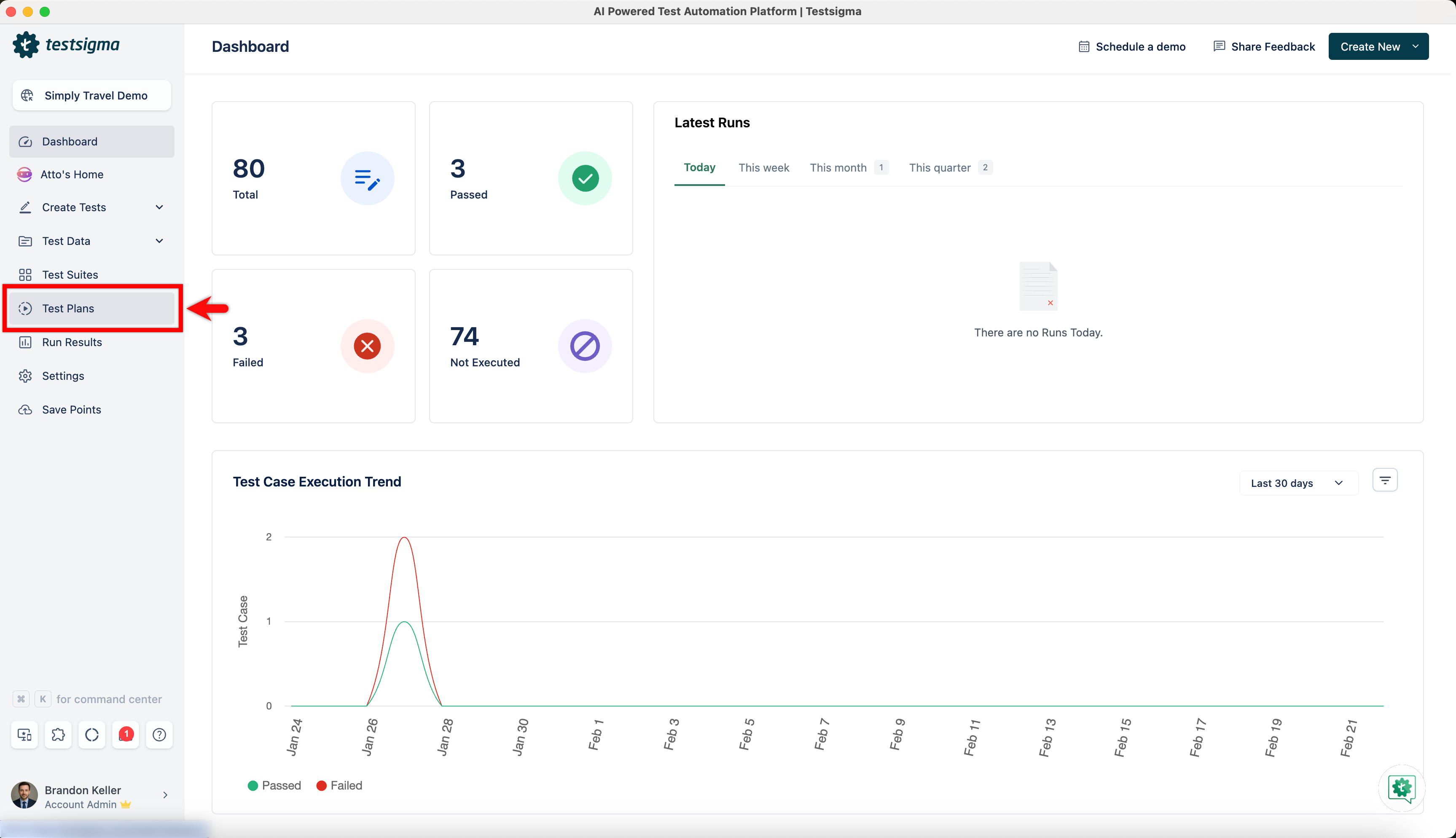
Section titled “Adding a Test Machine to an Existing Test Plan”- Navigate to Test Plans and click on an existing test plan.
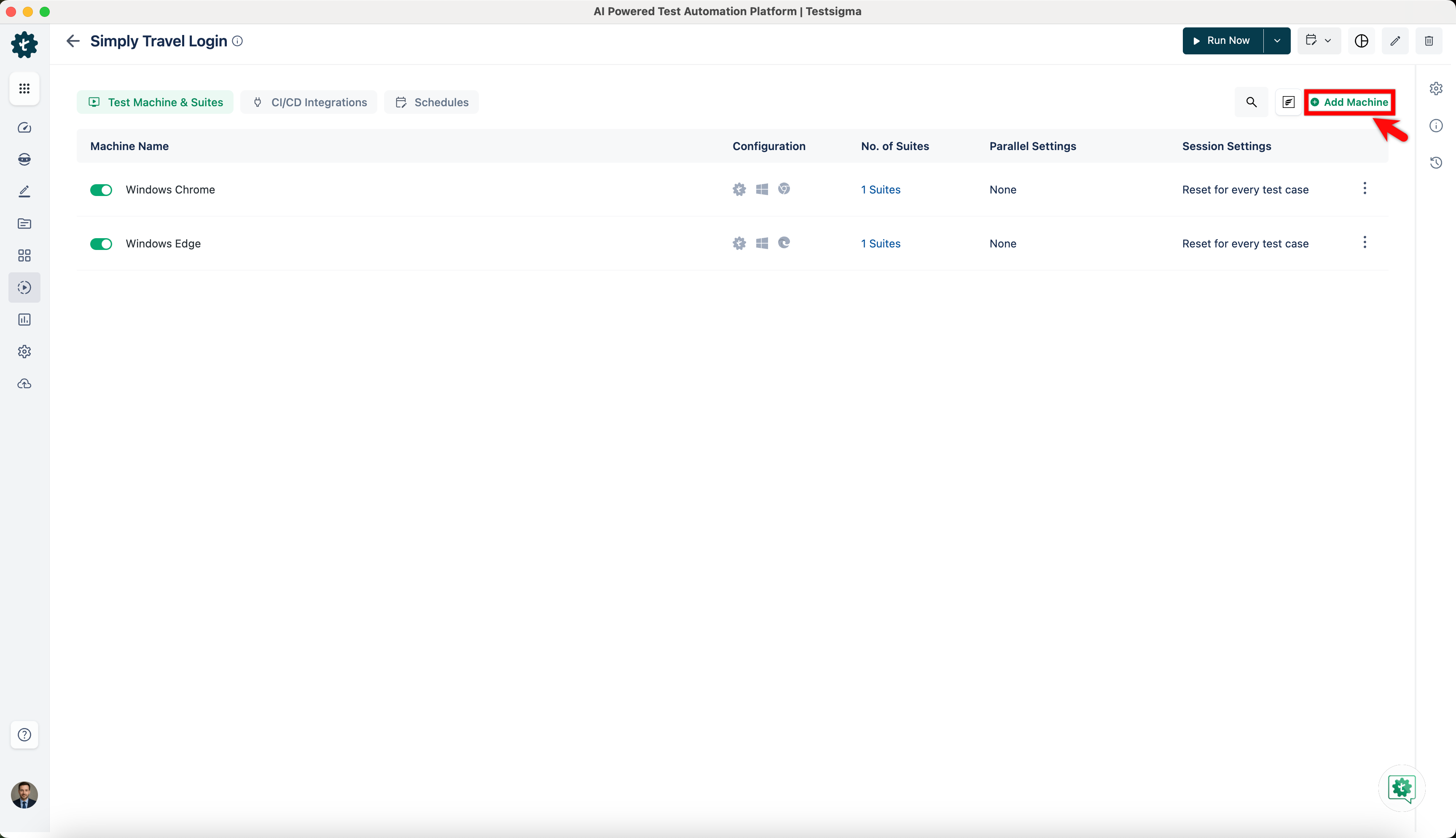
- On the Test Plan Details page, click on Add Machine.
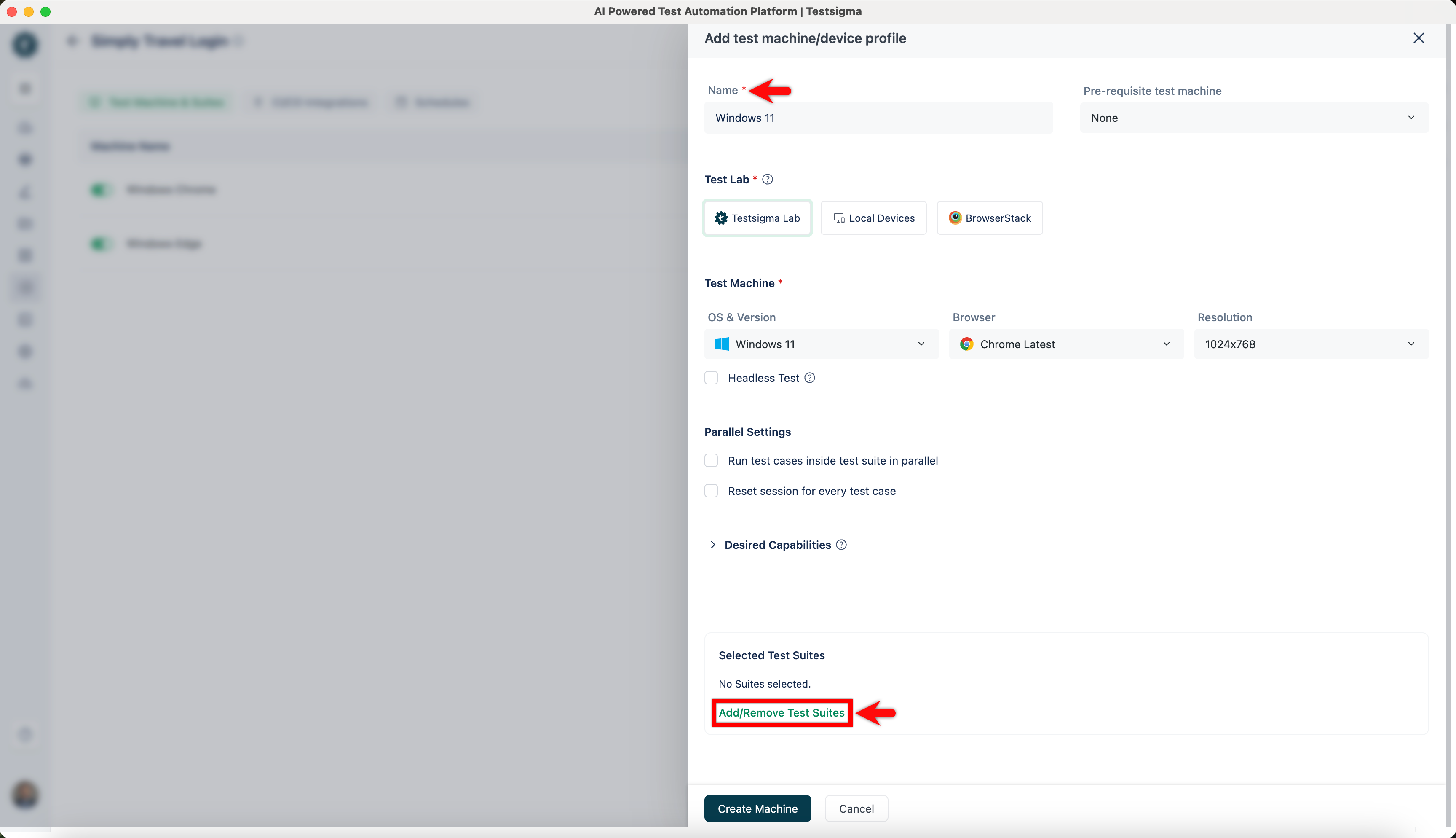
- On Add test machine/device profile overlay, add Name and click on Add/Remove Test Suites.
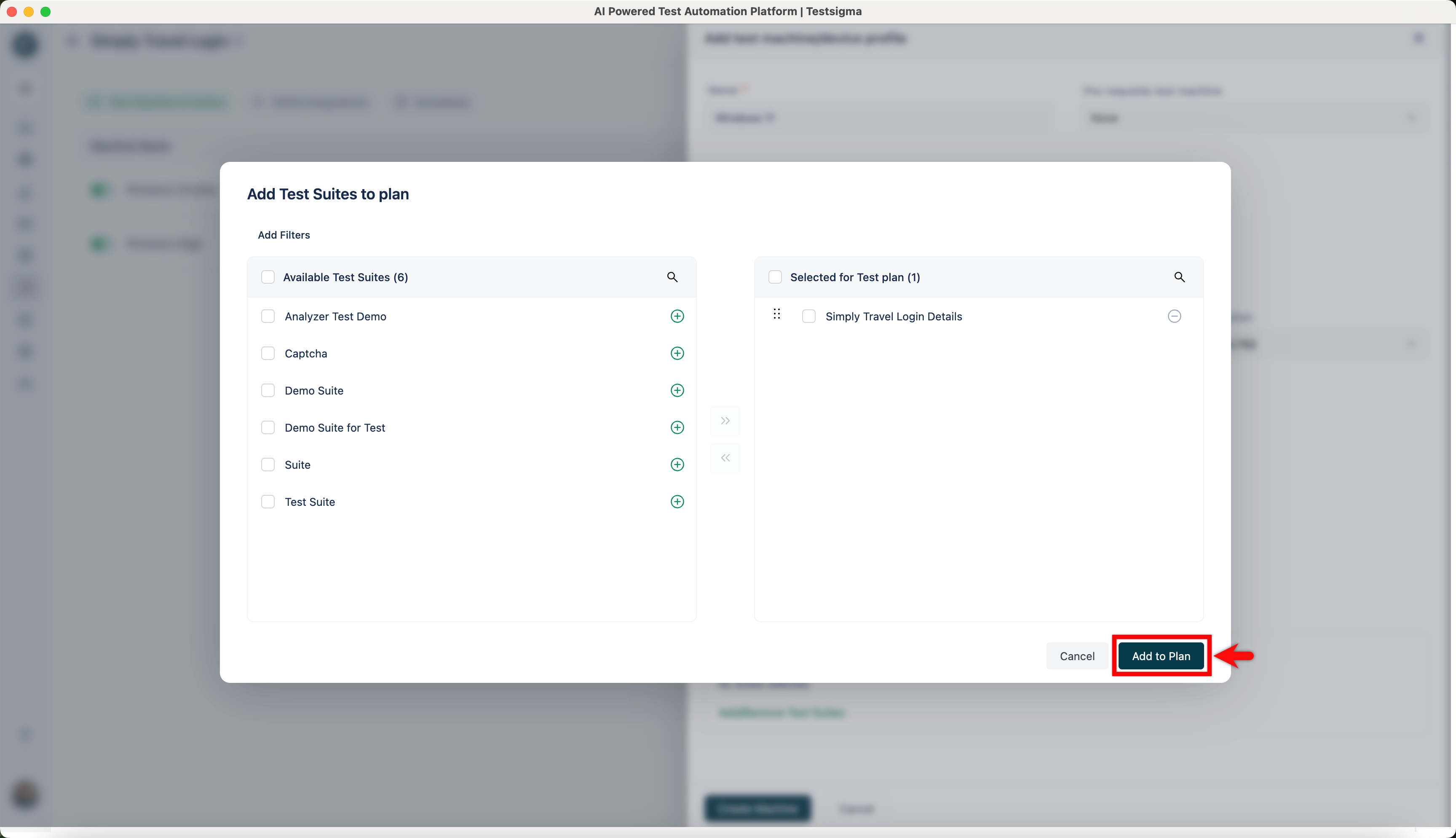
- Select test suites and click on Add to Plan.
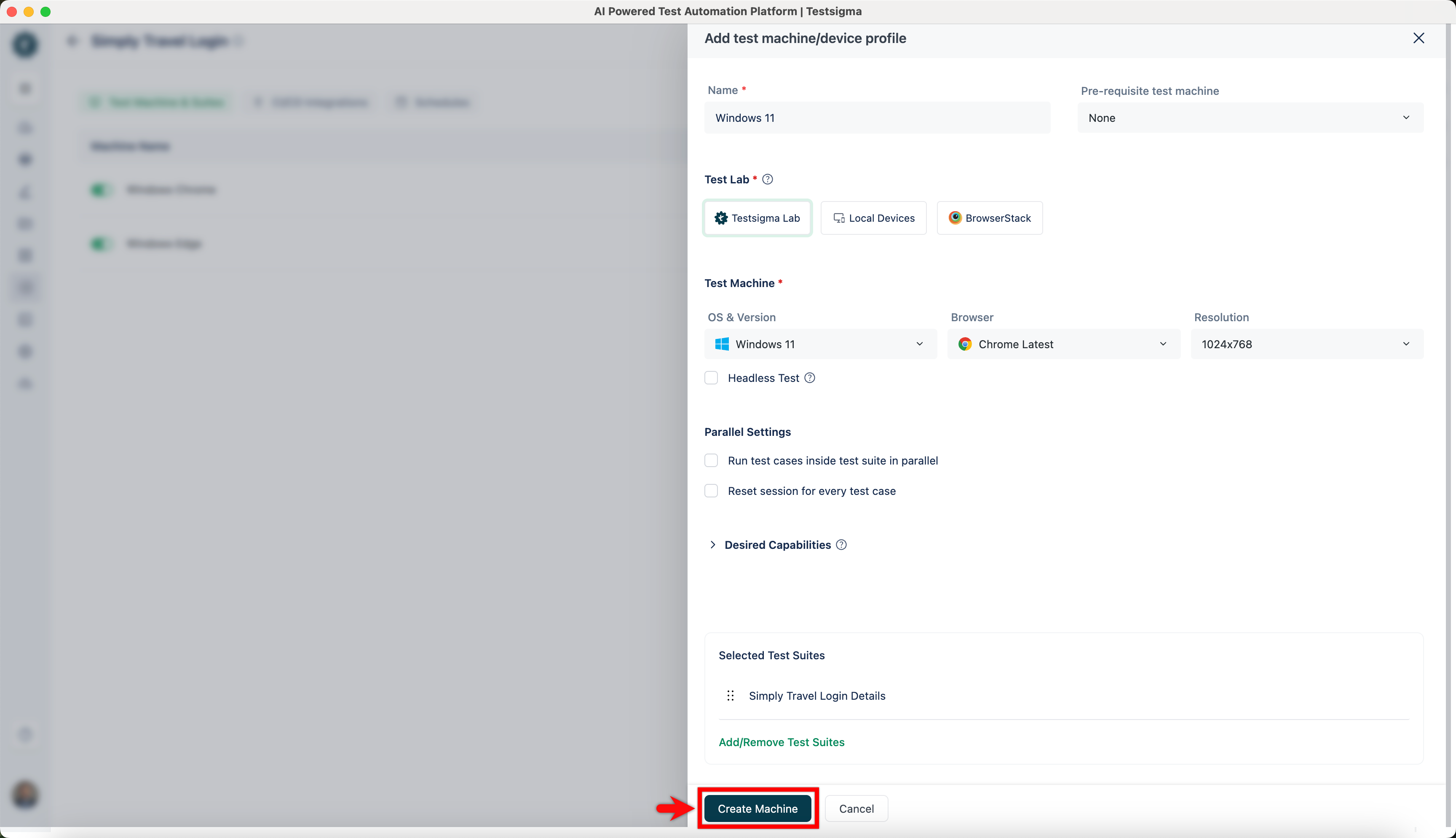
- Click on Create Machine.
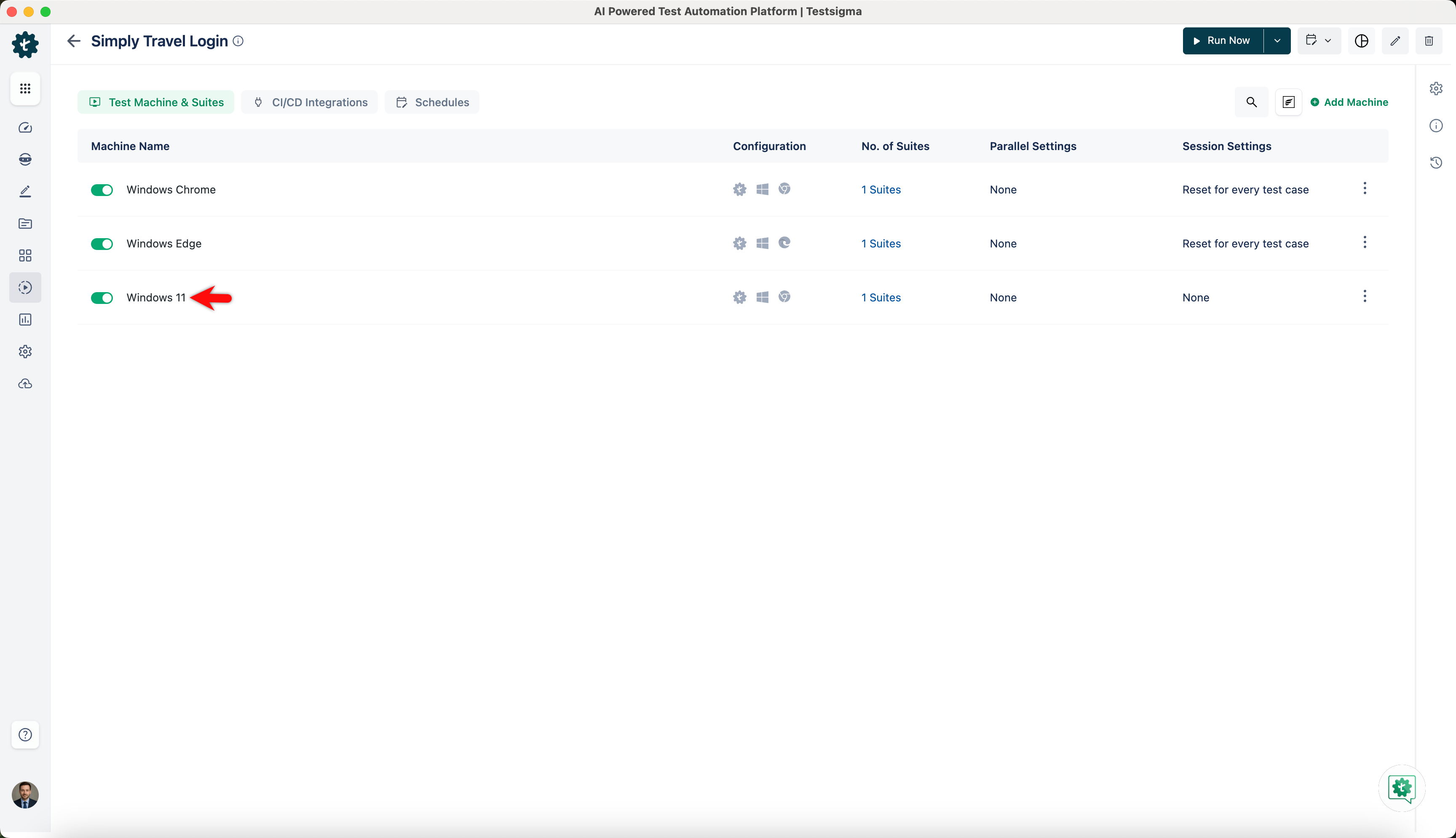
- A New machine will be added to the test plan.
Alternatively, you can also add new machines from the edit test plan page.
Adding a Test Machine From Edit Test Plan Page
Section titled “Adding a Test Machine From Edit Test Plan Page”- Navigate to Test Plan and click on an existing test plan.
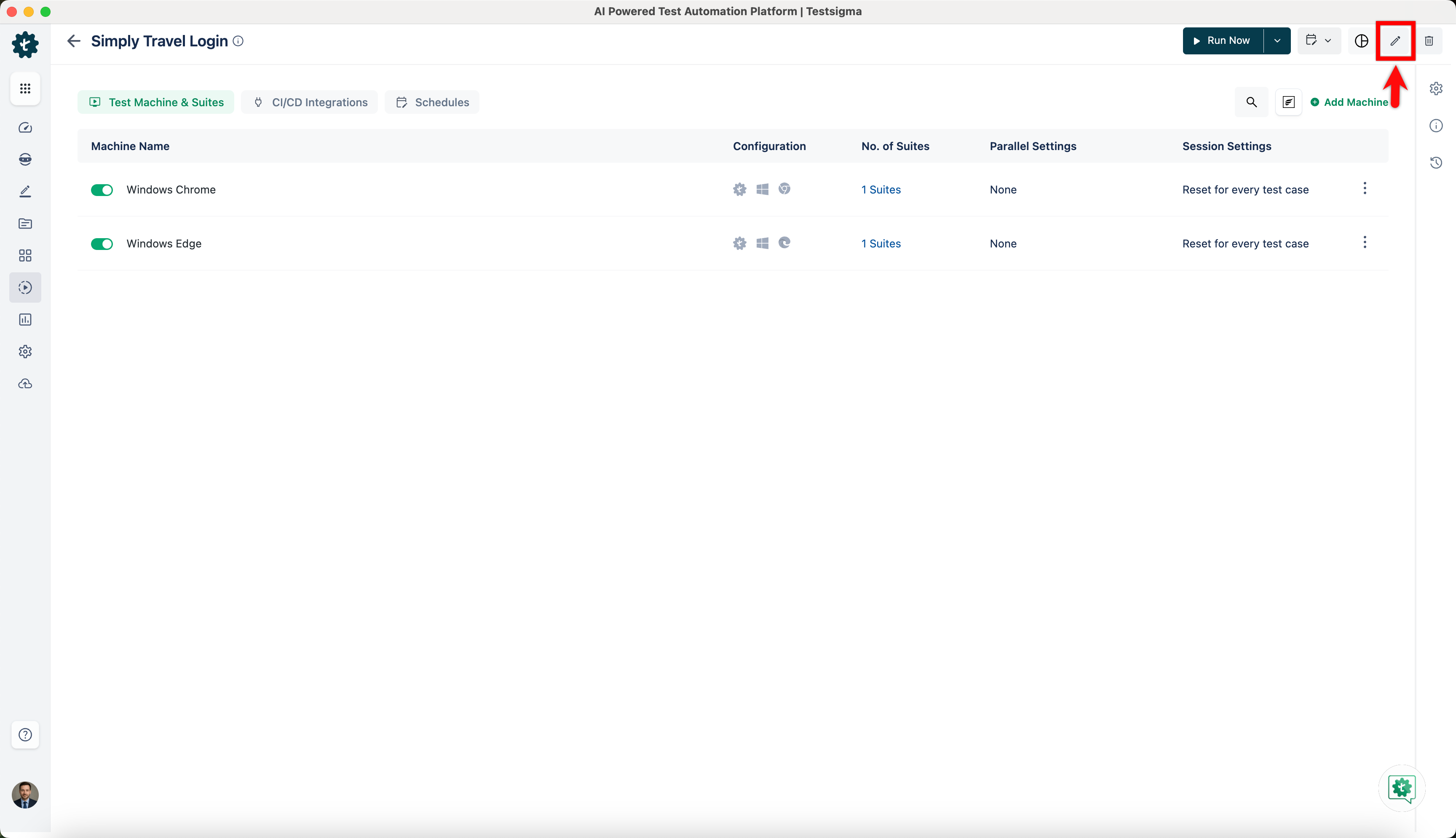
- On the test plan details page, click on Edit.
- Go to Add Test Suites & Link Machine Profiles and click on Test Machine.
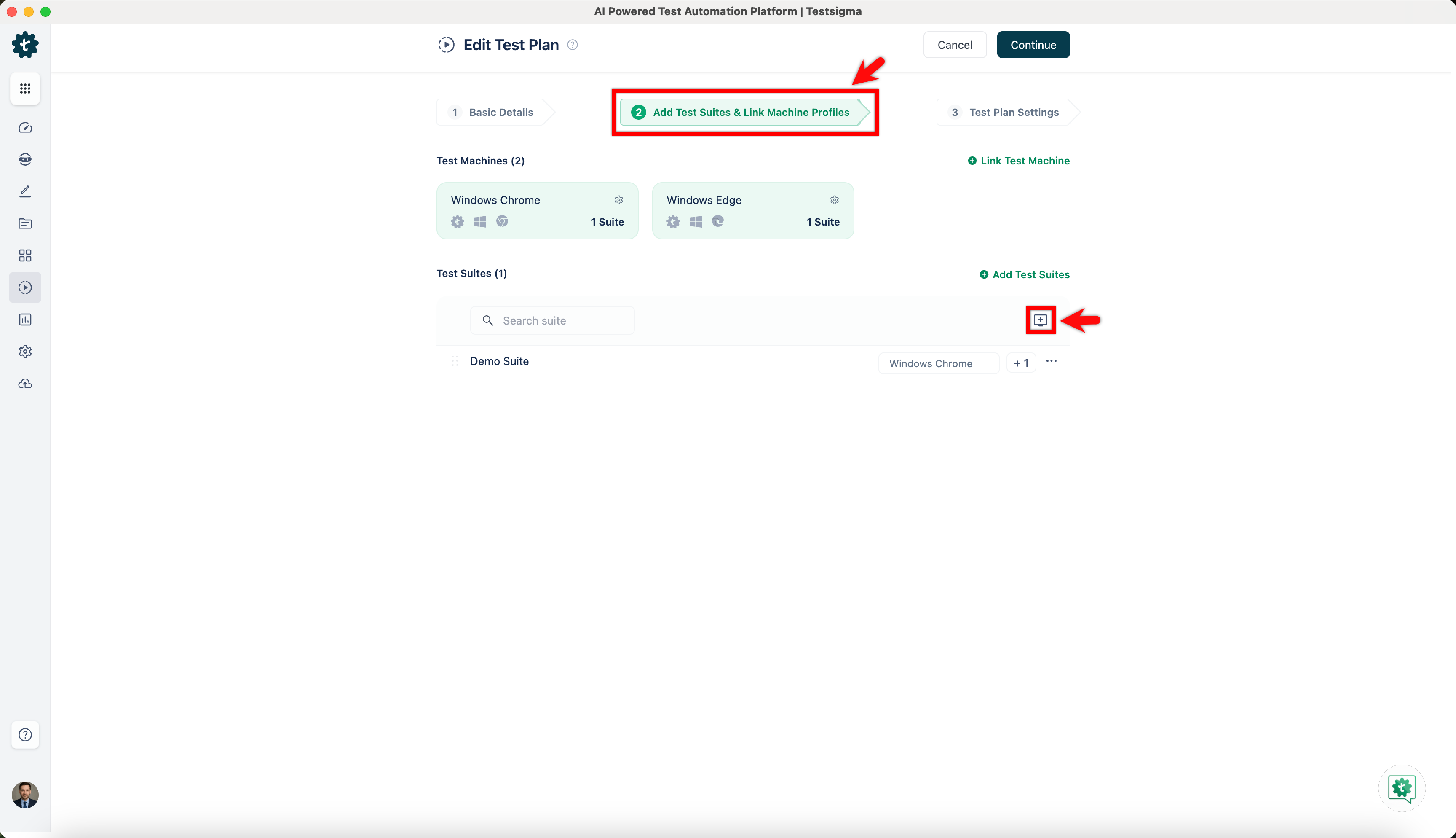
- From Select test machine profiles overlay, select test machines and click on Save selections.
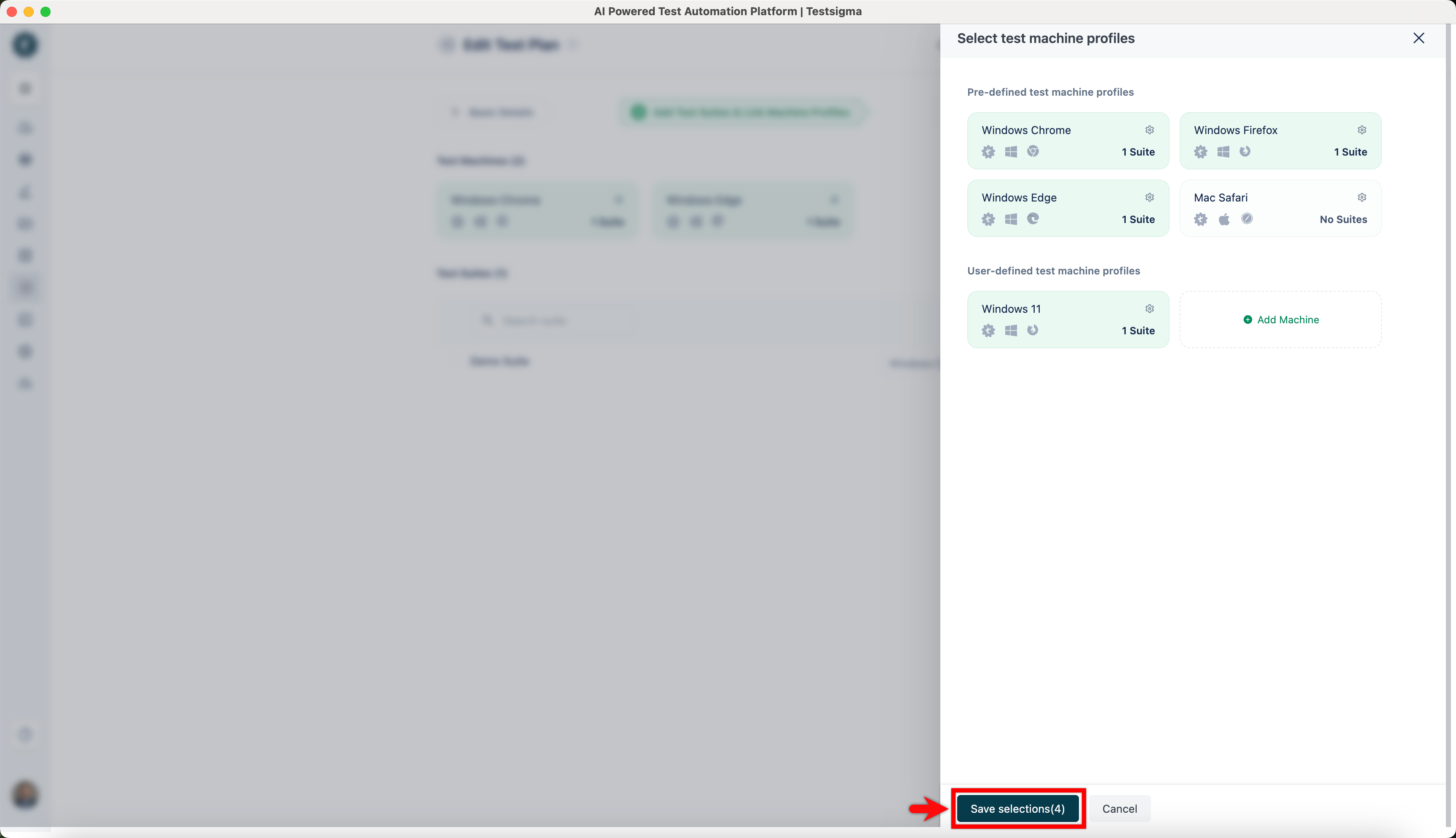
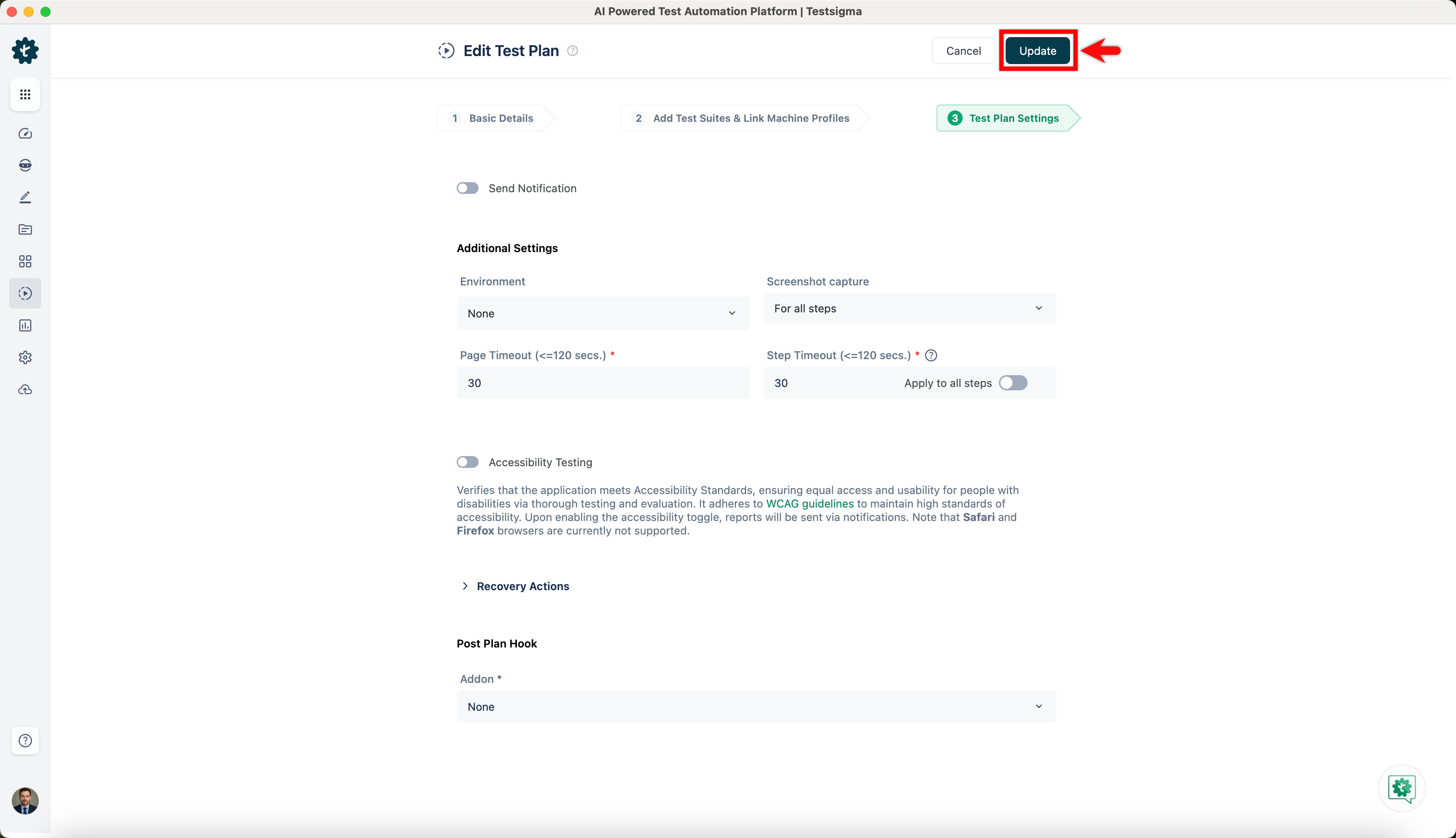
- Go to Test Plan Settings and click on Update.
- Selected machines will be added to the test plan.
Delete Test Machine
Section titled “Delete Test Machine”- Navigate to Test Plan and click on an existing test plan.
- On the test plan details page, click on Kebab Menu and click on Delete.
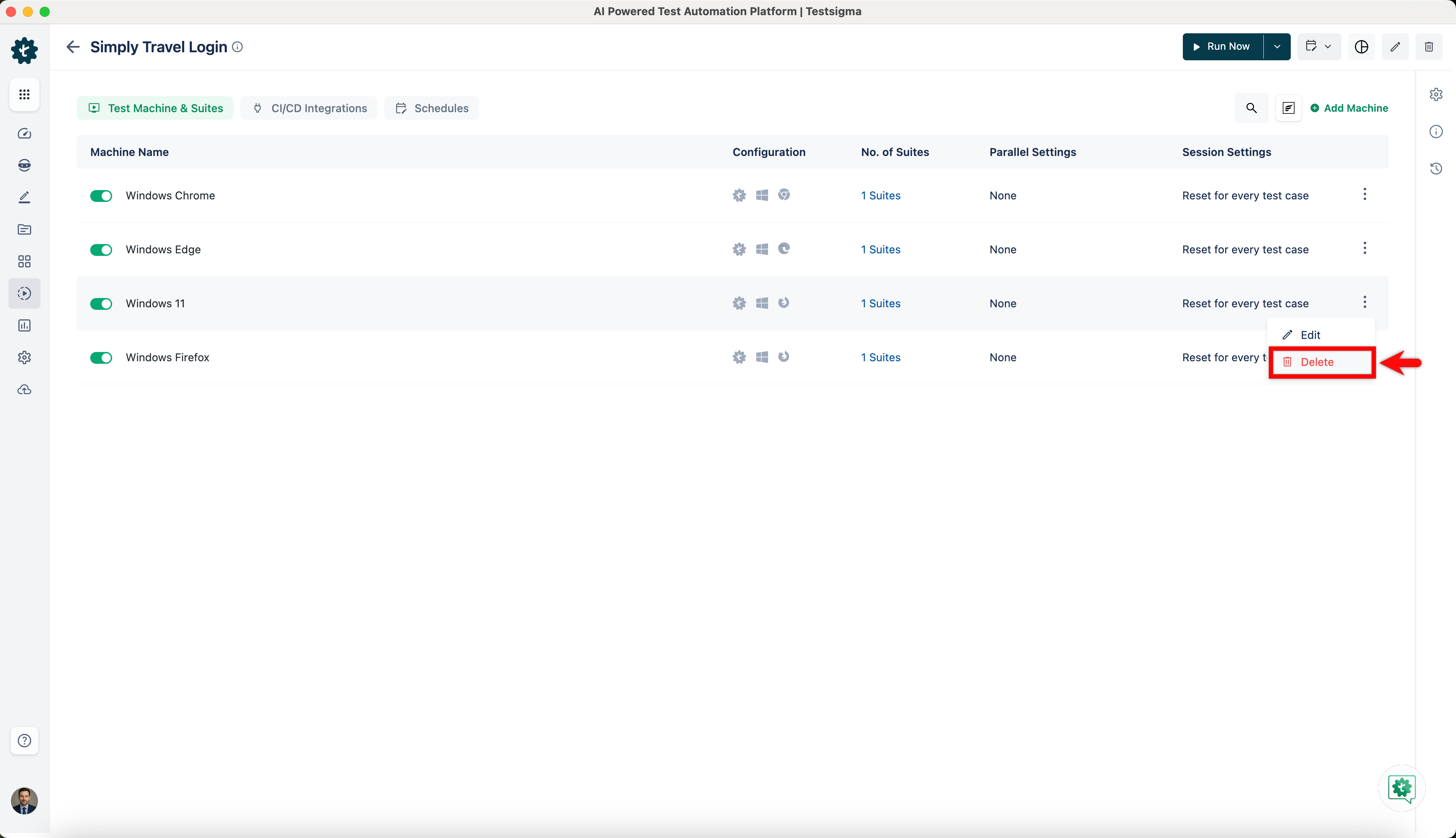
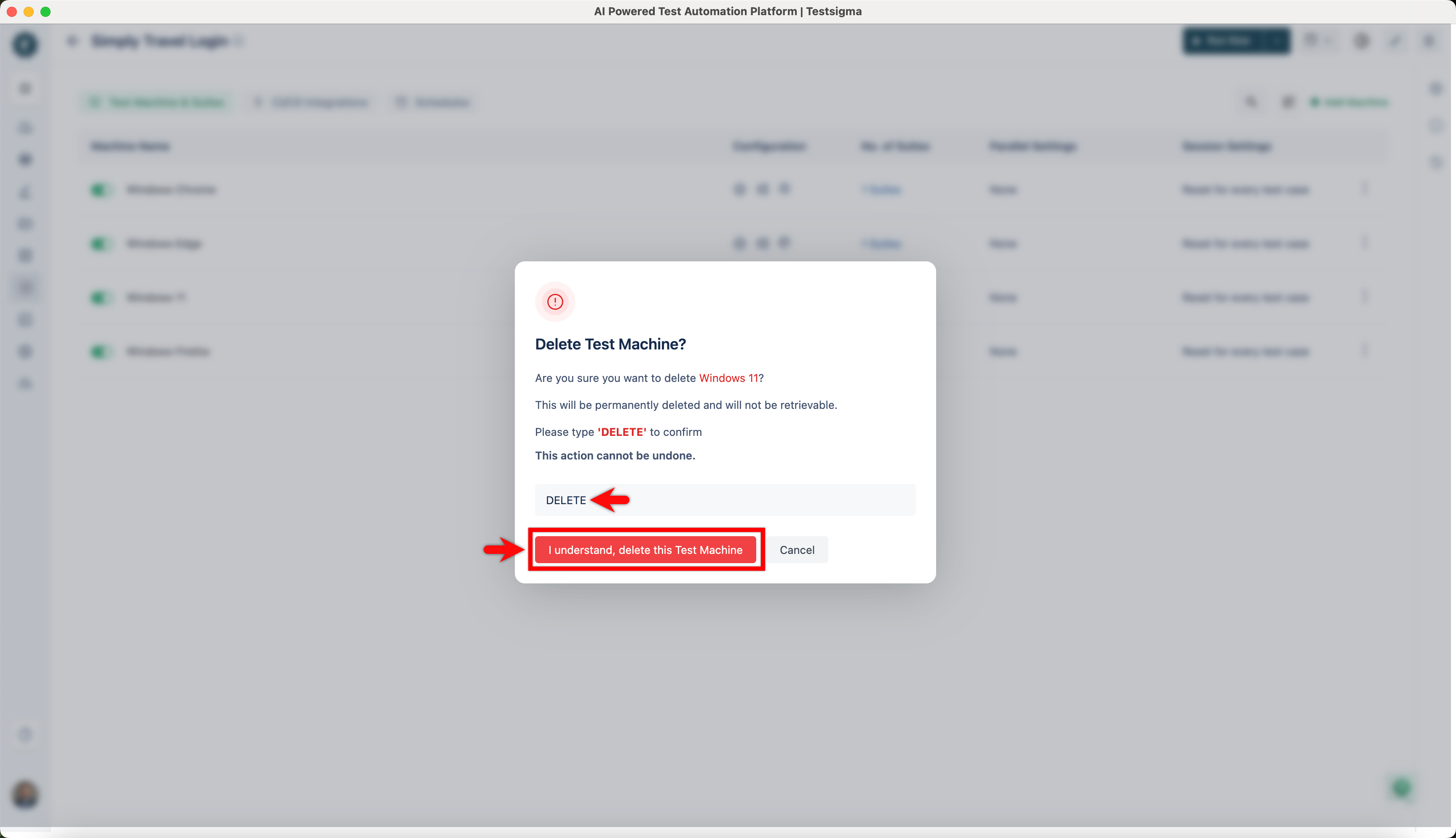
- On the Delete Test Machine? prompt, enter DELETE and click on I understand, delete this Test Machine.