
Test Step Recorder
Freeze Elements and Add Verifications or Actions
Steps to Freeze Elements and Add Verifications or Actions
Section titled “Steps to Freeze Elements and Add Verifications or Actions”-
From the left navigation bar, go to Create Tests > Test Cases.
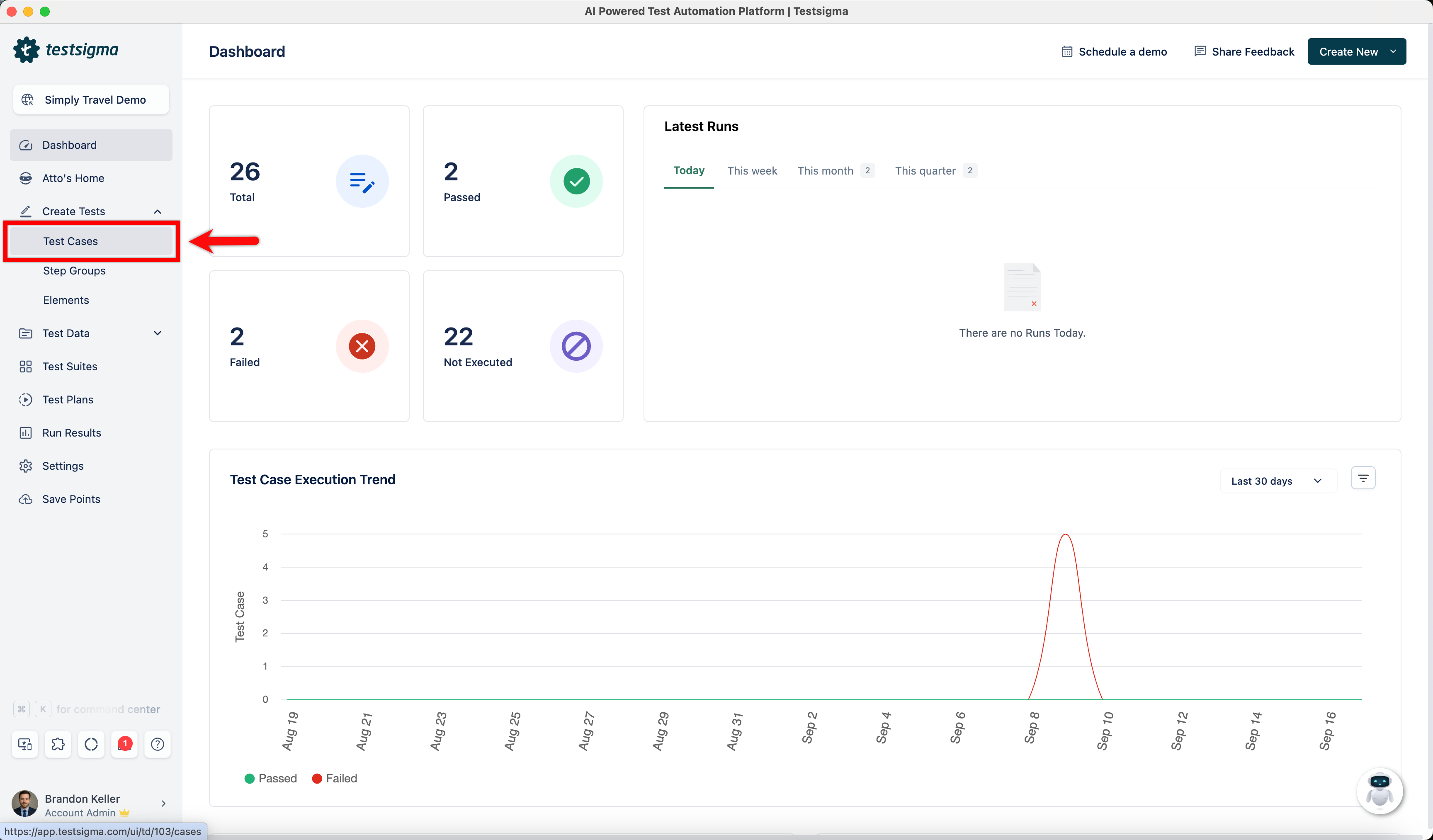
-
In the Test Case Explorer section, expand the required Feature and select the + icon next to the scenario.
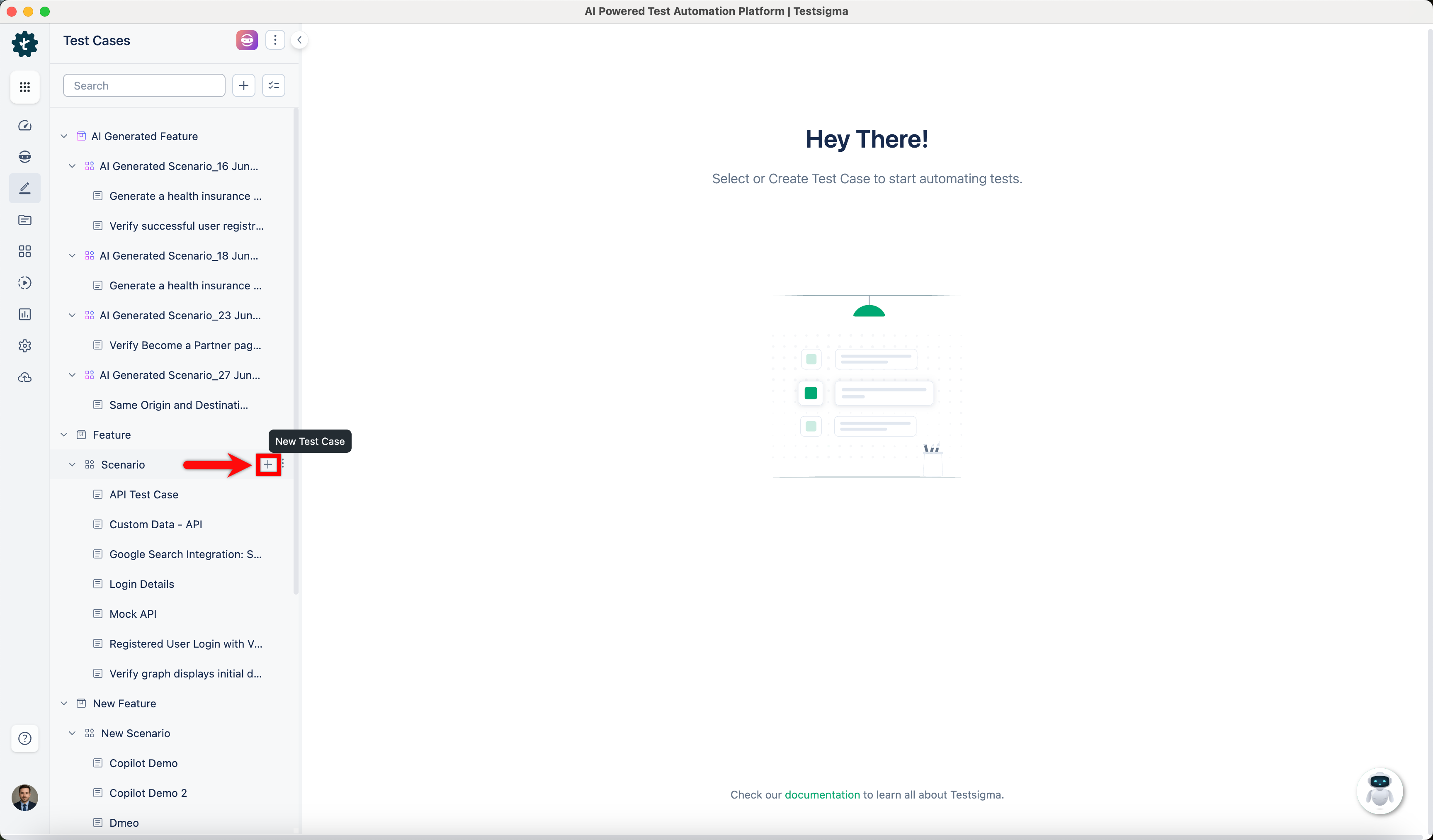
-
In the dialog box, enter a name for the test case and select Create.
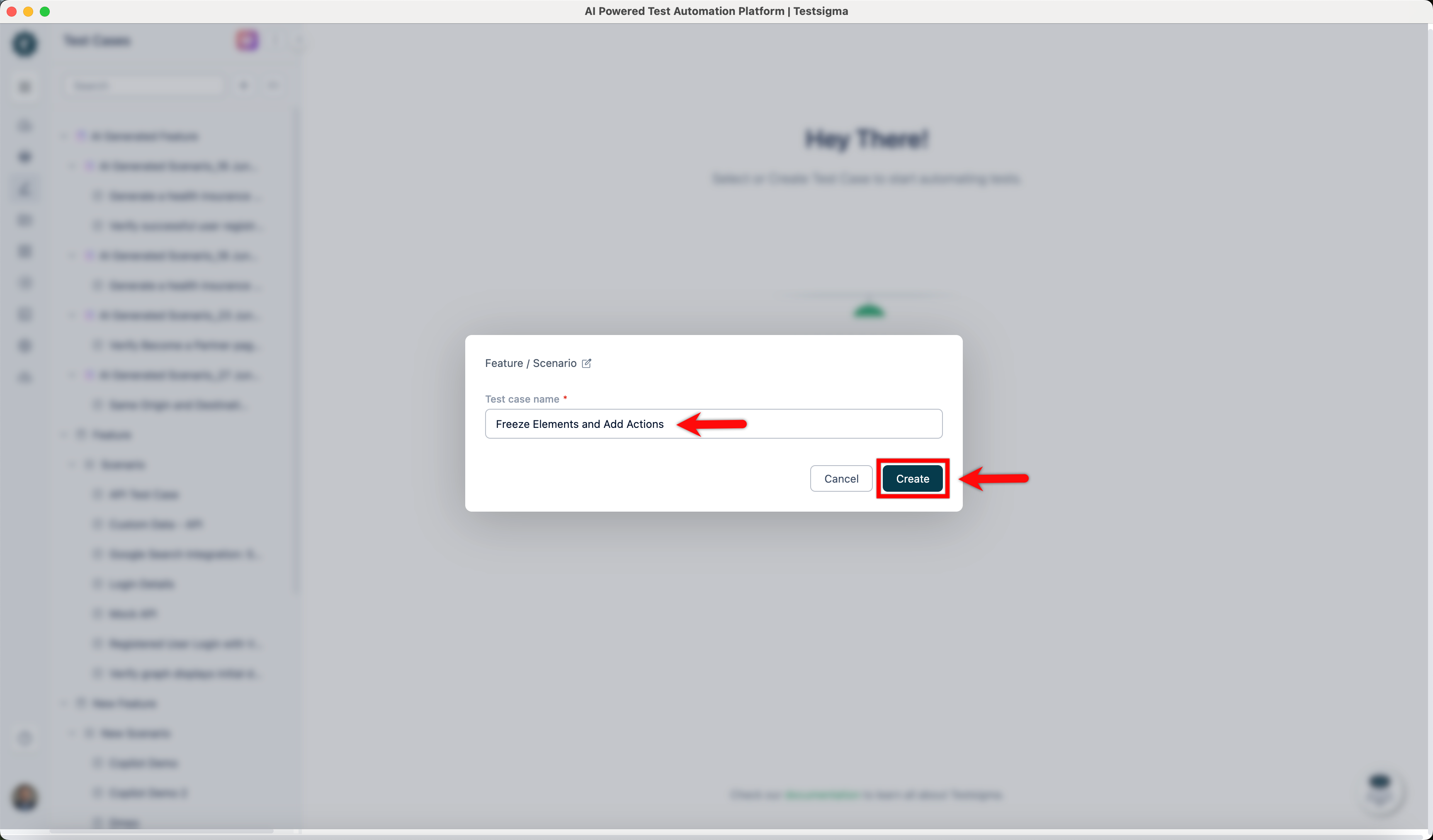
-
On the Test Case Details page, select Record.
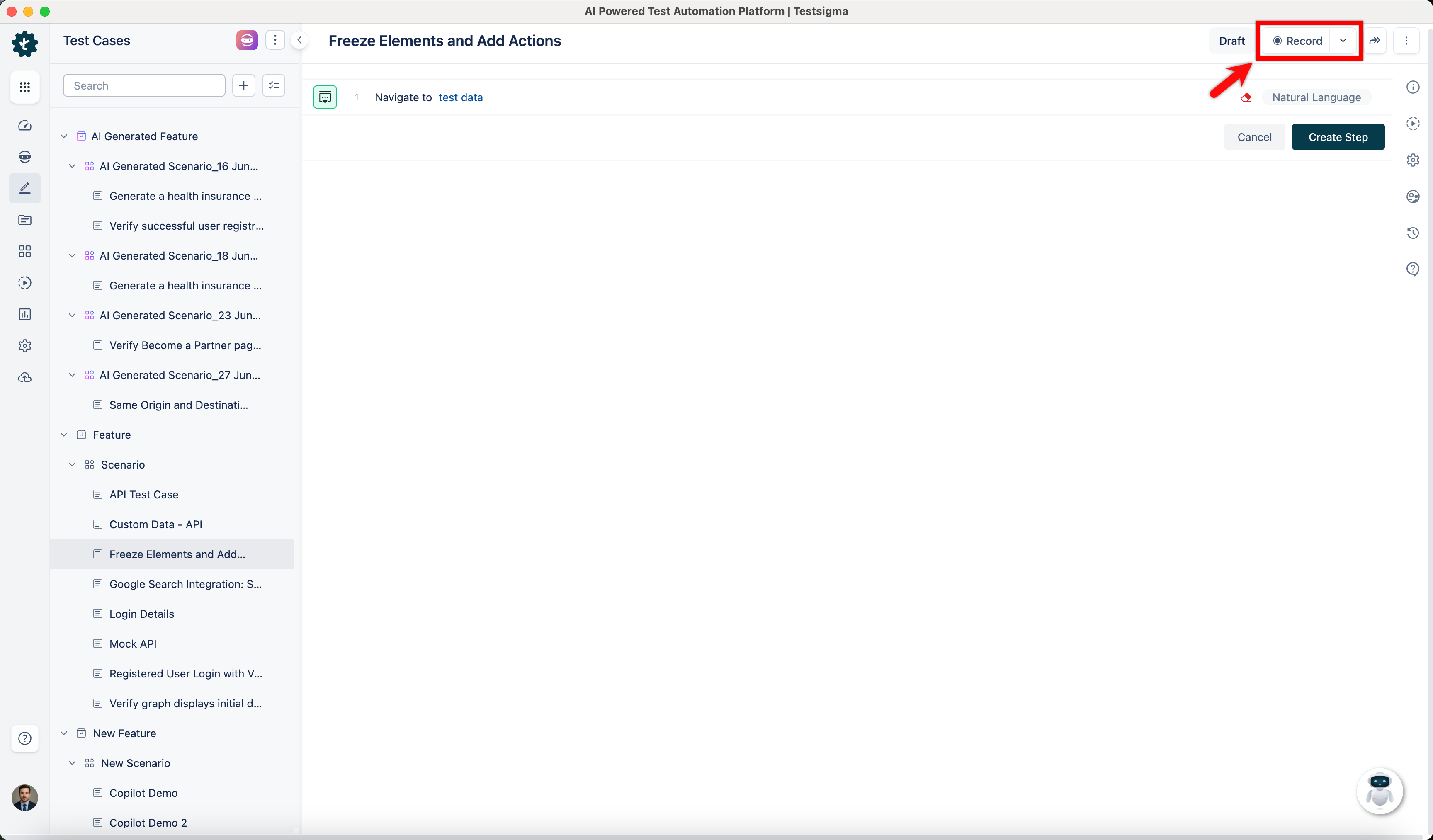
-
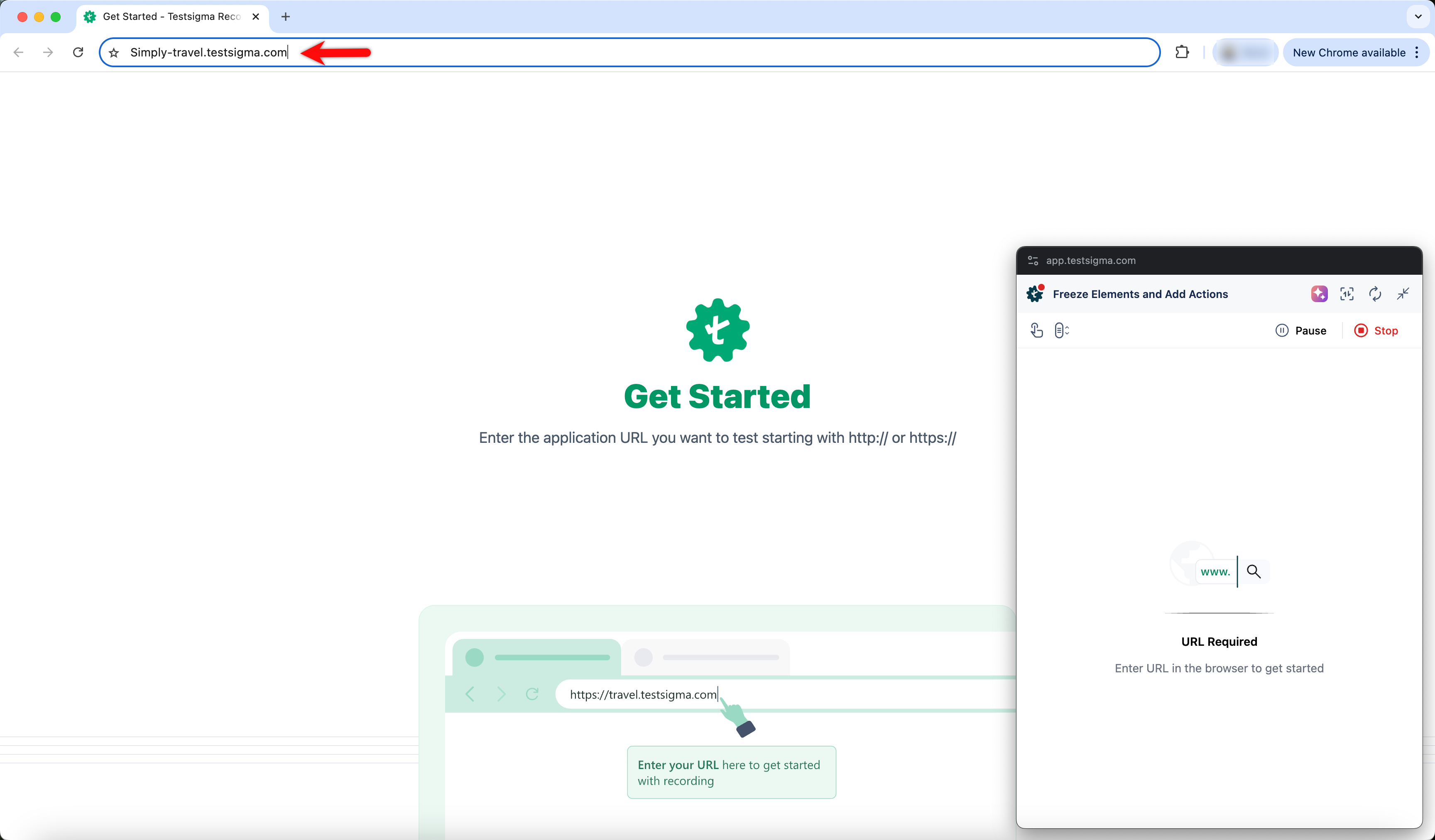
In the new window, enter the URL of the website you want to record.
-
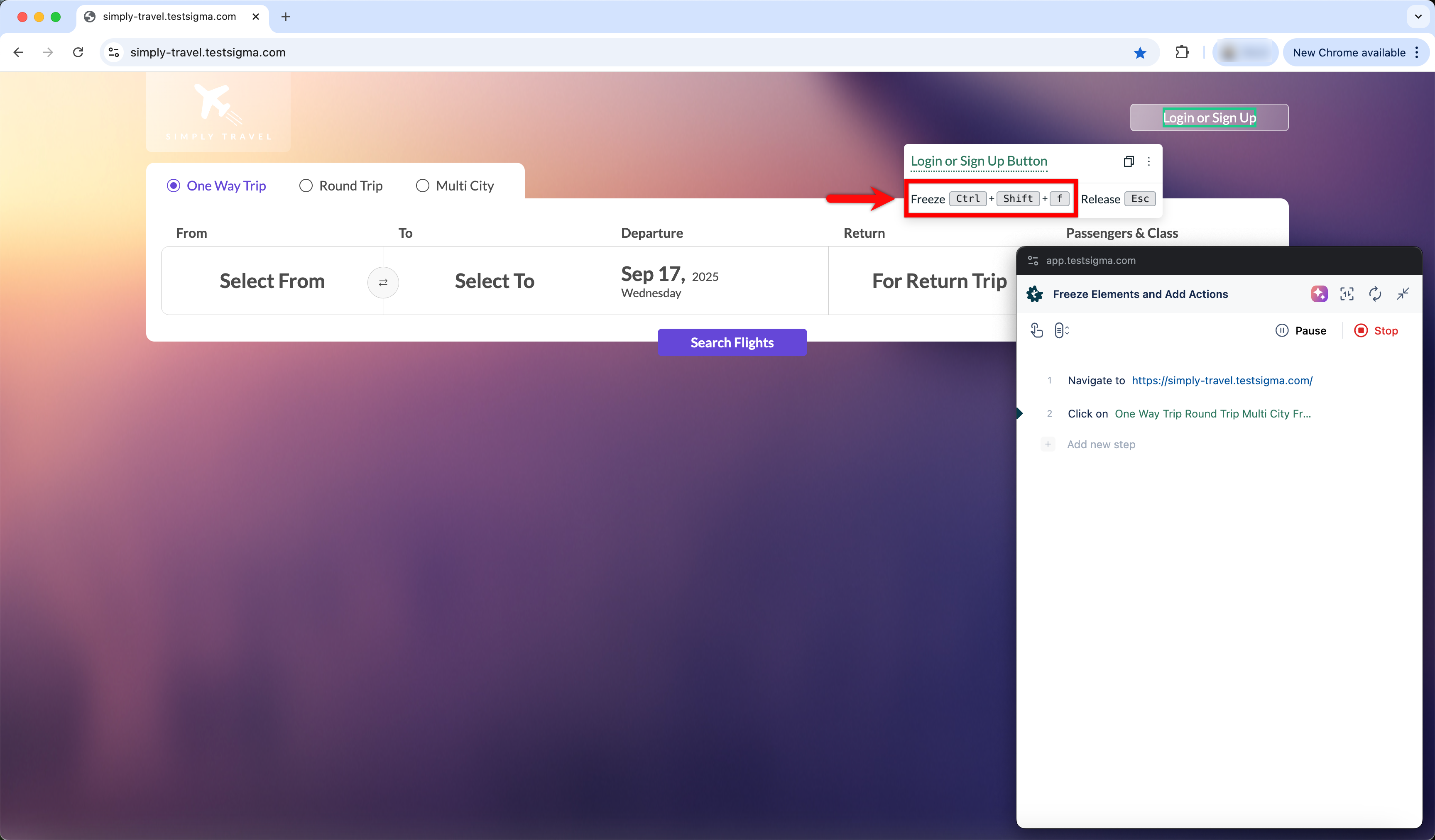
Hover over the element and press the keys to freeze it:
- For Windows: Ctrl + Shift + F
- For Mac: Command + Shift + F
-
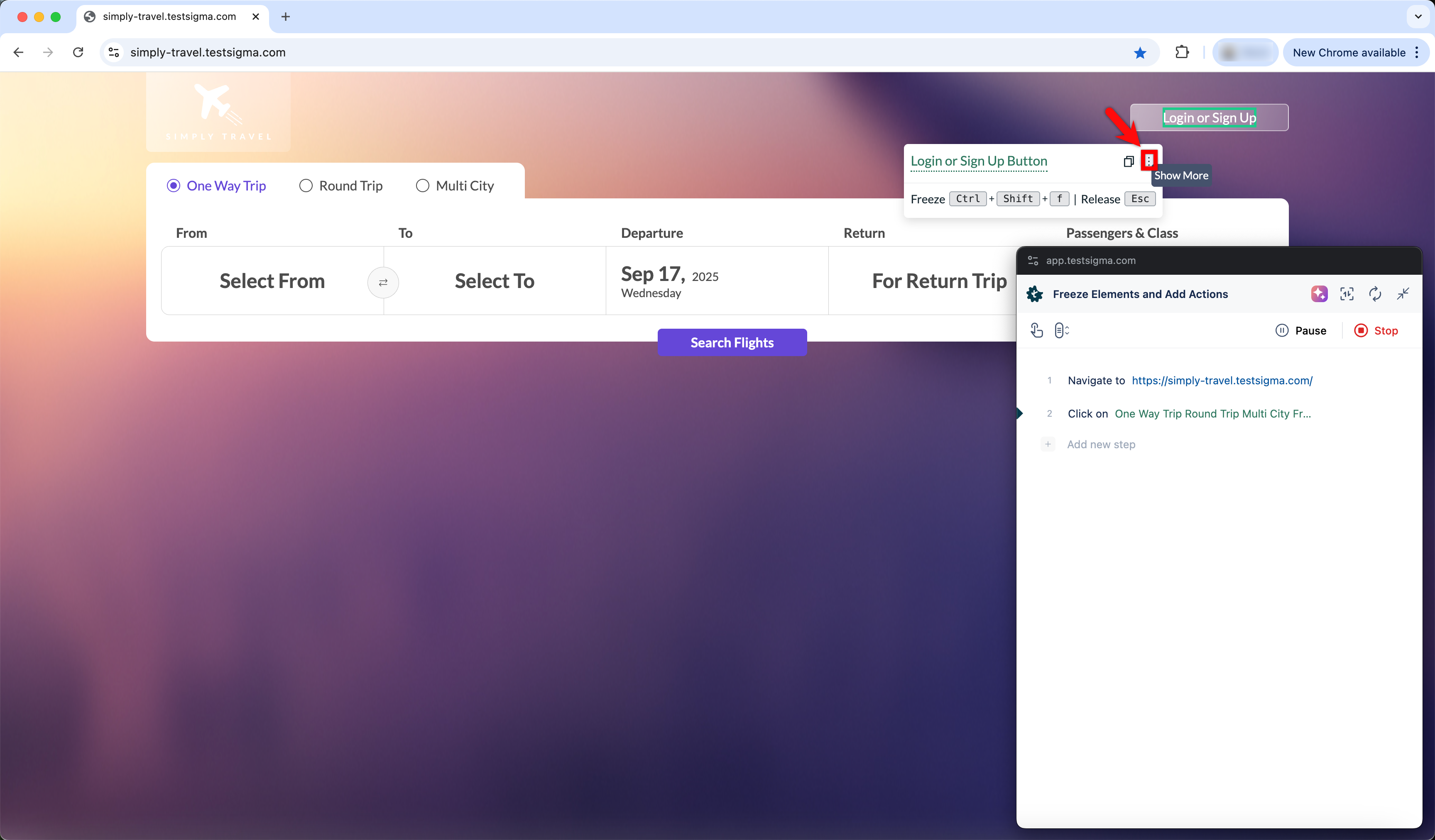
Select the Show More icon.
-
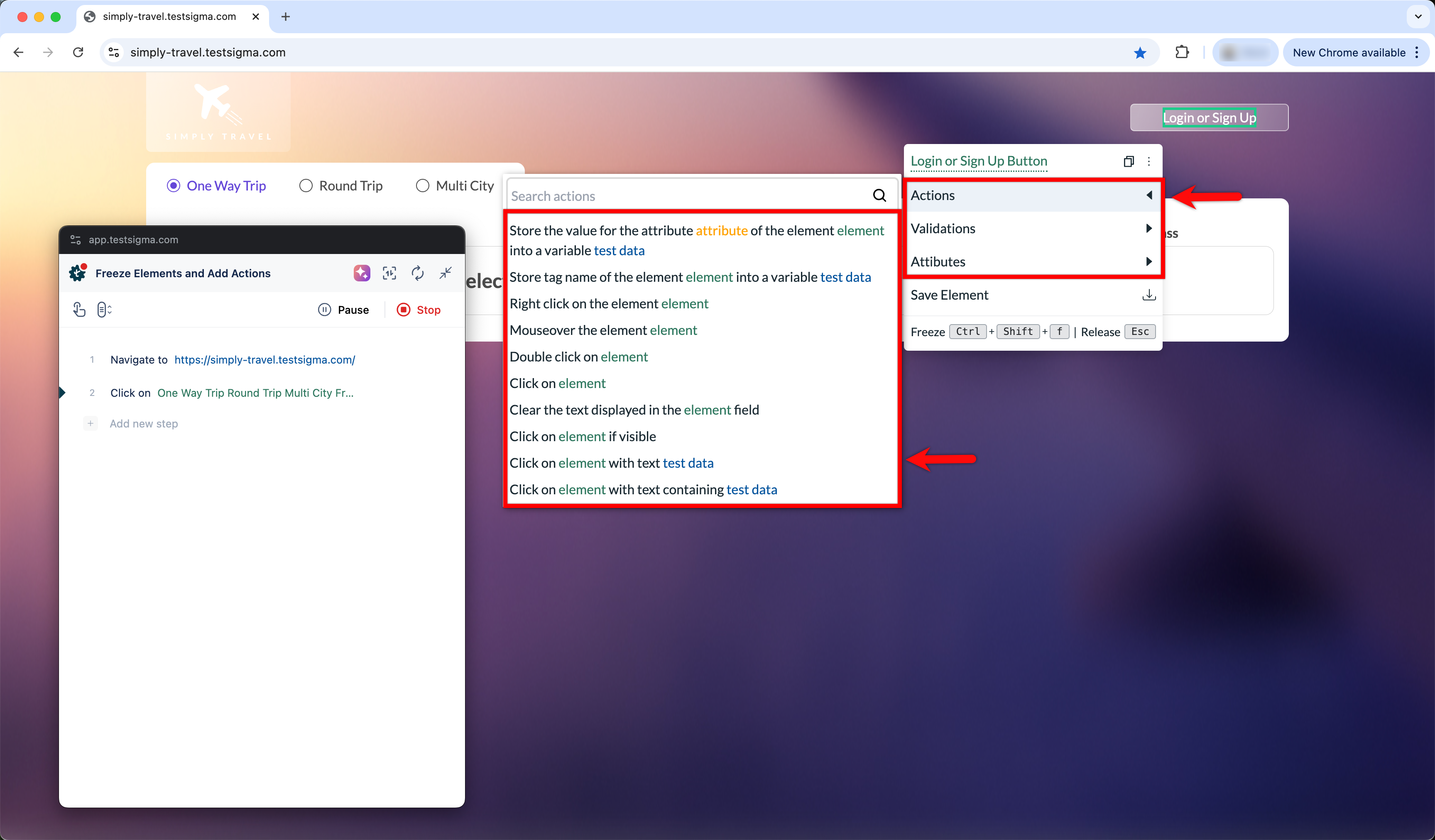
Expand the menu and choose the required verification or action.
-
Once you finish recording, select Stop.
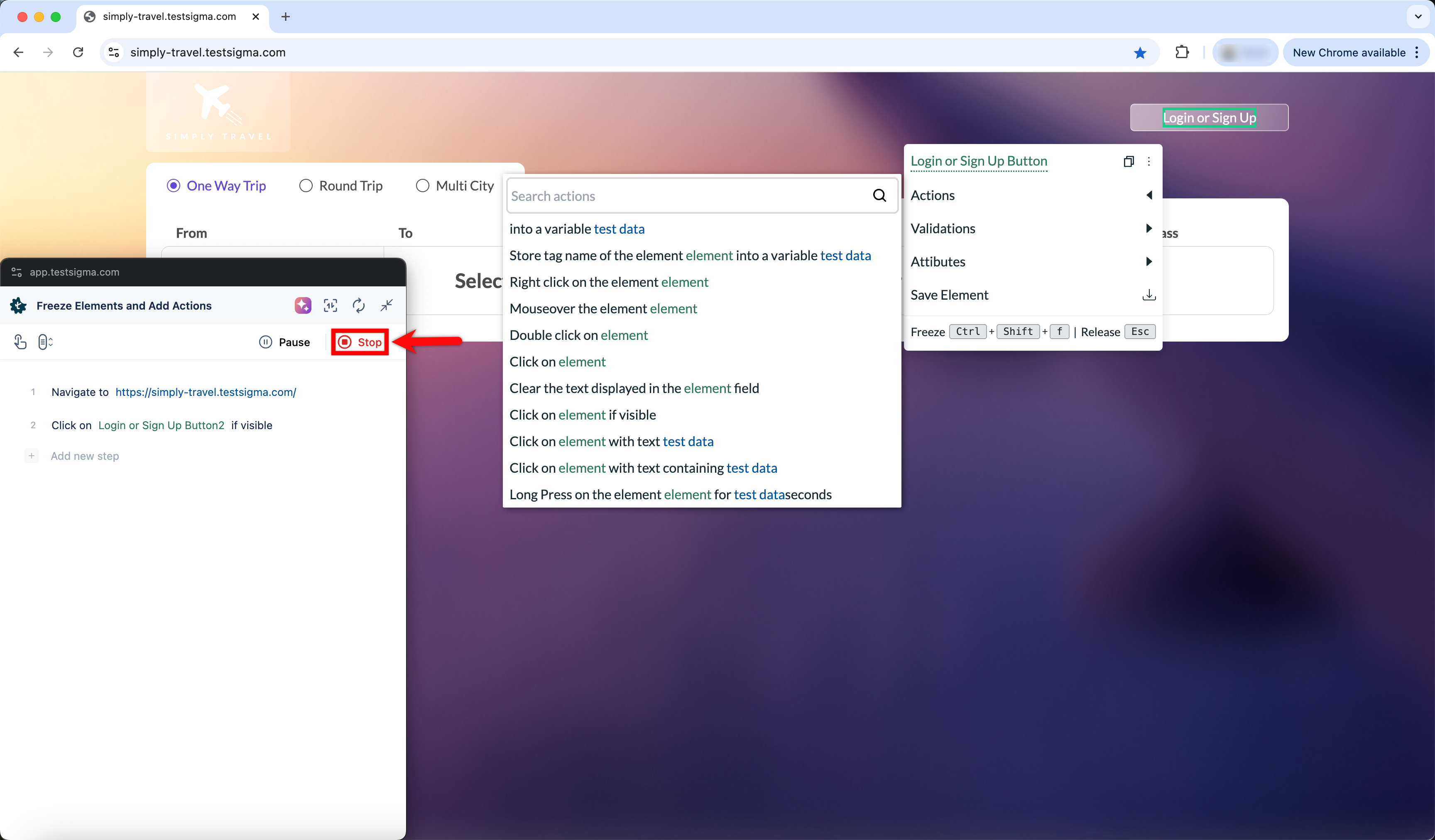
-
You are redirected to the Test Case Details page, where all recorded steps are displayed.