
FAQs
How to Configure the OracleDB Add-on in Testsigma?
In Testsigma, the configuration of the Oracle Database add-on requires specific database connection details to ensure successful communication between the application and the Oracle database. This article discusses how to install the add-on and set up the database connection.
Steps to Install the Addon
Section titled “Steps to Install the Addon”-
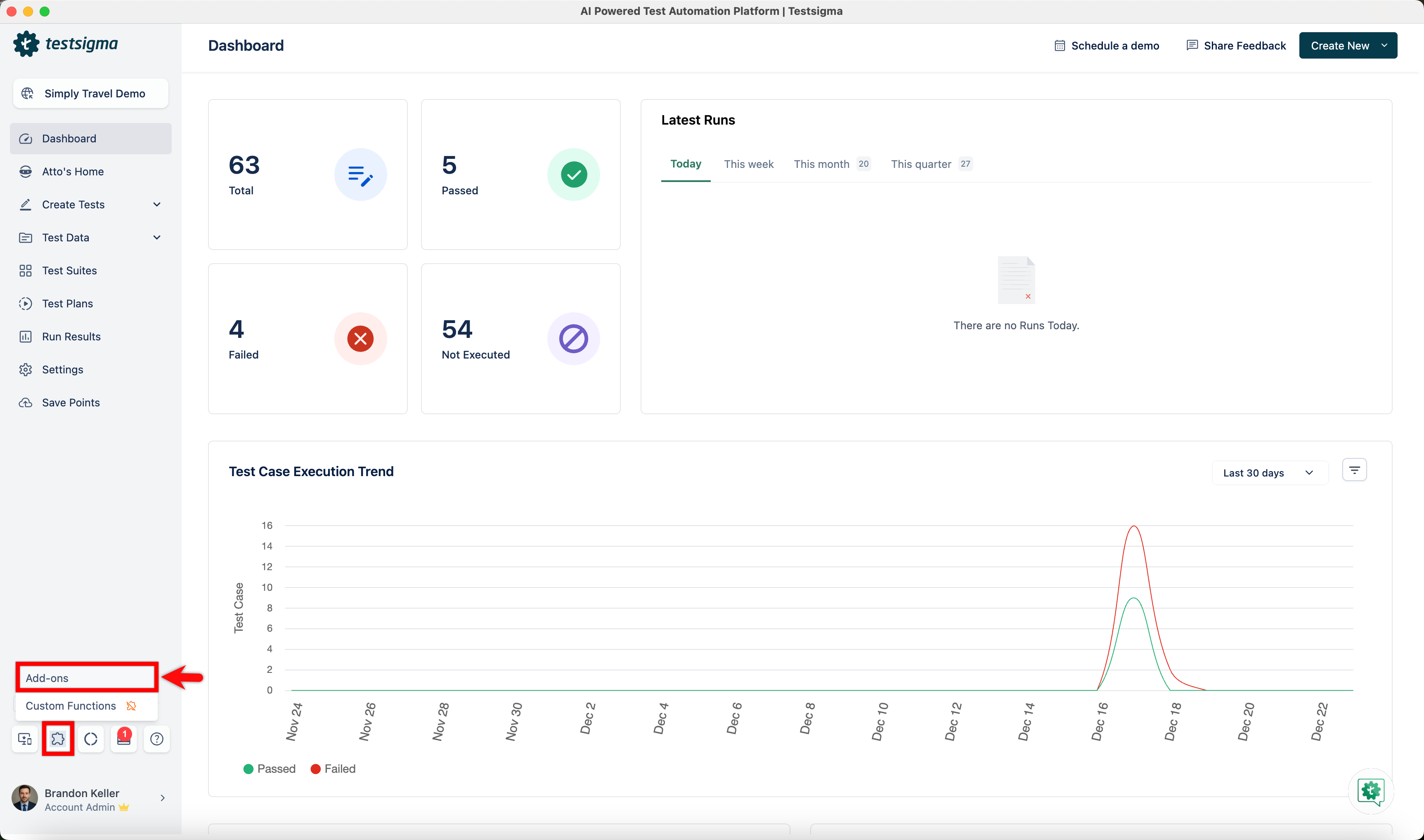
From the left navigation bar, go to Addons and click Add-ons.
-
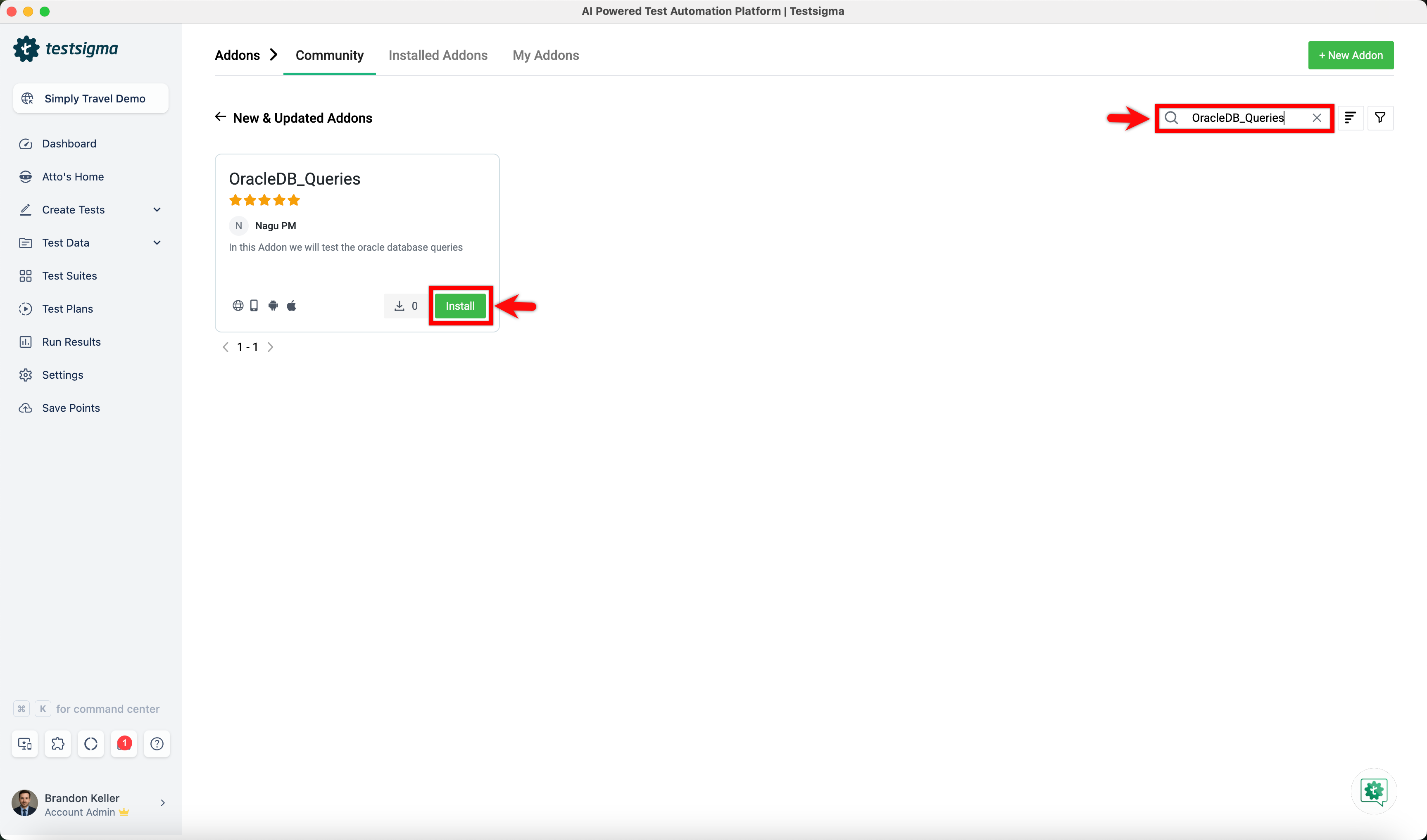
Under the New & Updated Addons section, search for the OracleDB_Queries addon and click Install.
Steps to Set Up the Database Connection
Section titled “Steps to Set Up the Database Connection”-
In your test case, use the Execute OracleDB Query on the Connection DB_Connection_URL and verify affected rows count is Row-Count NLP to execute the query and fetch the required database details.
-
Click the Query placeholder and enter the SQL query to be executed on the Oracle database.
Example query:
SELECT * FROM employees WHERE employee_id = 103;
This query fetches all details of the employee whose ID is 103 from the employees table. Use this example as a reference and replace it with the required query based on your test scenario.
-
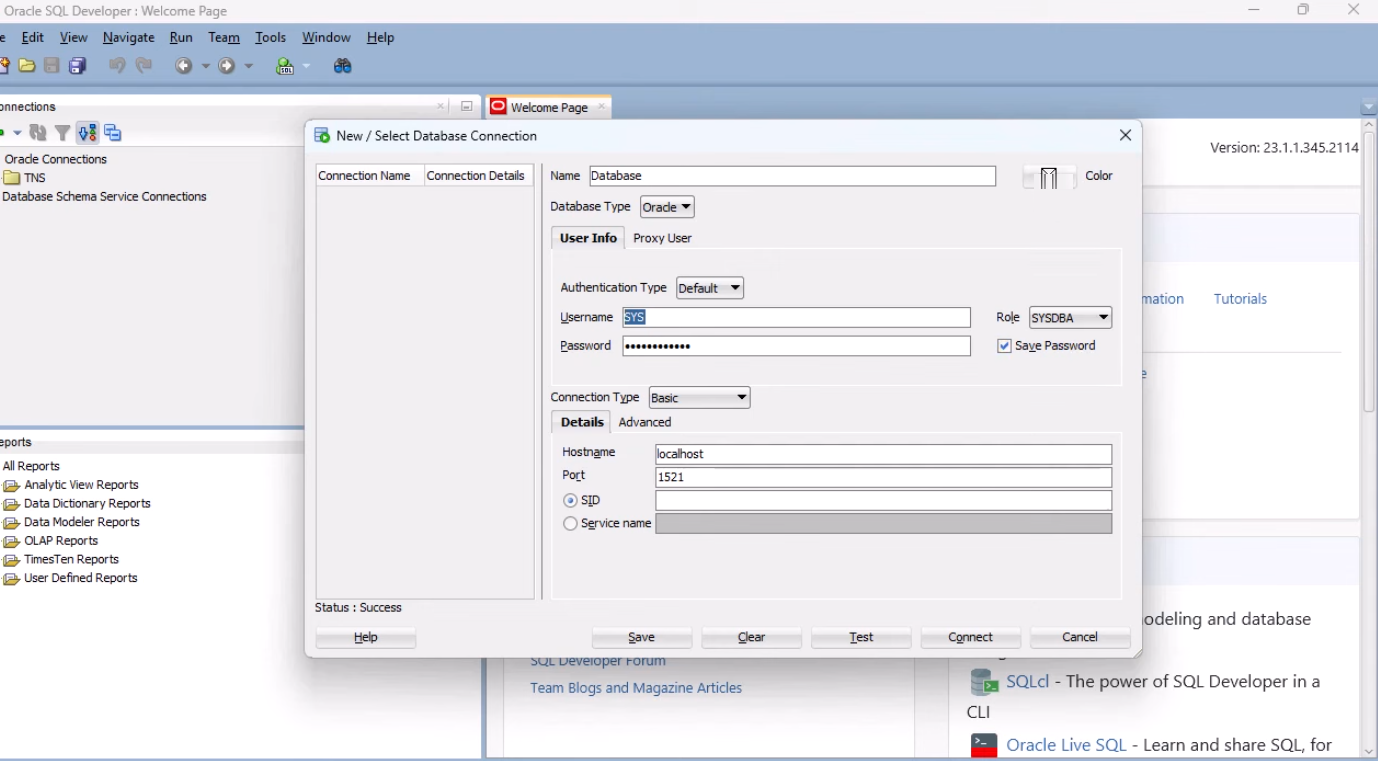
Click the DB_Connection_URL placeholder and use the following syntax to enter the URL:
jdbc:oracle:thin:@//<host>:<port>/<service_name>?user=<username>&password=<password>&internal_logon=<role>
Now, replace the placeholders with your Oracle database details:
- Host Name – The hostname of your database server (e.g., localhost).
- Port – The port on which the database is running (e.g., 1521).
- Service Name – The service name of the database (or select SID if service name is unavailable).
- Username – Your database username (e.g., SYS).
- Password – Your database password.
- Role – Database role (e.g., SYSDBA).
SID Example:
jdbc:oracle:thin:@//localhost:1521/FREE?user=SYS&password=Test@123&internal_logon=SYSDBA
Service Name Example:
jdbc:oracle:thin:@//testing-email.com:1521/TFCP?user=test_fcp_develop&password=sigma&internal_logon=default
[[info | NOTE:]] | In the Service Name field: | - If you select SID, enter FREE (the default service). | - If you select Service Name, enter your actual service name.
-
Click the Row-Count placeholder and specify the expected number of affected rows for validation.
-
Click Create Step.