AI Agents
Analyzer Agent in Testsigma
Prerequisites
Before you begin, ensure that:
- At least one test plan has been executed.
- The test plan contains failed test cases.
Steps to Analyze Step Failures
Section titled “Steps to Analyze Step Failures”-
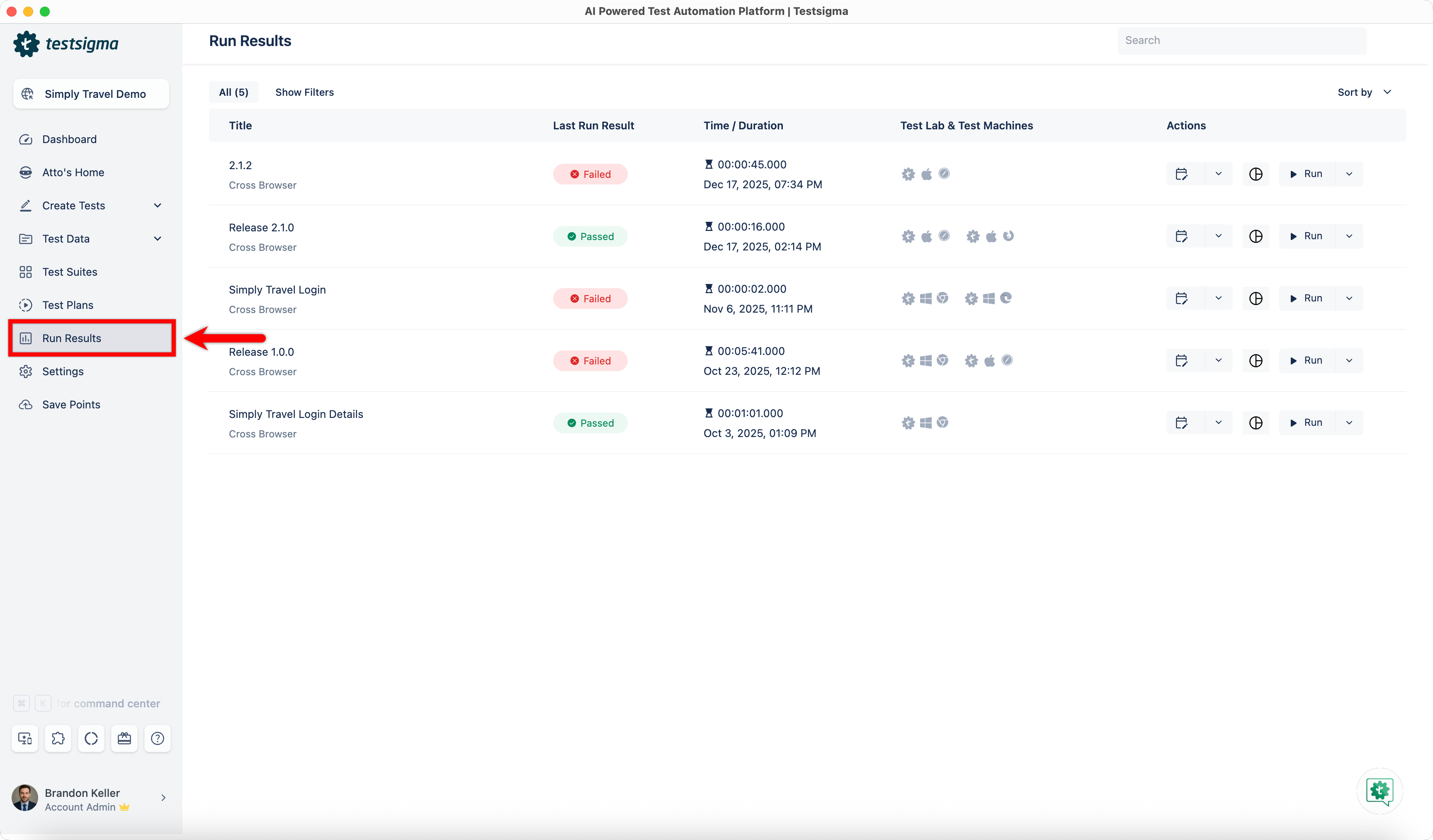
From the left navigation bar, click Run Results.
-
Select the test plan that contains failed test steps.
-
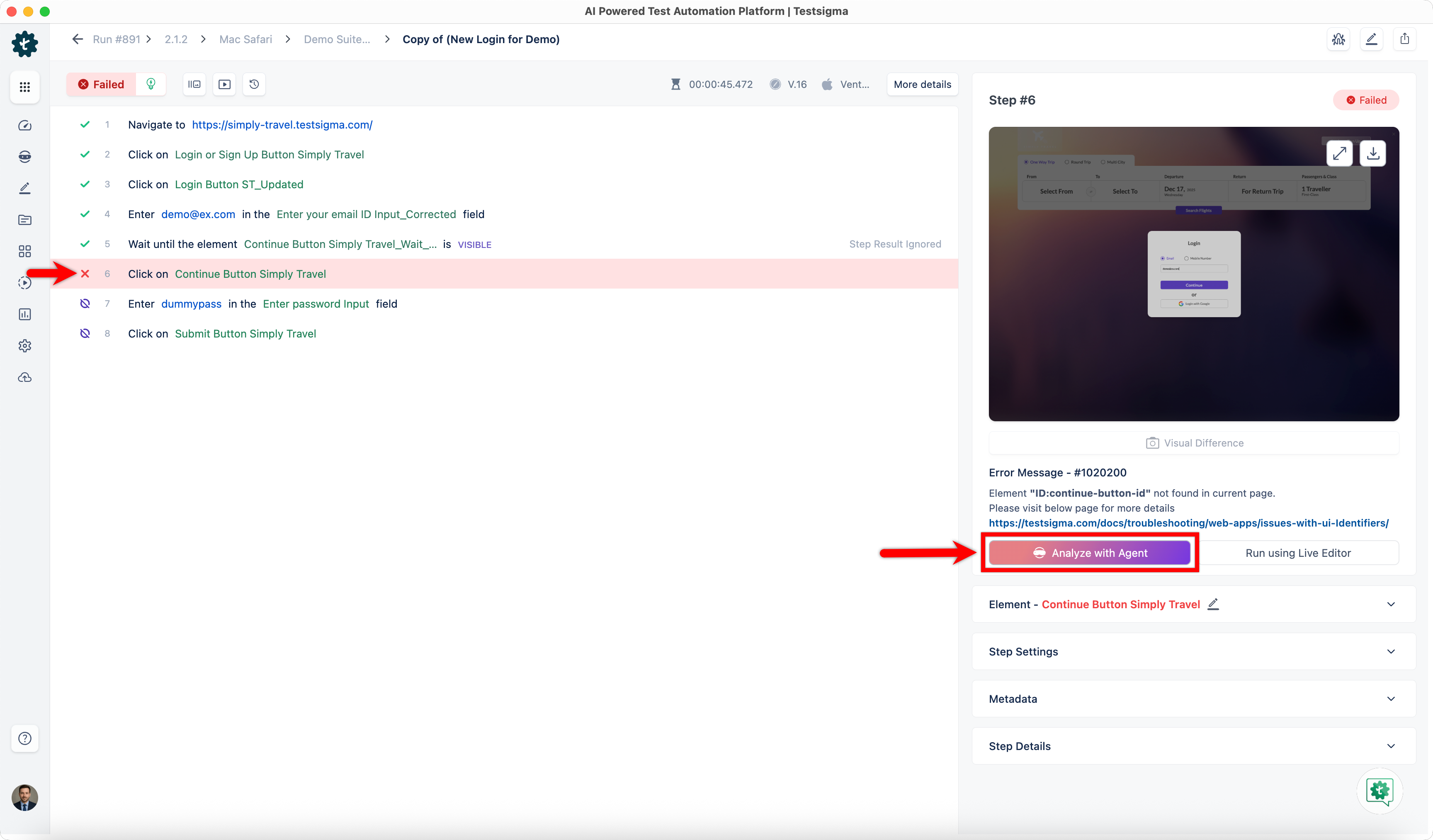
Open the test case with failures and select the failed test step.
-
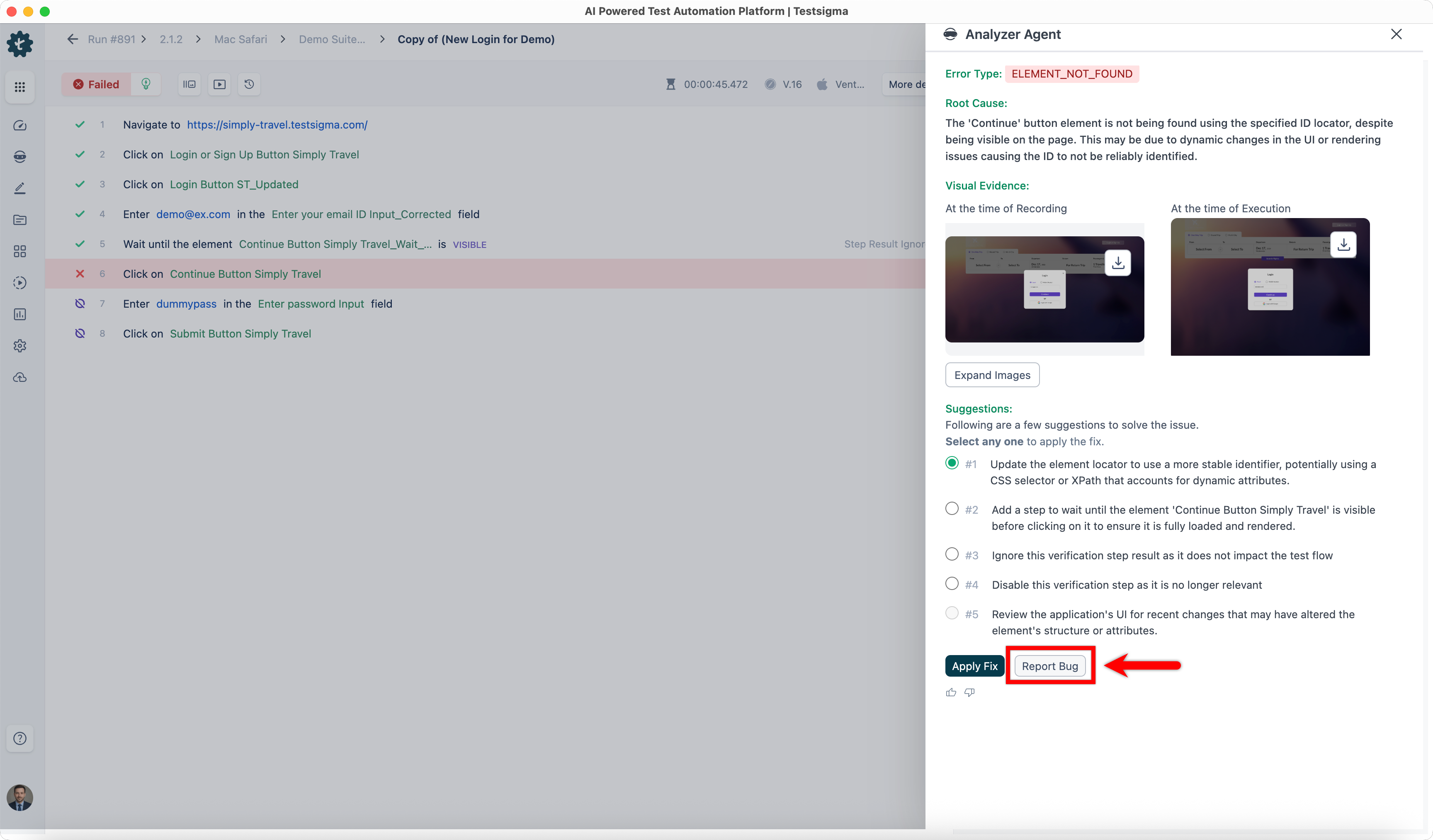
In the Step Details panel, click Analyze with Agent. This will open the Analyzer Agent overlay.
-
Wait for the Analyzer Agent to complete the analysis.
-
Review the analysis in Analyzer Agent overlay, which displays:
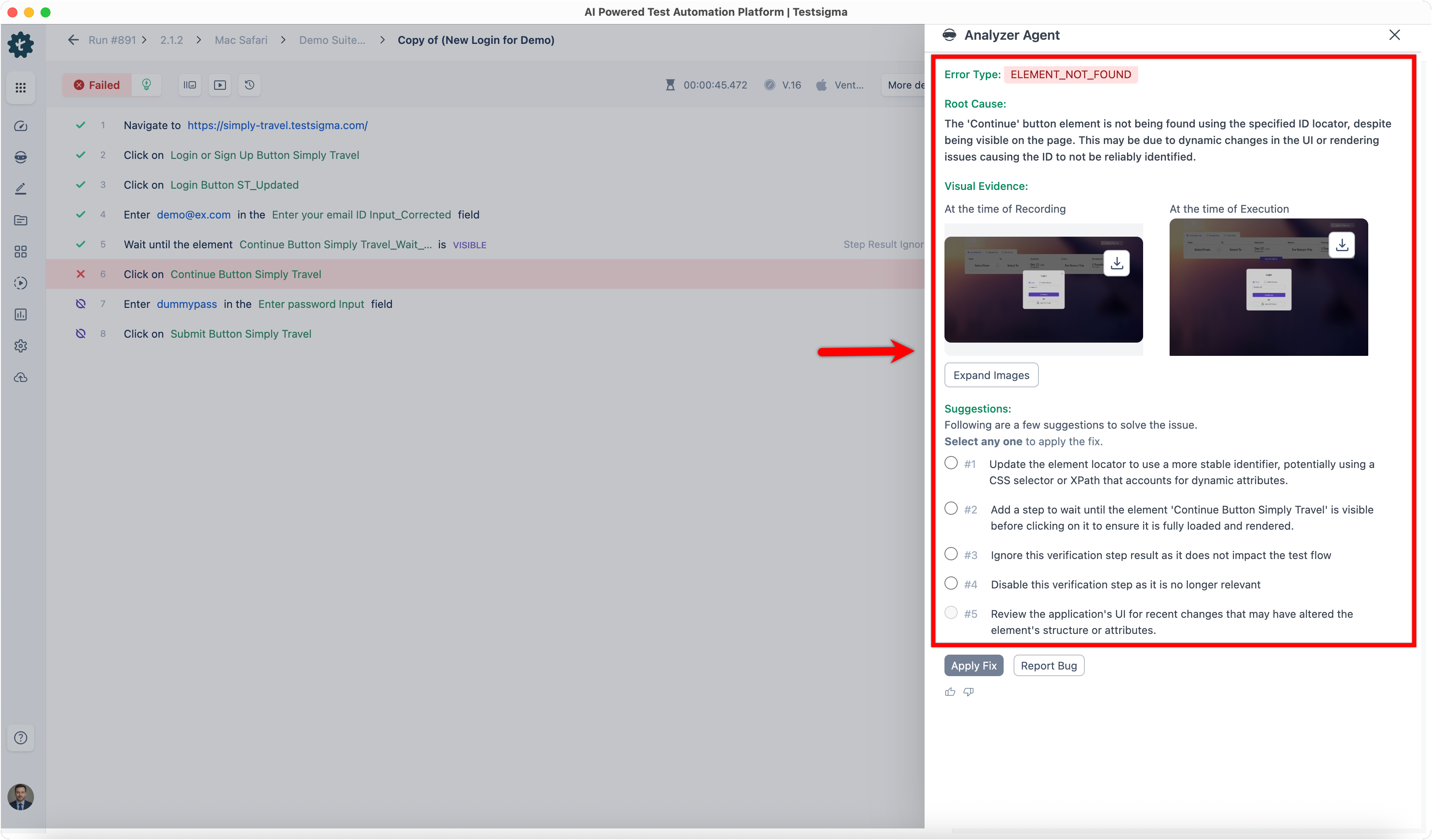
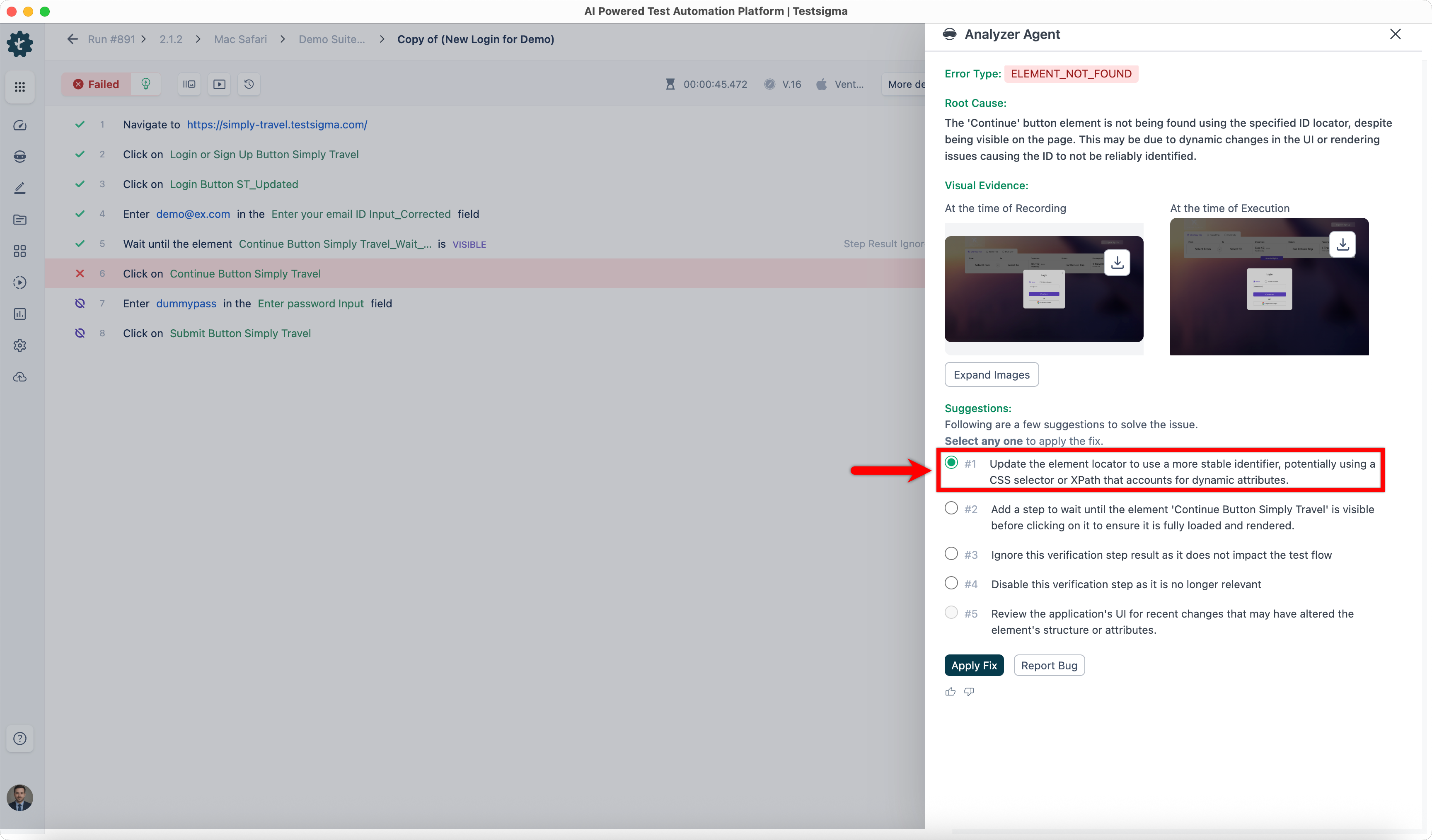
- Error Type: Displays the category of failure identified during test execution.
- Root Cause: Describes the underlying reason for the failure based on execution analysis.
- Visual Evidence: Displays screenshots captured during recording and execution to support failure analysis.
- Suggested Fixes: Displays recommended actions to resolve the failed test step.
Apply Fix Using Analyzer Agent
Section titled “Apply Fix Using Analyzer Agent”-
From the Analyzer Agent overlay, select the fix you want to apply.
-
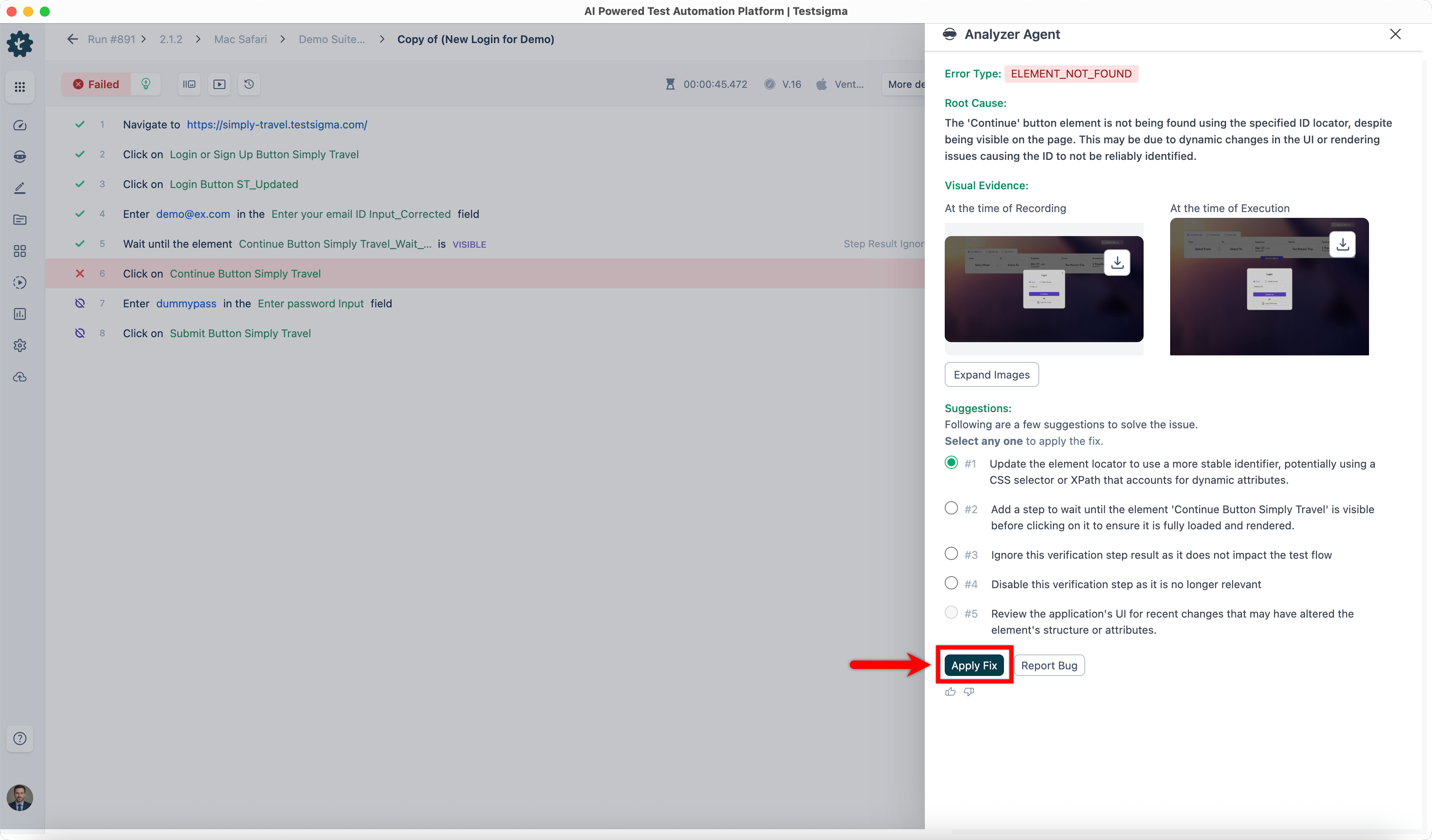
Click Apply Fix.
-
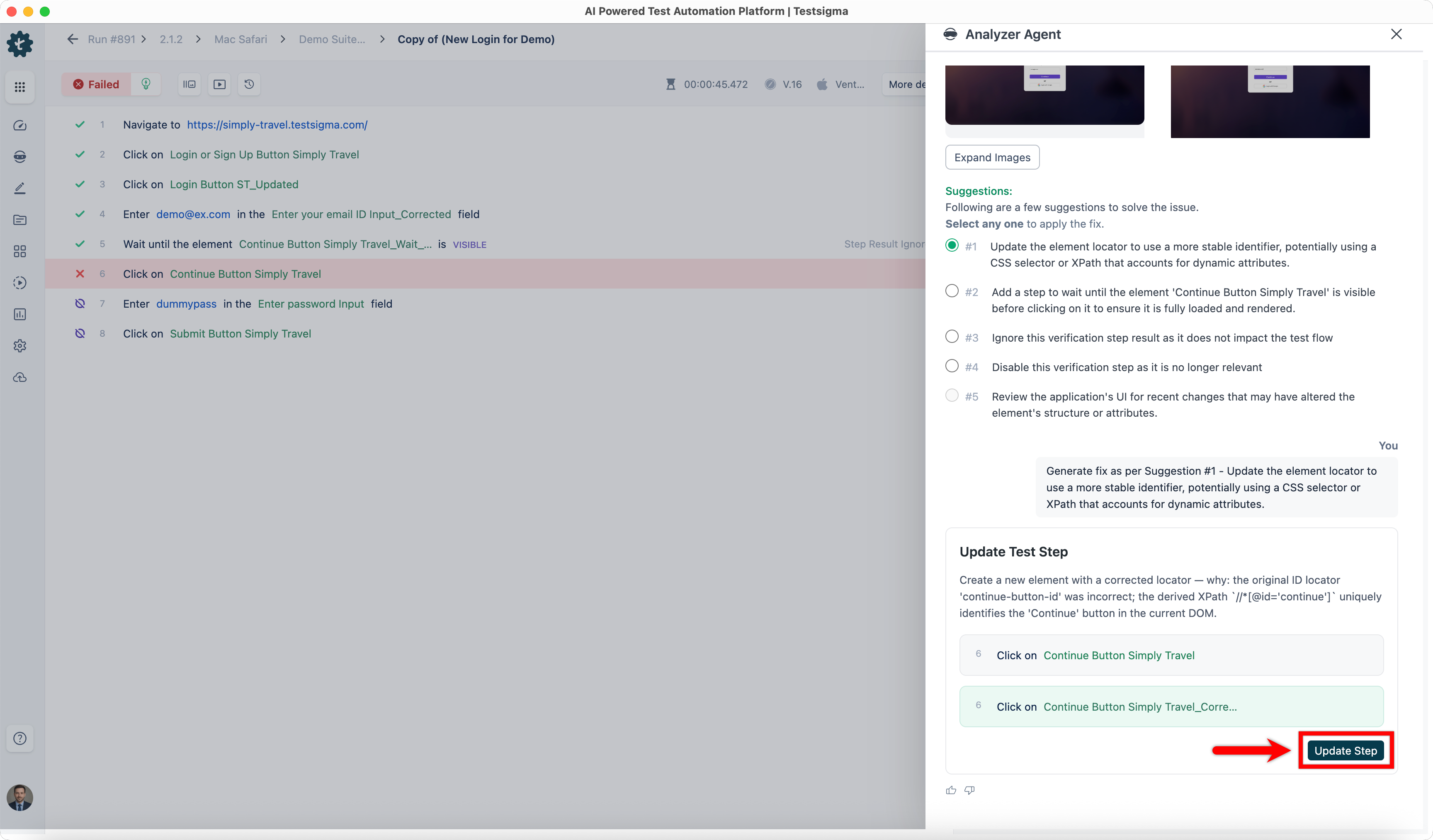
Wait for the Analyzer Agent to generate the required fix.
-
Click Add Step, Update Step, or Update Step Settings, as suggested by the Analyzer Agent.
-
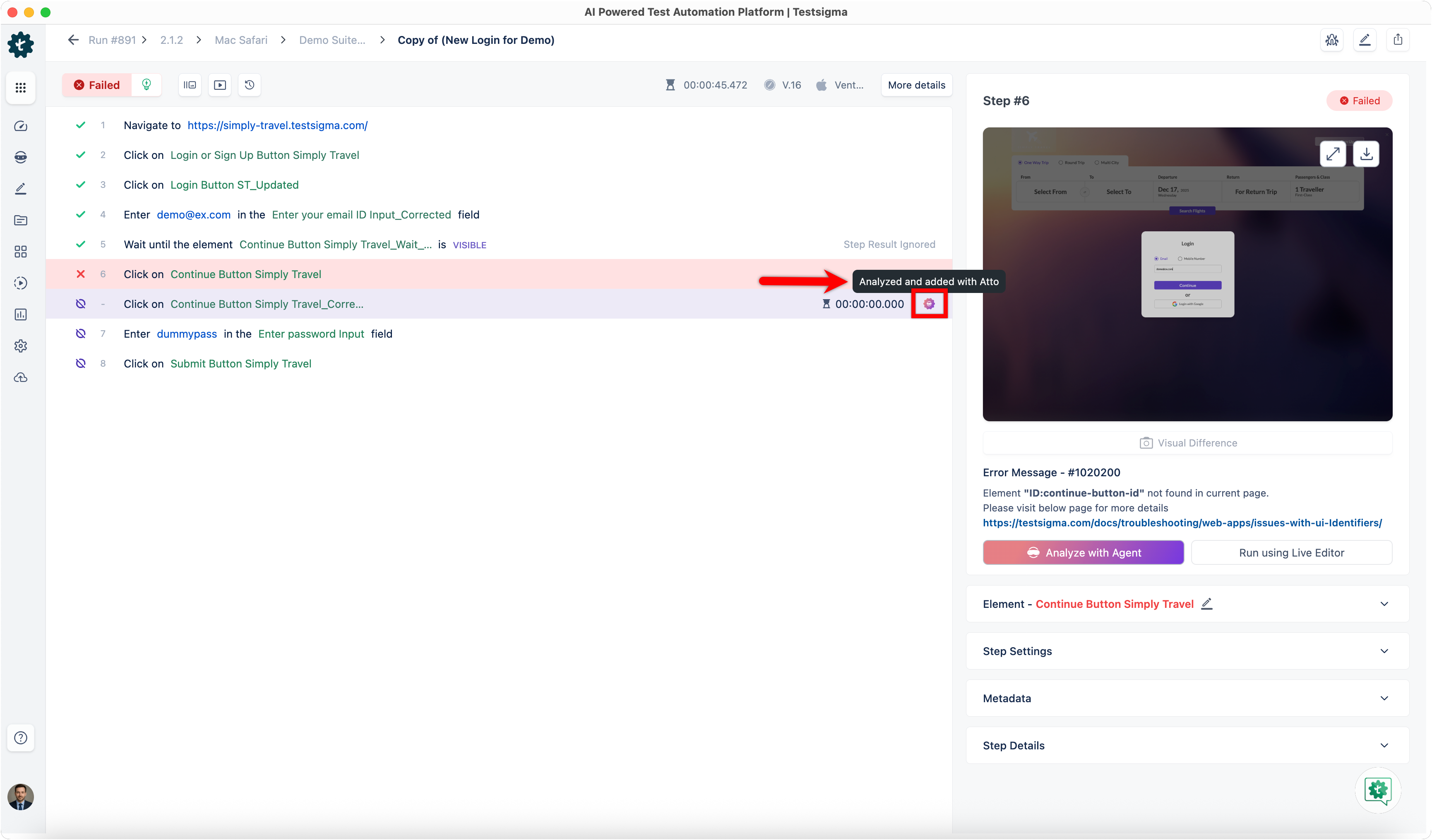
Verify that the changes are applied to the test step.
-
Rerun the test plan to validate the fix.
Report a Bug Using Analyzer Agent
Section titled “Report a Bug Using Analyzer Agent”-
From the Analyzer Agent overlay, click Report Bug.
-
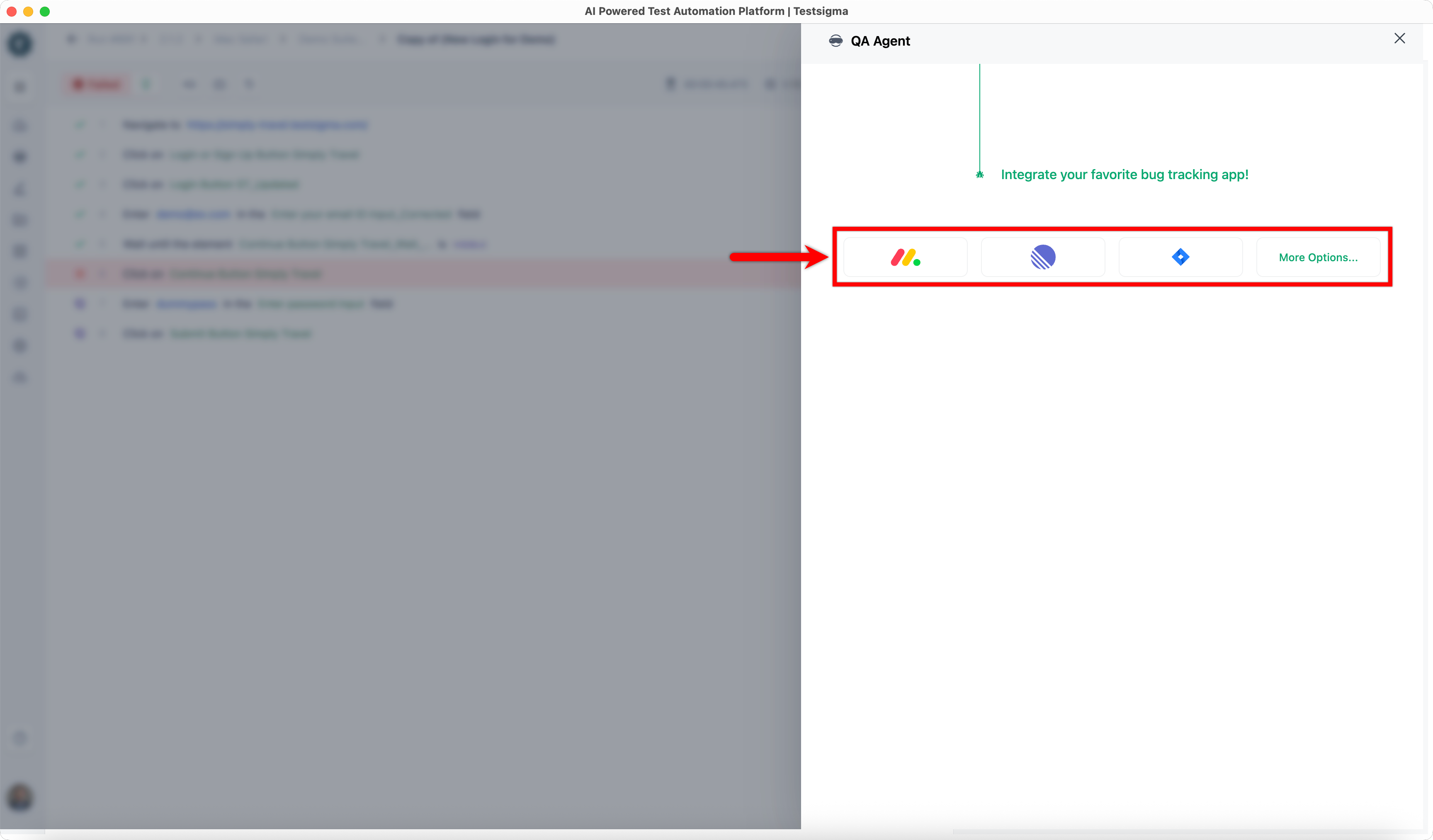
Select the bug tracking application from QA Agent overlay.
-
Review the prefilled bug details, such as Team, Project, and Title.
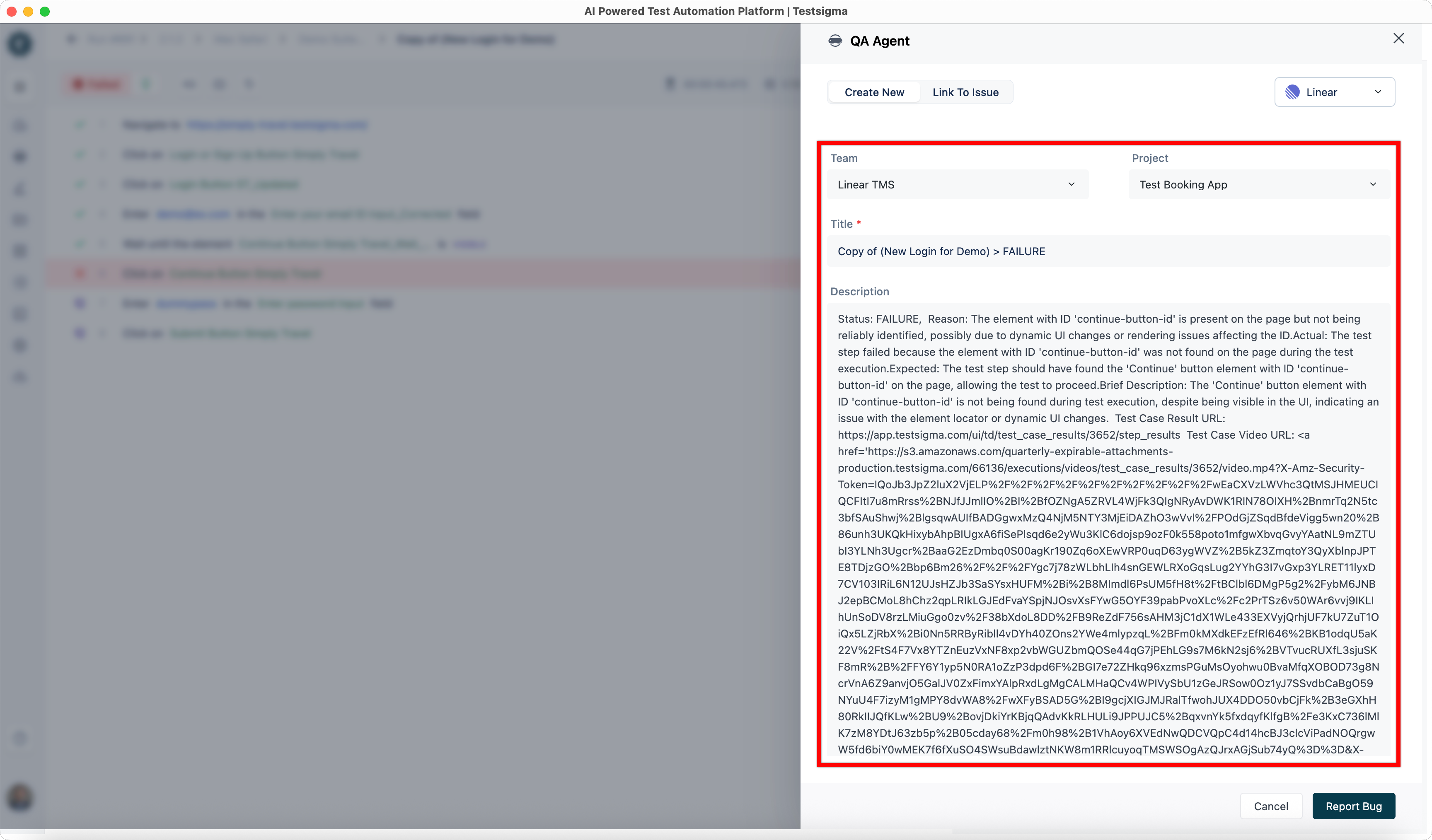
The fields displayed vary based on the selected bug tracking tool.
-
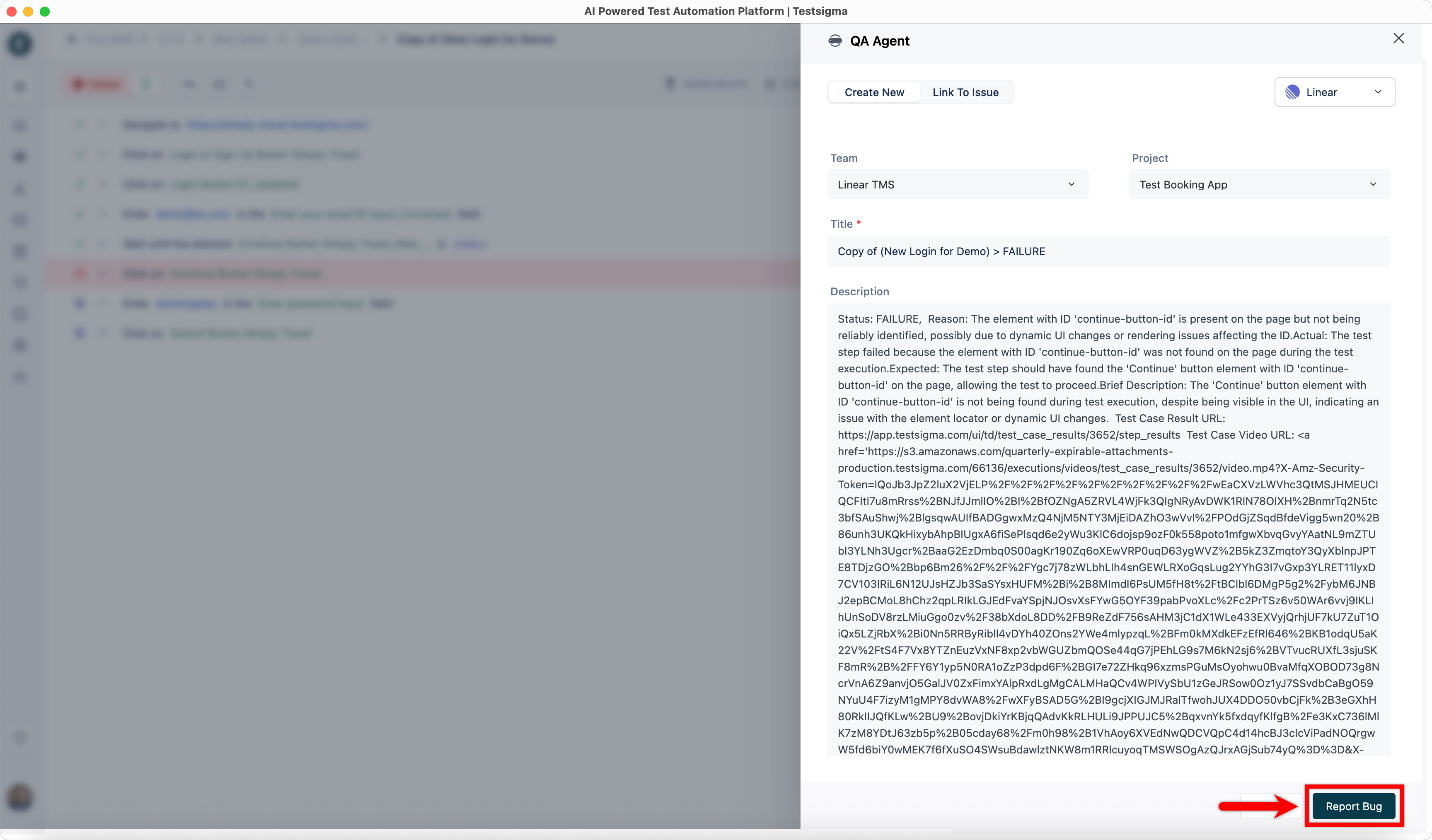
Click Report Bug.