Collaboration
Review Management for Elements
Prerequisites
Before you begin, ensure that you have referred to:
- Documentation on creating test cases.
- Documentation on creating elements.
- Documentation on managing users and roles.
- Also, make sure the option Element Review Management is enabled under Settings > Preferences.
Steps to Submit Elements for Review
Section titled “Steps to Submit Elements for Review”-
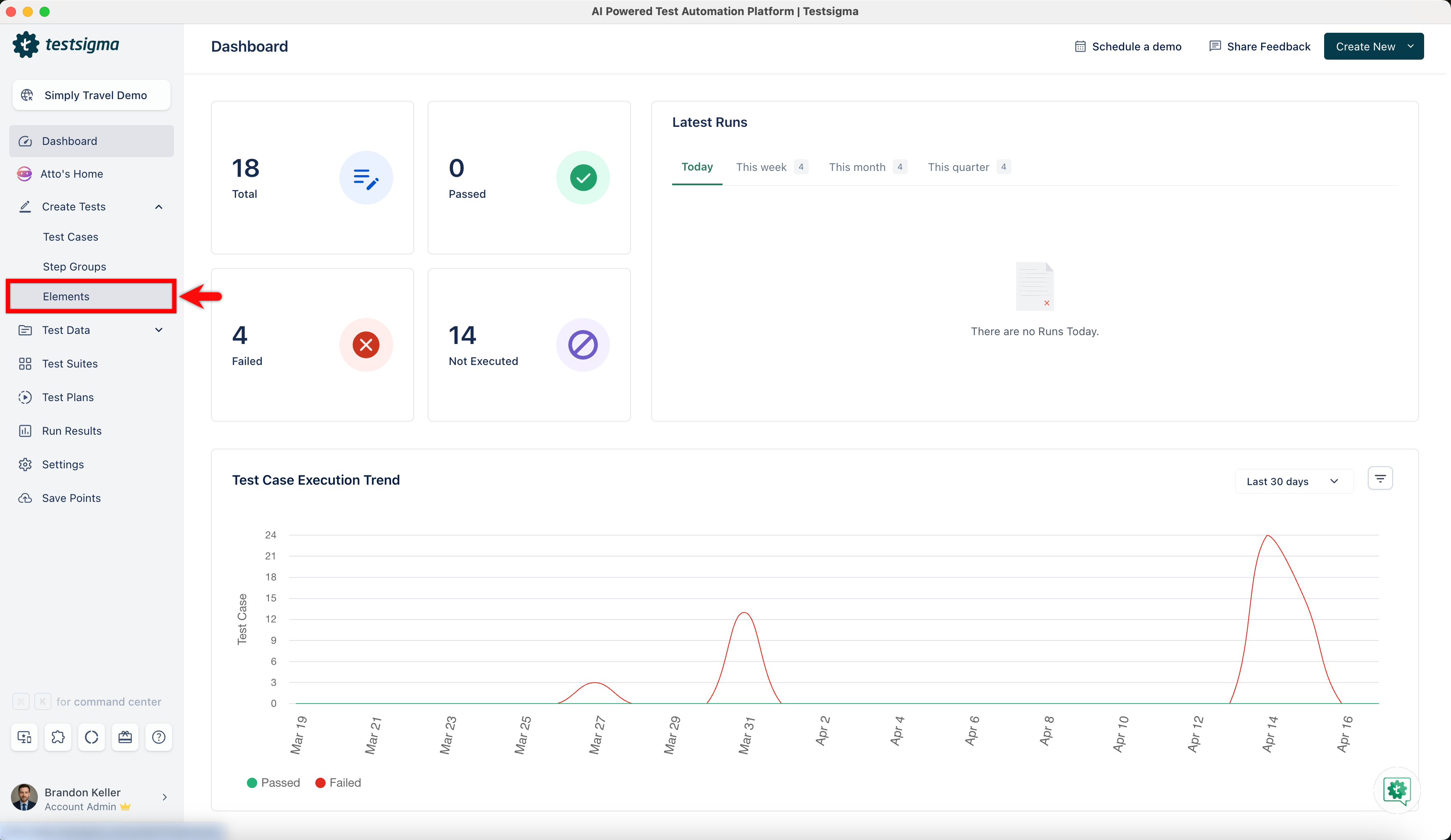
Navigate to Create Tests > Elements and click on an element.
-
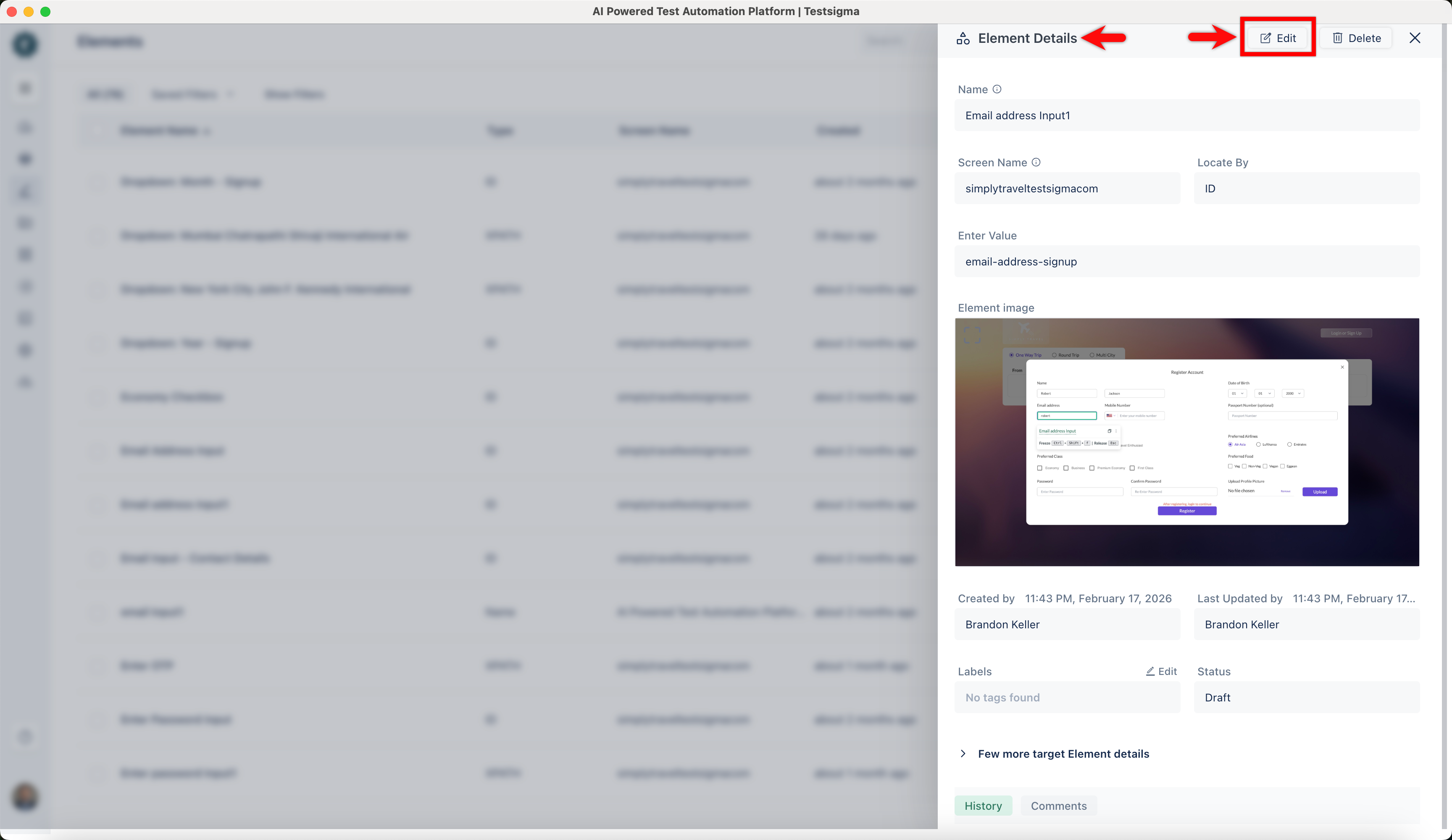
In the Element Details overlay, click Edit.
-
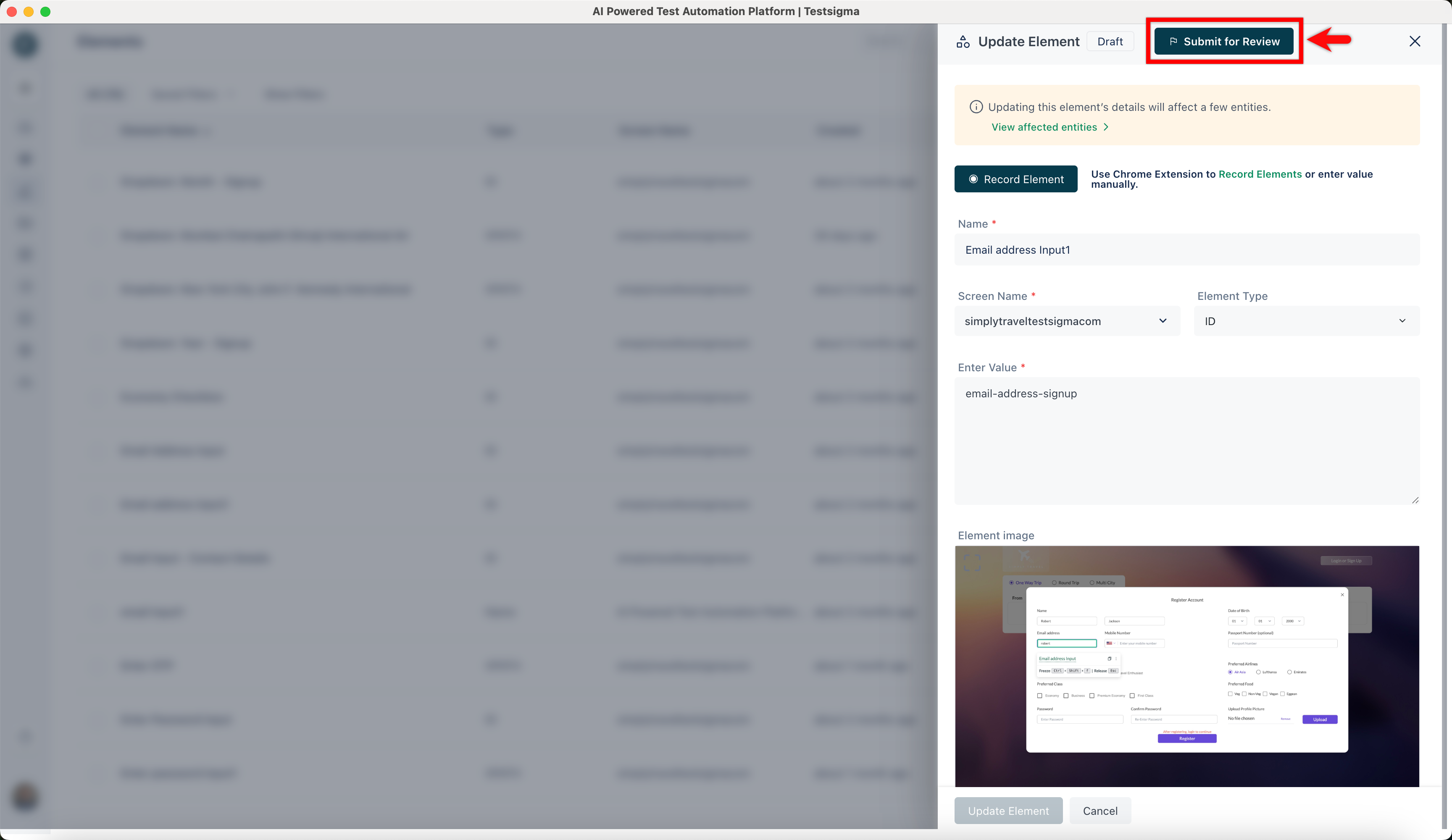
In the Update Element overlay, click Submit for Review.
-
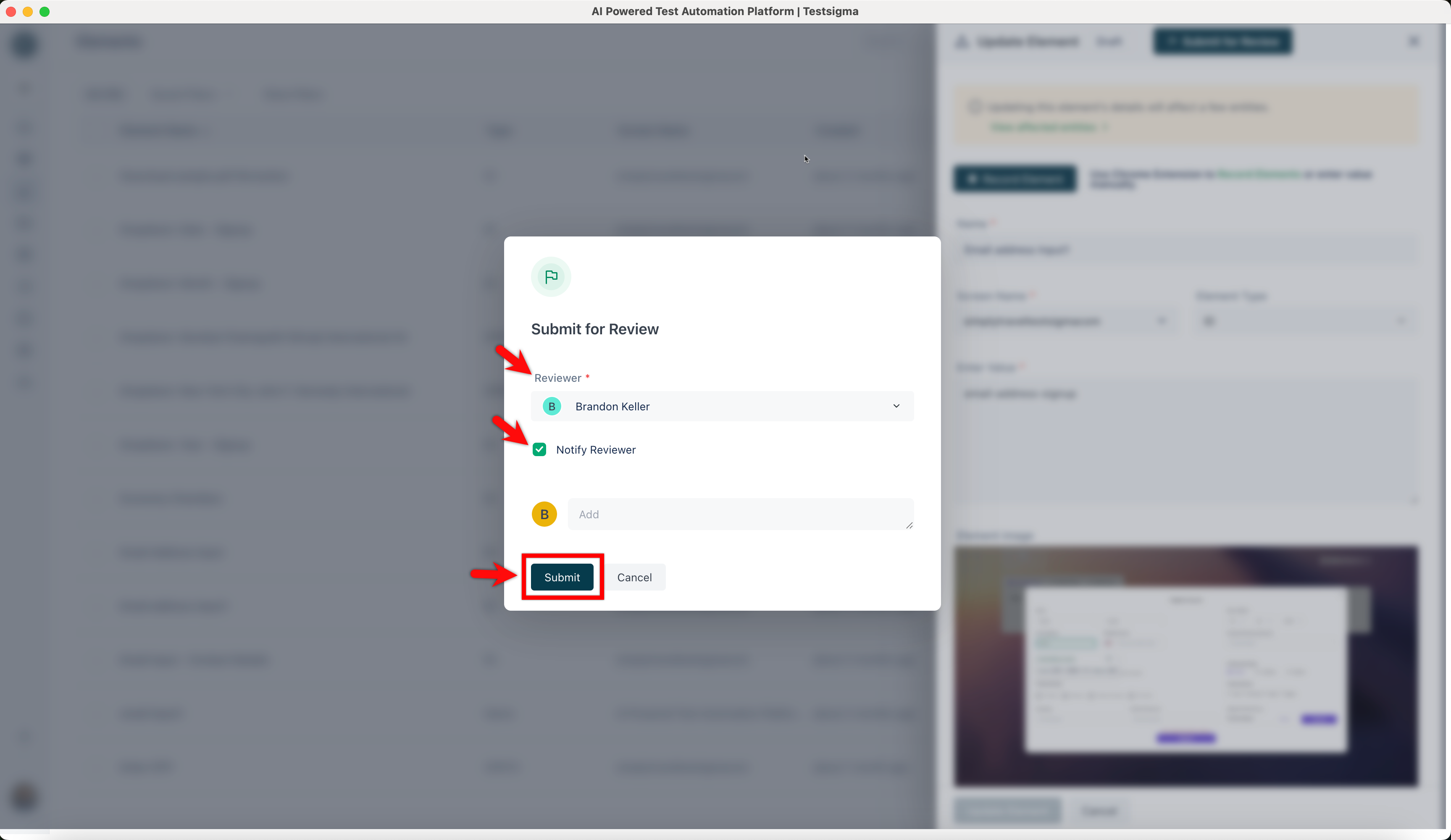
In the Submit for Review dialog, select a Reviewer from the dropdown list, check the box next to Notify Assignee and Reviewer, you can add comments in the box, and then click Submit.
Steps to Review Element
Section titled “Steps to Review Element”-
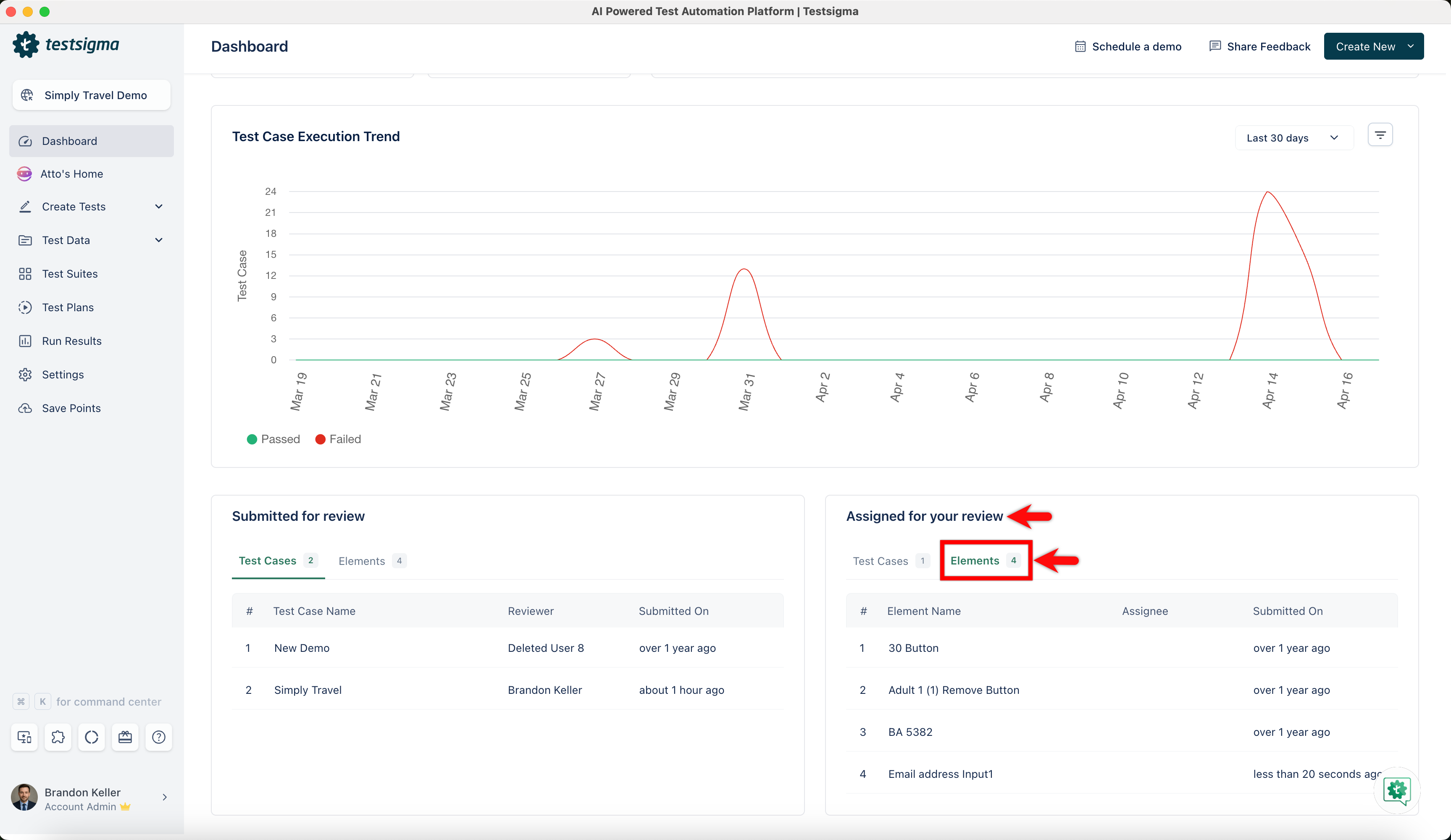
On the Dashboard, go to Assigned for your review section and click Elements.
-
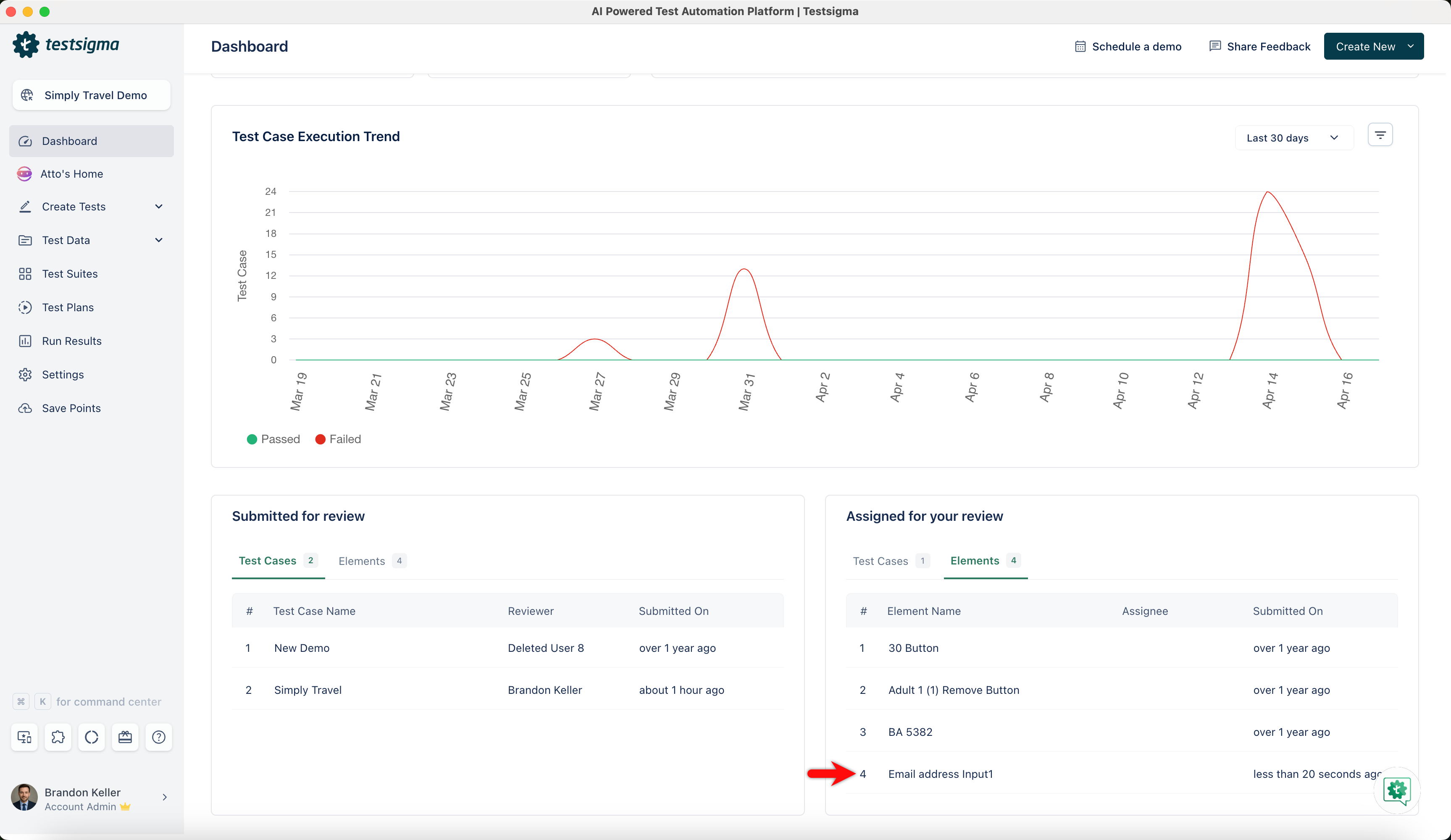
Click the element you are assigned to review. This will open Elements page with elements assigned for review.
-
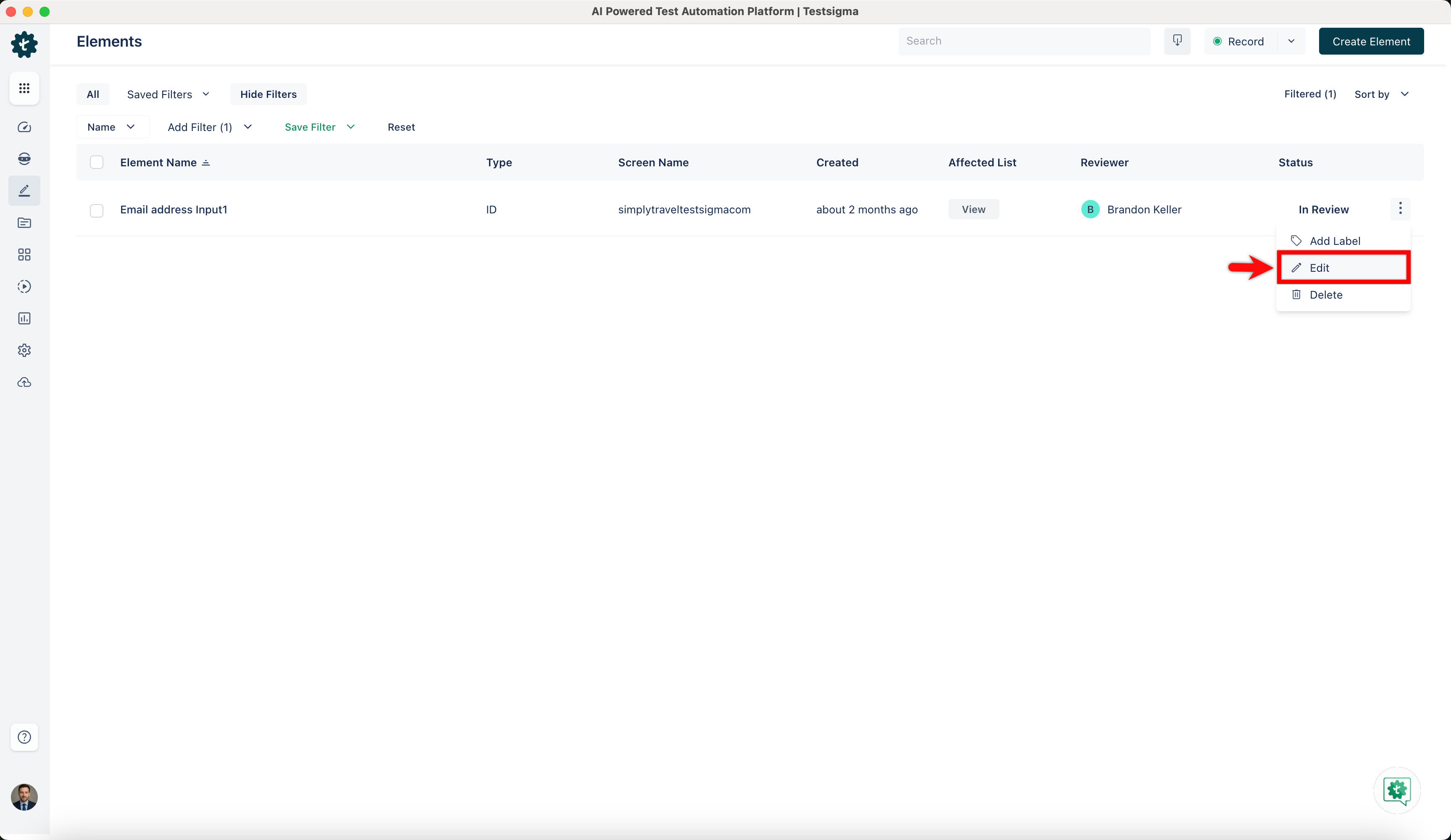
Hover over the element and click the kebab menu and select Edit from the dropdown.
-
On the Update Element overlay, click Review element.
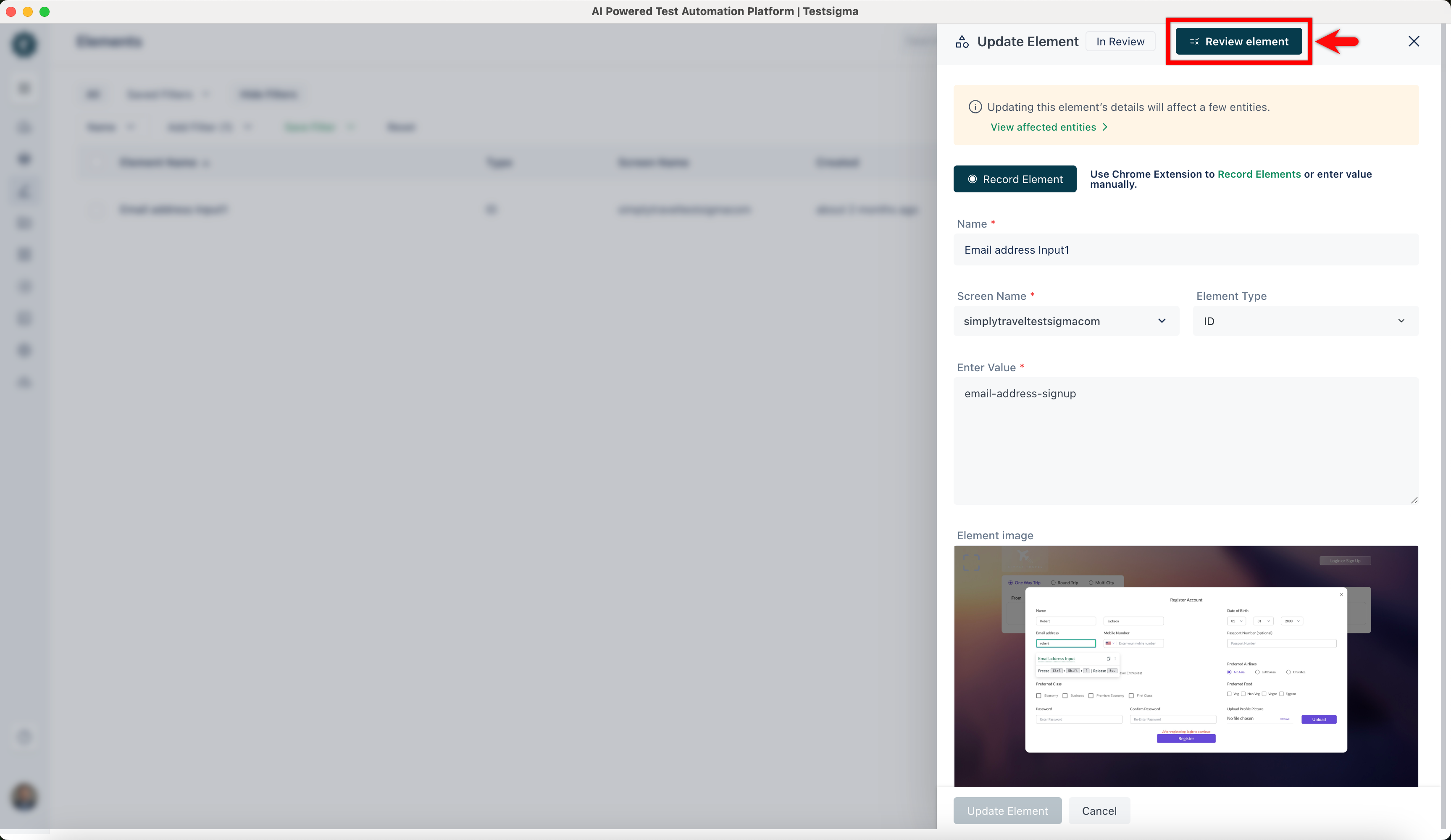
-
On the Update review status dialog, you can either mark the status as Approve or Rework as per your review.
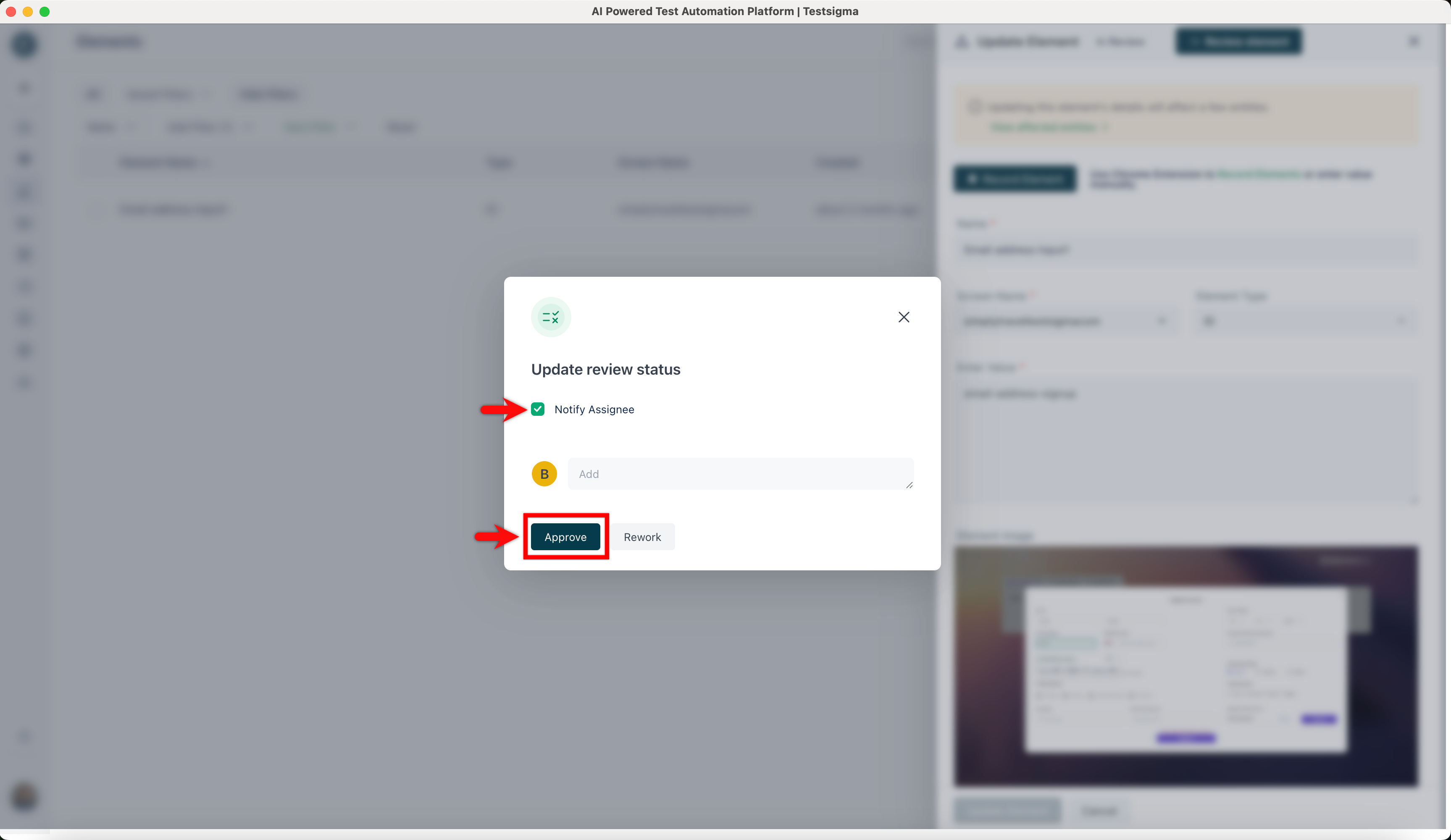
-
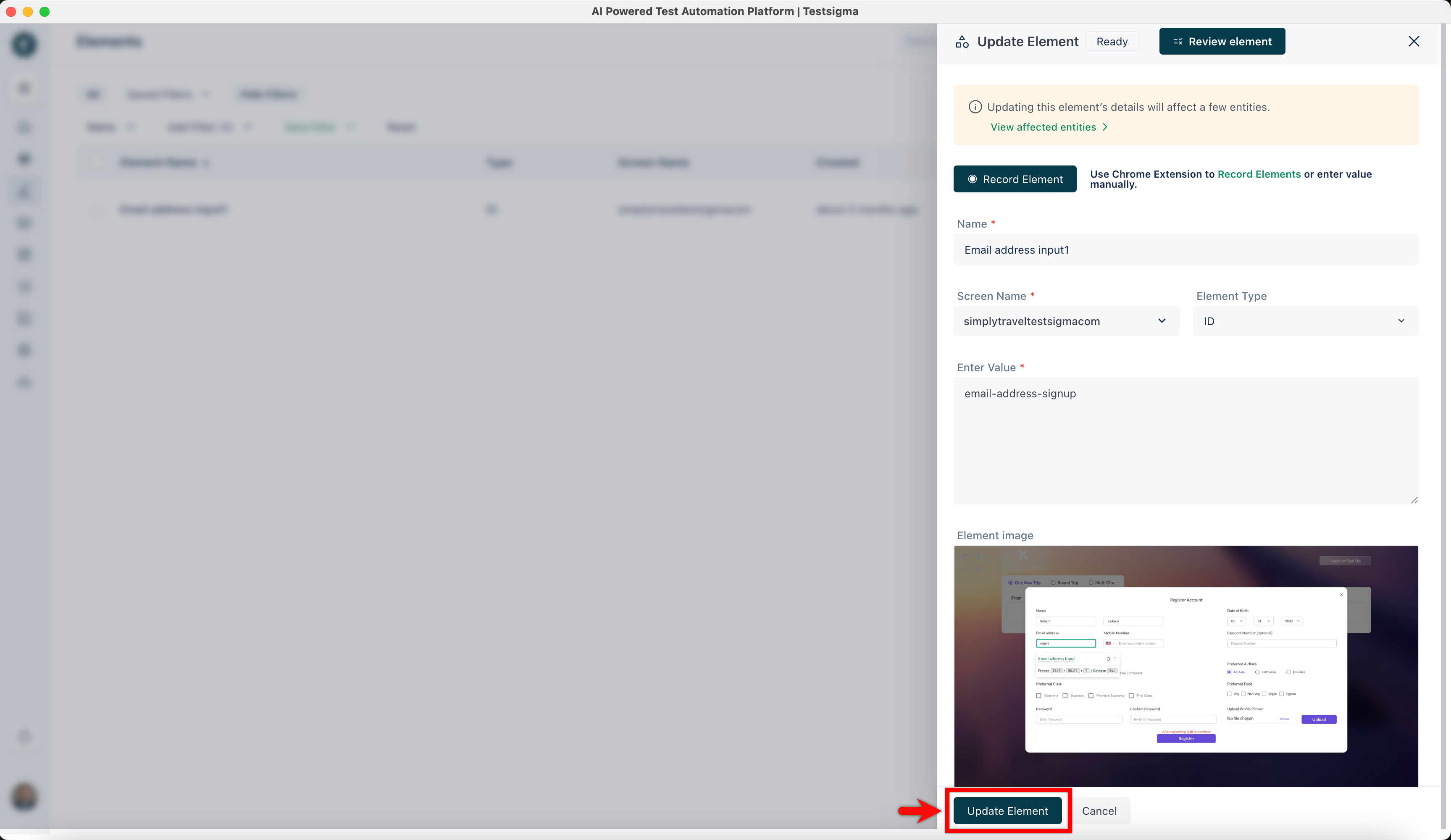
Once the status is marked, you’ll be redirected to the Update Element overlay. Click Update Element to save the review status.