
Test Cases
Test Step Type: Step Groups
Create a New Step Group
Section titled “Create a New Step Group”-
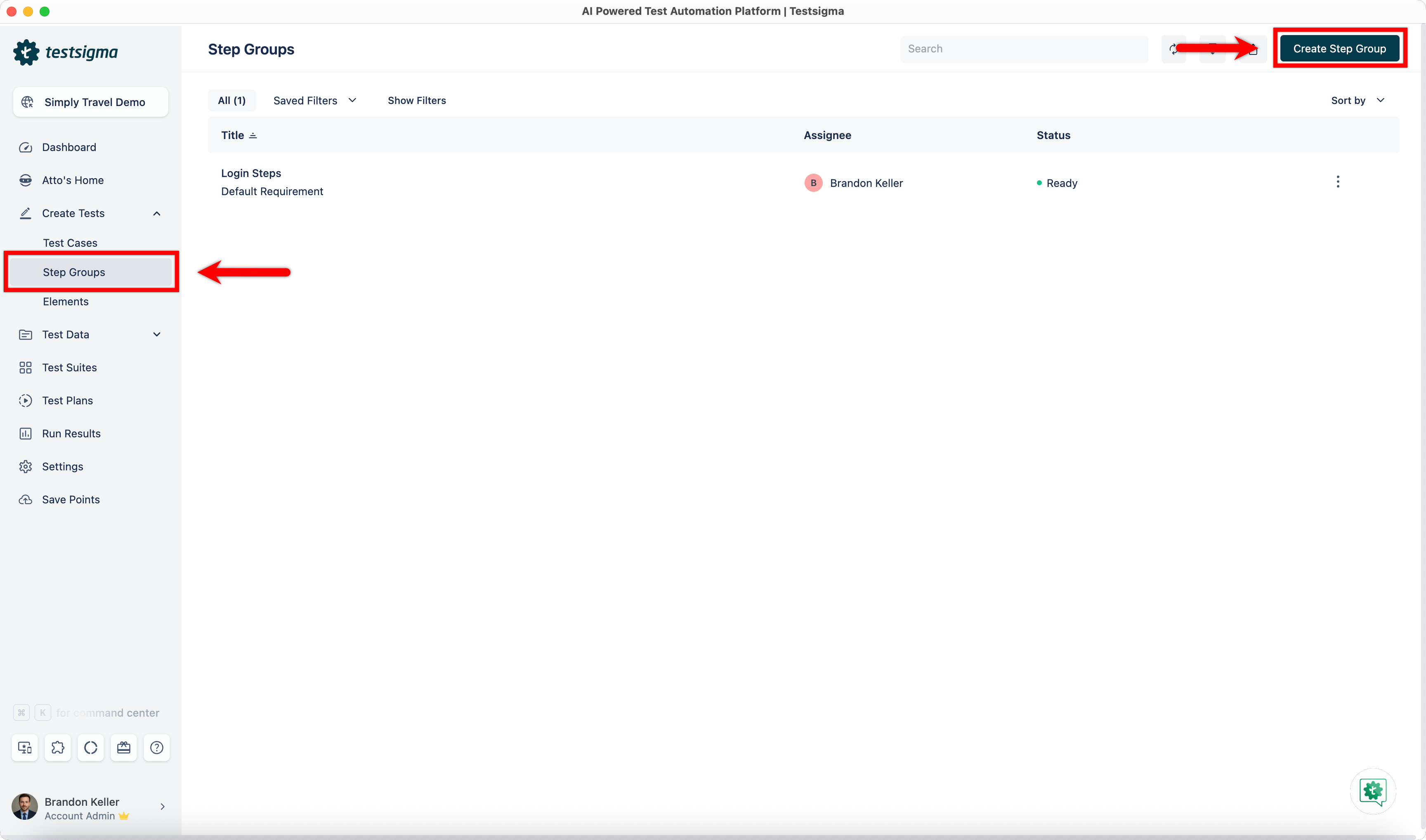
From the left navigatio bar, go to Create Tests > Step Groups, click Create Step Group.
-
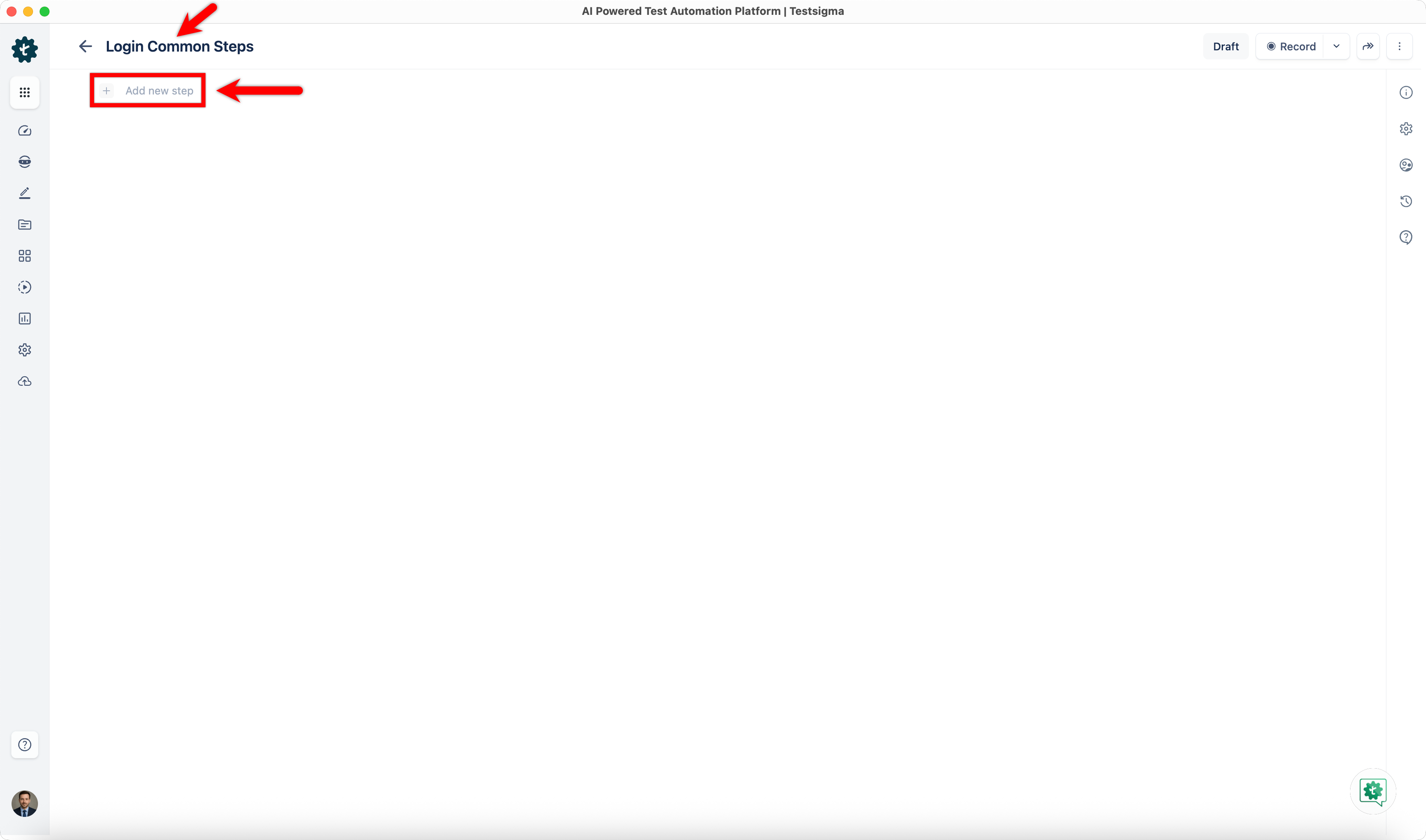
Enter Name and create steps manually by clicking Add new step.
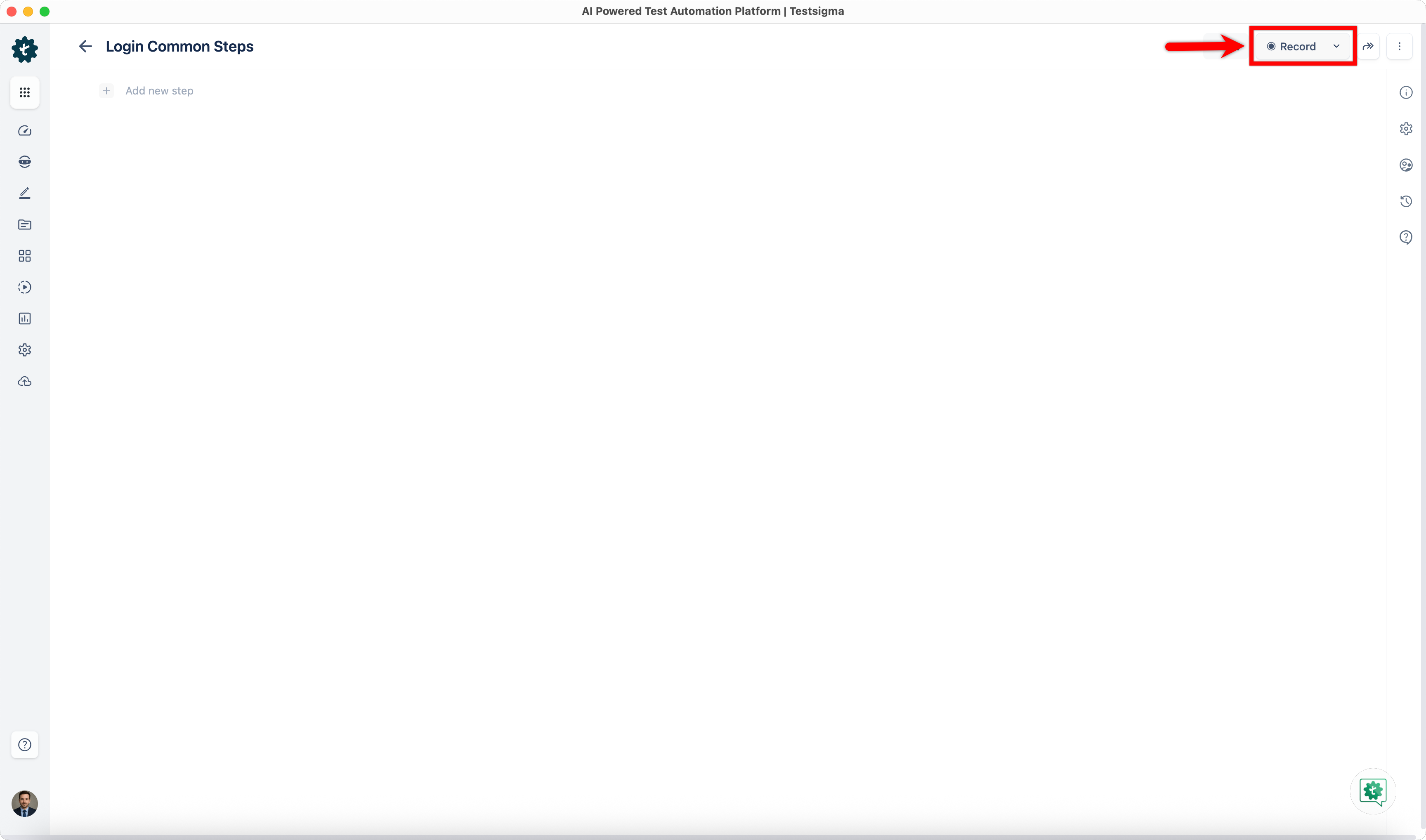
Alternatively, you can click Record to record steps for the step group.
-
After adding all the steps, you can use the step group in any test case.
Edit a Step Group
Section titled “Edit a Step Group”-
From the left navigatio bar, go to Create Tests > Step Groups.
-
Open the step group you want to update and make the changes.
[[info | NOTE:]] | The changes will affect all the test cases that use the step group.
Delete a Step Group
Section titled “Delete a Step Group”-
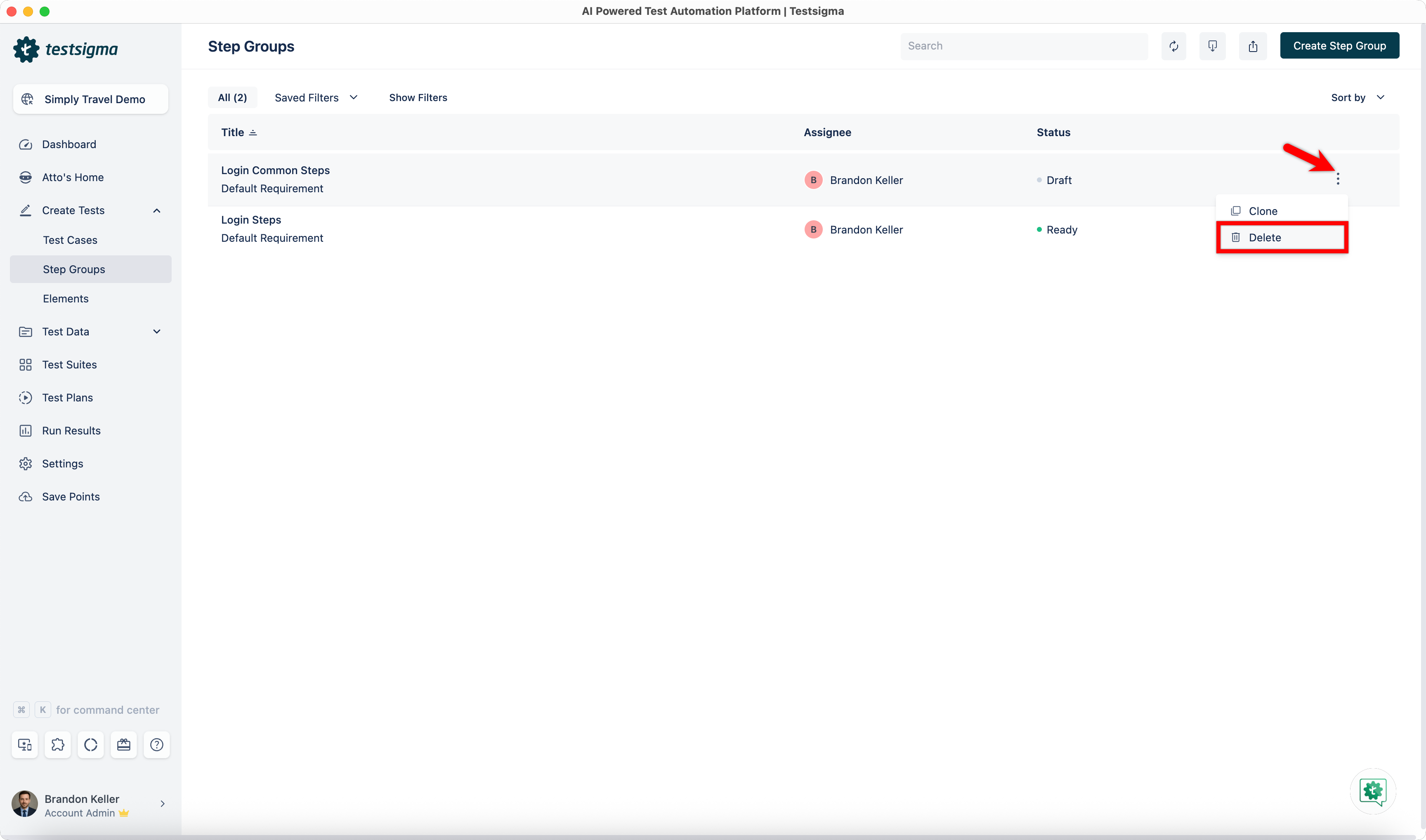
From the Step Group list page, click kebab menu next to the step group you want to delete and click Delete.
-
This will open Deletion Warning popup.
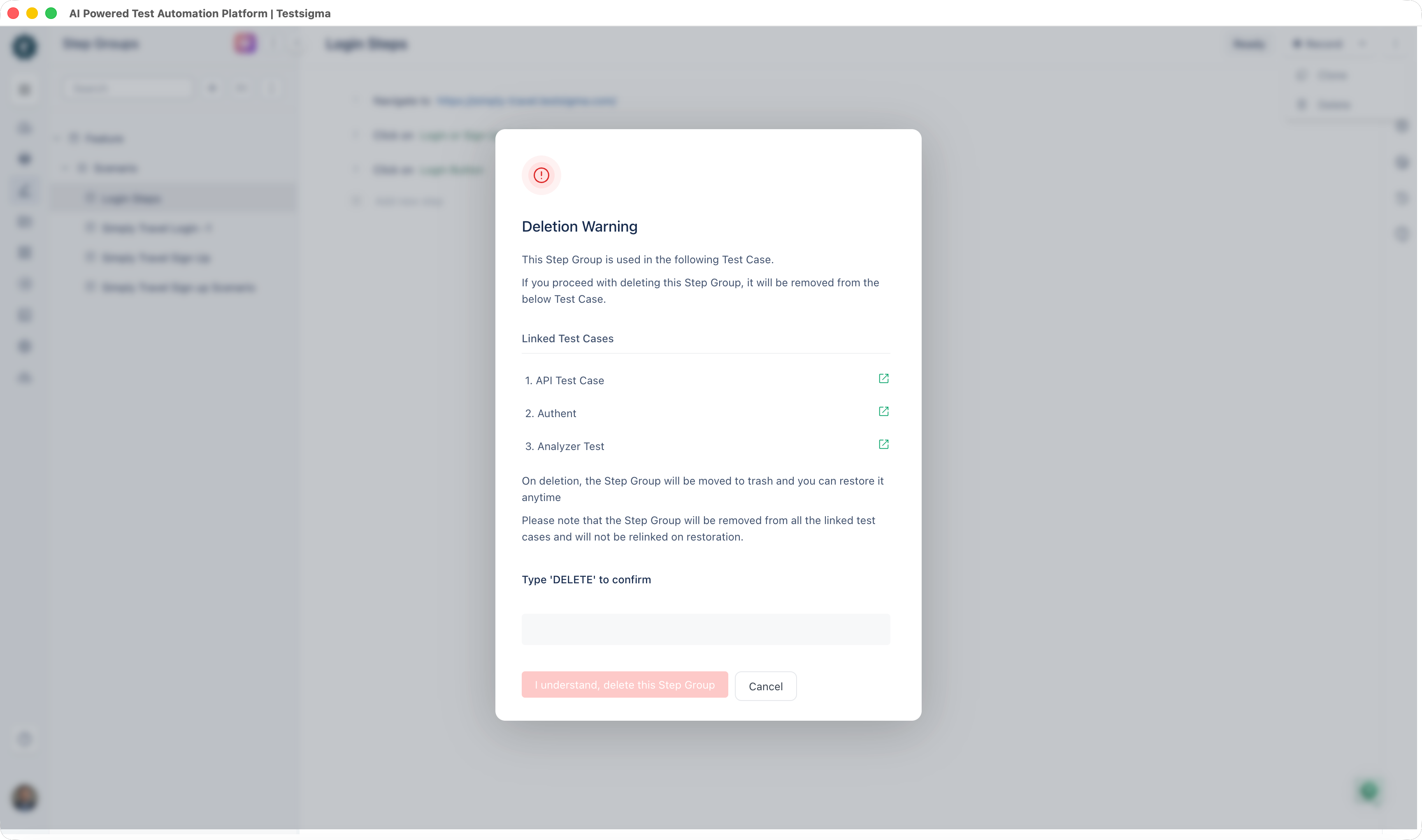
[[info | NOTE:]] | This will show the list of affected test cases. Deletion of the step group will remove the step group in the linked test cases.
-
Enter DELETE and click I understand, delete this Step Group.
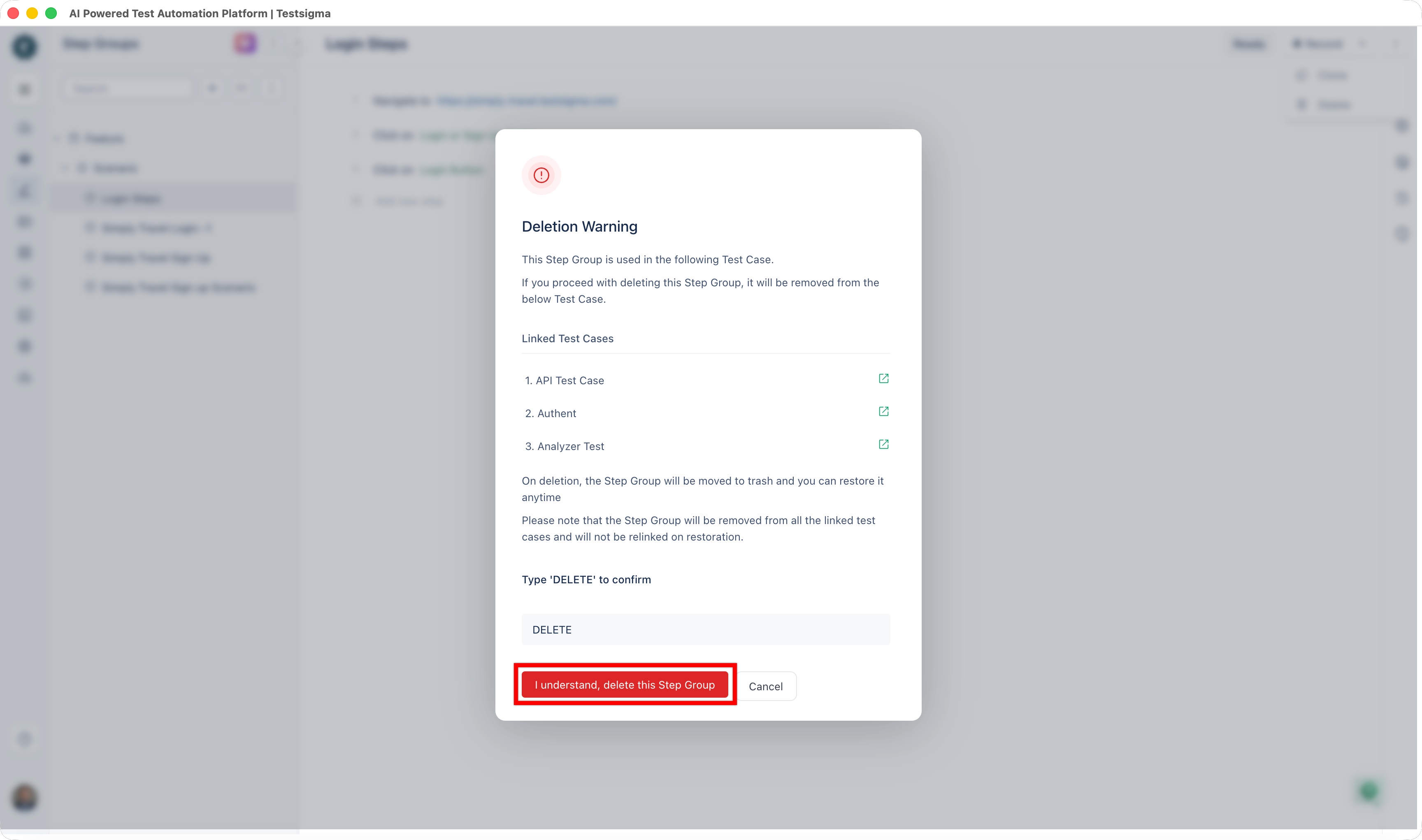
-
The step group will be deleted successfully.
Edit a Step Group for a Specific Test Case
Section titled “Edit a Step Group for a Specific Test Case”-
From the left navigatio bar, go to Create Tests > Test Cases.
-
Open the Test Case in which you want to edit the Step Group.
-
Expand the Step Group to edit any test data or element being used in the step group.
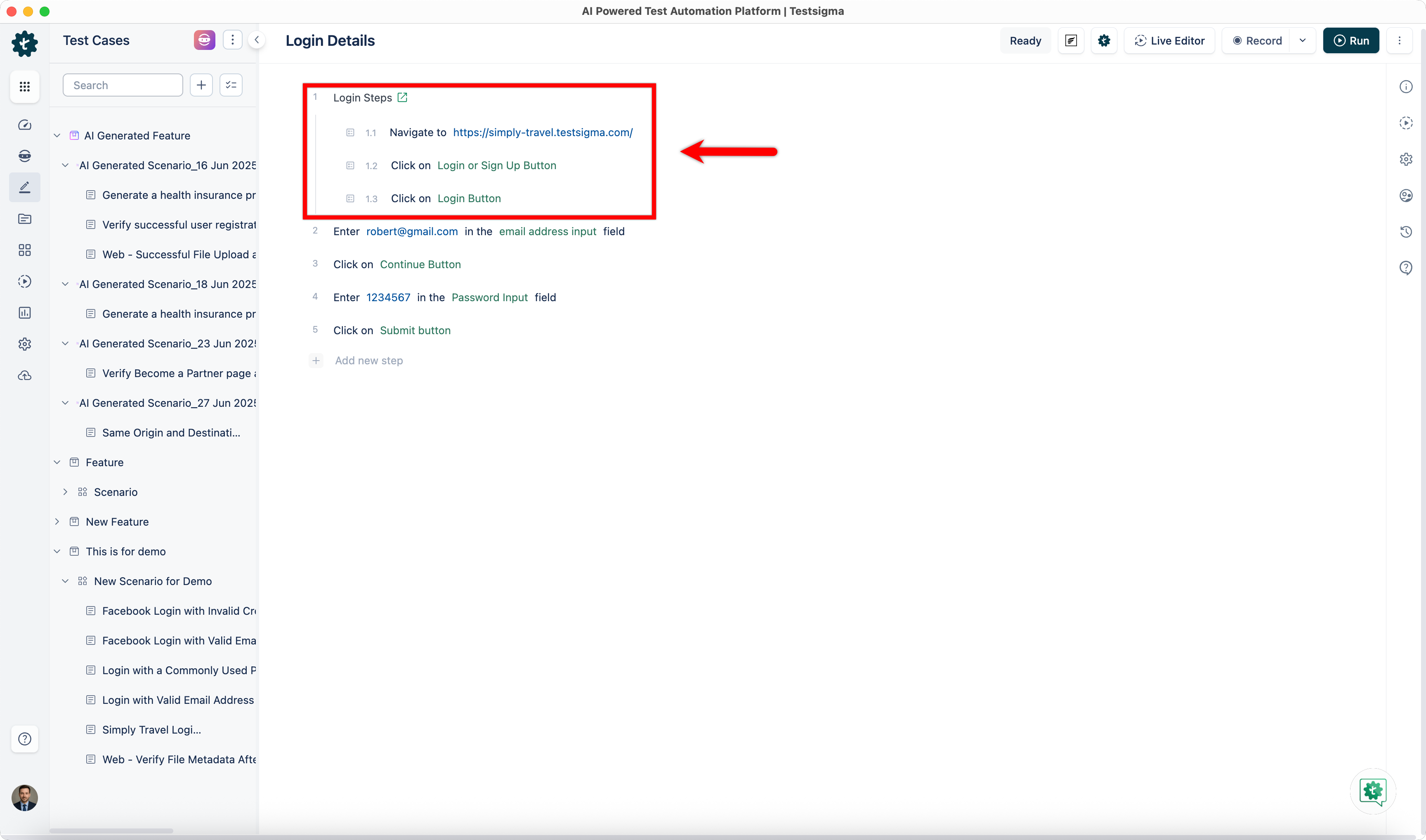
-
After updating any step click Update Step to save the changes.
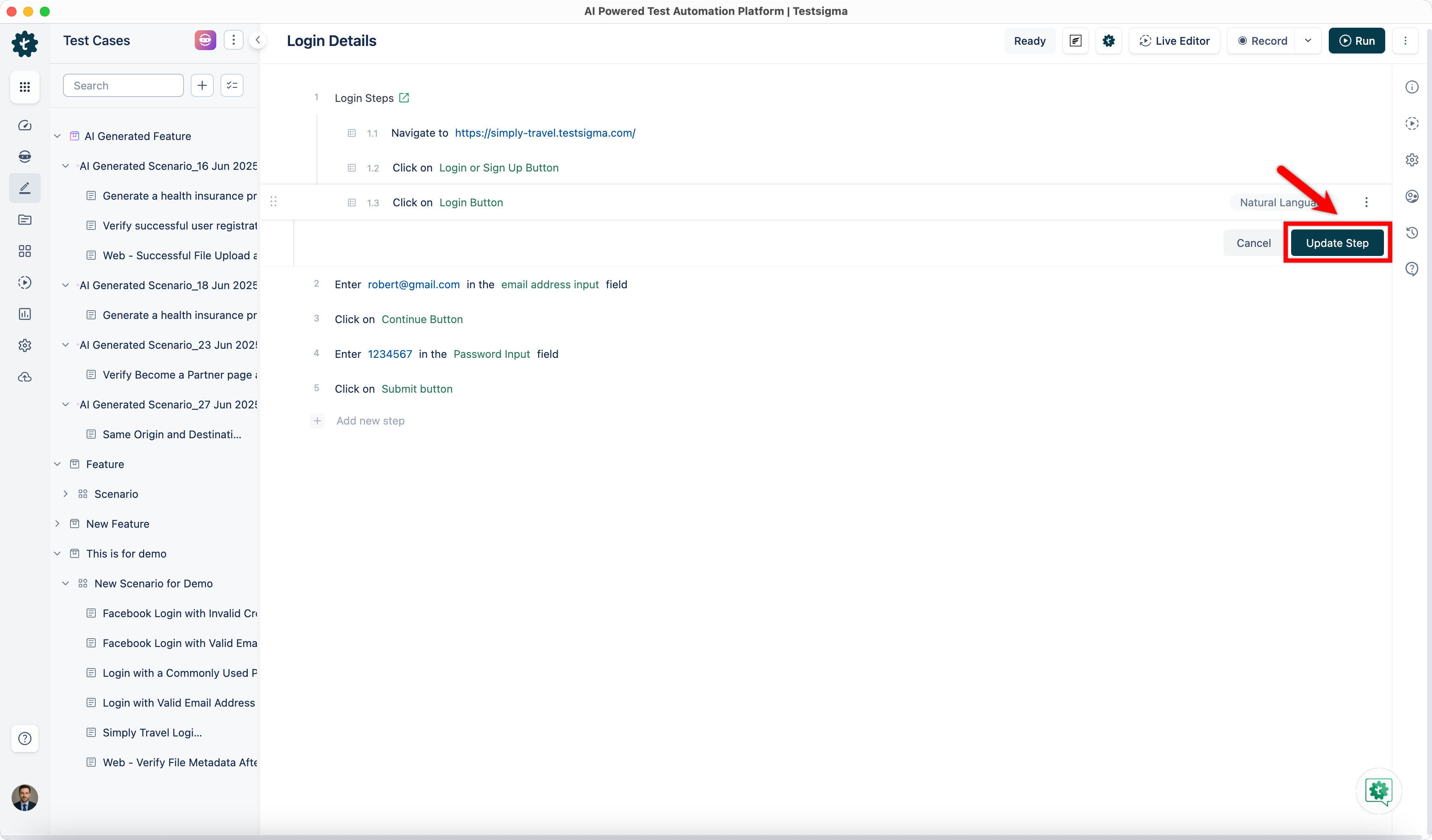
Create a Step Group From a Test Case
Section titled “Create a Step Group From a Test Case”-
From the left navigatio bar, go to Create Tests > Test Cases.
-
Open the Test Case from you want to create a step group.
-
Once you start selecting the test steps, an option bar will appear on top of the test steps. Select all the steps you want in a step group and click on Create Step Group.
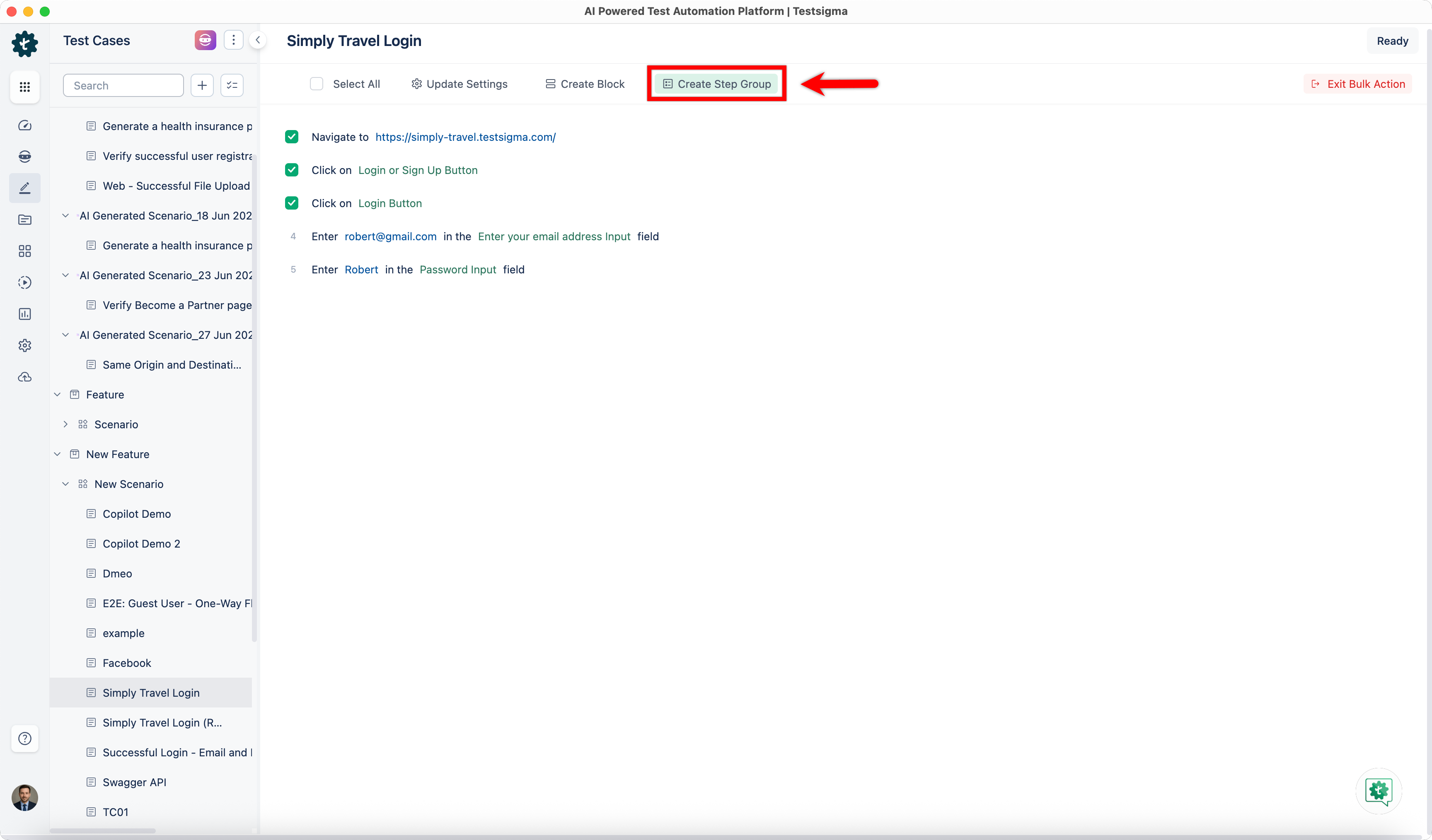
-
This will open a pop-up as below:
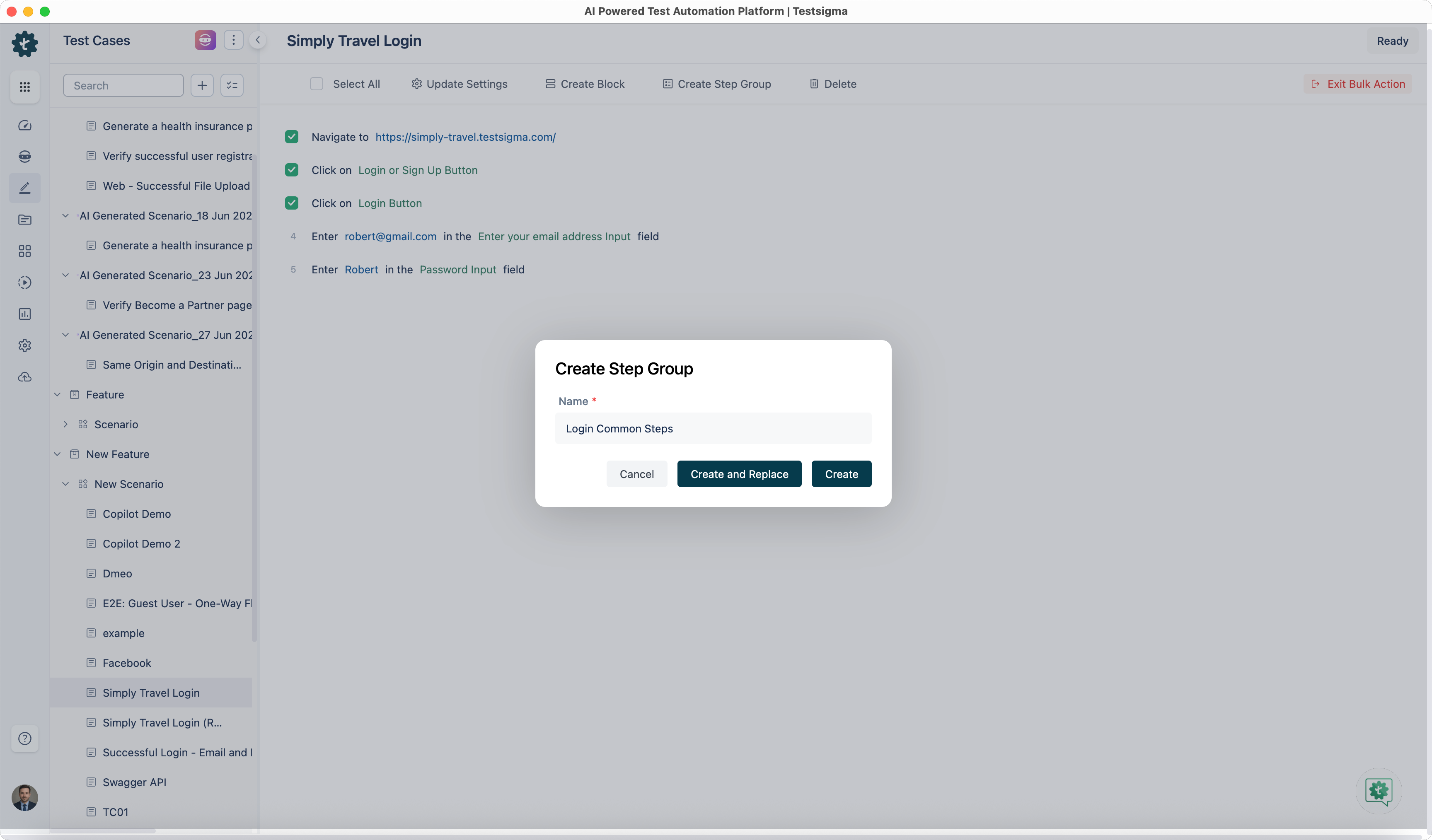
- If you click on the Create, a new step group with the selected test steps and the given name would be created.
- If you click on the Create and Replace button, a new step group with the selected test steps and the given name would be created and the selected test steps would be replaced by the created step group.
Use Step Group in a Test Case
Section titled “Use Step Group in a Test Case”-
From the left navigatio bar, go to Create Tests > Test Cases.
-
Expand a Feature, then expand a Scenario, and click ‘+’ next to the scenario where you want to add the test case or open a Test Case in which you want to add a step group.
-
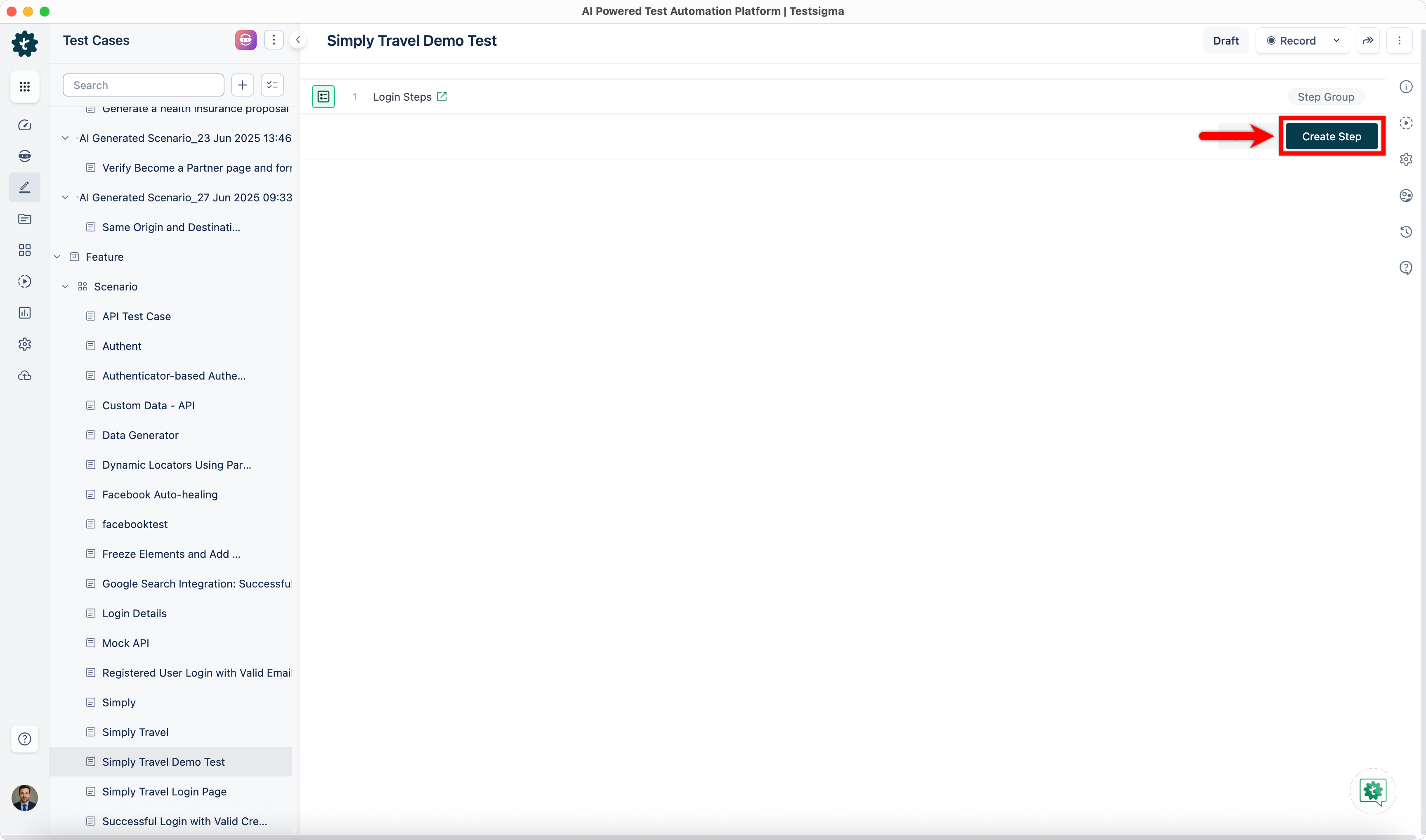
On the test case details page, click the option on the left side of the test step and select Step Group.
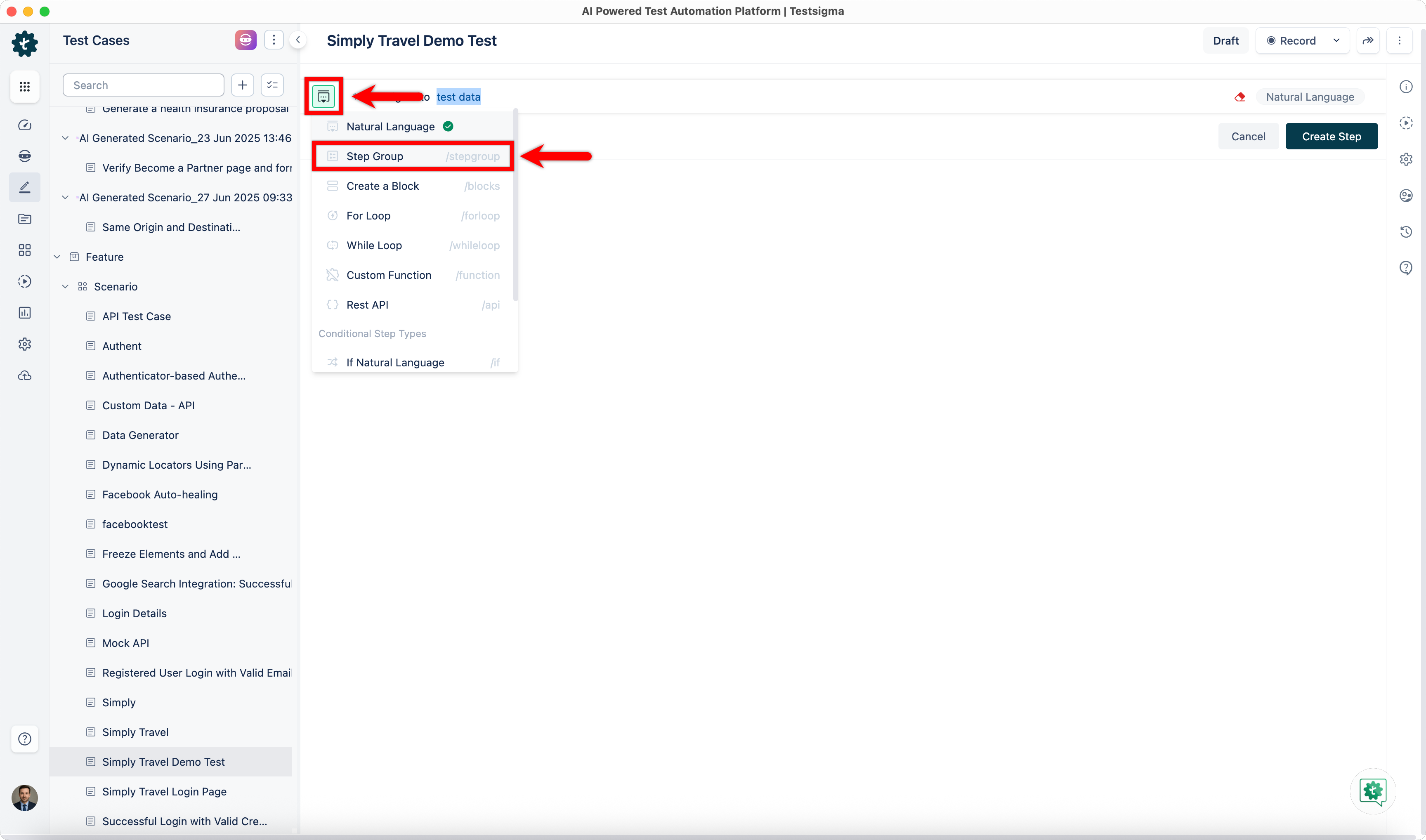
-
From the Step Group list overlay, select the step group you want to add.
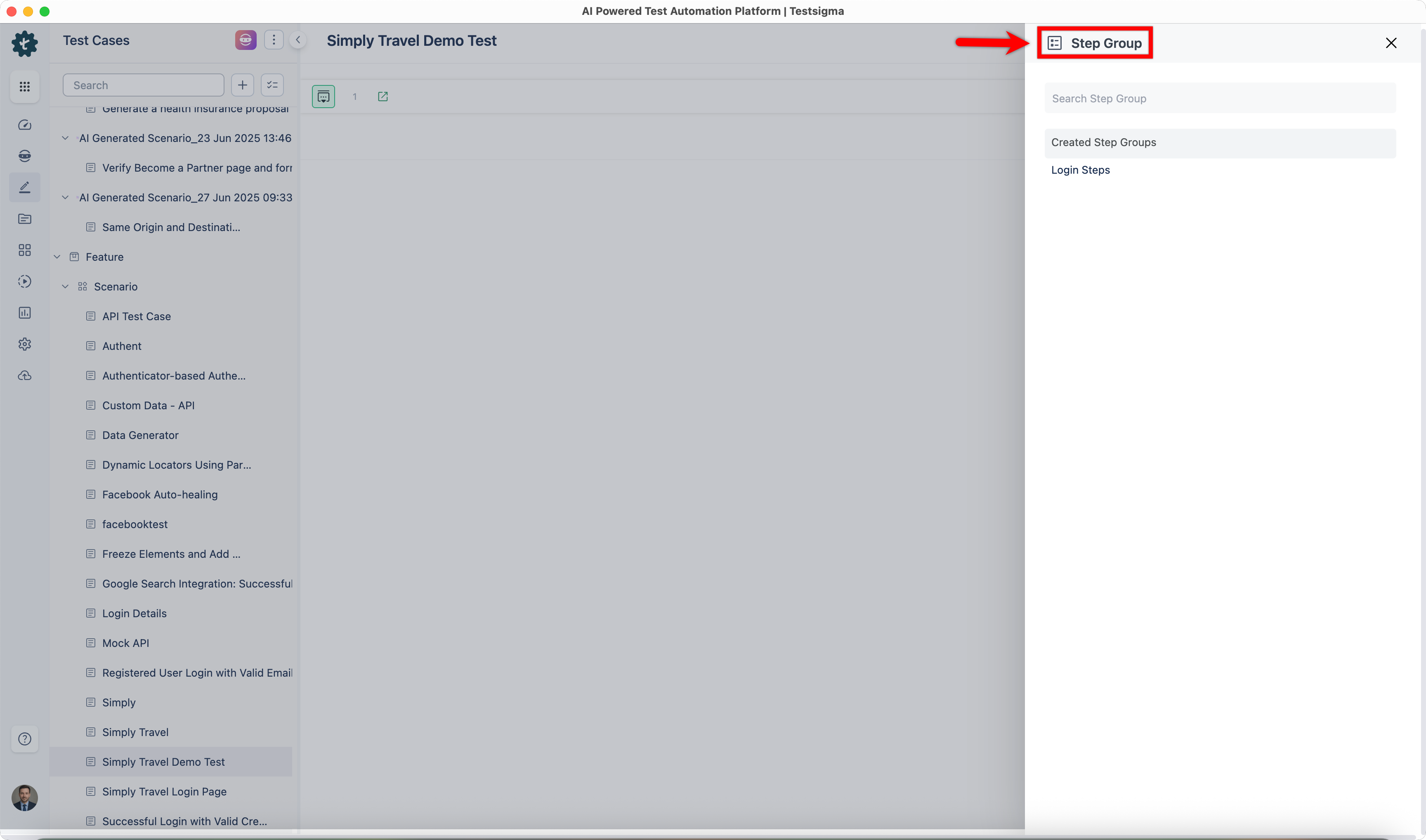
-
Click Create Step.
Use a Step Group Between Projects
Section titled “Use a Step Group Between Projects”-
From the left navigation bar, go to Create Tests > Test Cases.
-
Expand a feature, expand a scenario, and click + next to the scenario where you want to add a test case. Alternatively, open a test case in which you want to add a step group.
-
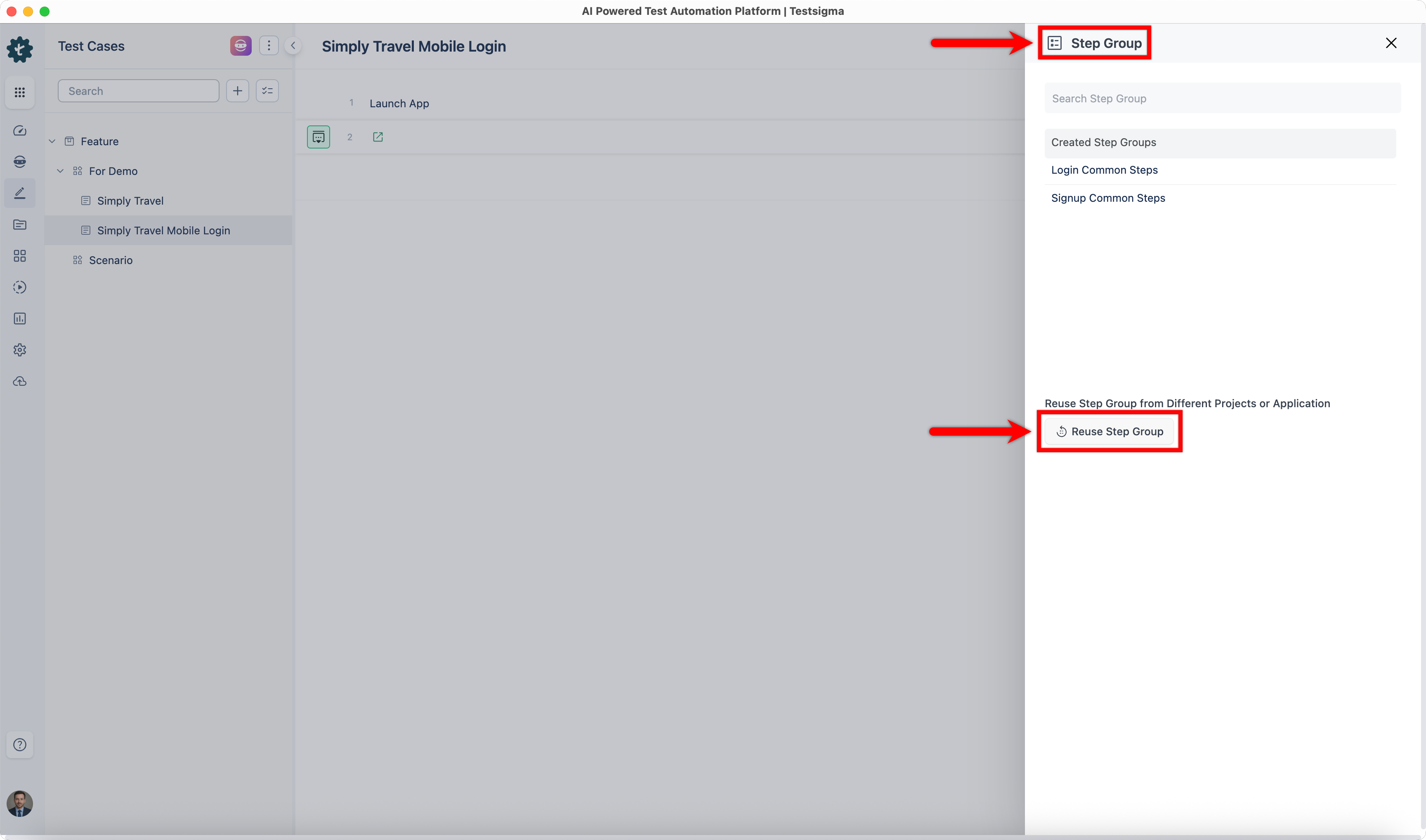
On the test case details page, click the option icon next to the test step, and then select Step Group.
-
In the Step Group list overlay, click Reuse Step Group.
-
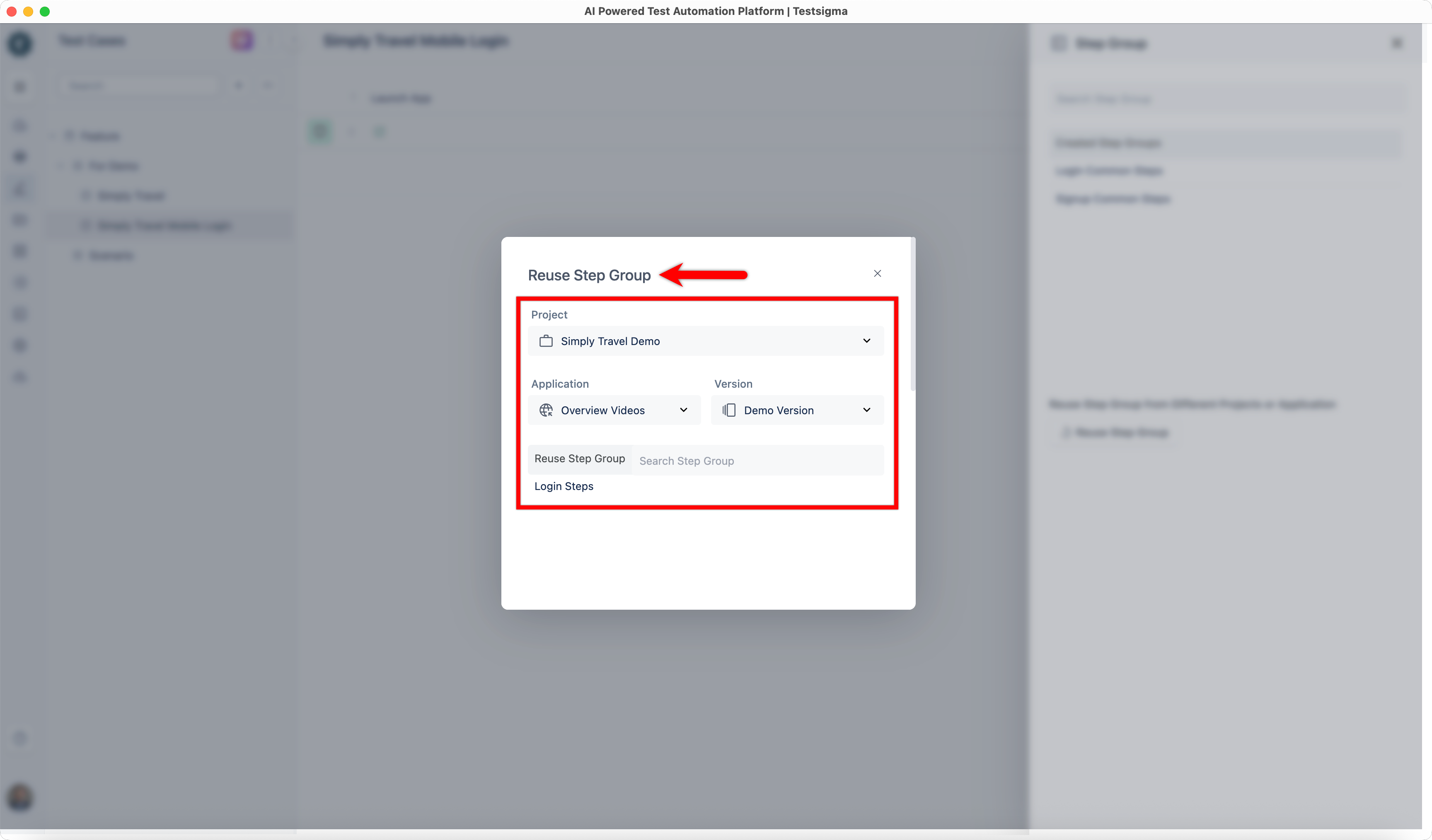
In the Reuse Step Group dialog:
- Select the project, application, and version.
- Select a step group from the Reuse Step Group dropdown list.
-
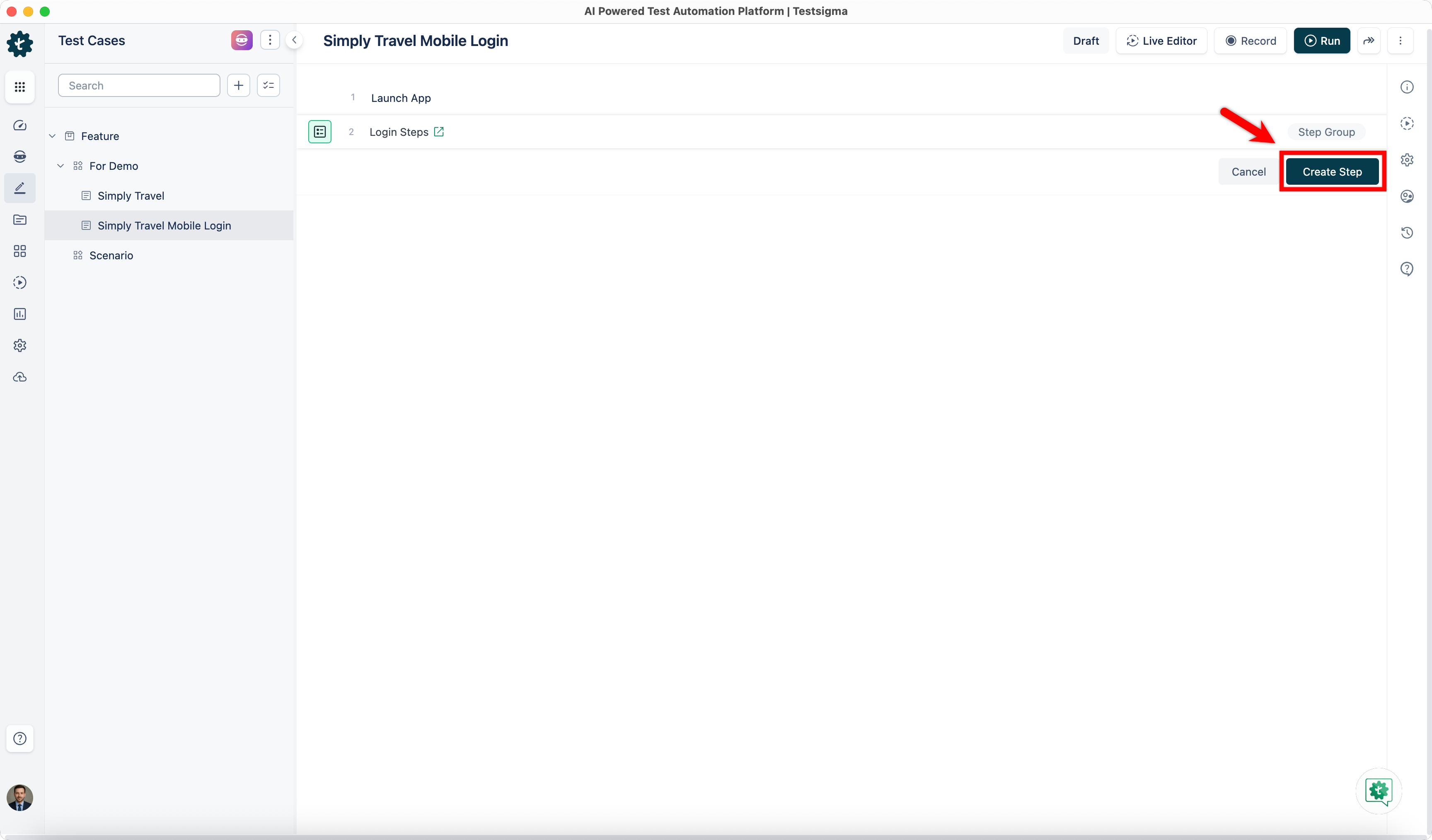
Click Create Step.
-
The step group is added from the selected project.
Additional actions possible on iteration count
Section titled “Additional actions possible on iteration count”-
Store: In a step group, when a test data profile is being iterated - an additional action is possible. The iteration count can be stored into a variable for later use. (Iteration count is the current count that is being iterated over the associate test data profile in the step group in Testsigma.)
-
If: The test data set values, from a test data profile being iterated, can be compared within an if condition too. Below screenshot shows the NLP (The NLP can be added as a part of add-on String Compare. You can find the add-ons to use here: https://testsigma.com/addons):