FAQs
How Can I Set Up Authenticator-Based Authentication in Testsigma?
Testsigma supports multiple authentication mechanisms to ensure secure access and flexibility. One such mechanism is authenticator-based authentication, which leverages Time-based One-Time Passwords (TOTP) generated by authenticators such as Google Authenticator and Authy applications.
This article explains how authenticator-based authentication works and how to configure it in Testsigma.
Supported Authentication Methods
Section titled “Supported Authentication Methods”- Username and Password.
- Two-Factor Authentication (2FA). For more information, refer to the documentation on the mailbox and the phone number.
- API Key Authentication - You can fetch the access key from their endpoint, store it in a runtime variable, and use it for login authentication.
- Authenticator-Based Authentication.
Install Google Authenticator Extension
Section titled “Install Google Authenticator Extension”-
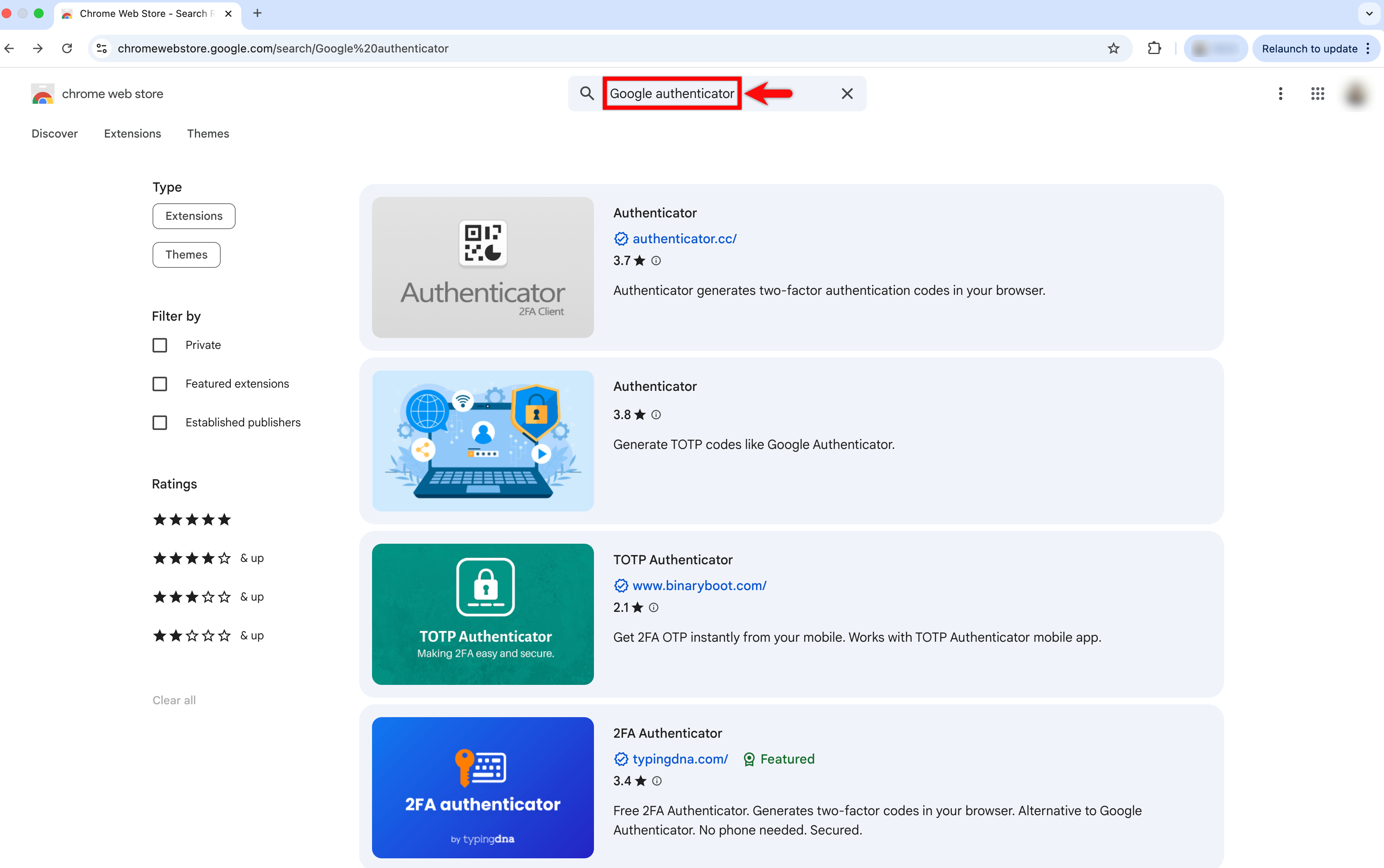
Open your Chrome browser and go to the Chrome Web Store.
-
Search for Google Authenticator.
-
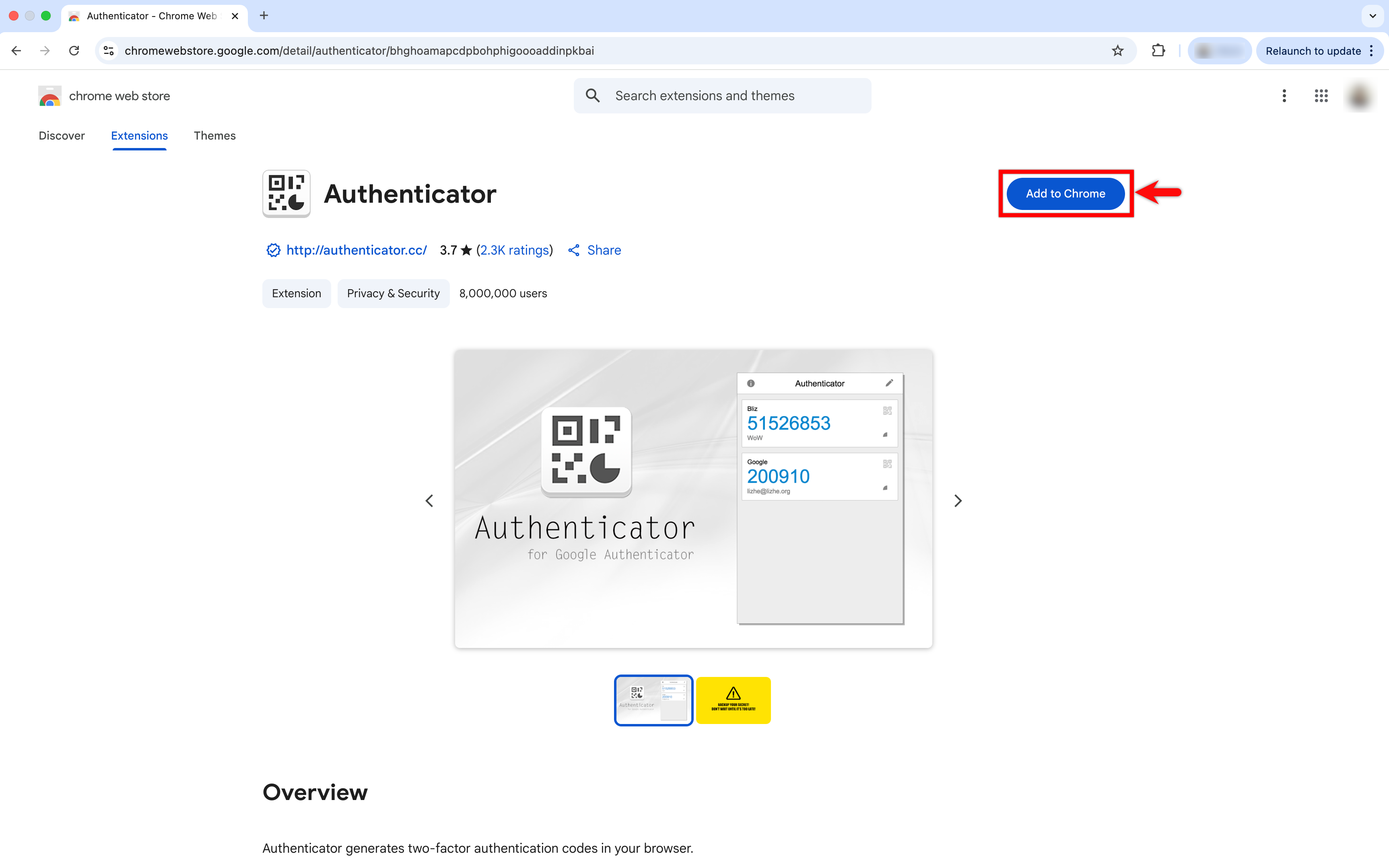
Click Add to Chrome on any authenticator to install the extension.
-
After installation, the Authenticator icon appears on your browser toolbar.
Upload the QR Code to Testsigma
Section titled “Upload the QR Code to Testsigma”-
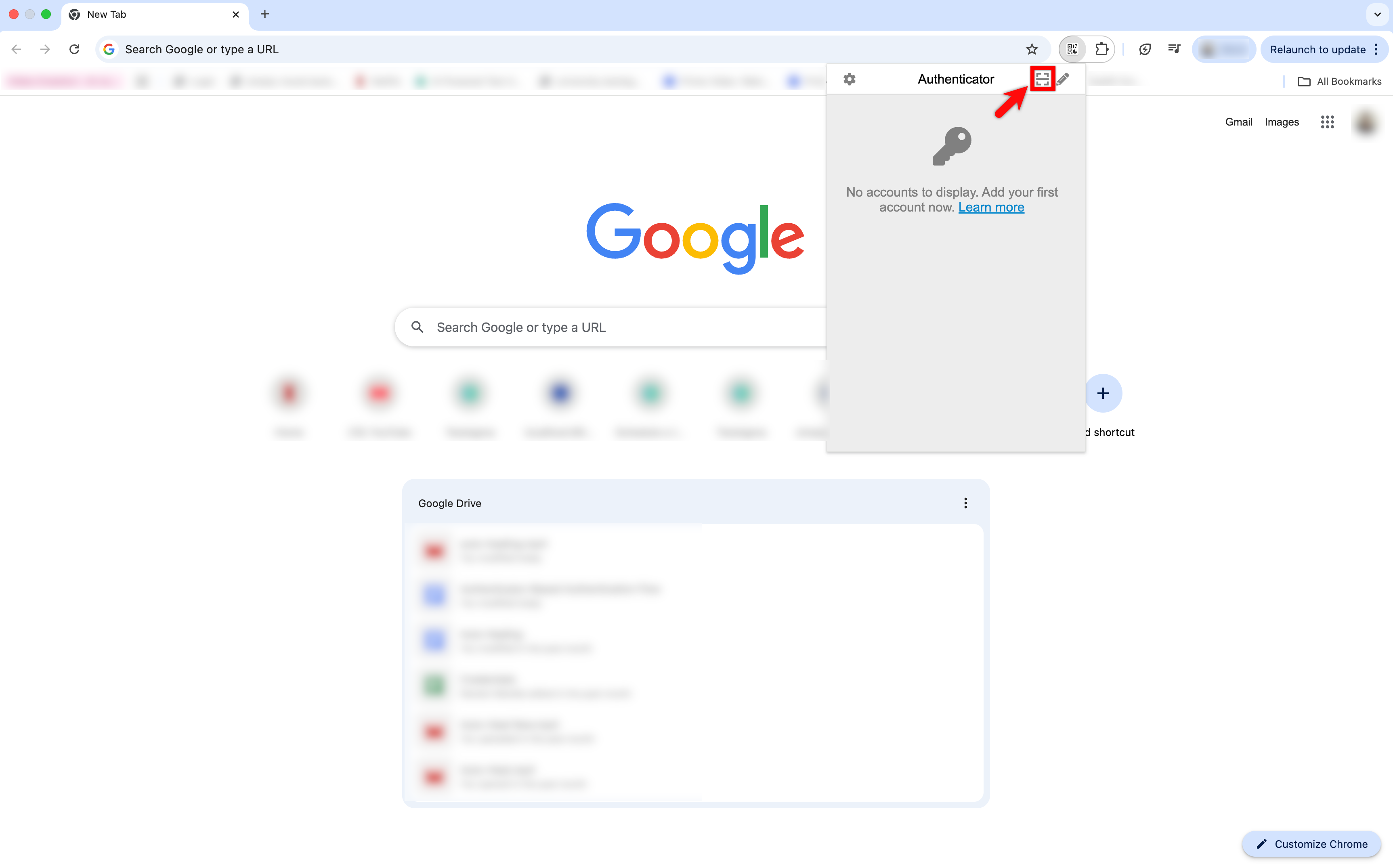
In the extension, click the Scan QR Code icon, take a screenshot of the QR code, and upload the screenshot to Testsigma.
-
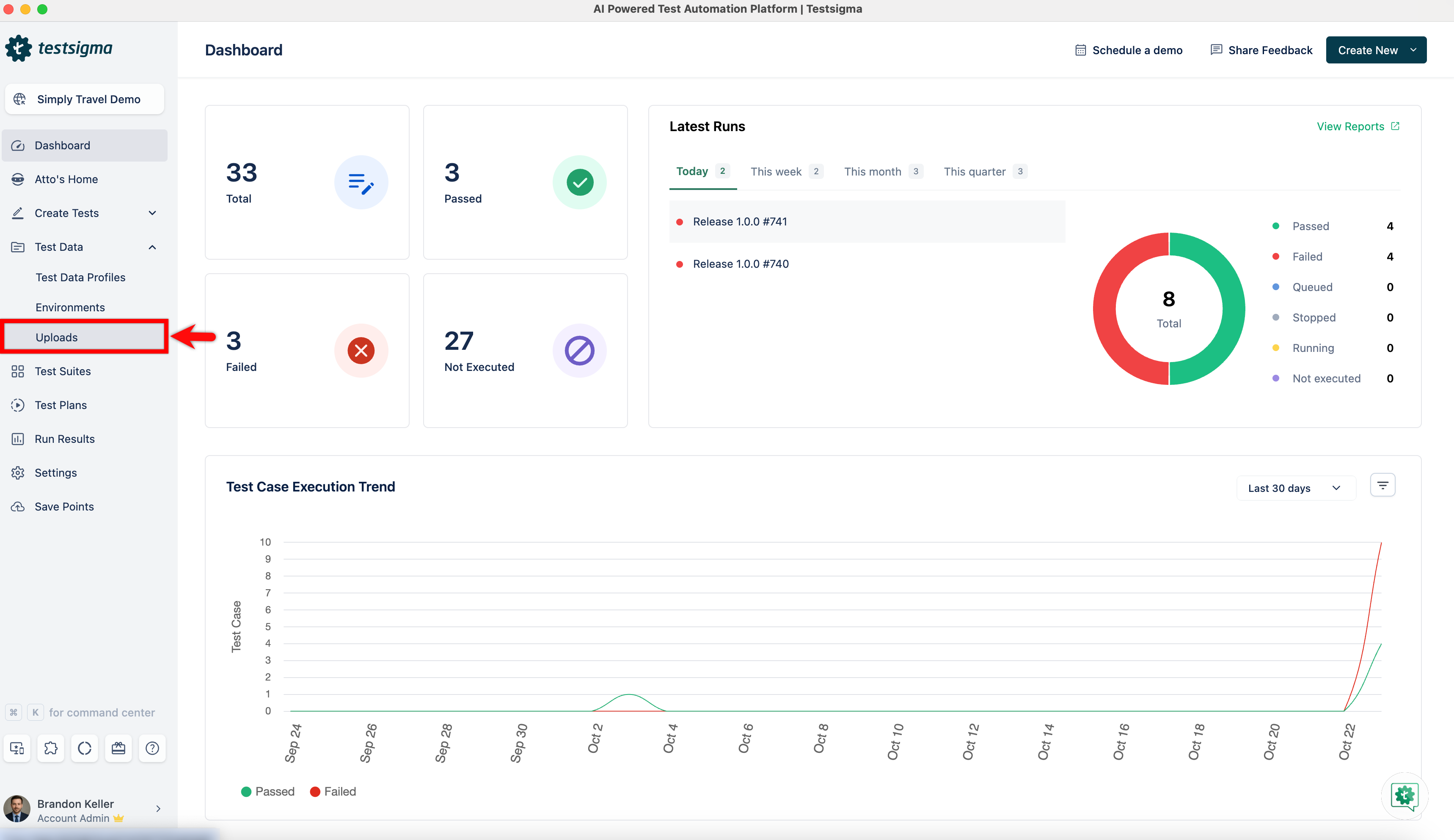
In Testsigma, go to Test Data > Uploads.
-
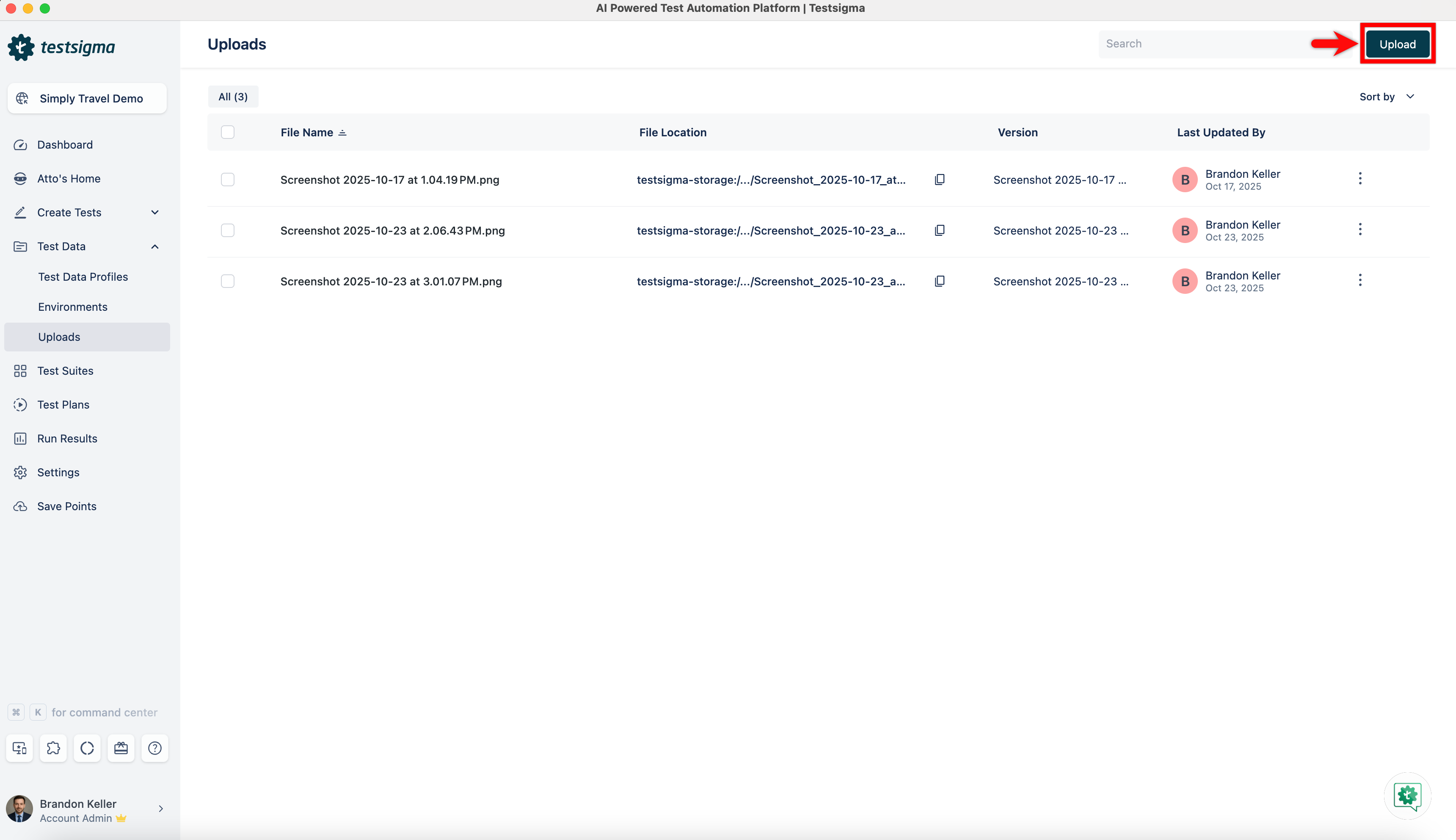
On the Uploads page, click Upload and upload this QR code image.
Install the TOTP Add-on to Generate OTP
Section titled “Install the TOTP Add-on to Generate OTP”-
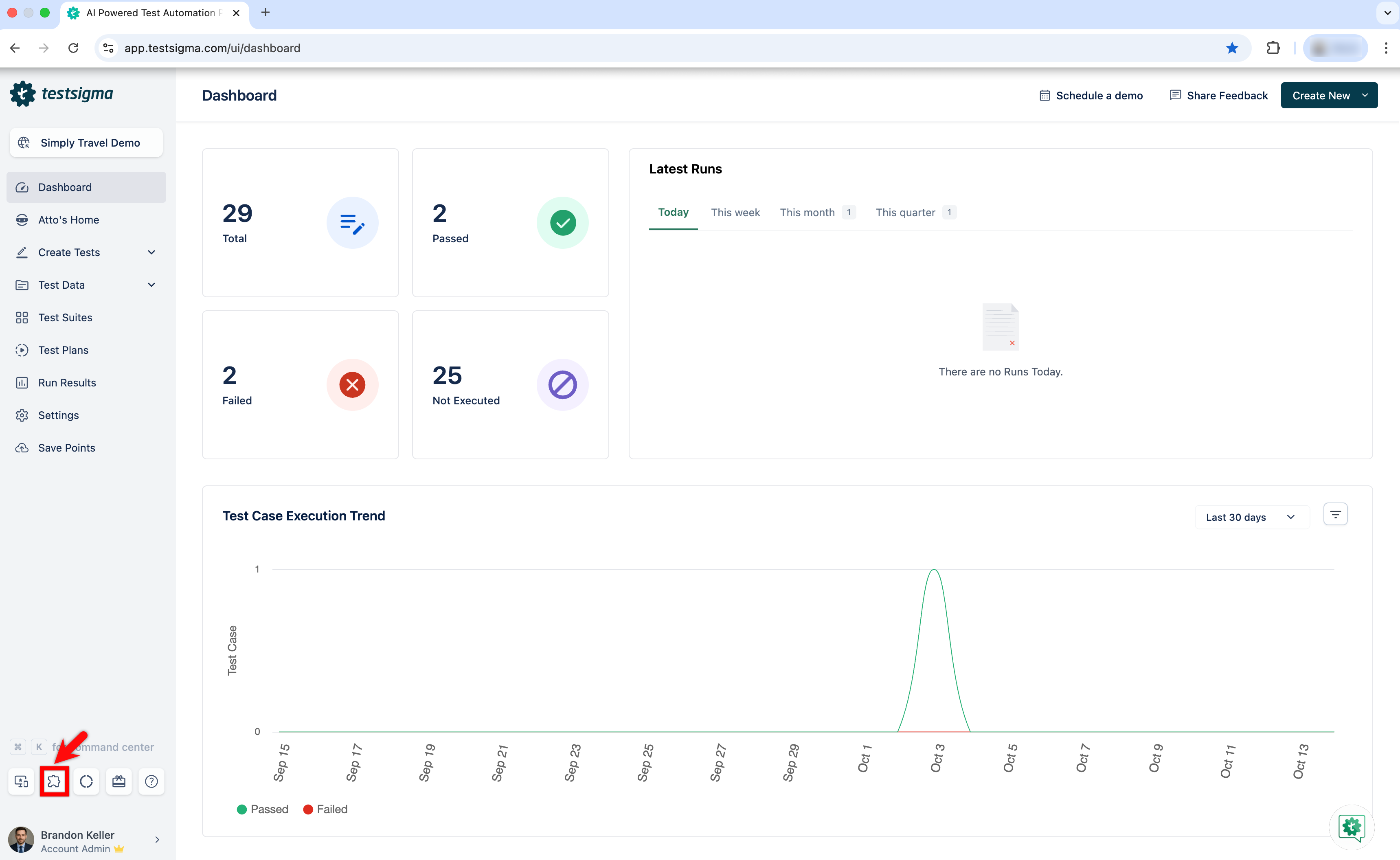
Click on the Addons icon from the left navigation bar.
-
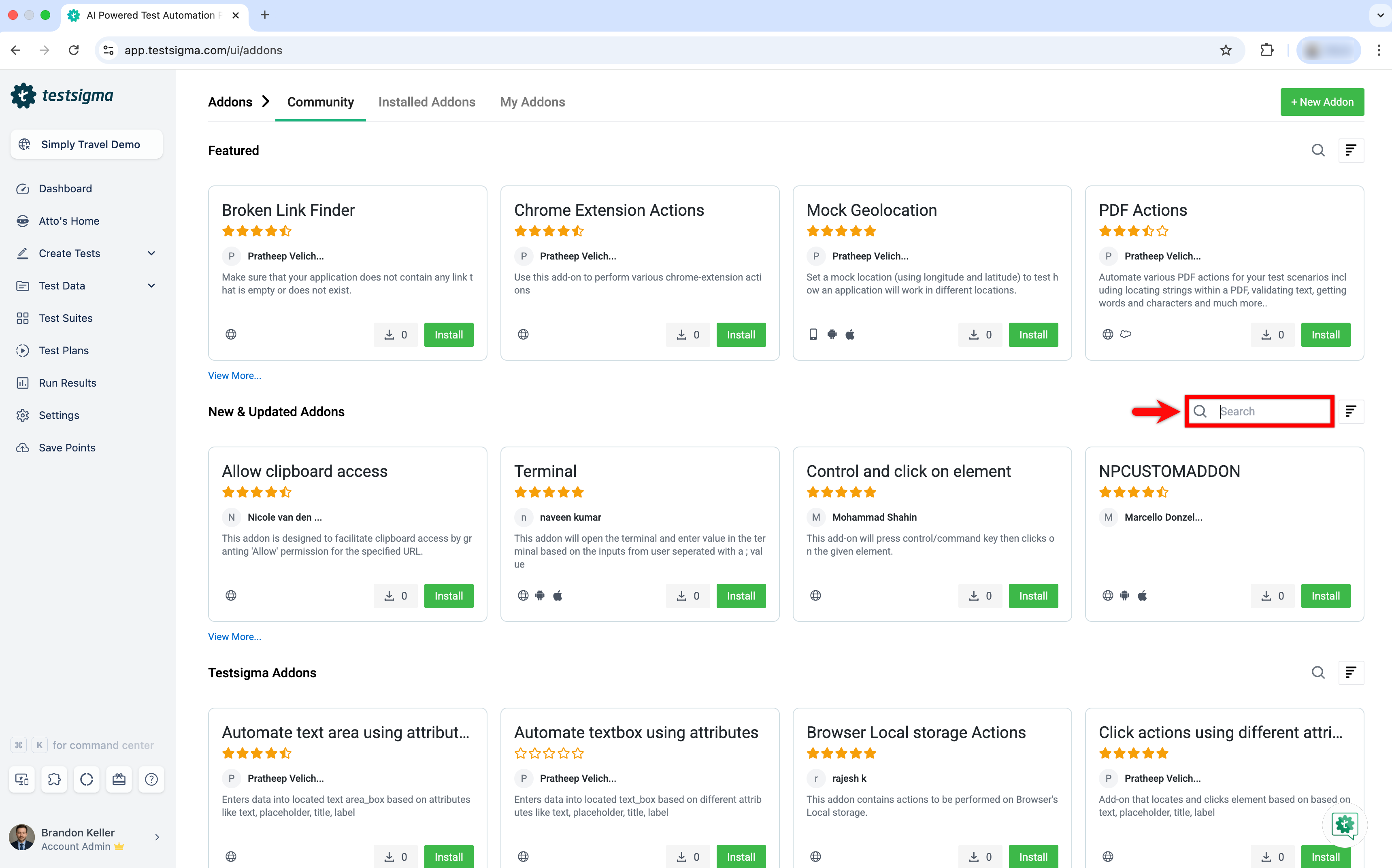
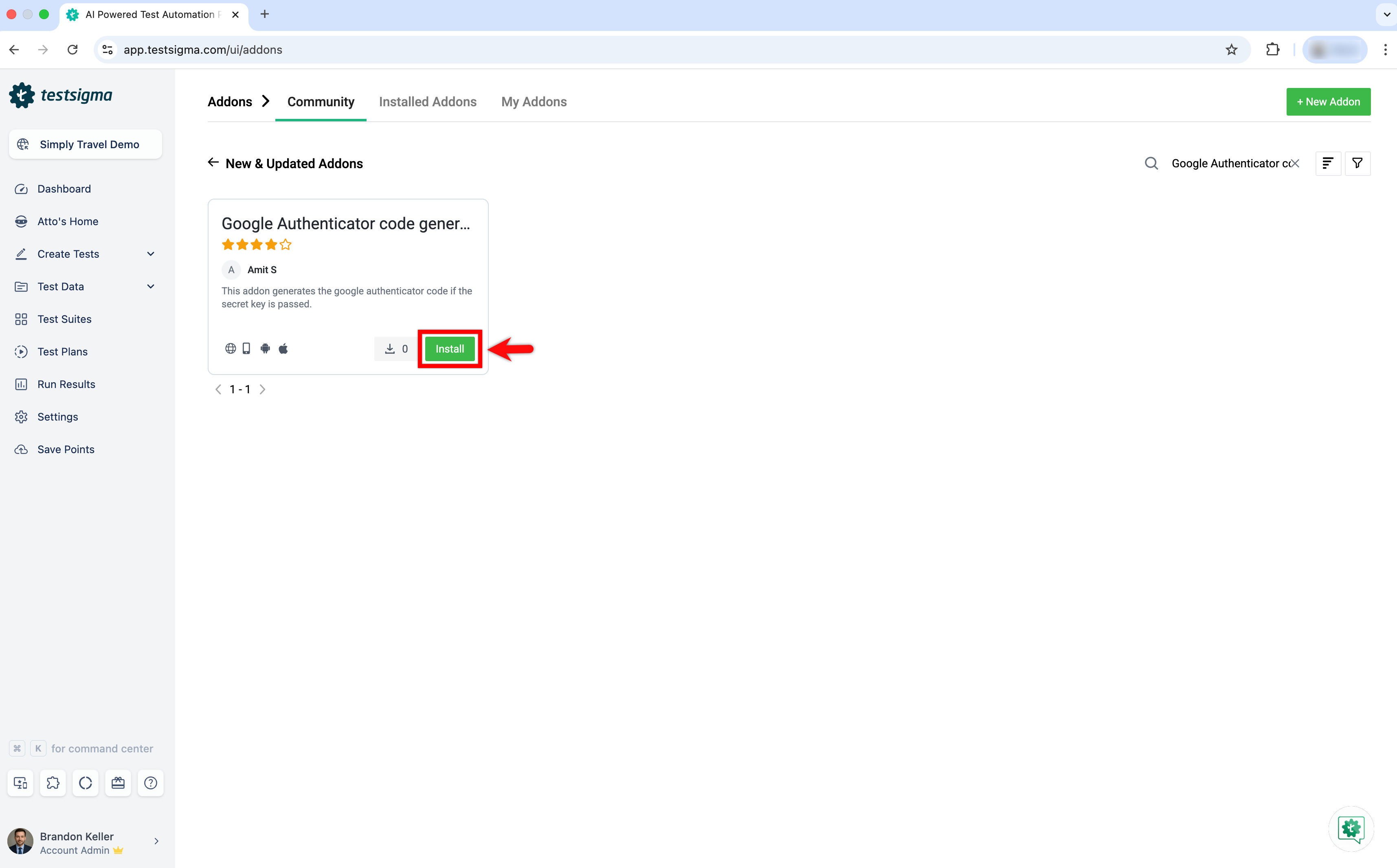
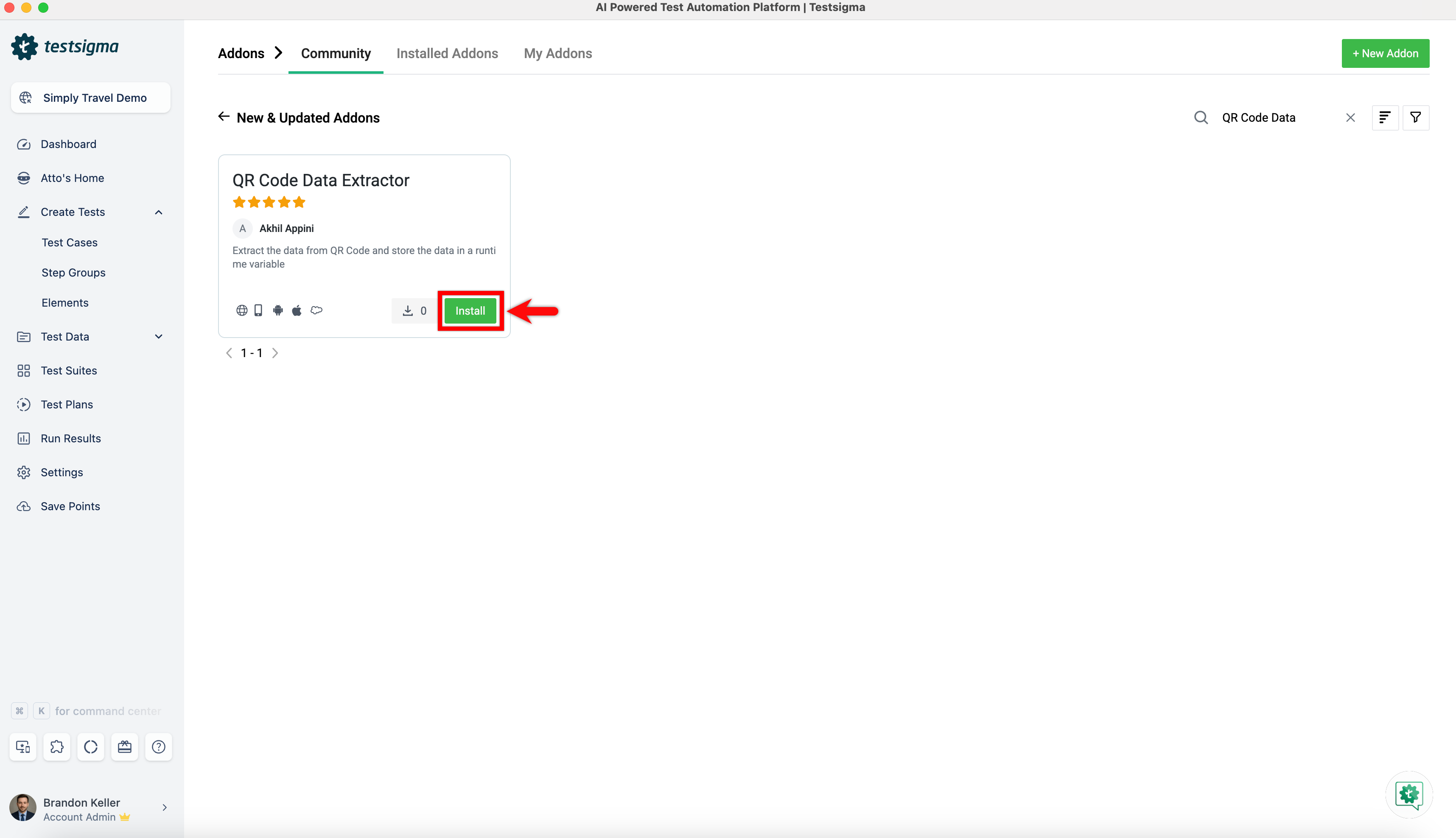
On the Addon Marketplace page, under New & Updated Addons, click the search bar and search for Google Authenticator Code Generator and QR Code Data Extractor.
-
Click Install on the Google Authenticator code generator card.
-
Click Install on the QR Code Data Extractor card.
Extract the Secret Key Using NLP
Section titled “Extract the Secret Key Using NLP”-
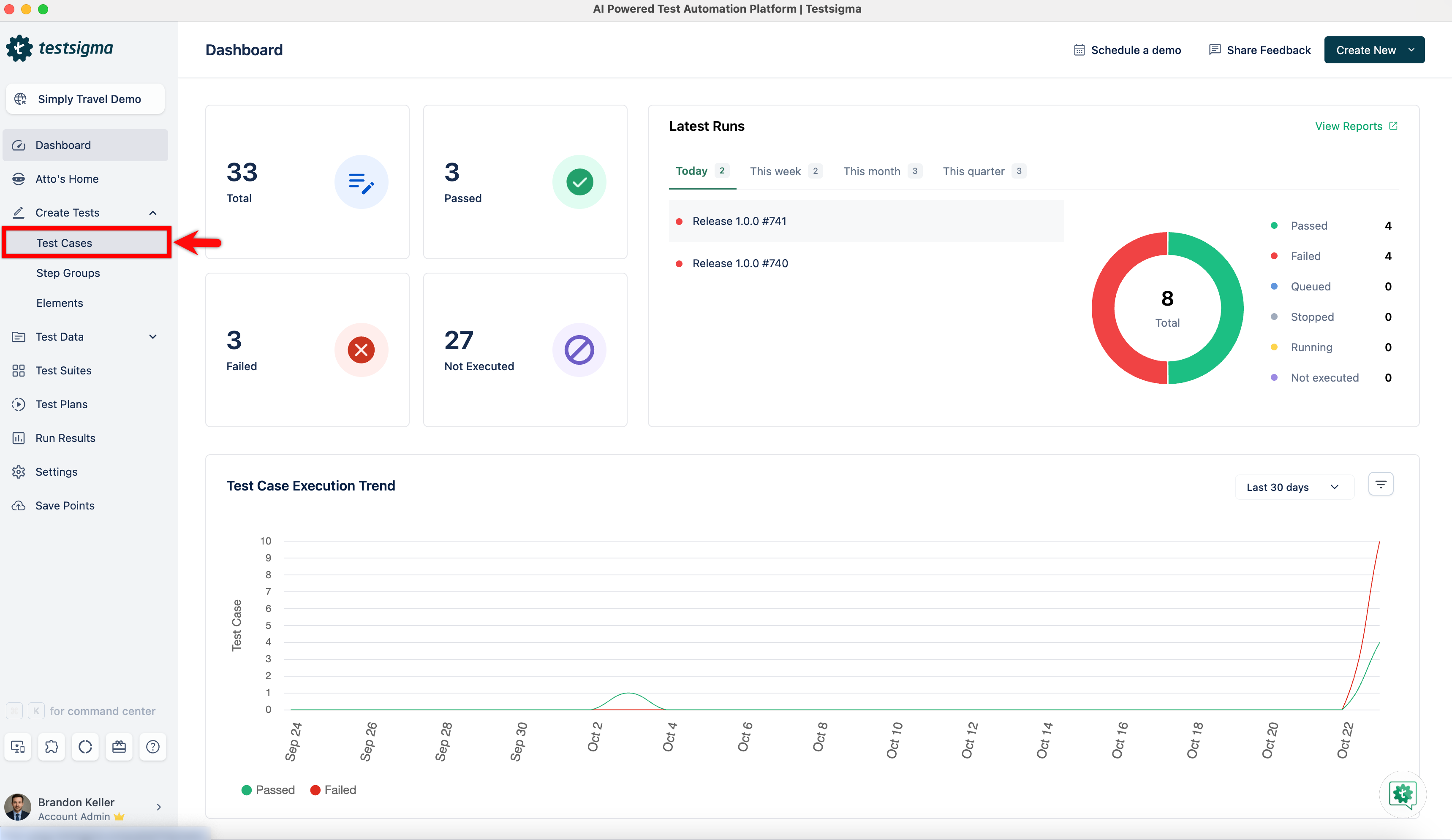
From the left navigation bar, go to Create Tests > Test Cases.
-
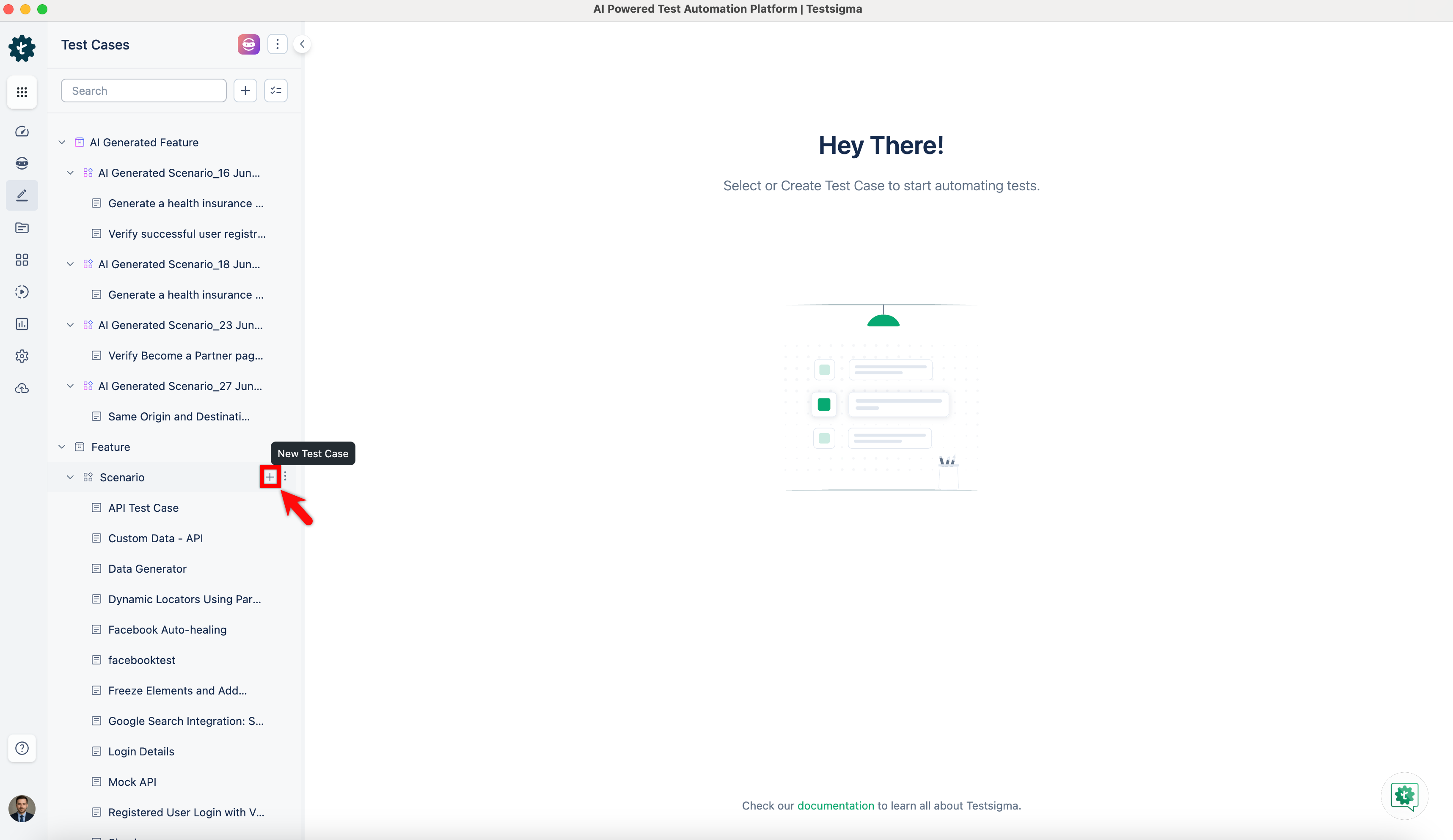
On the Test Case Explorer page, expand a Feature and click the + icon next to a scenario.
-
In the dialog box, enter a name for the test case and click Create.
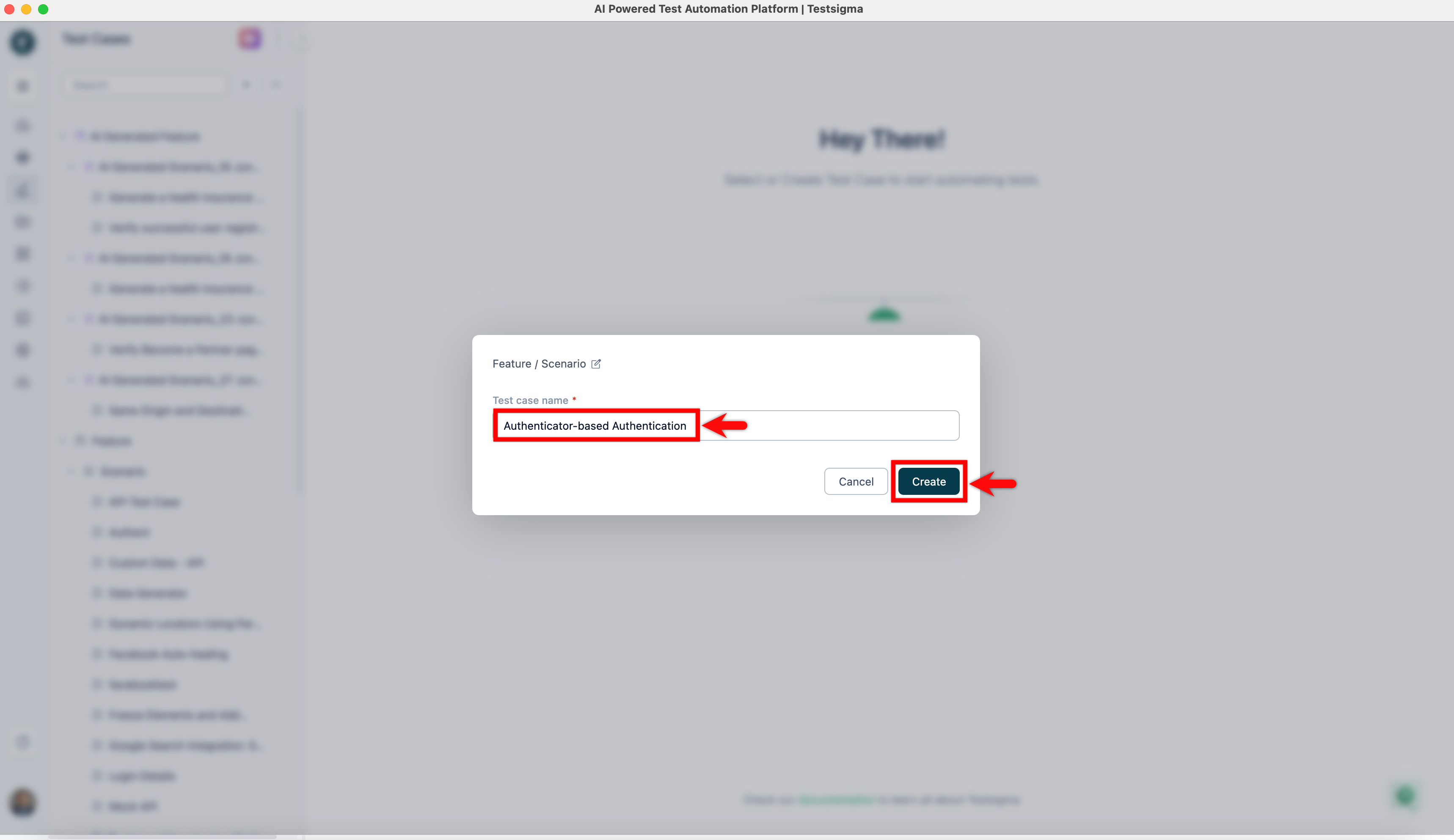
-
On the Test Case Details page, use the NLP: Extract data from QR Code file-path and store the data in a runtime variable variable-name.
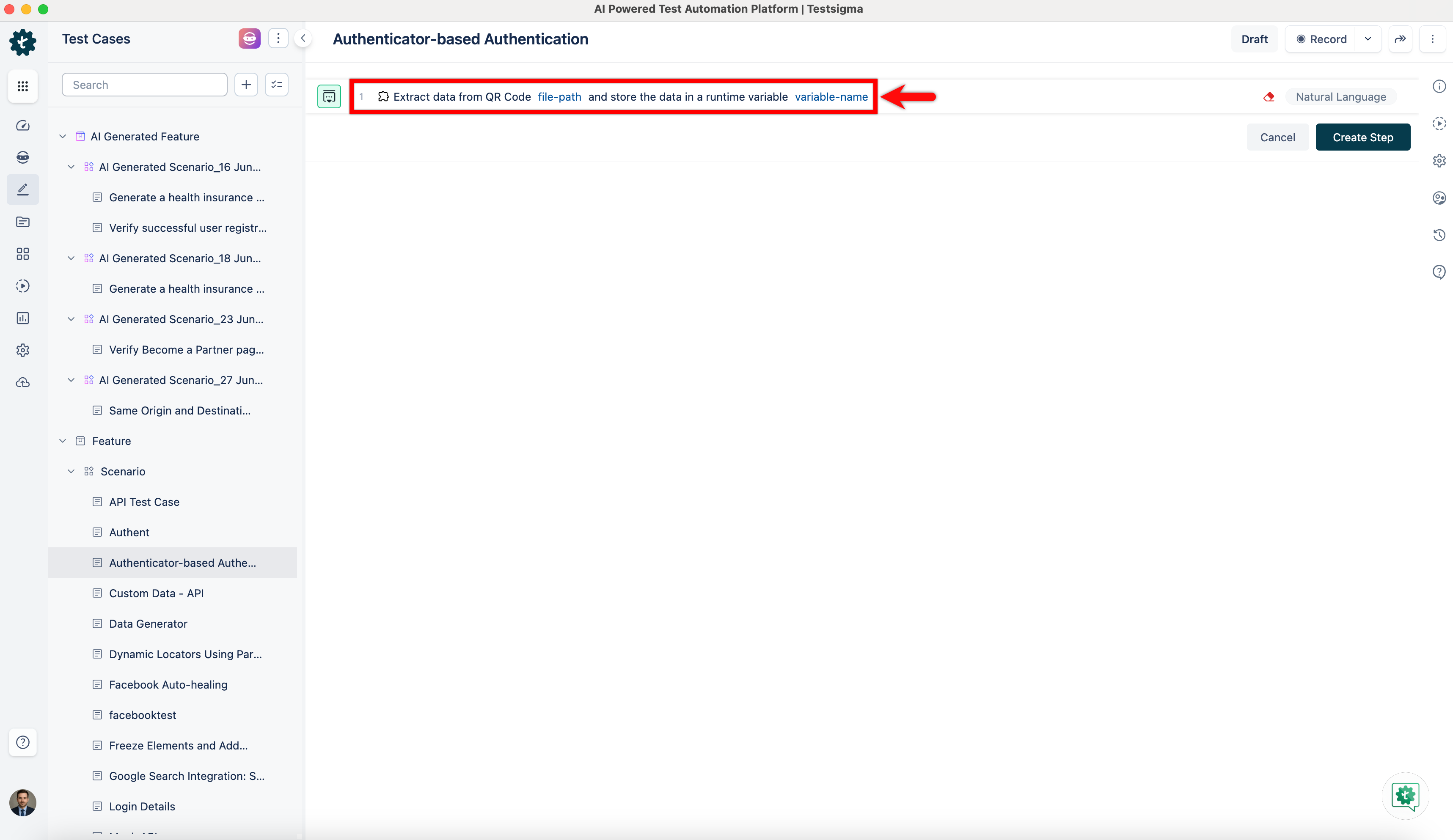
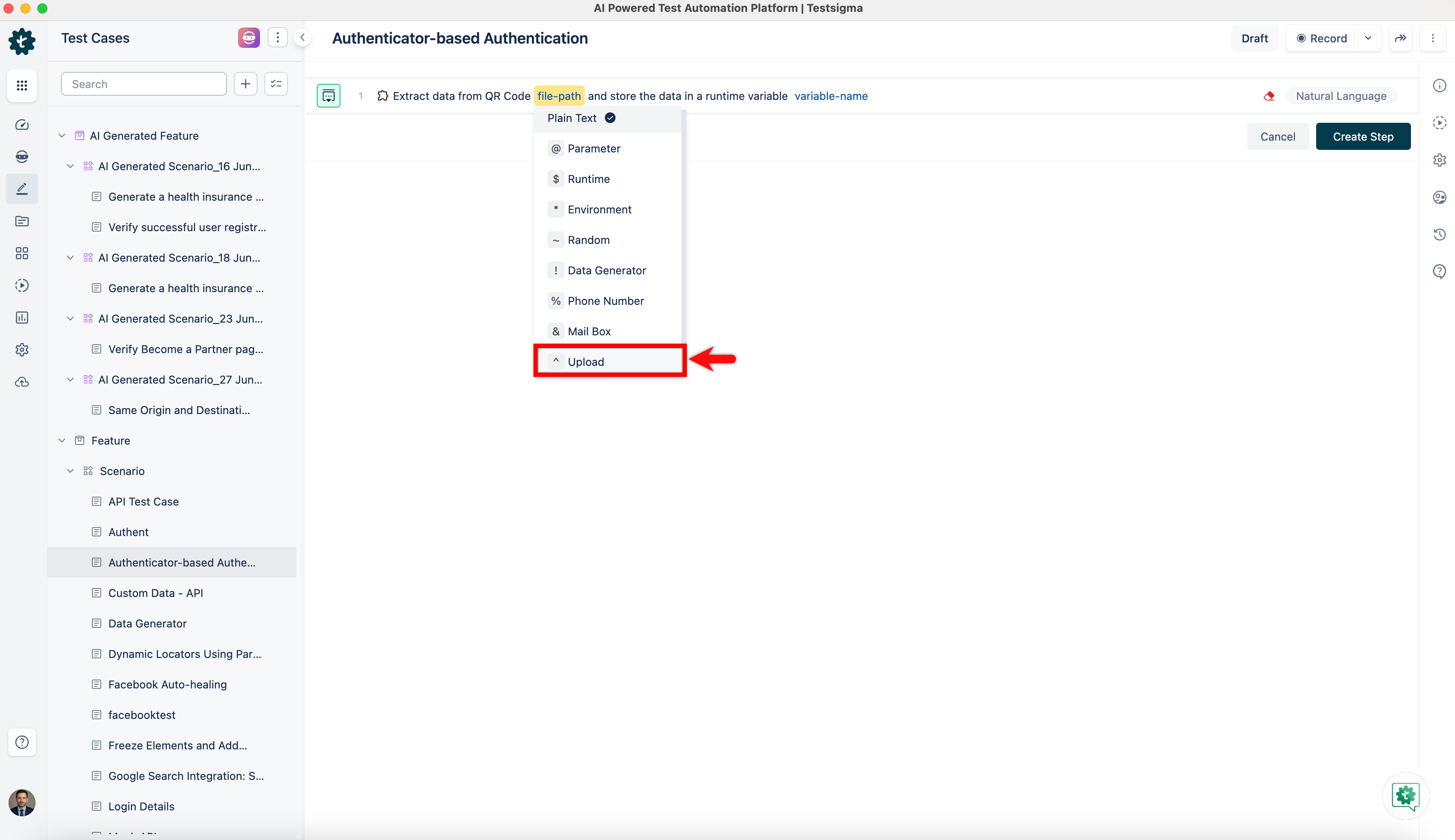
- Click the file-path placeholder, and from the Test Data Types dropdown, select Upload.
- On the Uploads overlay, select the screenshot of the QR code.
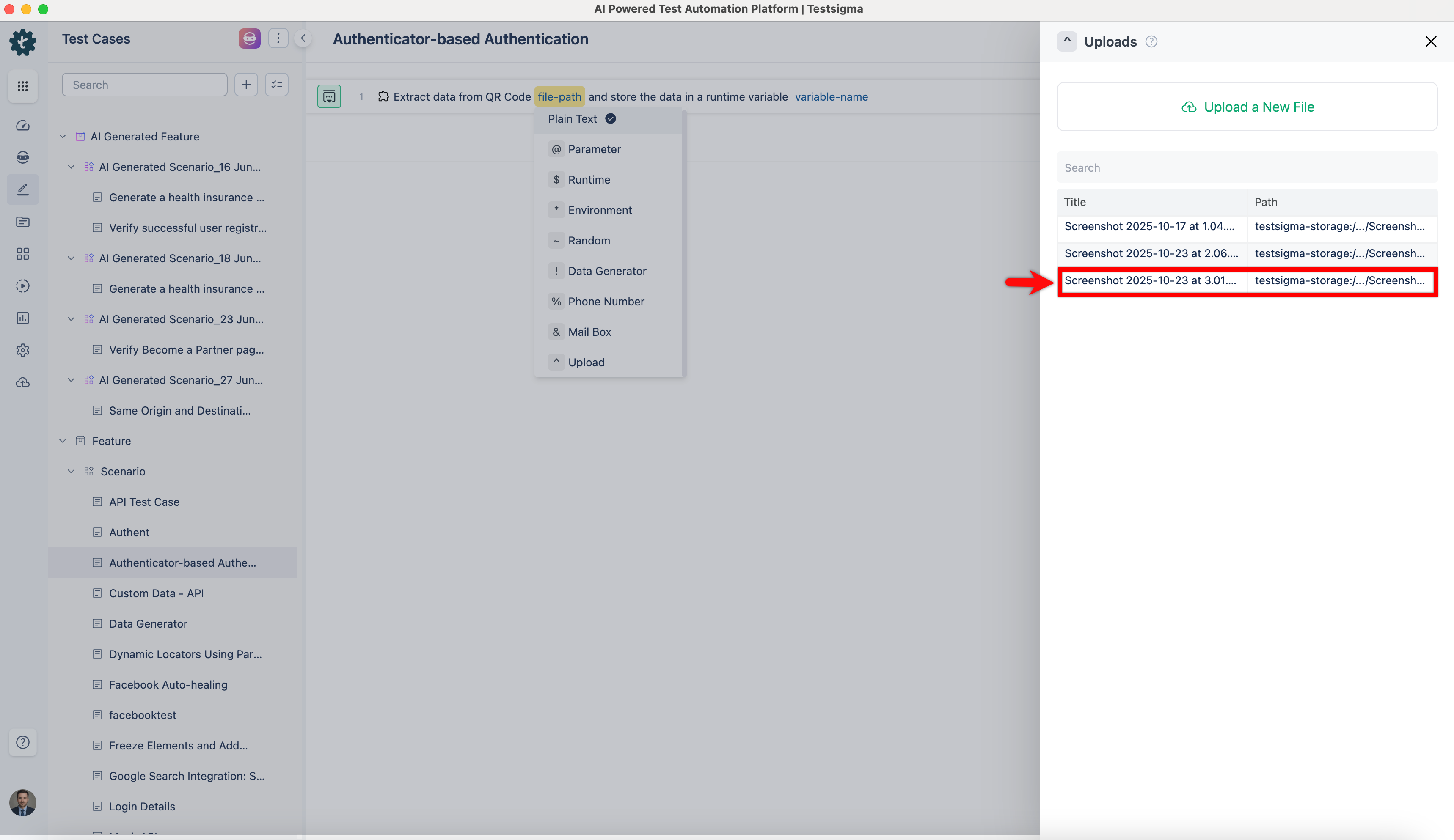
- Click the variable-name placeholder, enter a new runtime variable name such as qr_runtime, and click Create Step.
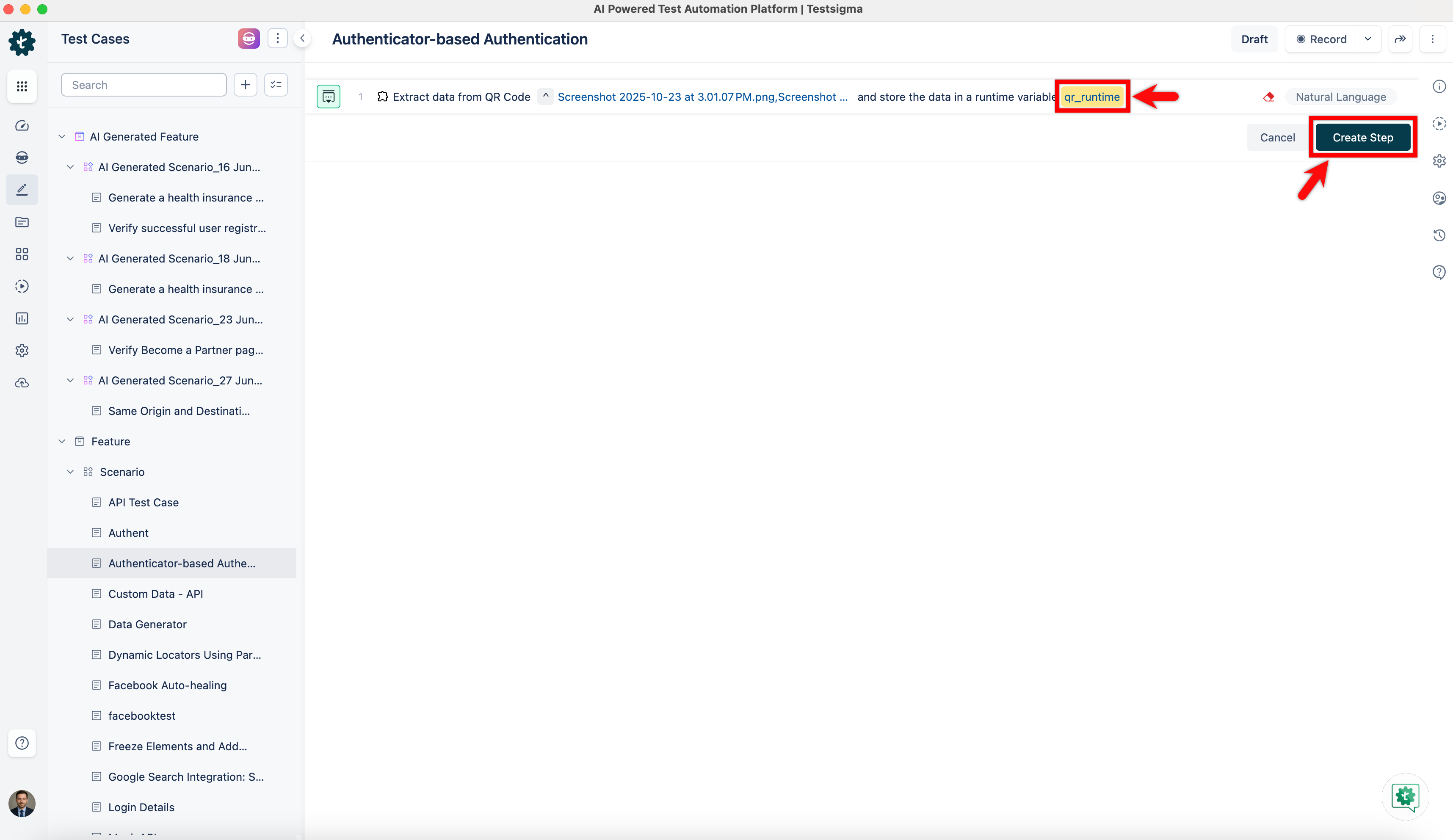
- Click the file-path placeholder, and from the Test Data Types dropdown, select Upload.
-
Click Run to execute the test.
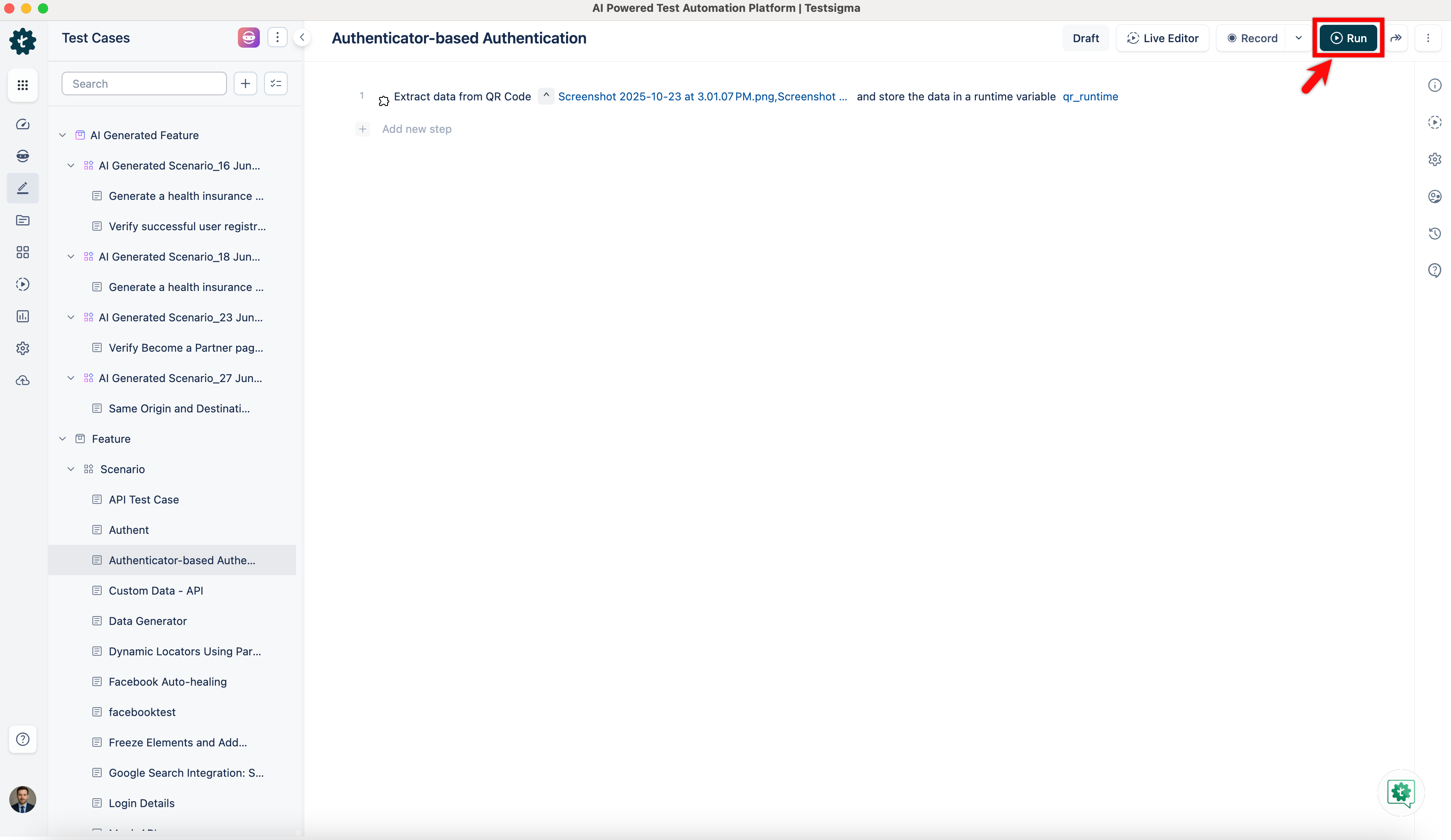
-
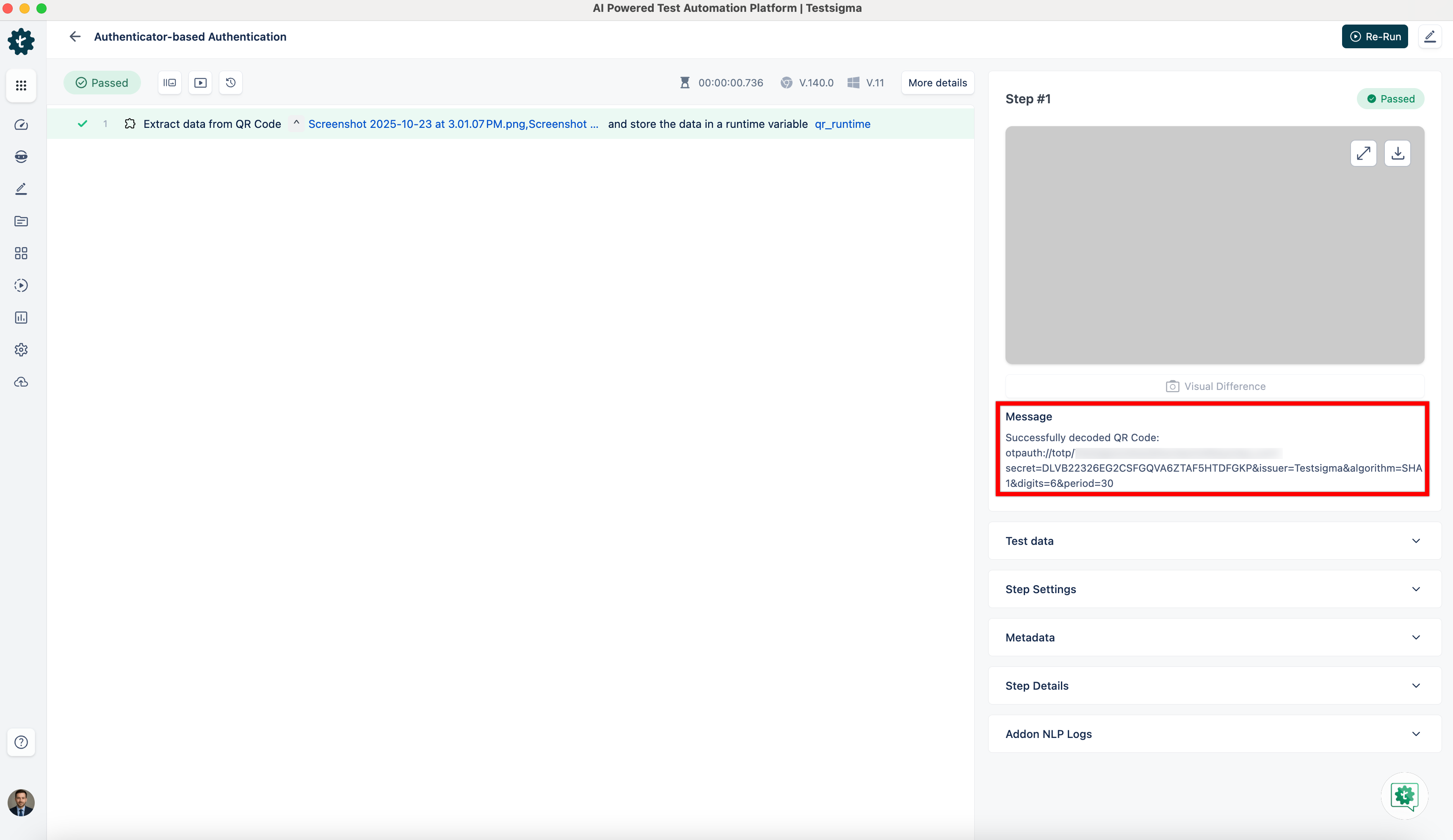
The step result displays the decoded secret key from the QR image.
Store the Secret Key in a Test Data and Generate OTP
Section titled “Store the Secret Key in a Test Data and Generate OTP”-
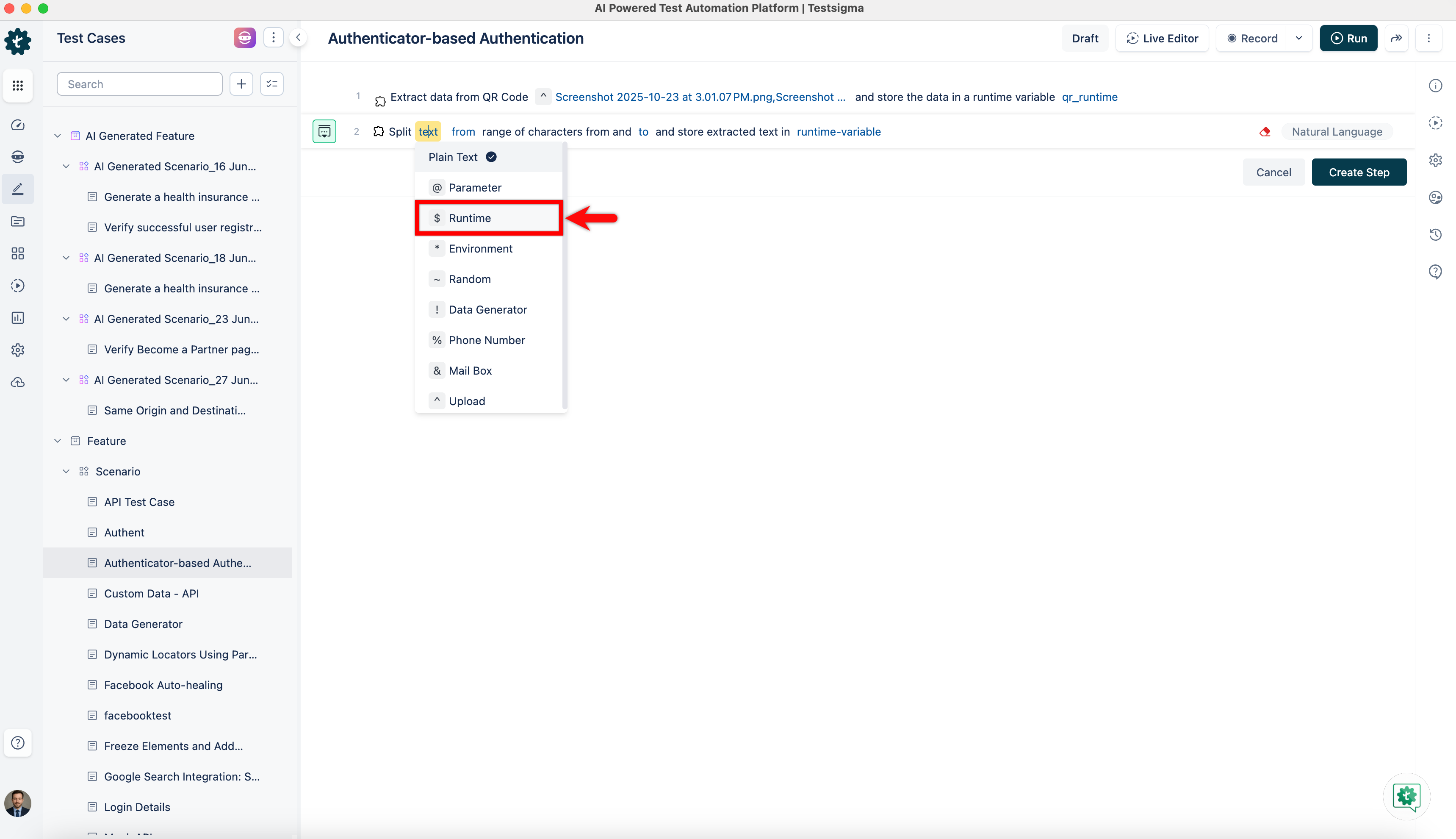
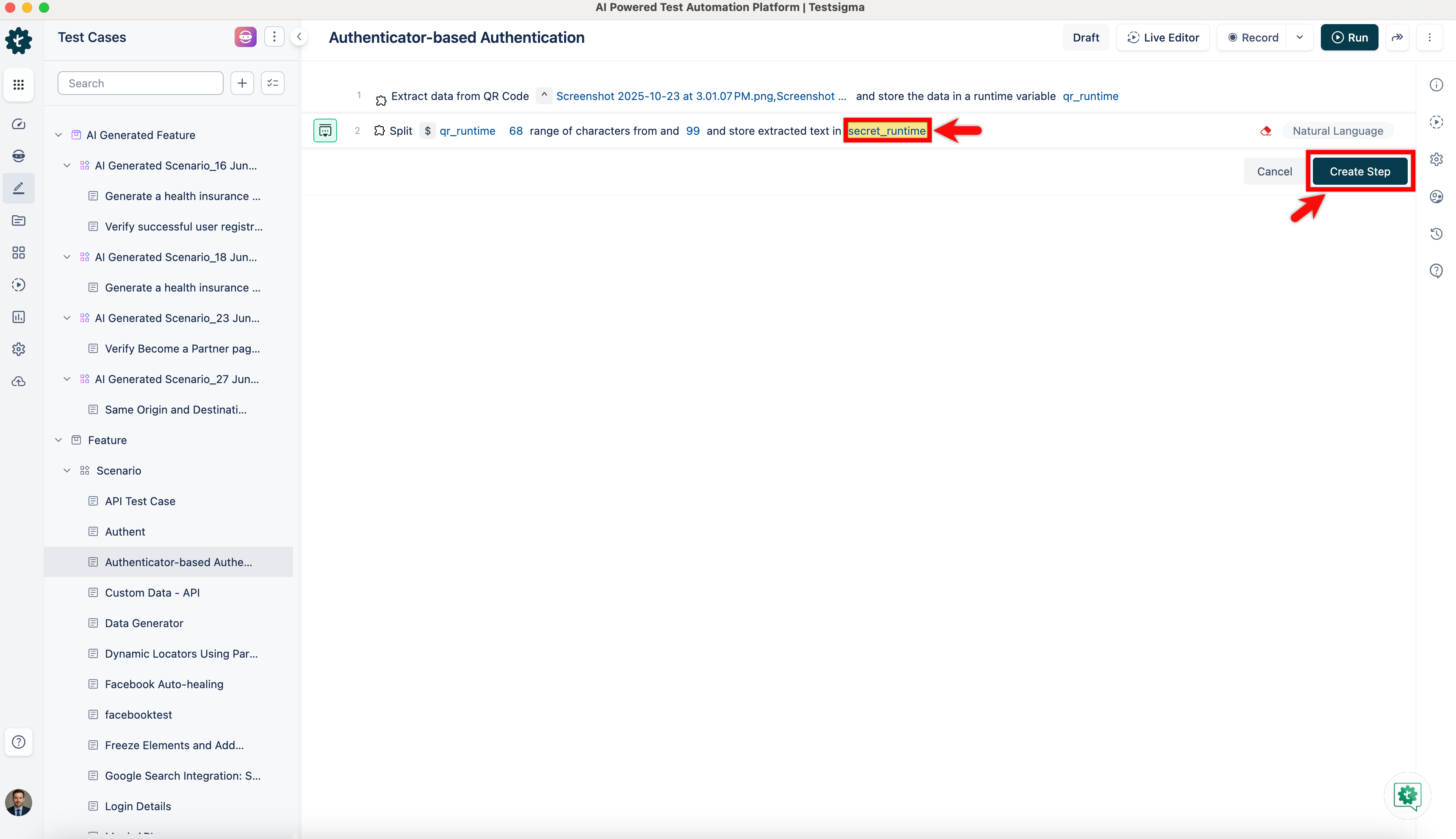
Use the Split text from range of characters from and to and store extracted text in runtime-variable NLP.
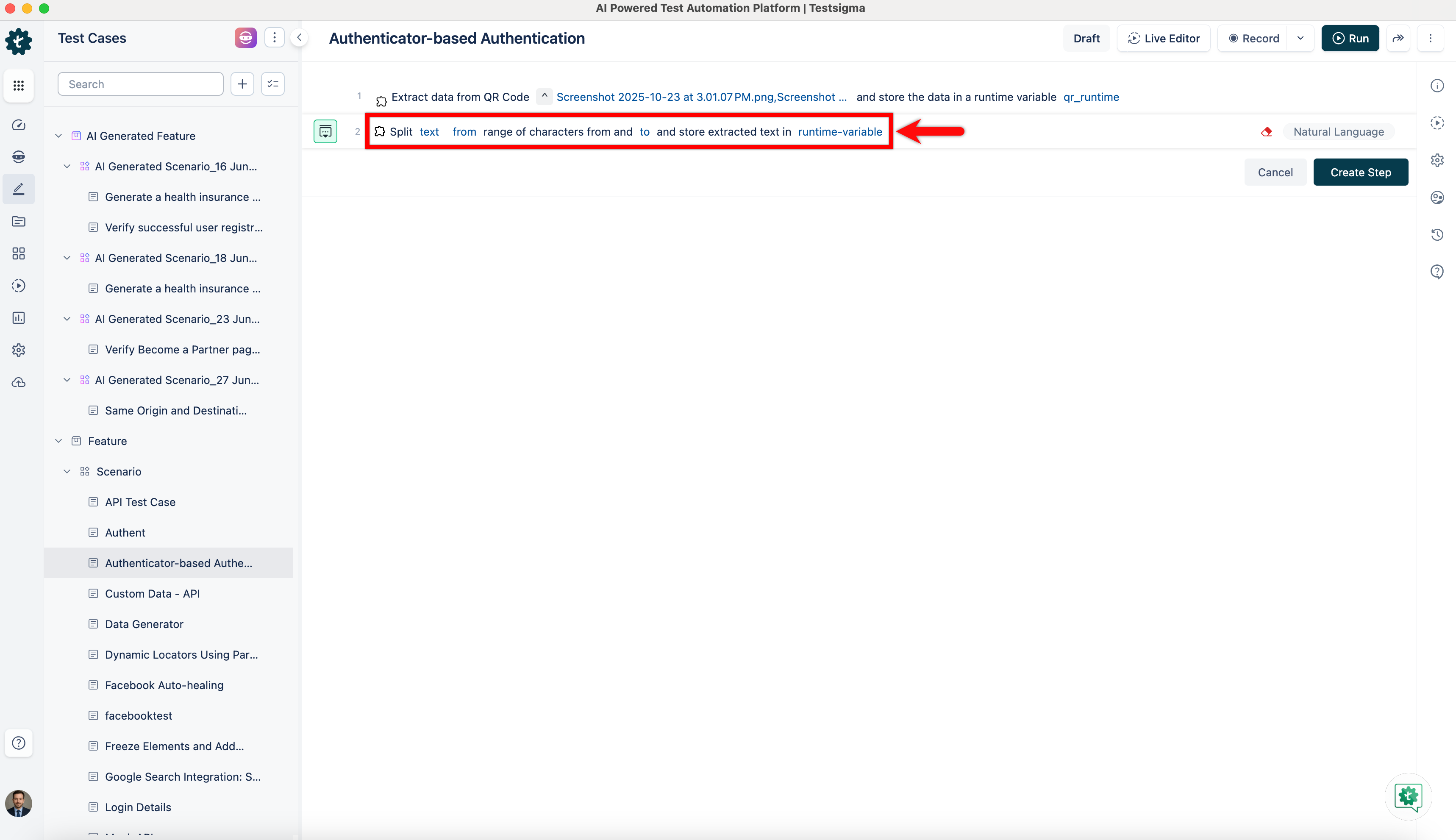
- Click the text placeholder, and from the Test Data Types dropdown, select $Runtime.
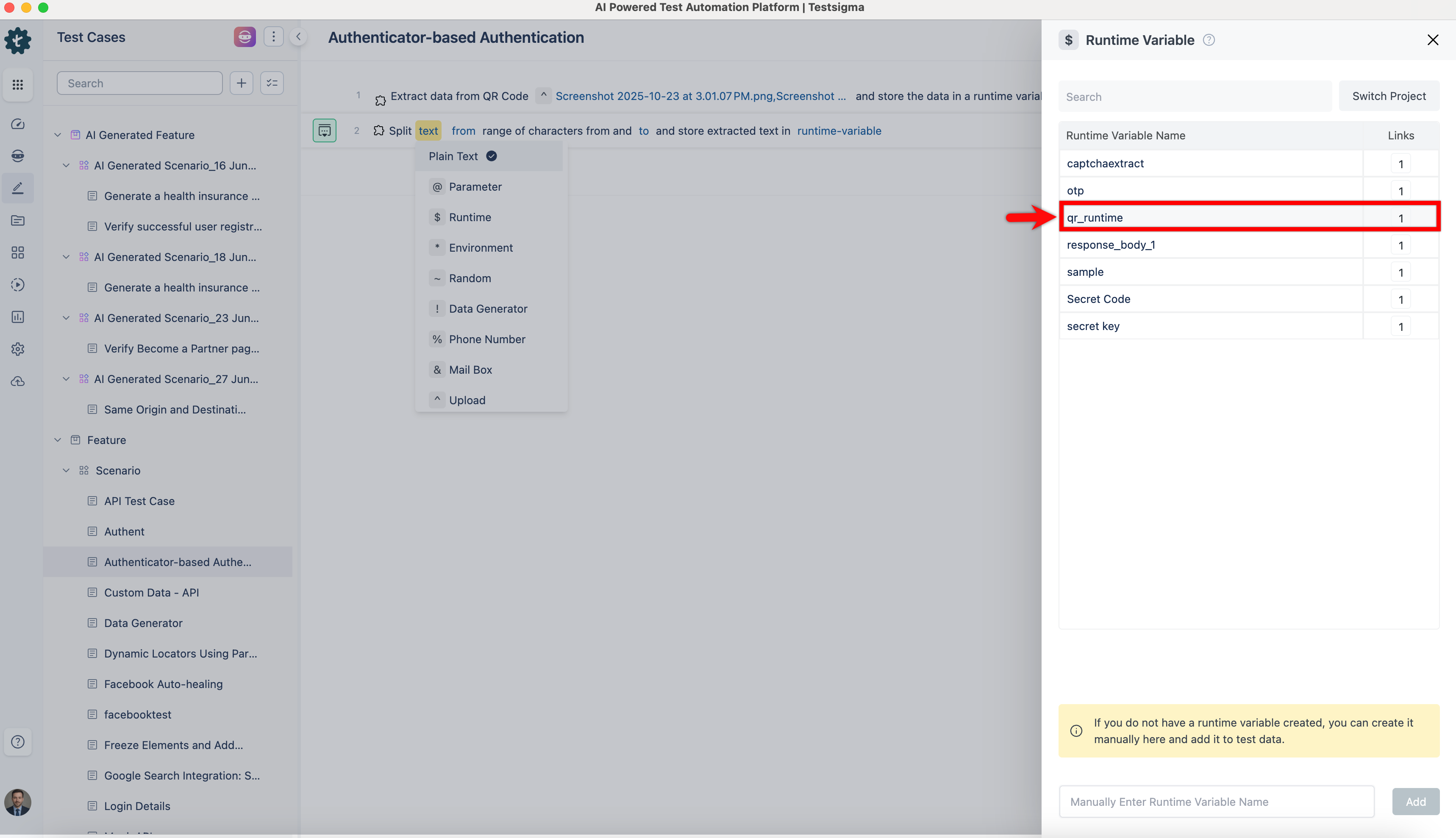
- On the $Runtime Variable overlay, select the same runtime variable used for this test case.
- Click the from placeholder and enter the character position where the secret key begins.
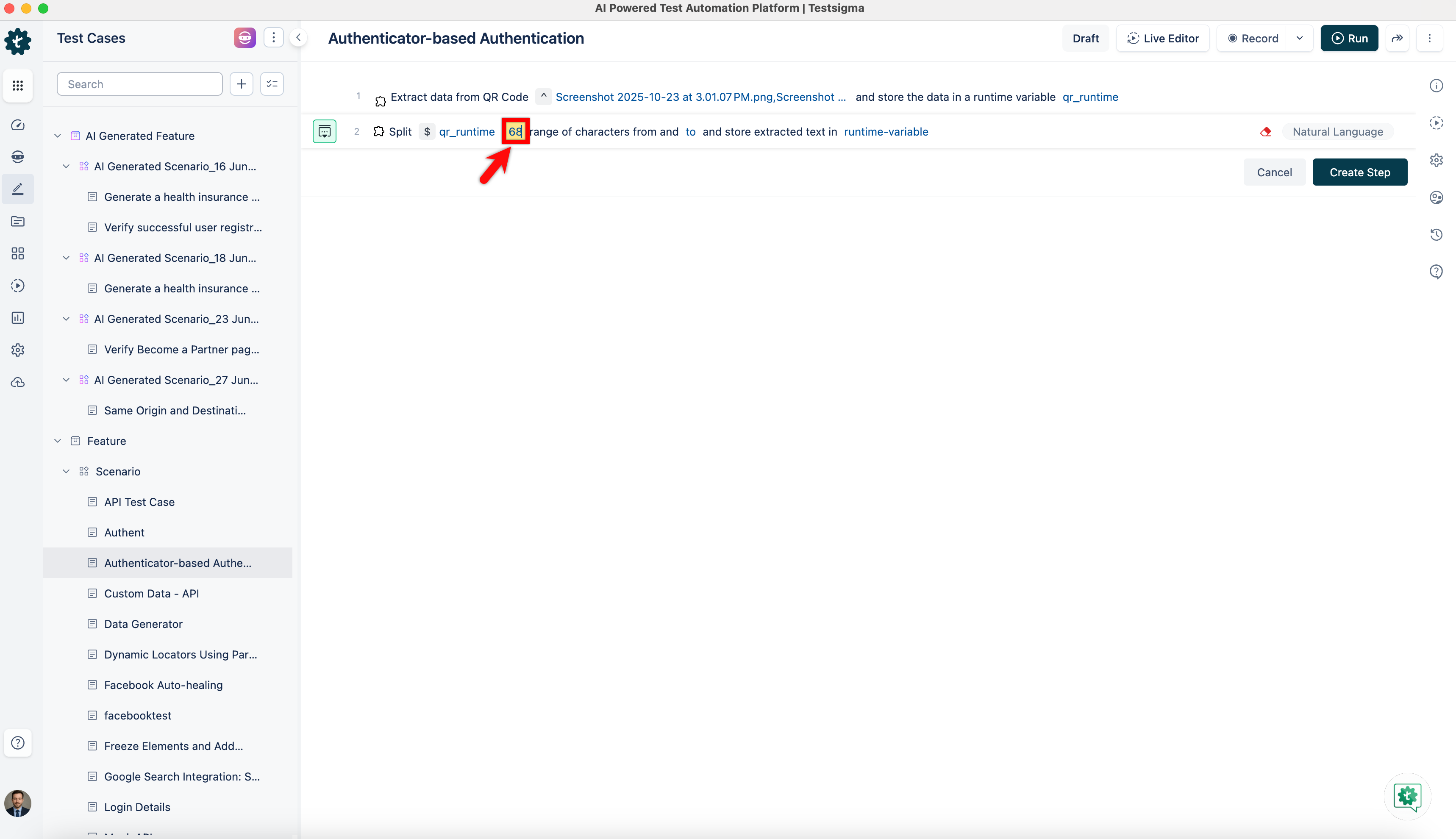 [[info | NOTE:]]
| You can count the character positions in the text beforehand to identify where the secret key starts.
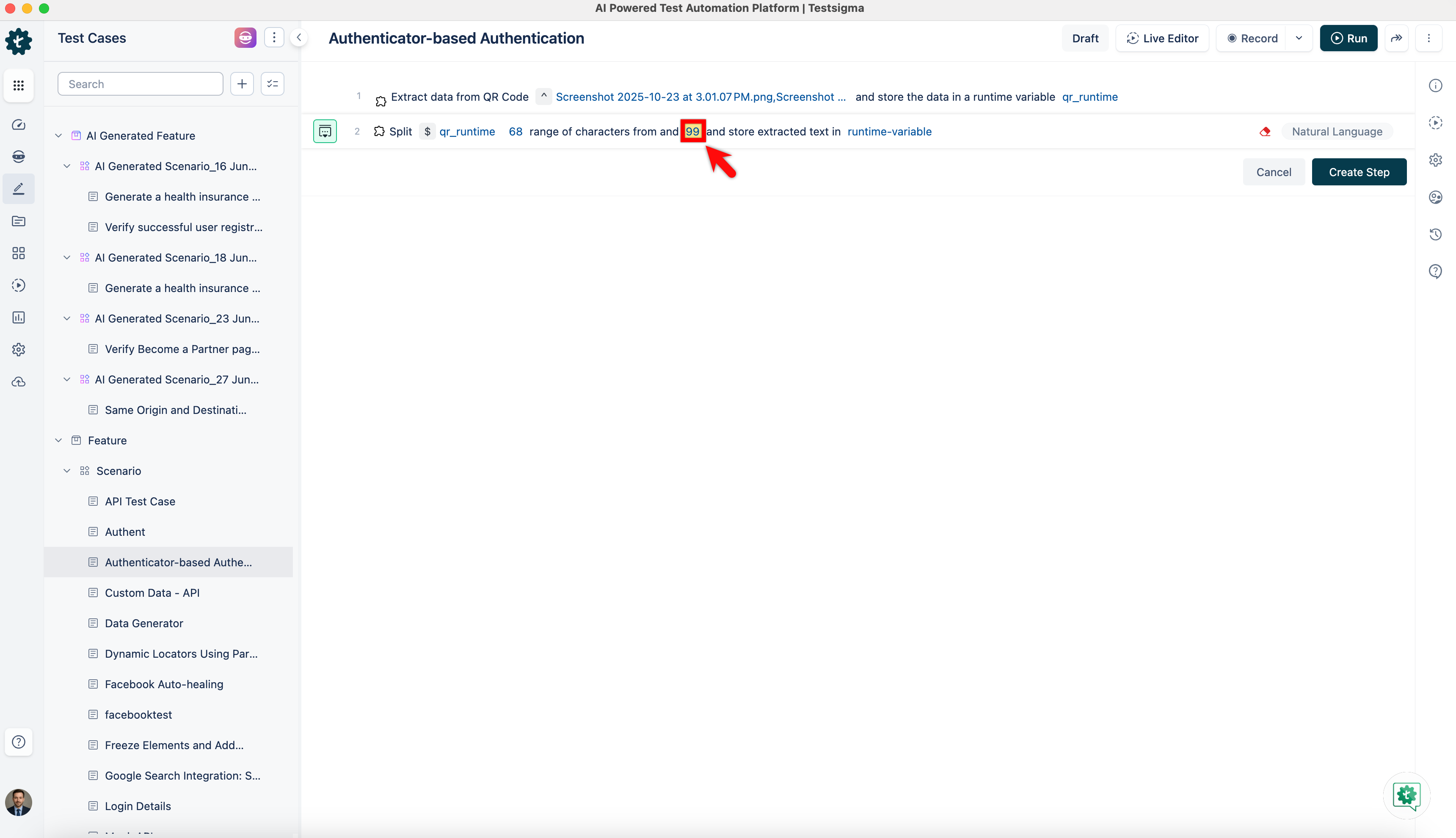
[[info | NOTE:]]
| You can count the character positions in the text beforehand to identify where the secret key starts. - Click the to placeholder and enter the character position where the secret key ends.
- Click the runtime-variable placeholder, enter a new runtime variable name such as secret_runtime, and click Create Step.
- Click the text placeholder, and from the Test Data Types dropdown, select $Runtime.
-
Use the Store test data 1 in test data 2 NLP.
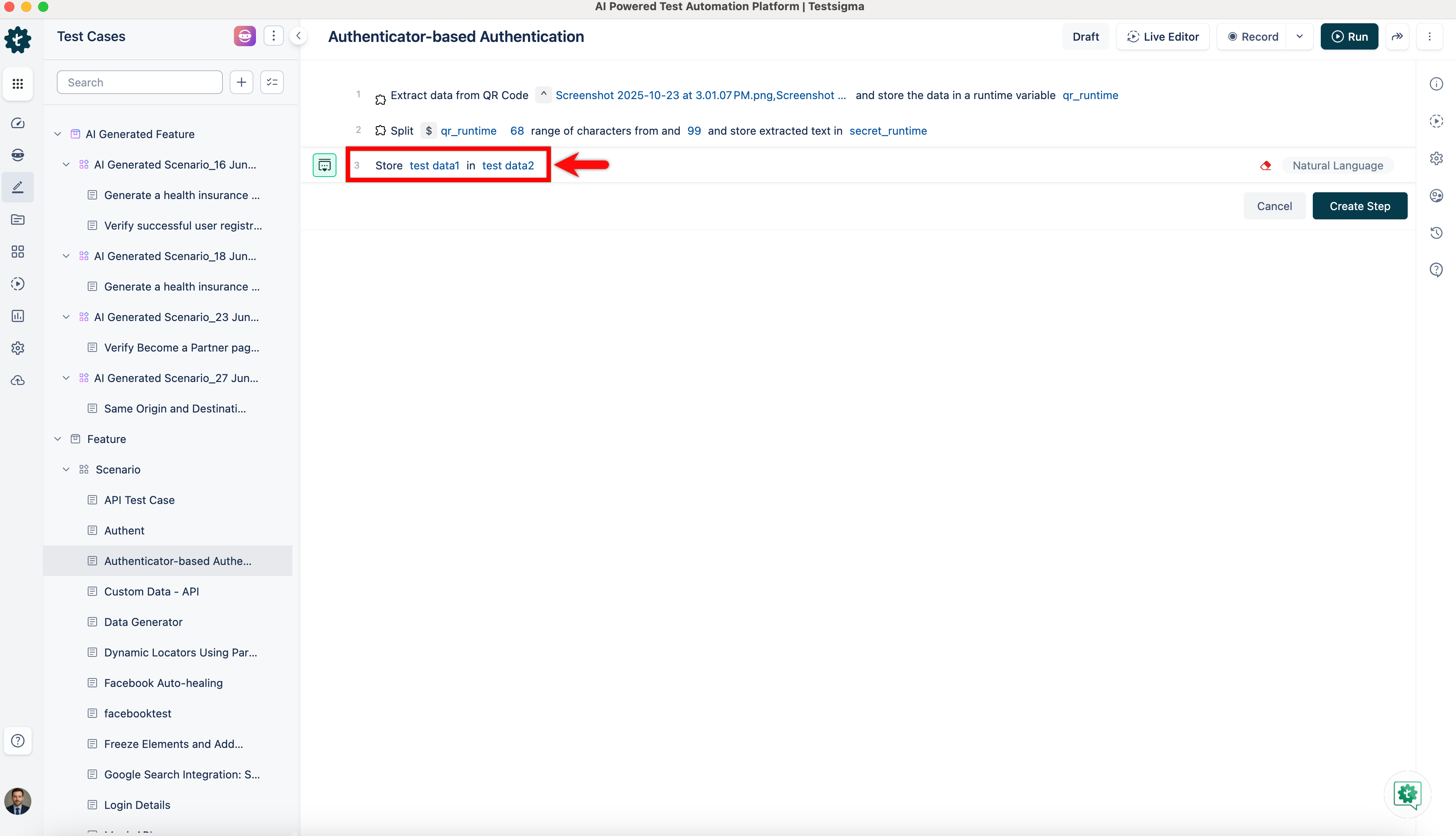
- Click the test data 1 placeholder, and from the Test Data Types dropdown, select $Runtime.
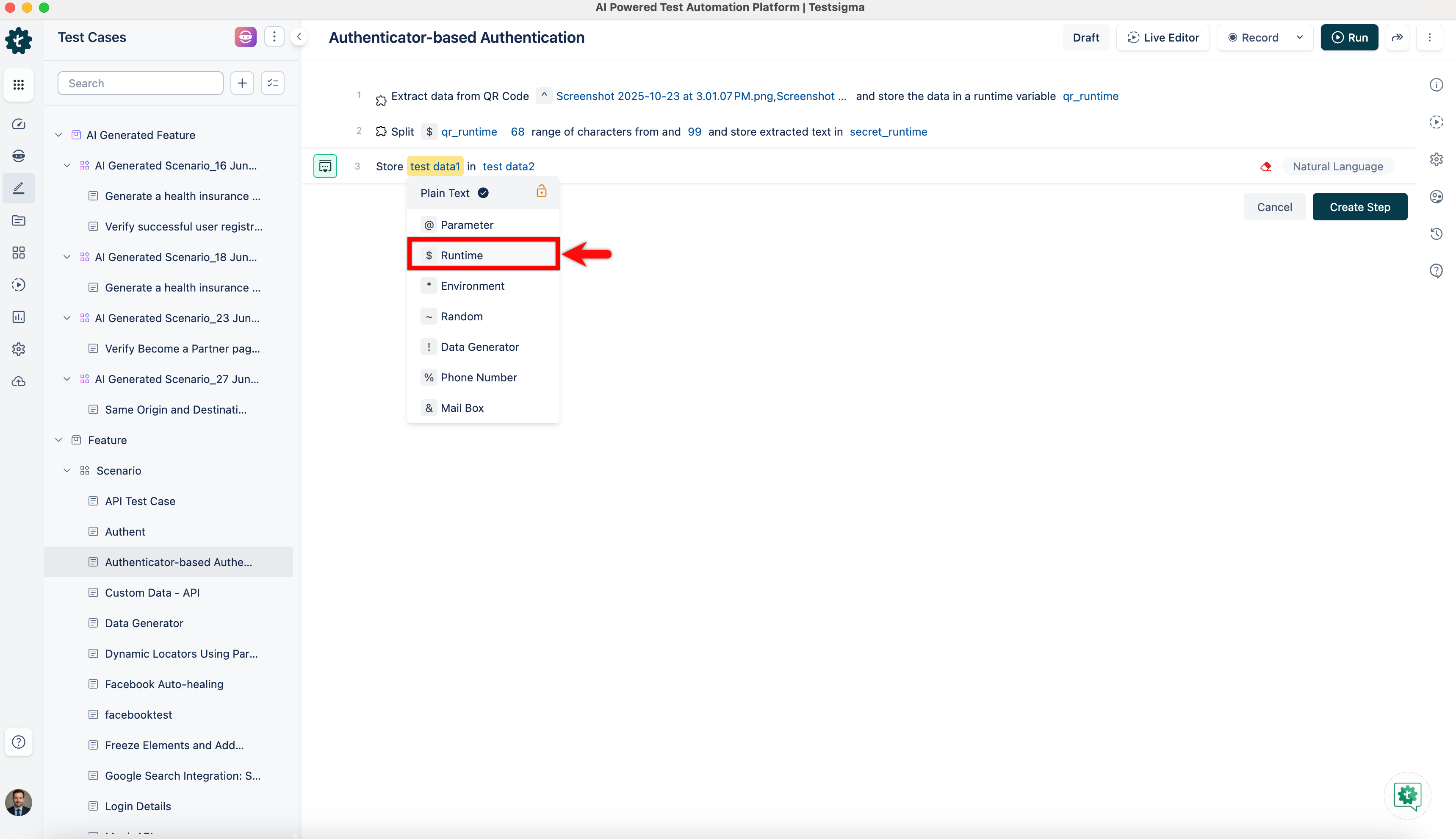
- On the $Runtime Variable overlay, enter the runtime variable name as secret_runtime and click Add.
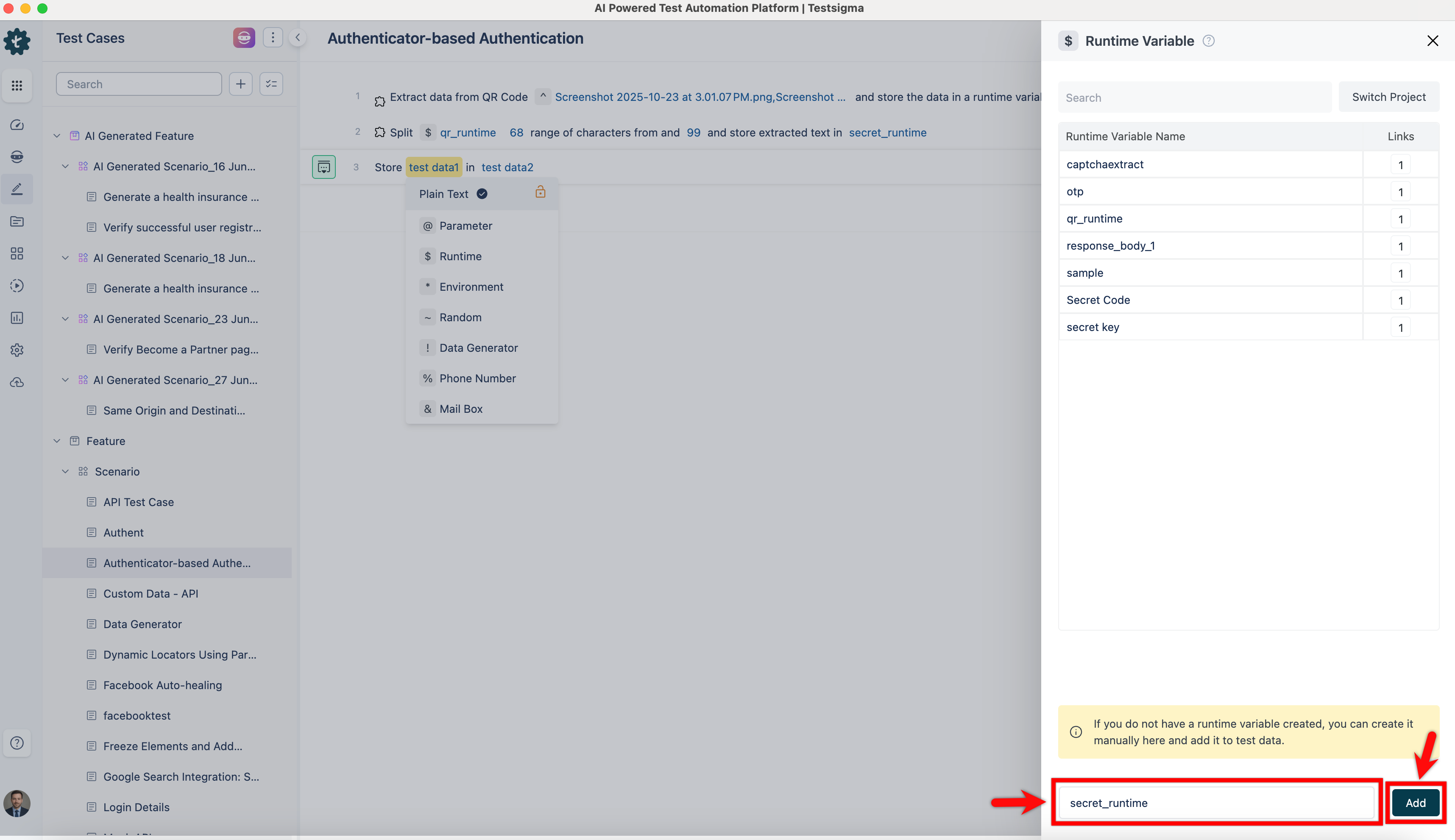
- Click the test data 2 placeholder, enter a new test data name such as SecretKey, and click Create Step.
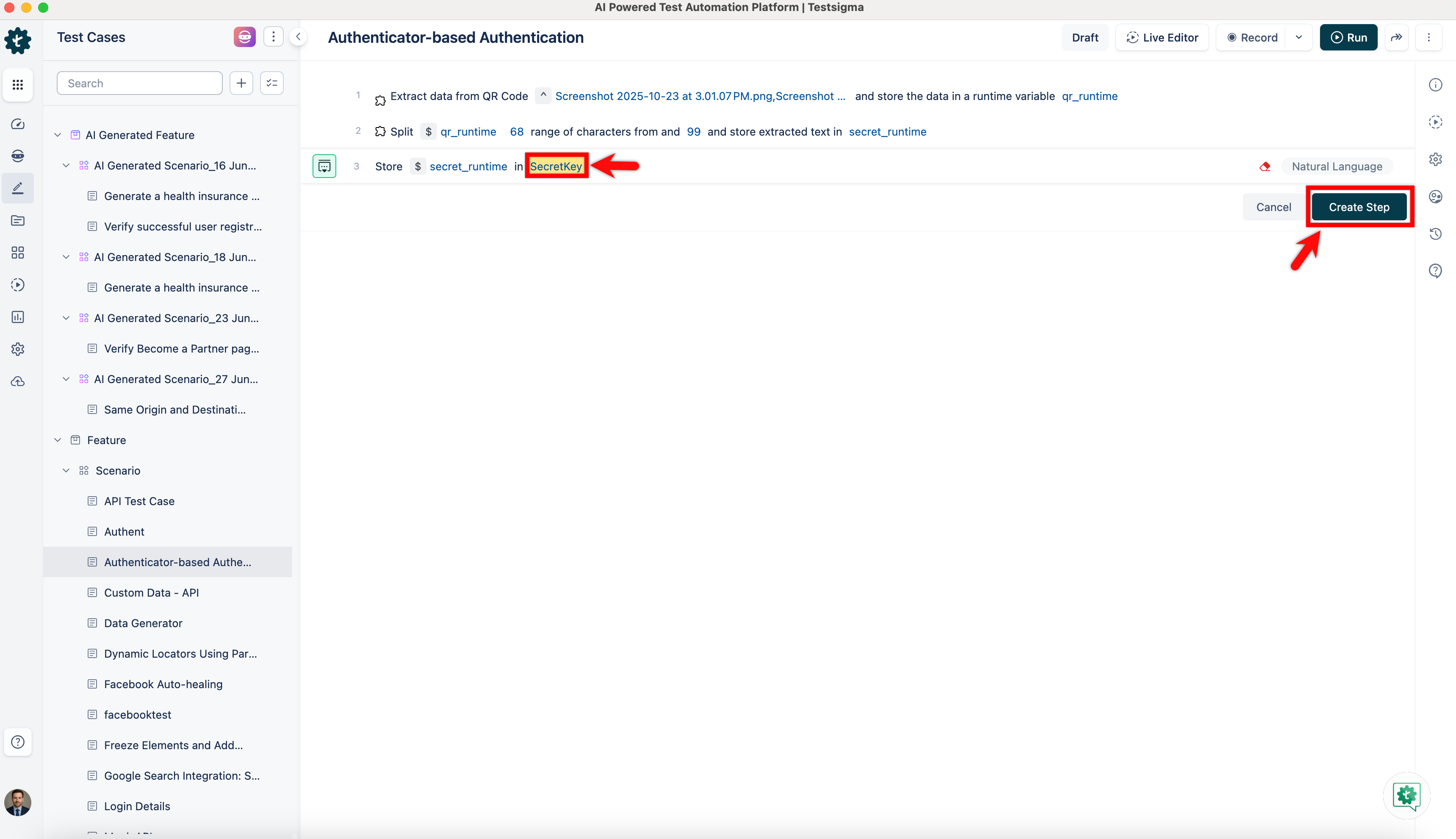
- Click the test data 1 placeholder, and from the Test Data Types dropdown, select $Runtime.
-
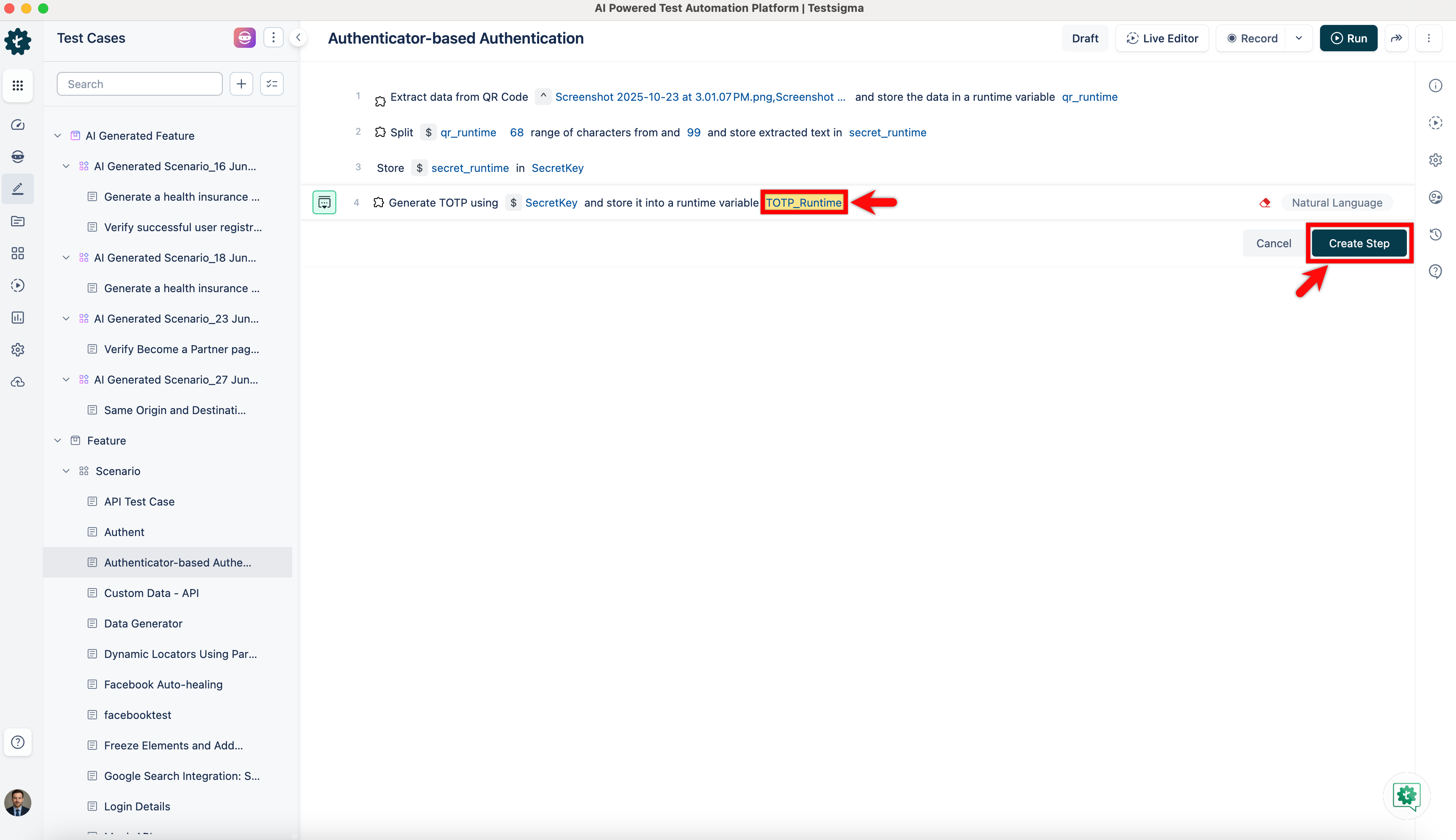
Use the Generate TOTP using secretkey and store it into a runtime variable test data NLP.
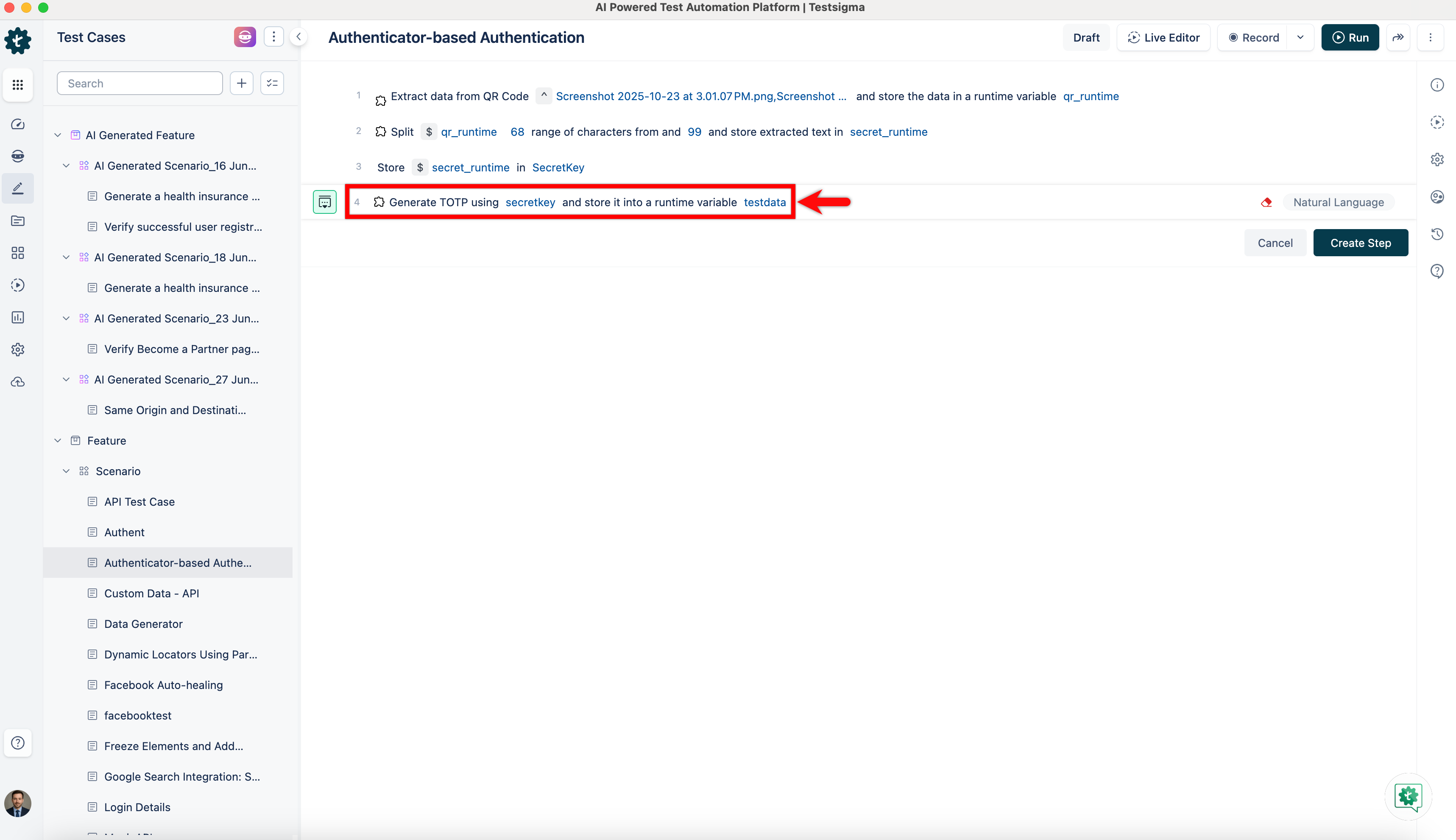
- Click the secretkey placeholder, and from the Test Data Types dropdown, select $Runtime.
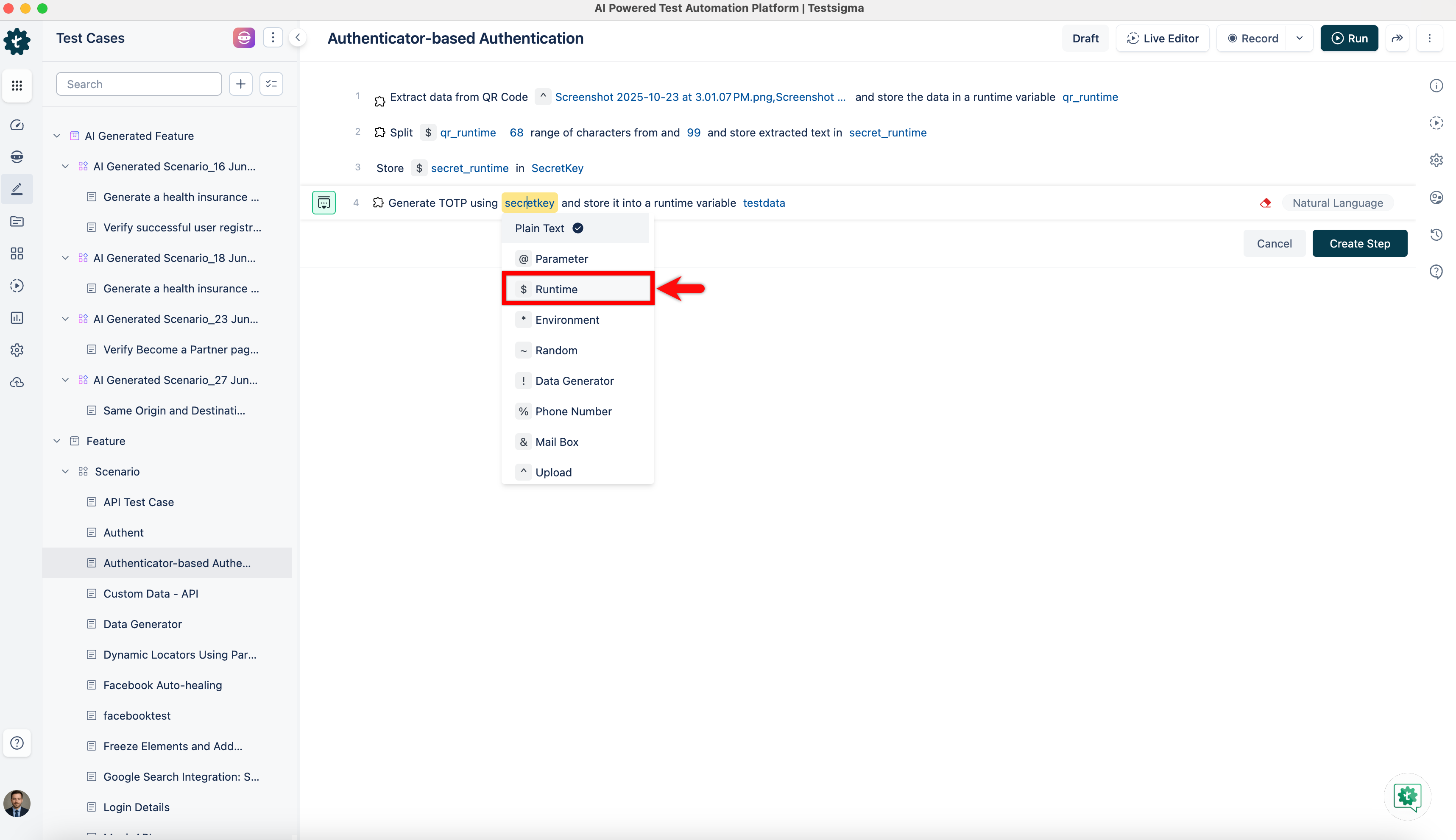
- On the $Runtime Variable overlay, select the runtime variable name SecretKey.
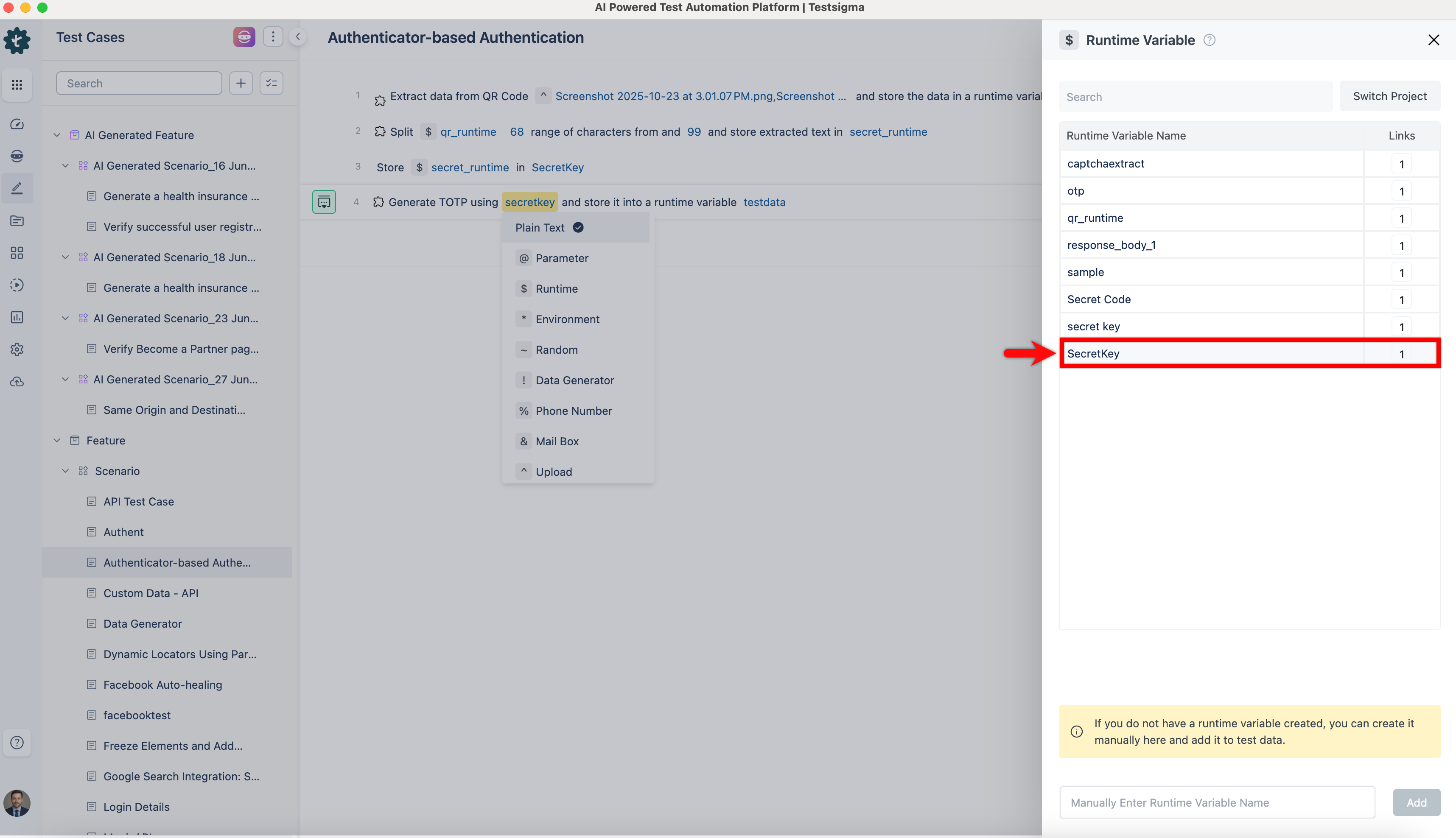
- Click the testdata placeholder, enter a new runtime variable name such as TOTP_Runtime, and click Create Step.
- Click the secretkey placeholder, and from the Test Data Types dropdown, select $Runtime.
-
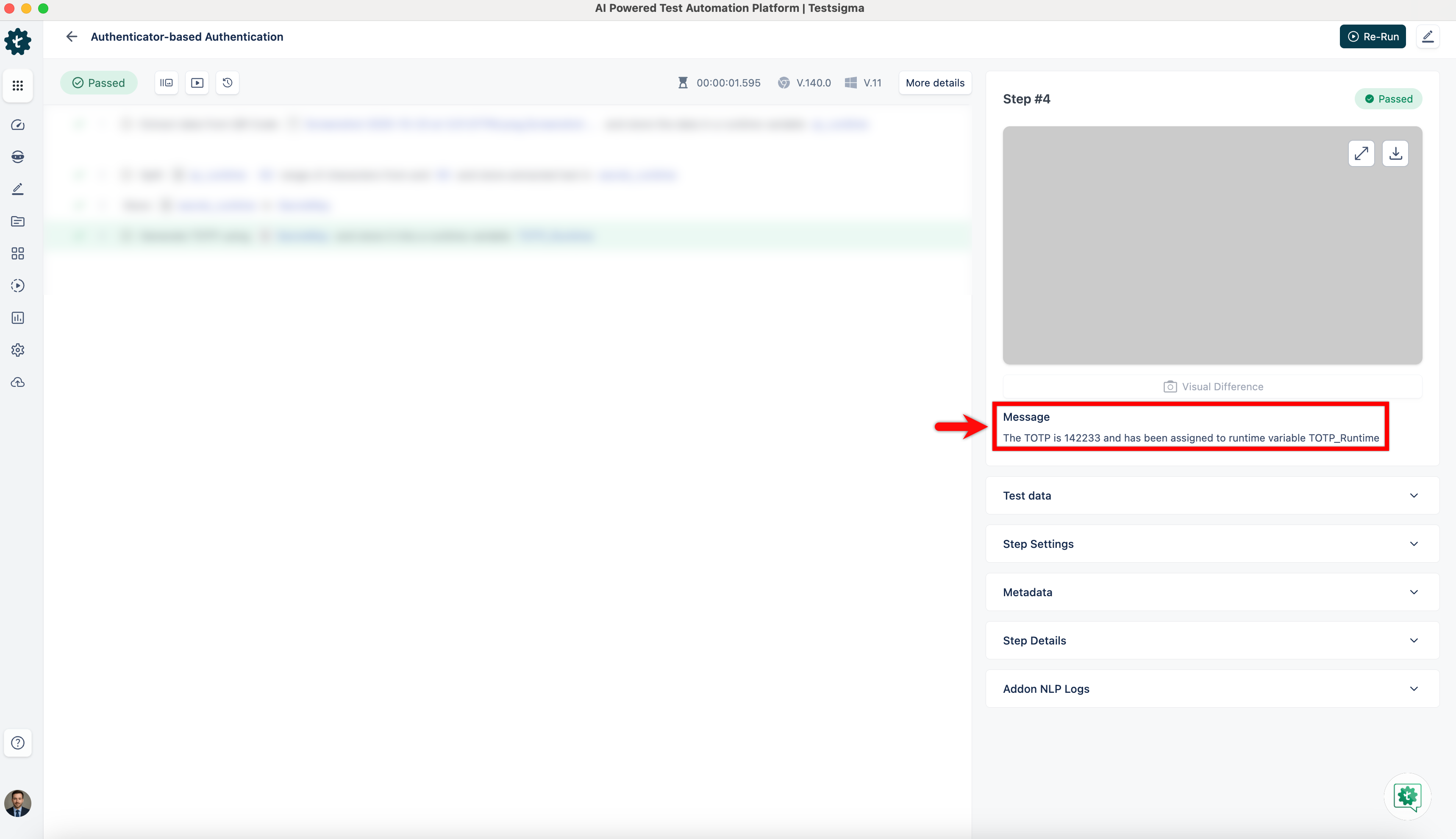
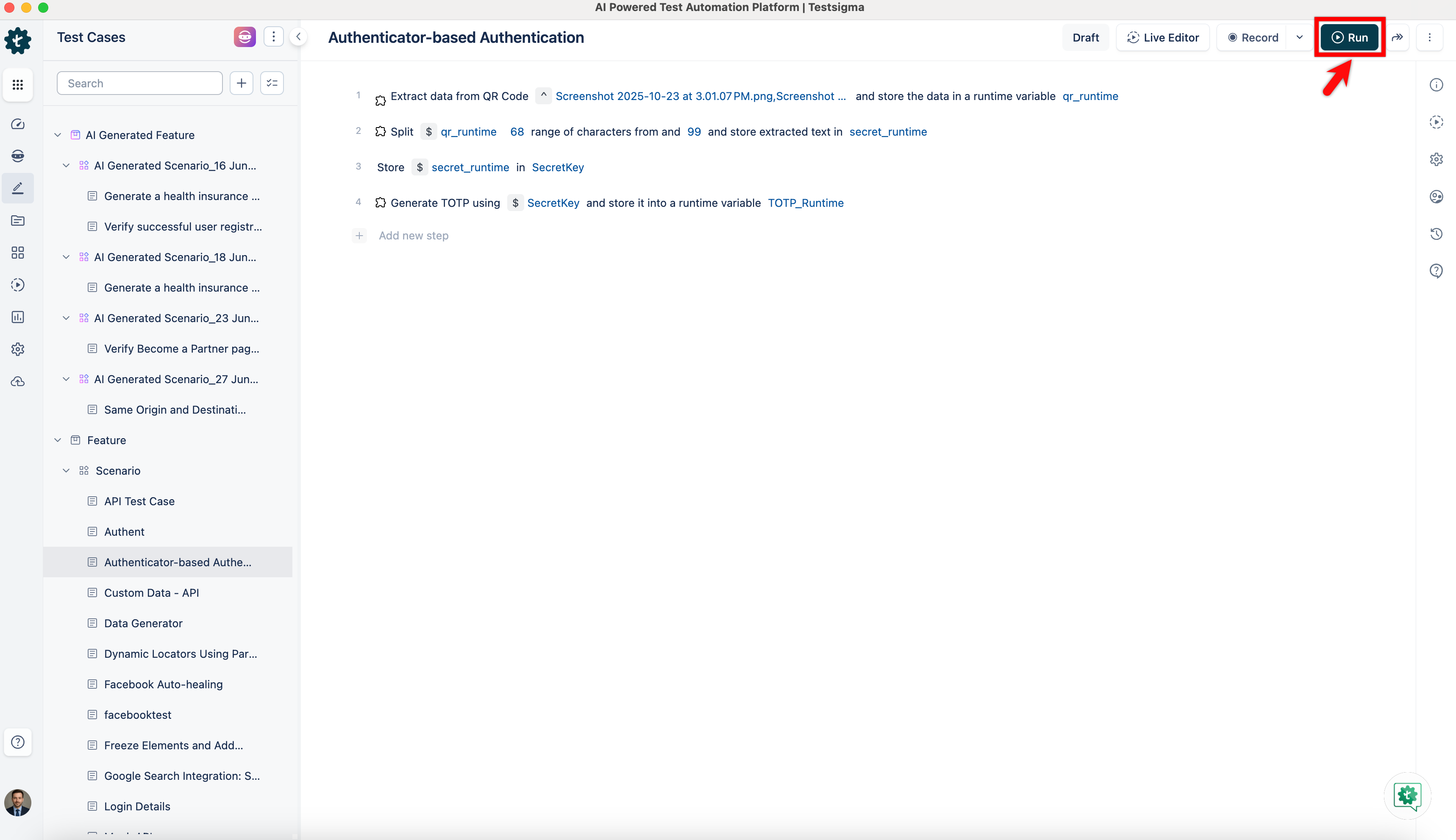
Click Run to execute the test.
-
The step result of this execution will display the OTP.