Atto AI Coworker
Generate Test Cases For Mobile Web
Prerequisites
Before you begin, ensure that,
- Your Jira account is integrated with Testsigma.
- You have referred to the documentation on creating test cases.
- You have referred to the documentation on creating projects.
Steps to Generate Test Cases
Section titled “Steps to Generate Test Cases”-
From the left navigation bar, go to Atto’s Home.
-
Click Generate with AI.
-
In the Generate Test Cases section, select Jira Requirements.
-
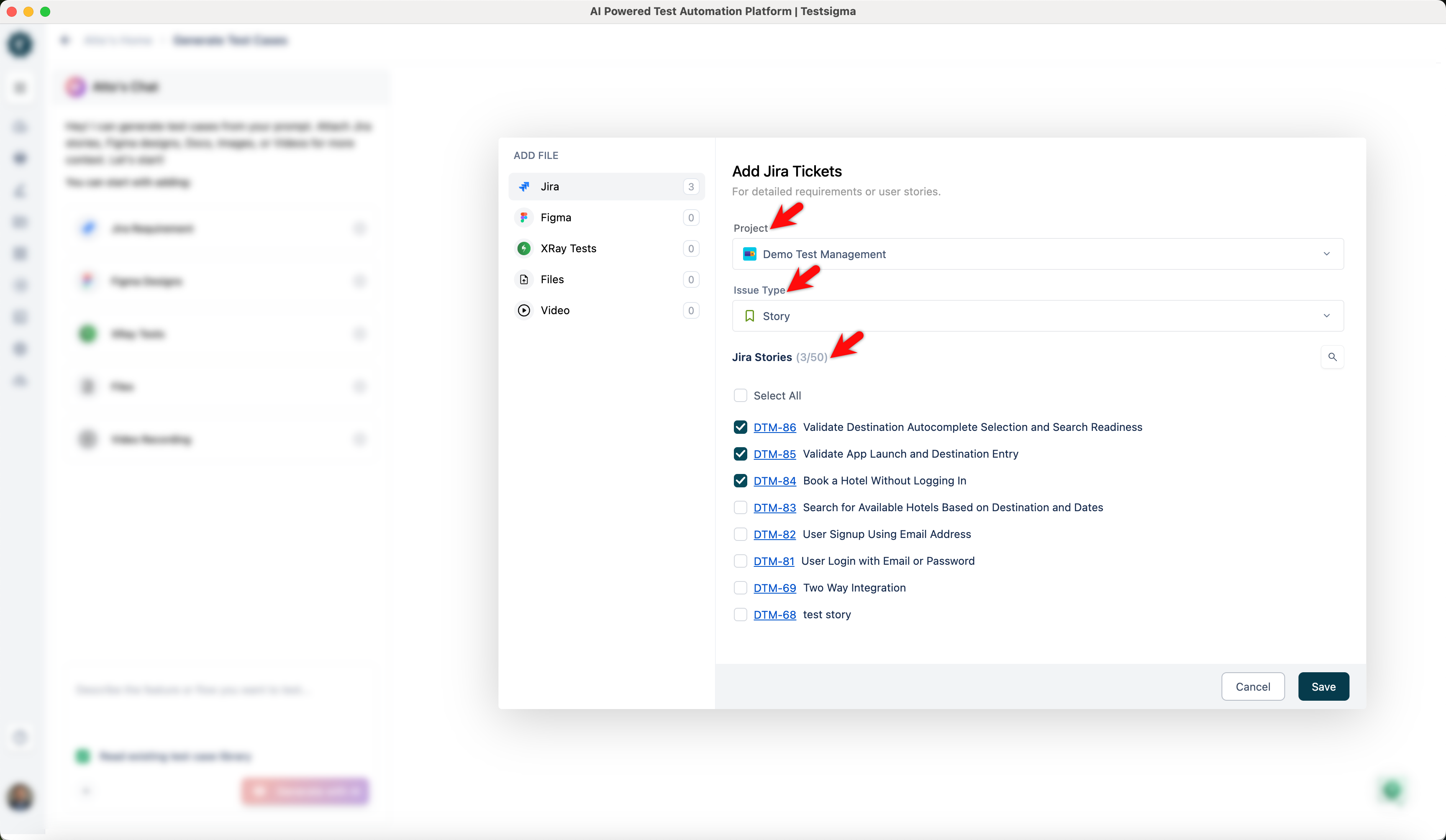
In the Add Jira Tickets dialog:
- From the Project dropdown, select the relevant Jira project.
- Under Issue Type, select one of the following:
- If you select Epic, choose the stories for which you want to generate test cases.
- If you select Story, choose all the stories for which you want to generate test cases.
-
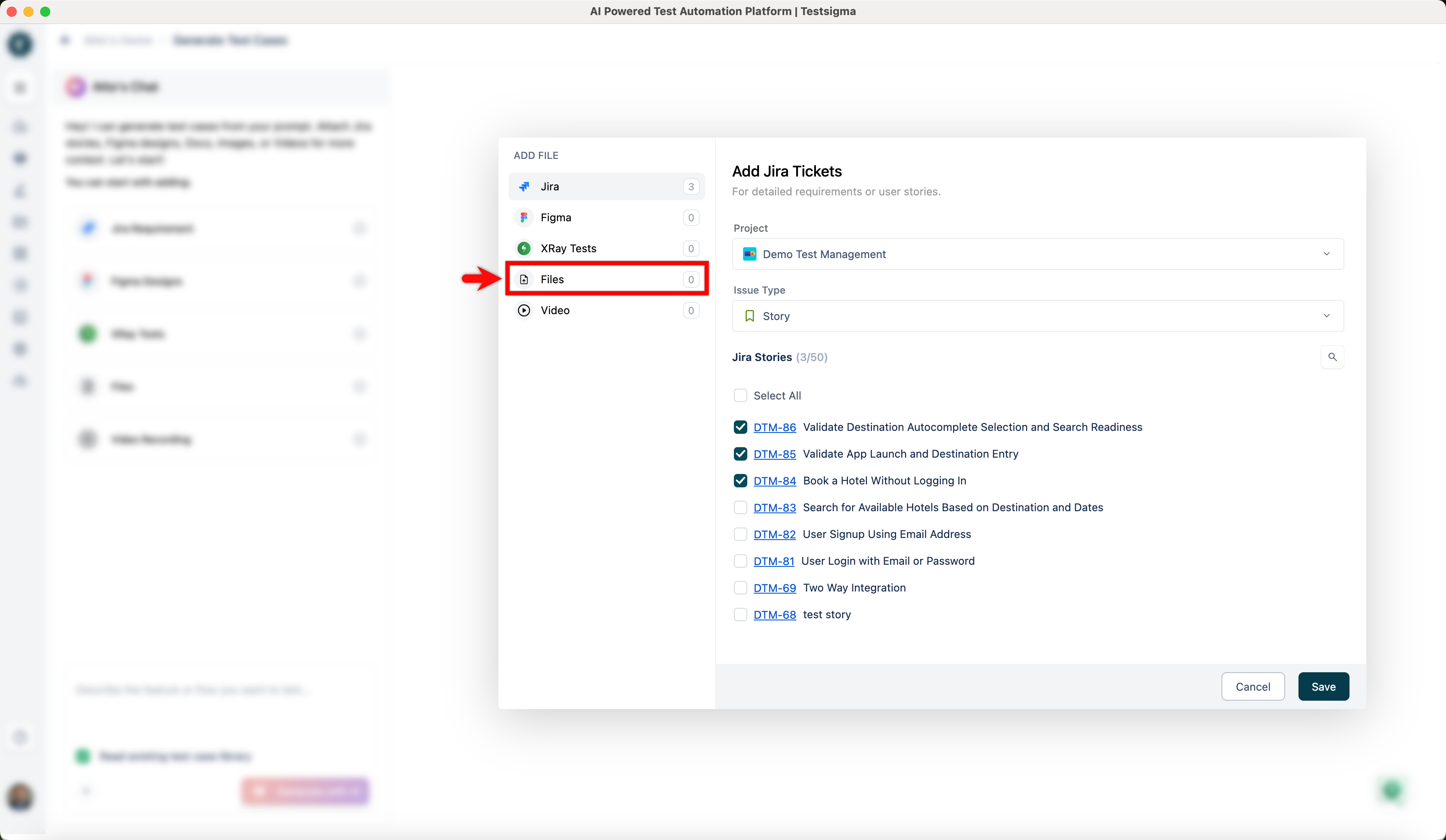
In the Add Jira Tickets dialog, click Files from the ADD FILE menu.
-
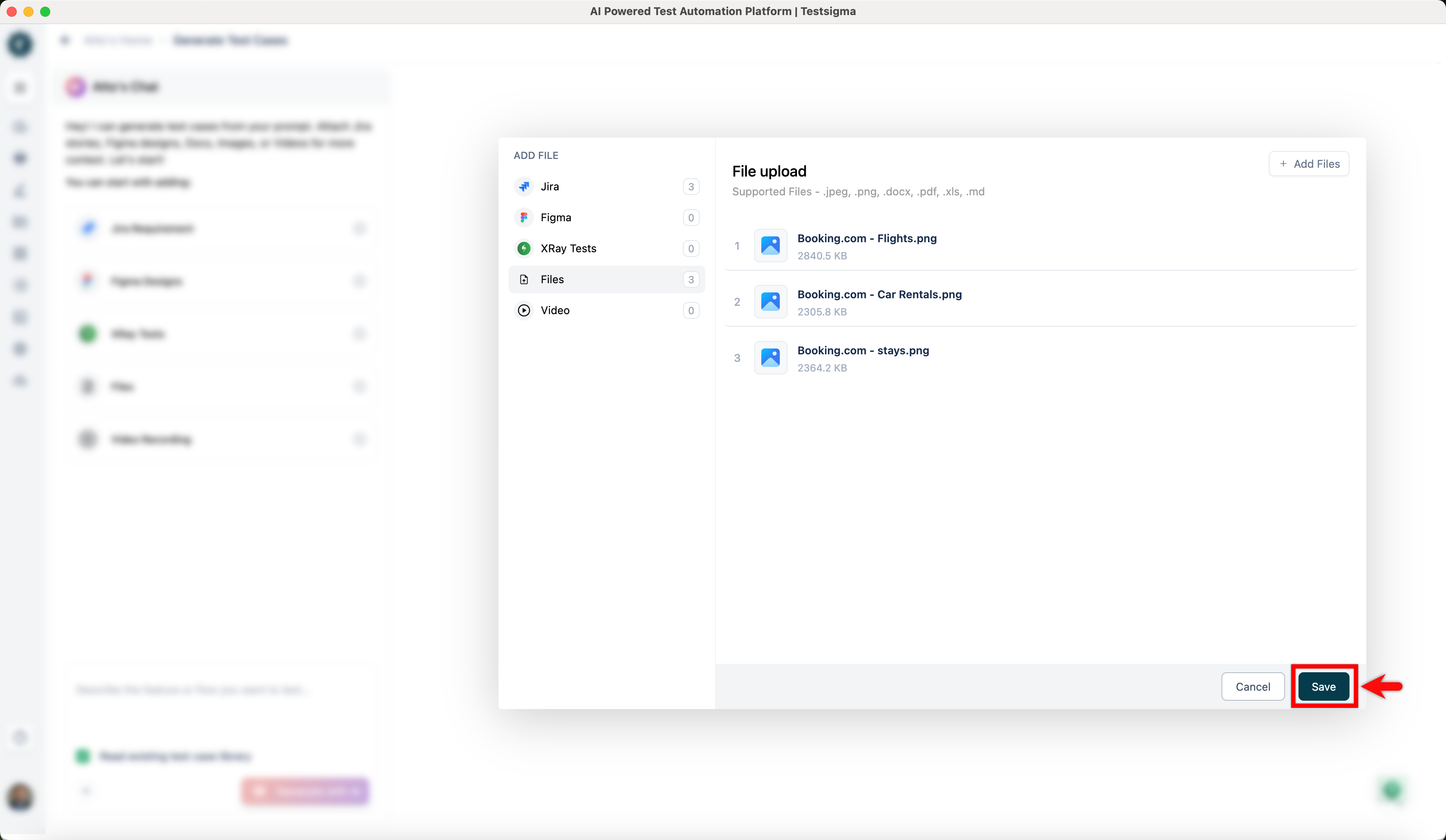
In the Files Upload dialog:
- Click Add Files.
- Click Browse, and select one or more supported files.
- Click Add Files.
- Click Save.
-
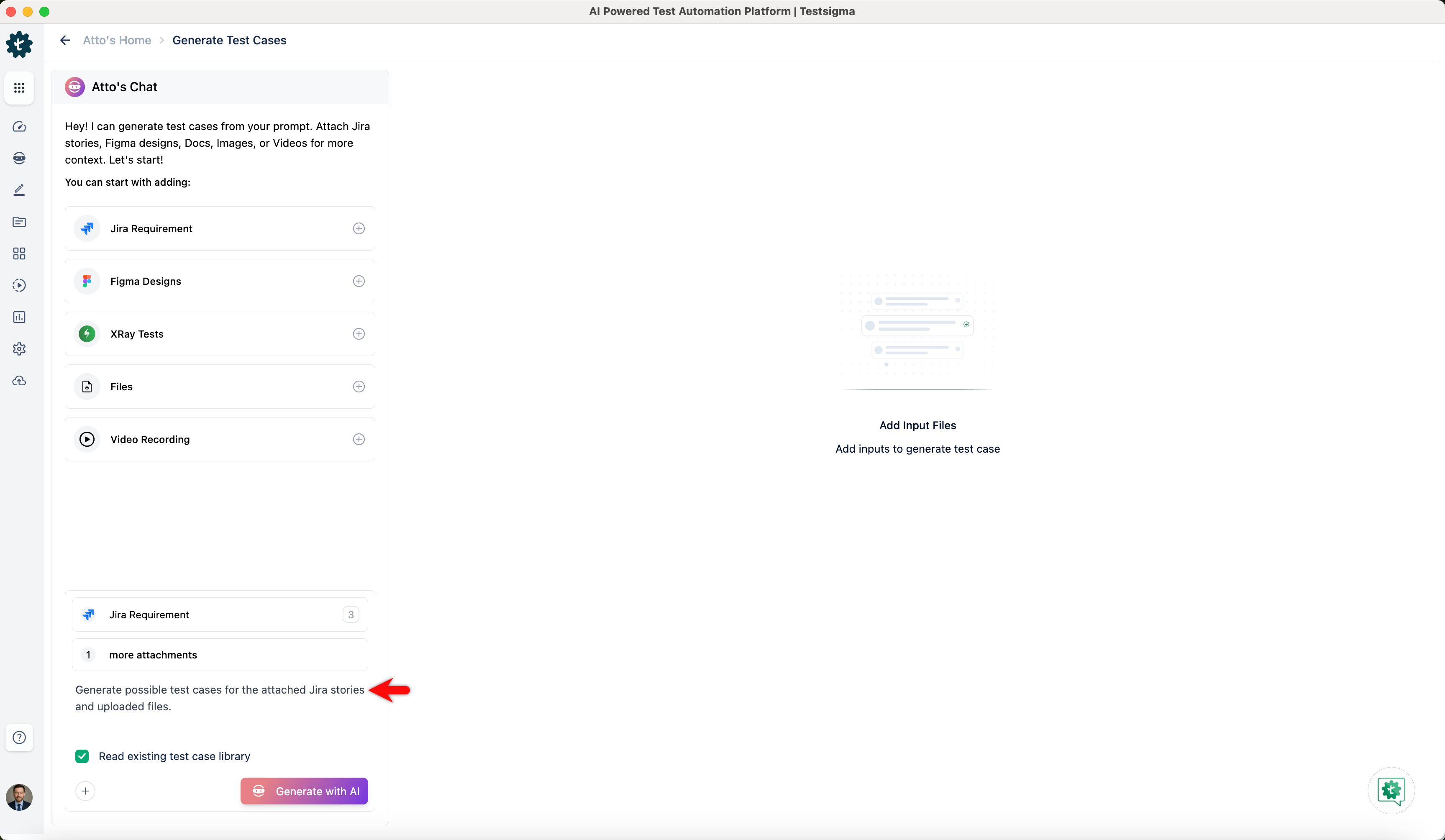
In the Prompt box, enter a detailed prompt that describes the test cases you want to generate.
-
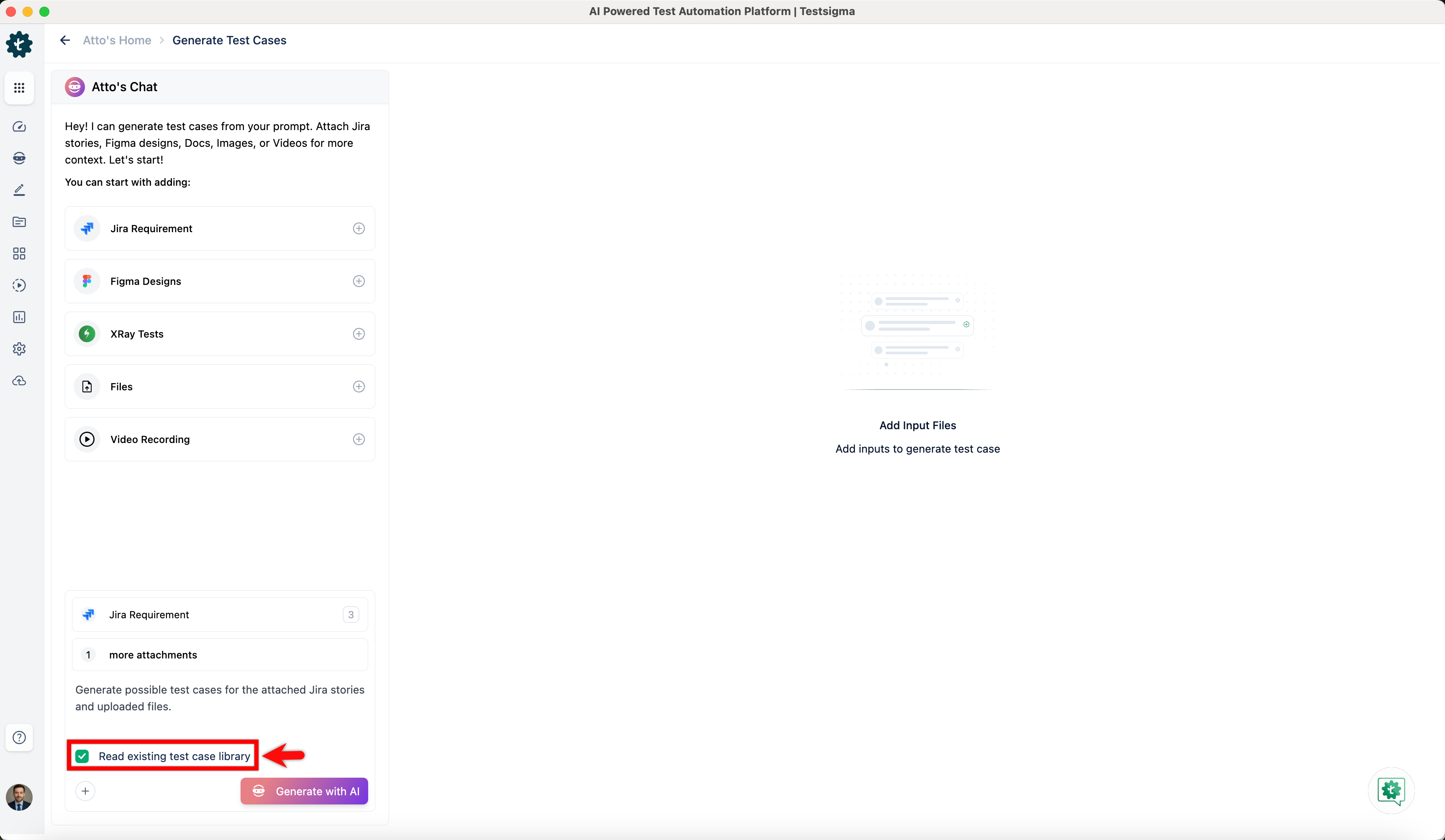
The Read existing test case library checkbox is selected by default. Clear this checkbox if you do not want the system to consider existing test cases while generating new ones.
-
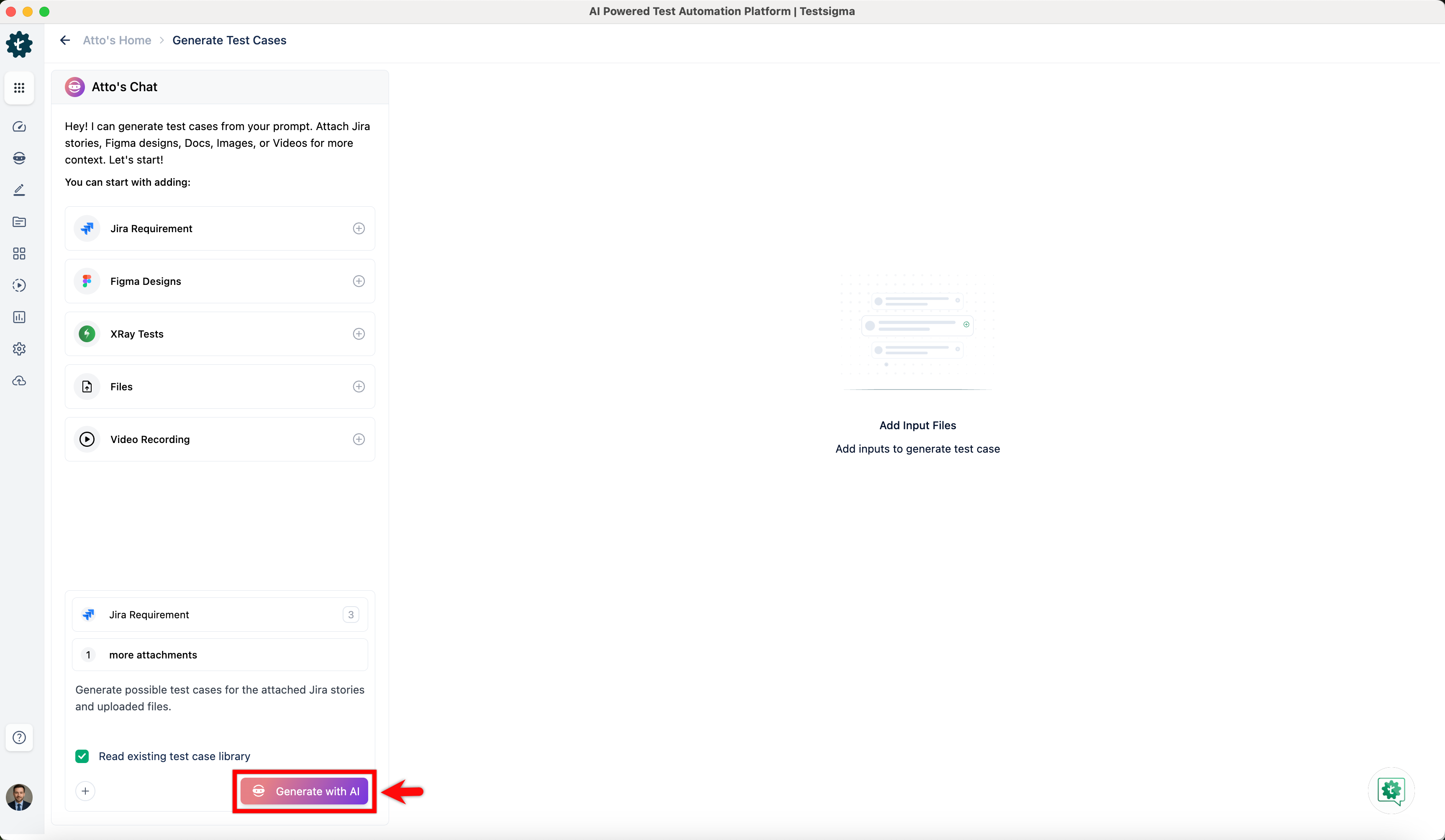
Click Generate with AI.
-
Wait for the Generator Agent to generate multiple test cases based on the selected inputs.
Next Steps
Section titled “Next Steps”-
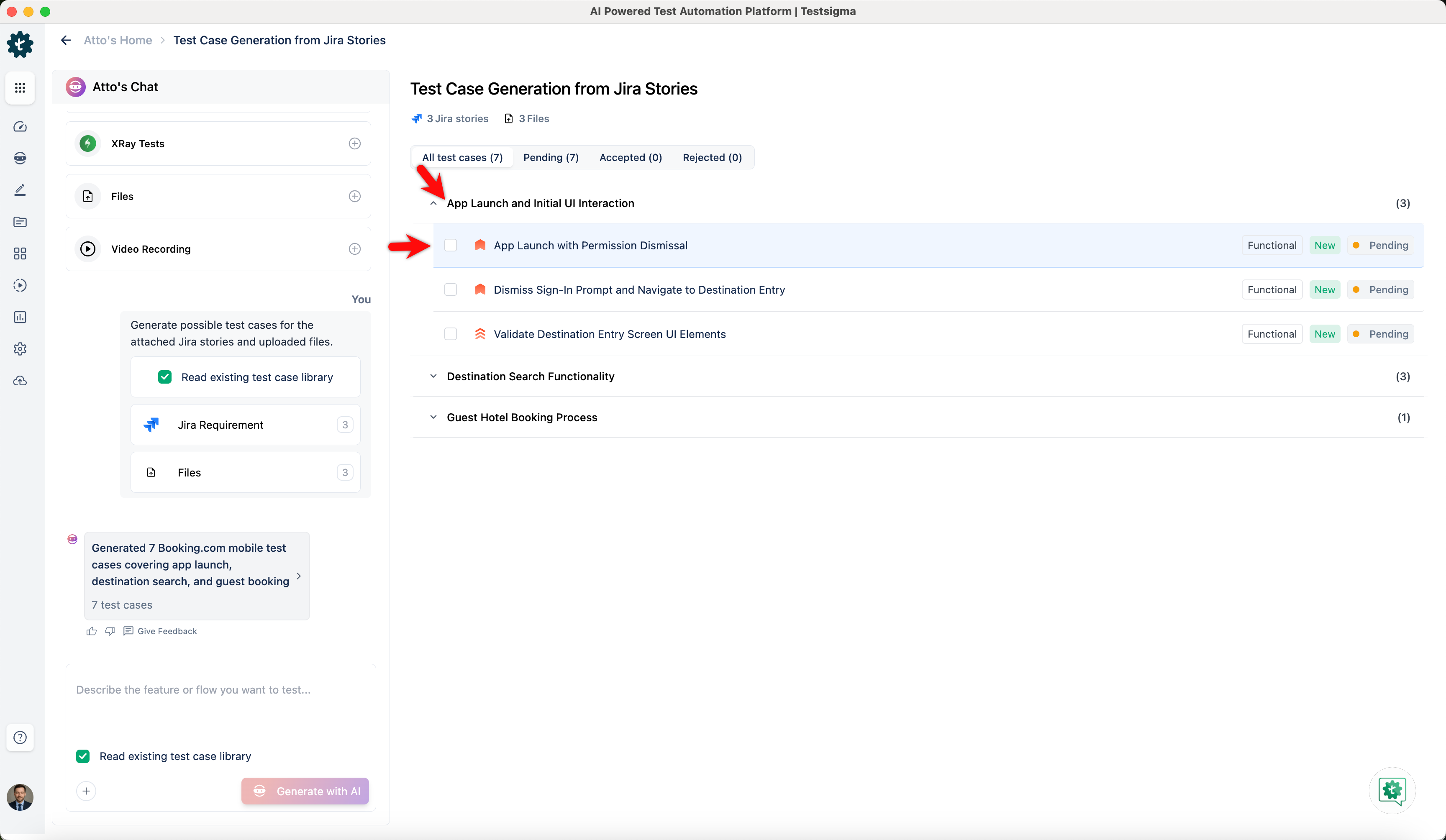
After the test cases are generated, expand a category and select a test case.
-
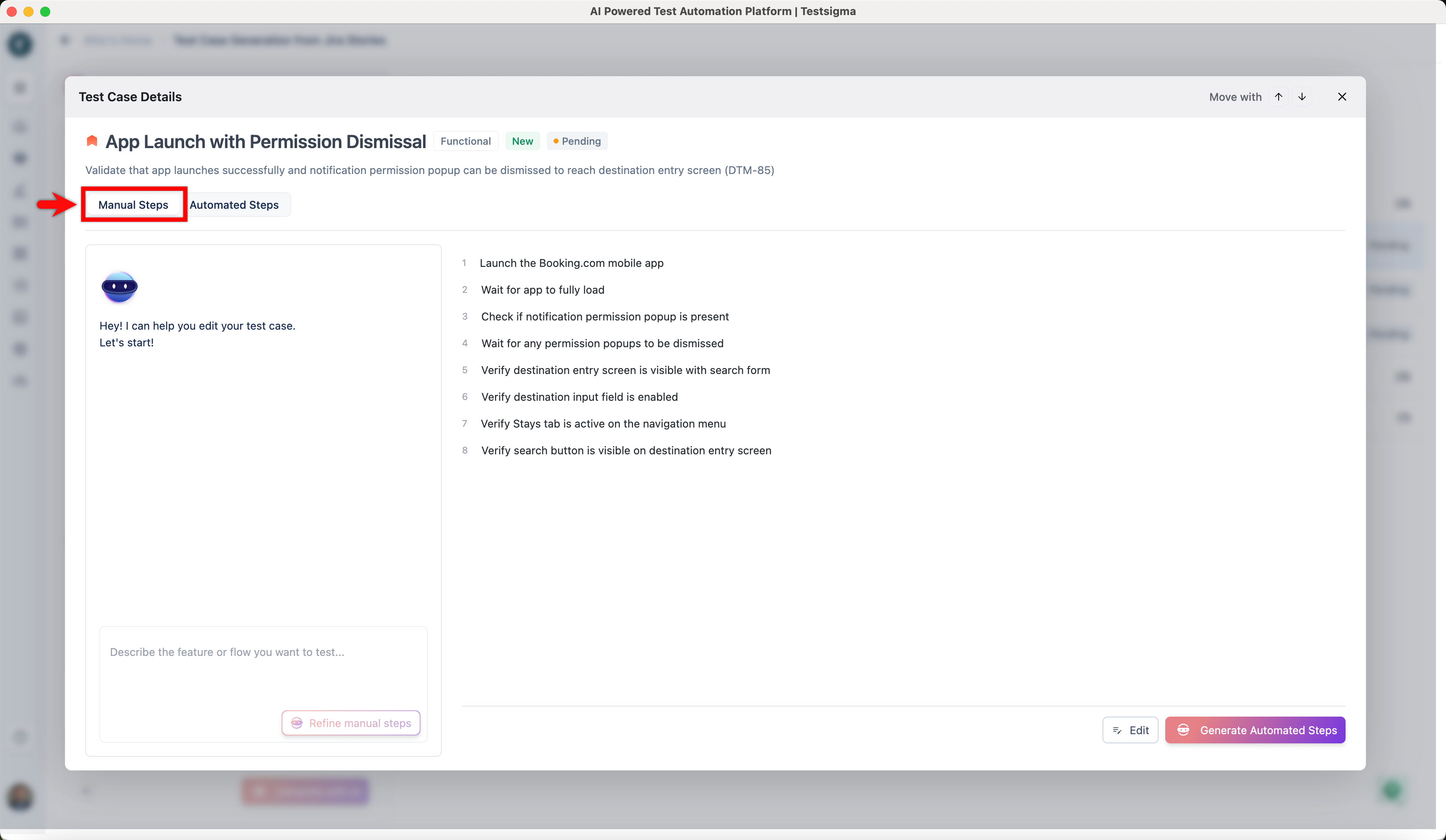
In the Test Case Details dialog, go to the Manual Steps tab and review the generated steps.
-
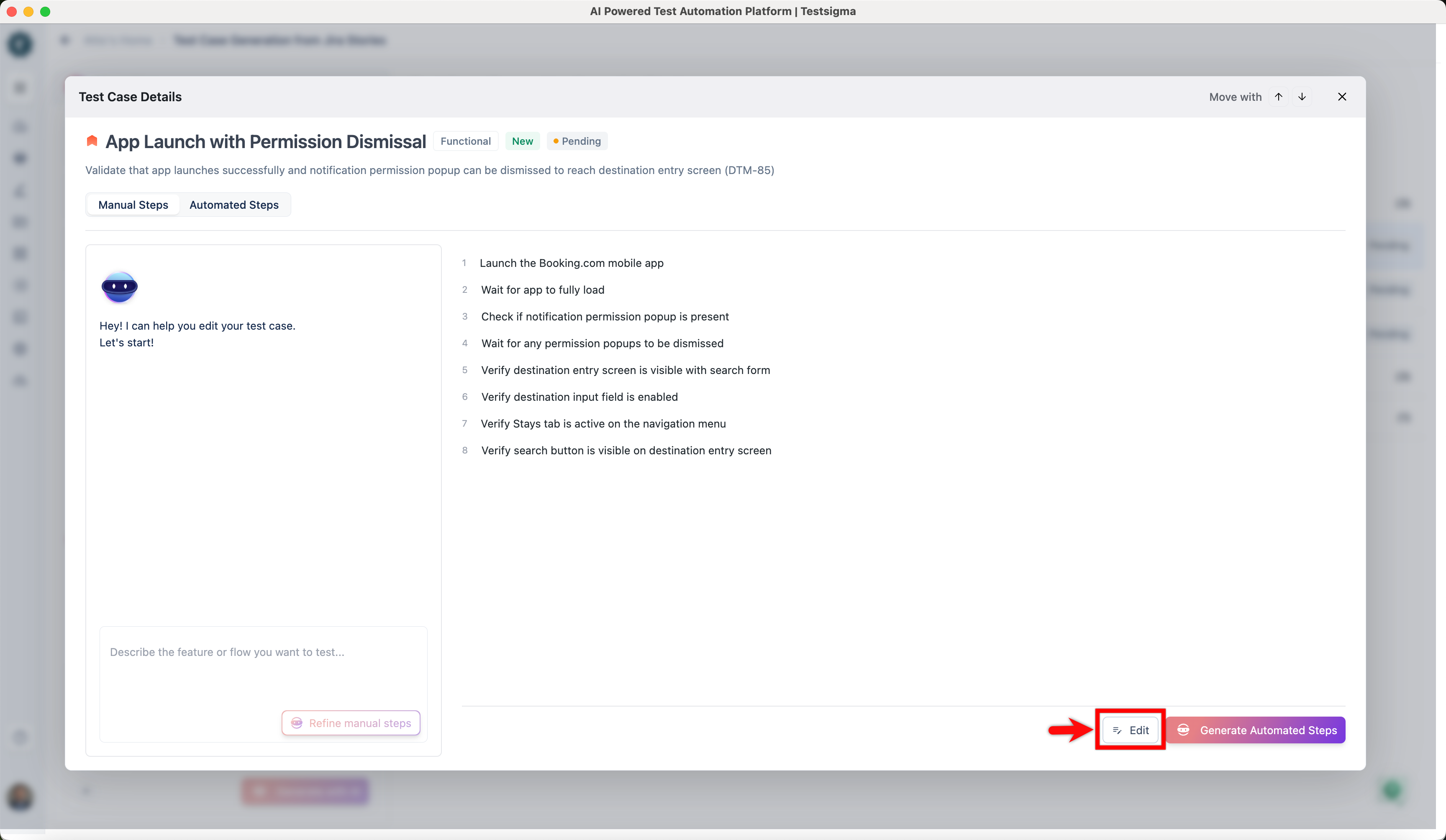
Click Edit to add a step or block manually, or to modify existing steps.
-
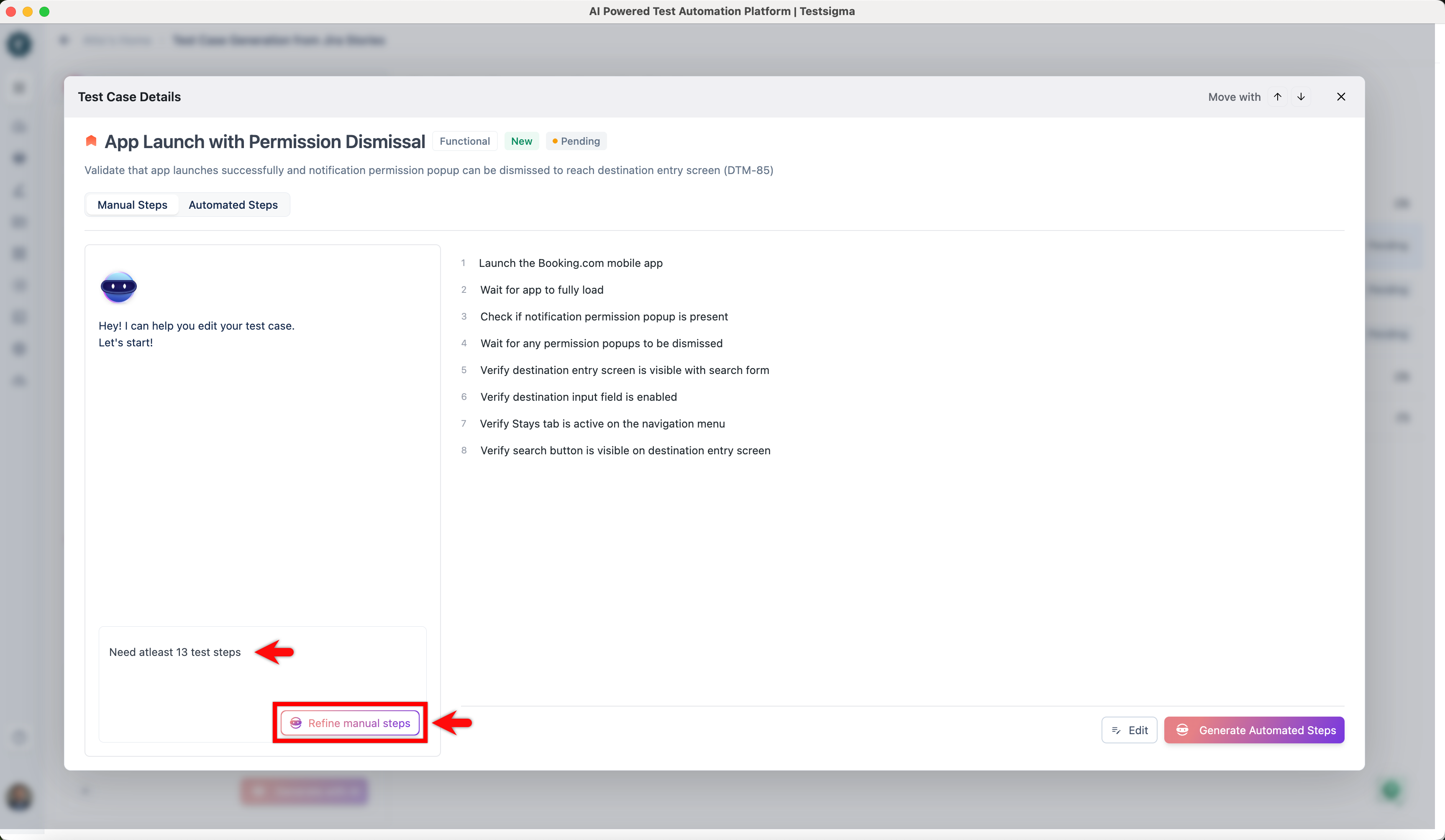
If you want to refine the steps using Atto, enter a prompt and click Refine manual steps.
-
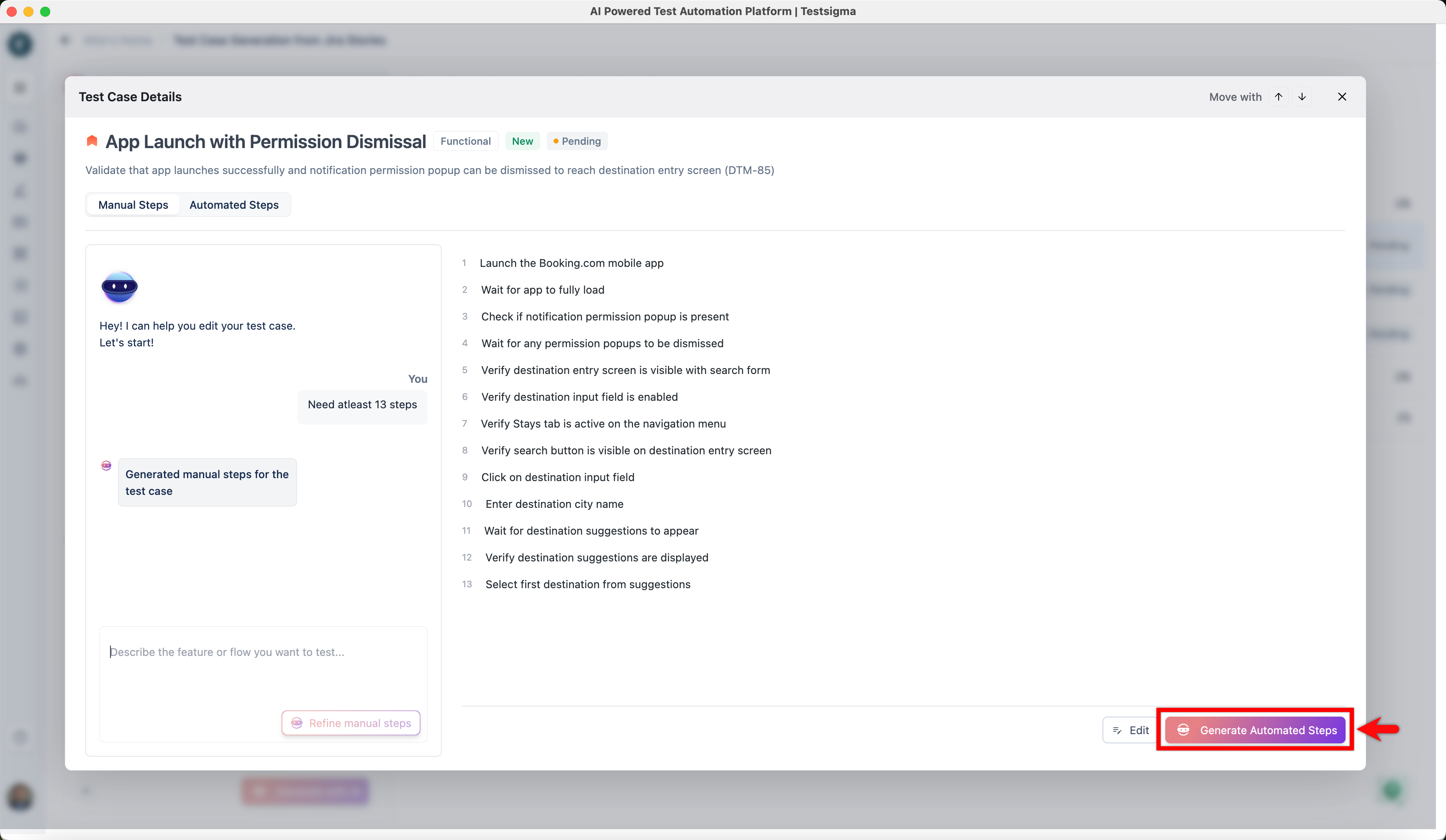
Click Generate Automated Steps to convert the manual steps into NLP-based automated steps.
-
Click Save to Library.
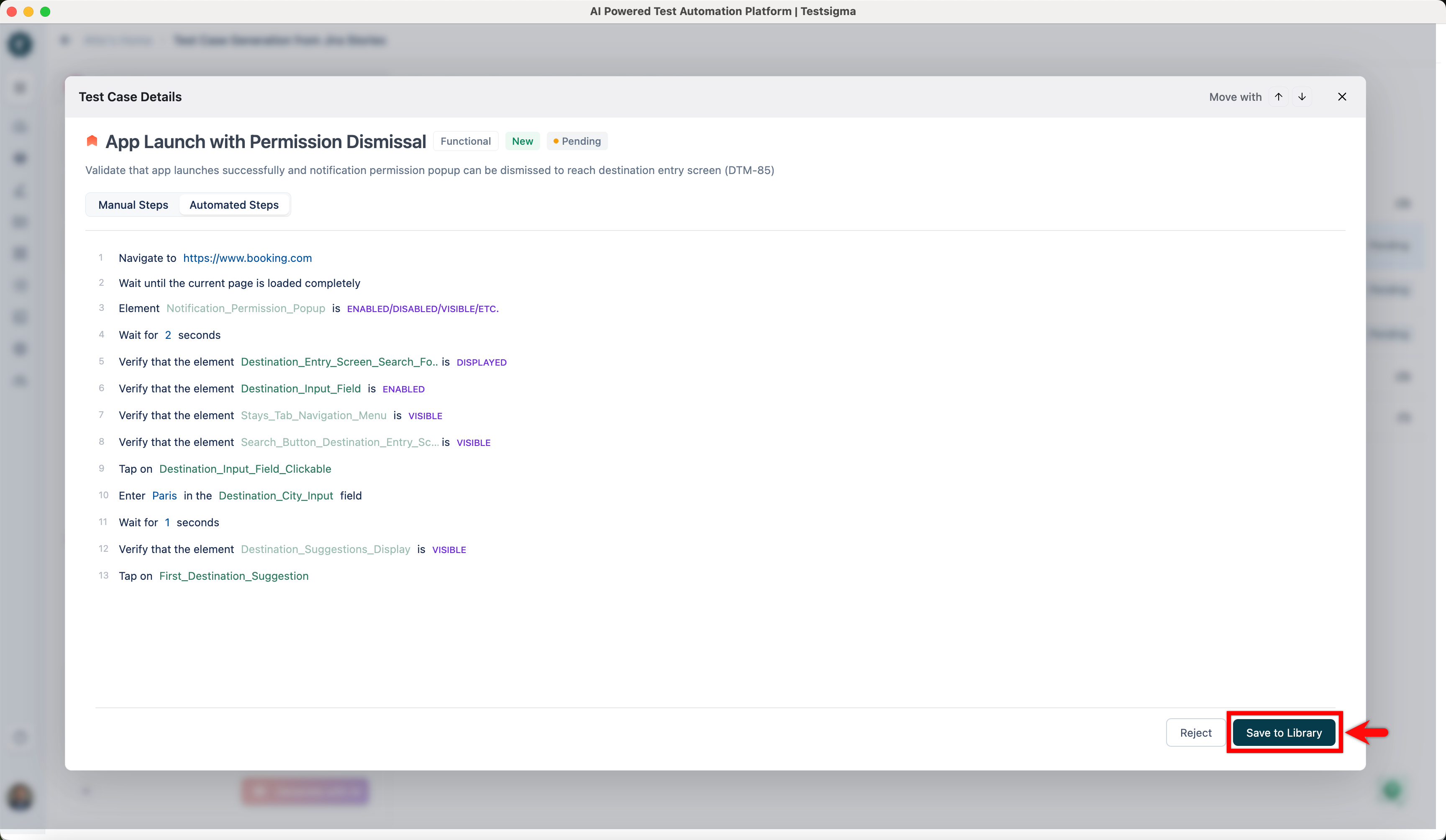
-
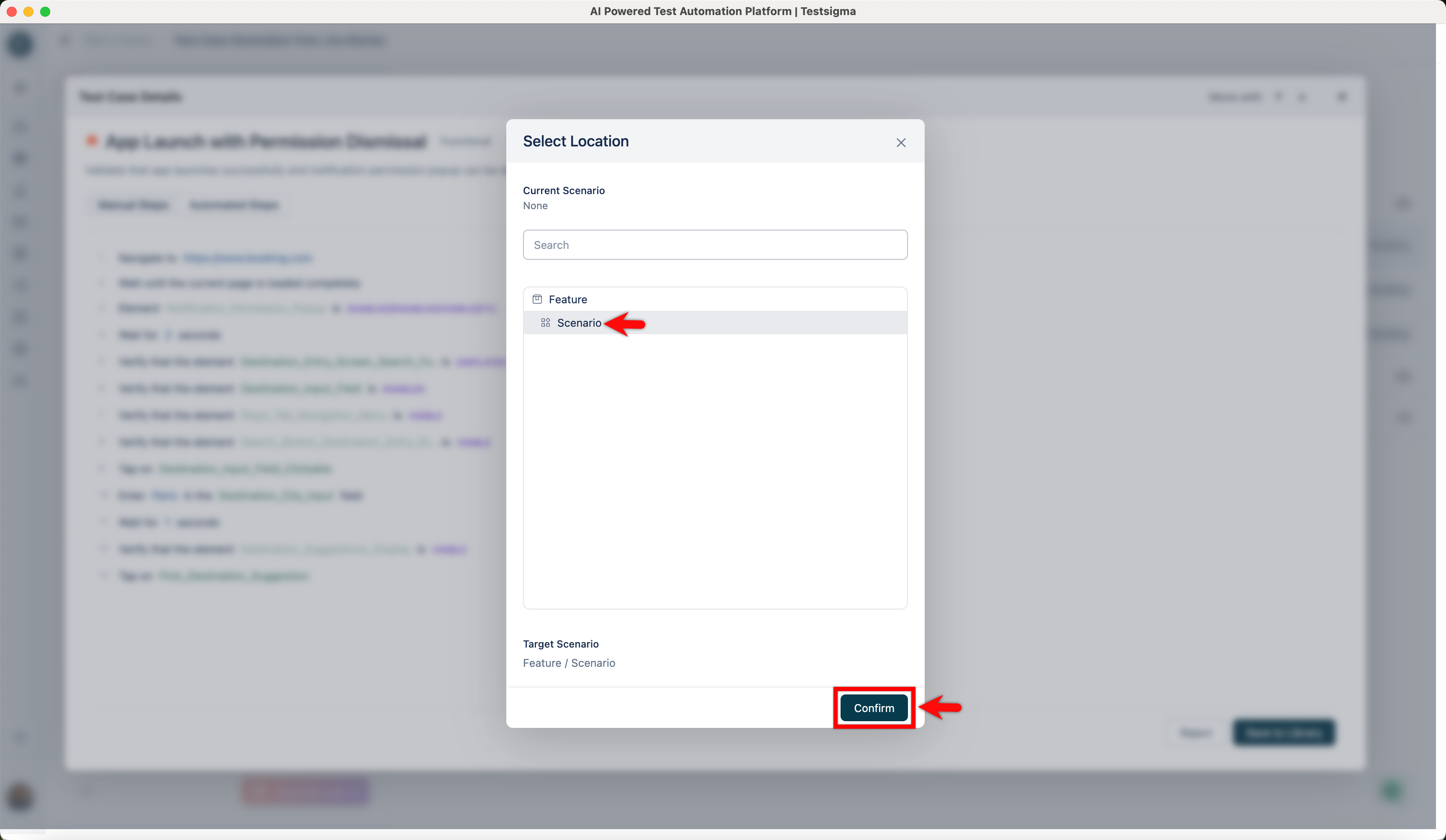
In the Select Location dialog box, expand the required Feature, select the Scenario where you want to save the automated test case, and click Confirm.