Test Cases
Import Test Cases
Prerequisites
Before you begin, ensure that you have referred to:
Steps to Import Test Cases
Section titled “Steps to Import Test Cases”-
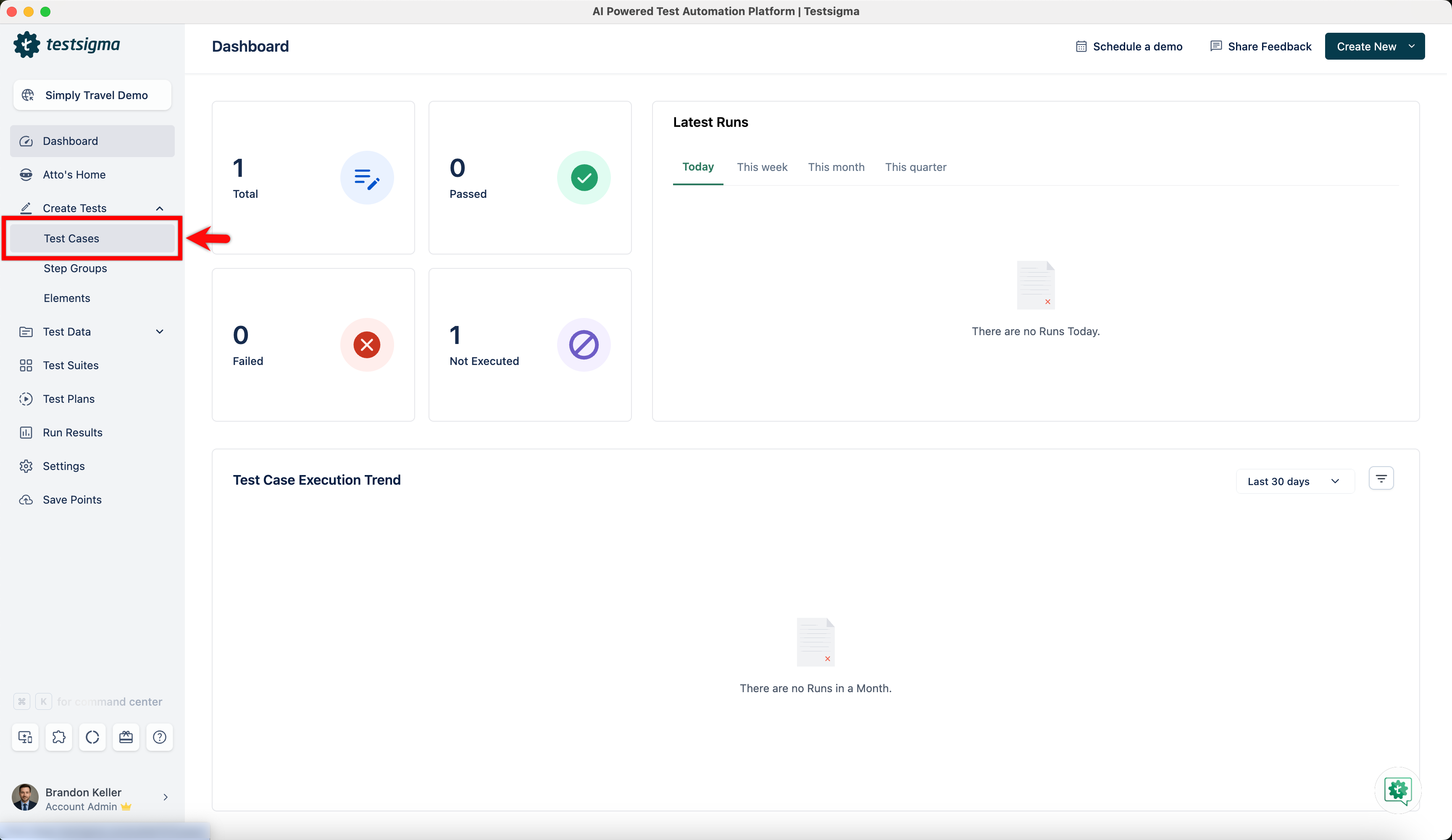
From the left navigation bar, navigate to Create Tests > Test Cases.
-
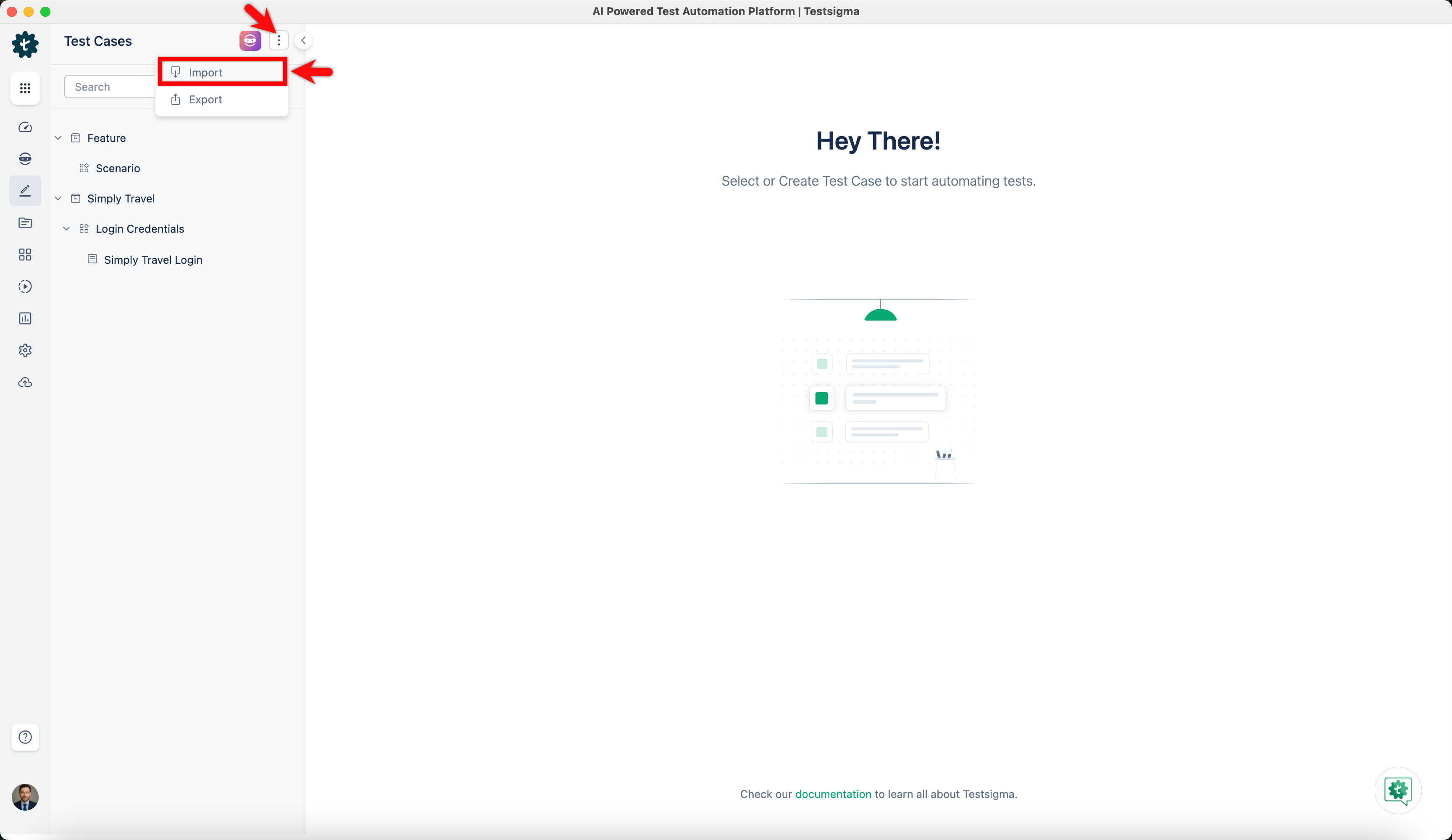
In the Test Cases Explorer section, click the ellipse icon and click Import.
-
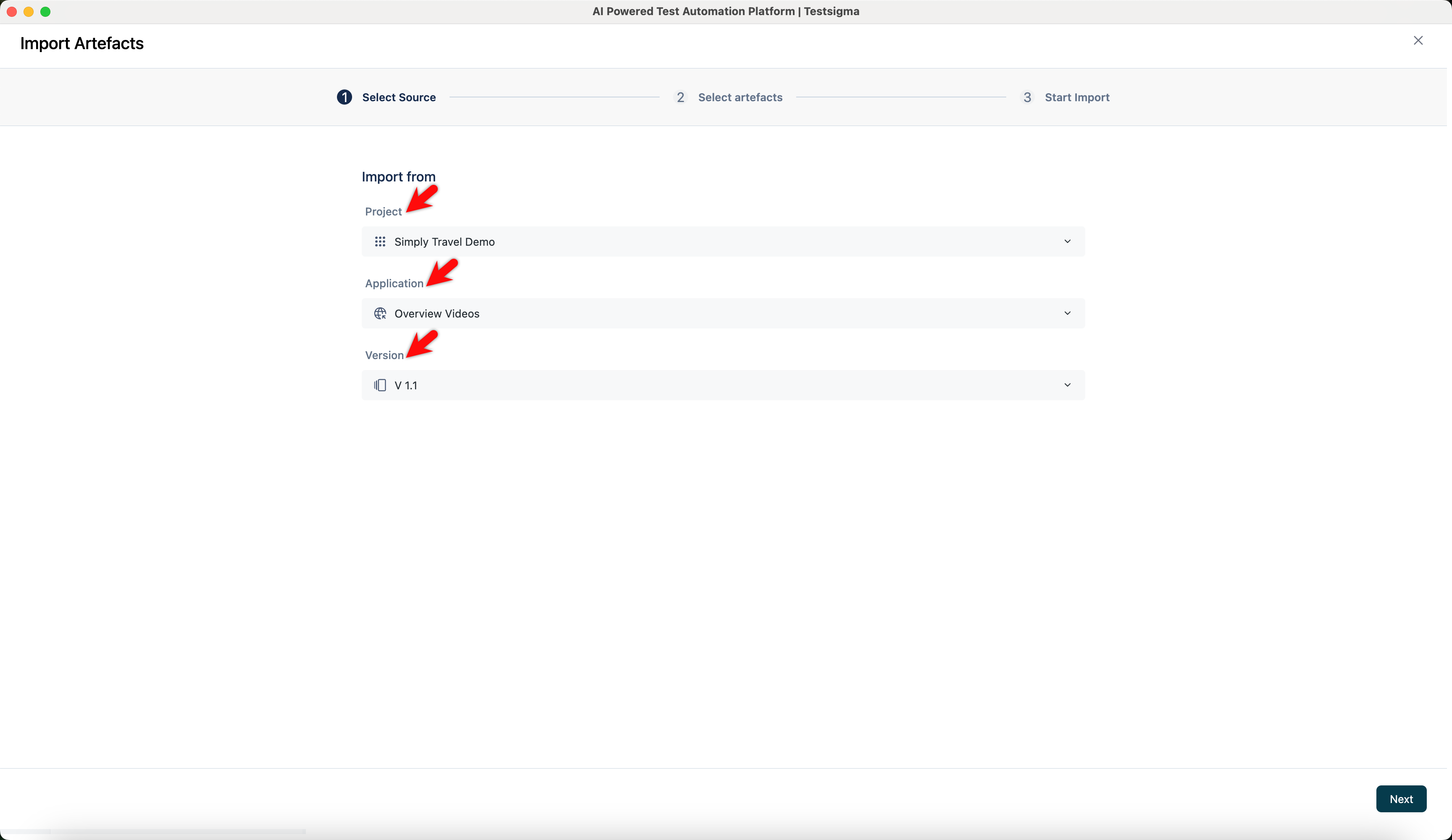
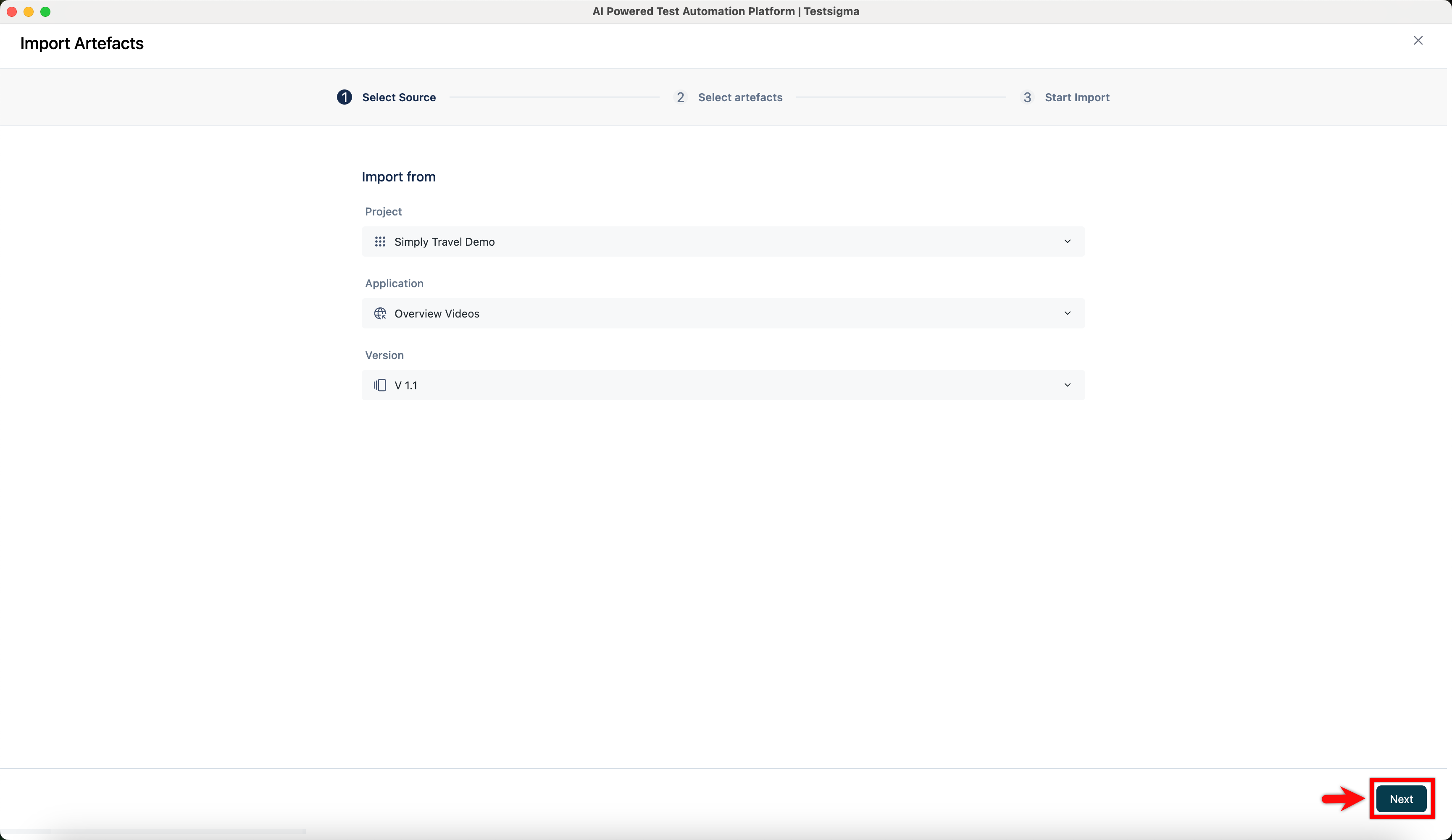
In the Import Artefacts screen, under the Select Source tab:
- Choose the source Project.
- Choose the Application Name.
- Choose the Version.
-
Click Next.
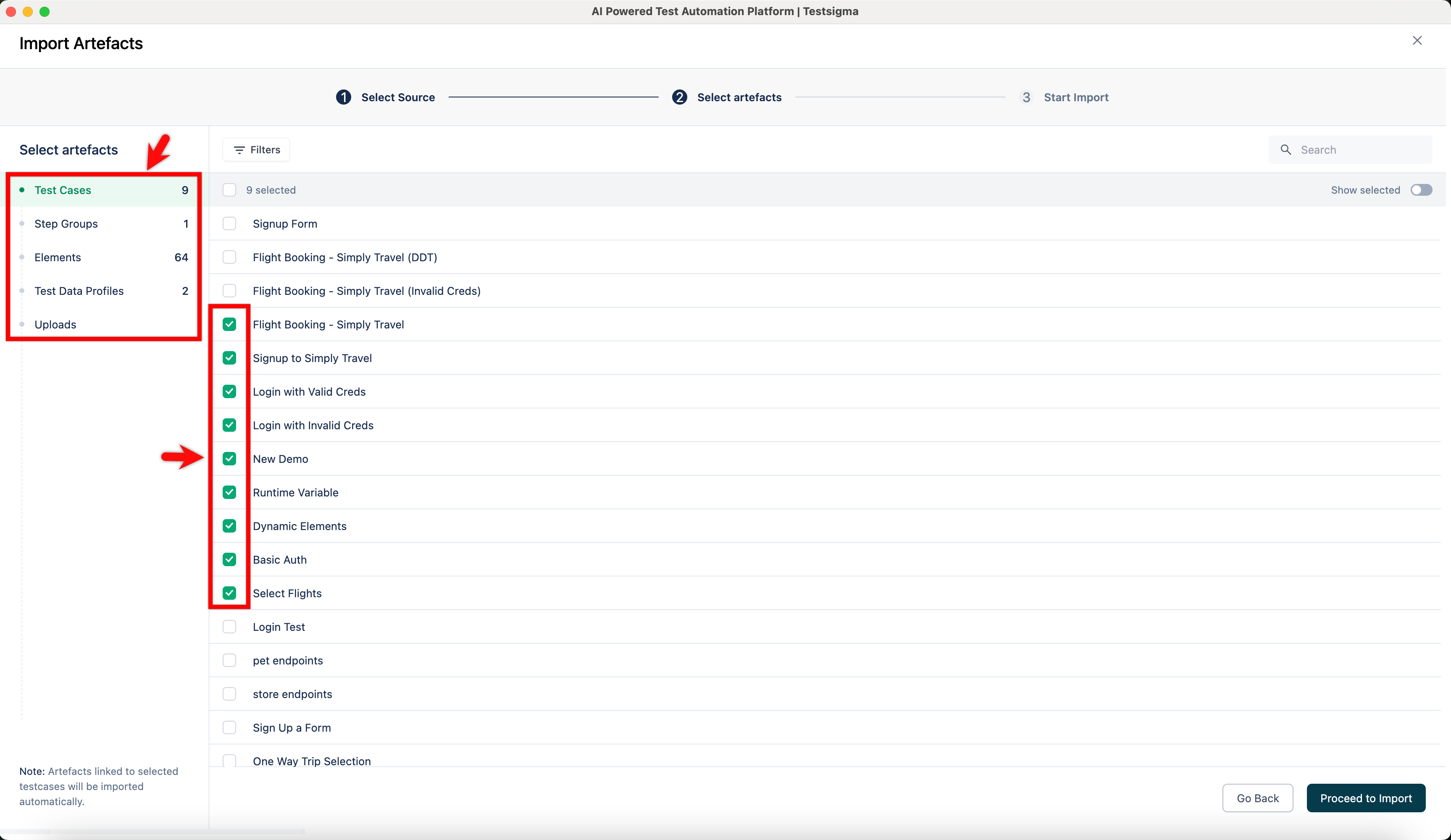
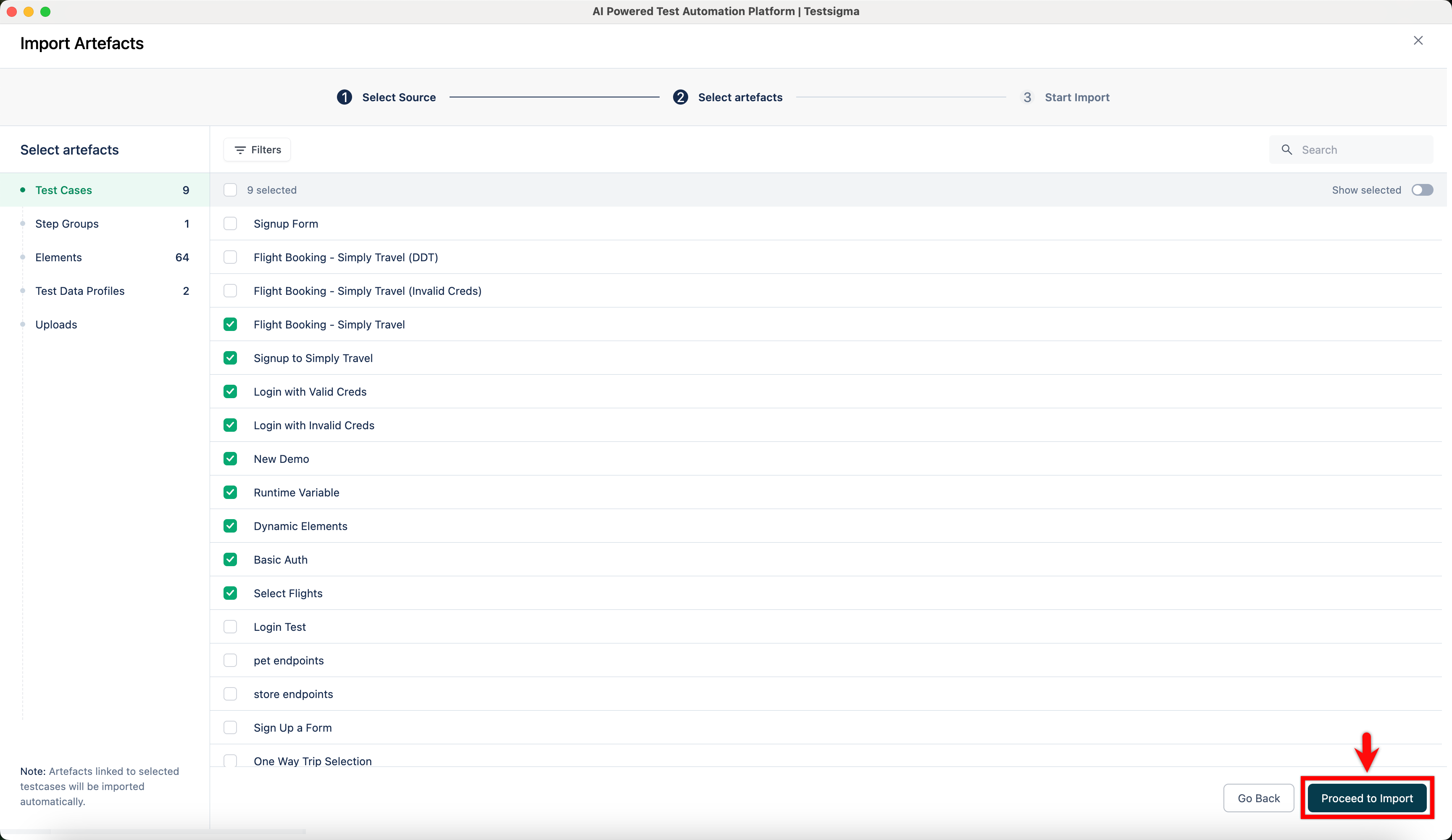
- In the Select Artefacts tab, choose the test cases, step groups, elements, test data profiles, environment variables, and uploads you want to import.
-
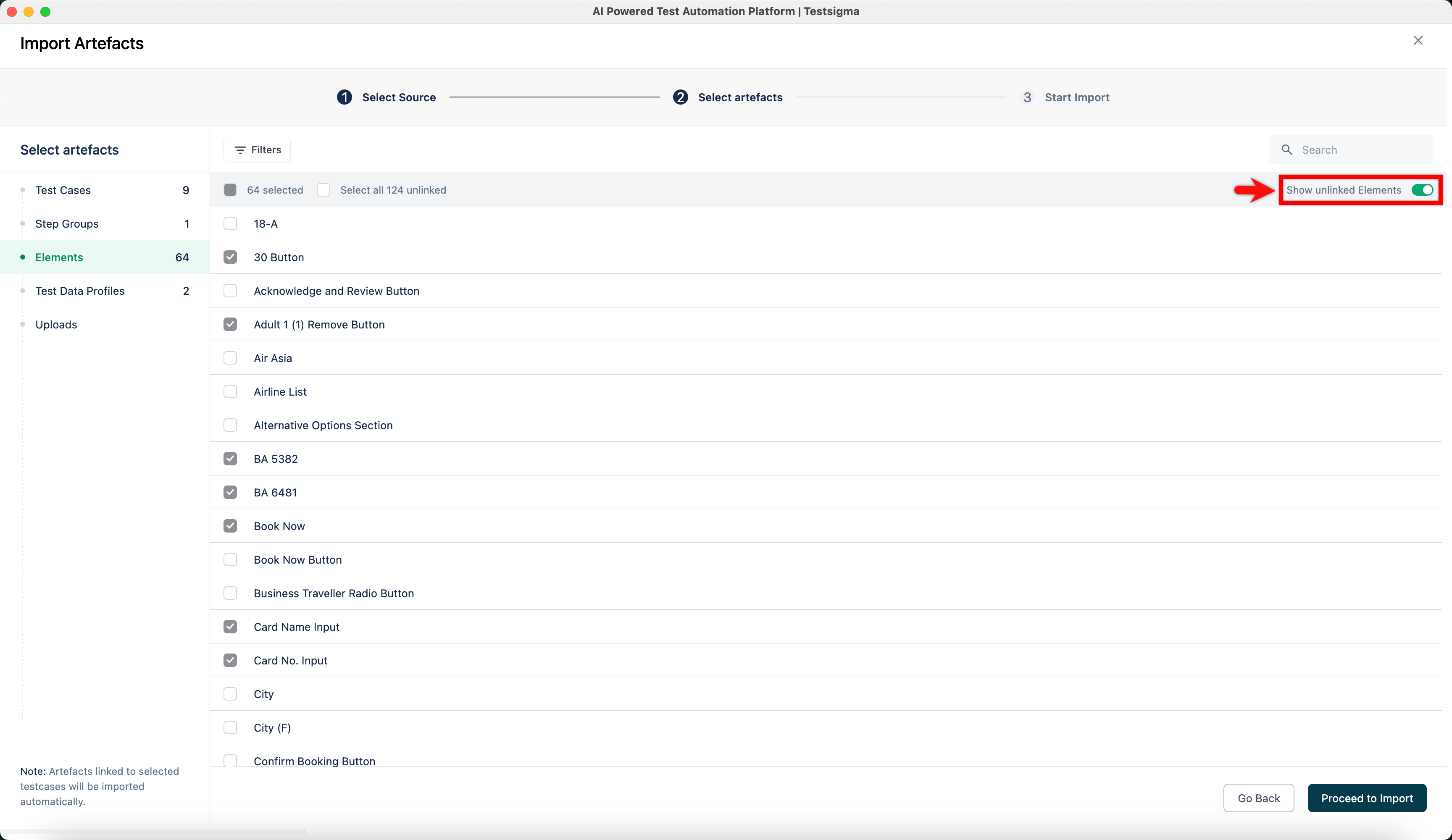
To include artefacts not linked to the selected test cases, go to the relevant tab (e.g., Elements, Step Groups), enable the Show unlinked (artefact) toggle, and select the required ones.
-
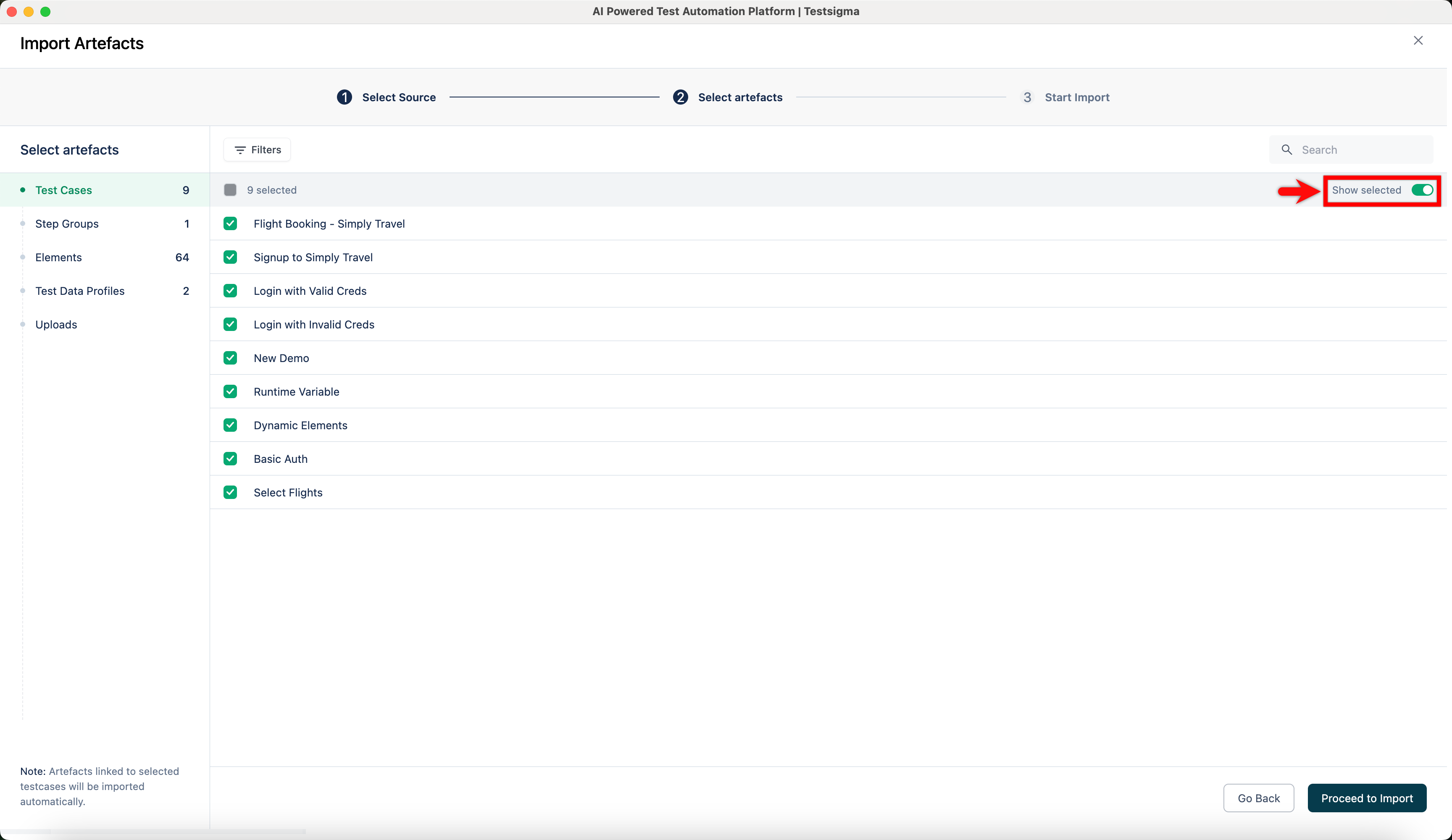
You can enable the Show selected toggle to review your selections in each artefact tab.
-
Click Proceed to Import.
-
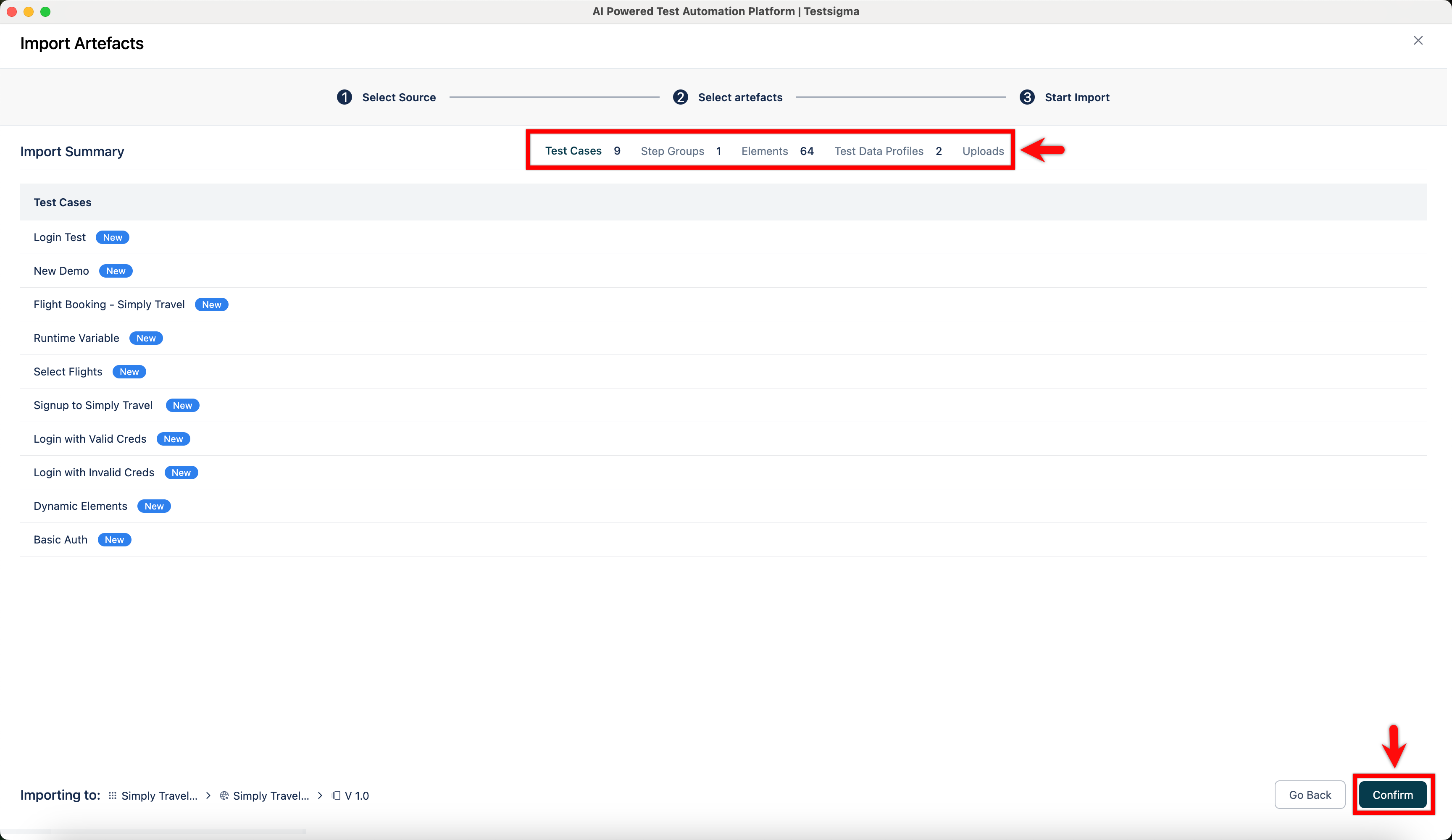
In the Start Import tab, review the selected artefacts and click Confirm.
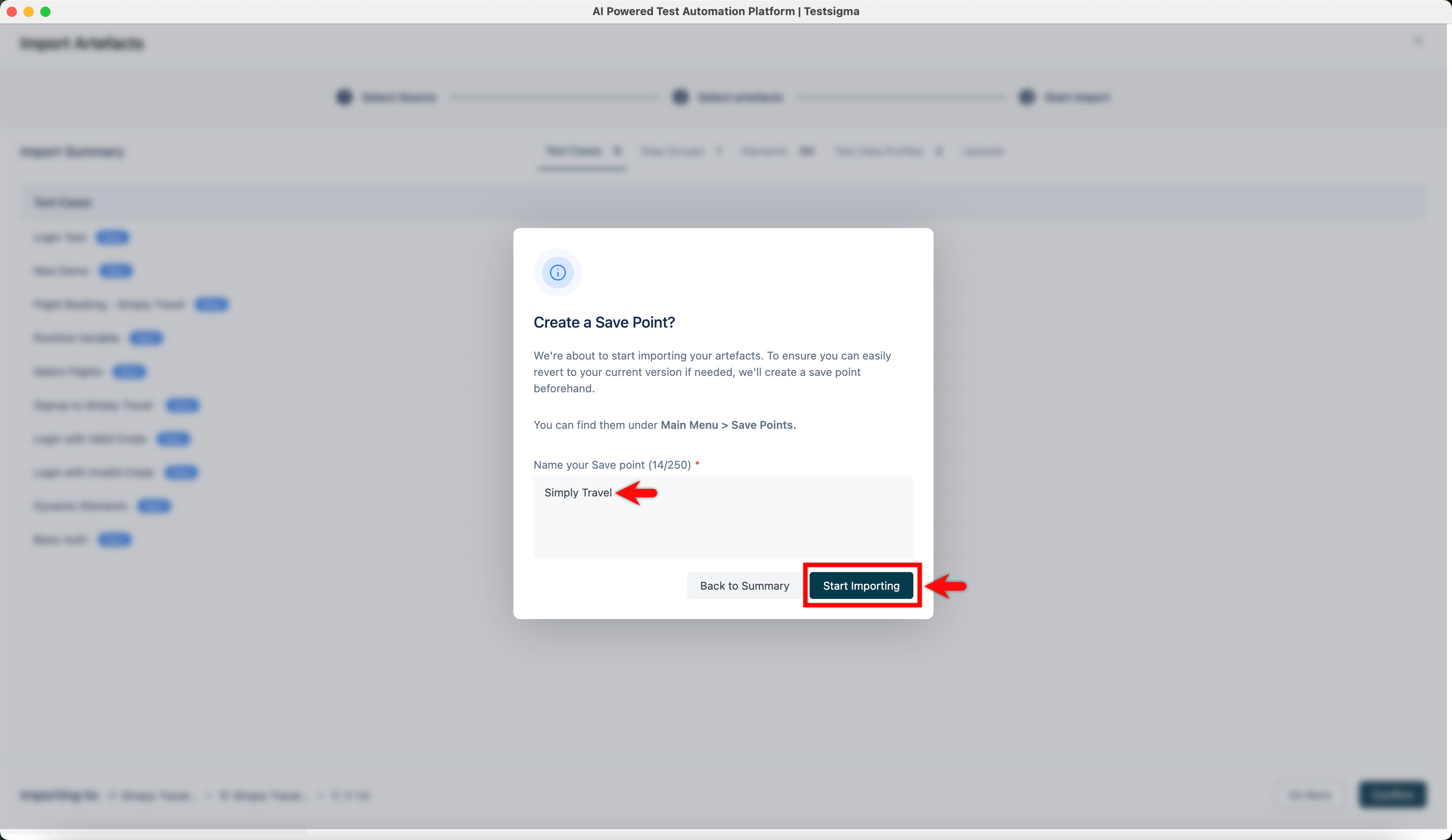
- In the Create a Save Point? dialog, enter a name, and click Start Importing.
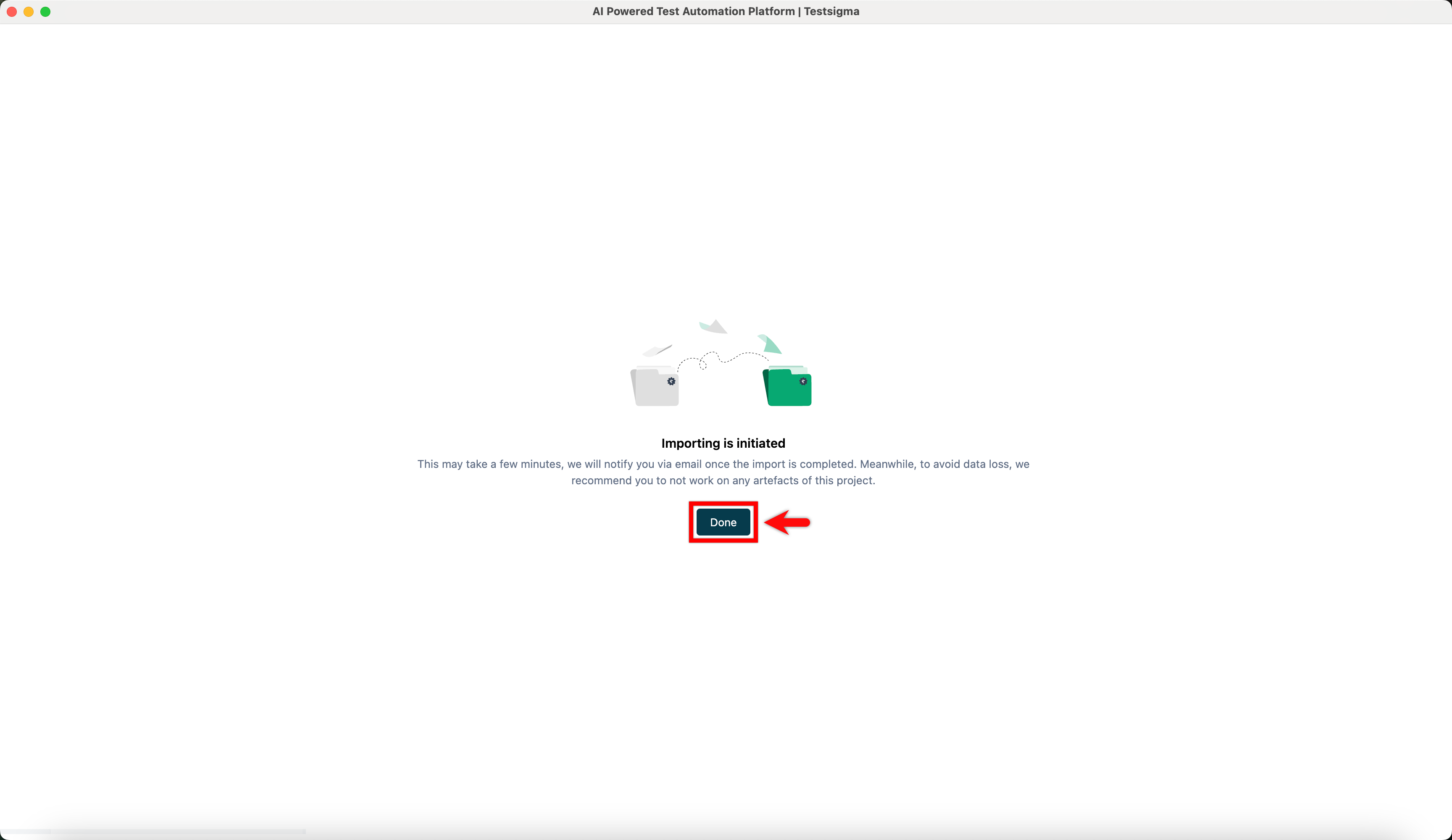
- Click Done.