Troubleshooting
Missing Elements in the Recorder
While recording test steps, you may encounter situations where the recorder displays a blank screen, preventing you from interacting with the expected elements. You can follow the steps below to troubleshoot the issue.
Prerequisites
Before you begin, ensure that:
- You have installed the Testsigma Chrome Extension. For more information on installing Testsigma Chrome Extension, refer to the documentation on installing Testsigma Chrome Extension.
Troubleshooting Steps
Section titled “Troubleshooting Steps”1. Navigate to Chrome Settings
-
Open Google Chrome.
-
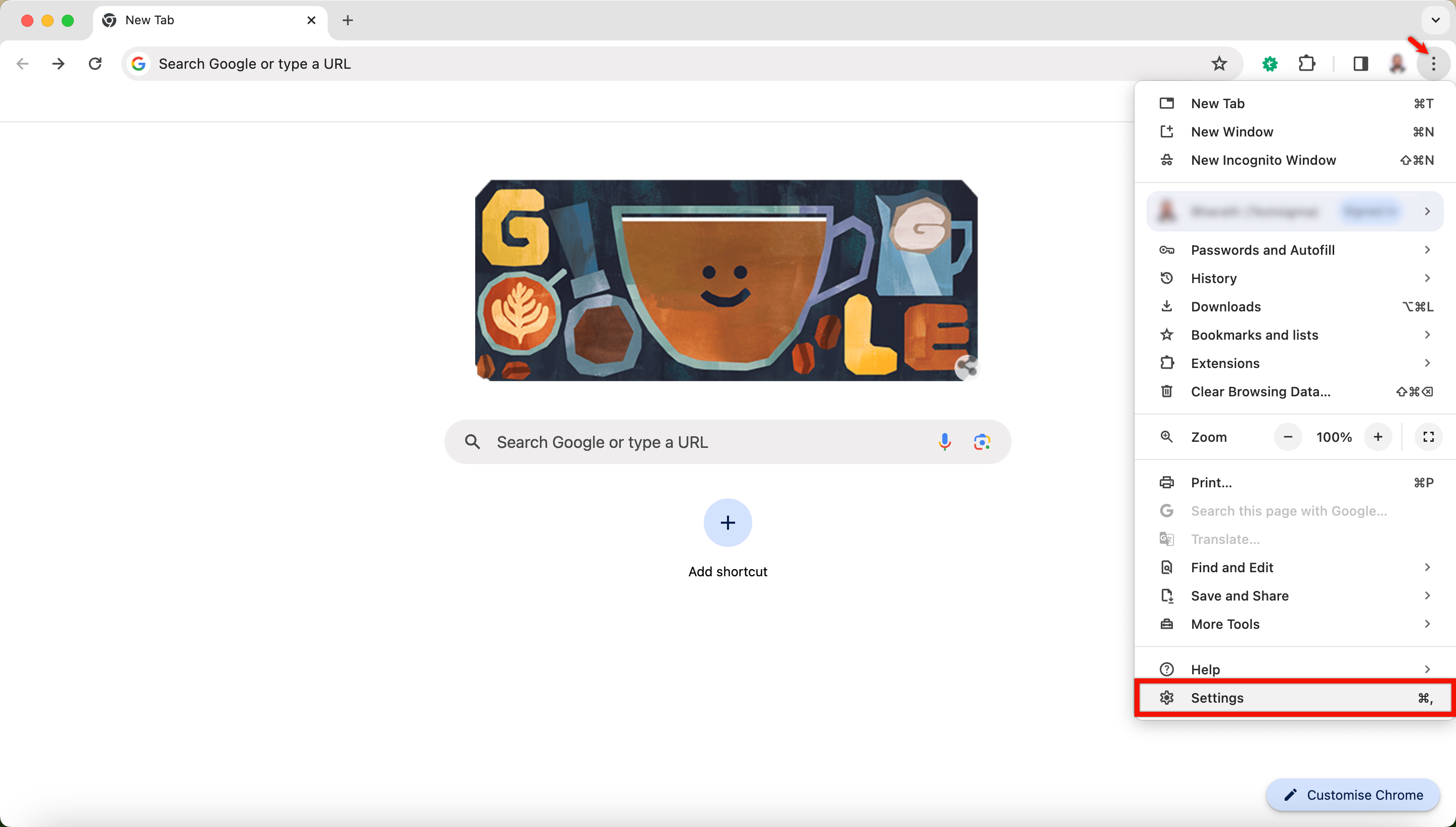
Click on the three vertical dots in the top-right corner to access the menu.
-
Select Settings.
2. Privacy and Security
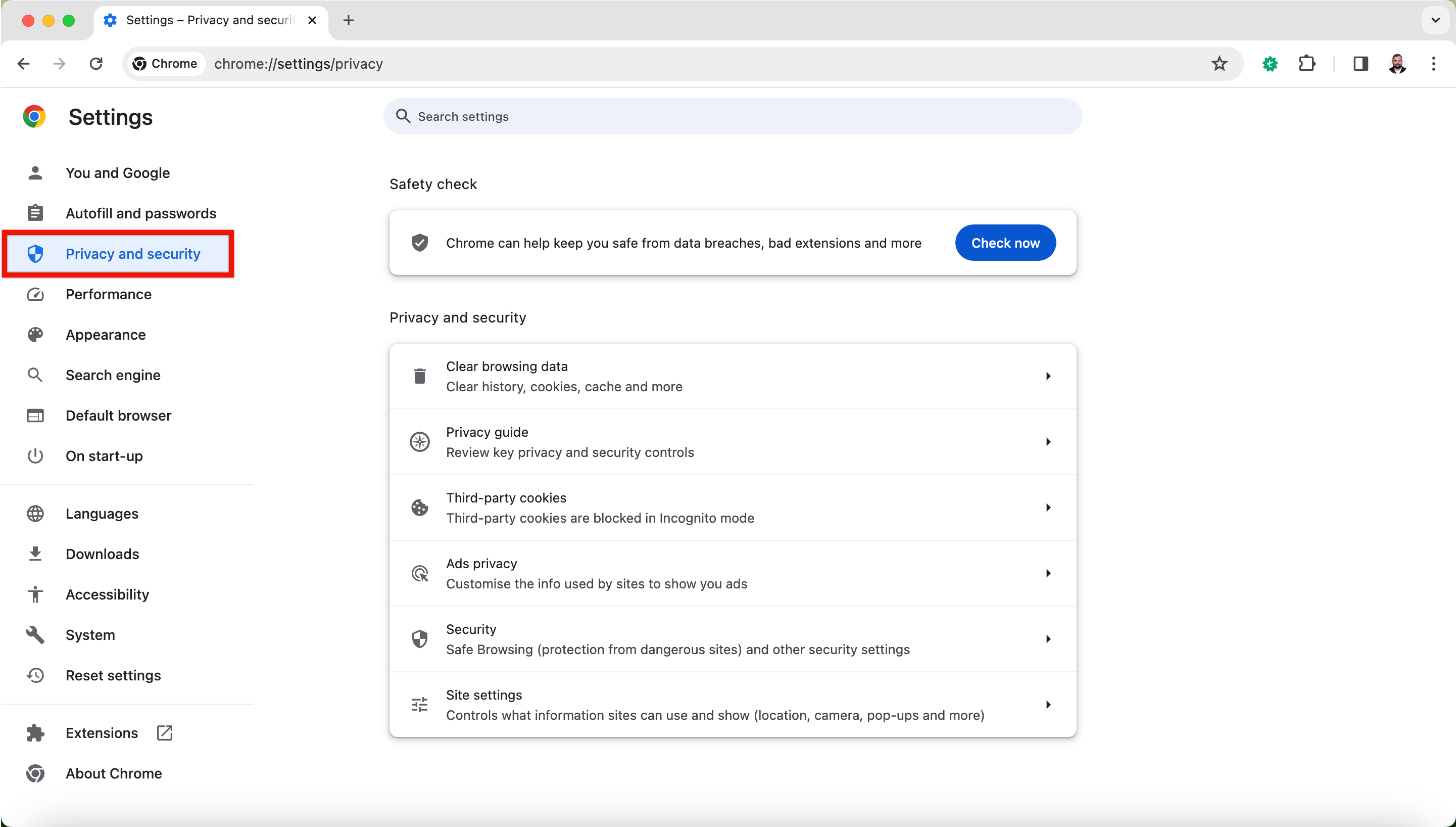
- In the left sidebar, choose Privacy and security.
3. Third-party cookies
-
Scroll down to find the Third-party cookies section.
-
Click on it to expand the options.

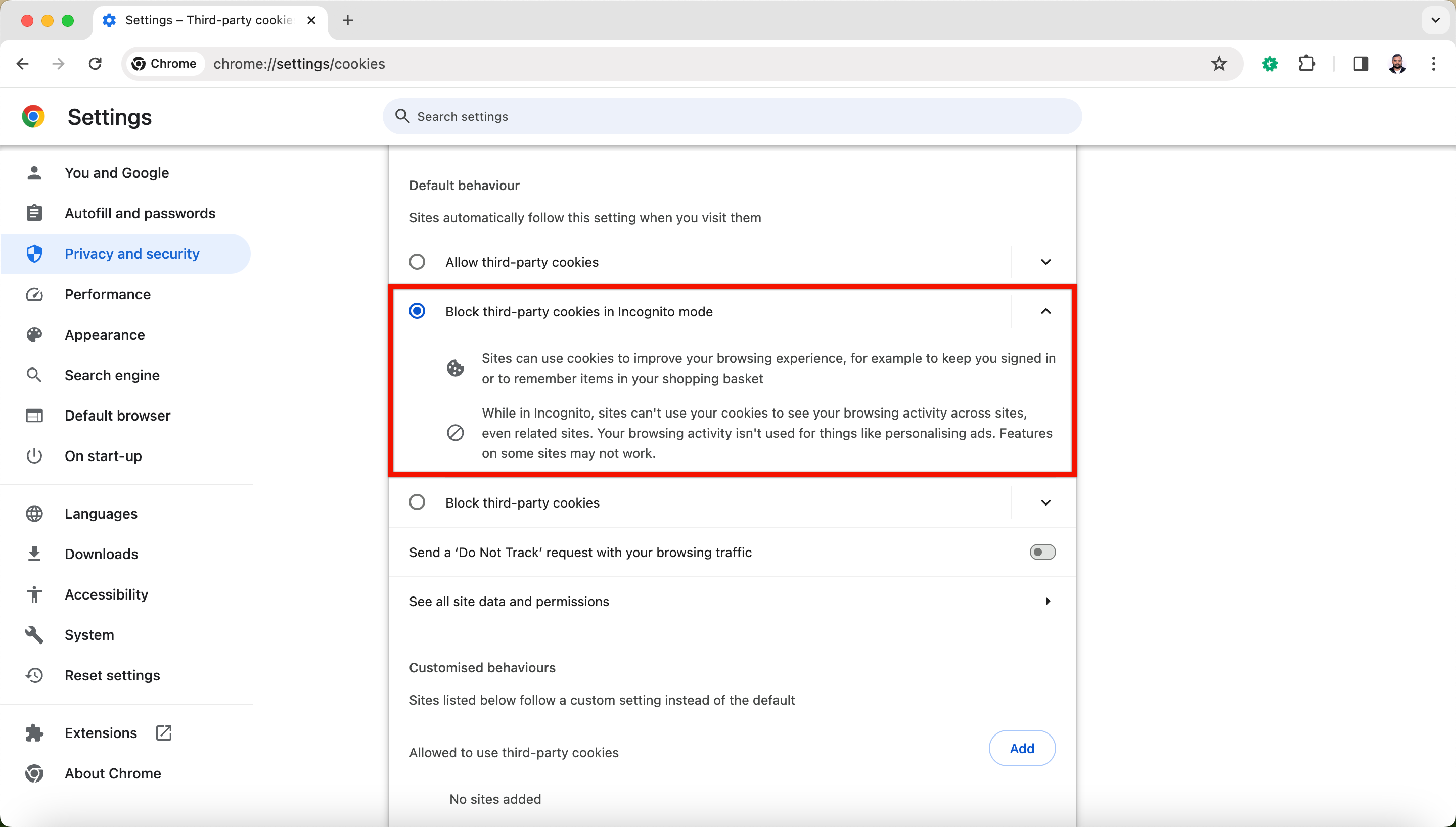
4. Block Third-Party Cookies in Incognito
- Enable the option to Block third-party cookies in Incognito mode.