Test Data
Environment Test Data
Prerequisites
Before you begin, ensure that you have referred to:
Use Environment in Test Steps
Section titled “Use Environment in Test Steps”-
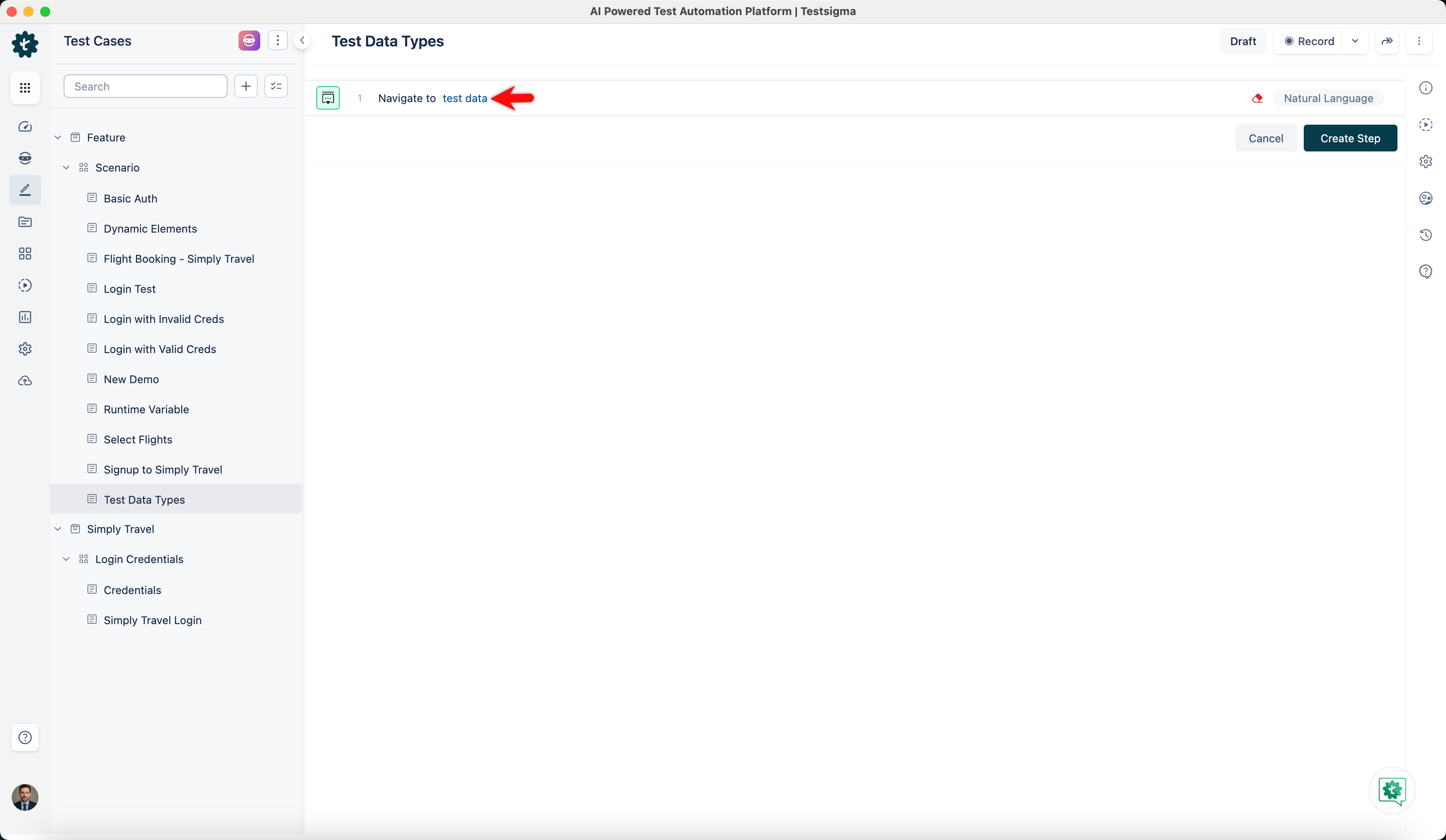
Use NLP to create a new step in the Test Case and include a placeholder for test data.
-
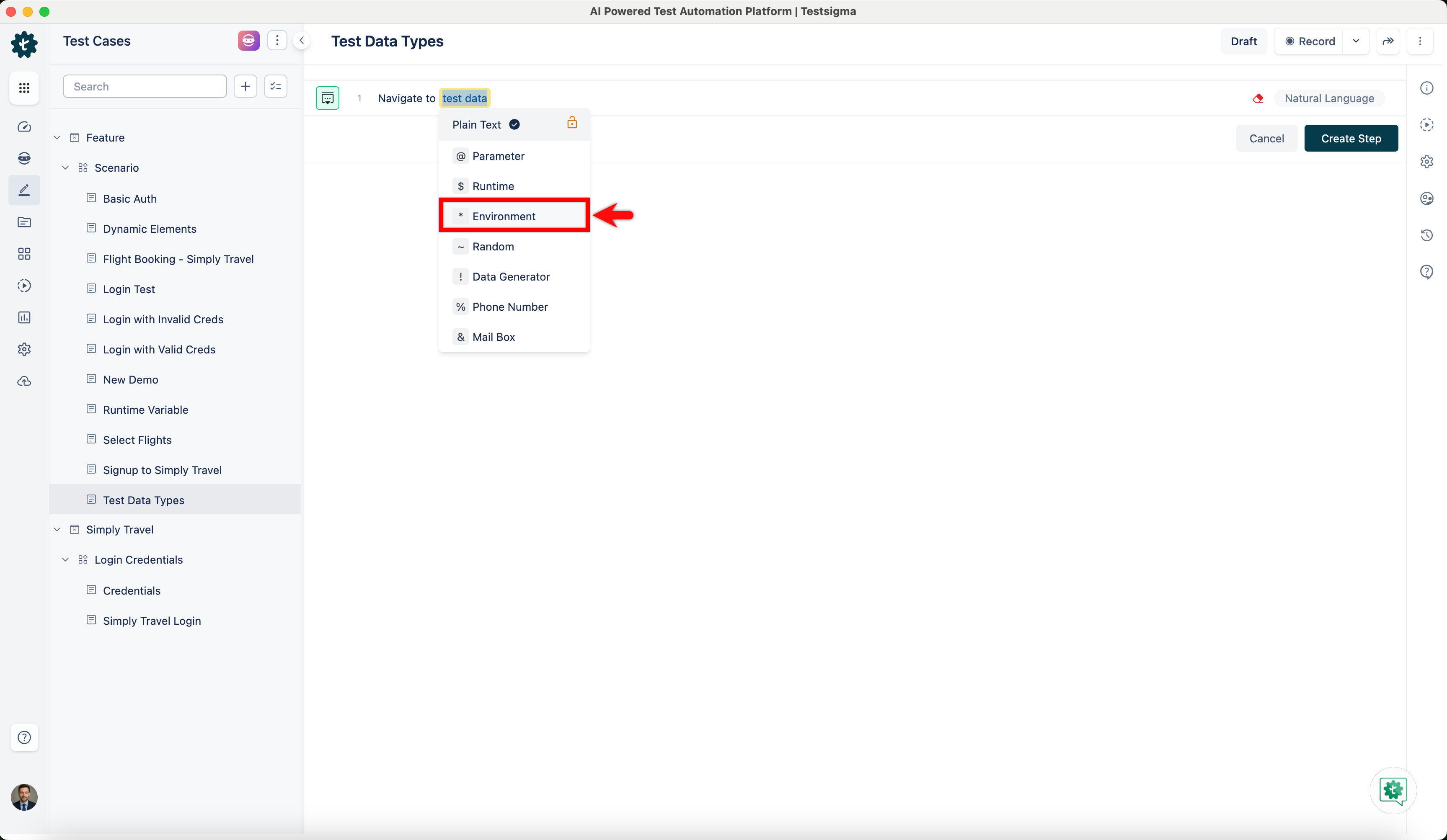
Click the test data placeholder to replace it, and then select the *** Environment** from the Test Data Types dropdown menu.
-
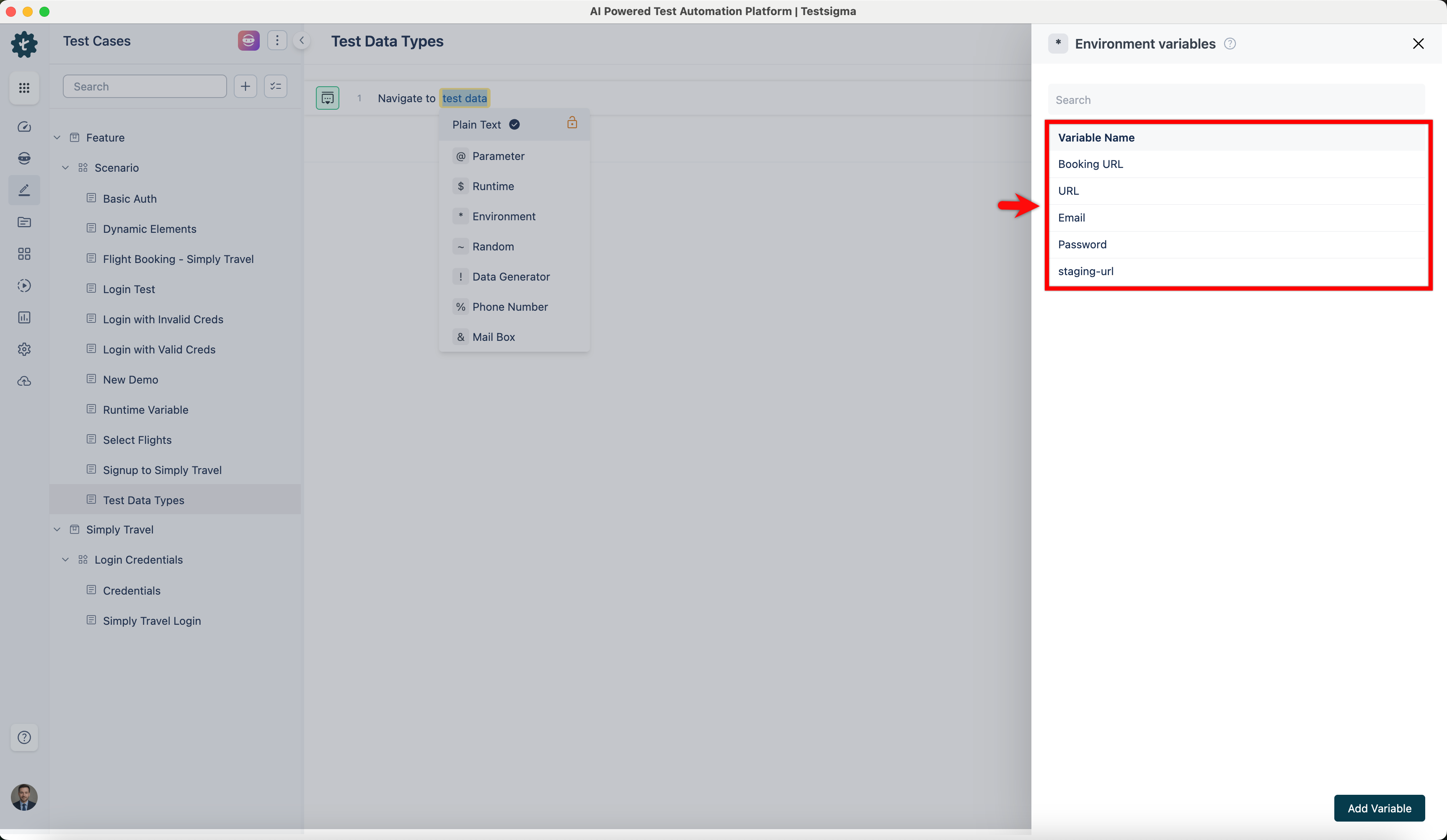
Select Environment in the Environments overlay screen from the right-side panel.
Use Environment in Ad-hoc Run page
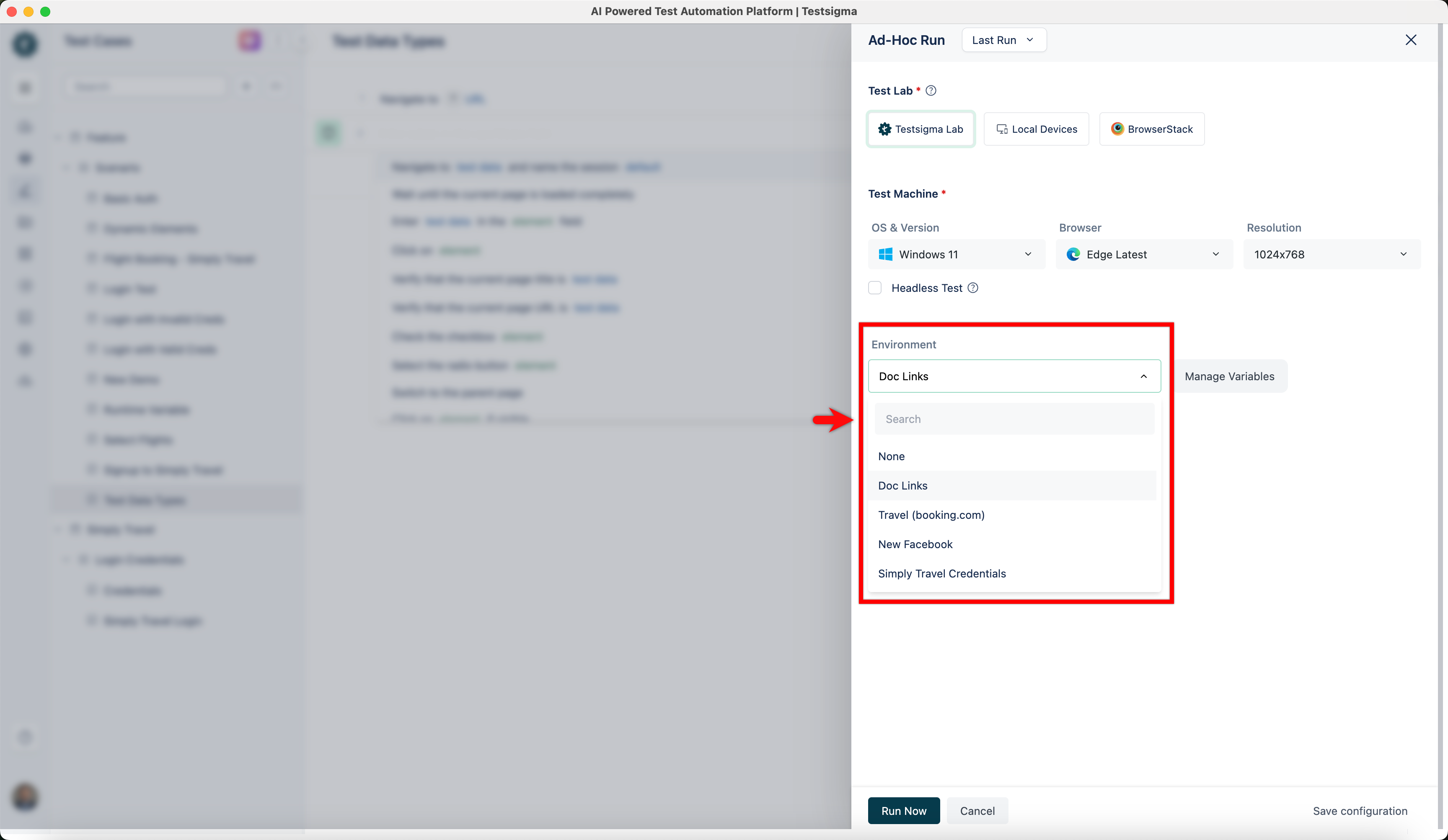
Section titled “Use Environment in Ad-hoc Run page”- On the Ad-hoc Run page, click the right arrow before Additional Settings to reveal the feature.
- Select Environment from the drop-down list.
Use Environment in Test Plan
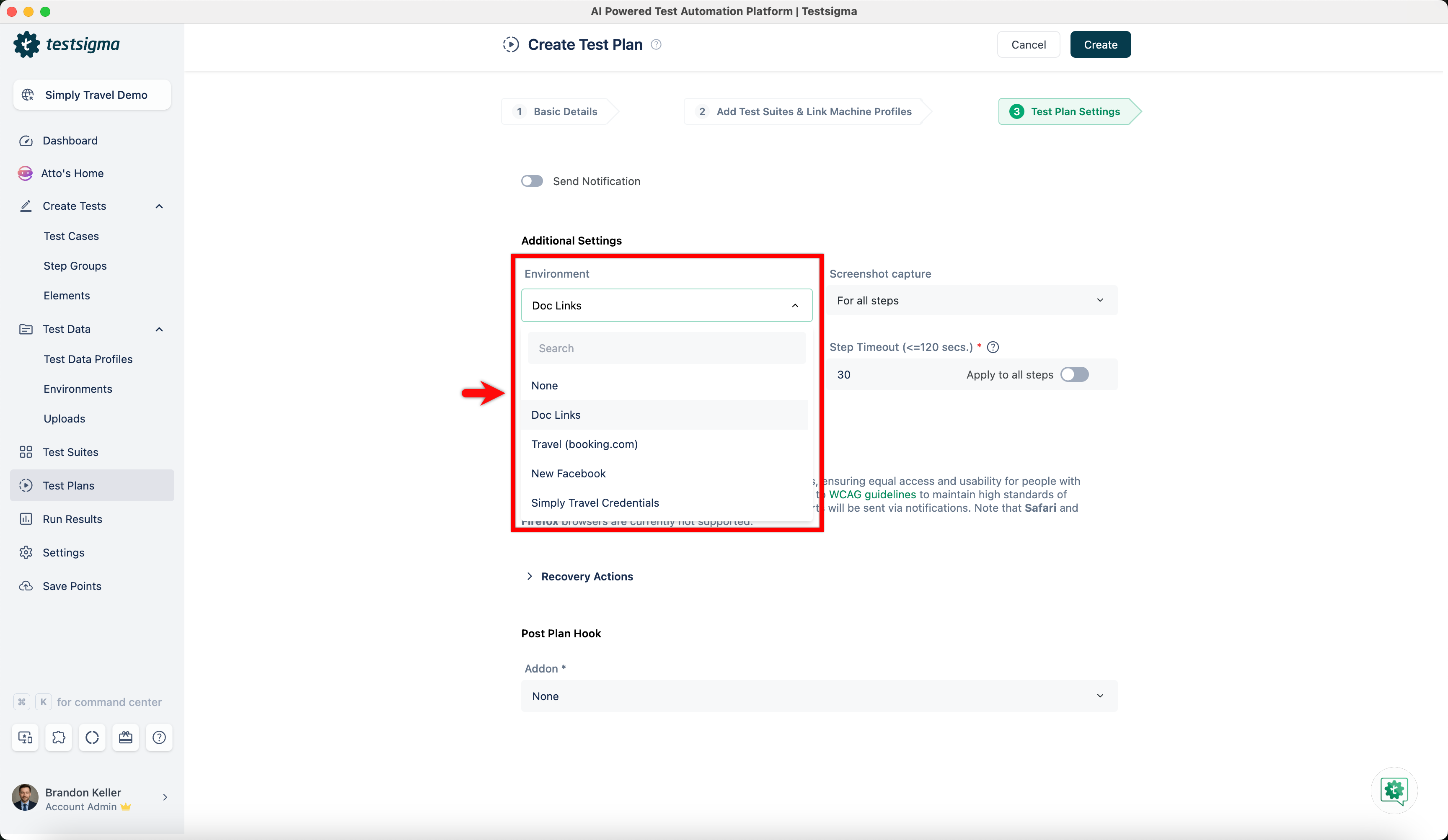
Section titled “Use Environment in Test Plan”- Navigate to the Test Plan Settings tab on the Create or Edit Test Plan page.
- In the Additional Settings section, select Environment from the drop-down list.
Environment Variables
Section titled “Environment Variables”You can effectively manage environmental variables, which ensures consistency across various environments.
Testsigma introduced a centralized master list of environment variables, where users can maintain a clean and organized list of Variables, streamlining the selection process during test authoring.
You can modify environment variable values directly on the Ad-Hoc Run page before execution.
Testsigma also automates the creation of new and updated keys across all environments, eliminating the need for manual replication and ensuring that changes are cloned consistently.
Add Keys & Values to all Environments Globally
Section titled “Add Keys & Values to all Environments Globally”-
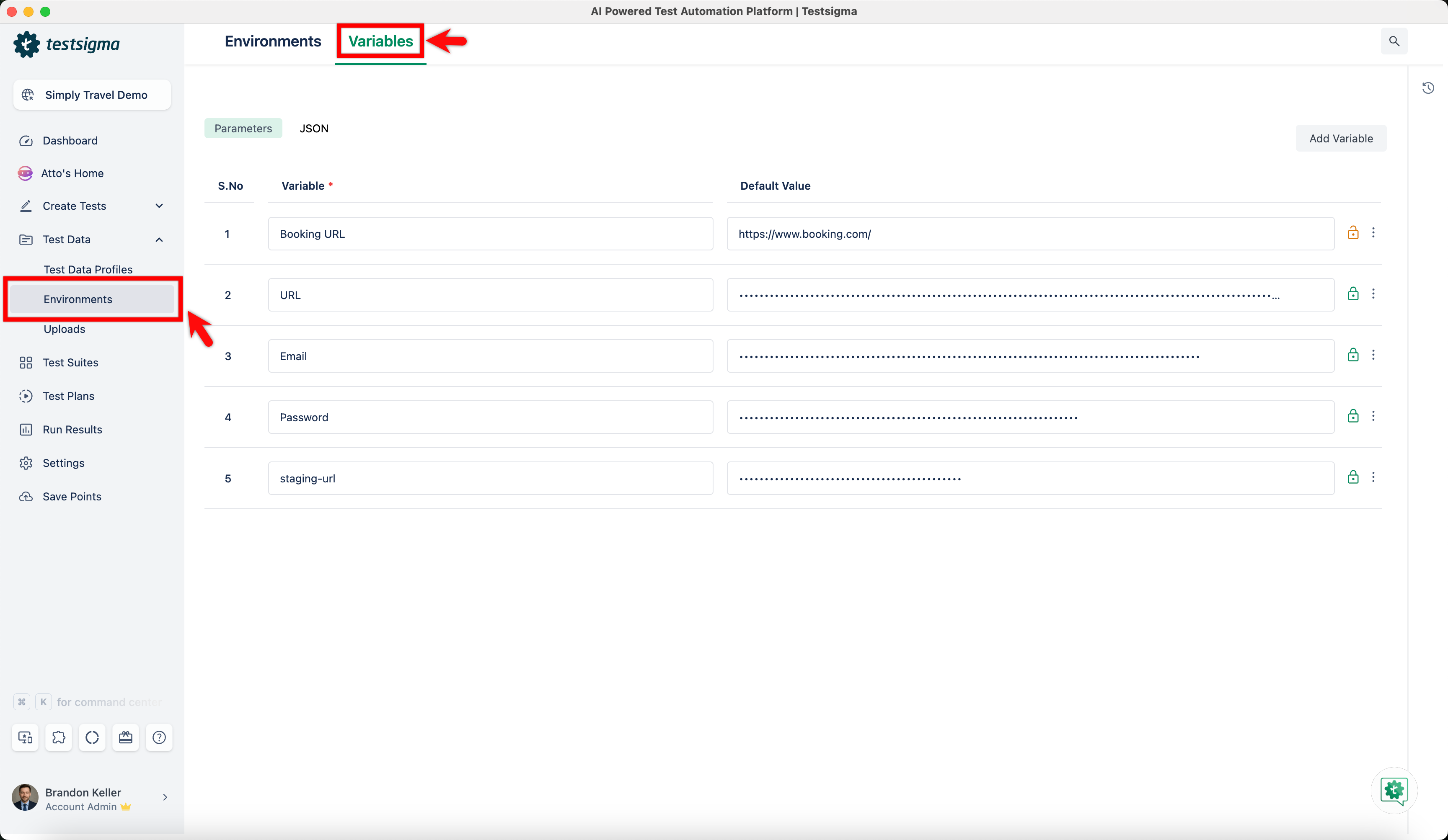
From the left navigation bar, go to Test Data > Environments and click the Variables tab.
-
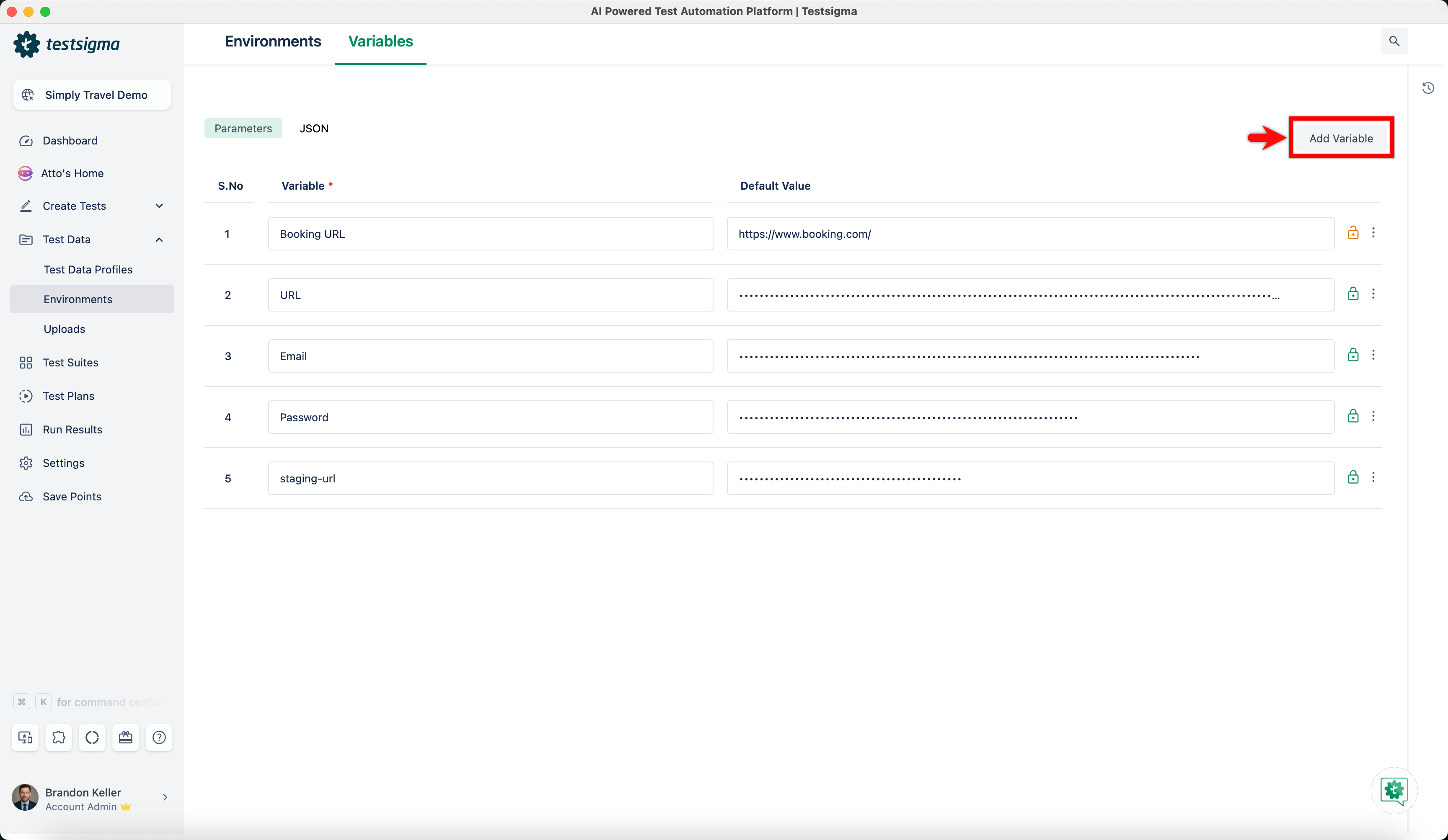
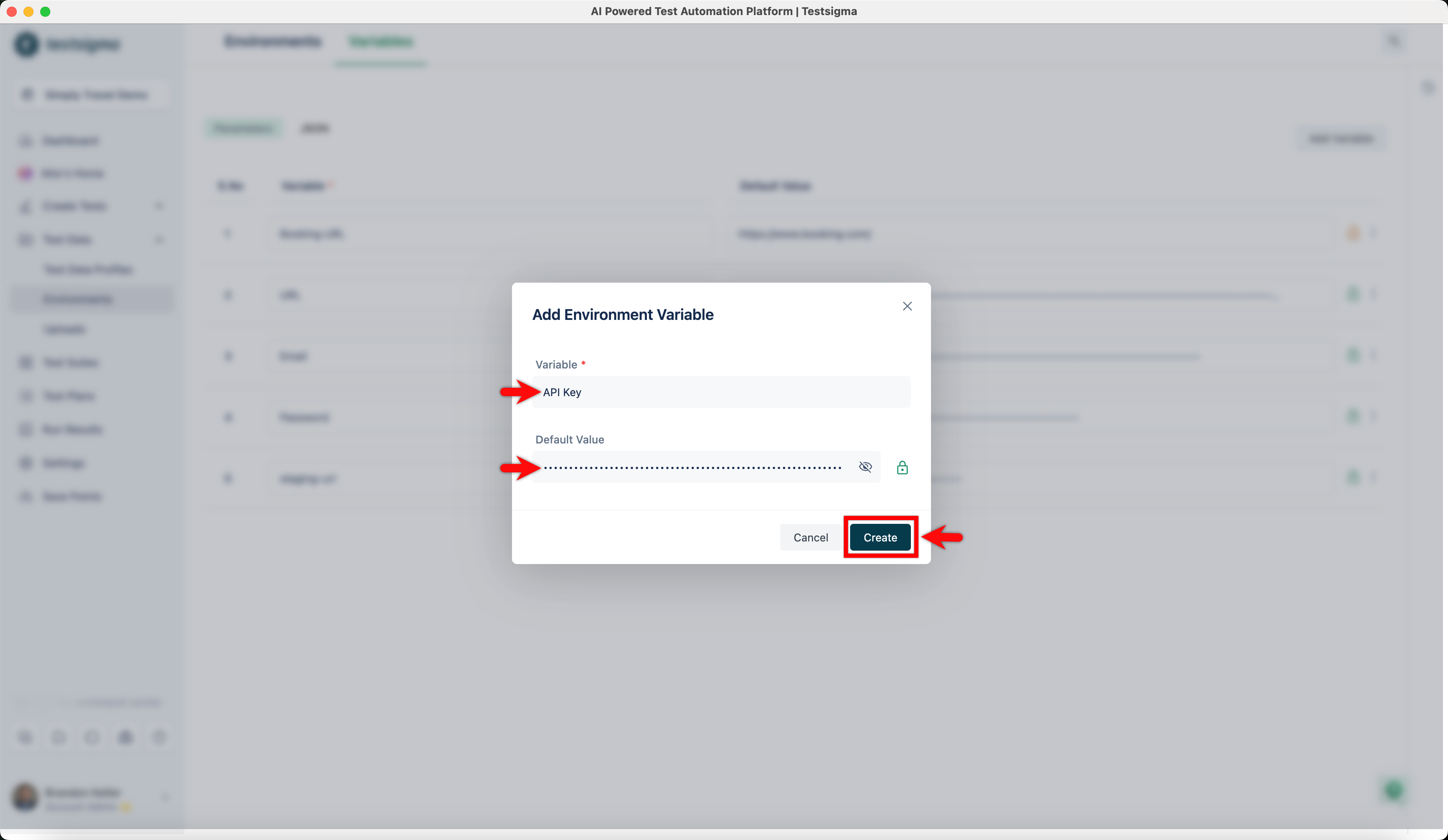
Click Add Variable. This opens the Add Environment Variable dialog.
-
Enter the Variable name and Value and click Create.
-
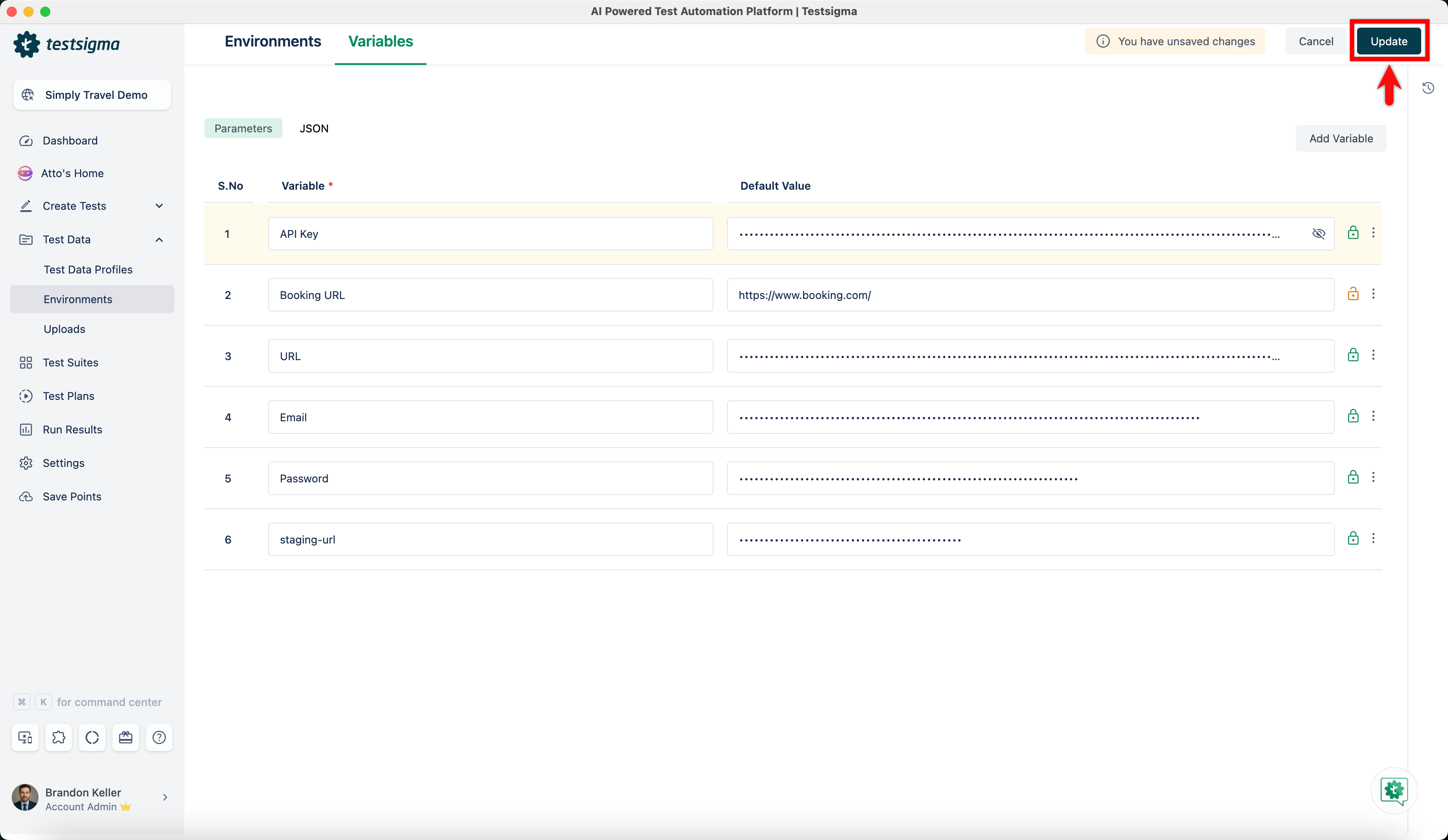
Once the Variable is added to the list, click Update.
-
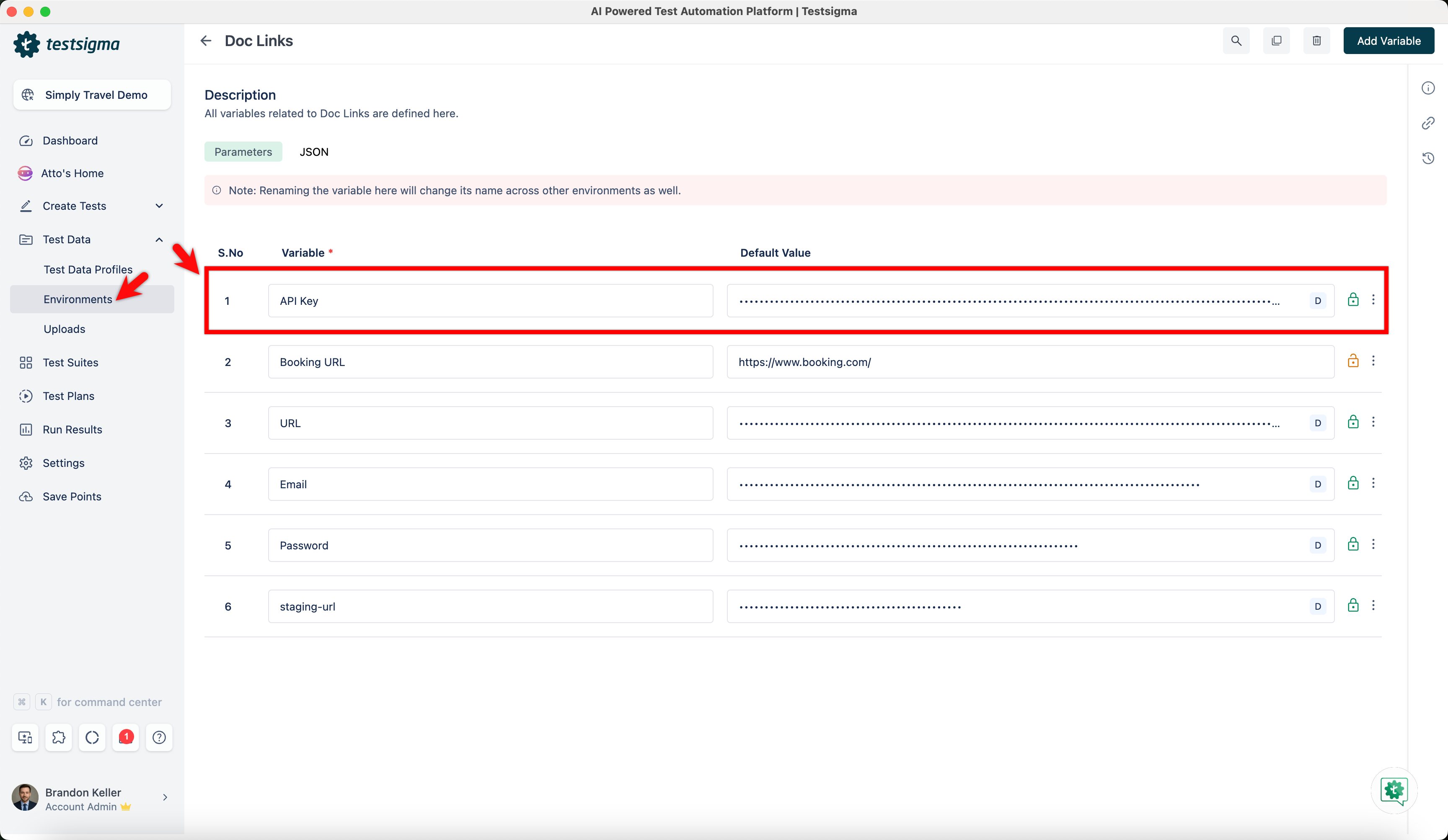
Verify the Variable added in the Environments.
-
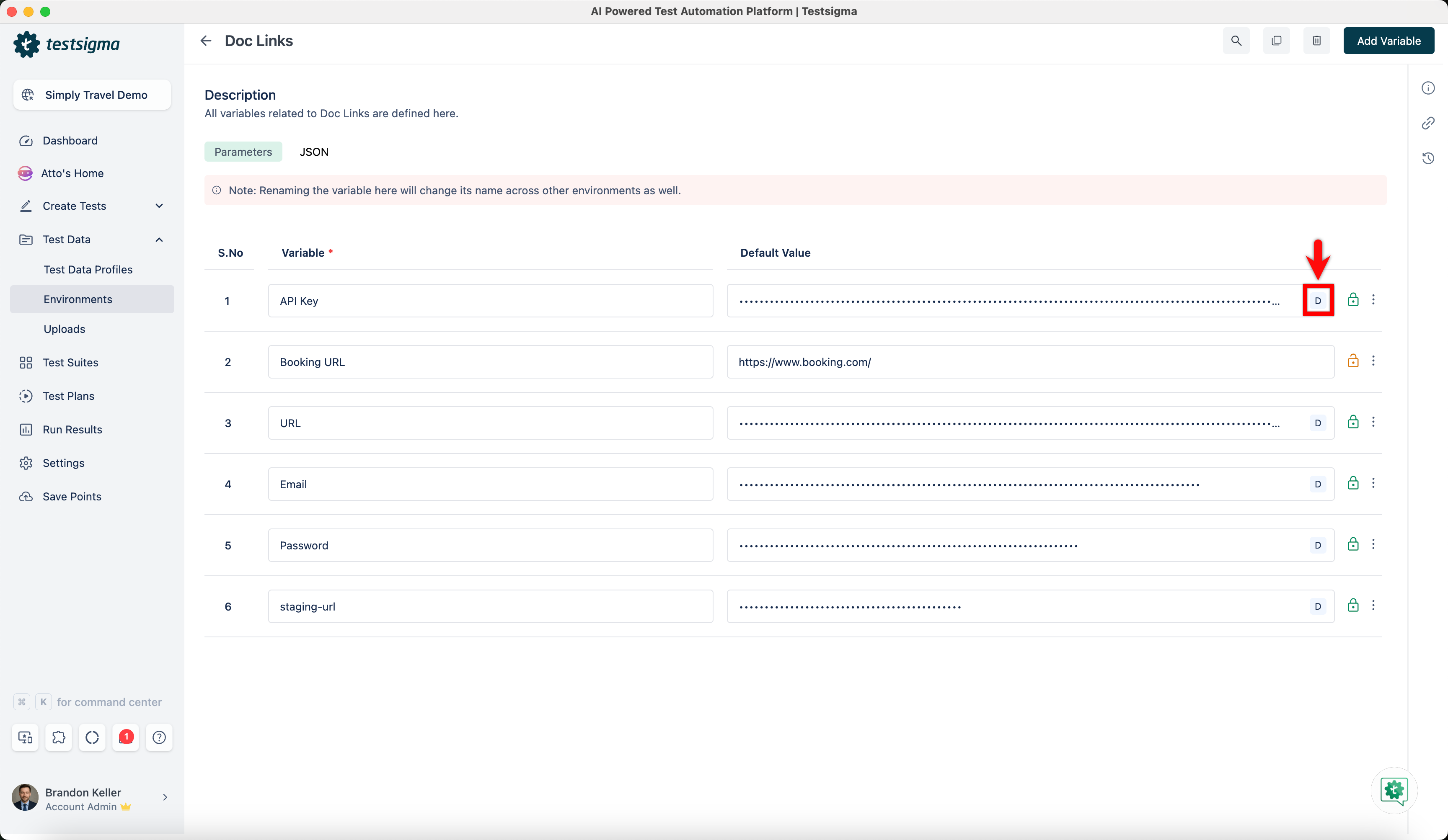
There will be a default indication with the letter D for all the Variables added globally.
-
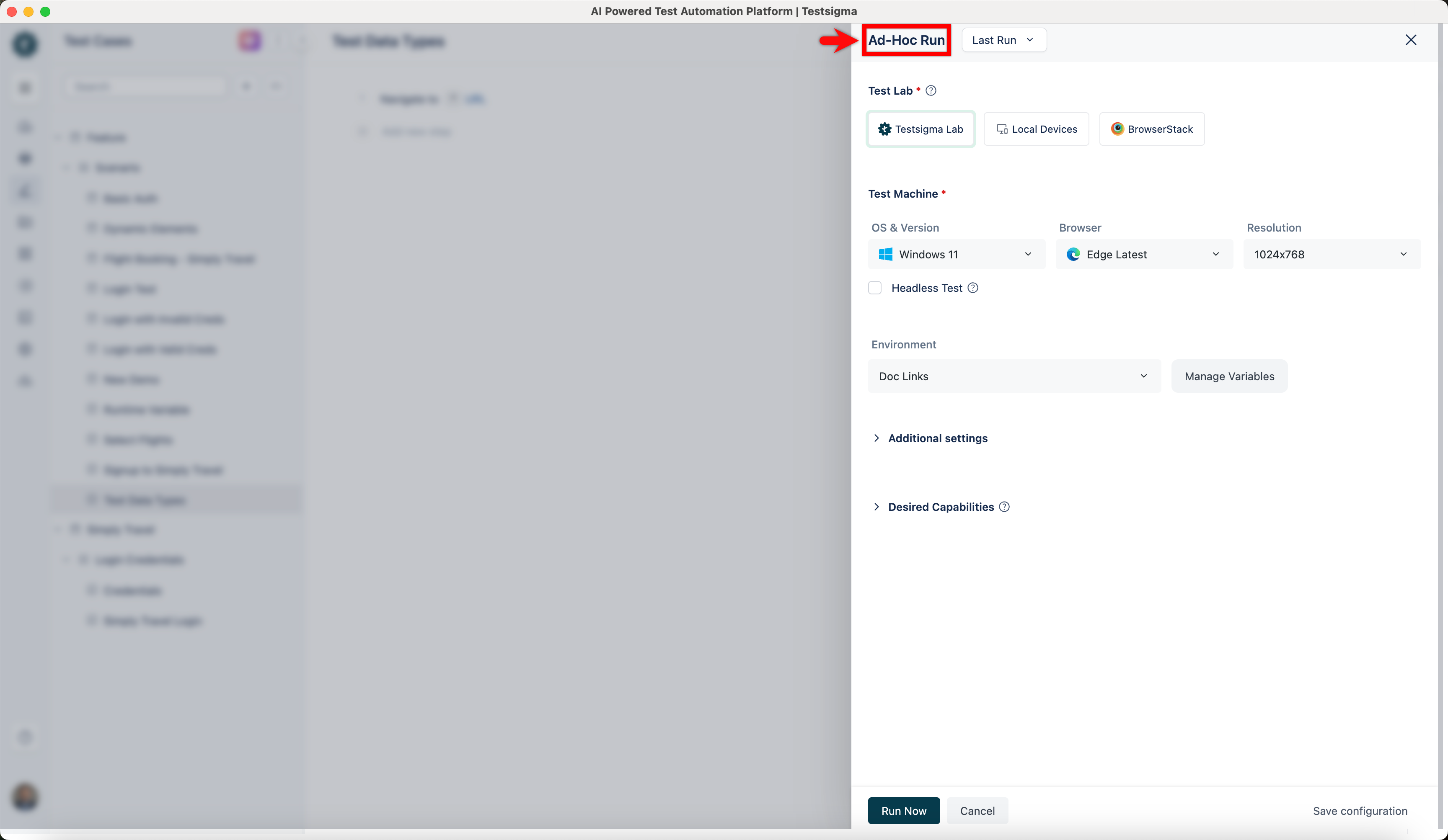
From the Test Case Details page, click Run. This will open the Ad-Hoc Run overlay.
-
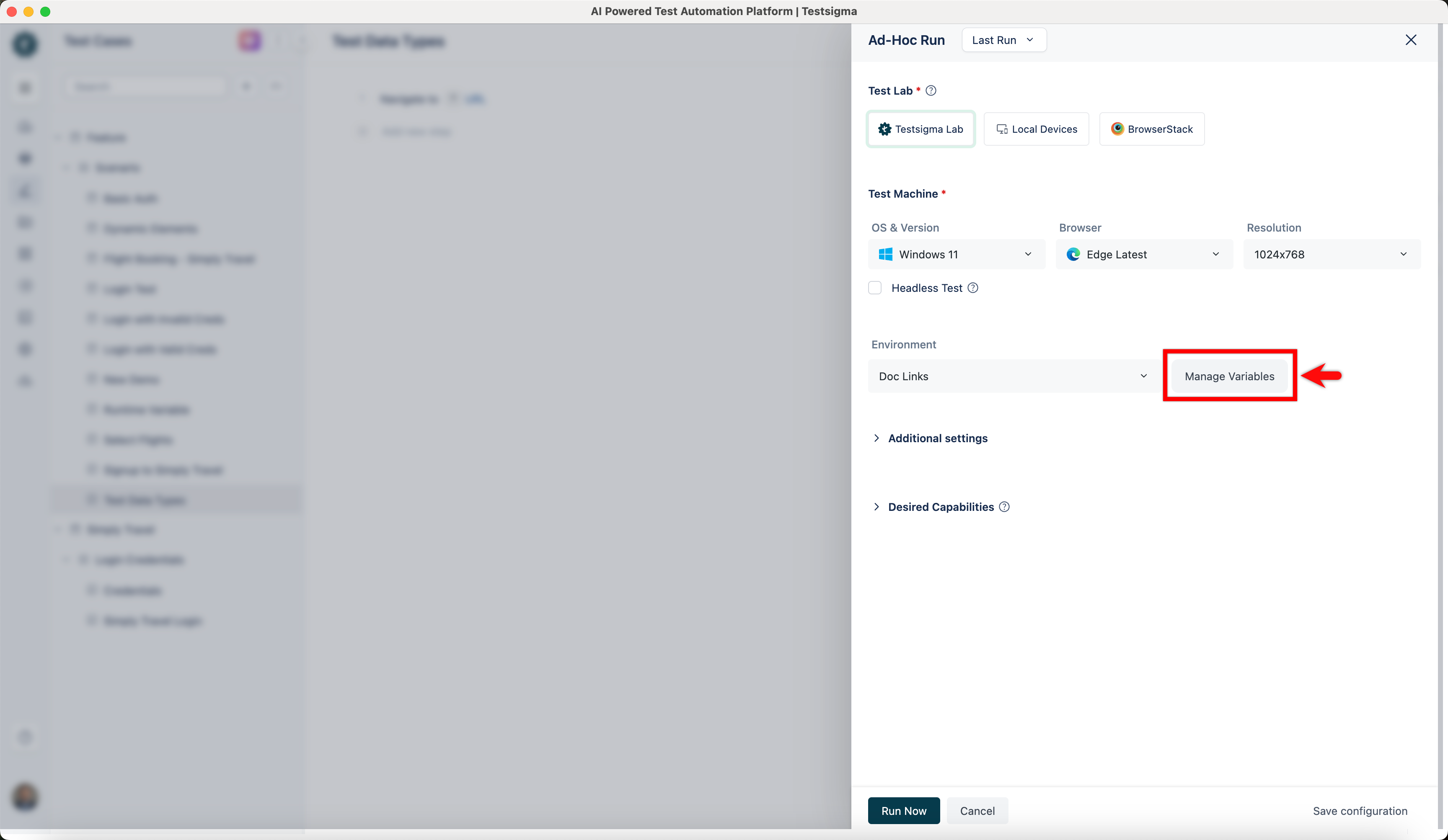
Go to the Environment section and confirm the variables by clicking on Manage Variables.
-
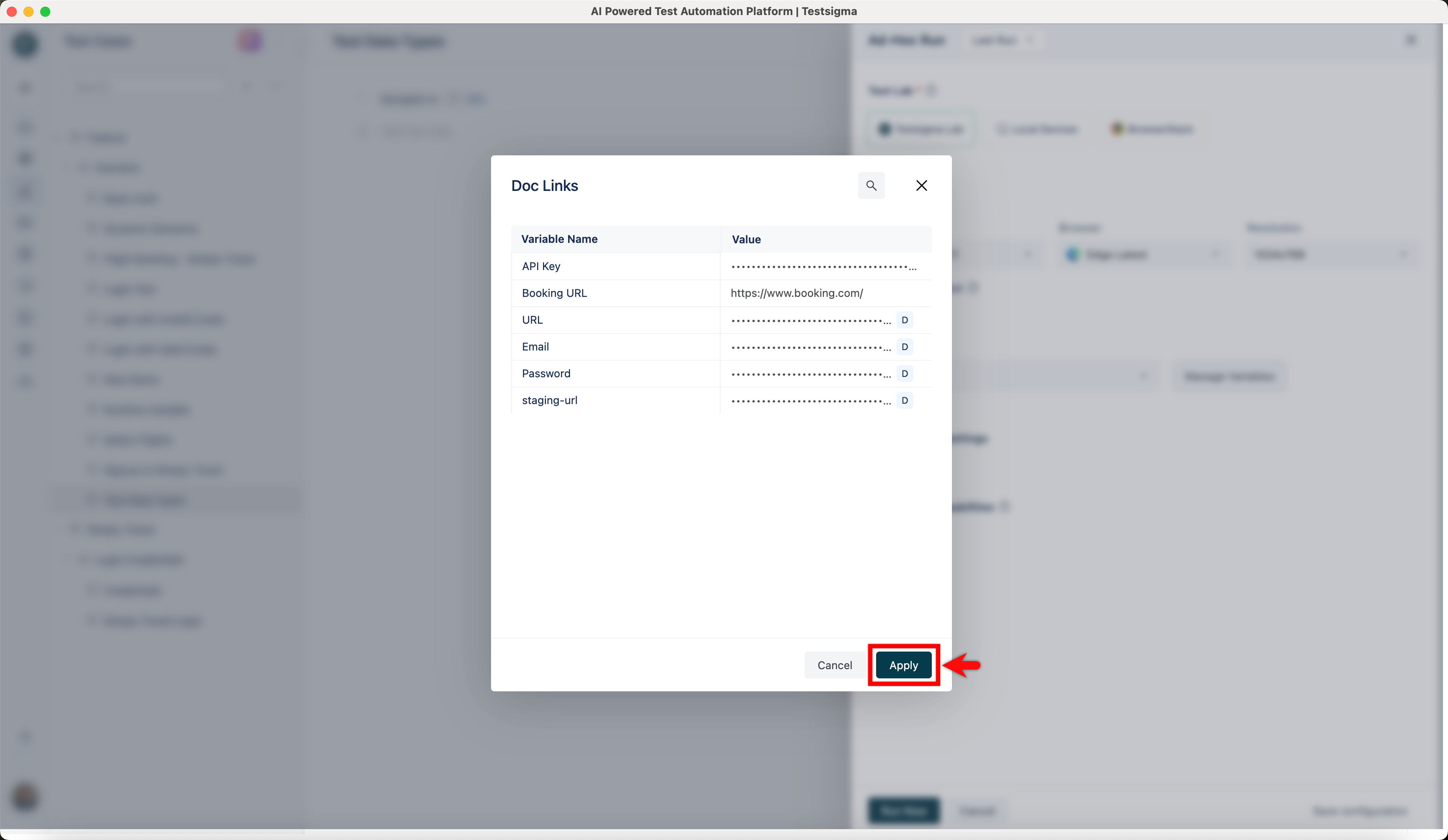
Update the changes and click Apply.
-
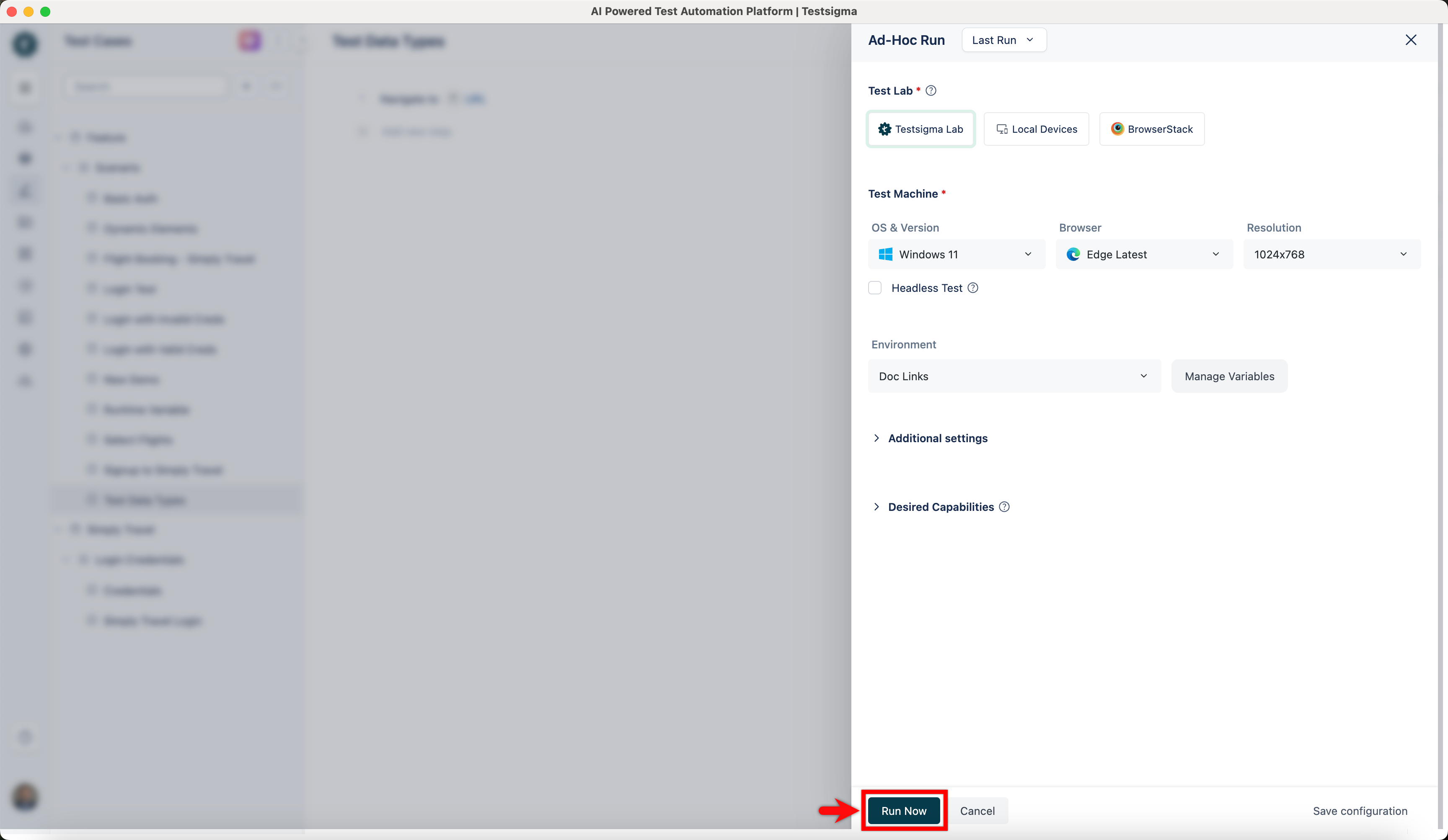
Click on Run Now to execute the test with updated Environment and Variable.
Use Environment Variables to Select Test Data Values
Section titled “Use Environment Variables to Select Test Data Values”Environment variables can filter test data sets by name during data-driven testing. This method provides flexibility and reusability, making your test cases more adaptable to different scenarios.
-
Create an Environment and add the name-value pairs that match the set names and values in your Test Data Profile.
-
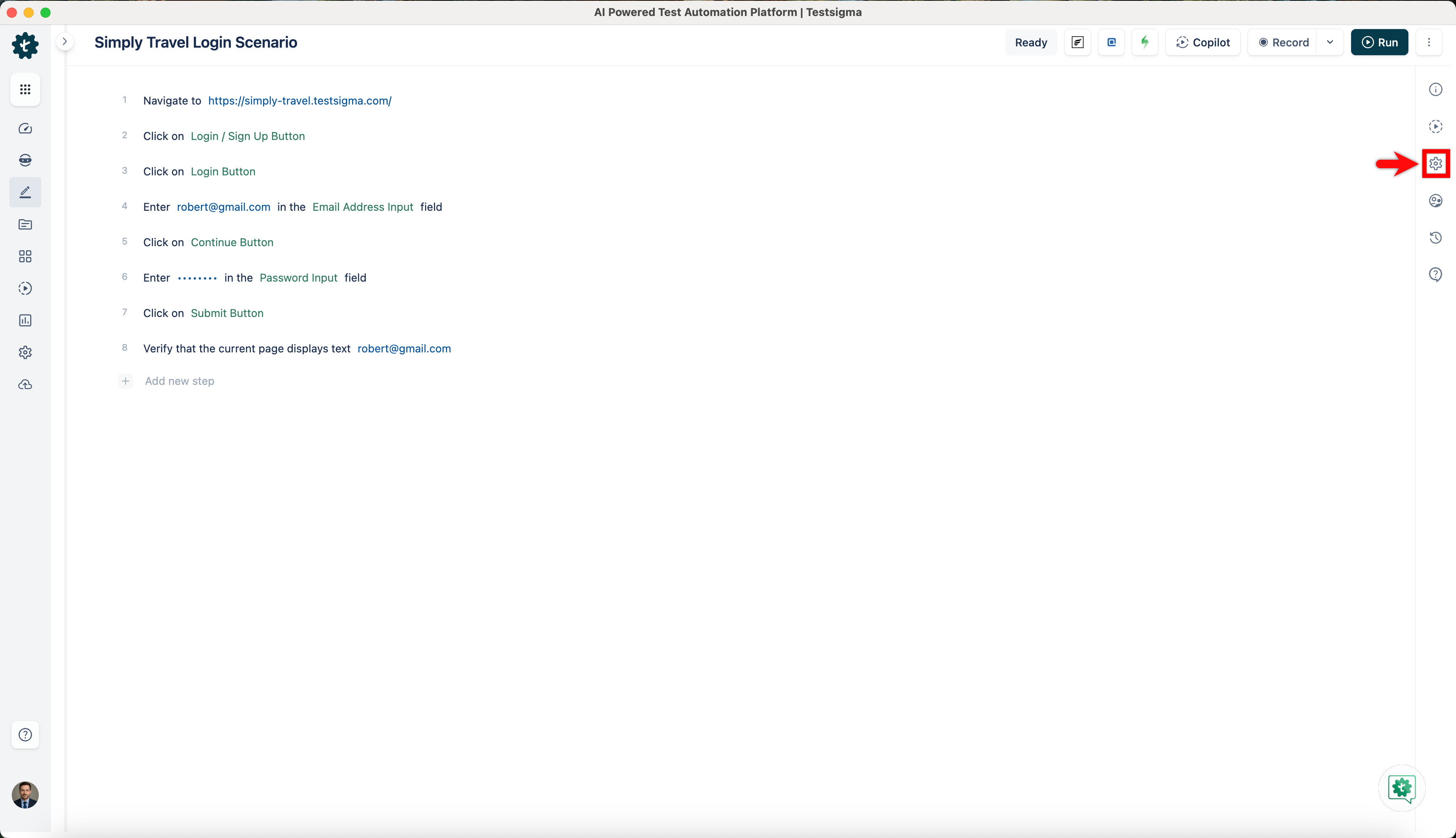
On the Test Case Details page, click the Test Case Settings icon in the right navigation bar.
-
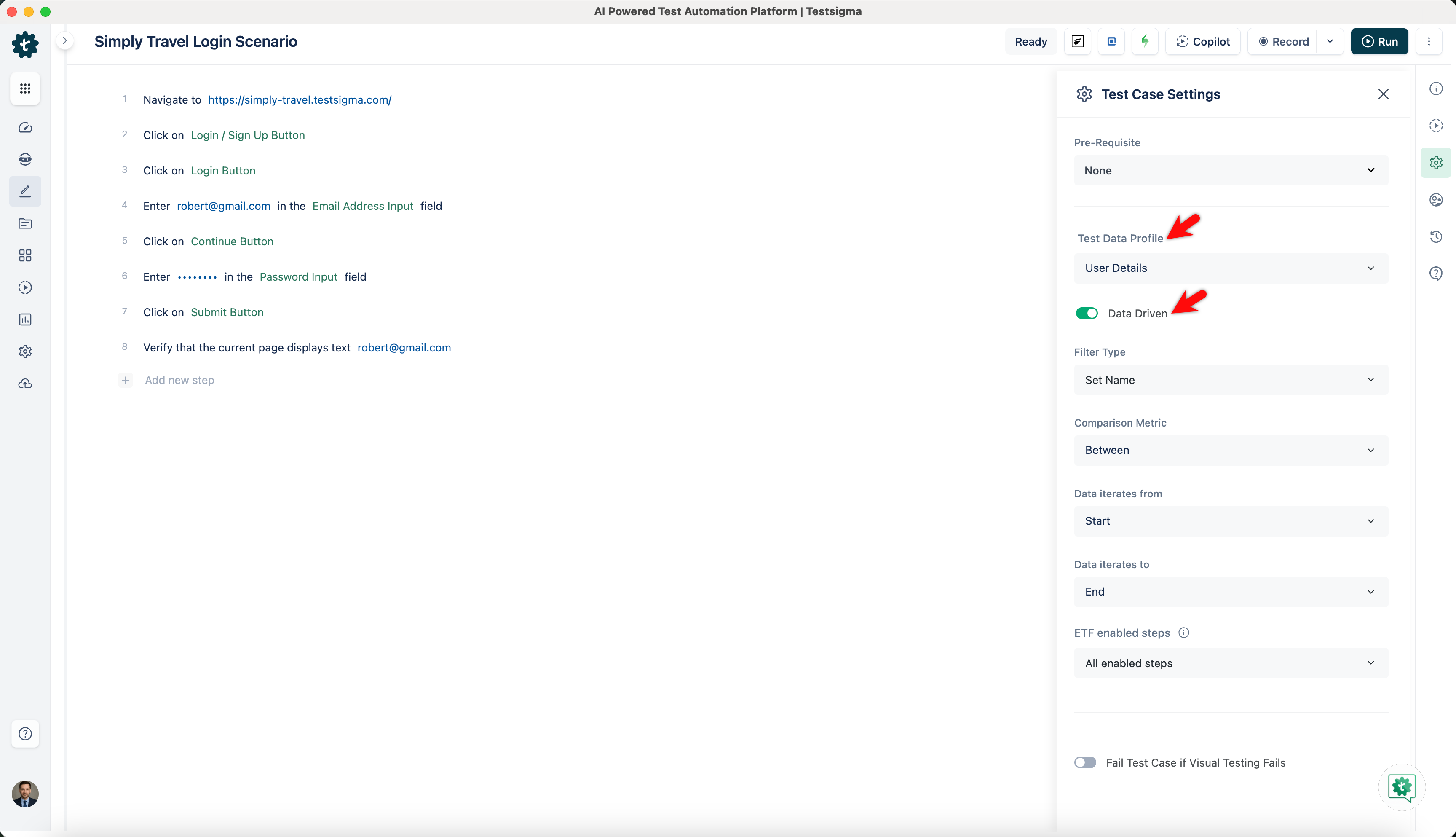
Select the Test Data Profile from the dropdown menu to associate it with the test case. Enable the Data-Driven toggle.
-
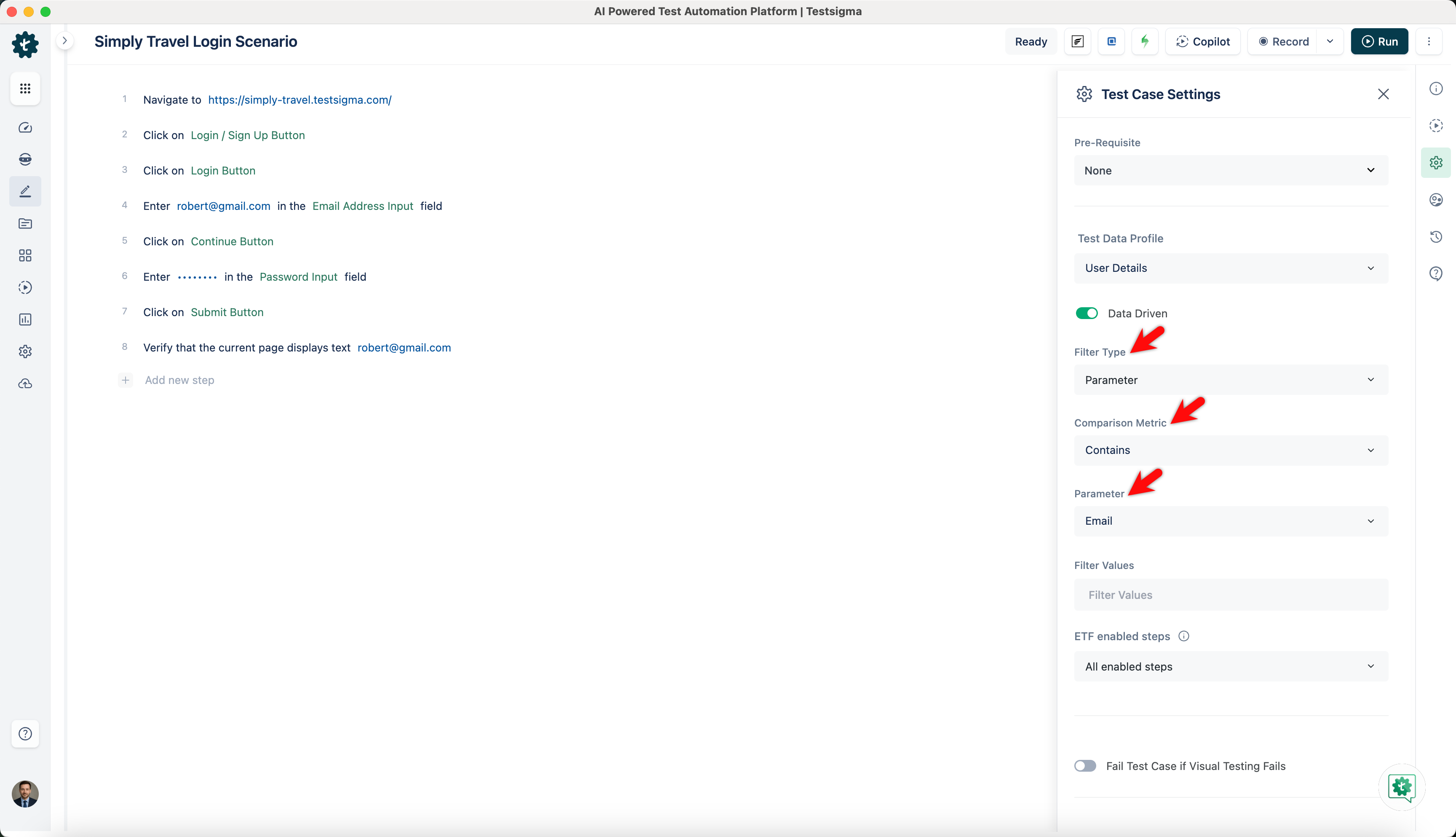
Choose Parameters as the Filter type. Select Equals, Contains, Starts with or Ends with as the Comparison Metric from the dropdown menu. Choose Parameter Set Name from the dropdown.
-
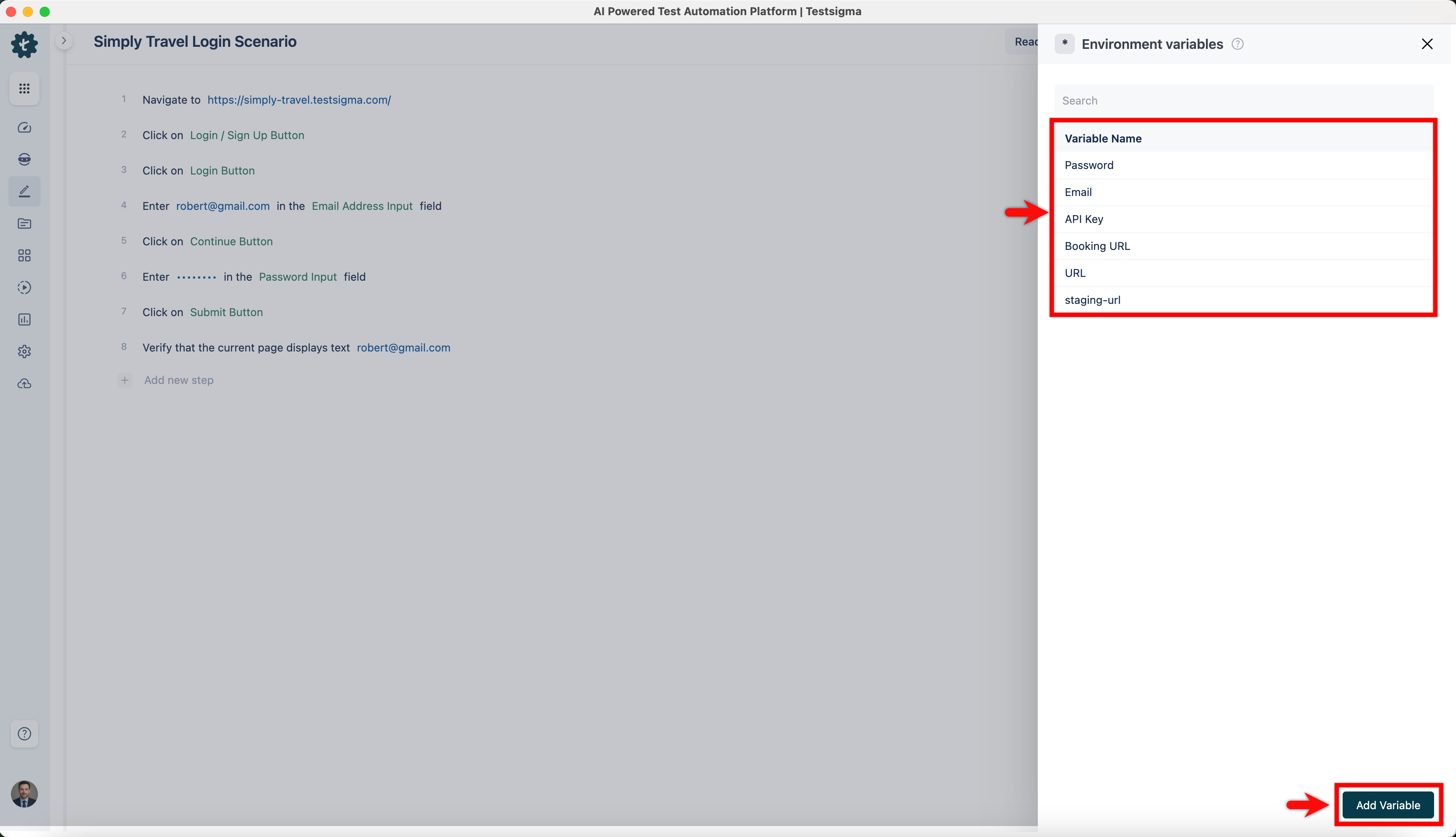
Type *| to open the Environment overlay and choose the Environment Parameter Name to add the filters.
-
When you run the test case, it will execute using the specified filters.
Getting Environment ID
Section titled “Getting Environment ID”-
Navigate to Test Data > Environments.
-
Click Environment for which you want to get Environment ID.
-
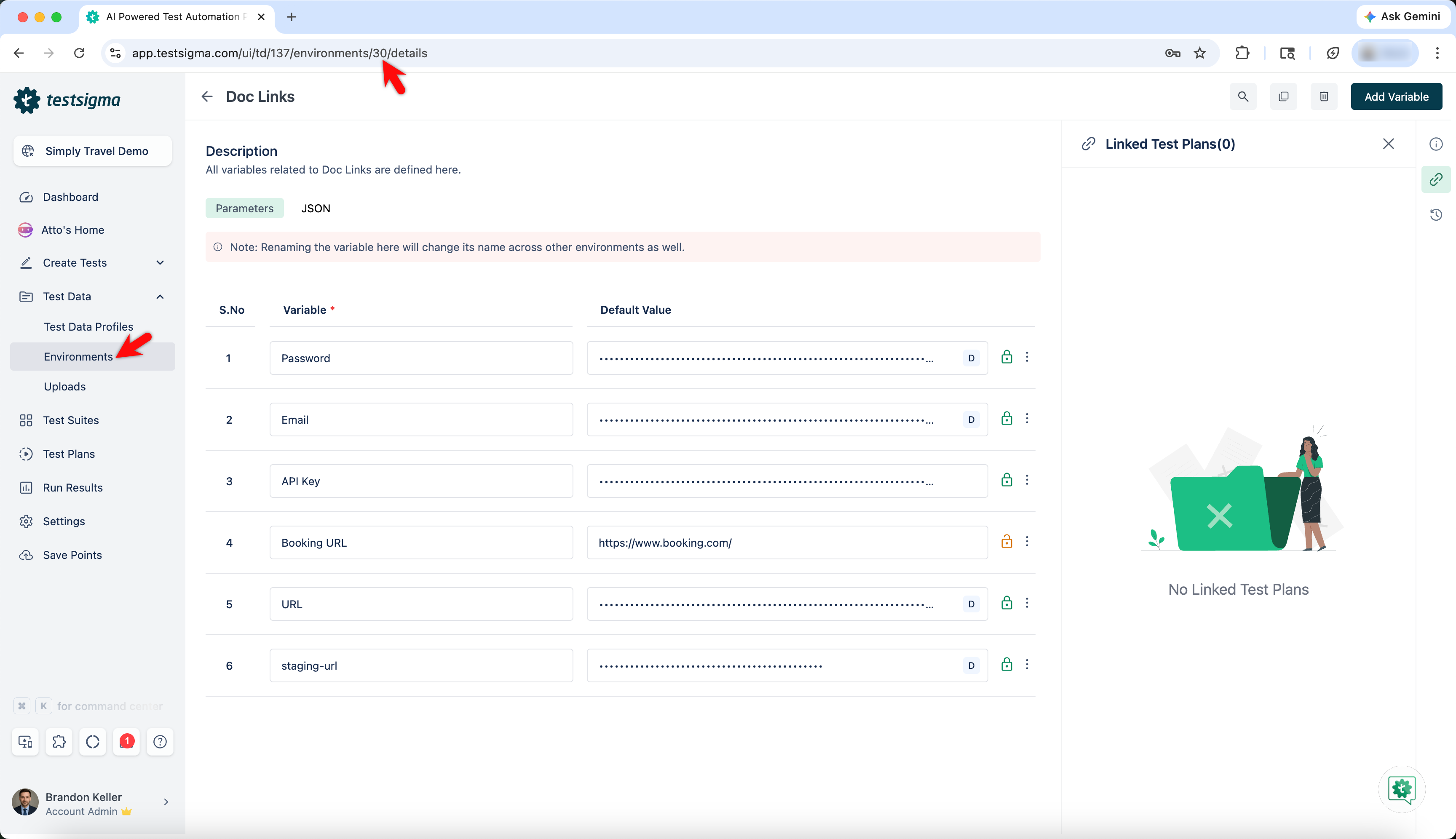
The <ENV_ID> can be found in the URL of the Environment details page.