
Salesforce Testing
Adding User Connections
Prerequisites
Before you begin, ensure that you have referred to:
- Documentation on Salesforce Connected App.
- Documentation on Salesforce Metadata connected to Testsigma.
Steps to Add User Connections
Section titled “Steps to Add User Connections”-
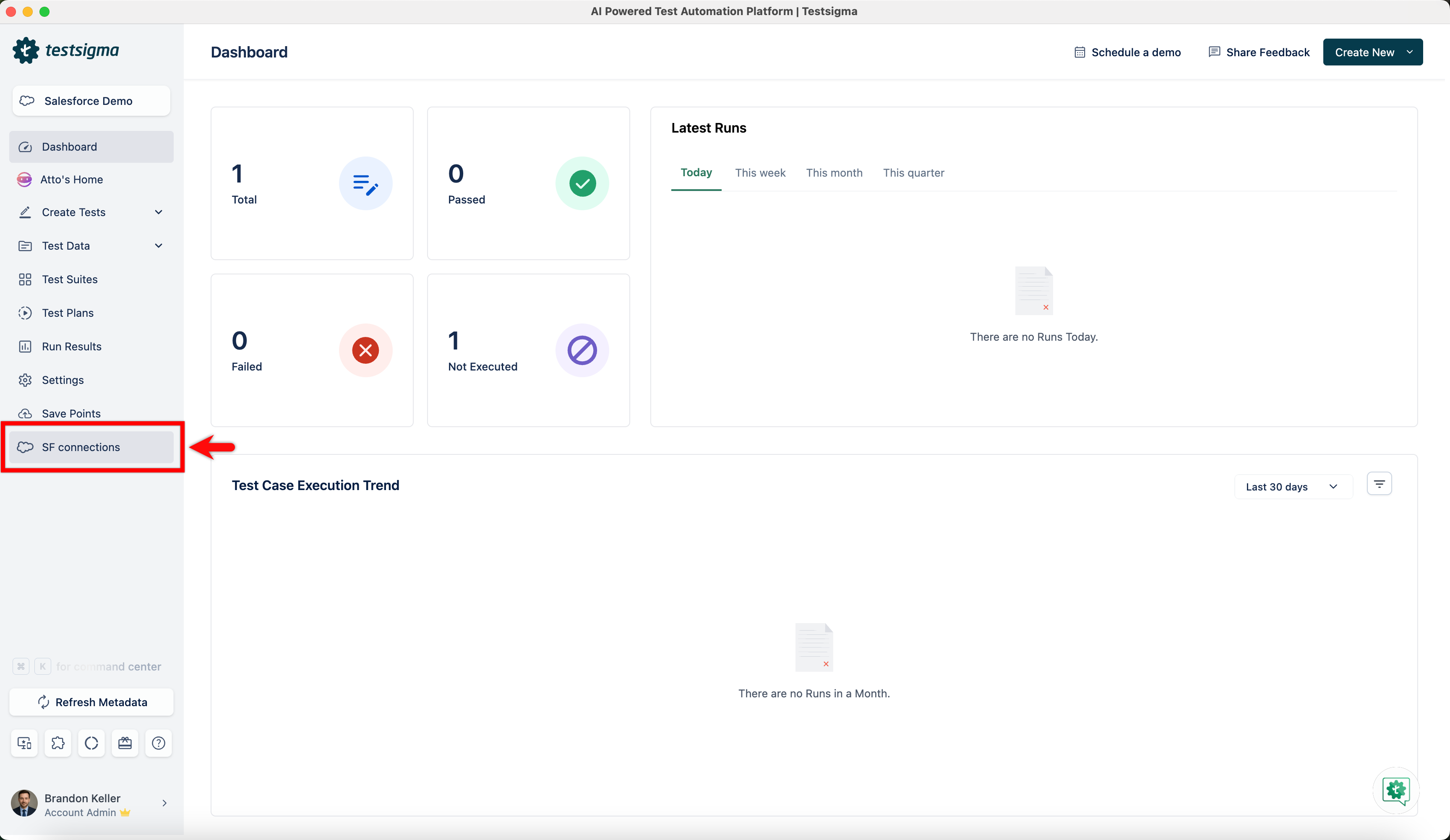
From the left navigation bar, go to SF connections.
-
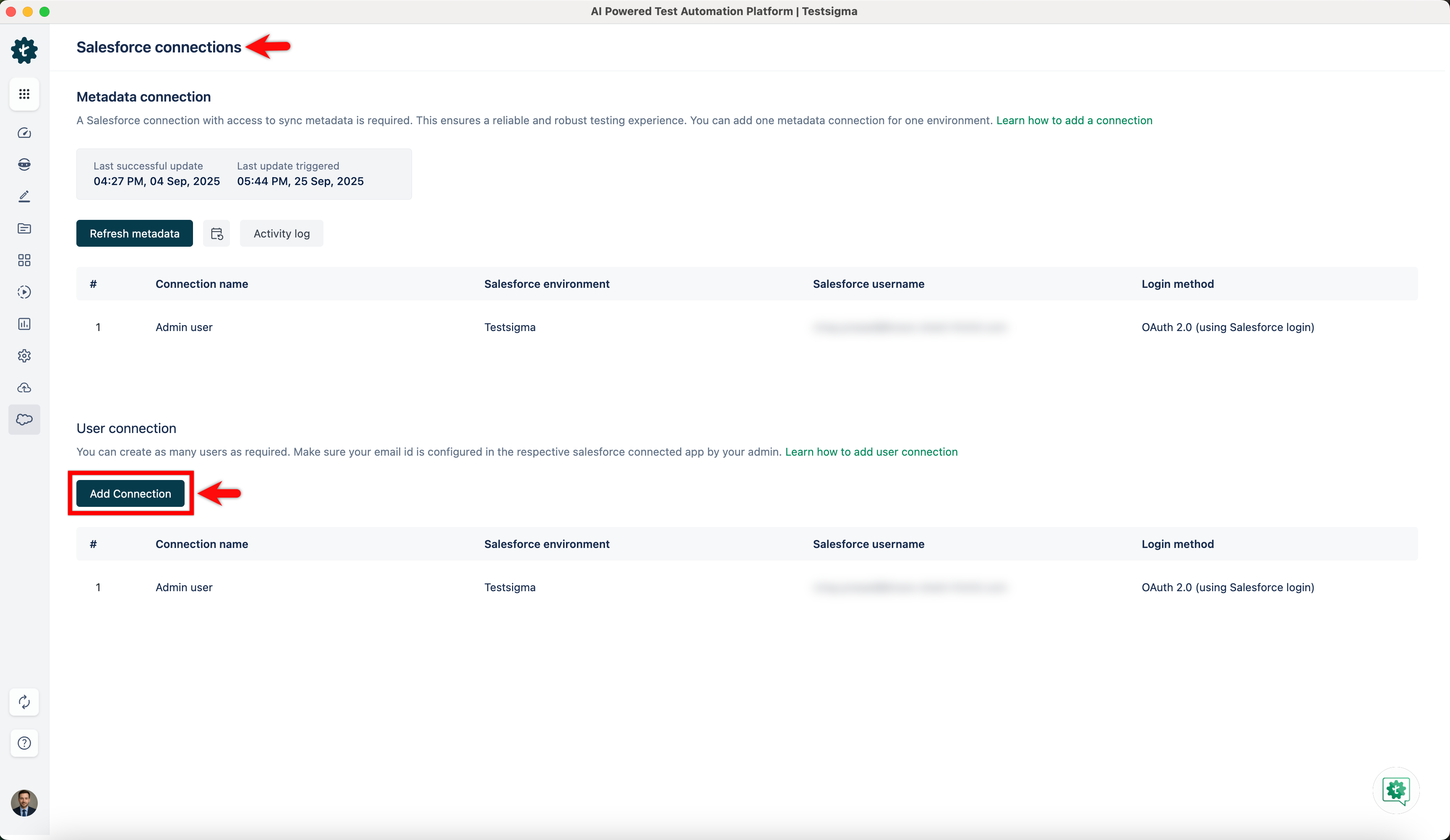
In the Salesforce connections page, click Add Connection under User connection section.
-
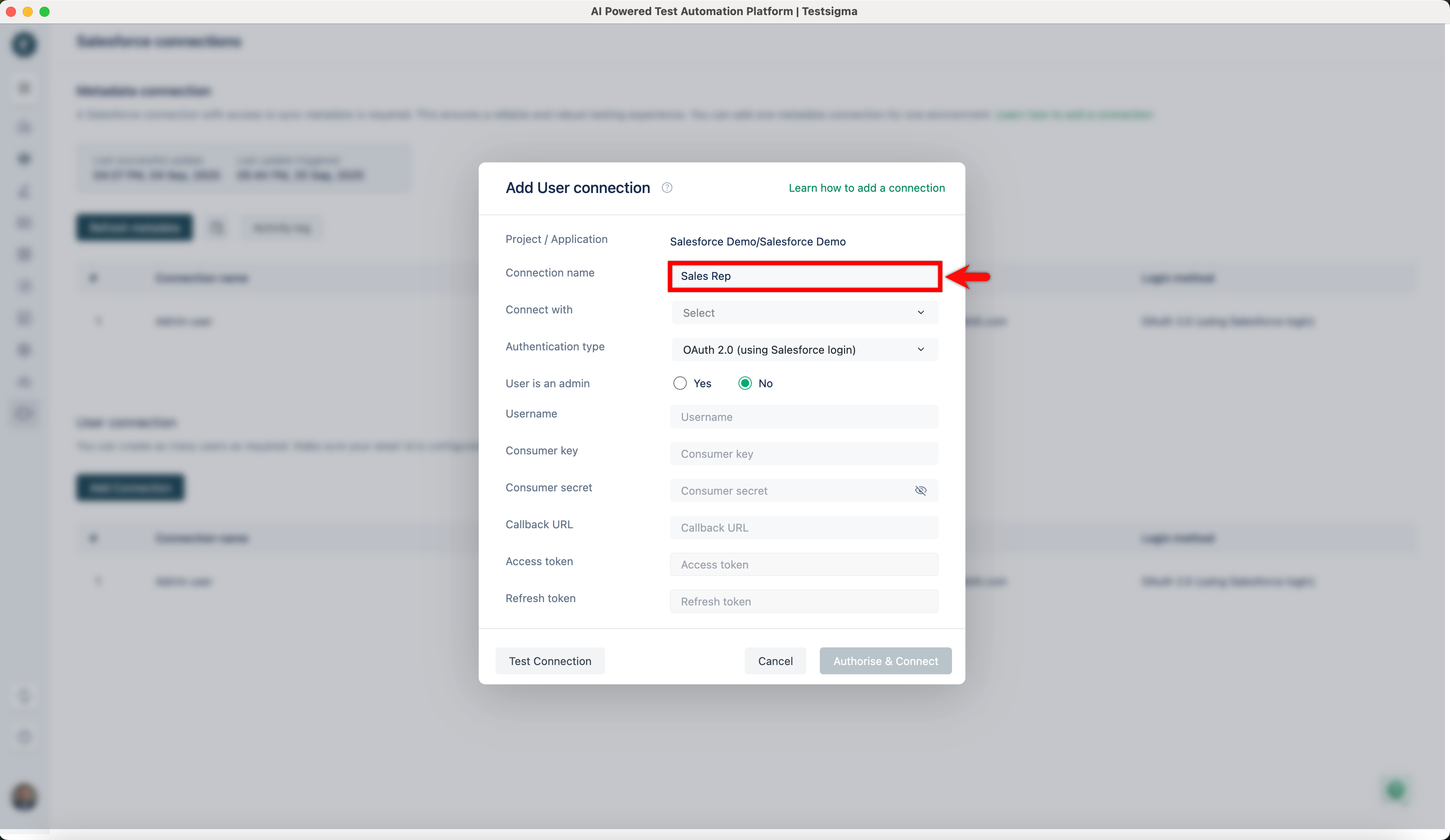
In the Add User connection dialog,
- Enter a Connection name
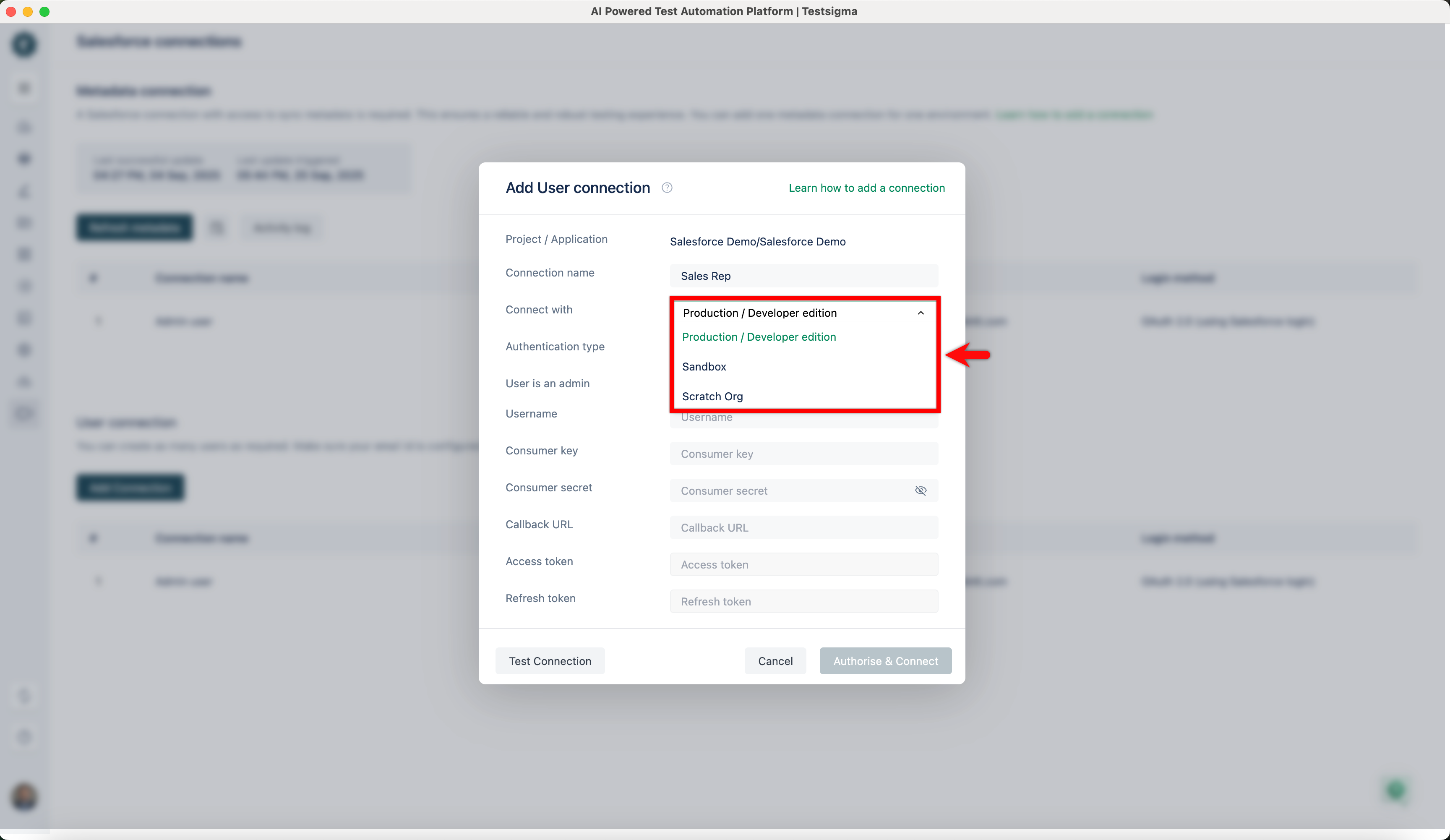
- Choose the environment of the user that you want to use.
- Choose the Authentication type from the dropdown.
- For OAuth, enter Username, Consumer key, Consumer secret, and Callback URL.
- For User name & Password, enter the Username, Password, Security token, Consumer key, and Consumer secret. In this example, we are choosing OAuth 2.0.
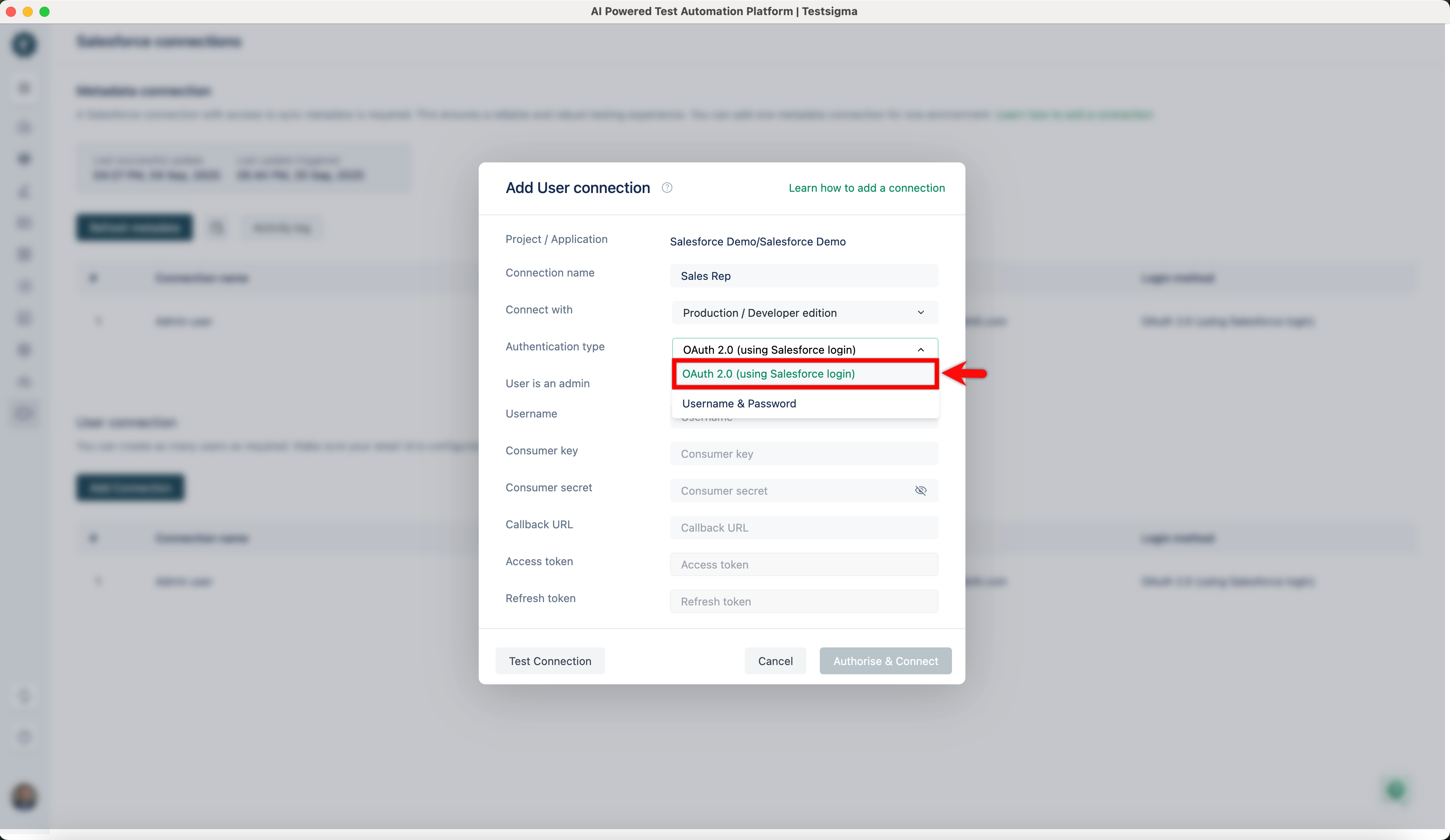
- Enter the Username, Consumer key, Consumer secret, and Callback URL, and click Authorise & Connect.

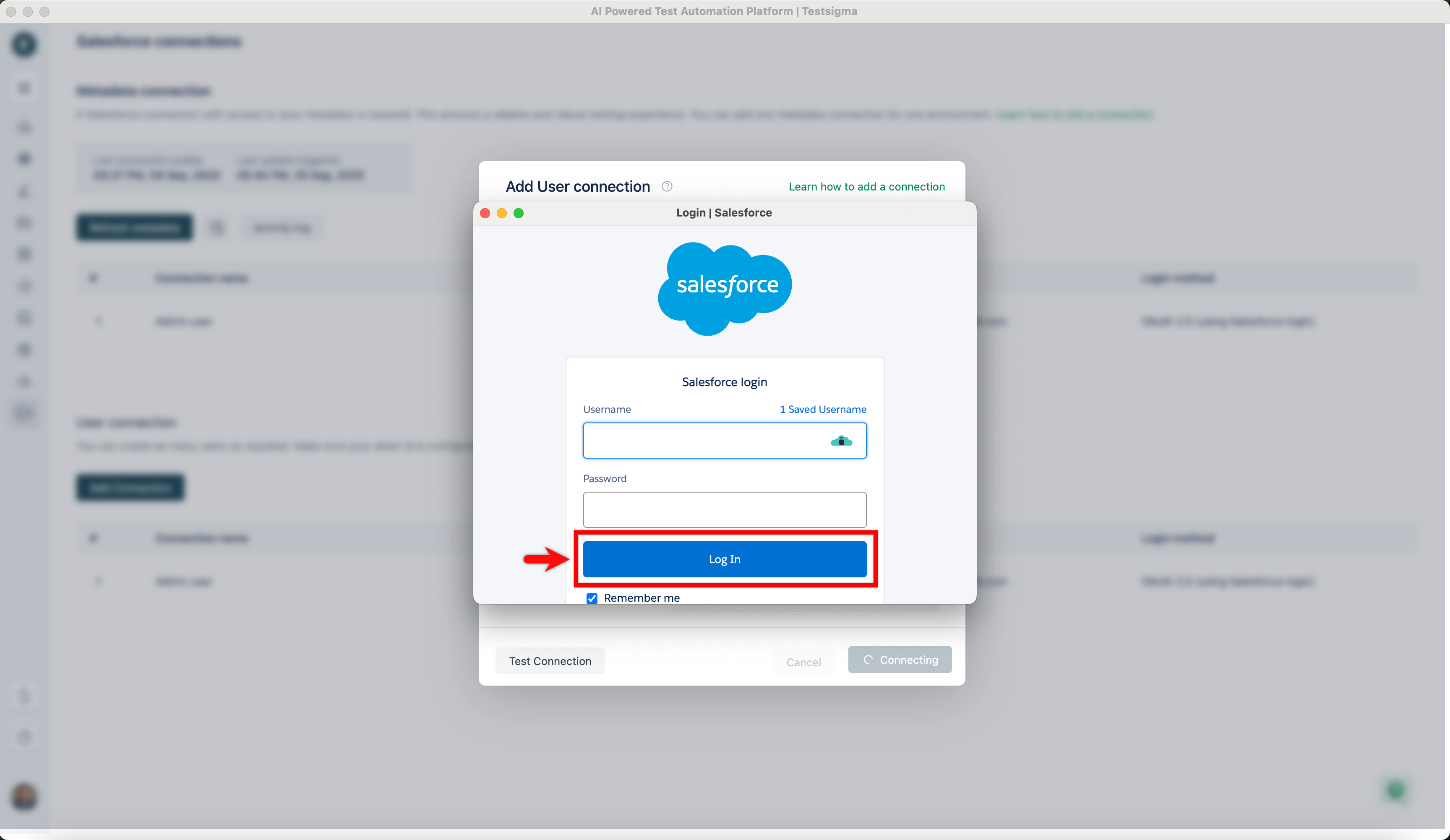
- A new window will open up requesting for Salesforce Login. Enter the credentials and click Log In.
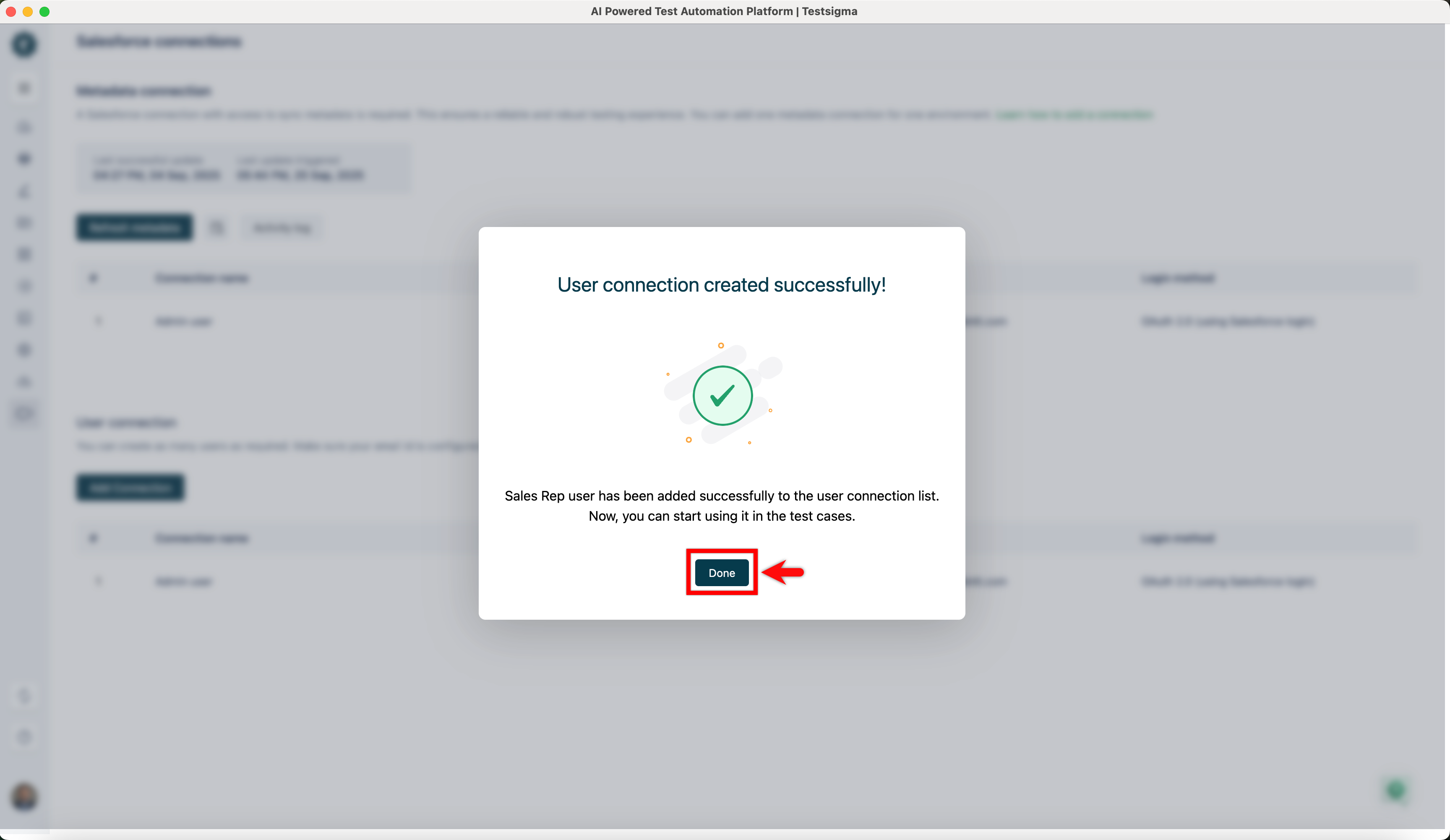
- Once the User connection is created successfully, click Done.
- Enter a Connection name
-
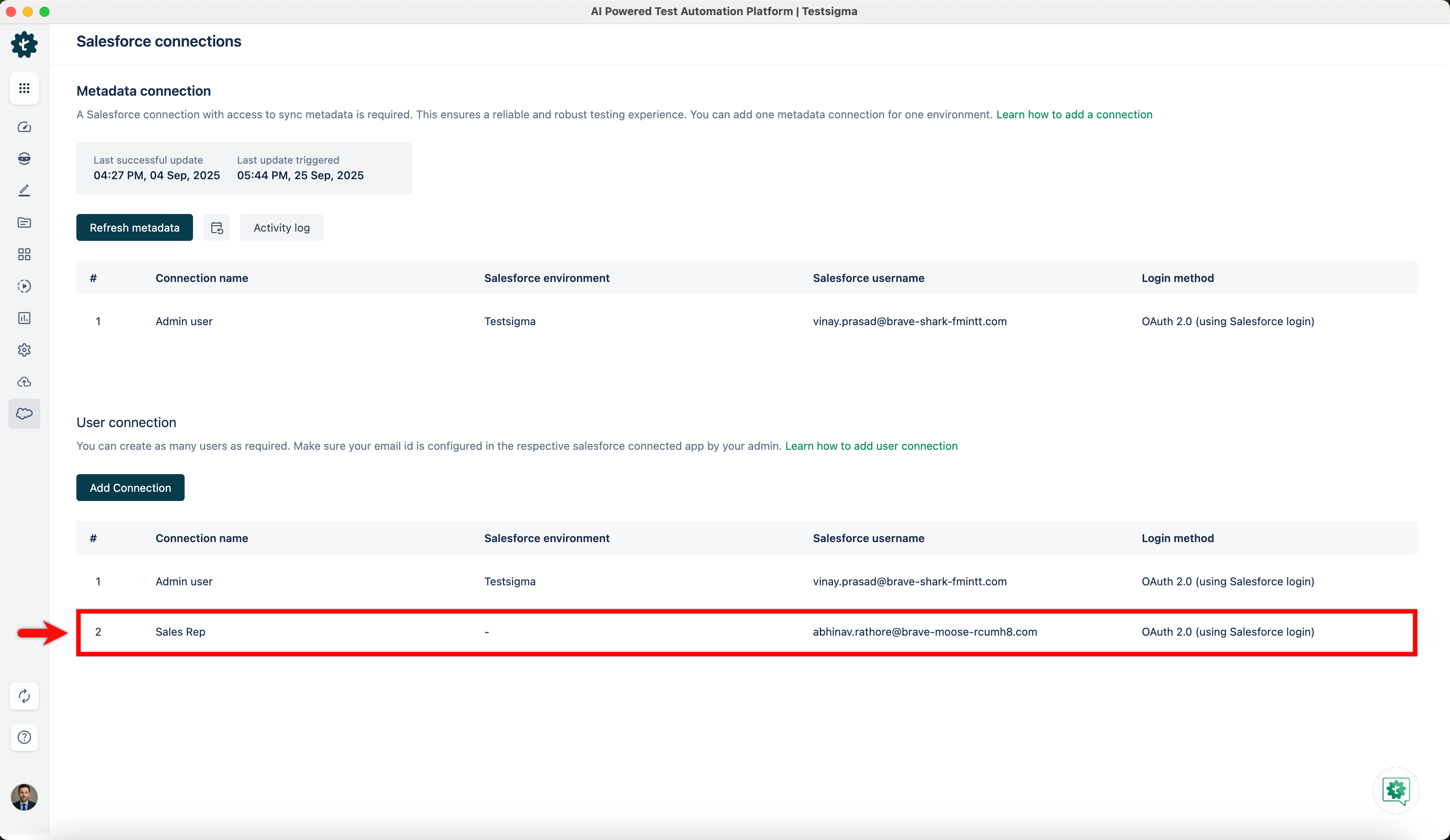
You can see the newly added connection under SF connections > User connection.
Steps to Edit User Connections
Section titled “Steps to Edit User Connections”-
From the left navigation bar, go to SF connections.
-
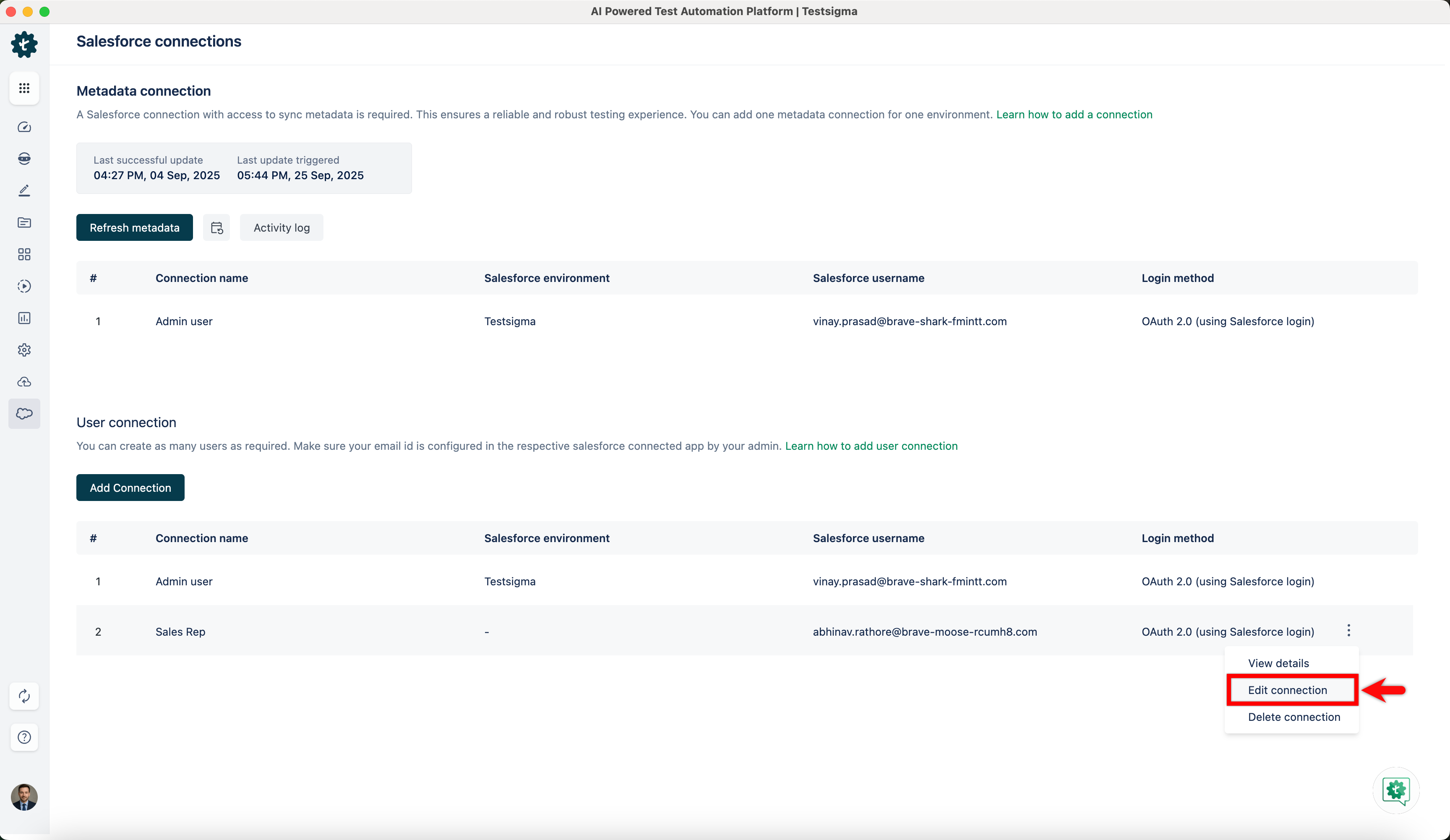
Under the User connection section, click the ellipsis icon against a connection and click Edit connection.
-
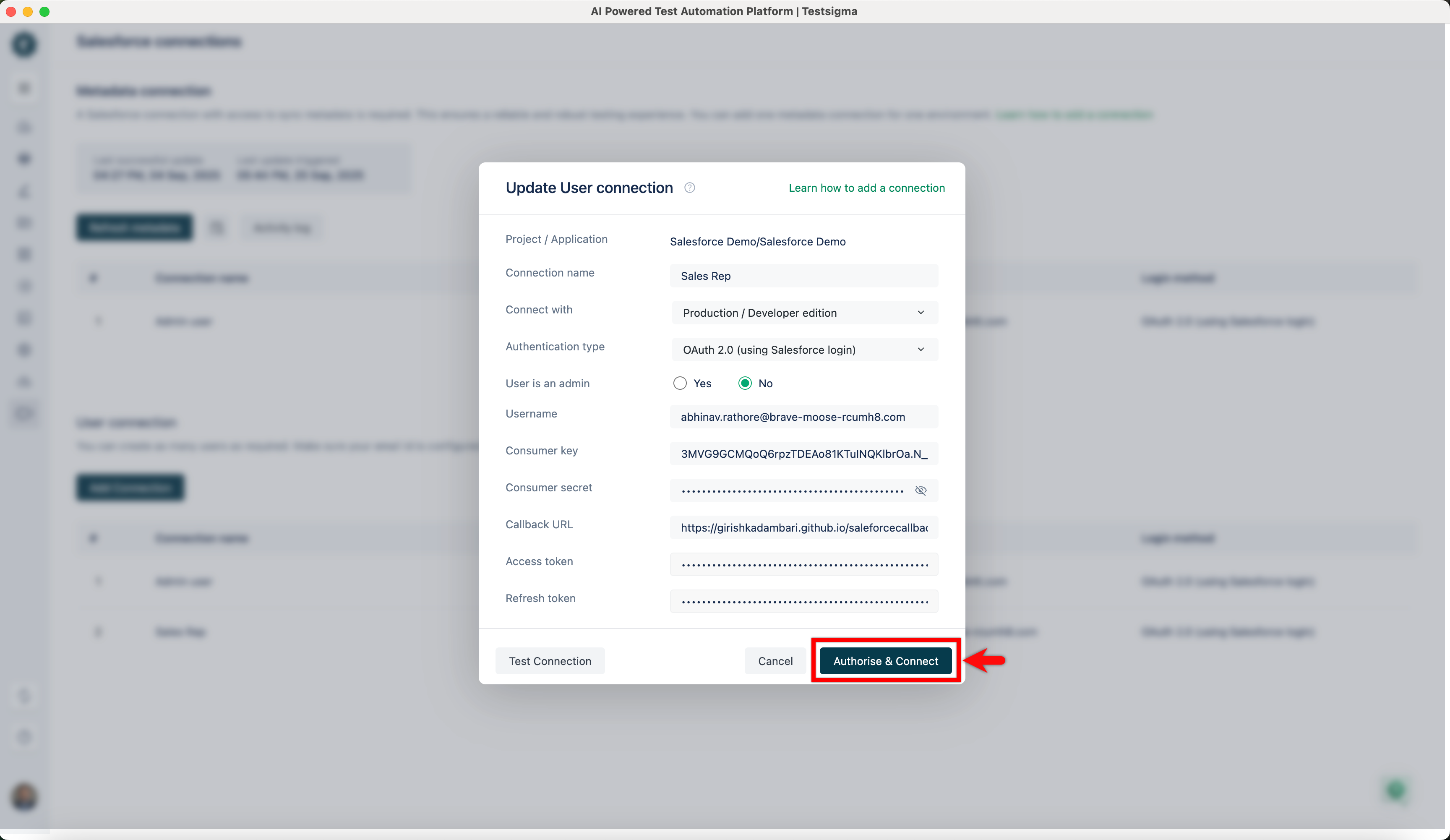
In the Update User connection dialog, update the required details and click Authorise & Connect.
Steps to Delete User Connections
Section titled “Steps to Delete User Connections”-
From the left navigation bar, go to SF connections.
-
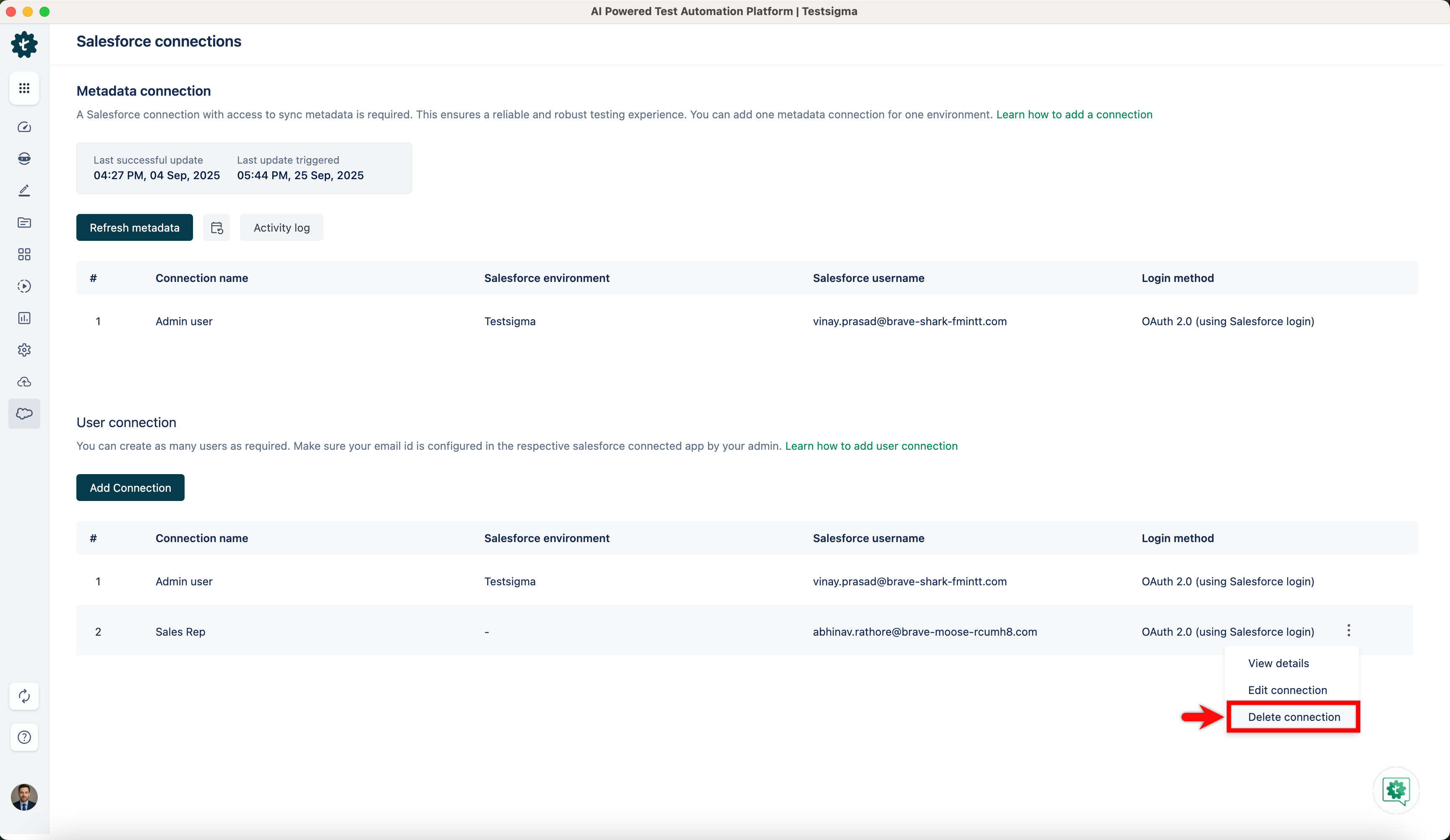
Under the User connection section, click the ellipsis icon against a connection and click Delete connection.
-
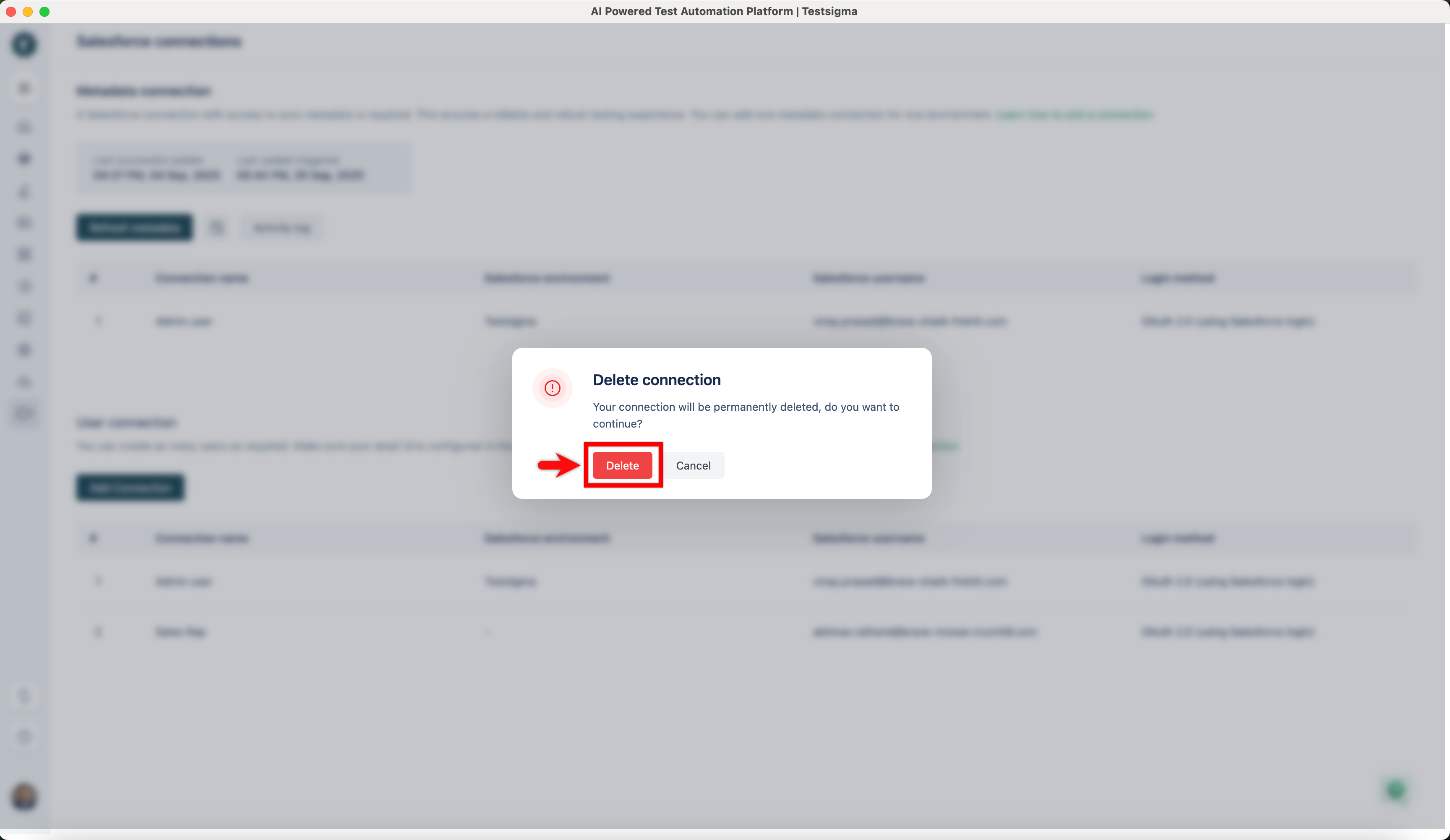
In the Delete connection dialog, click Delete.
-
The User connection will be deleted successfully.