Atto AI Coworker
Add Requirements
Prerequisites
- Before you begin, enable AI Features from Settings > Preferences > Generative AI features and ensure have necessary integrations with Testsigma.
Add the Data from Jira
Section titled “Add the Data from Jira”-
From the left navigation bar, go to Atto’s Home.
-
Click Generate with AI.
-
On the Generate Test Cases page, click Jira Requirements.
-
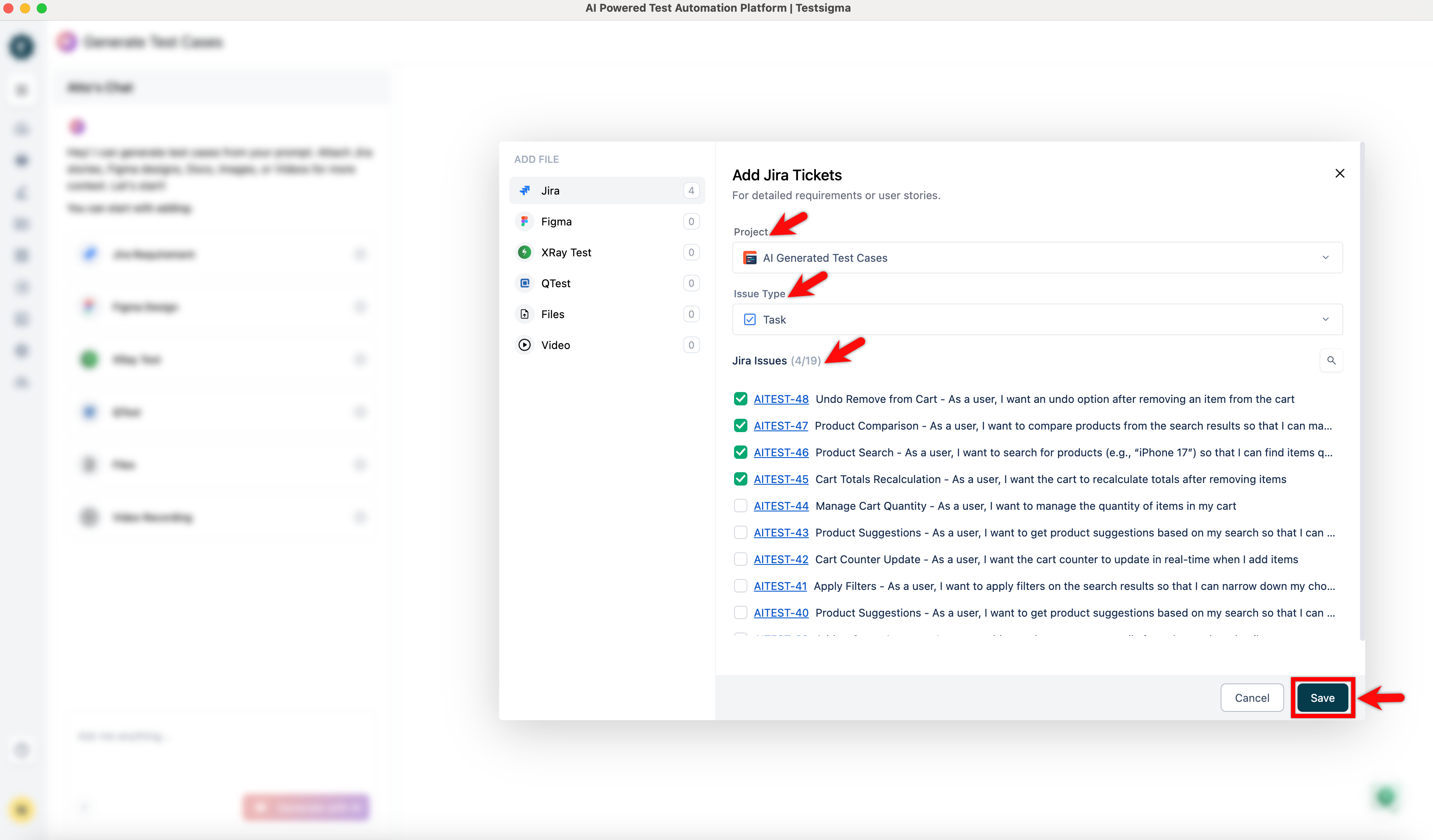
In the Add Jira Tickets dialog,
- From the Jira Project dropdown, select a project.
- Under Issue Type, select either Epic or Story:
- If you select Epic, choose the stories under that epic.
- If you select Story, choose the stories you want to generate test cases for.
- Click Save.
Add the Data from Figma
Section titled “Add the Data from Figma”-
From the left navigation bar, go to Atto’s Home.
-
Click Generate with AI.
-
In the Generate Test Cases section, select Figma Designs.
-
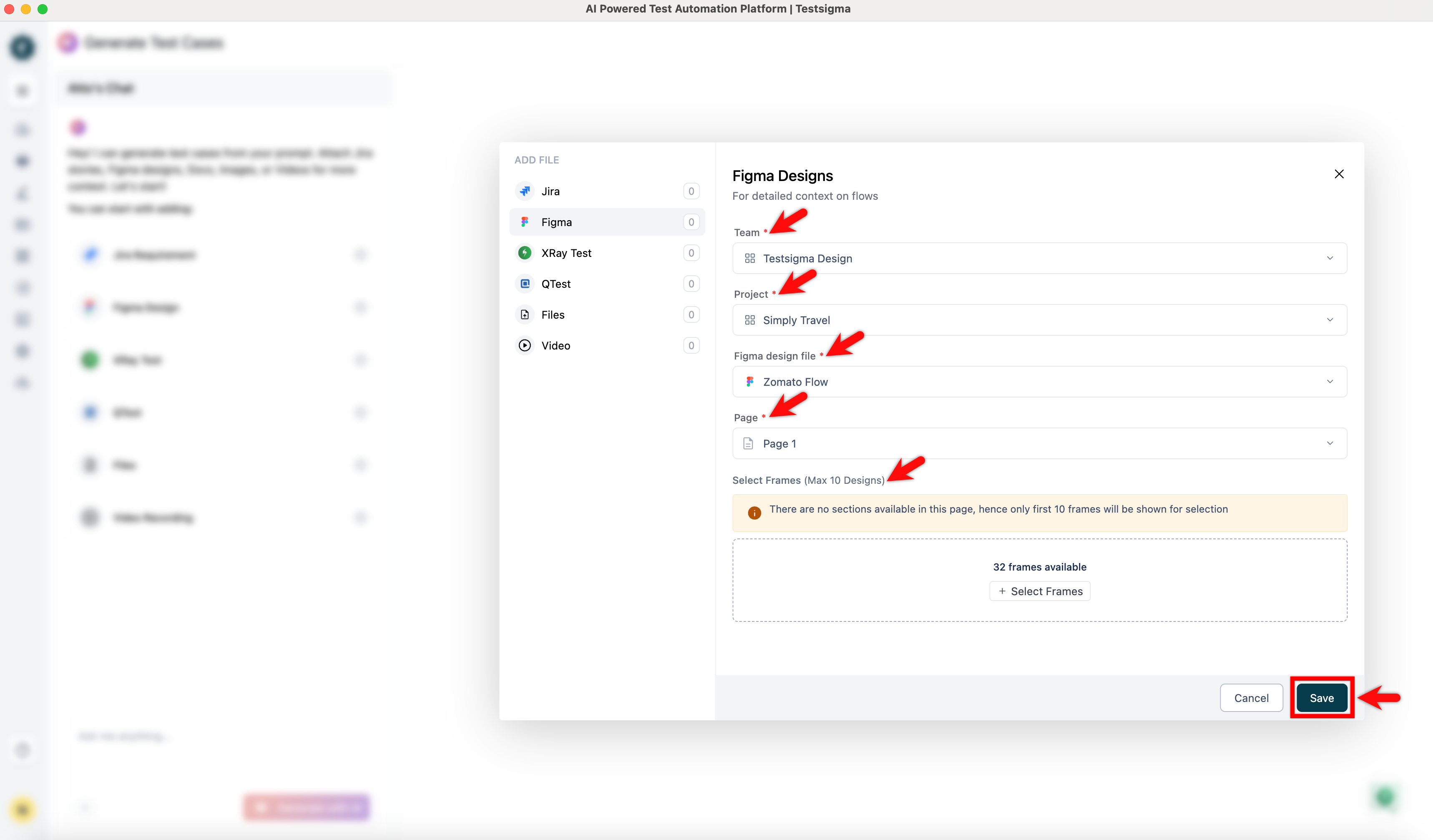
In the Figma Designs dialog,
- Select a Team, Project, Figma design file, Section and Page from the respective dropdown menus.
- Click + Select Frames, select the required frames in the Select Frames screen, and click Save.
- If you want to remove all the selections that you have made, click Clear Selection.
Add the Data from QTest
Section titled “Add the Data from QTest”-
From the left navigation bar, go to Atto’s Home.
-
Click Generate with AI.
-
On the Generate Test Cases page, click QTest.
-
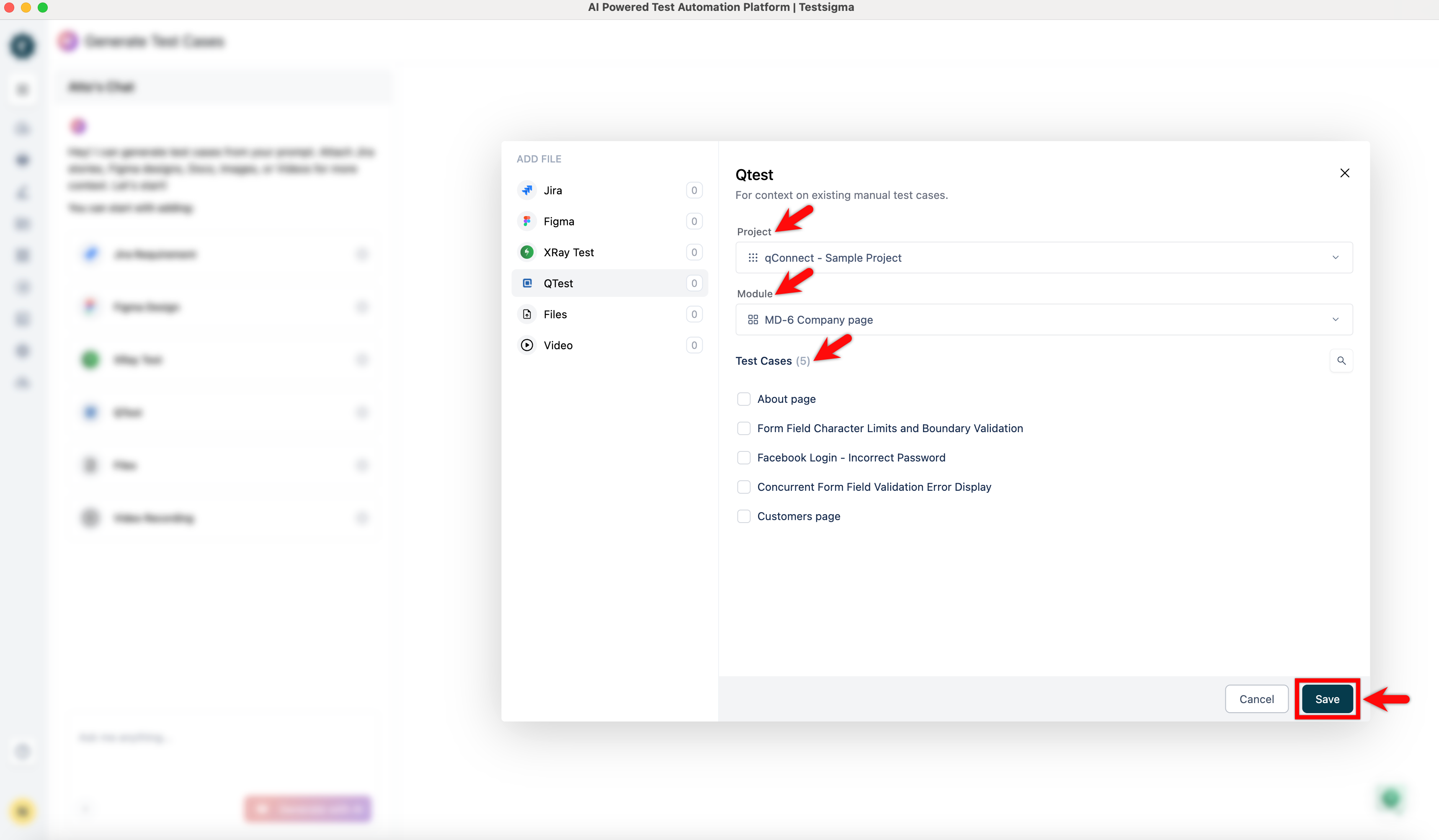
In the Qtest dialog,
-
From the Project dropdown, select a project.
-
From the Module dropdown, select a module.
-
Select the test cases you want to use as input.
-
Click Save.
-
Add the Data from Video Recording
Section titled “Add the Data from Video Recording”-
From the left navigation bar, go to Atto’s Home.
-
Click Generate with AI.
-
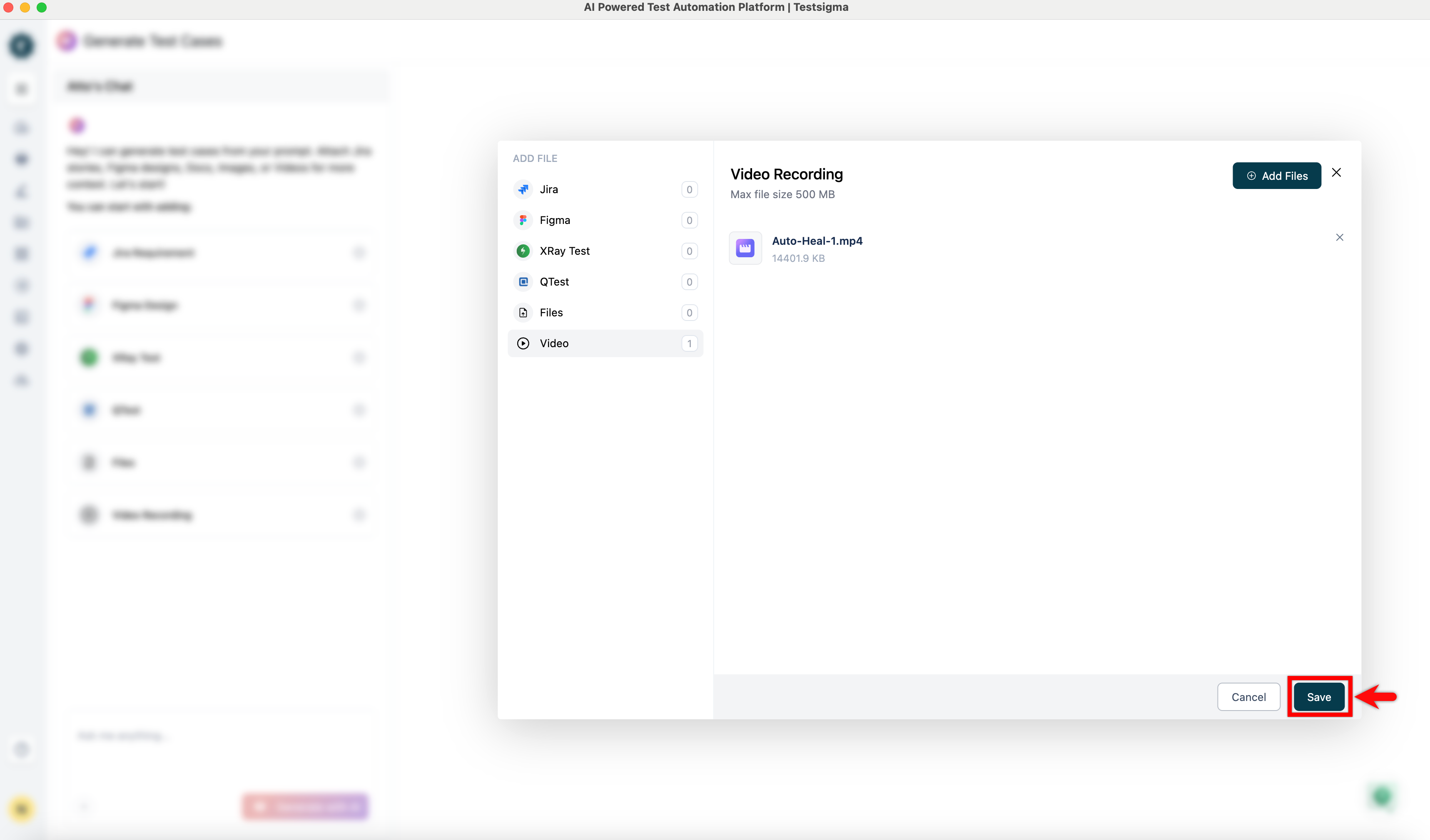
In the Generate Test Cases section, click Video Recording as an input source.
-
In the Video Recording dialog, click Add Files.
-
Click Browse, select a video file, and wait for the upload to complete.
-
Once the video is loaded, click Save.
-
Click Save again.
Add the Data from Files
Section titled “Add the Data from Files”-
From the left navigation bar, go to Atto’s Home.
-
Click Generate with AI.
-
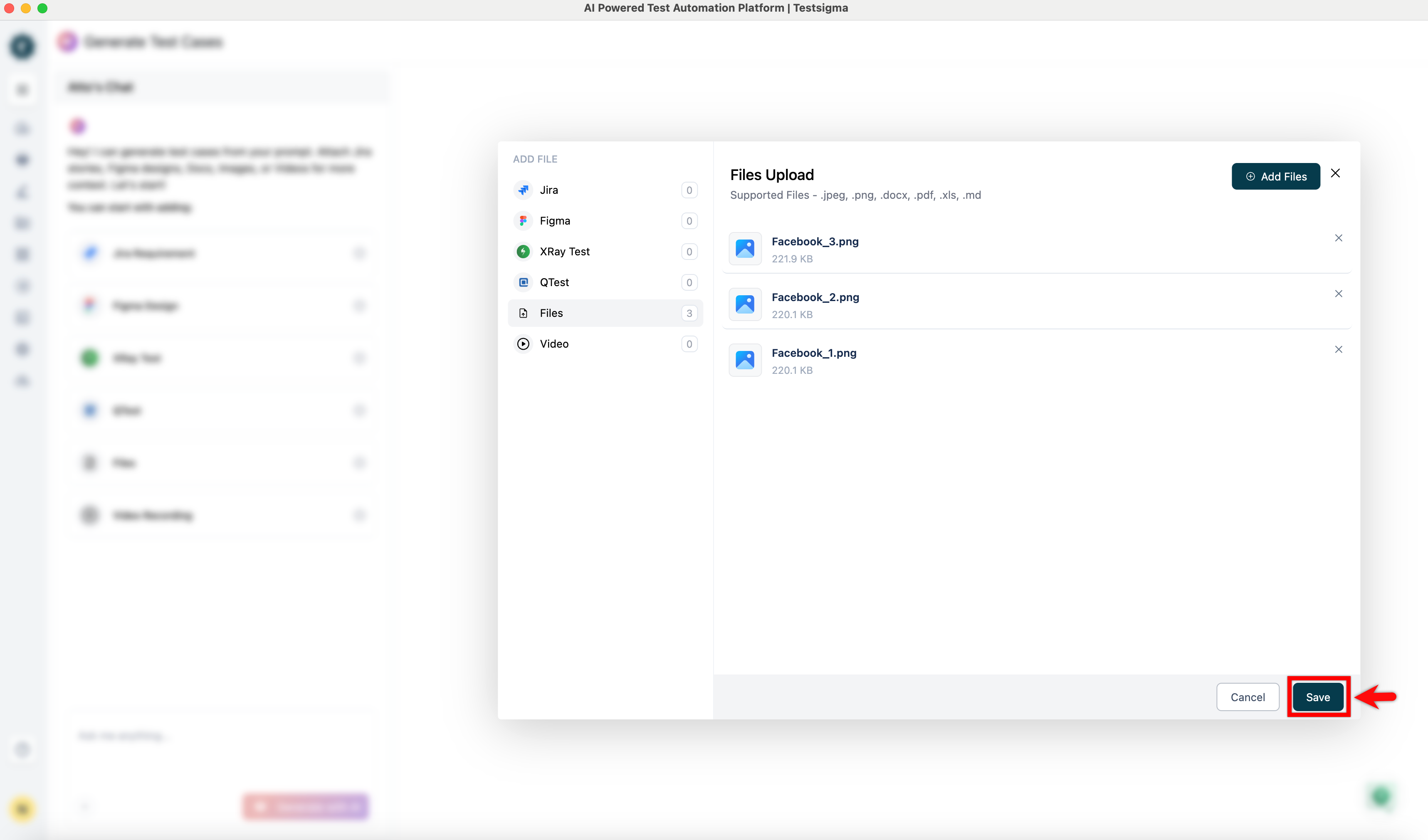
In the Generate Test Cases section, click Files as an input source.
-
In the Files Upload dialog, click Add Files.
-
Click Browse and select the files that contain relevant test information.
-
Once the files are loaded, click Add Files.
-
Click Save.
Add Data from Confluence Pages
Section titled “Add Data from Confluence Pages”-
From the left navigation bar, go to Atto’s Home.
-
Click Generate with AI.
-
In the Generate Test Cases section, click Confluence as an input source.
-
In the Confluence dialog,
- Select the Confluence Space containing your requirements.
- Select one or more Pages you want to use as input.
- Click Save.
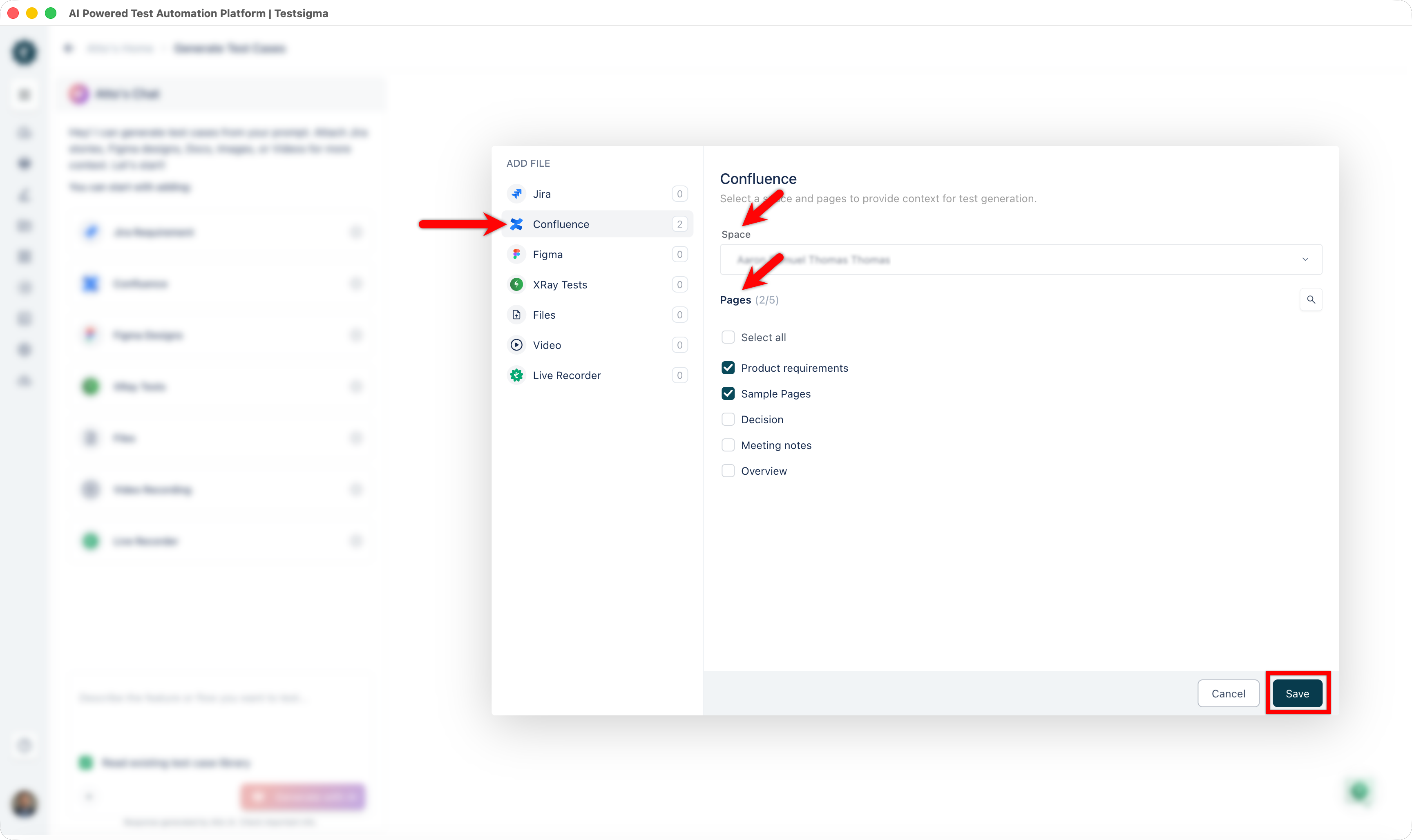
Atto will now use the selected Confluence pages as context for generating test cases.
Add Data from Live Recorder
Section titled “Add Data from Live Recorder”-
From the left navigation bar, go to Atto’s Home.
-
Click Generate with AI.
-
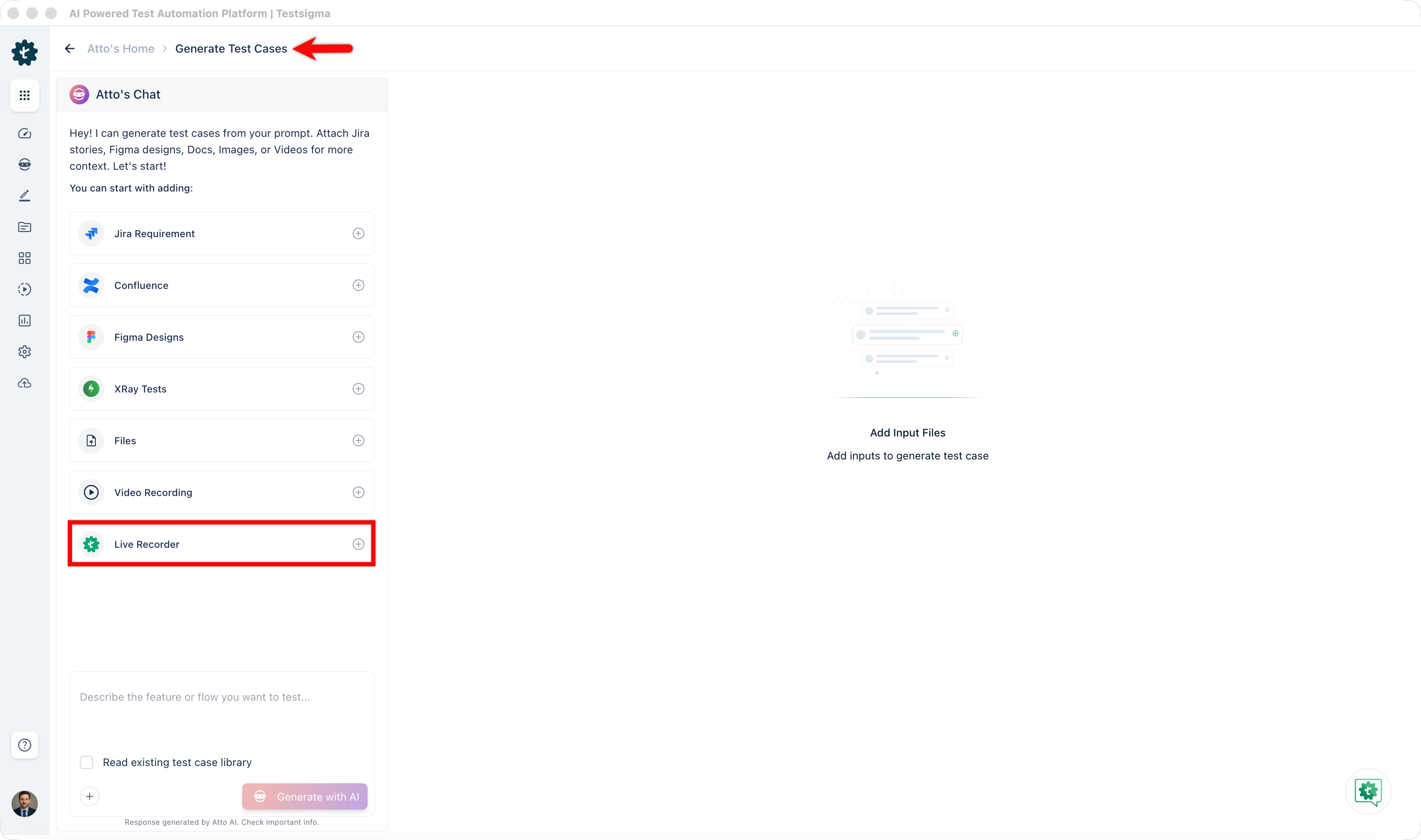
In the Generate Test Cases section, select Live Recorder as an input source.
-
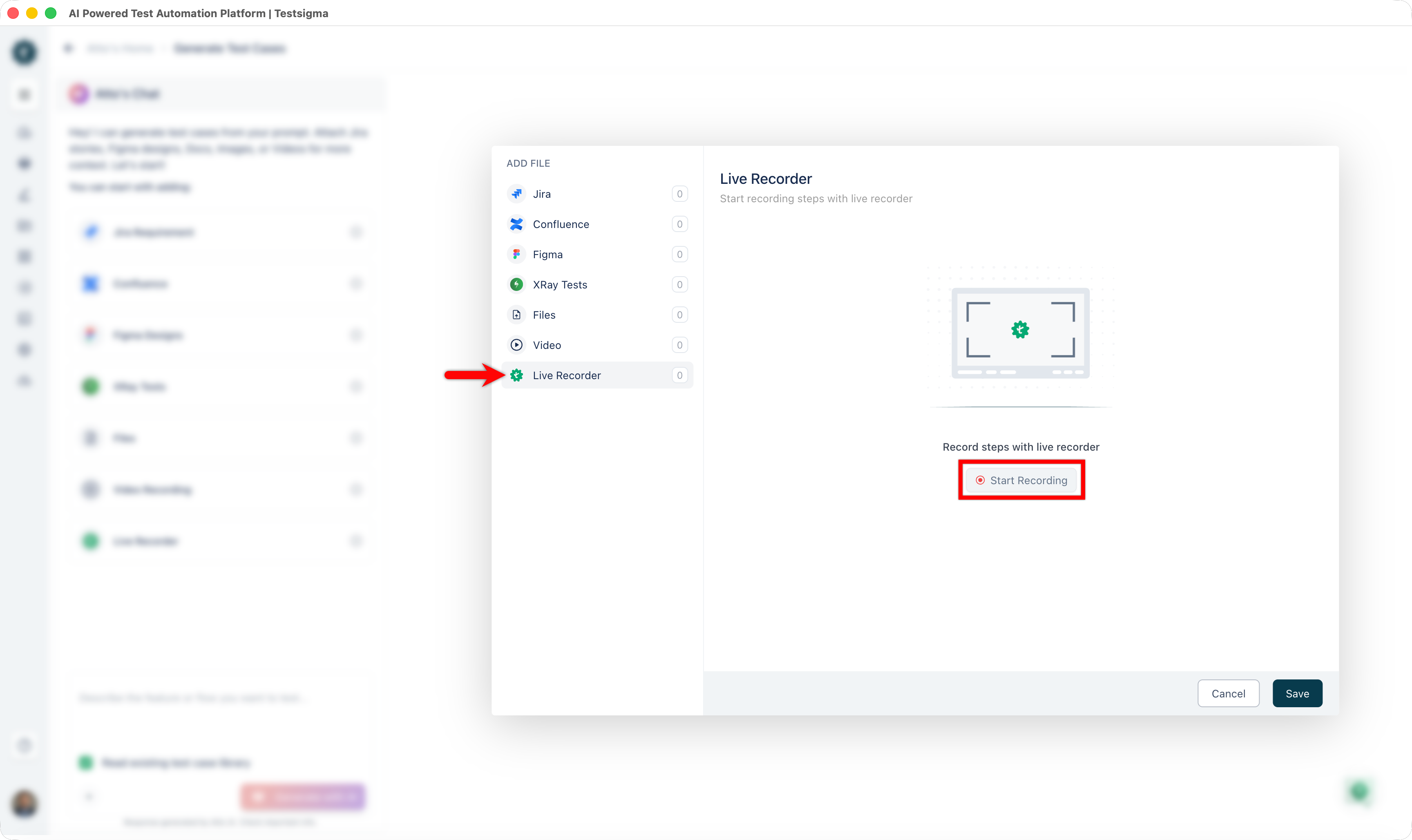
In the Live Recorder dialog, click Start Recording. A new Chrome session opens automatically.
-
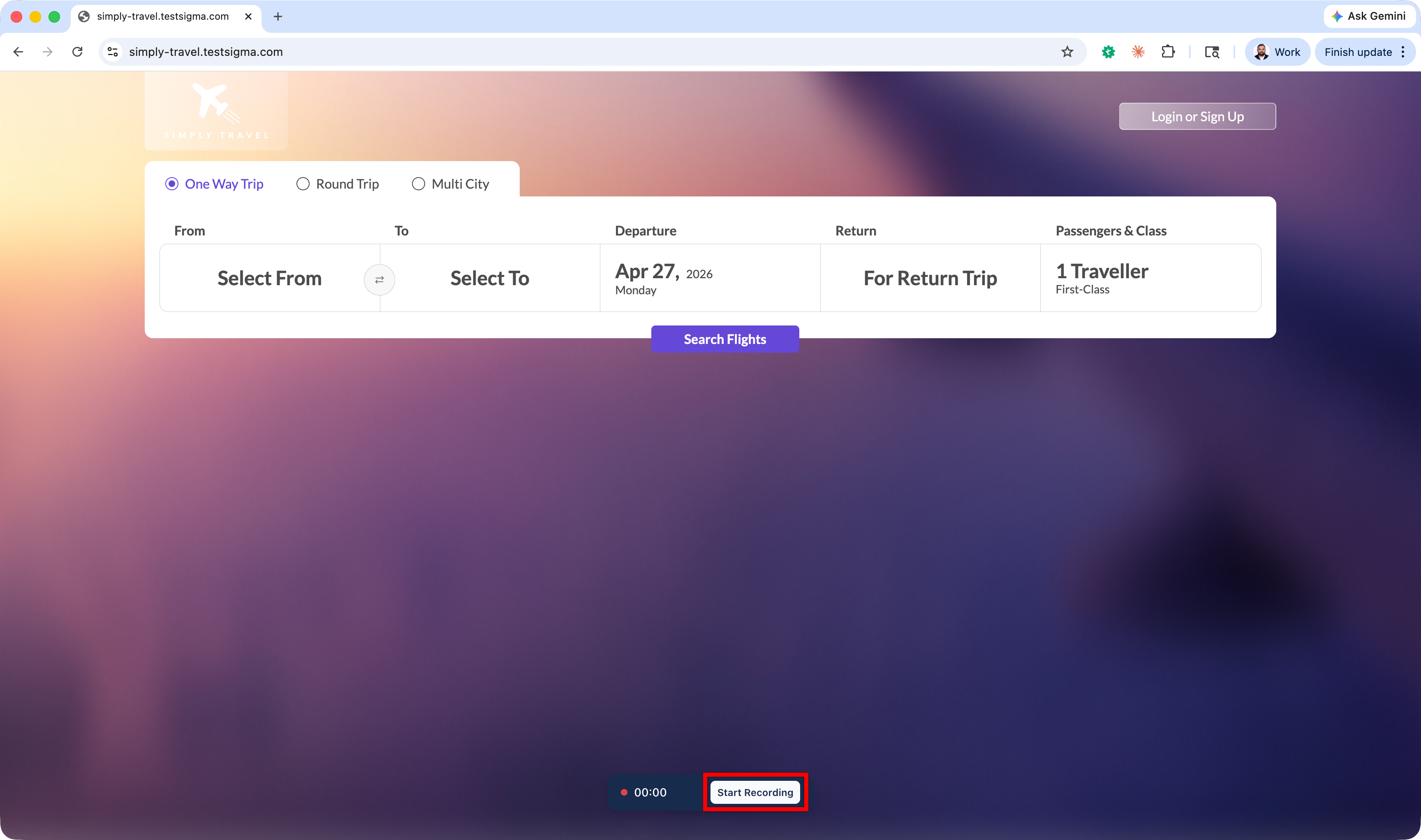
Enter the URL to test and click Start Recording.
-
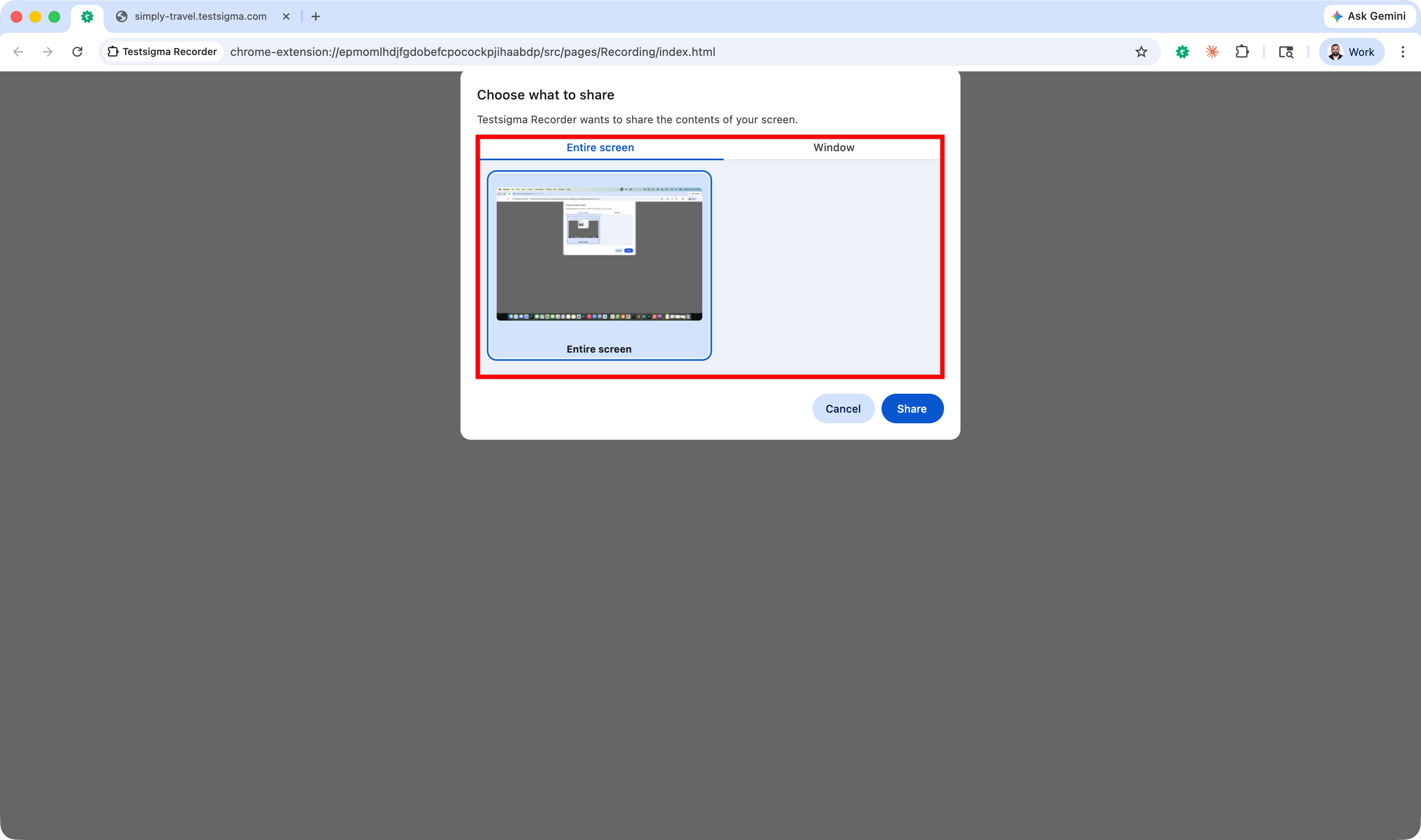
When prompted to choose what to share, select Entire screen or Window as needed.
-
Perform the actions and user interactions you want to provide as context to Atto.
-
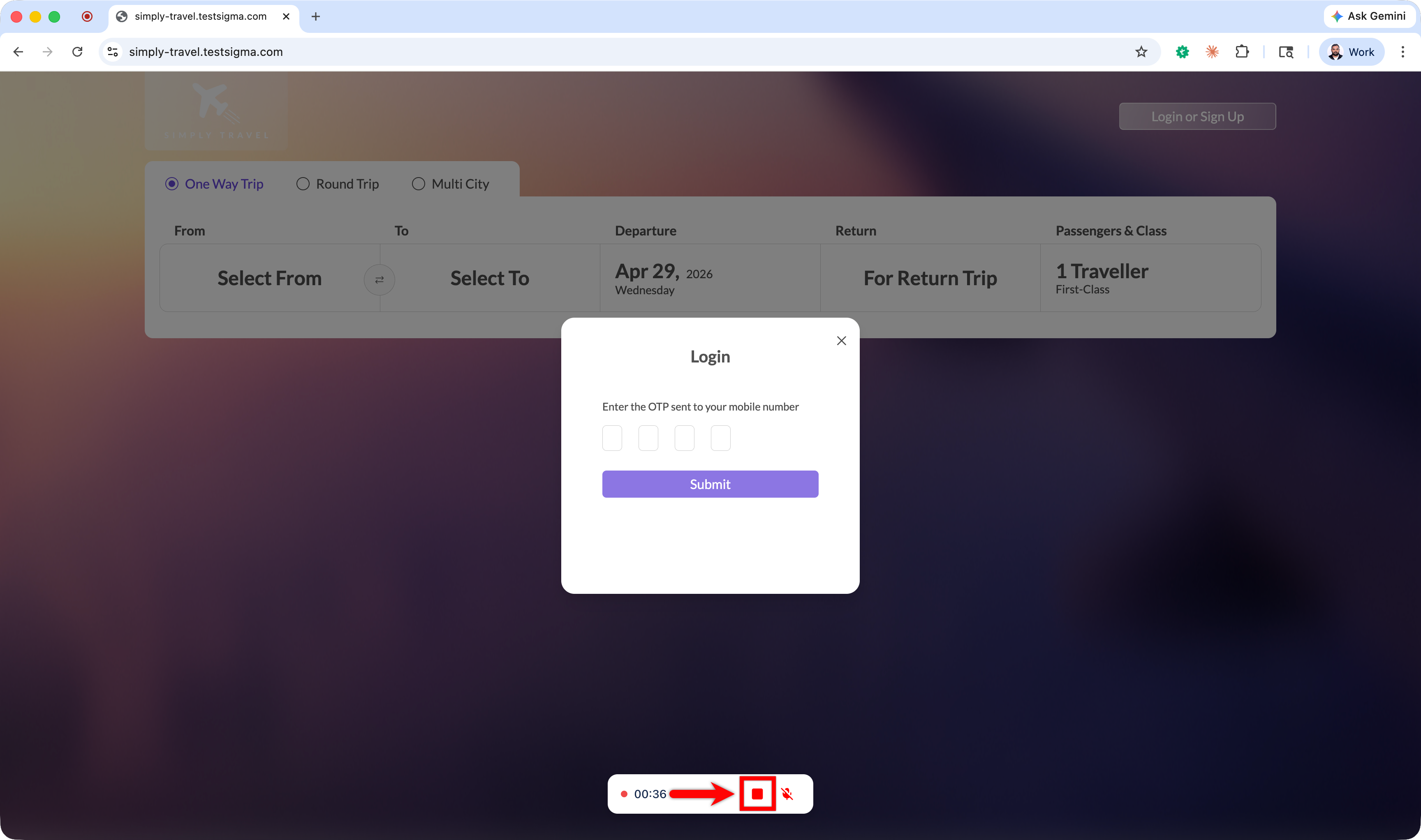
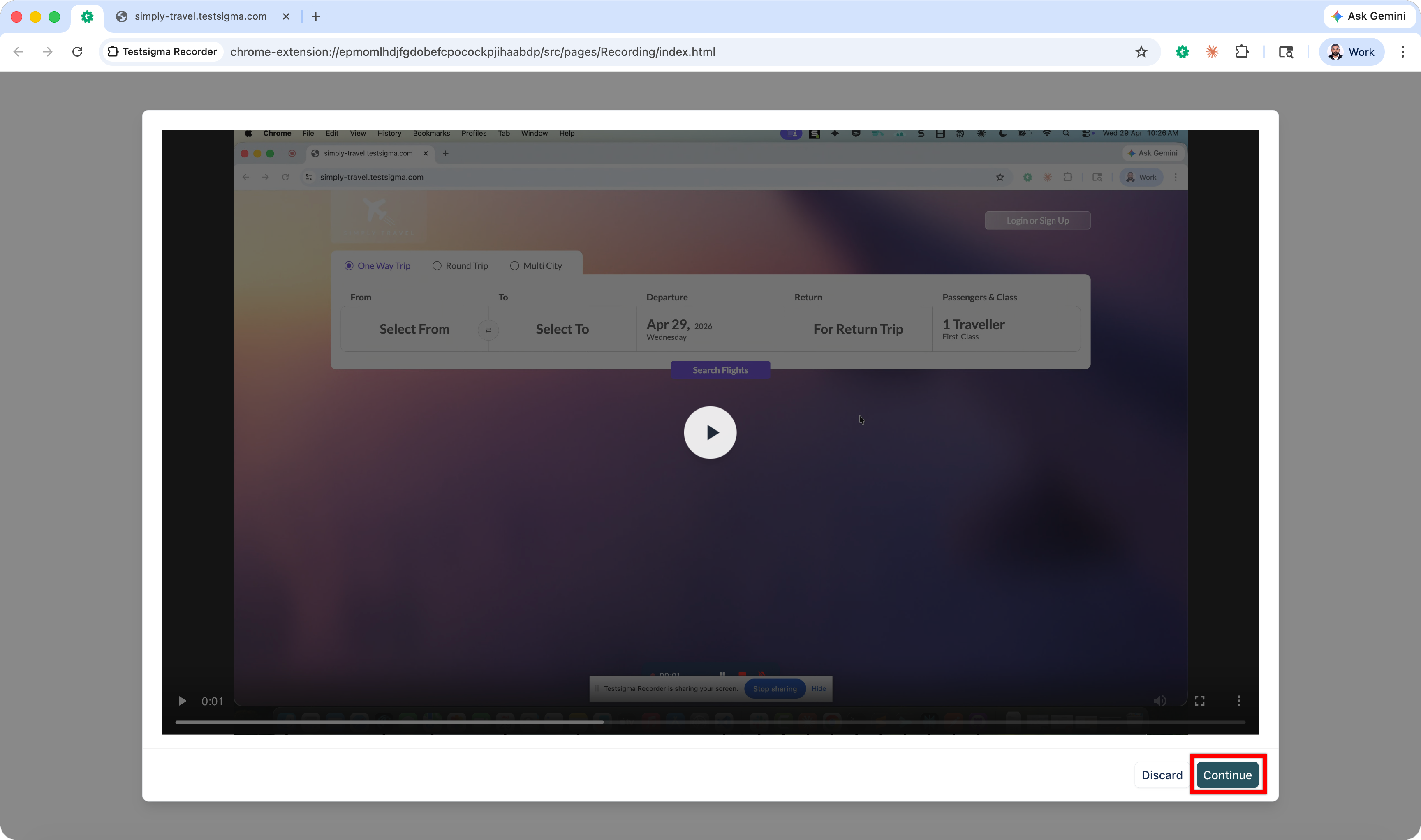
Click Stop, review the recorded video, and click Continue.
-
Review the recording again and click Continue.
-
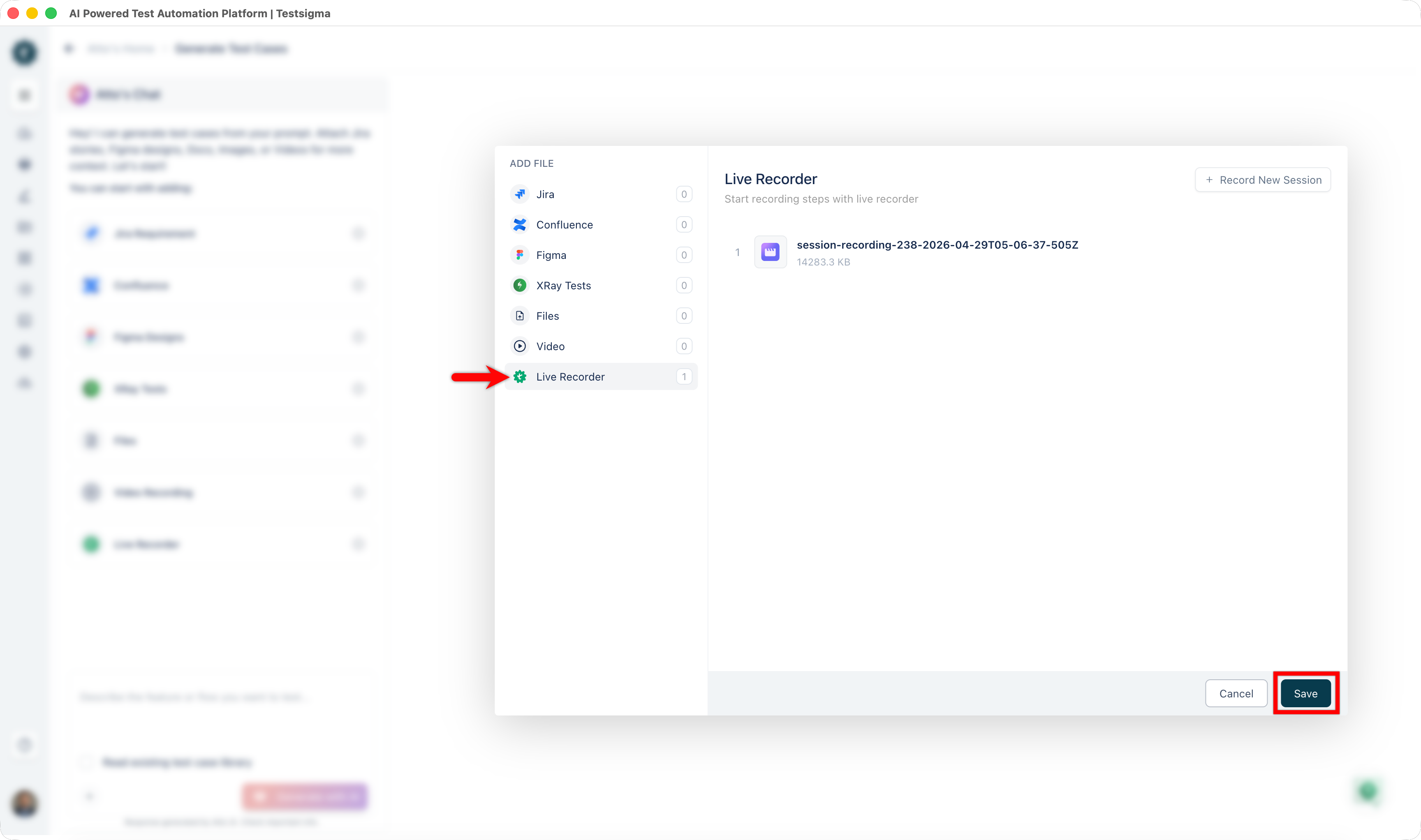
You’ll be redirected to Testsigma with the Live Recorder dialog displaying your recording.
-
Click Save to add the recording as context for test case generation.