
Help
What Should I Do If My Browser Blocks Local Network Access?
Steps to Resolve the Permission Issue
Section titled “Steps to Resolve the Permission Issue”-
In Chrome, click the Site Information icon in the address bar.
-
Ensure the following permissions are set to Allow:
- Pop-ups and redirects
- Local network access
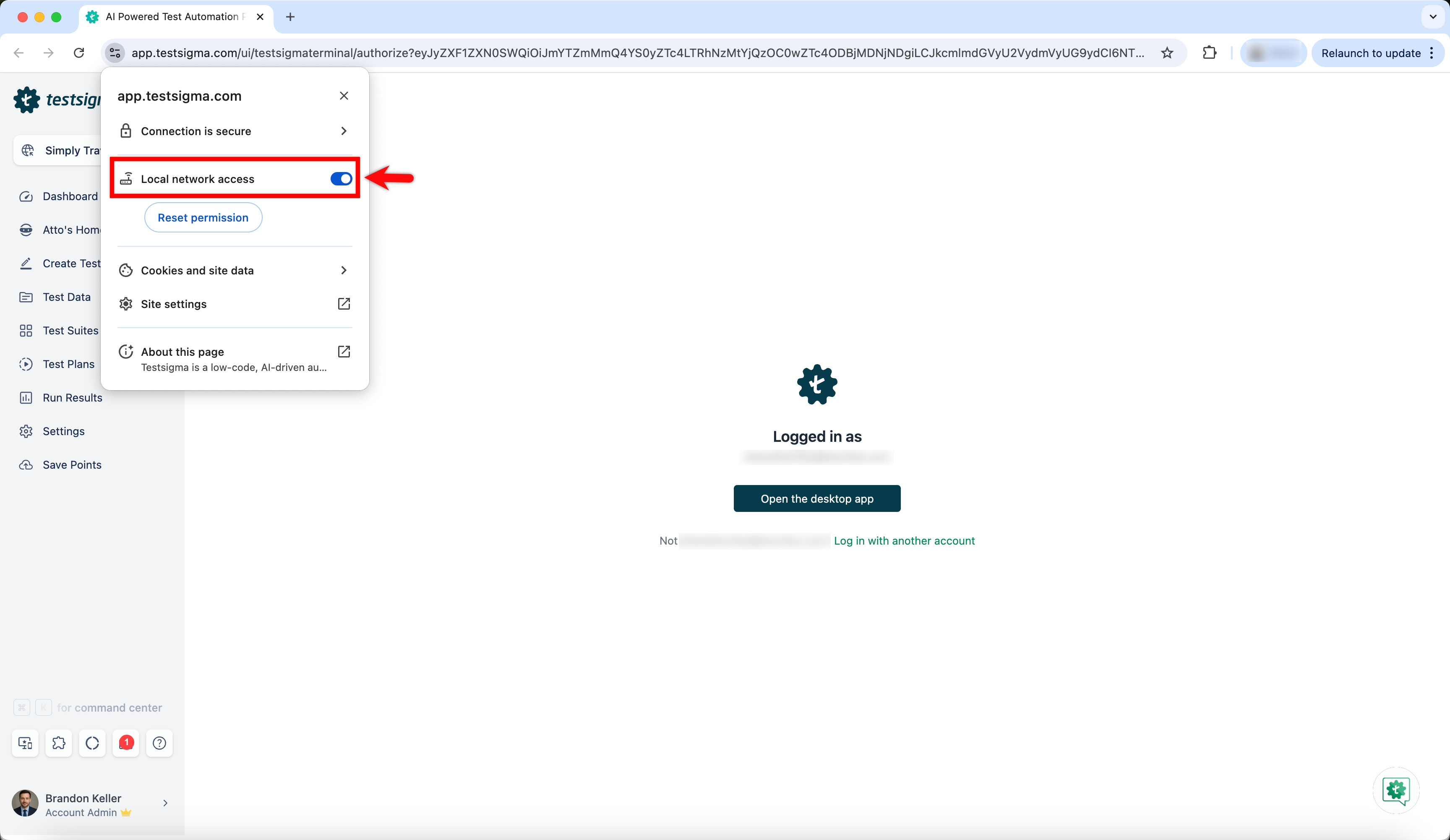
-
If these permissions were previously denied, click Reset permissions.
-
Refresh the page.
-
Click Open the desktop app again in Testsigma.
-
When Chrome displays the permission prompt, click Allow or Open to proceed with launching the desktop application.
Issue Still Persists: Check Network Logs
Section titled “Issue Still Persists: Check Network Logs”If the problem continues, use Chrome Developer Tools to confirm whether a network-level block is causing the issue.
-
In Chrome, press F12 (or right-click anywhere on the page and select Inspect) to open Developer Tools.
-
Click the Network tab.
-
Click Open the desktop app in Testsigma.
-
Check the network requests that appear. If you see failed requests for authorizeTestsigmaTerminal marked as failure, your network is blocking the connection.

-
To confirm, copy the URL and paste it in the browser:
https://local.testsigmaagent.com