
Help
Why do Errors Occur When I Try to Download Files from The Exports Page?
Steps to Resolve the Errors
Section titled “Steps to Resolve the Errors”For Chrome
Section titled “For Chrome”-
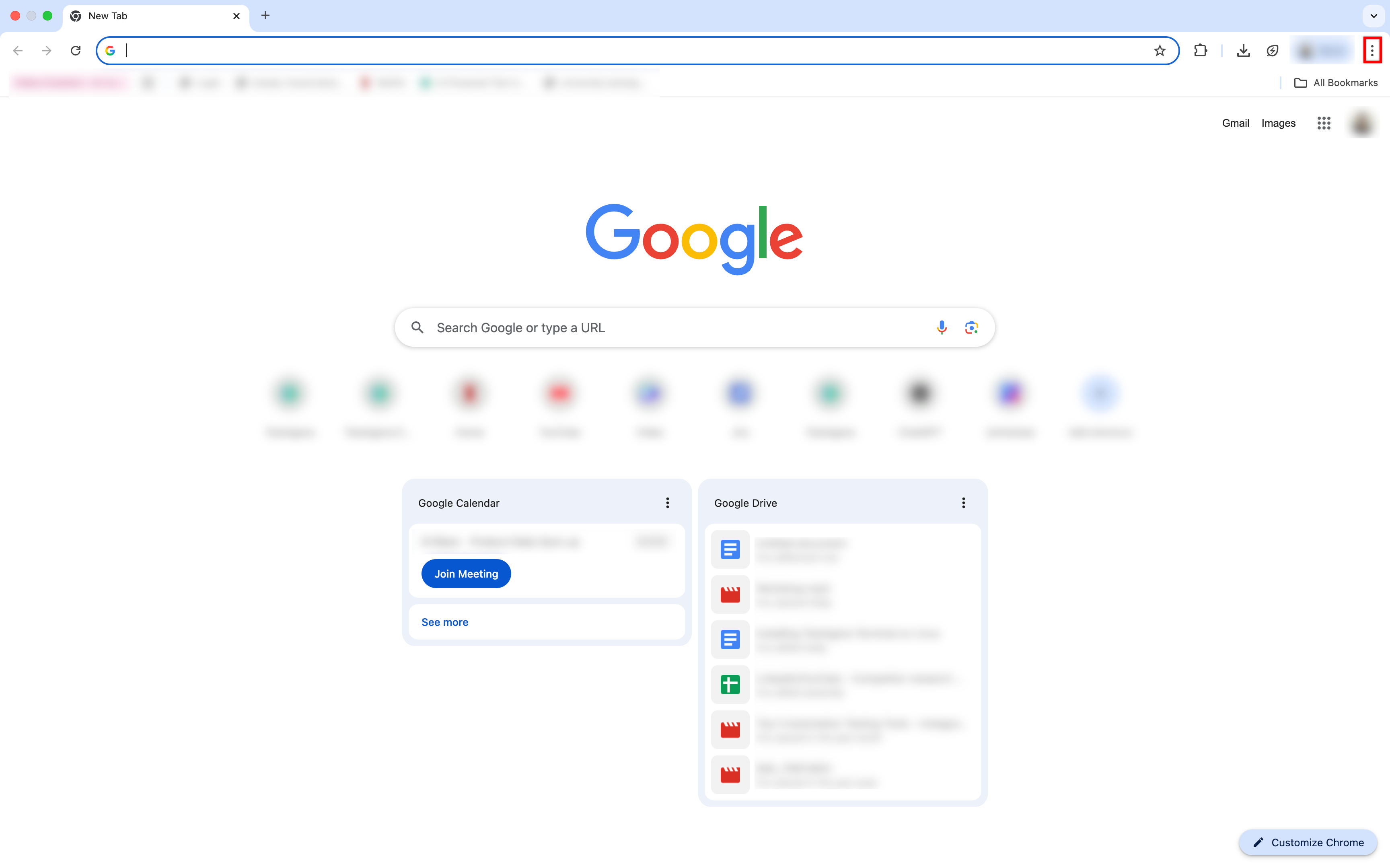
Open Google Chrome and click the More options icon in the top-right corner.
-
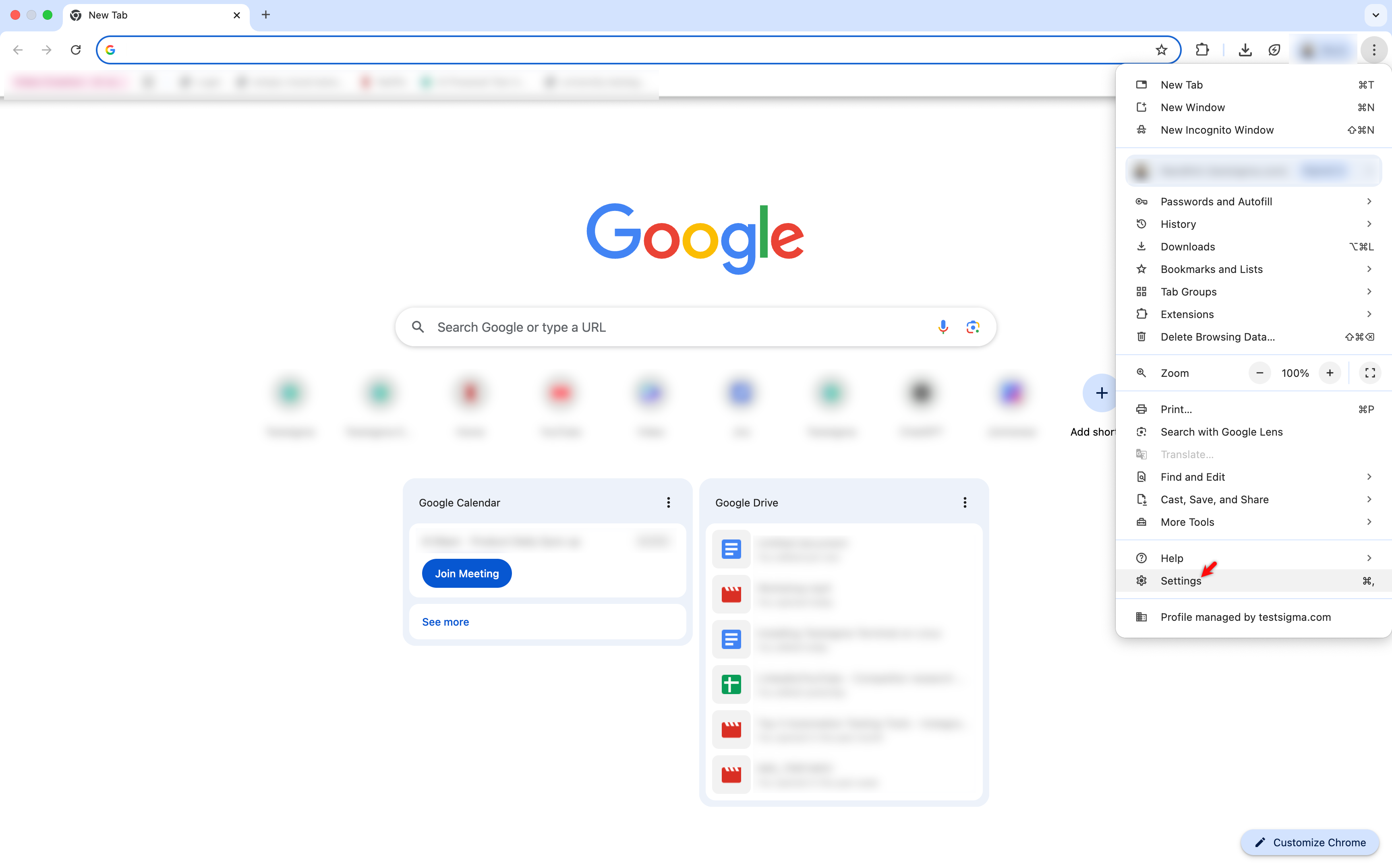
Select Settings from the menu.
-
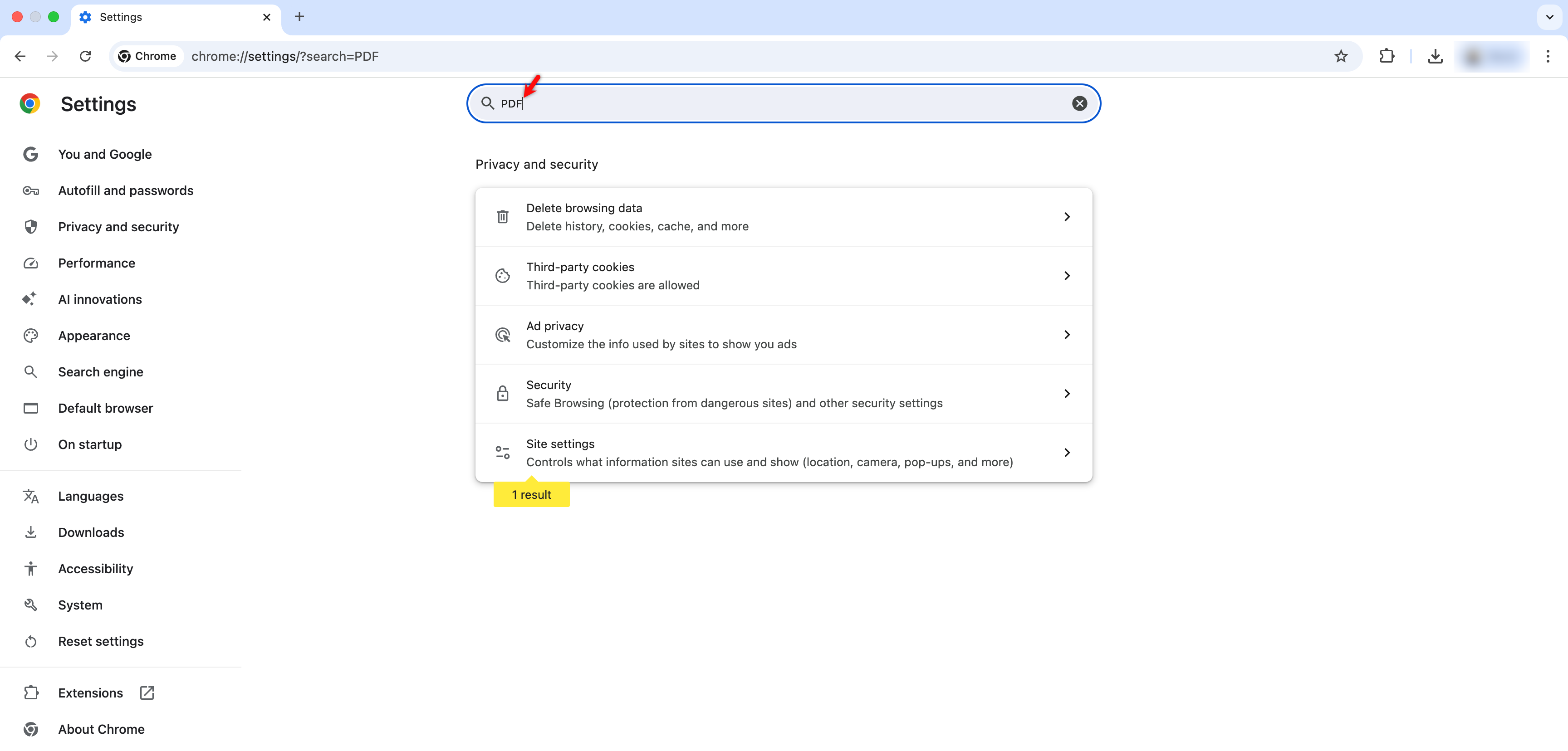
In the Settings page, type PDF in the search bar.
-
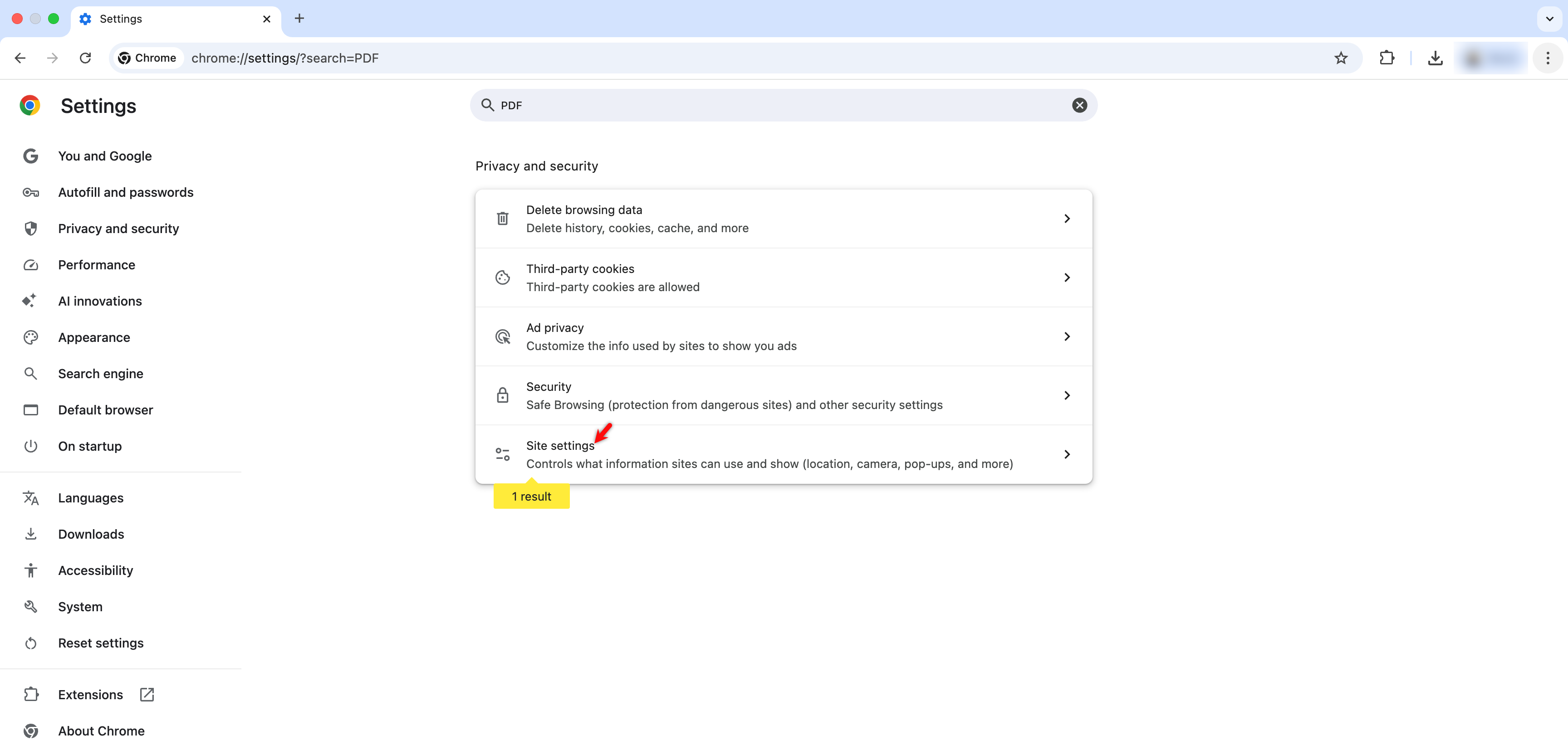
Click Site Settings under the search results.
-
Scroll down, expand Additional content settings, and click PDF documents. !
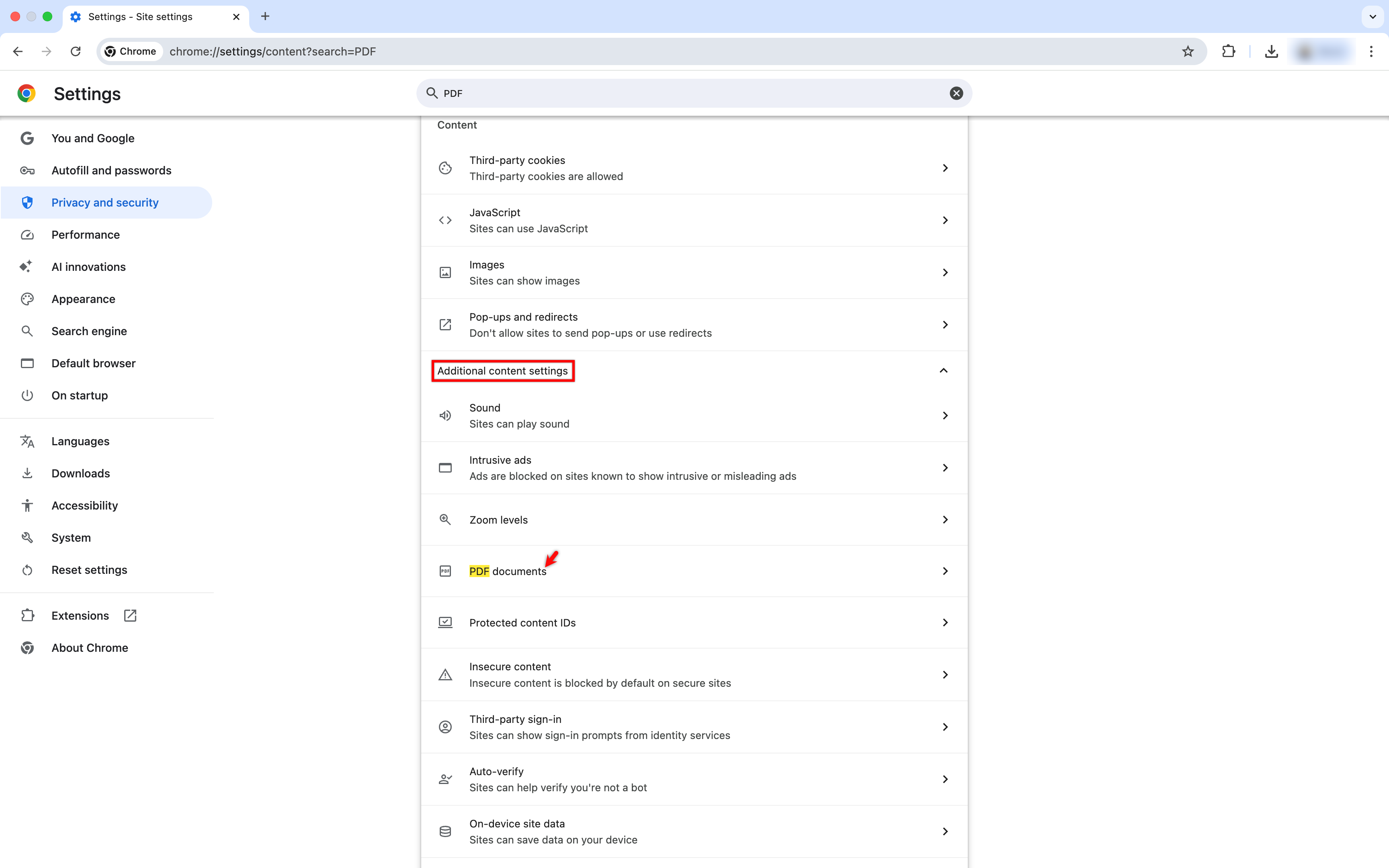
-
Select the Download PDFs radio button.
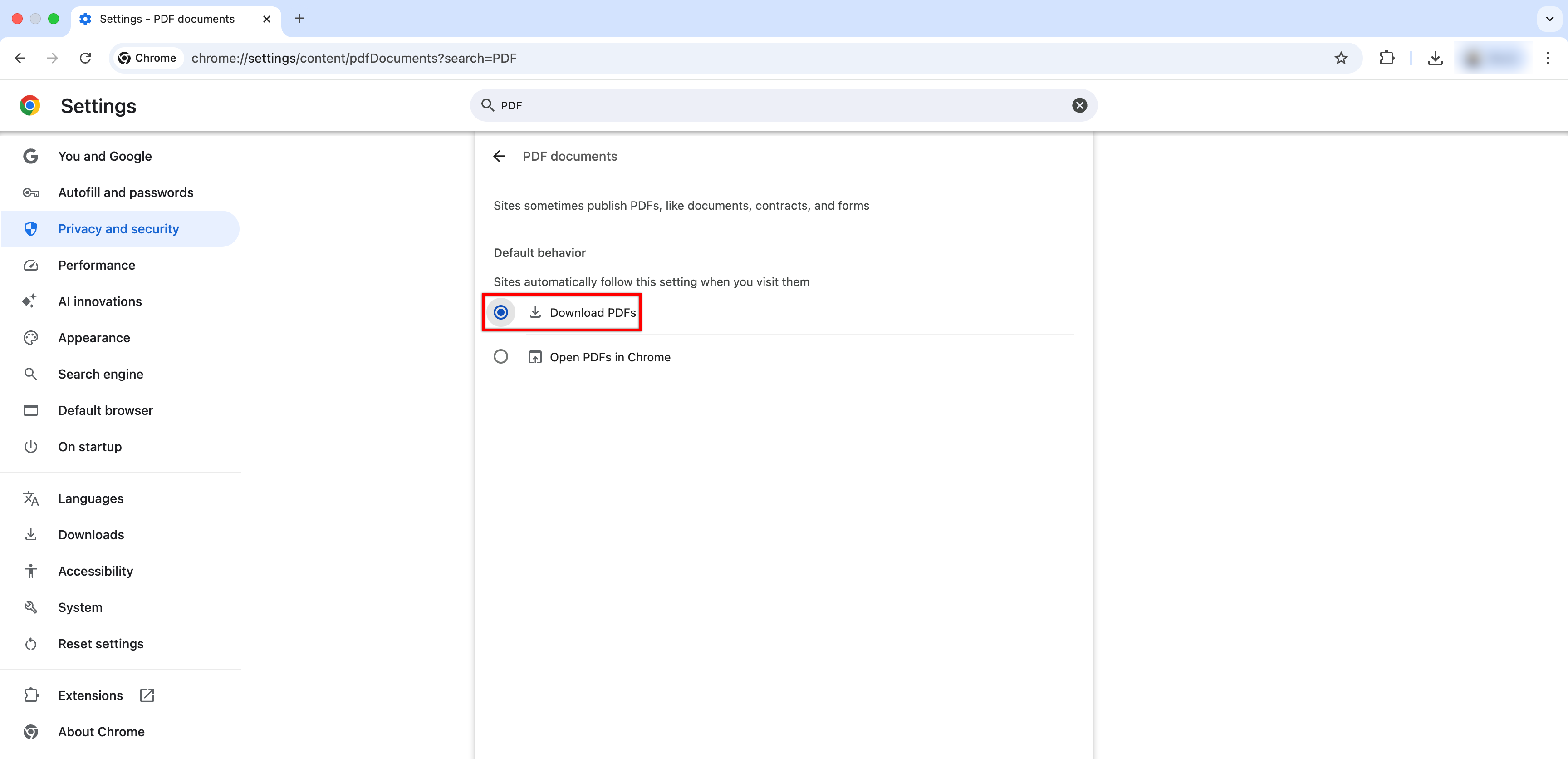
-
Return to the Exports page and click Download to reattempt the file download.
For Edge
Section titled “For Edge”-
Open Microsoft Edge and click the More Options icon in the top-right corner.
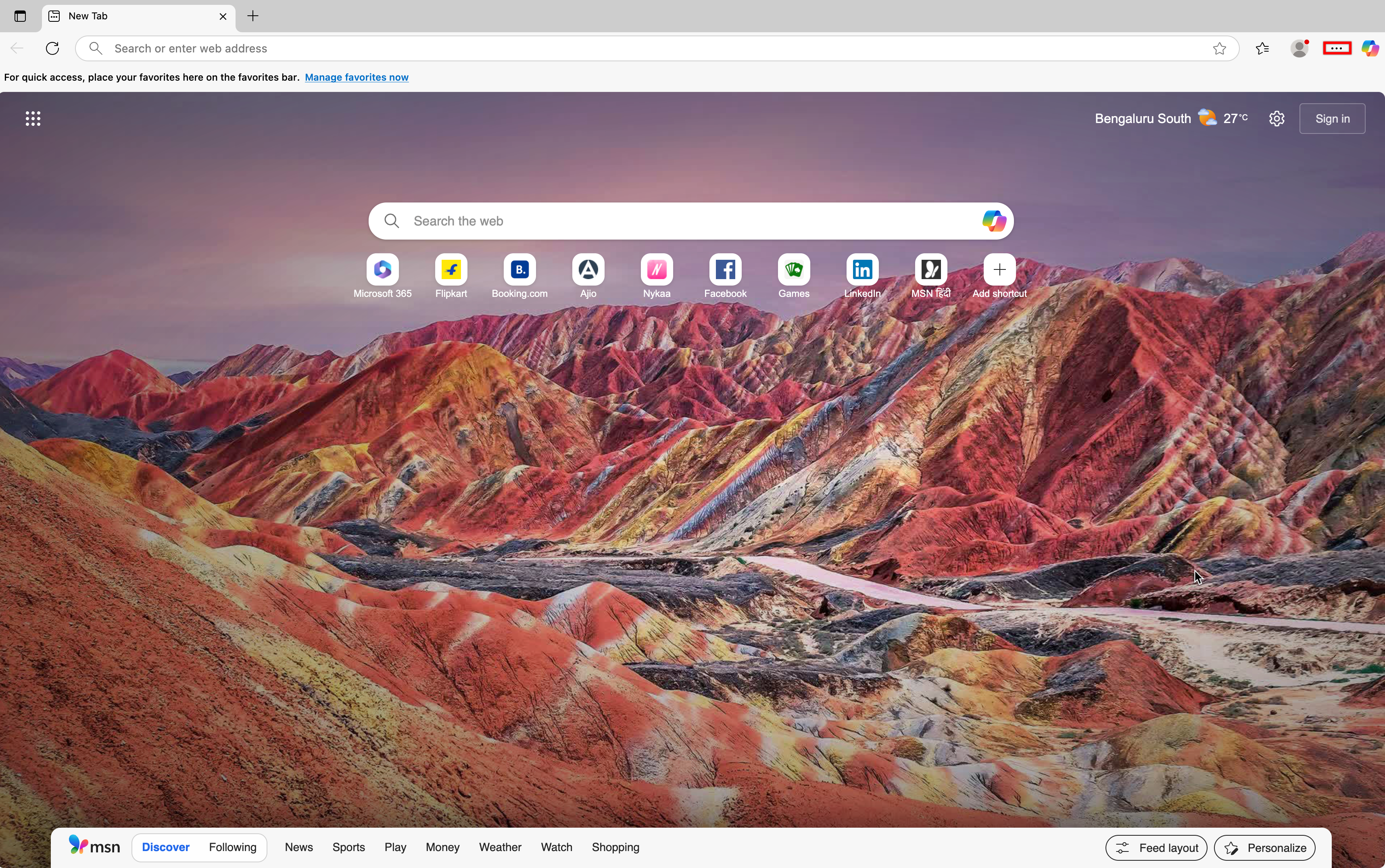
-
Select Settings from the menu.
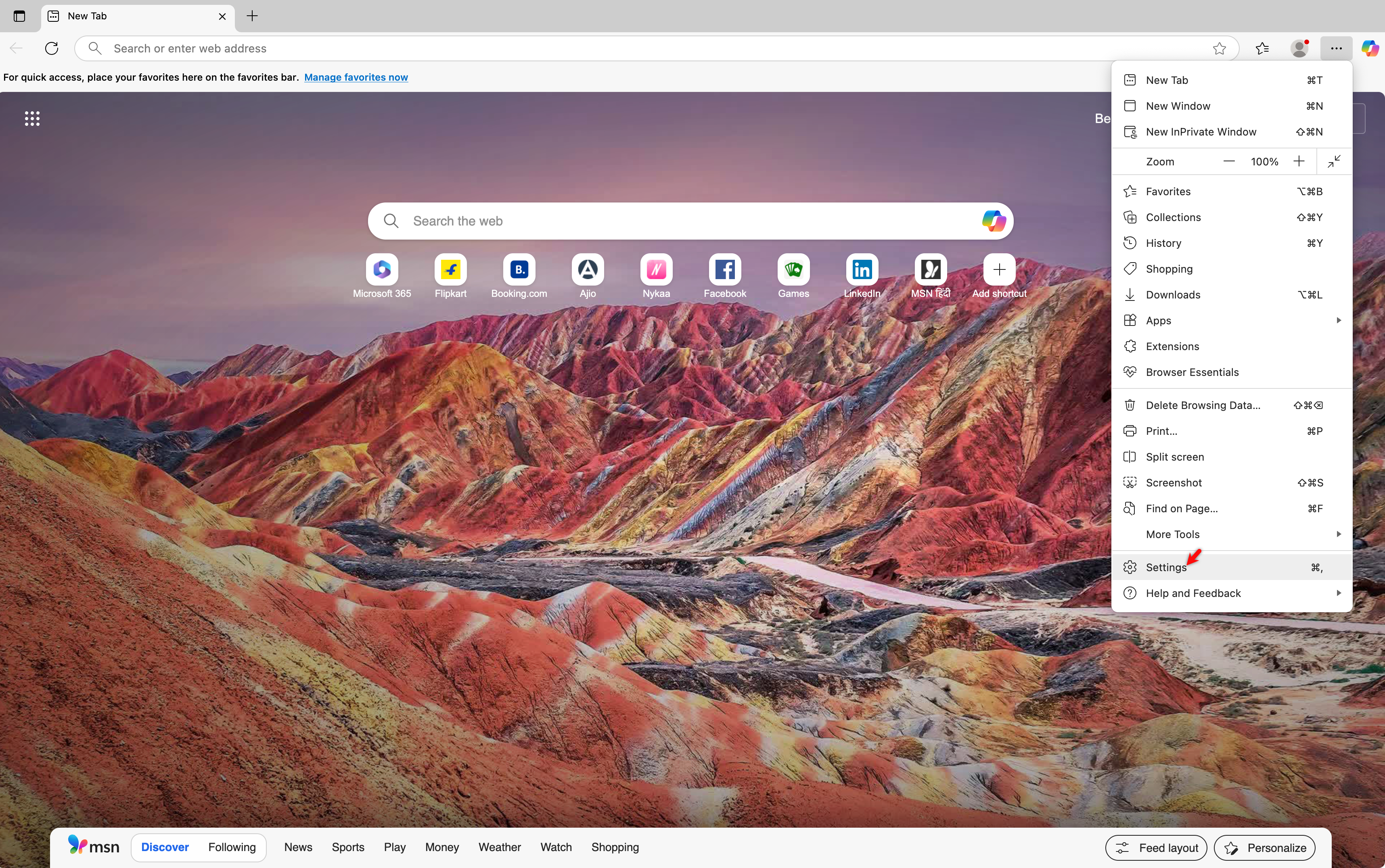
-
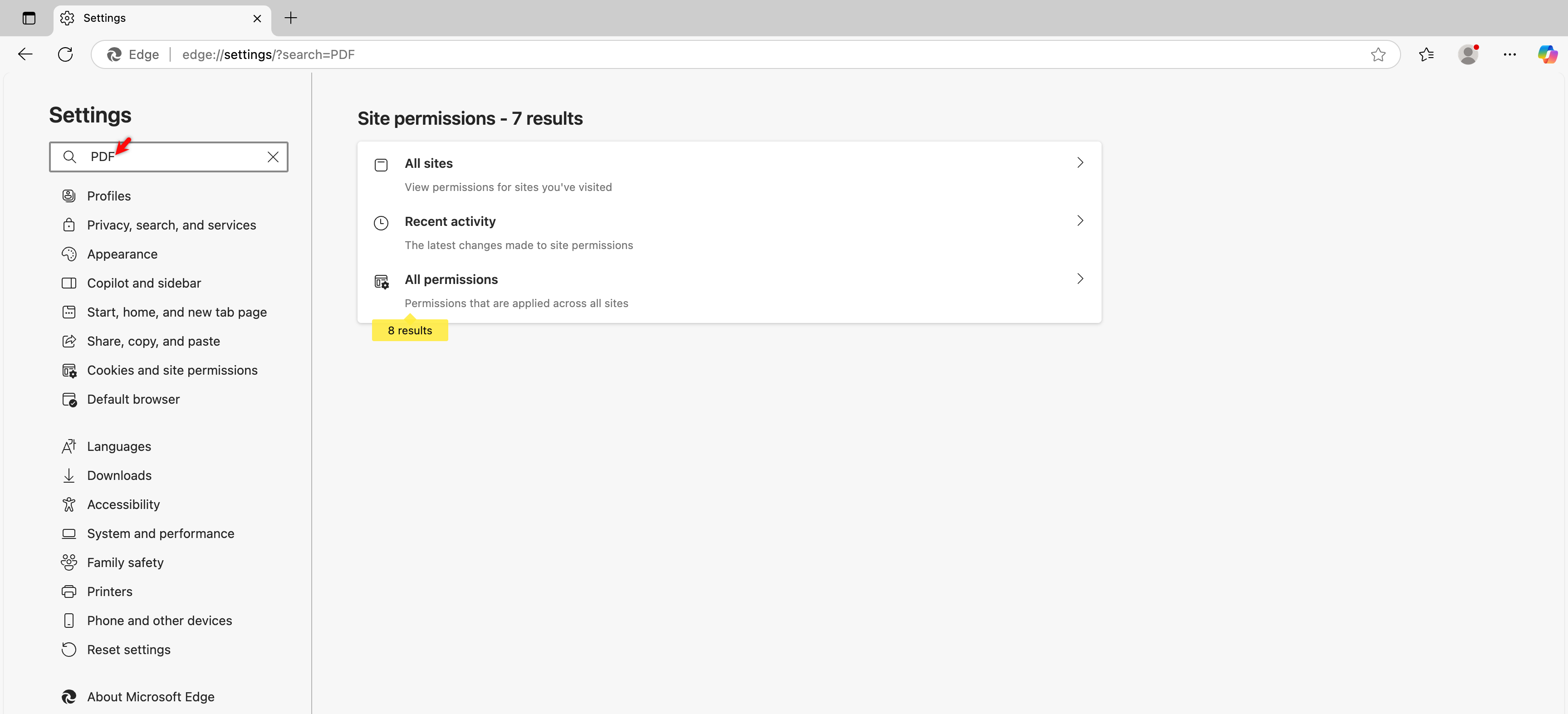
In the Settings page, type PDF in the search bar.
-
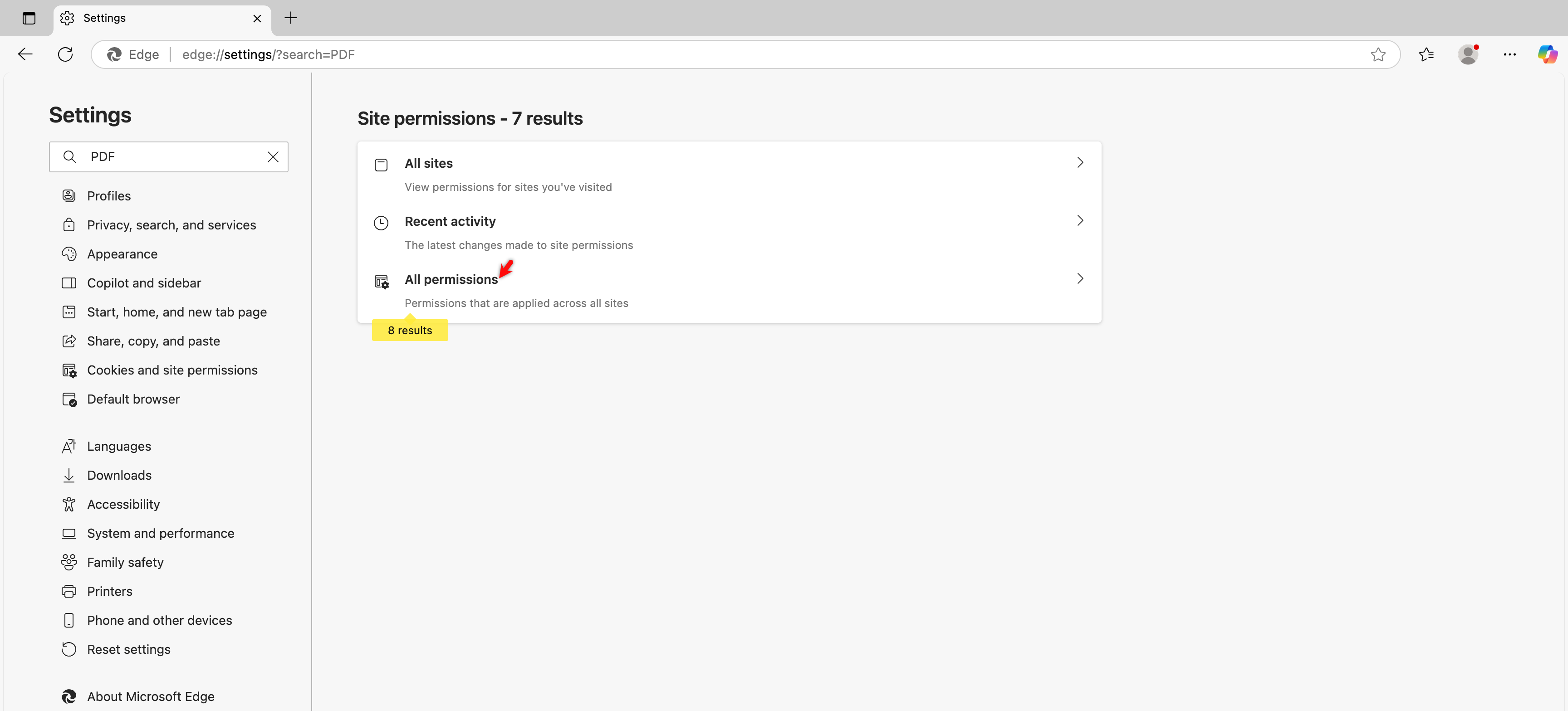
Click All Permissions under the search results.
-
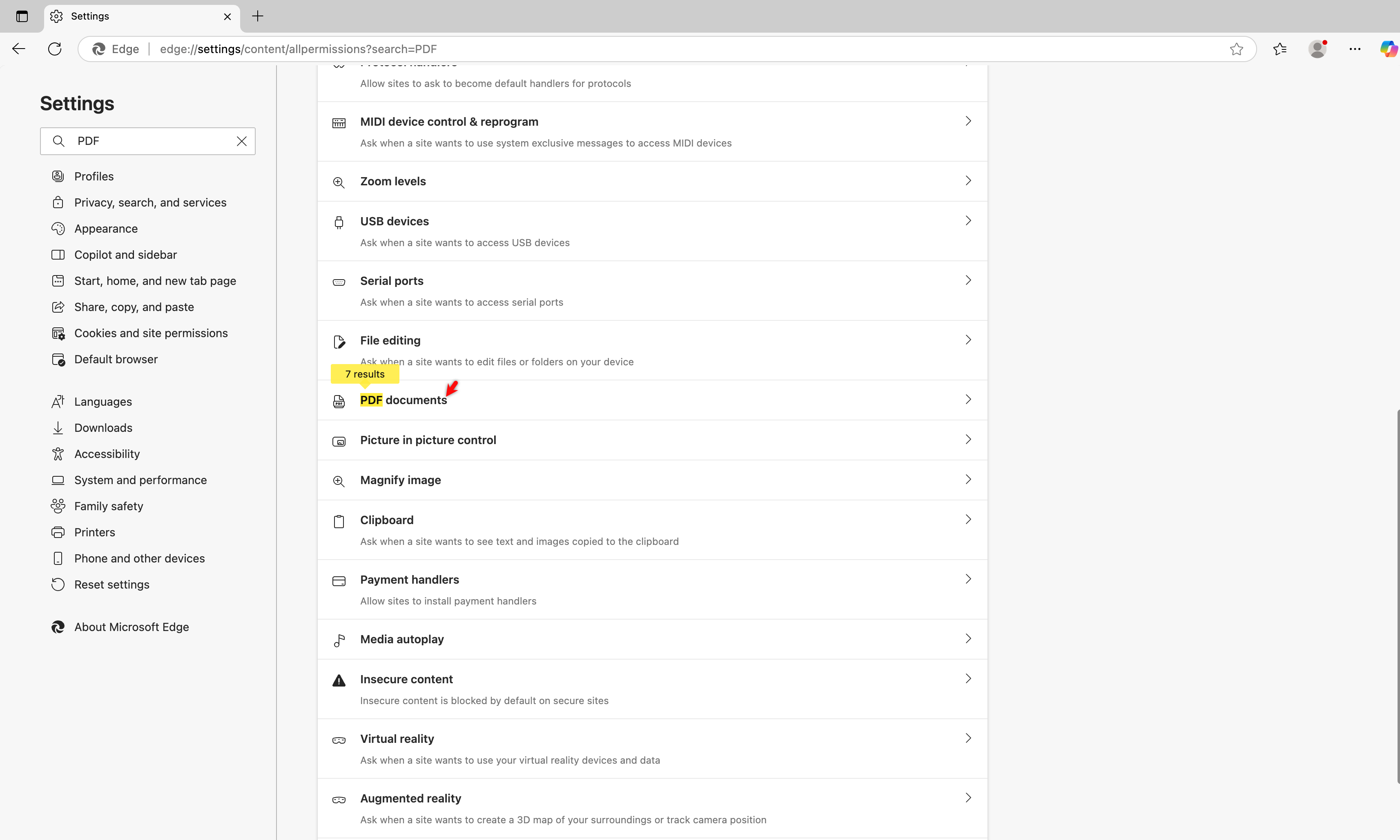
Scroll down and select PDF documents.
-
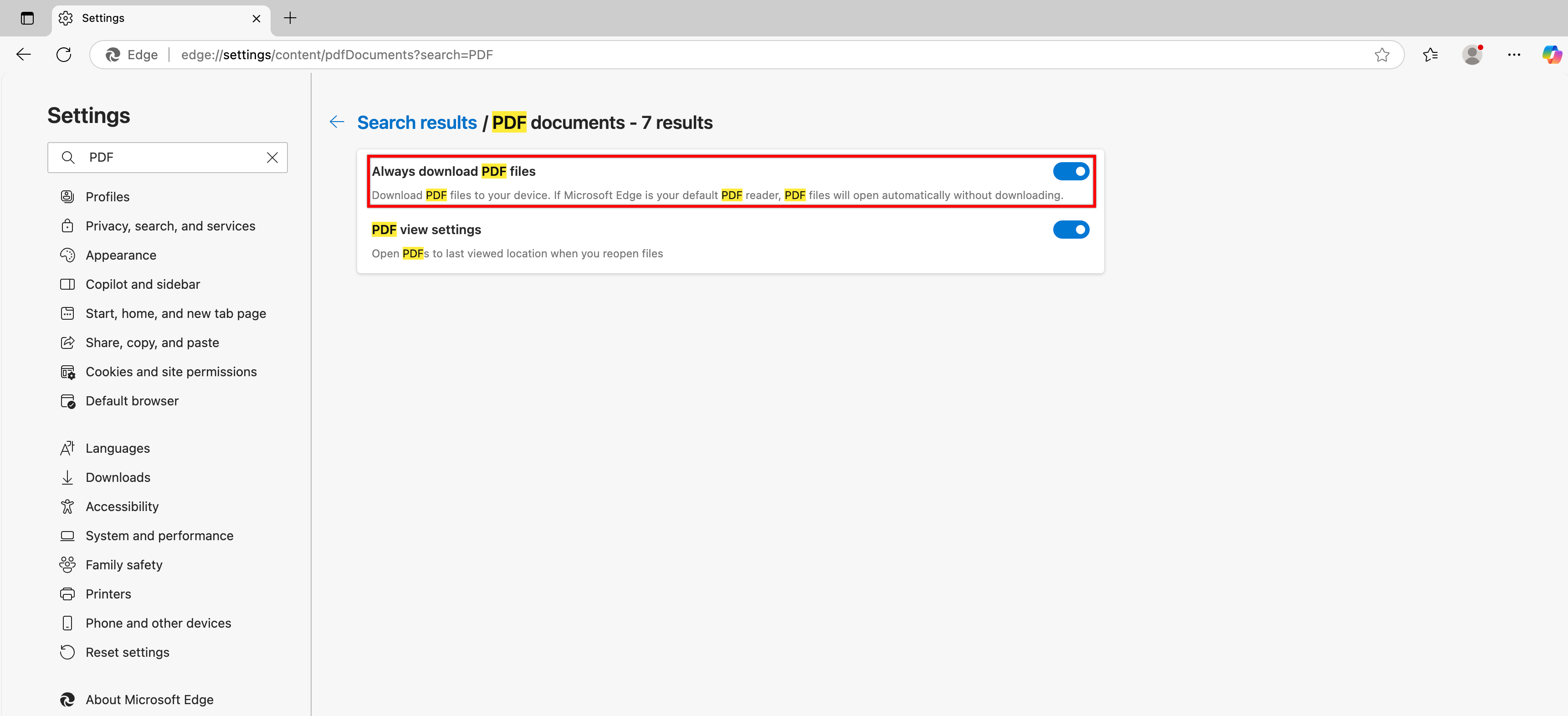
Enable the Always download PDF files toggle.
-
Return to the Exports page and click the Download button to reattempt the file download.