
Help
Unable to Start the Terminal Due to Port Unavailability?
Step 1: Retry or Reconfigure from the Terminal Window
Section titled “Step 1: Retry or Reconfigure from the Terminal Window”Before running manual commands, try the built-in recovery options in the Testsigma Terminal:
-
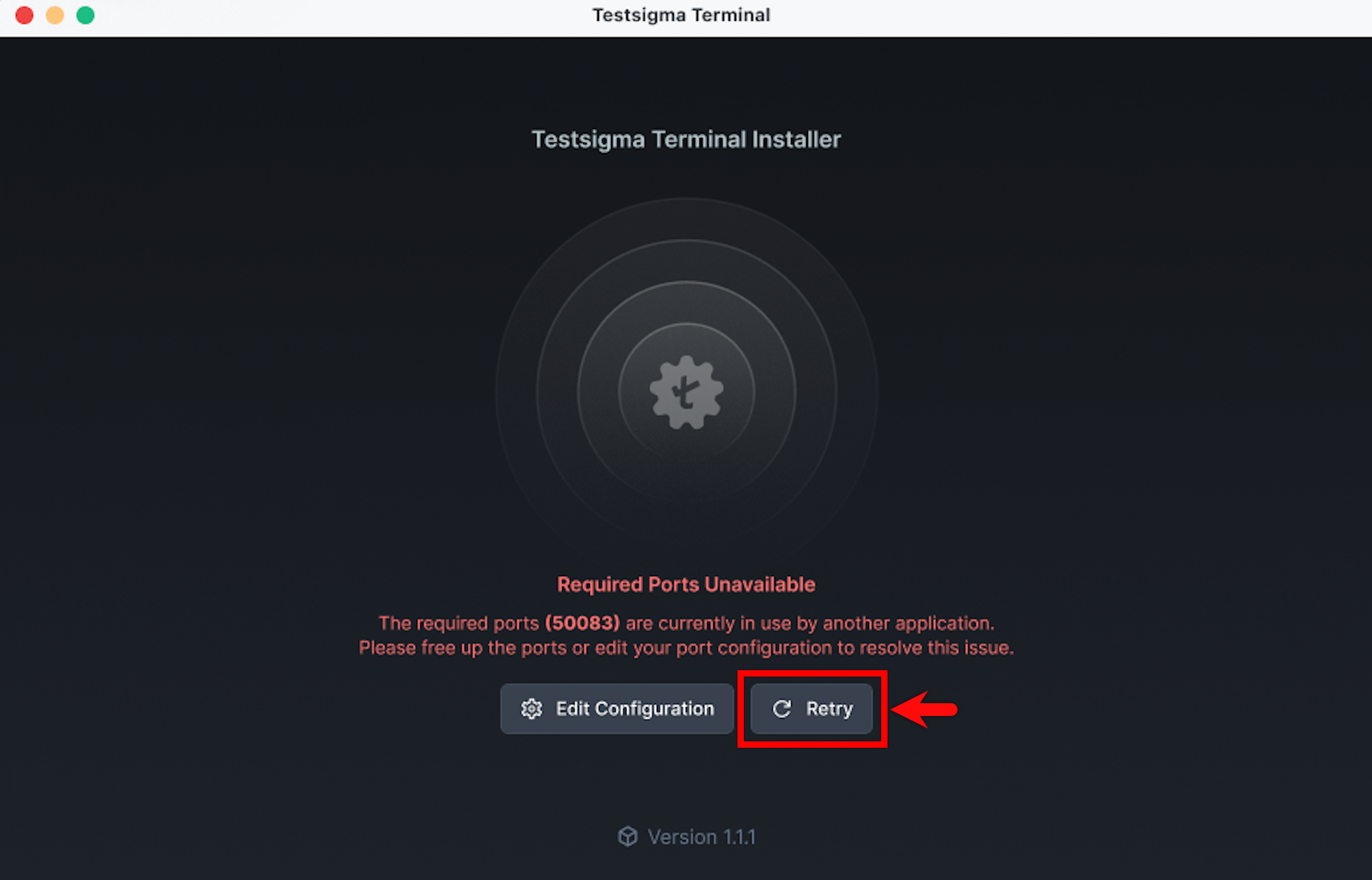
In the Testsigma Terminal window, click Retry. This checks the port’s availability again.
-
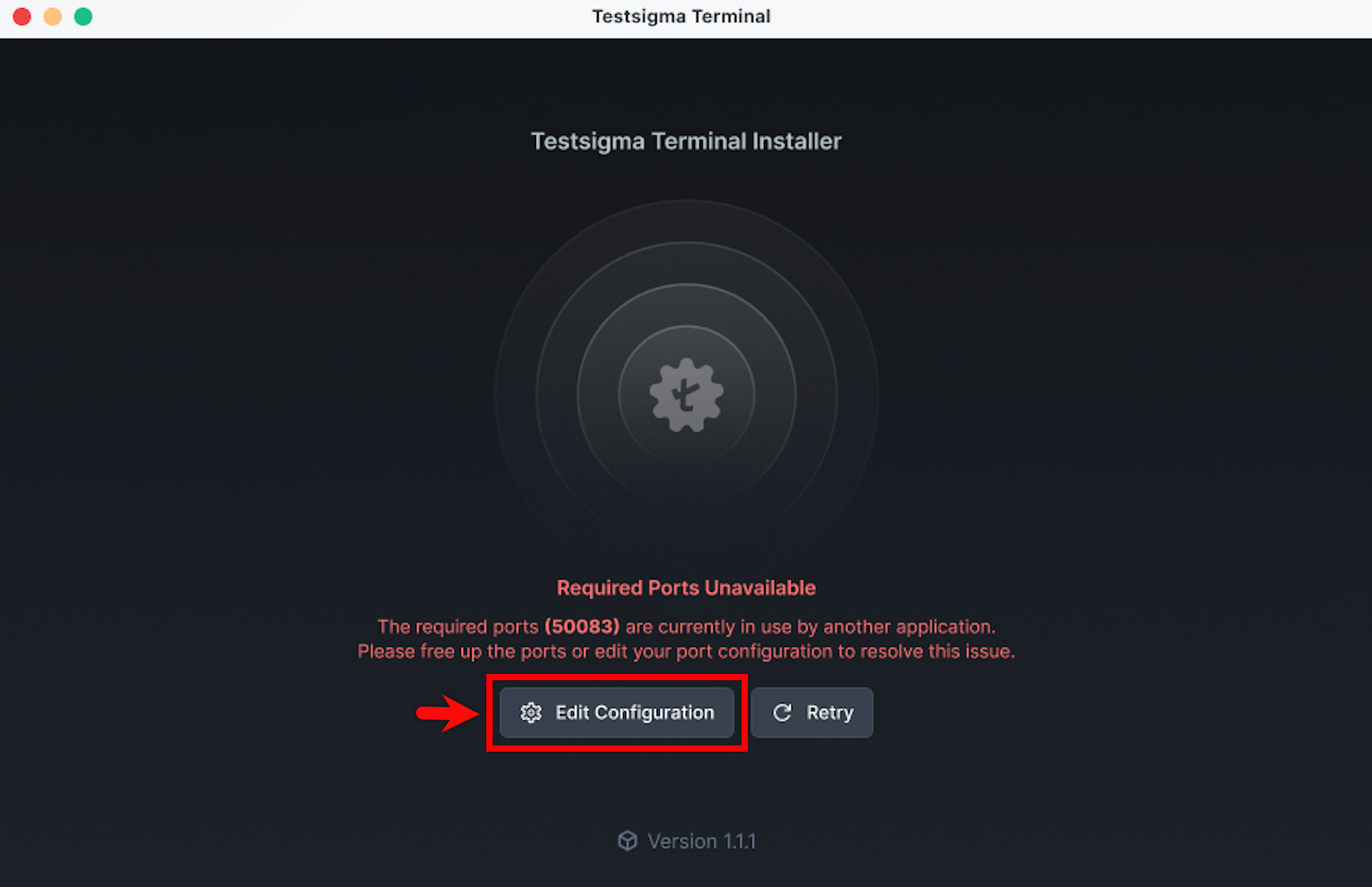
If the issue persists, click Edit Configuration.
-
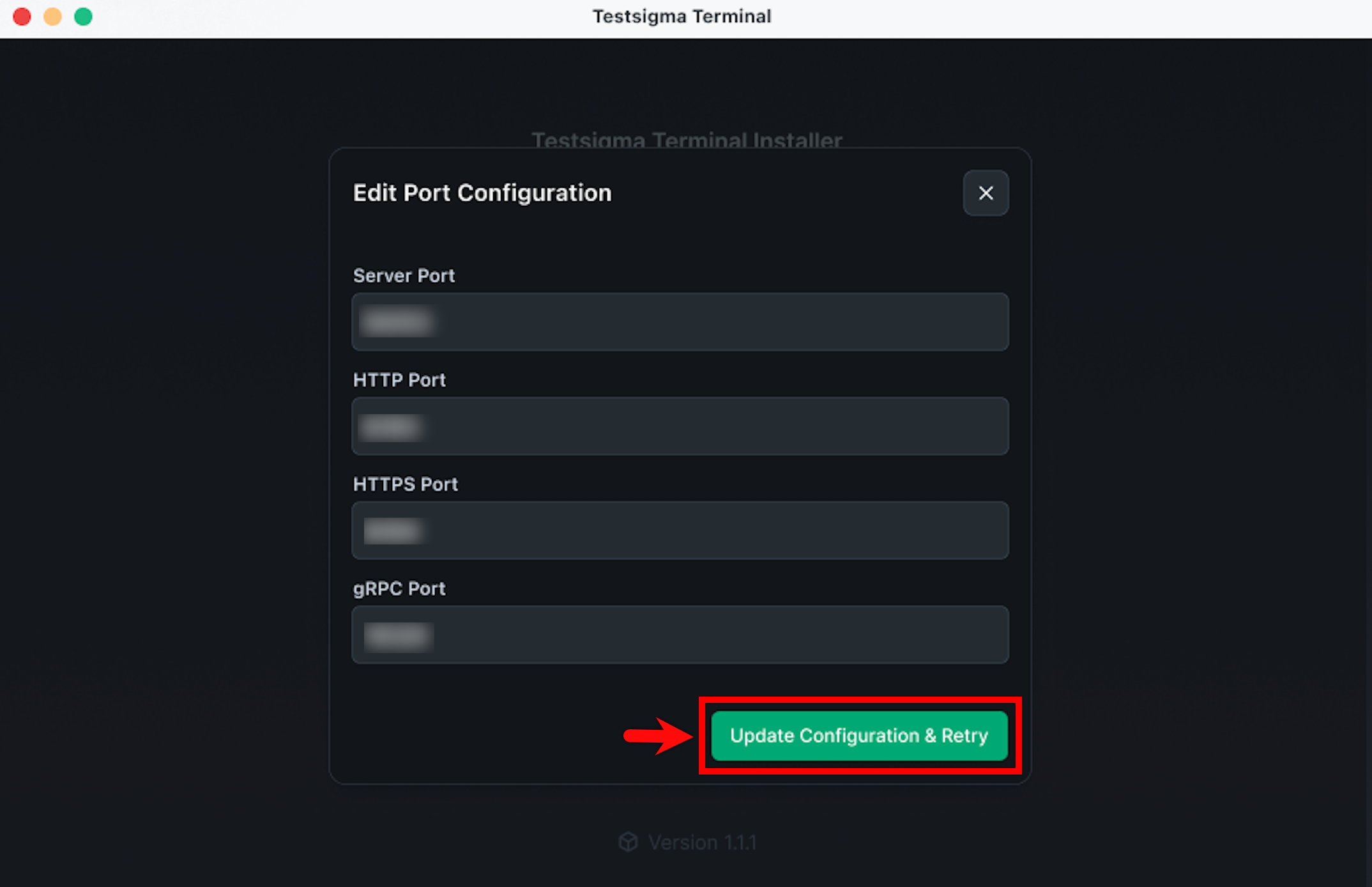
In the Edit Configuration dialog, check the available ports on your device, update them to free ports, and click Update Configuration & Retry.
Step 2: Check if a Port is in Use
Section titled “Step 2: Check if a Port is in Use”Run the command for your operating system to check each required port (8383, 8484, 18329). Replace the port number in the command with the one shown in the error.
Windows — Command Prompt:
netstat -ano | findstr :8383netstat -ano | findstr :8484netstat -ano | findstr :18329Mac/Linux — Terminal:
lsof -i :8383lsof -i :8484lsof -i :18329Interpret the output as follows:
- No output — the port is free. Proceed to Step 4.
- Output with LISTEN — a process is actively using the port. Note the PID (Process ID) from the last column and proceed to Step 3.
Step 3: Free the Occupied Port
Section titled “Step 3: Free the Occupied Port”Use the PID from Step 2 to stop the process occupying the port.
Windows — Command Prompt:
taskkill /PID <PID> /FMac/Linux — Terminal:
kill -9 <PID>Replace <PID> with the actual process ID from the output above.
Step 4: Restart the Testsigma Terminal
Section titled “Step 4: Restart the Testsigma Terminal”Once you’ve freed all required ports, restart the Testsigma Terminal and verify that it launches successfully.