Help
How to Update an Excel File in Testsigma Uploads?
Prerequisites
- Before you begin, ensure that you have an excel file that has been uploaded to Testsigma.
Install the Addons
Section titled “Install the Addons”-
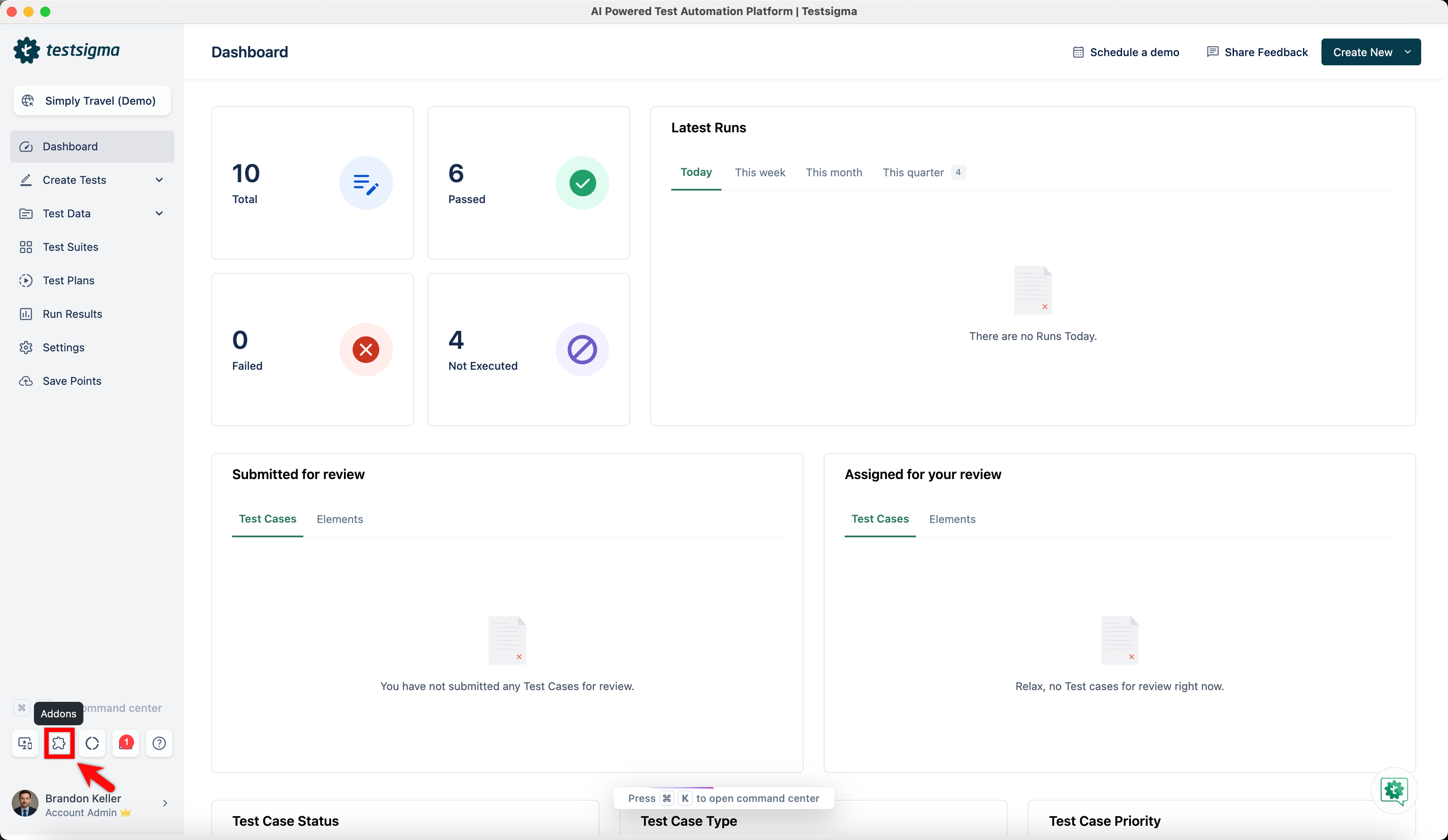
From the left navigation bar, click Addons.
-
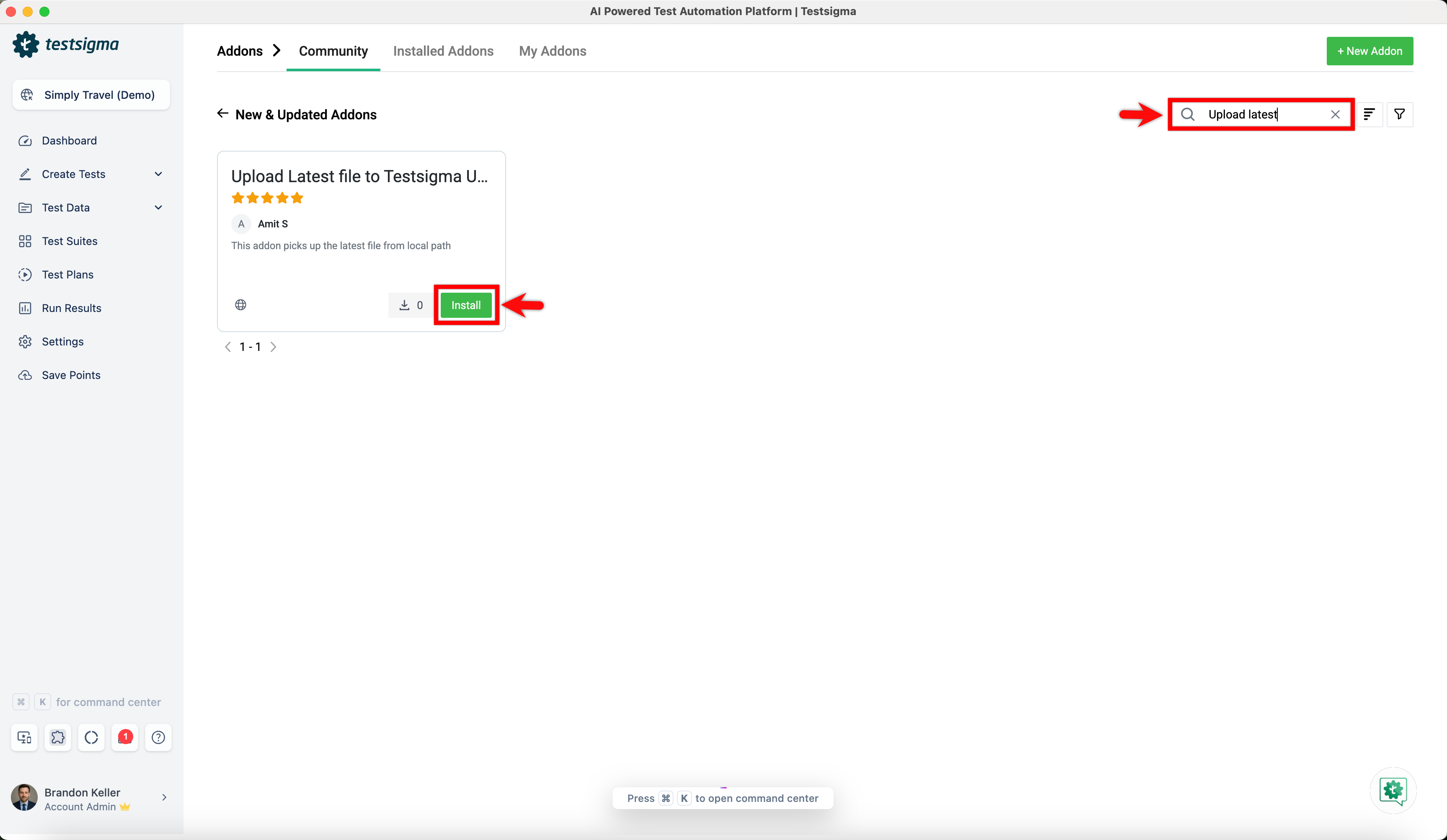
Under the New & Updated Addons section, search for the Upload Latest file to Testsigma Uploads addon and click Install.
-
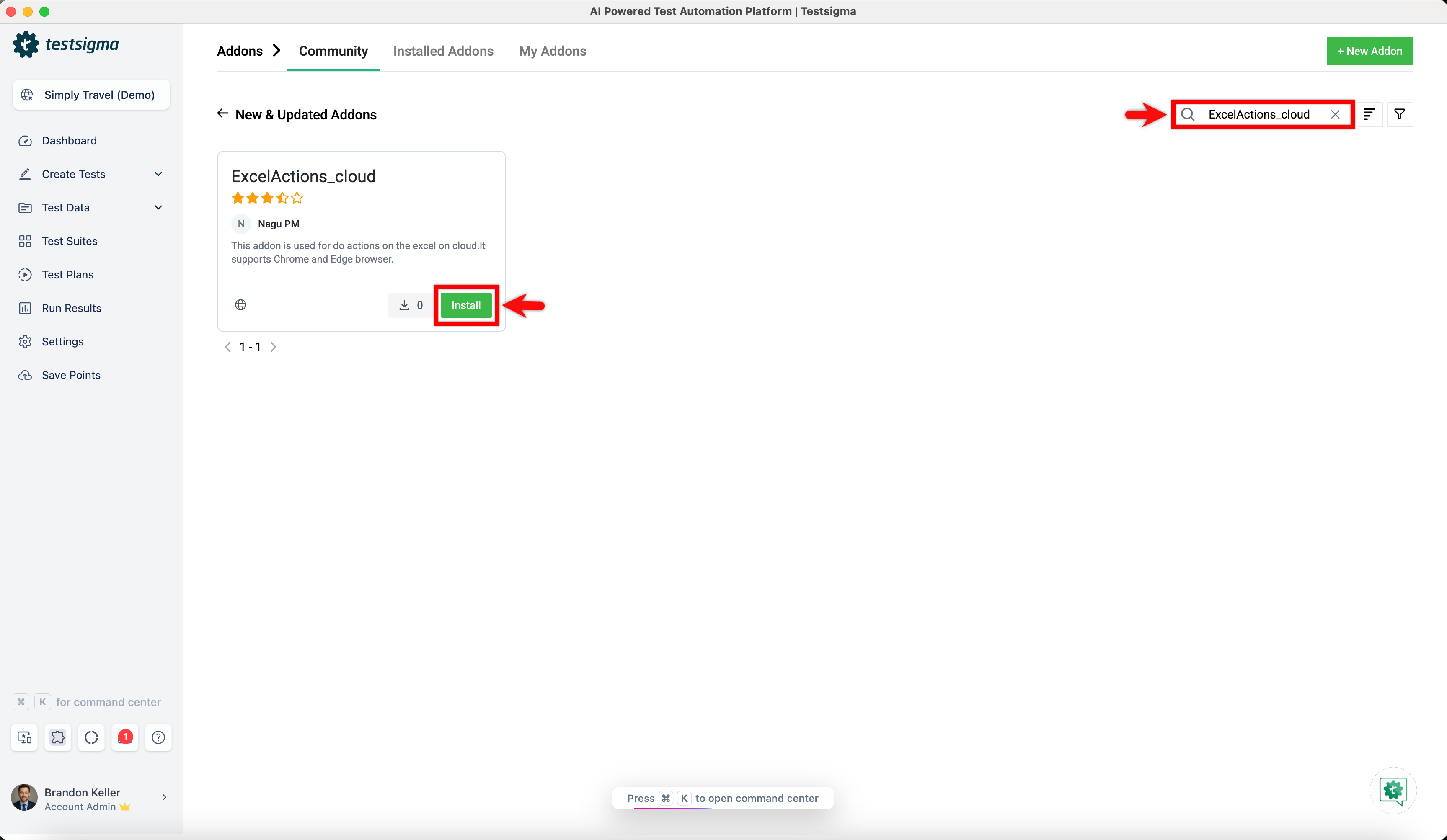
Under the New & Updated Addons section, search for the ExcelActions_cloud addon and click Install.
Steps to Resolve the Issue
Section titled “Steps to Resolve the Issue”-
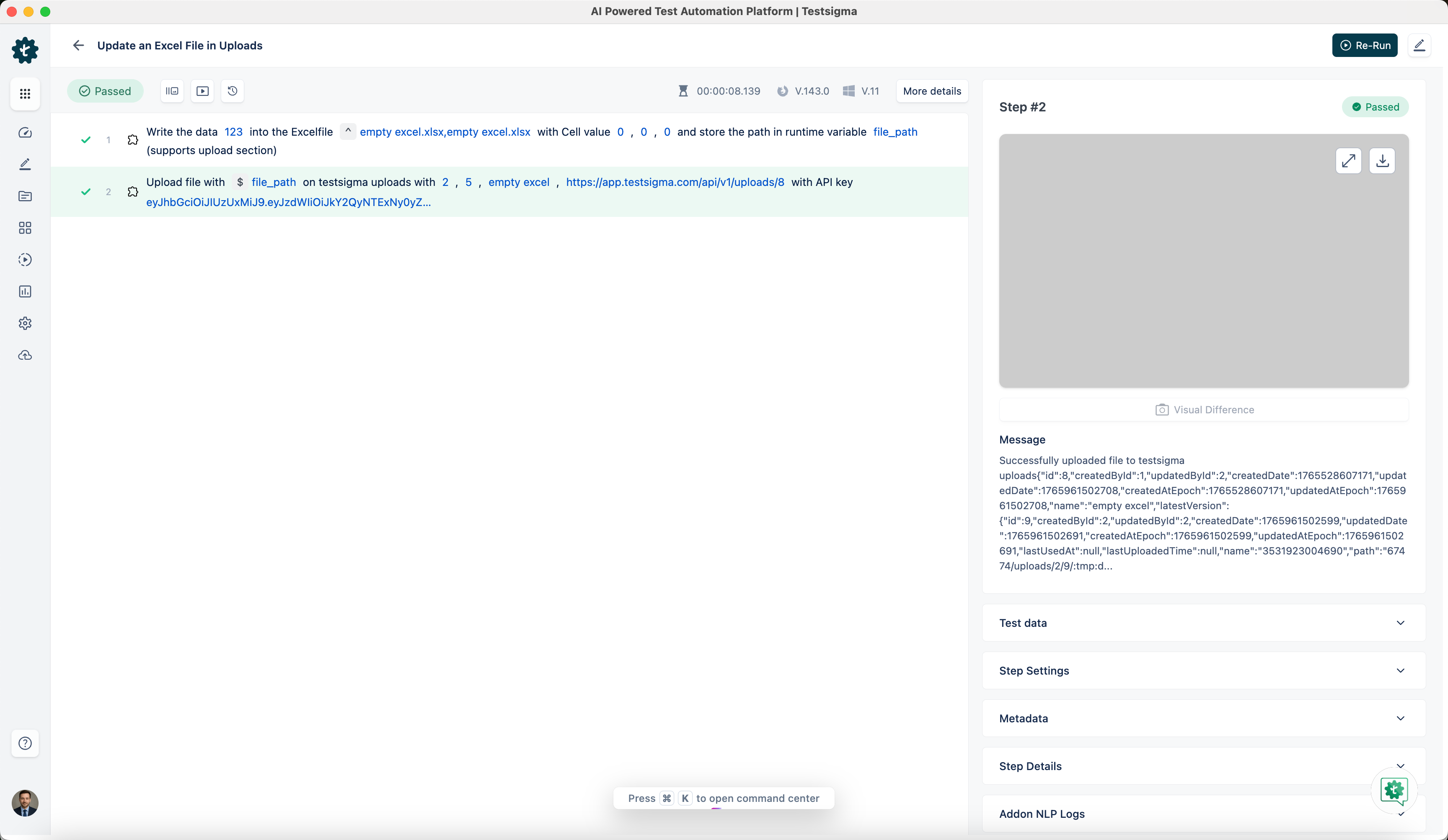
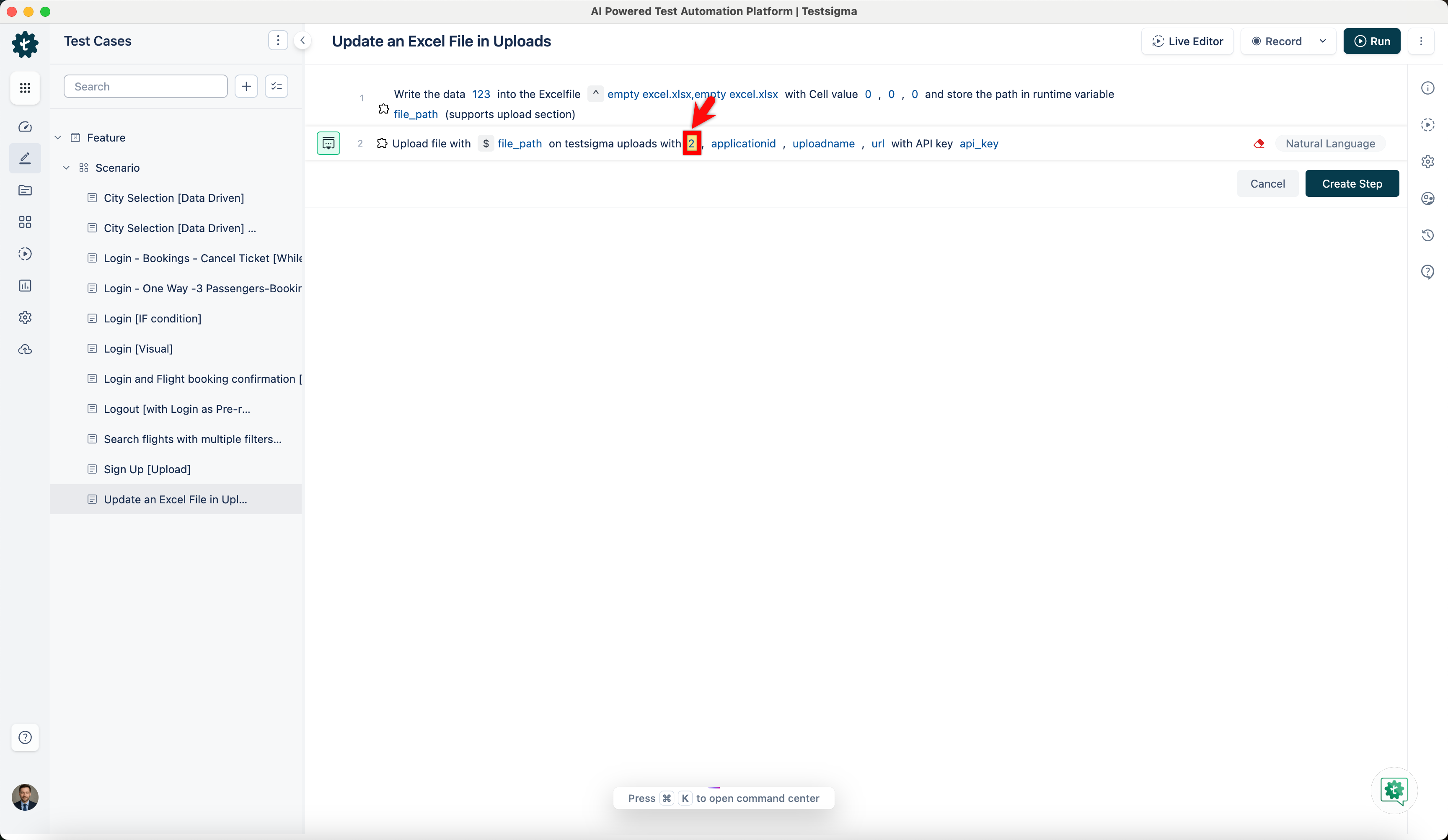
In your test case, first use the Wait the data datavalue into the Excelfile excel-path with Cell value rowNo, columnNo, sheet-index and store the path in runtime variable variable-name (supports upload section) NLP to enter the value that you want to add to the excel file.
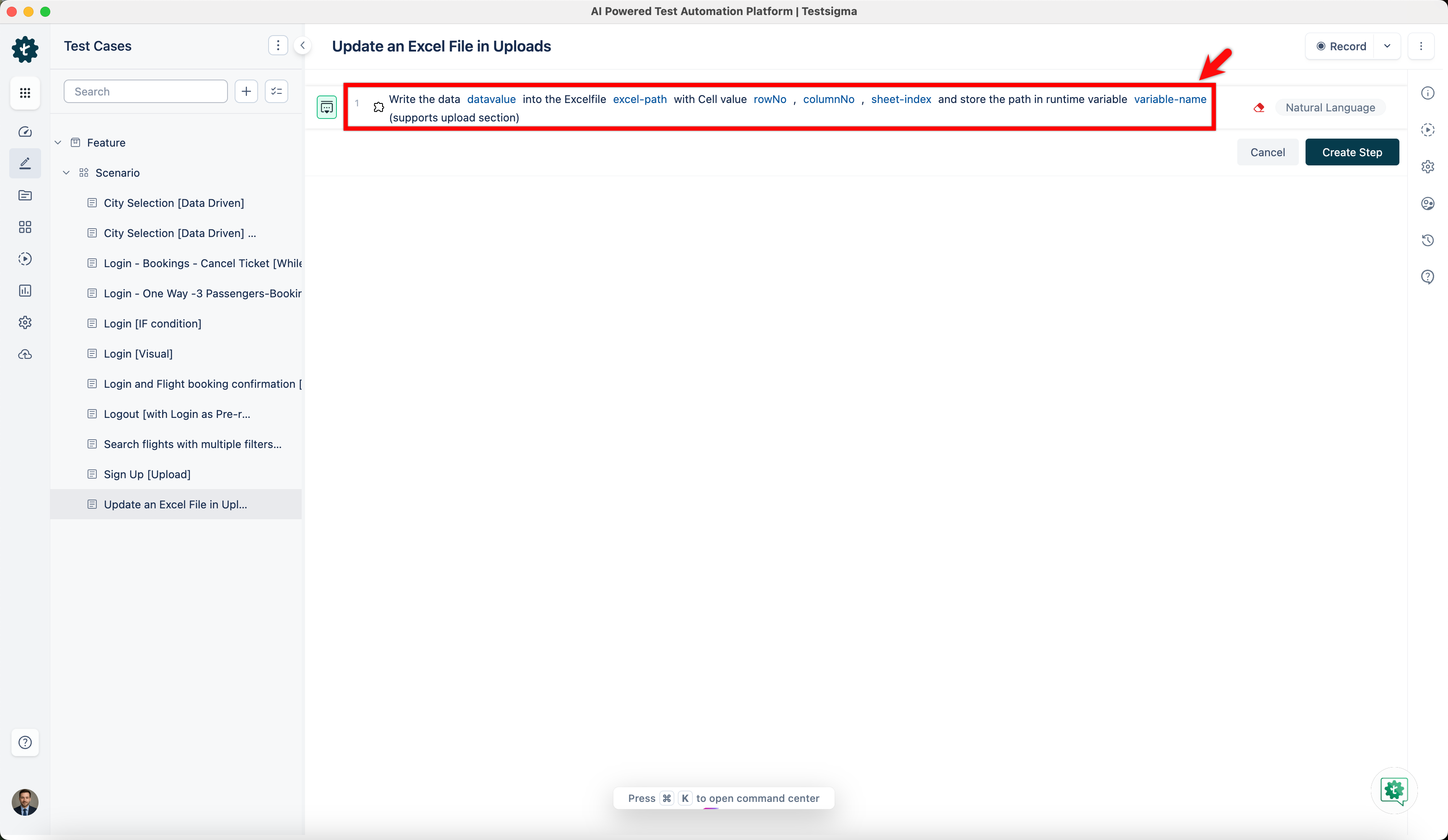
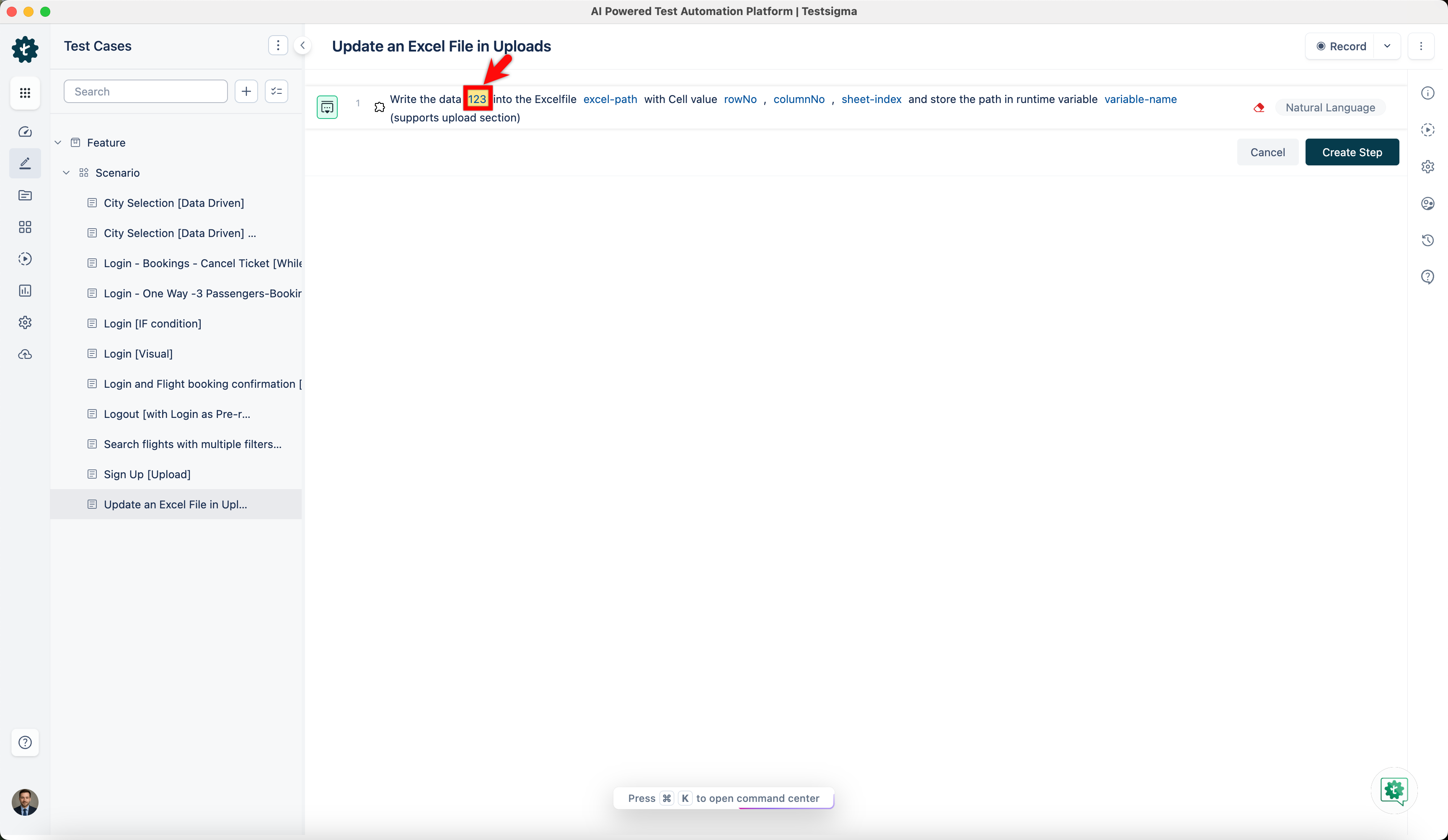
- Enter the value you want to write into the datavalue placeholder.
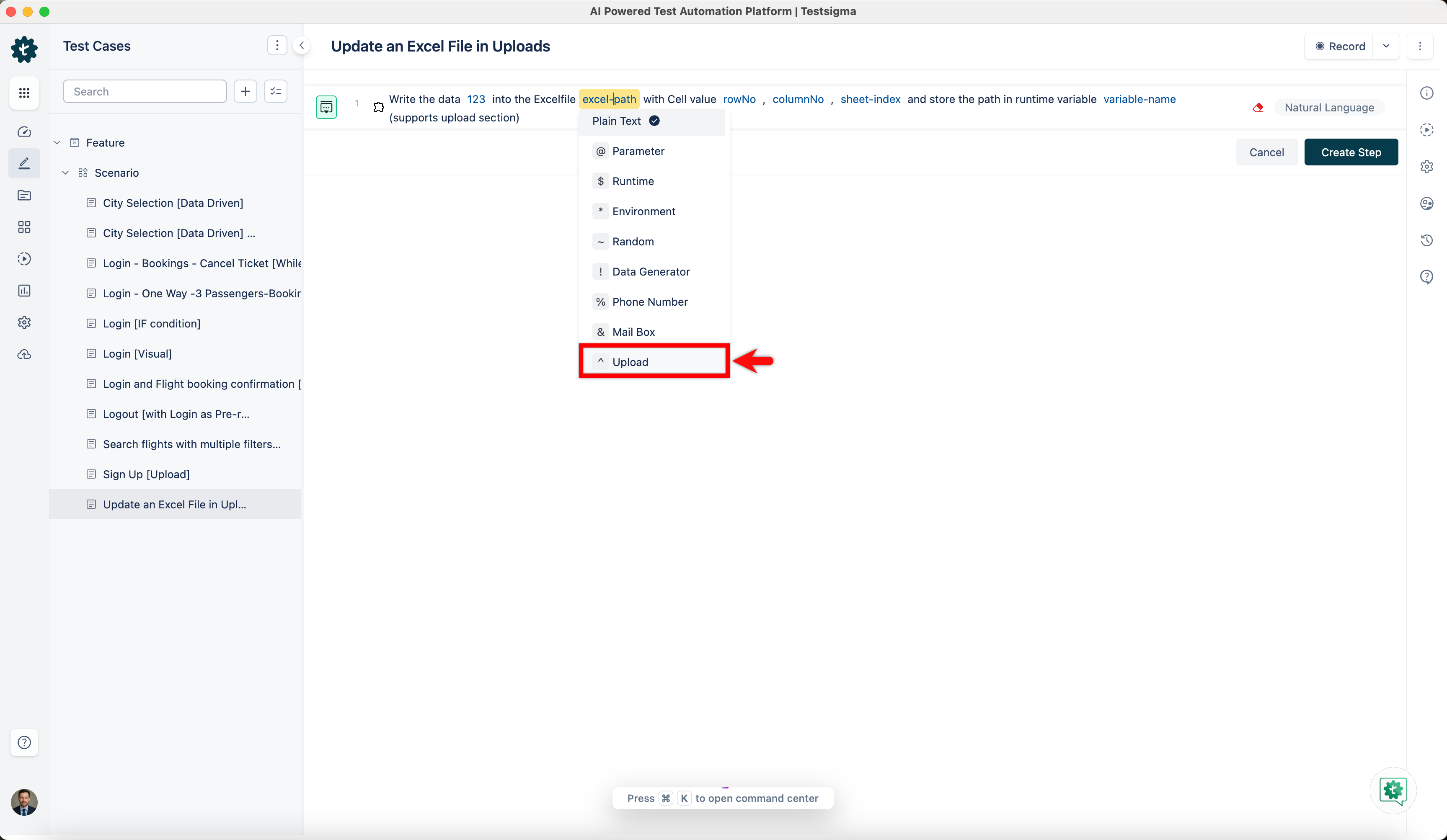
- Click the excel-path placeholder and replace it by selecting Upload from the Test Data Types dropdown.
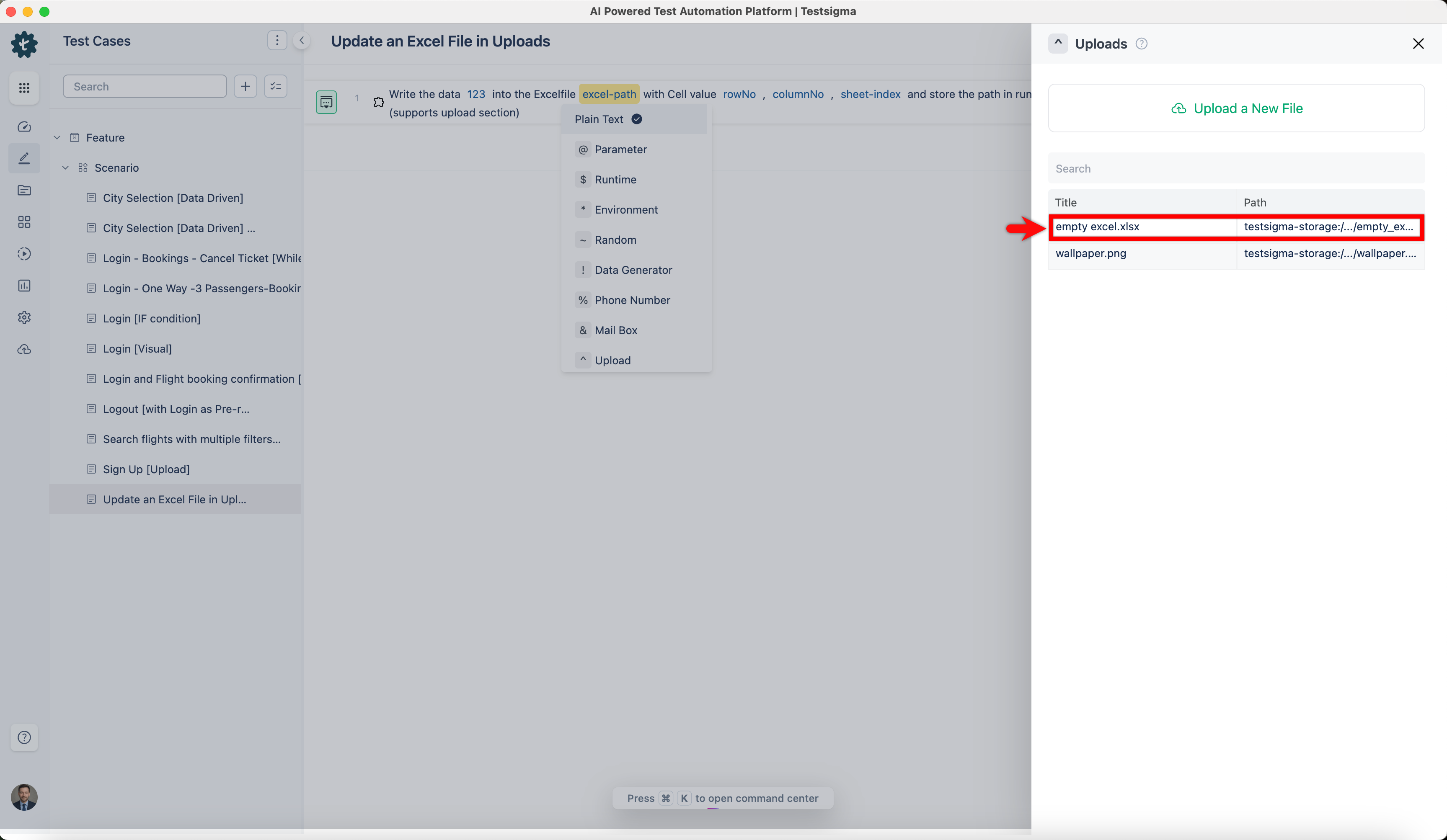
- In the Uploads overlay, choose the Excel file you want to update.
- Specify the row number in the rowNo placeholder.
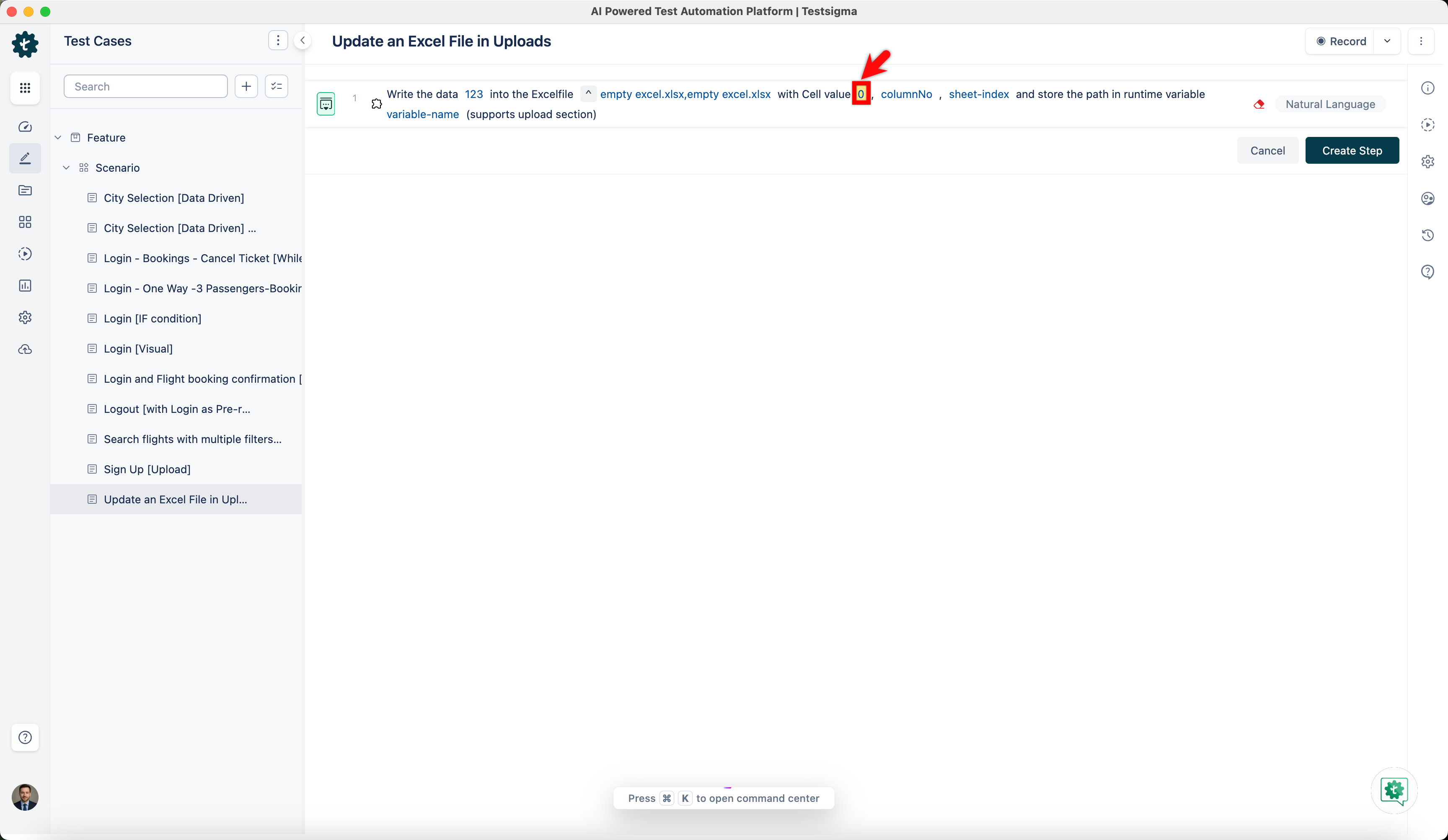
- Specify the column number in the columnNo placeholder.
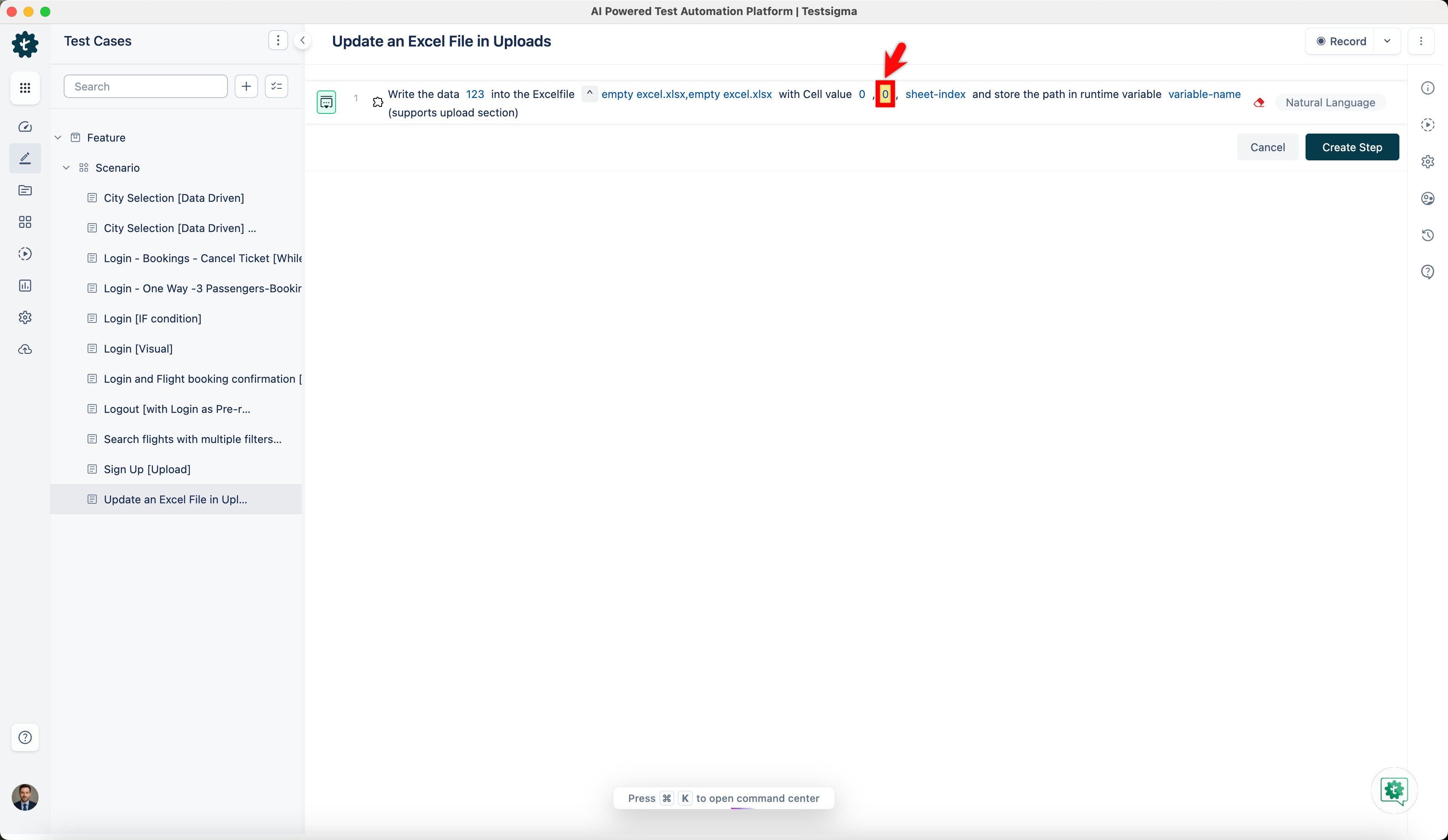
- Specify the sheet number in the sheet-index placeholder.
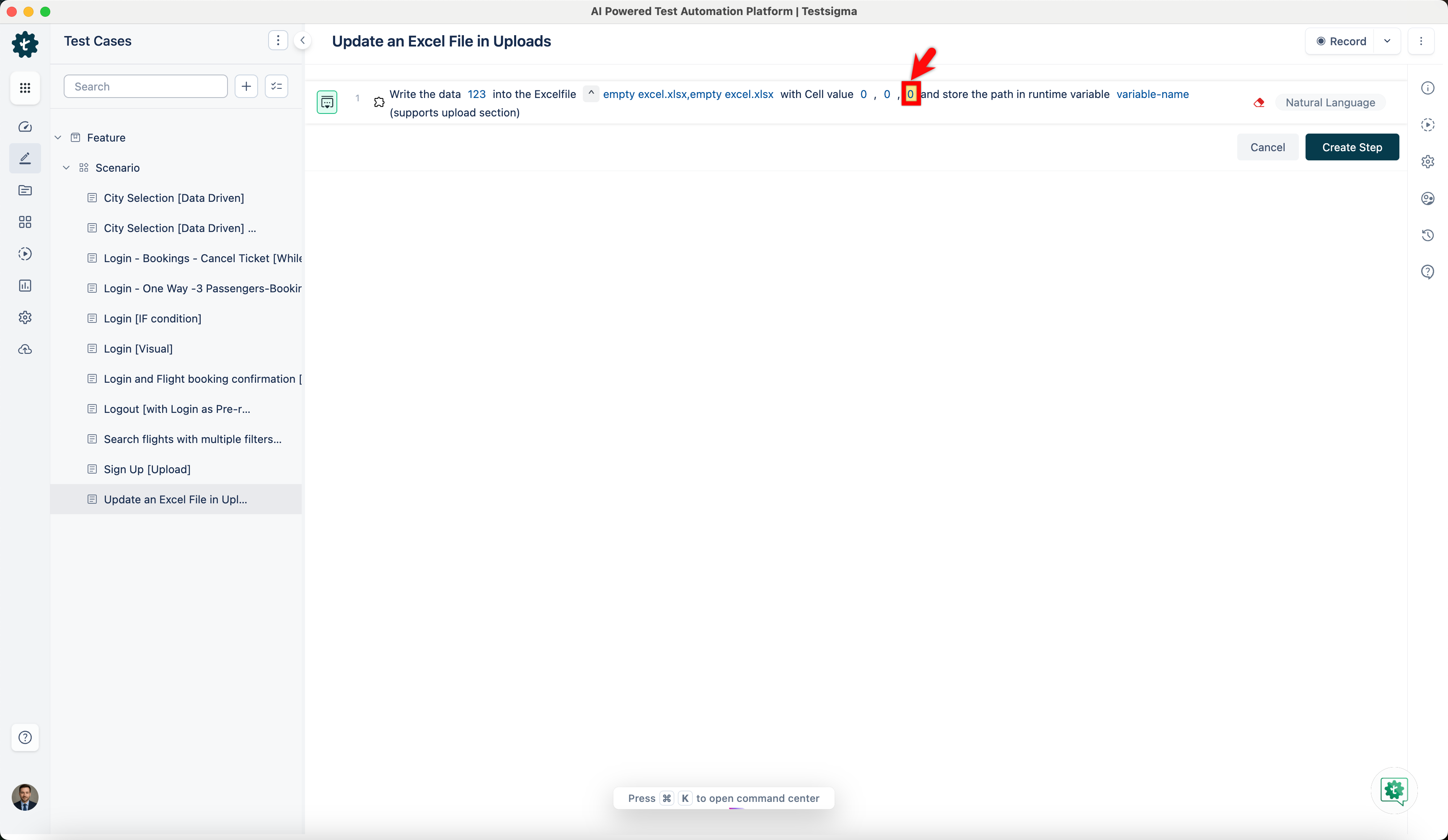
- Enter a variable name in the variable-name placeholder.
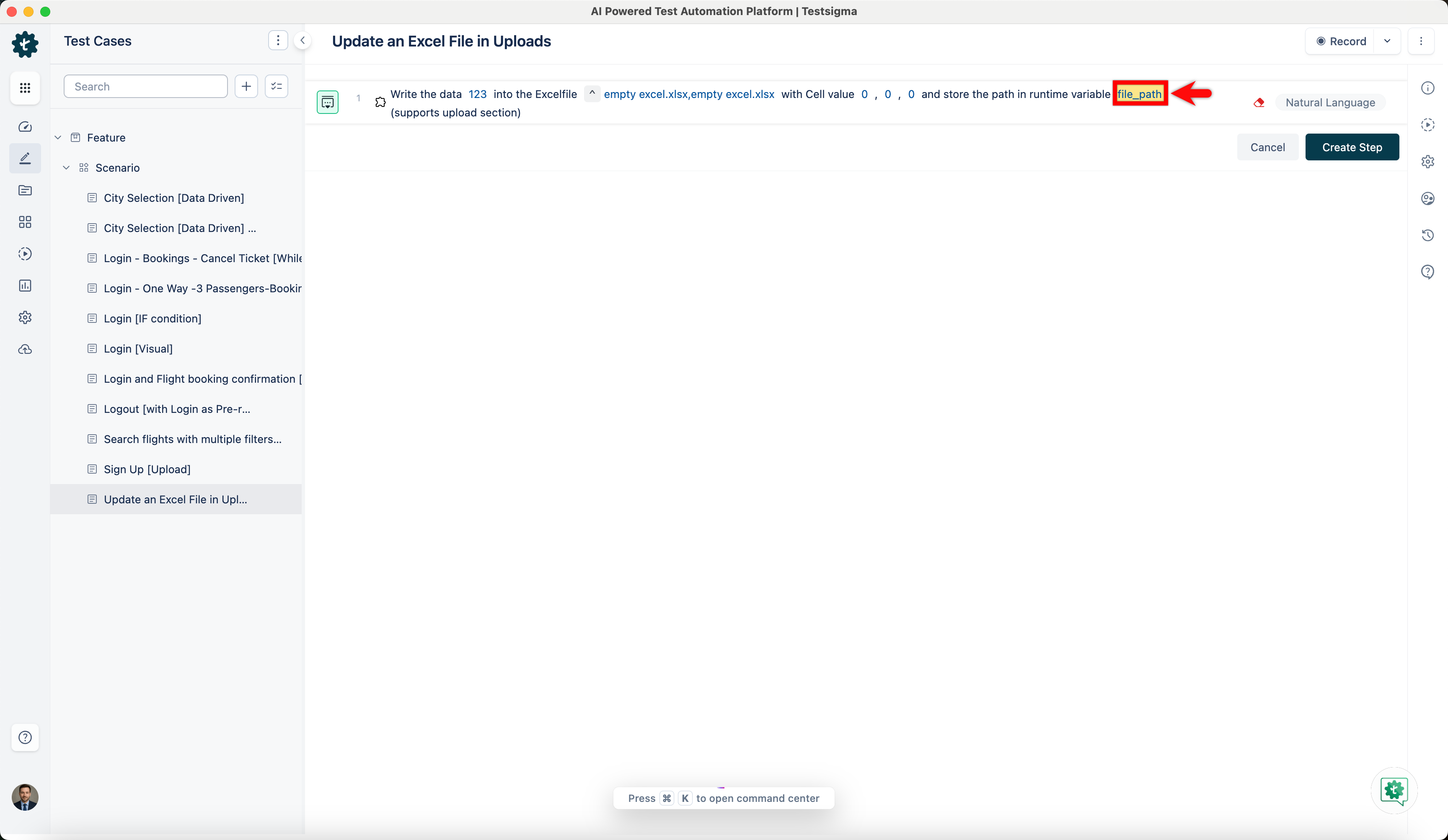
- Click Create Step.
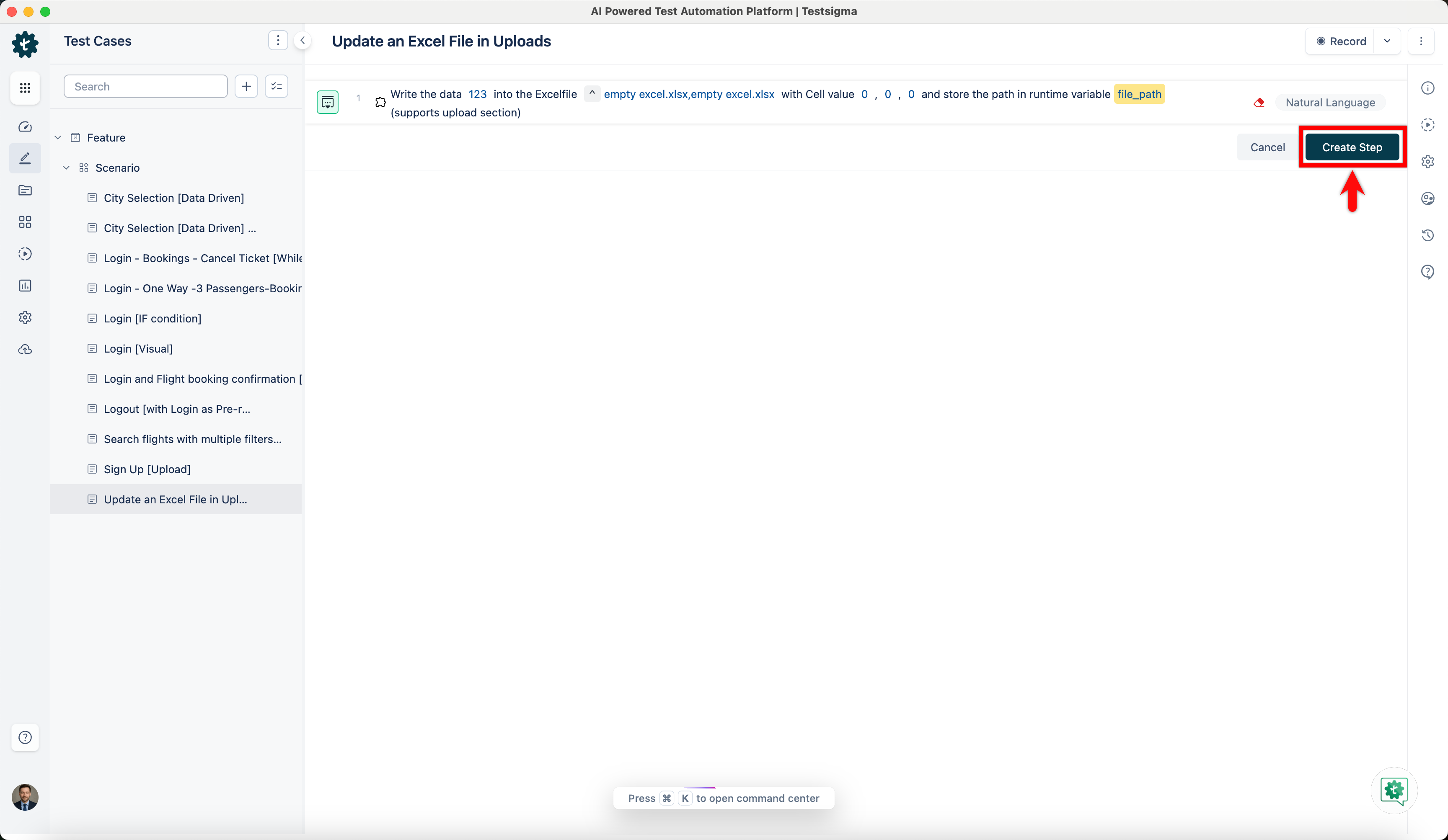
- Enter the value you want to write into the datavalue placeholder.
-
Secondly, use the Upload file with path on testigma uploads with projectid, applicationid, uploadname, url with API key api_key NLP to push the updated file back to your project.
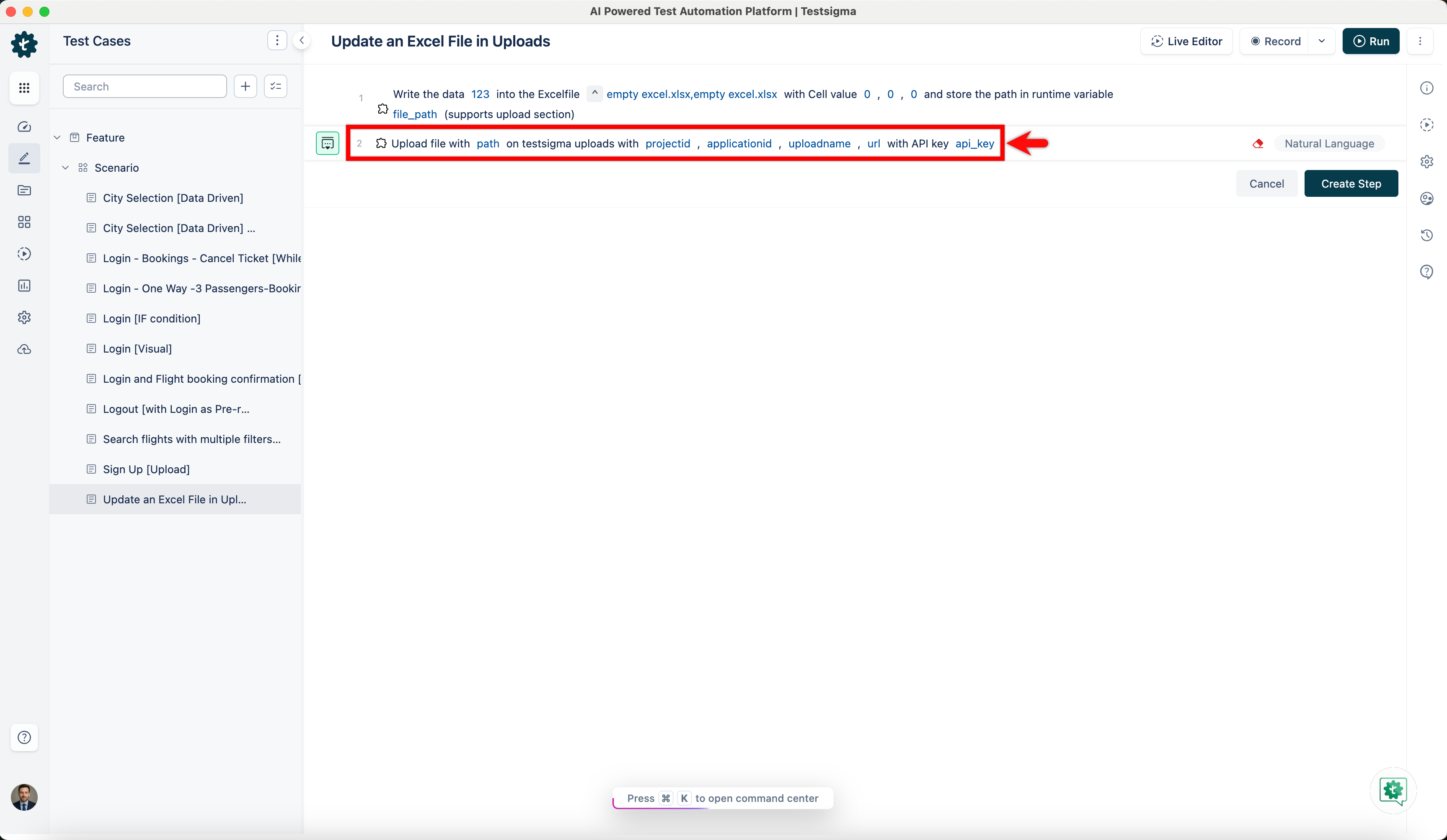
- Click the absolutepath placeholder and replace it by selecting Runtime from the Test Data Types dropdown.
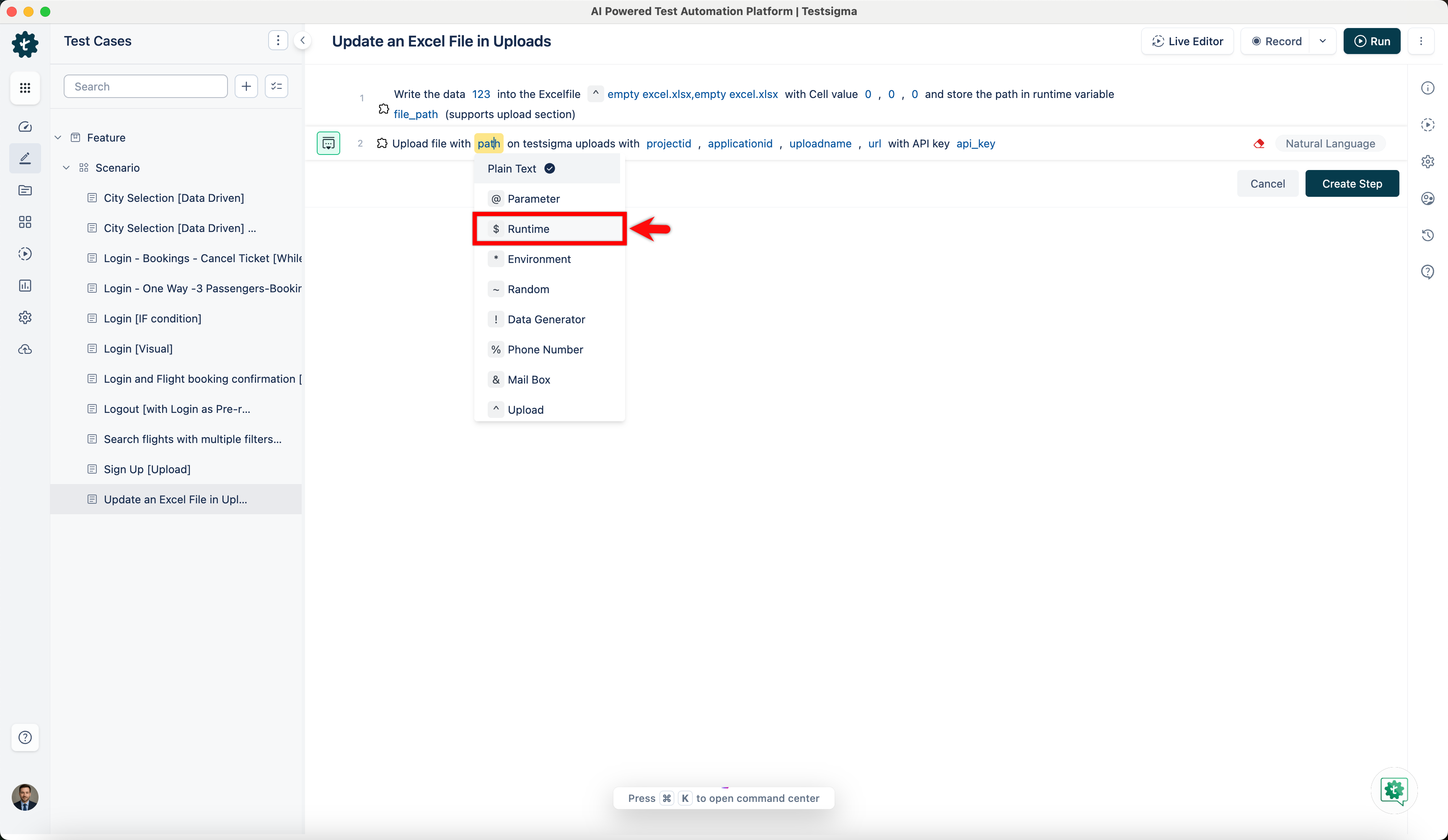
- In the Runtime Variable overlay, select the runtime variable you created in the previous step.
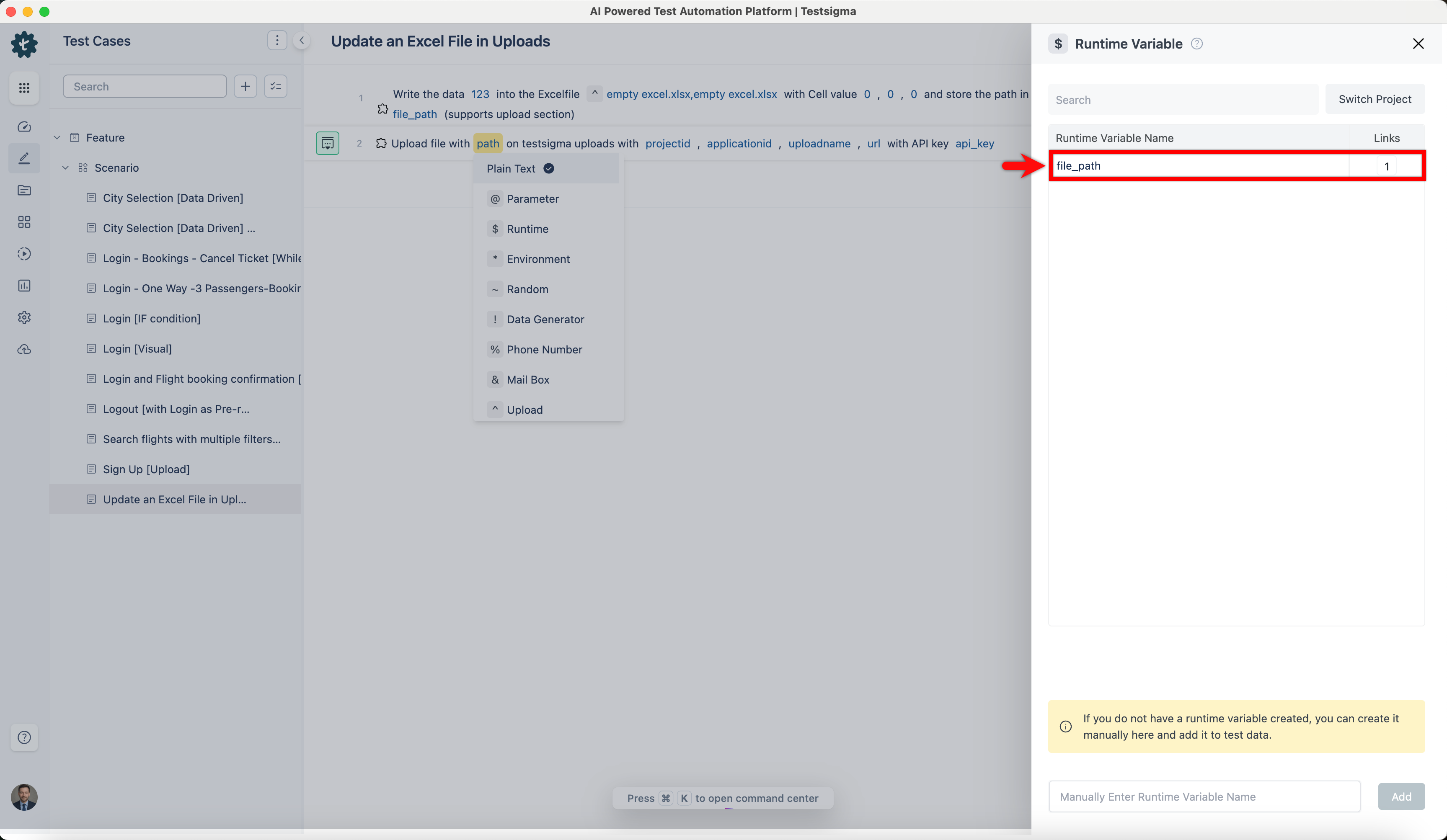
- Click the projectid placeholder and enter your project id.
 [[info | NOTE:]]
| To get project id and application id use the following steps:
| 1. Before you begin, open the inspect panel and refresh the page. Now, right-click on the application name and select Inspect.
[[info | NOTE:]]
| To get project id and application id use the following steps:
| 1. Before you begin, open the inspect panel and refresh the page. Now, right-click on the application name and select Inspect.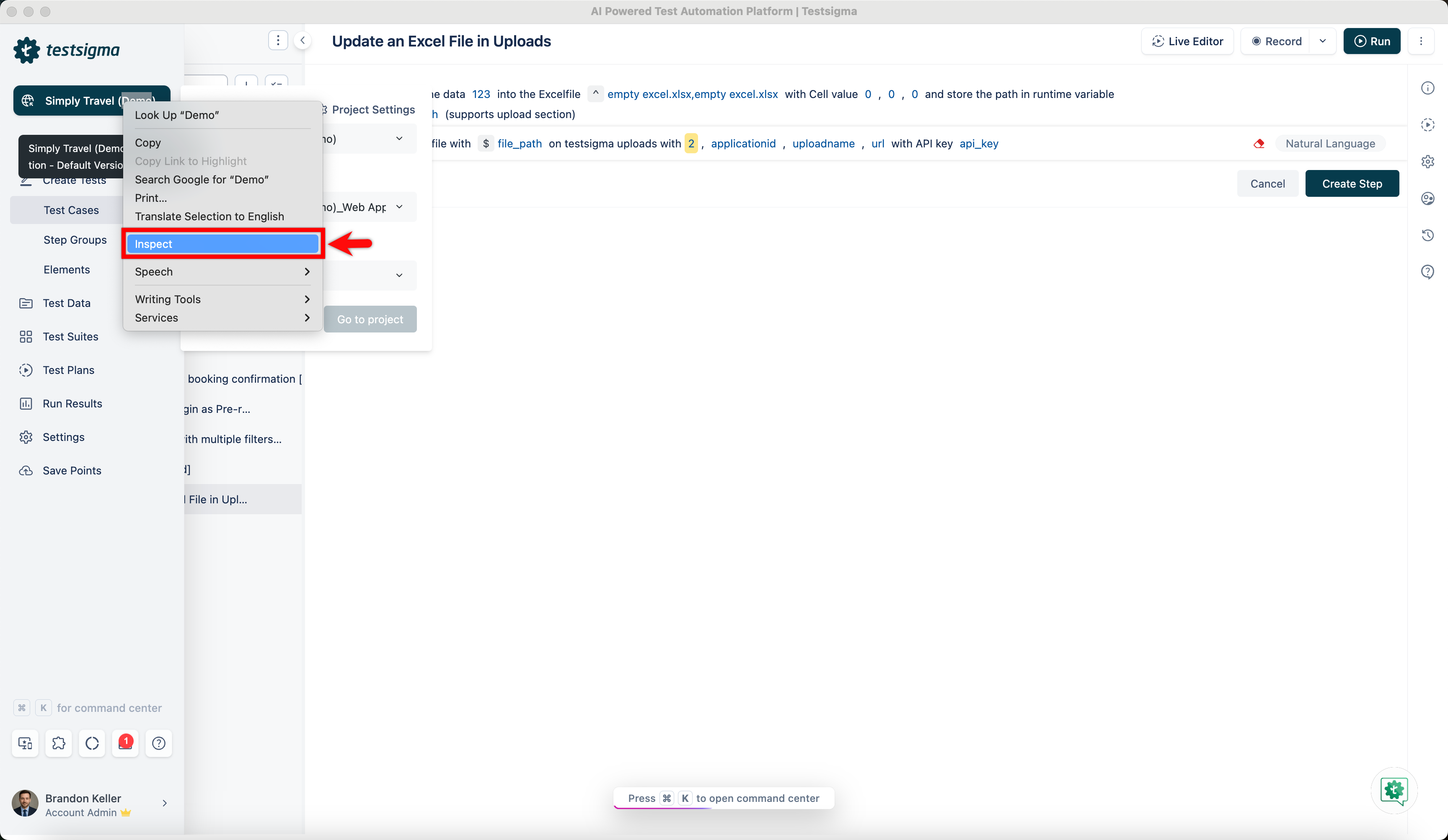 | 2. Go to the Network tab and refresh the page.
 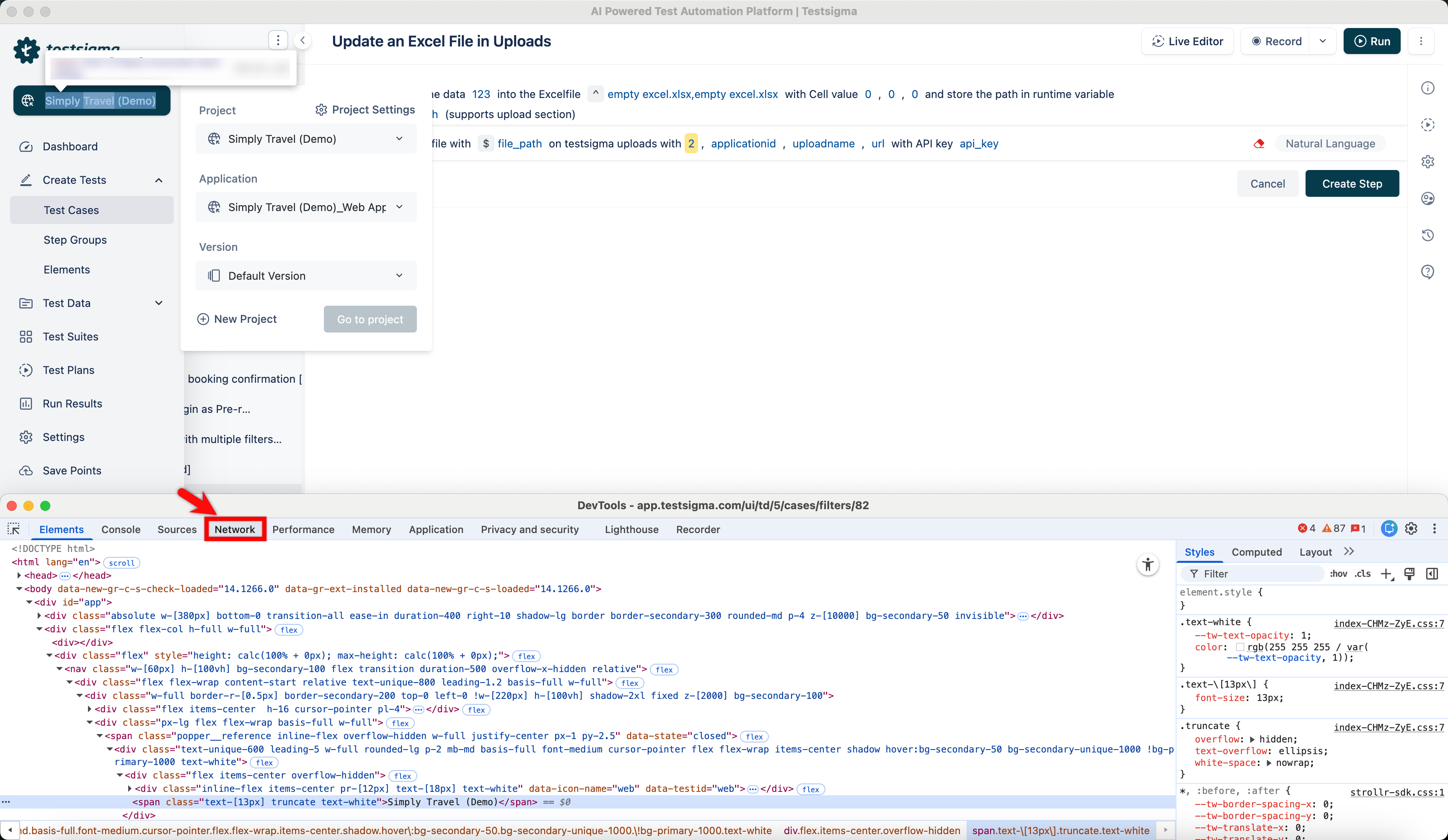 | 3. Click applications query.
 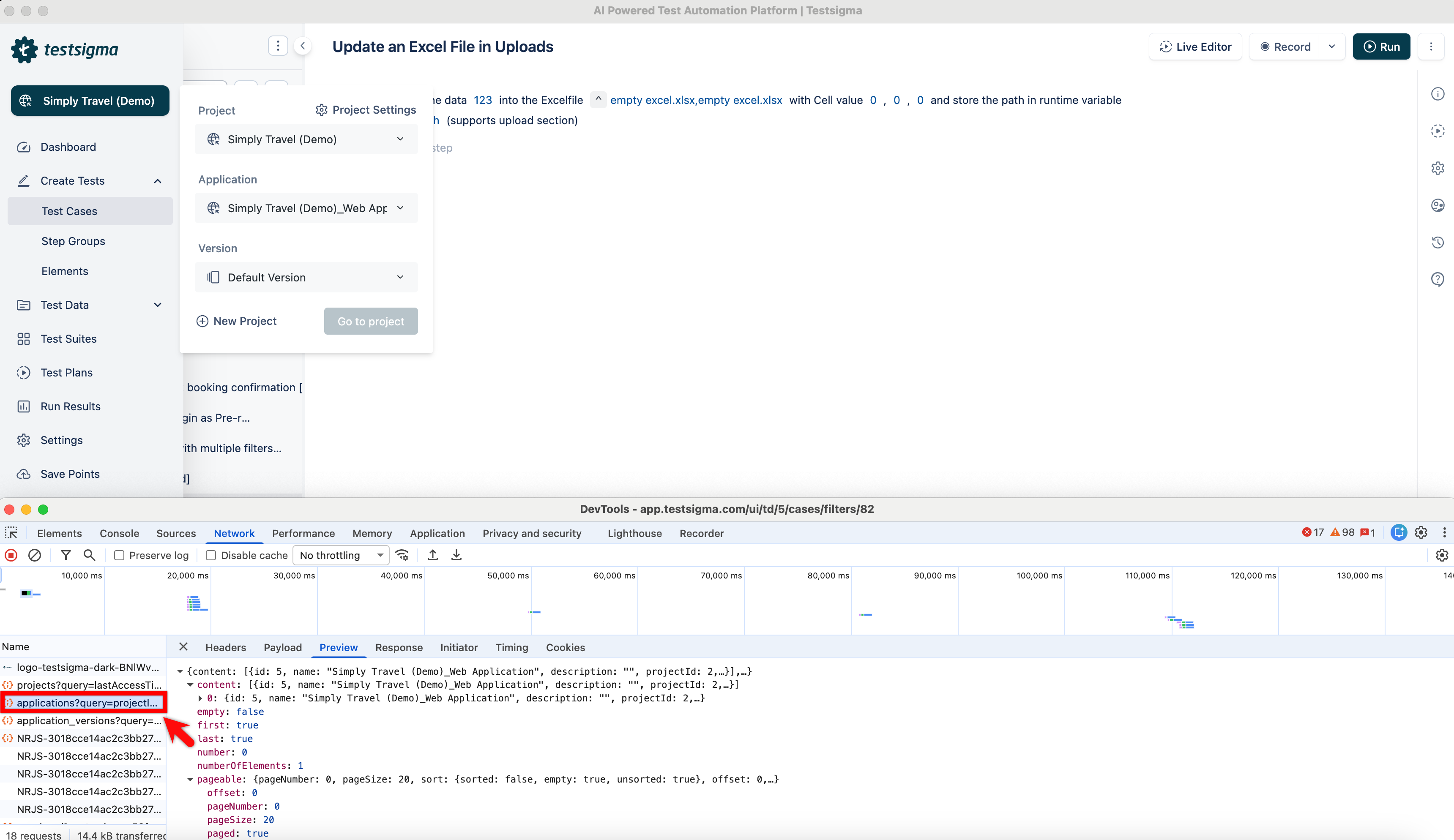 | 4. Here you can find your projectId and applicationId under the Preview tab.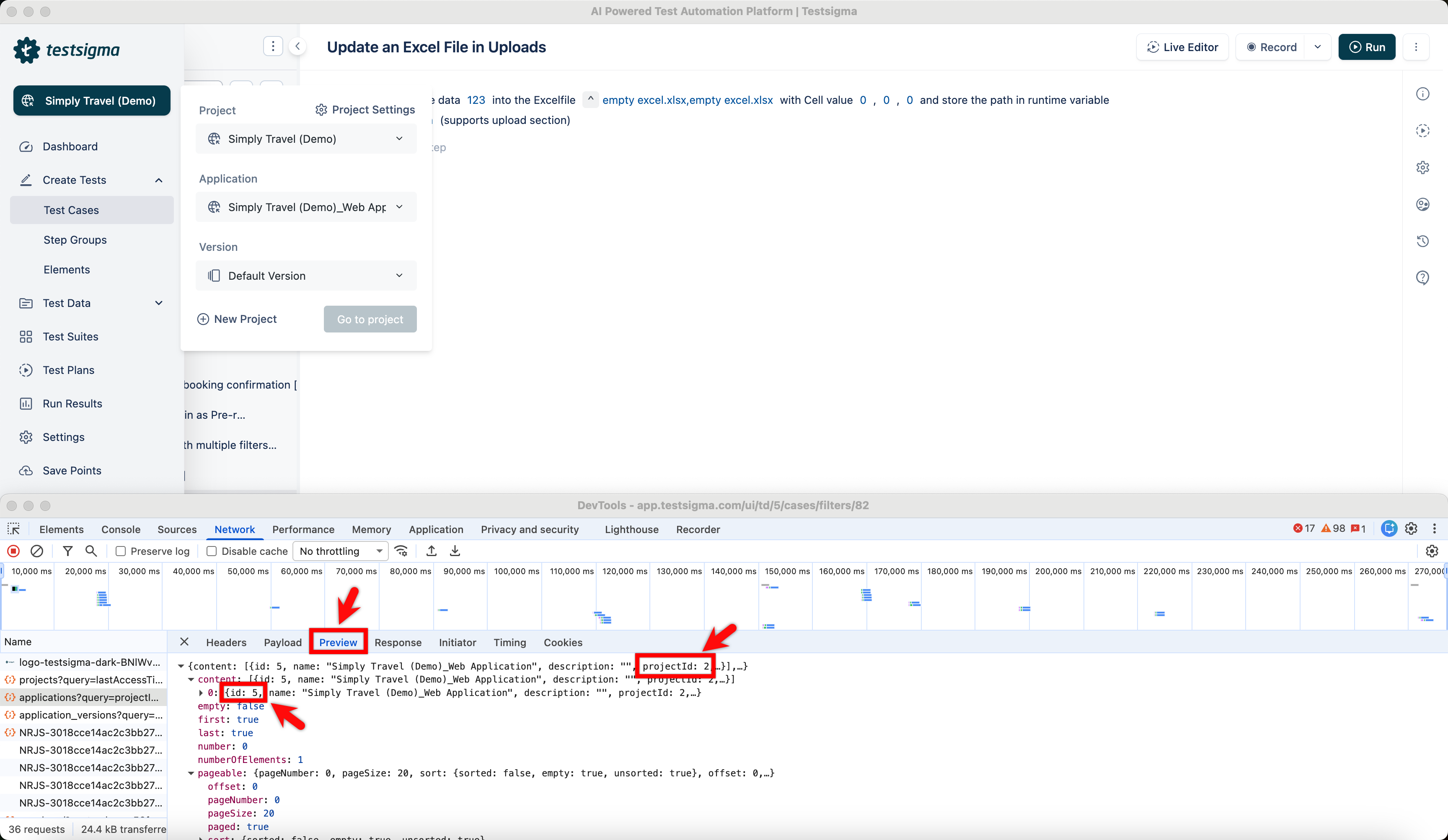
- Click the applicationid placeholder and enter your application id.
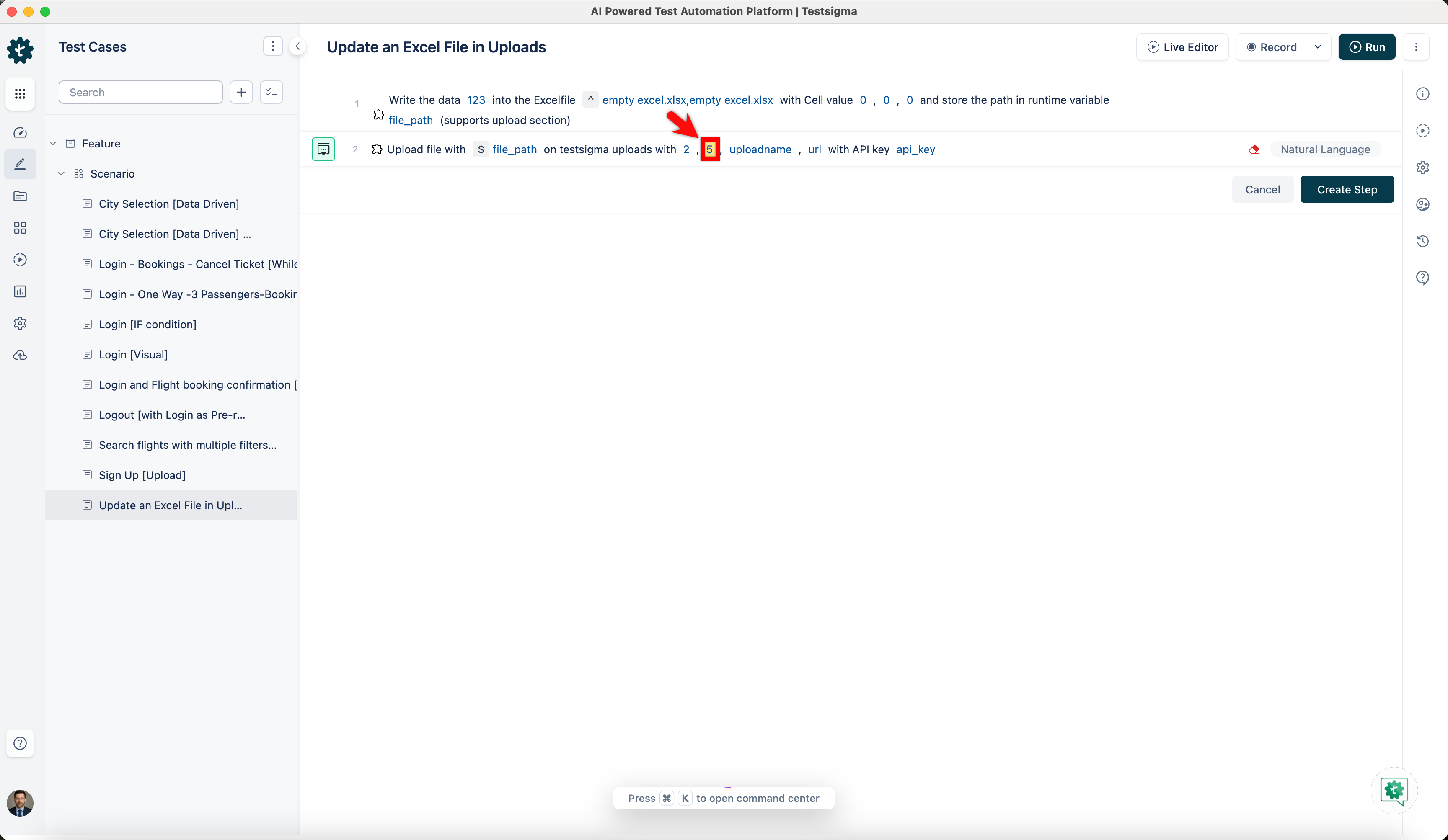
- Click the uploadname placeholder and enter your excel file’s name.
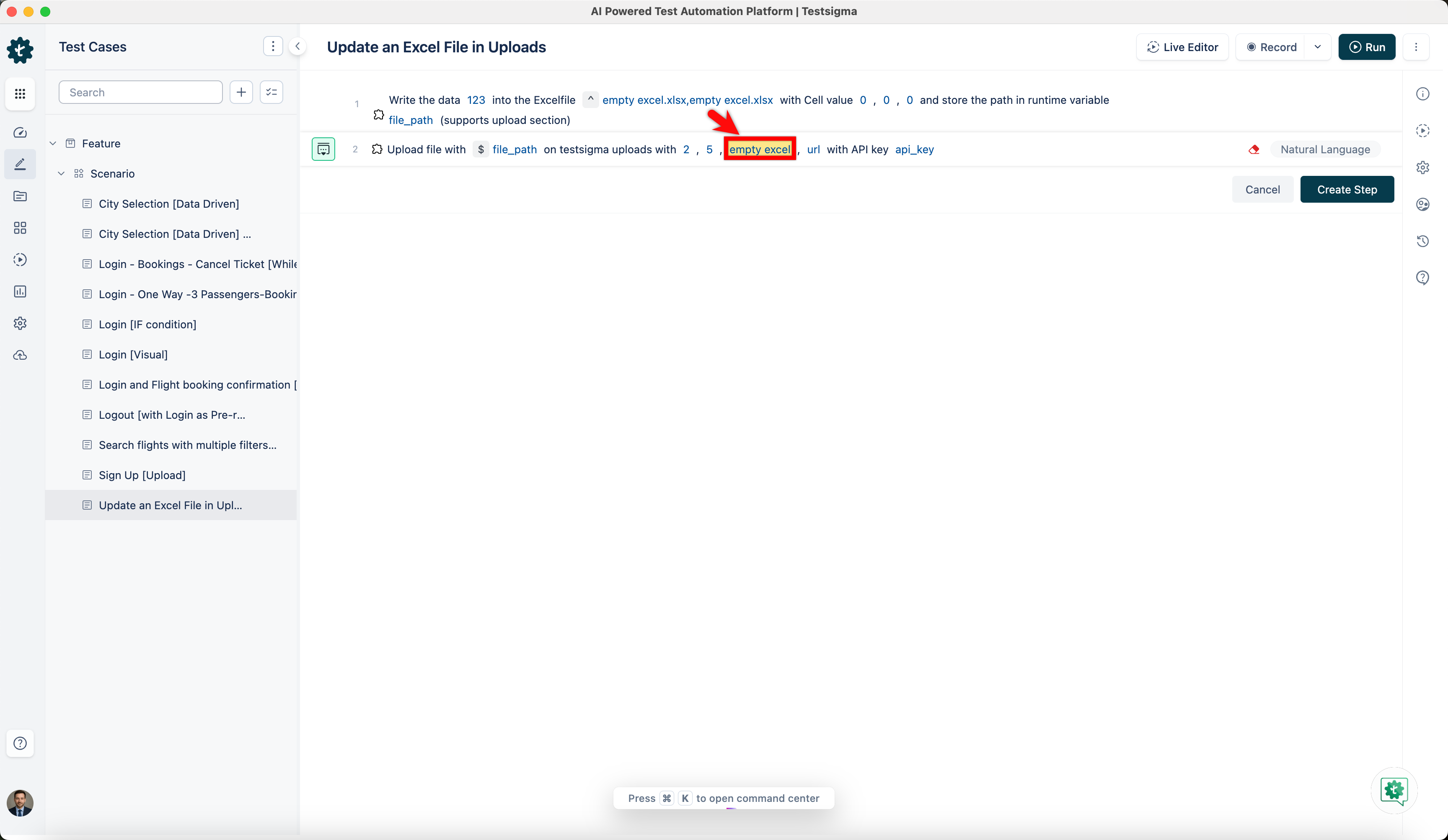 [[info | NOTE:]]
| To get uploadname and upload id, go to Uploads and hover over the excel file you want to update.
[[info | NOTE:]]
| To get uploadname and upload id, go to Uploads and hover over the excel file you want to update. 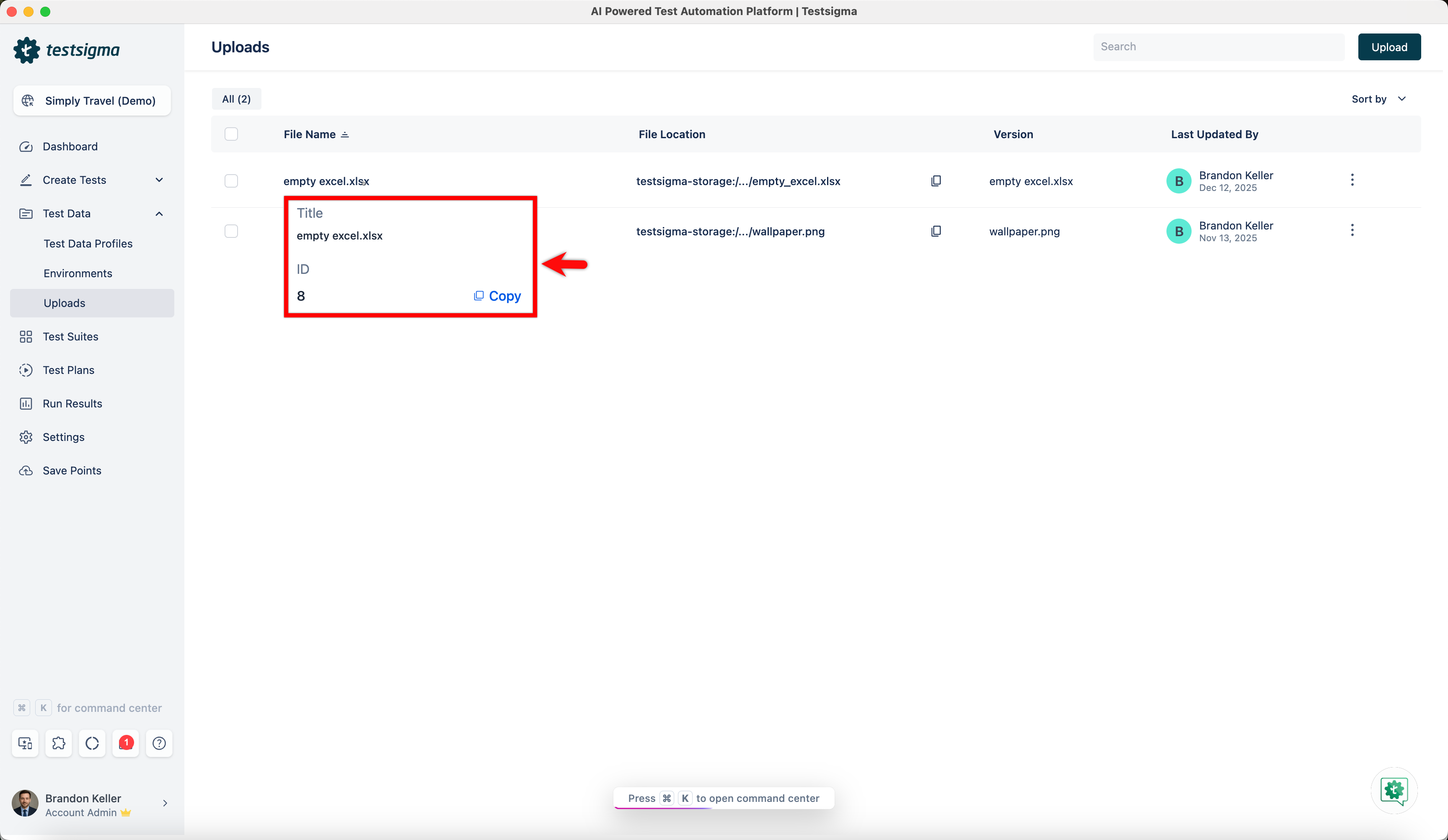
- Enter the following URL https://app.testsigma.com/api/v1/uploads/{ID} and replace
with the upload ID copied from the Uploads page. For example, https://app.testsigma.com/api/v1/uploads/8 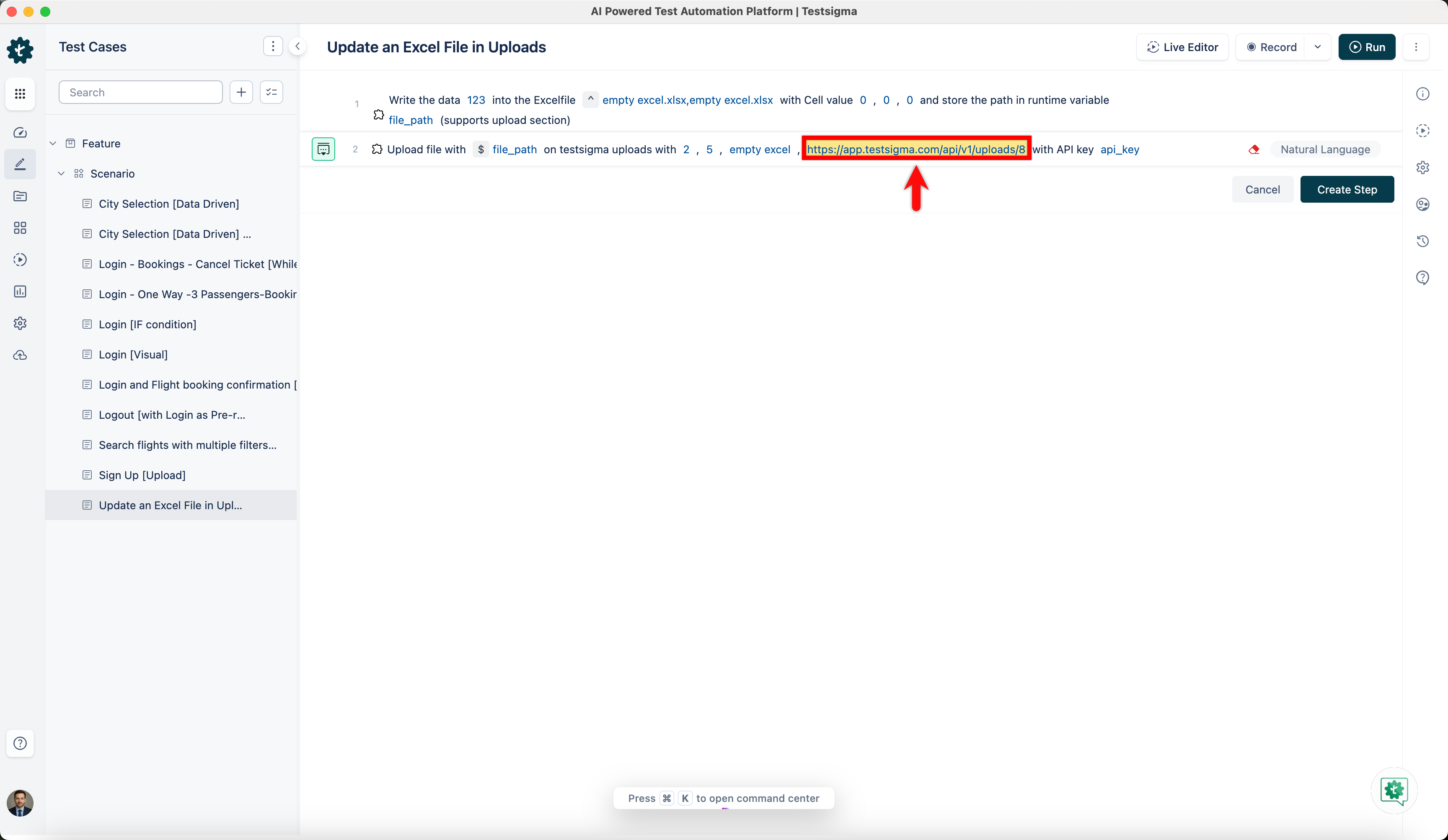
- Enter the api key in the testdata placeholder.
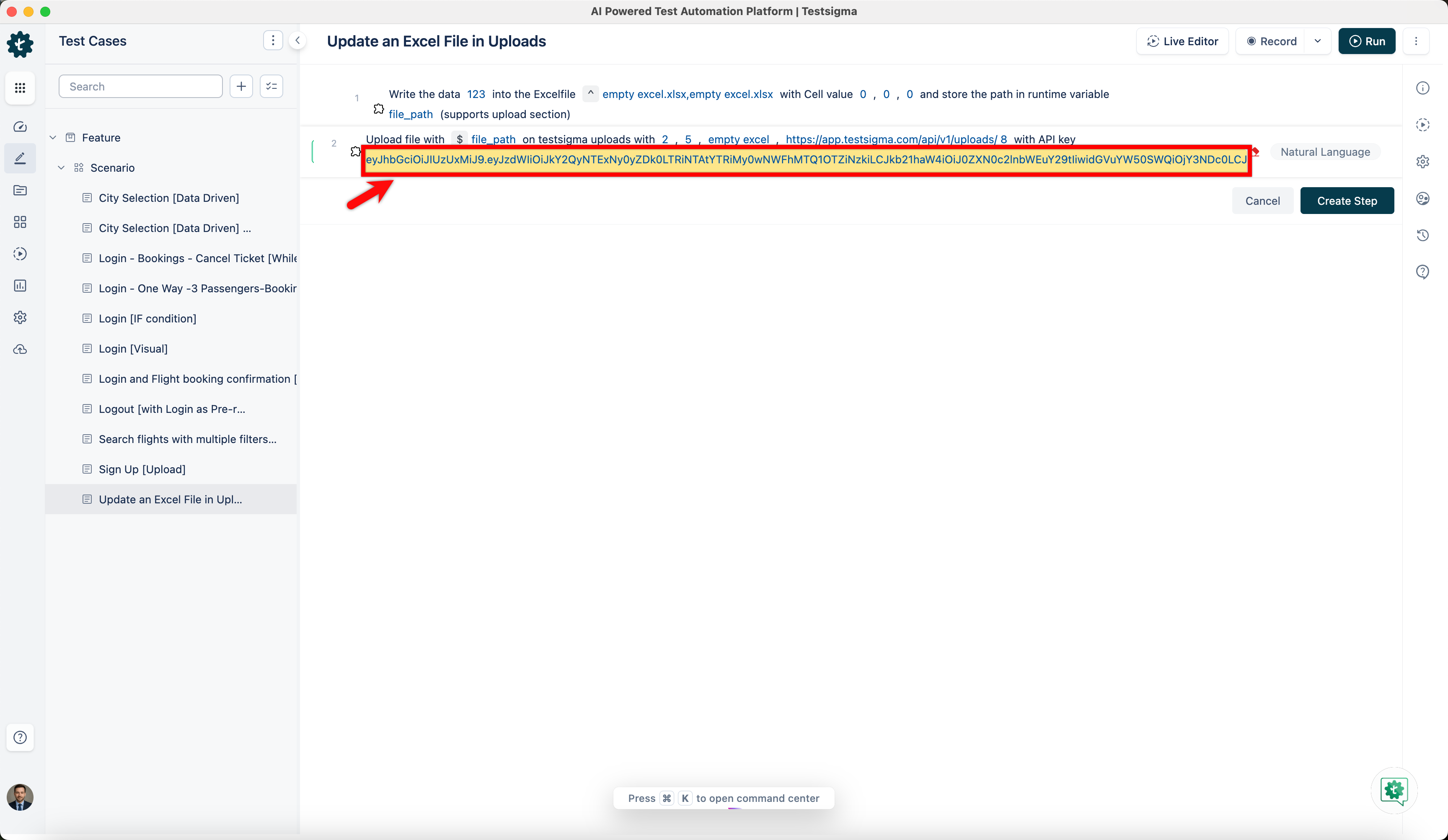 [[info | NOTE:]]
| Please refer to the documentation on generating api keys.
[[info | NOTE:]]
| Please refer to the documentation on generating api keys. - Click Create Step.
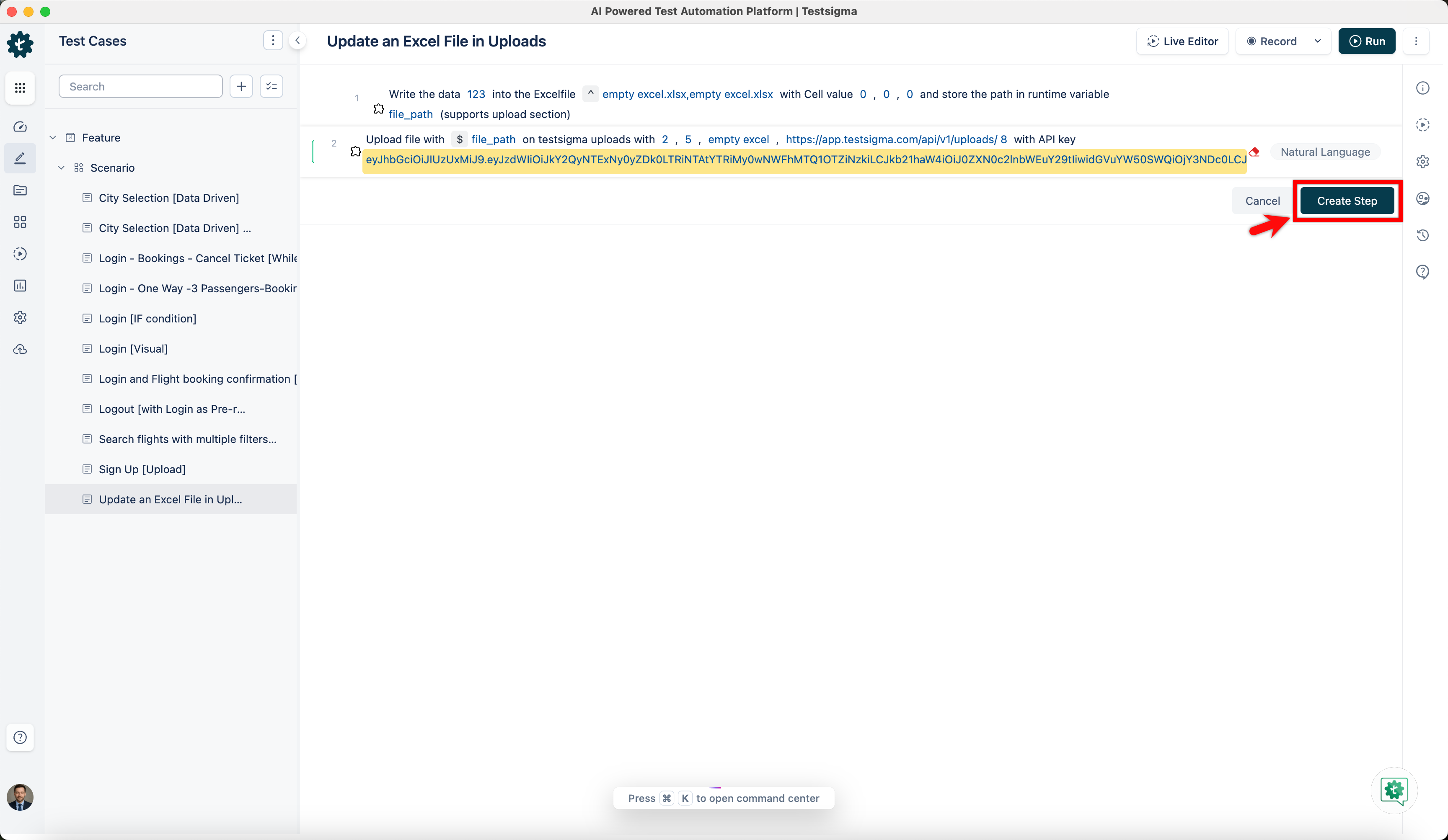
- Click the absolutepath placeholder and replace it by selecting Runtime from the Test Data Types dropdown.
After you execute it, here’s how it looks: