Test Capture
Capture Logs Using Test Capture
Capture Logs During Test Execution
Section titled “Capture Logs During Test Execution”-
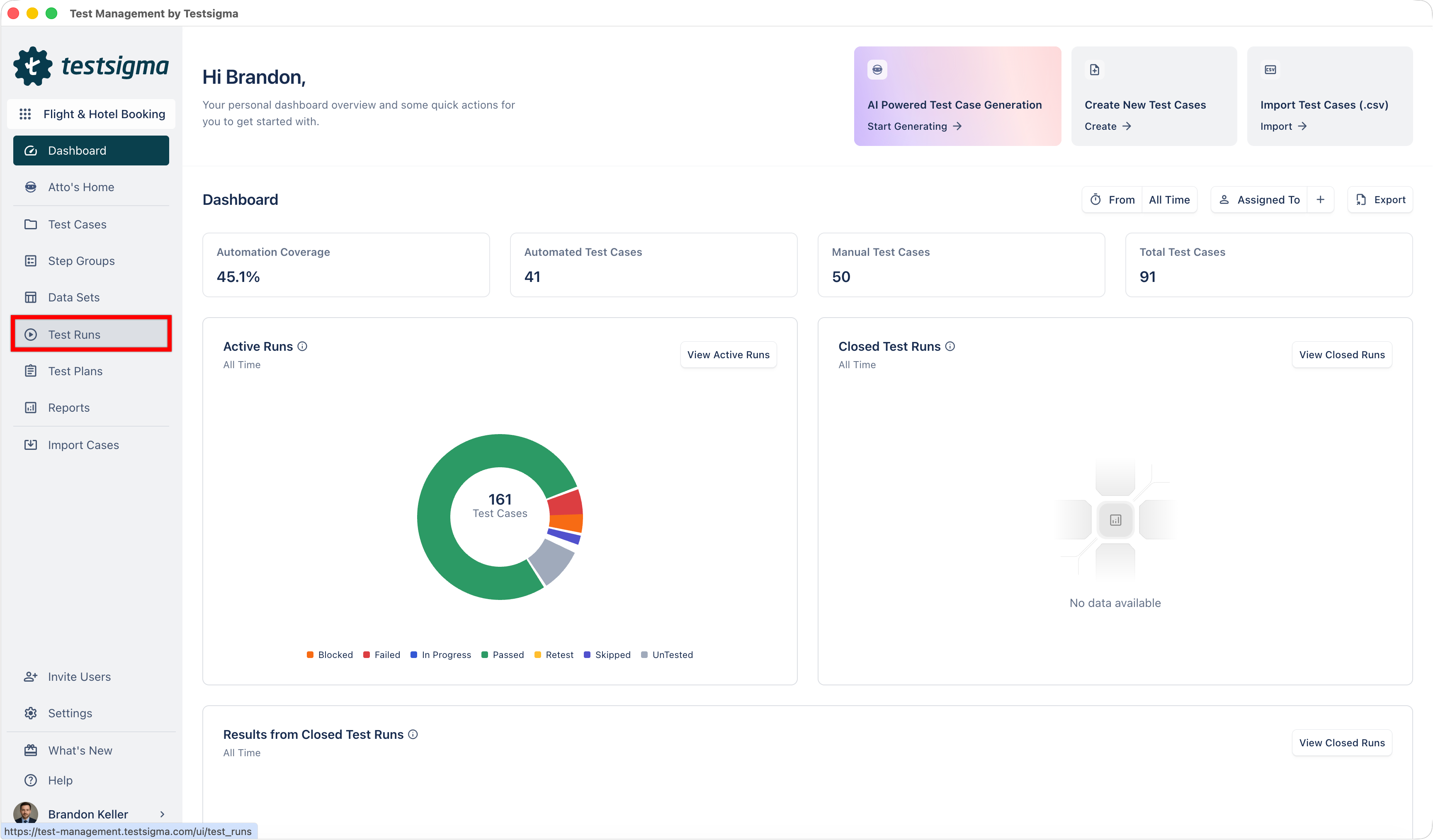
From the left navigation bar, go to Test Runs.
-
Open a test run.
-
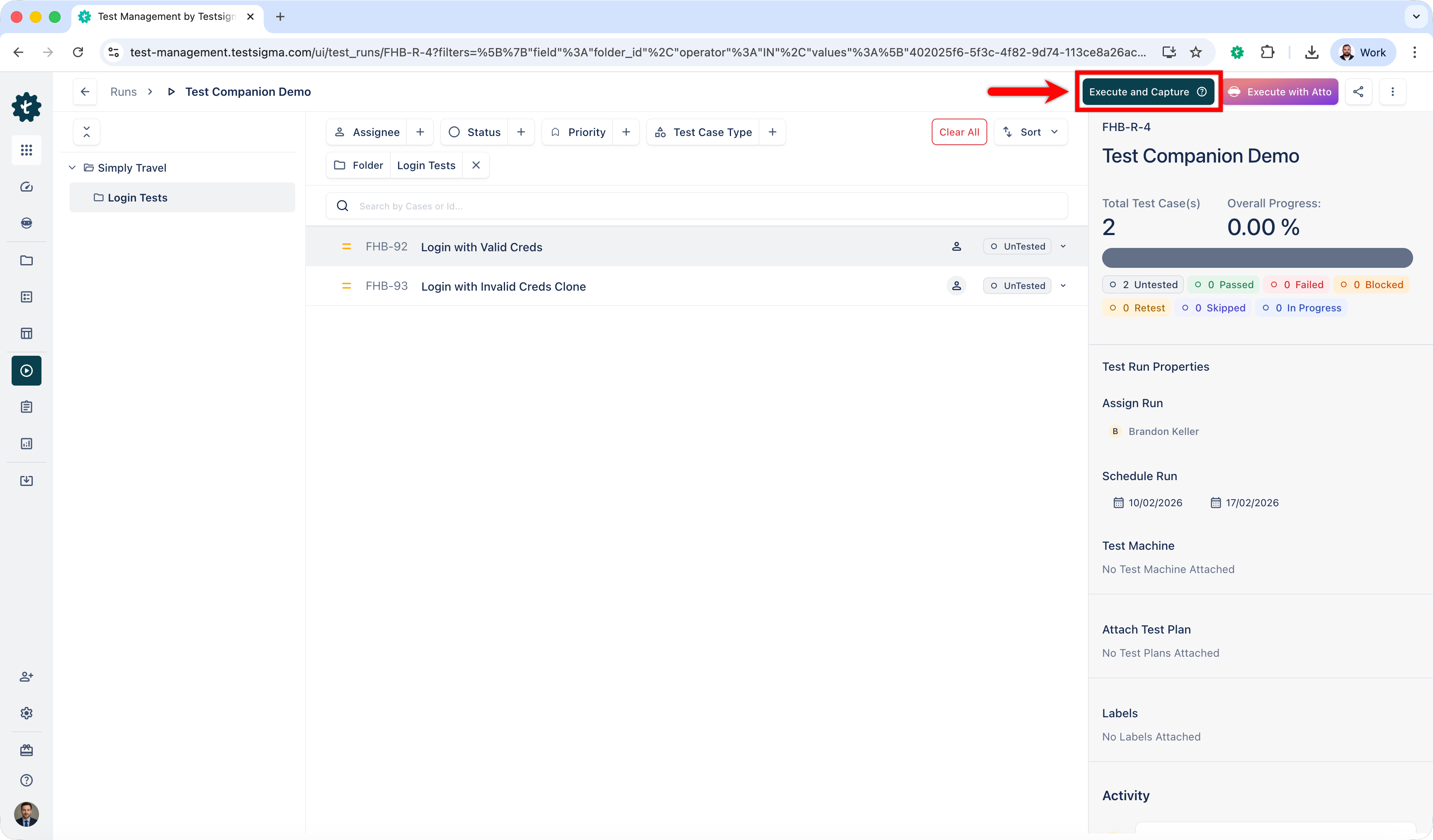
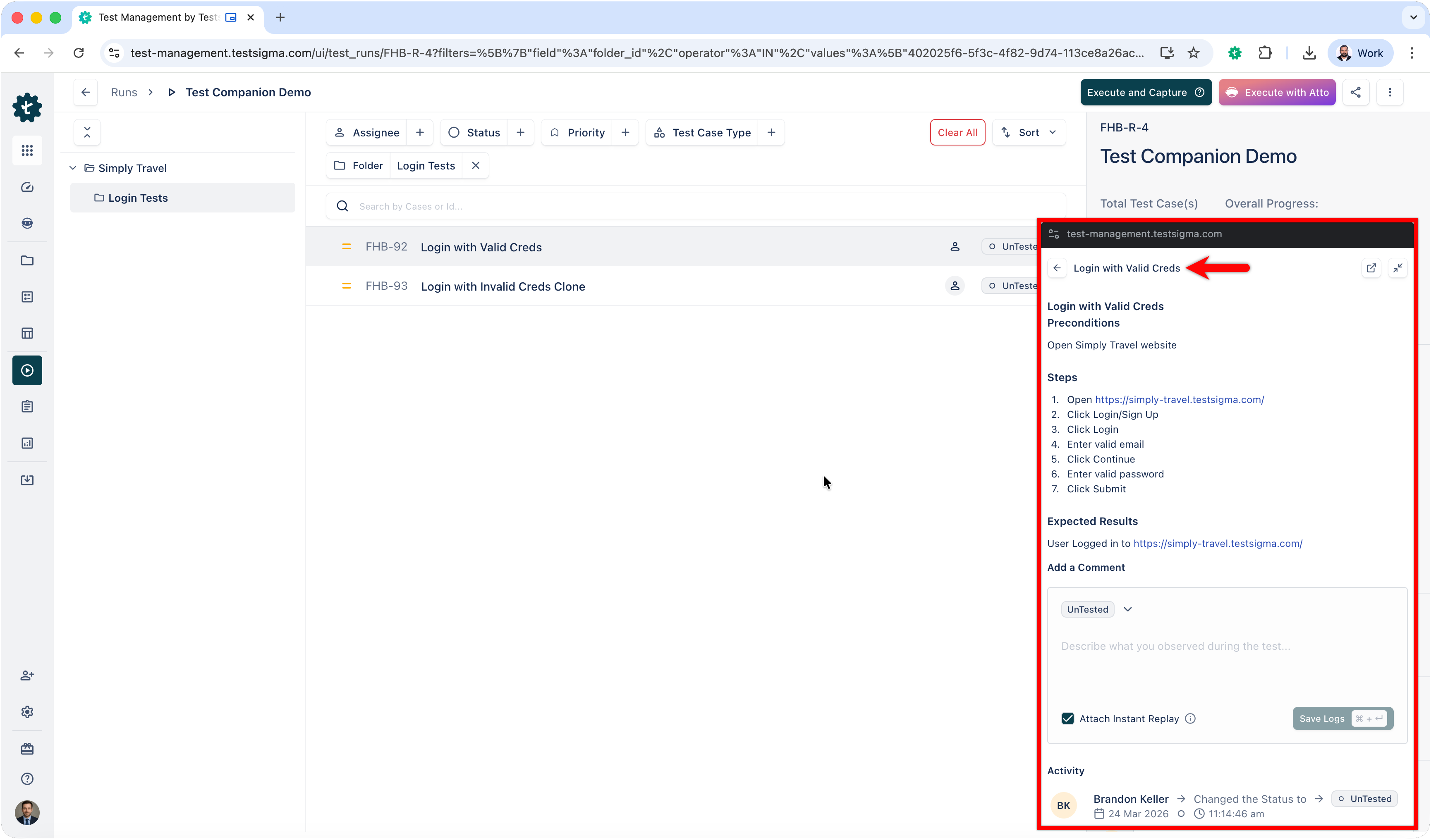
On the Test Run details page, click Execute & Capture.
-
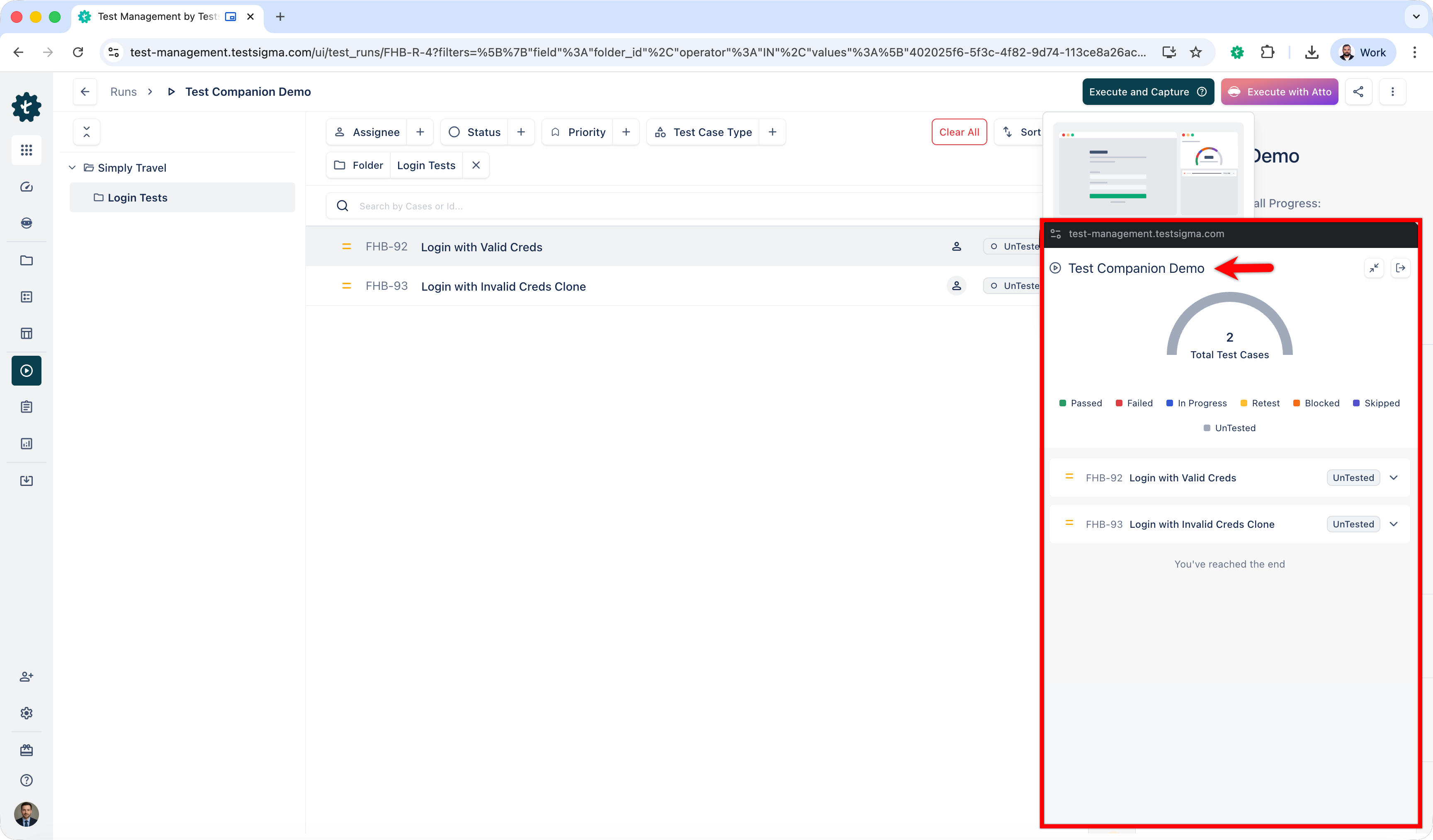
The Test Capture panel opens with the test run details along with test cases.
-
Open a test case and start manual execution.
-
When you see a bug or error:
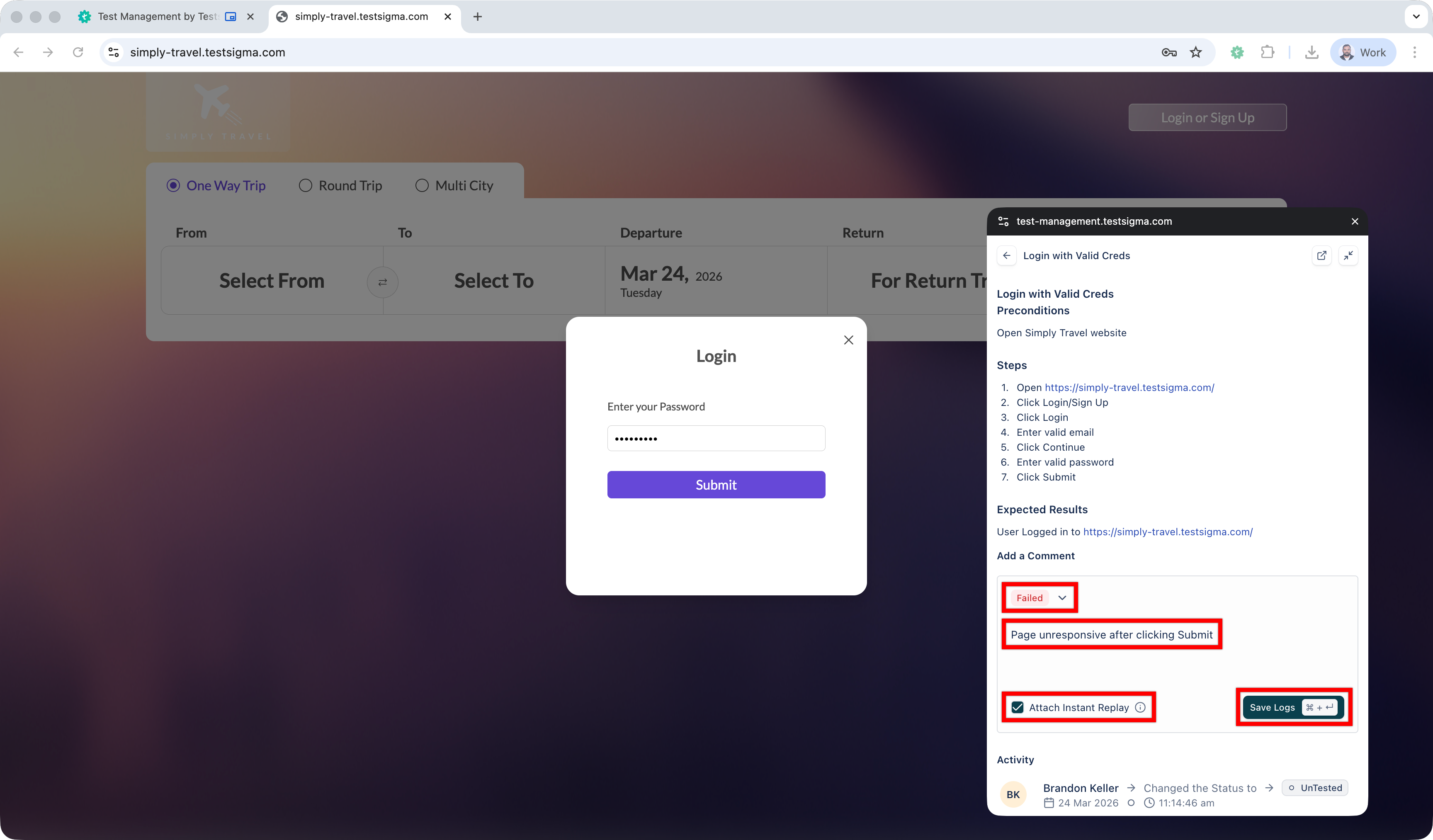
- Update the test execution status (Passed, In-Progress, Failed, Retest, Skipped or Blocked).
- Add a comment describing the observation.
- Select Attach Instant Replay to automatically attach video capture and technical logs from the last 2 minutes.
- Click Save Logs.
The log is captured and attached to the current test execution.
View Captured Logs in Test Runs
Section titled “View Captured Logs in Test Runs”-
From the left navigation bar, go to Test Runs.
-
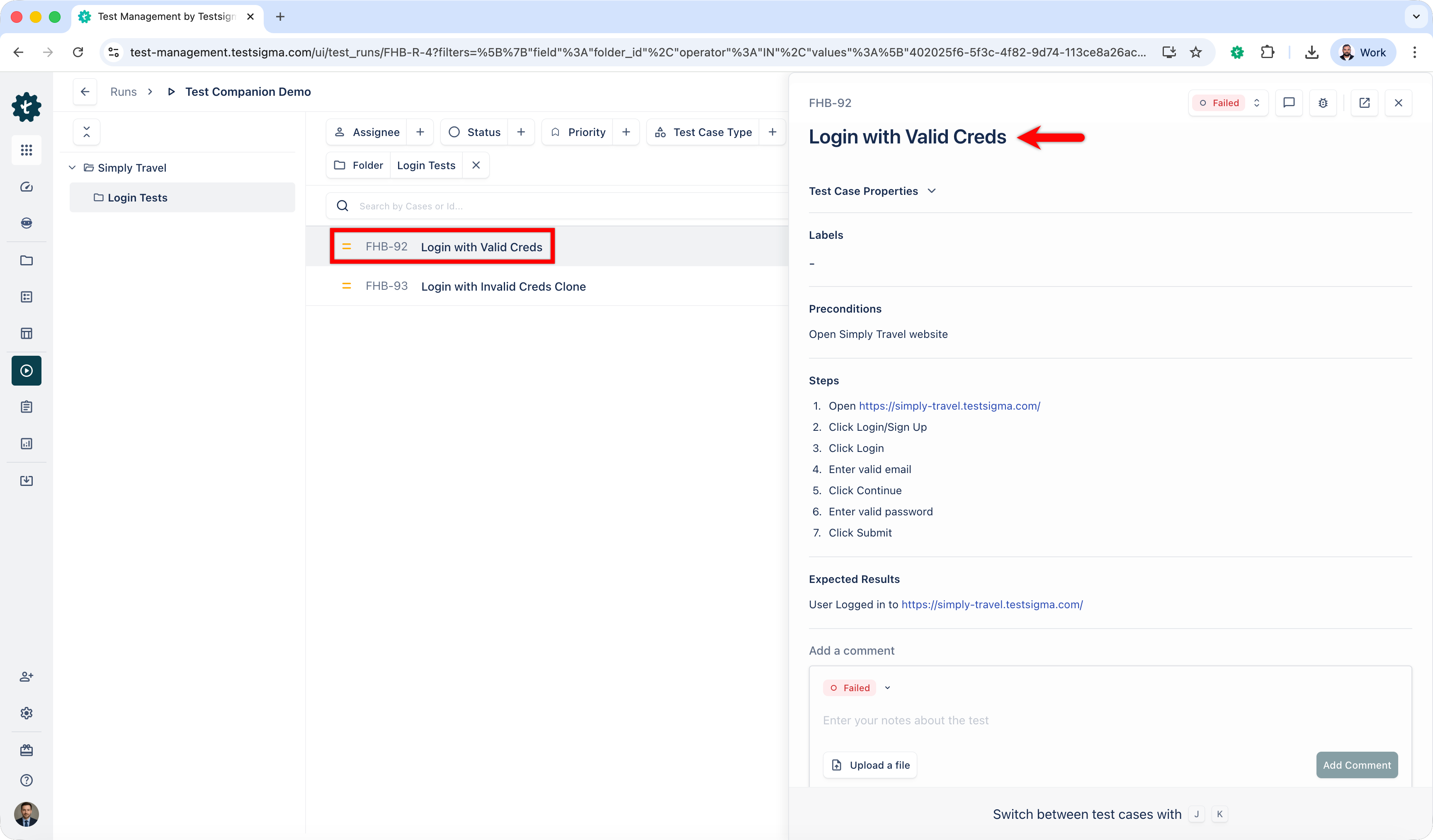
Open the test run executed using Test Capture.
-
Open the test case.
-
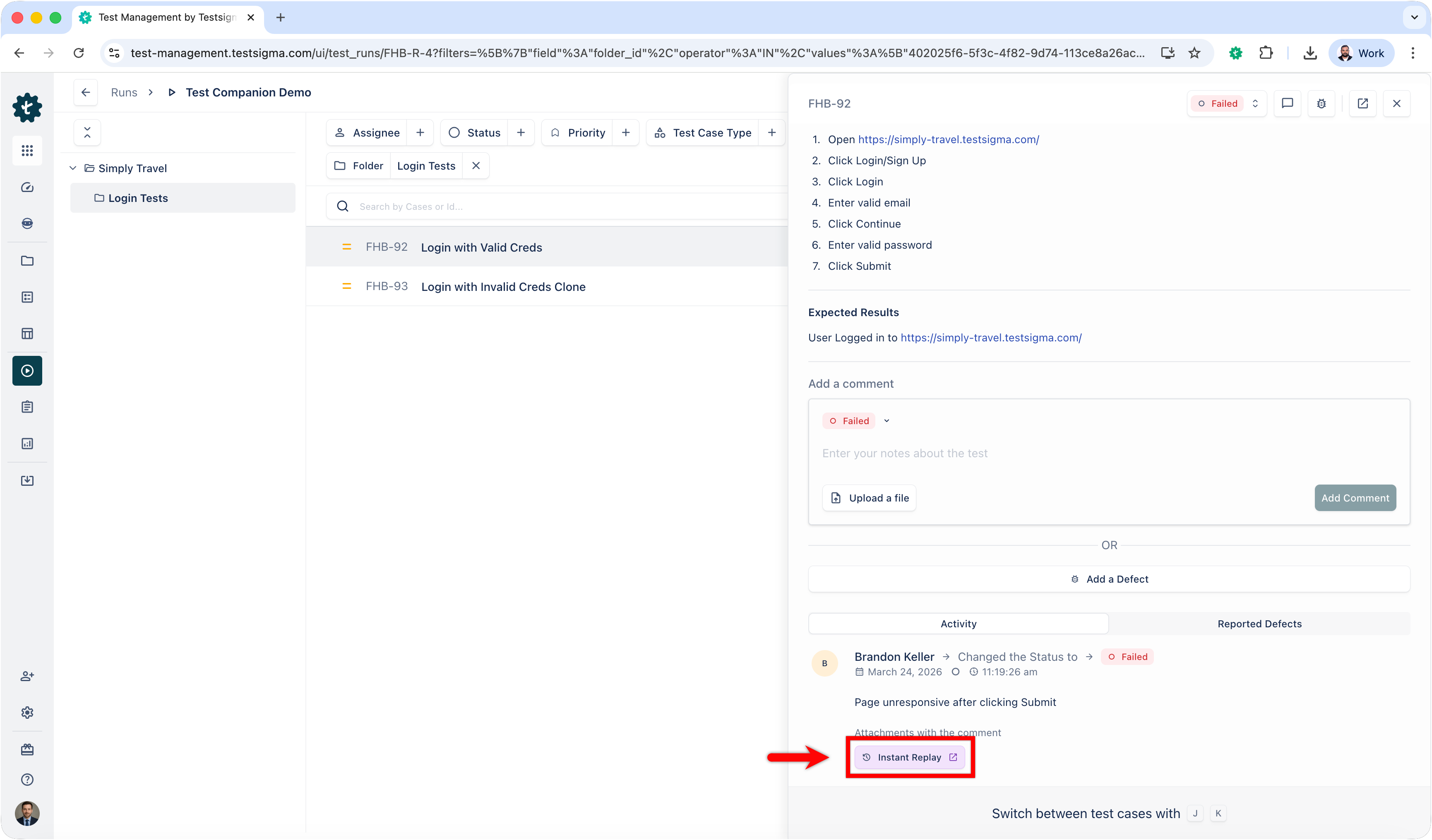
Scroll to the Activity section.
The Activity section displays for logs:
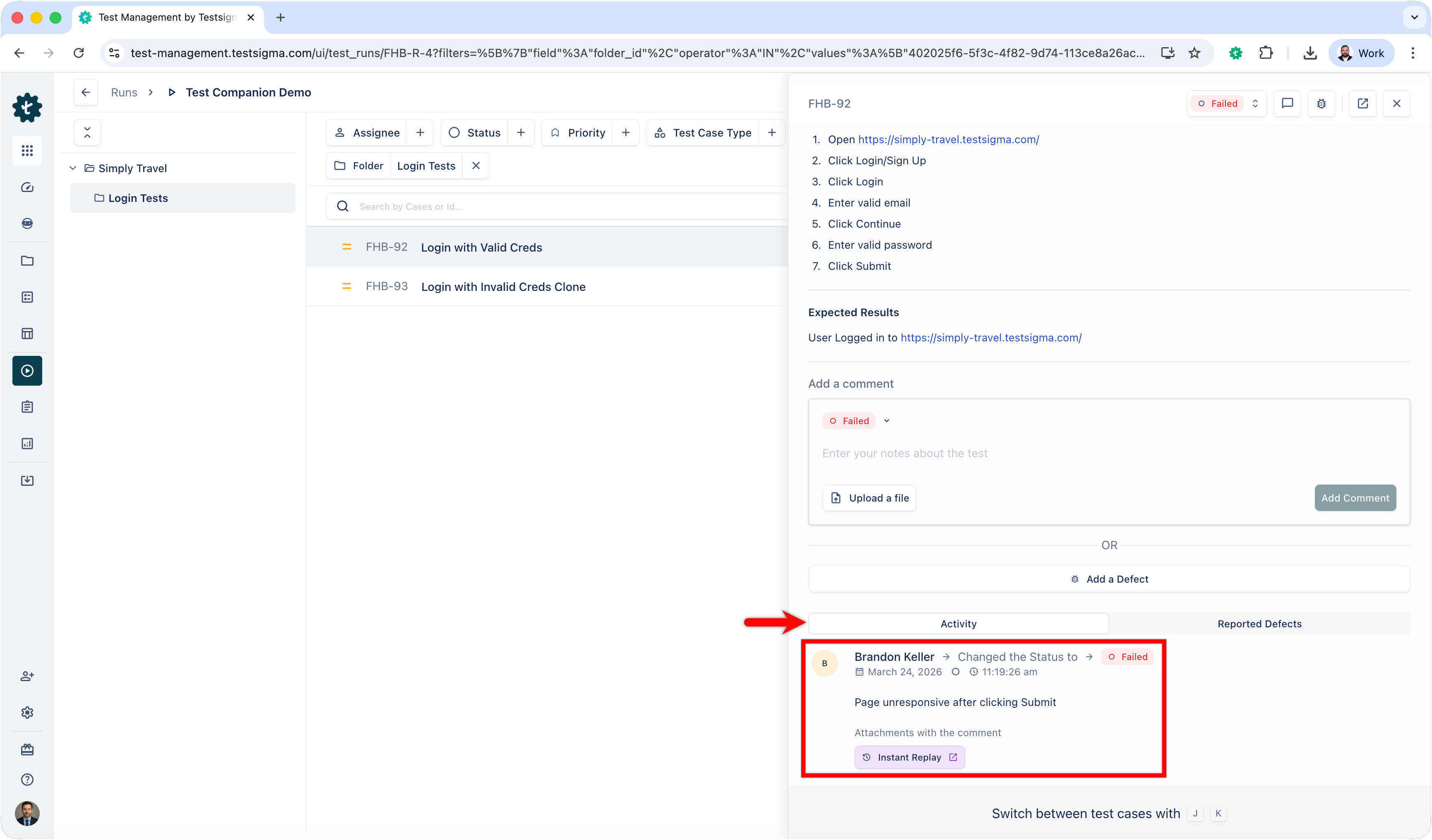
- Execution timestamps
- Status changes
- Tester comments
- Attached log
-
Click Instant Replay.
-
This will open a new displaying the detailed evidence, including:
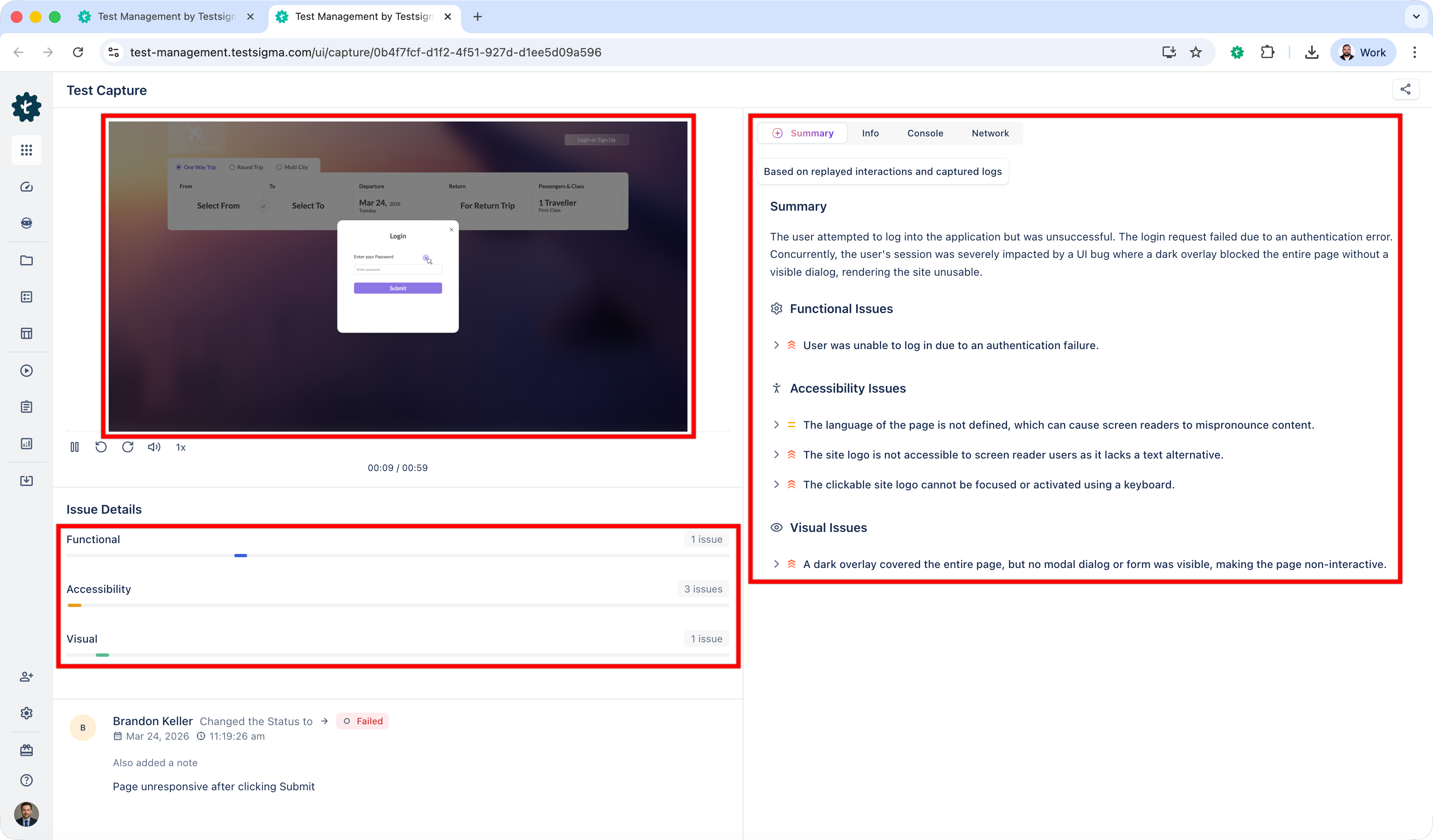
- Visual replay of the execution
- Execution information
- Console logs
- Network logs
- AI Summary
Capture Logs from a Directly Website
Section titled “Capture Logs from a Directly Website”-
Open the website you want to test.
-
Perform testing actions on the website.
-
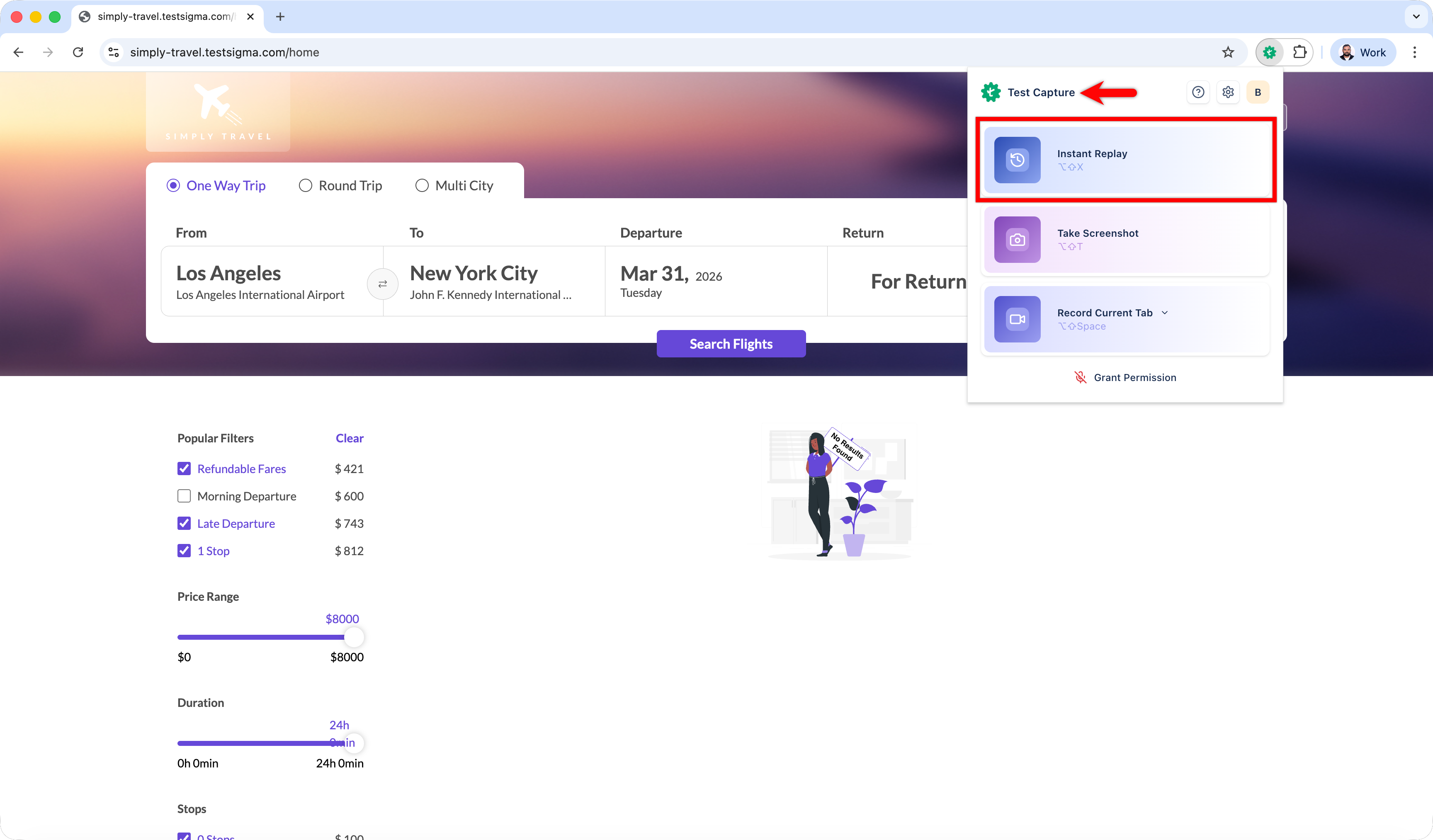
When you see an issue/bug, click Extensions and select Test Capture.
-
Select Instant Reply. This will open a new tab.
-
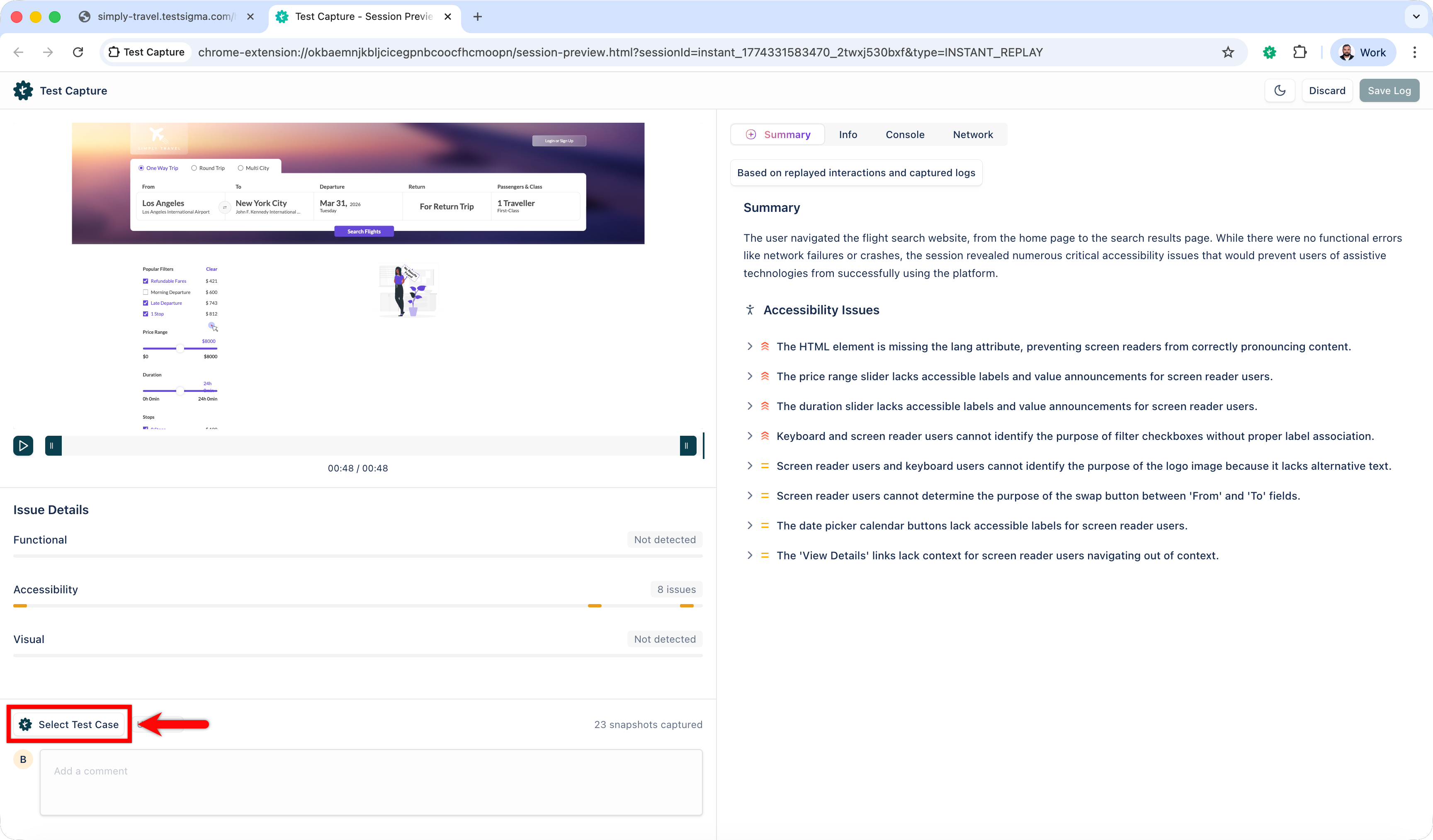
Click Select Test Case.
-
In the Link to Test Management System dialog:
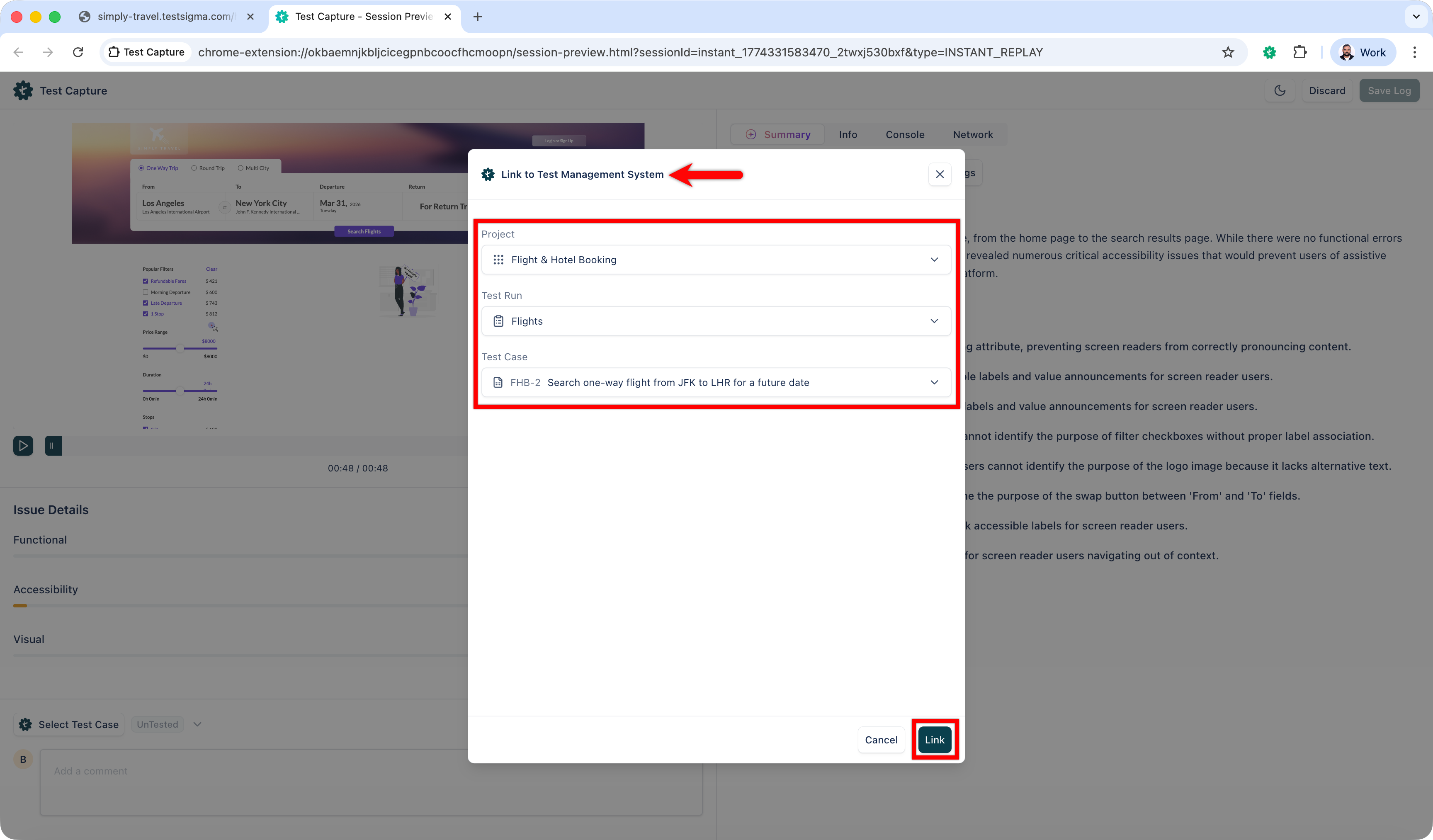
- Select a project, test run, and test case.
- Click Link.
-
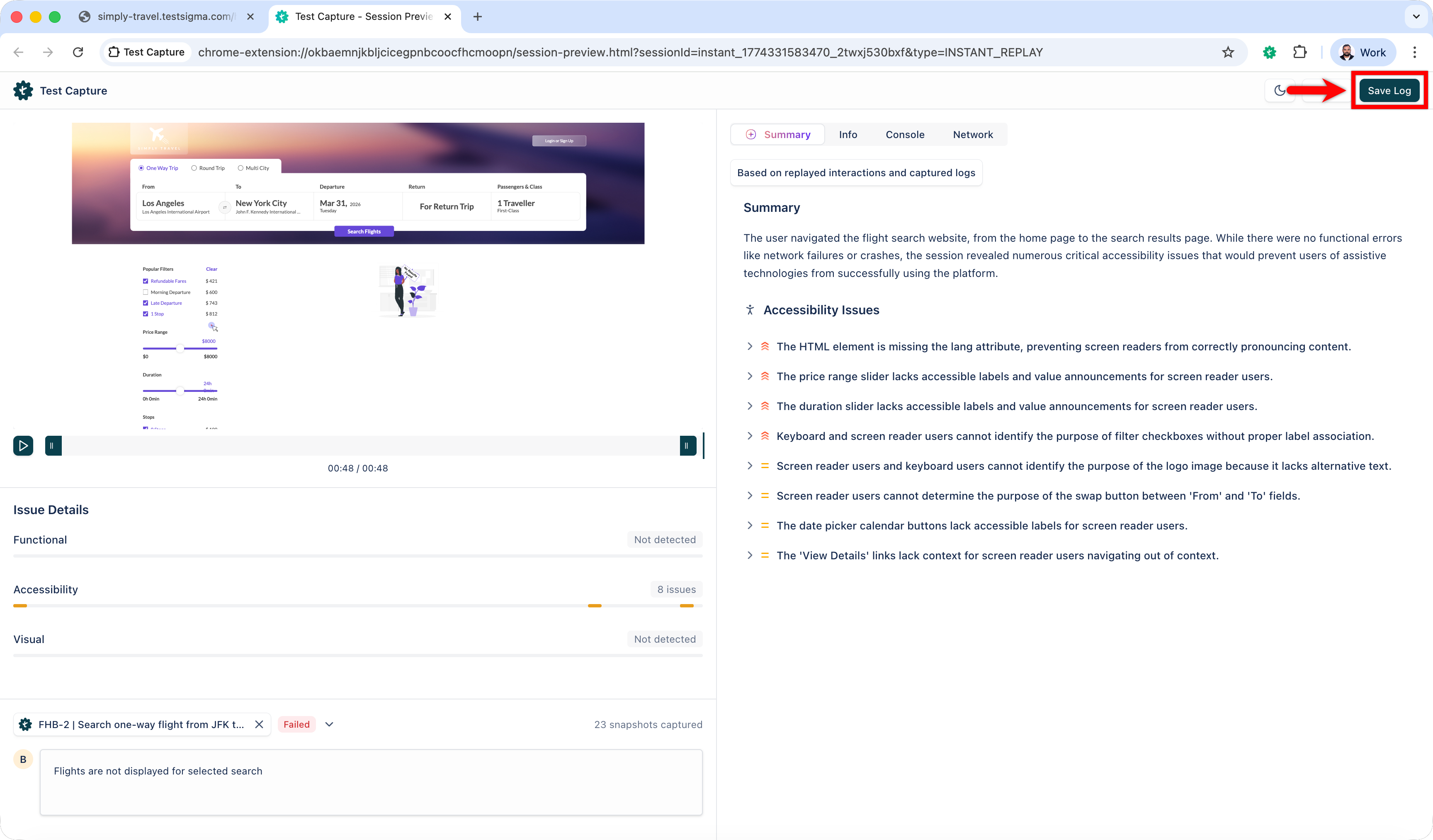
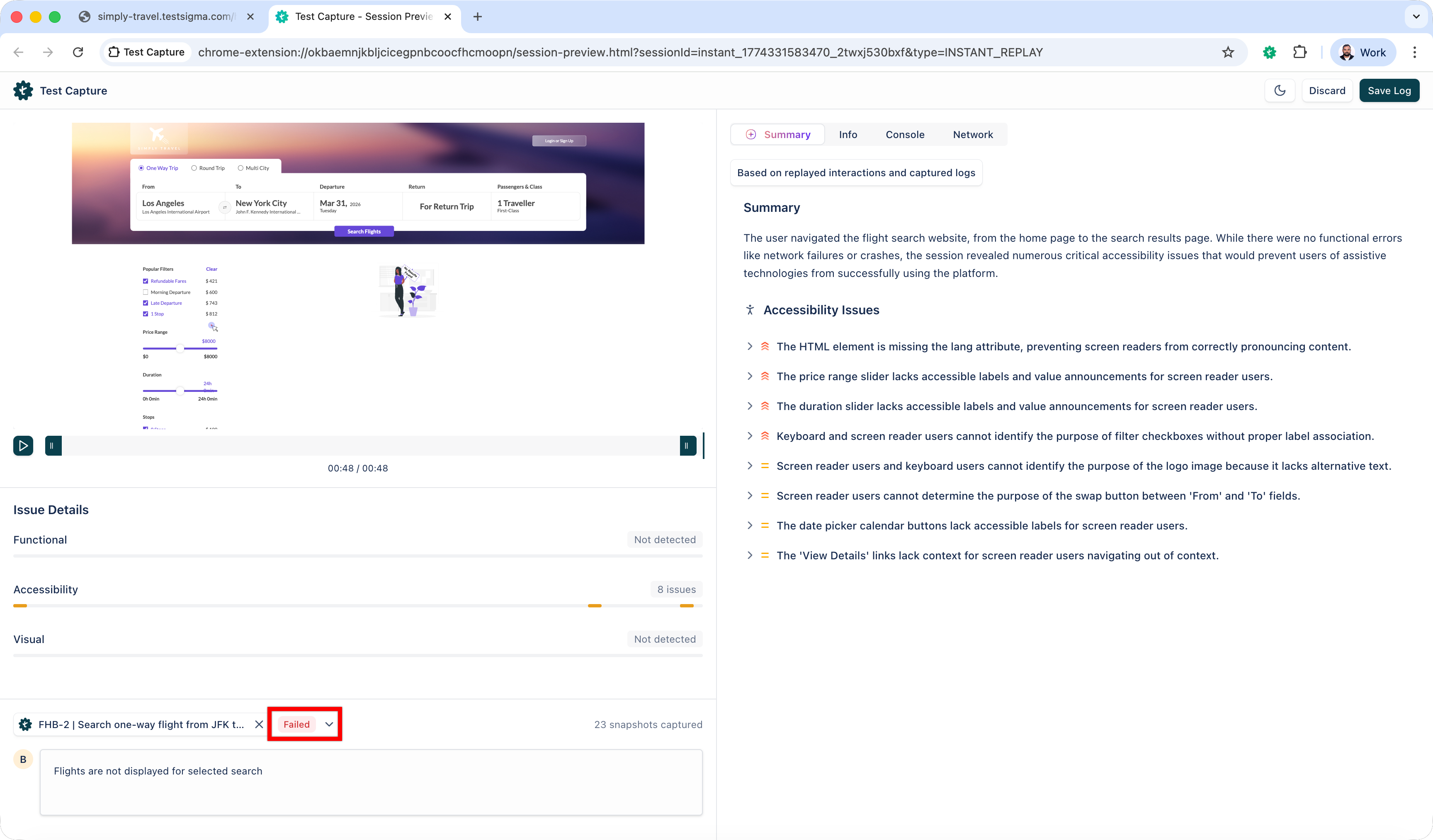
Update the execution status (Passed, In Progress, Failed, Retest, Skipped, Blocked).
-
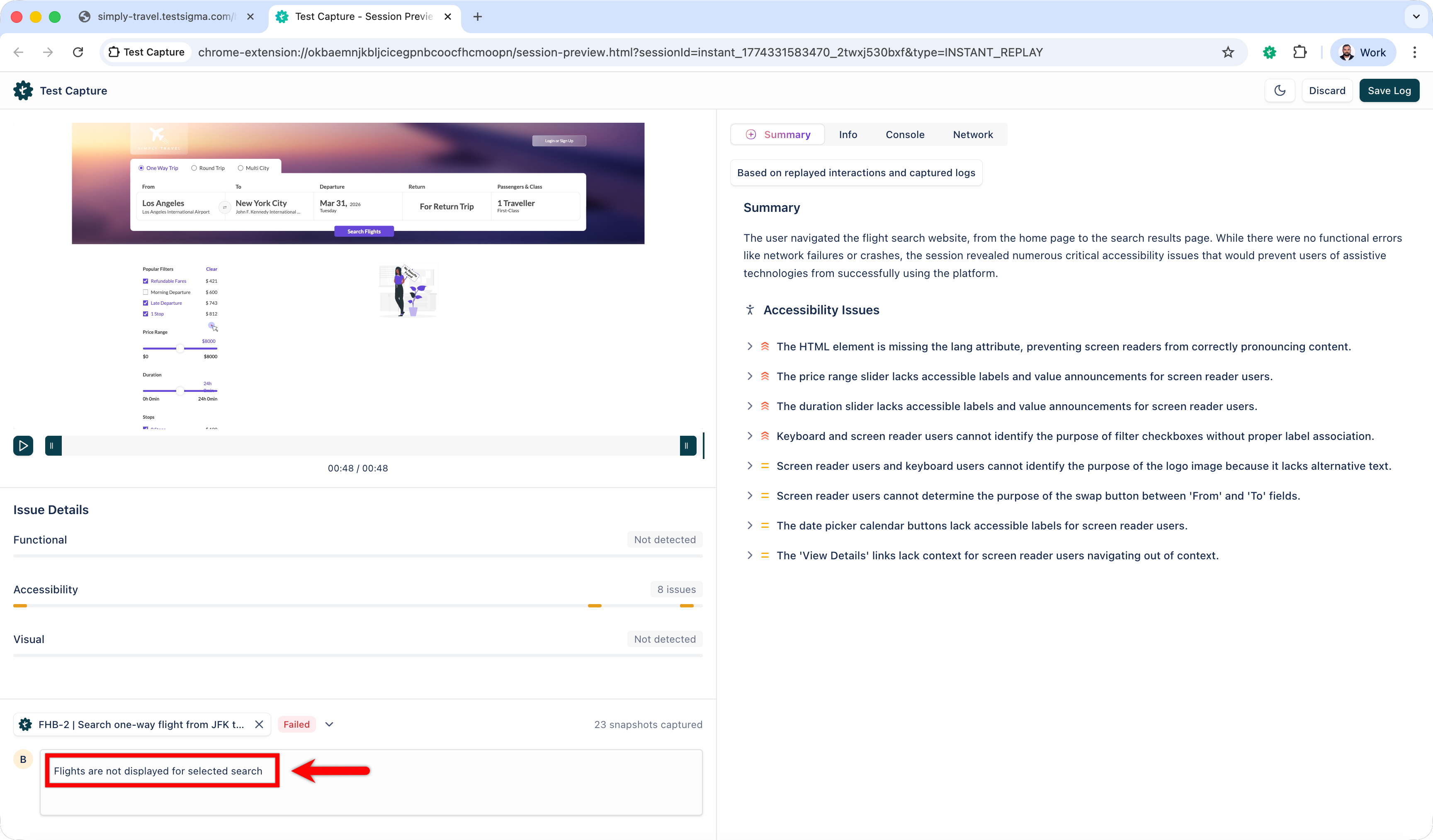
Add a Comment describing the observation.
-
Click Save Log.