
Integrations
Manage Test Runs in Jira App
Learn how to manage test runs and update test case status directly within Jira using Test Management by Testsigma.
The Test Management by Testsigma app simplifies your workflow by allowing you to manage test runs and test case results directly within Jira. You can update test results, add or link defects, and manage linked test cases from within the Jira issue view.
Prerequisites
- Before you begin, ensure that your Testsigma project is connected to a Jira project in Test Management by Testsigma.
View Linked Test Runs from Testsigma
Section titled “View Linked Test Runs from Testsigma”-
Open the Jira issue in a linked Jira project.
-
Click Jira App Actions, and then select Test Management by Testsigma.
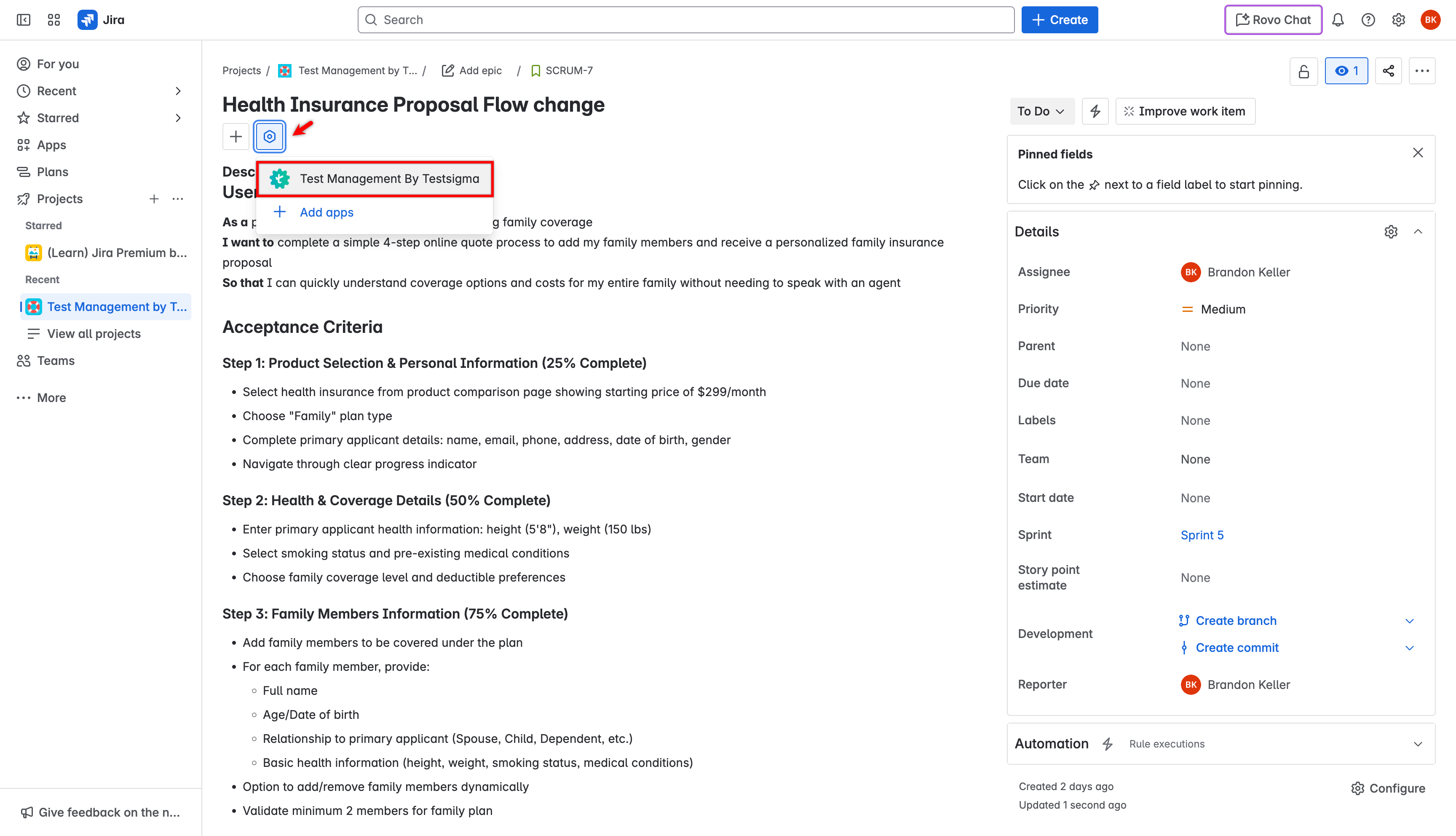
Update Test Case Results from Jira
Section titled “Update Test Case Results from Jira”-
In the Jira issue, go to Test Management by Testsigma > Linked Test Runs.
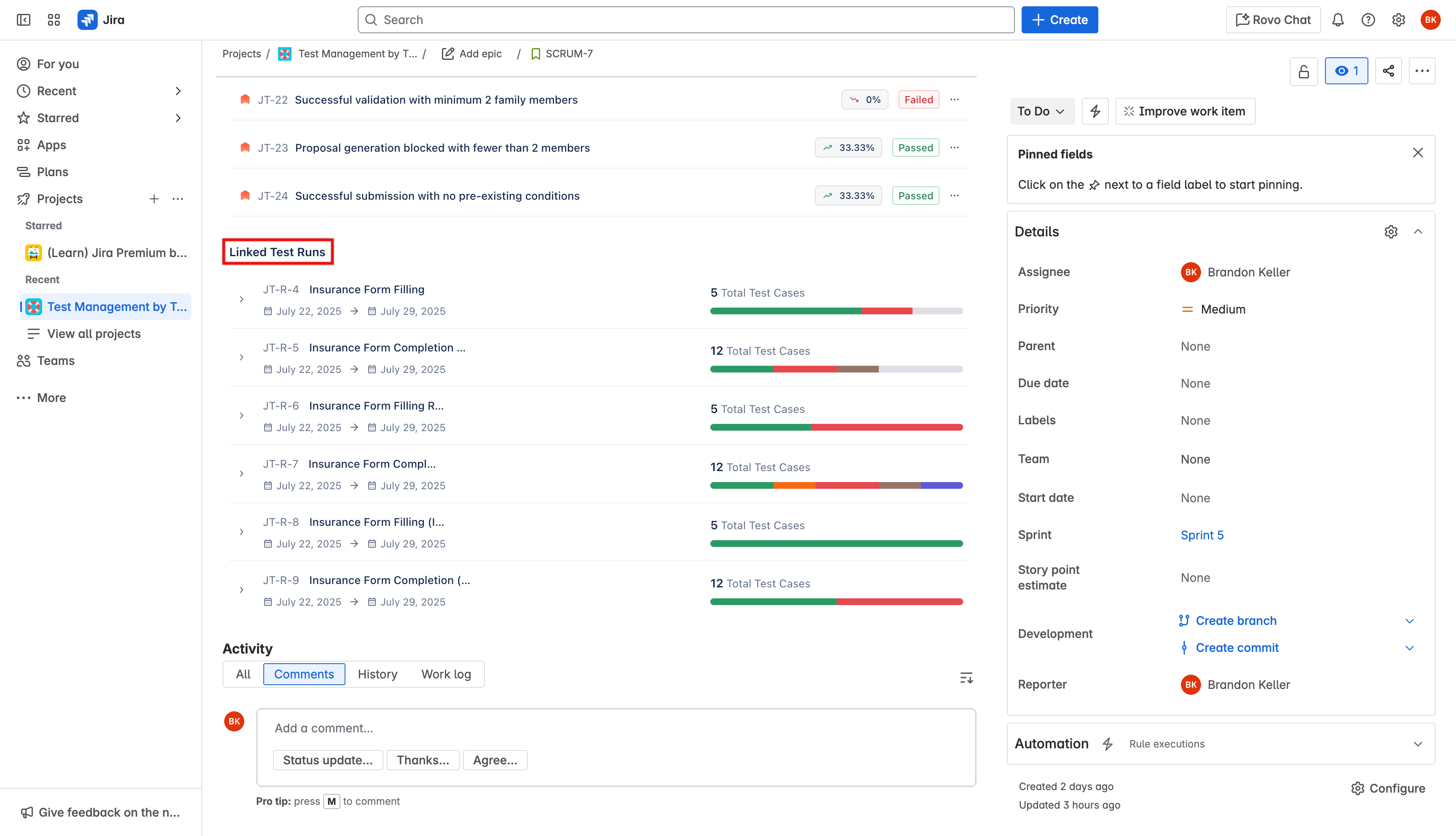
-
Expand the test run.
-
Click the Status next to the test case, and choose the appropriate result from the dropdown.
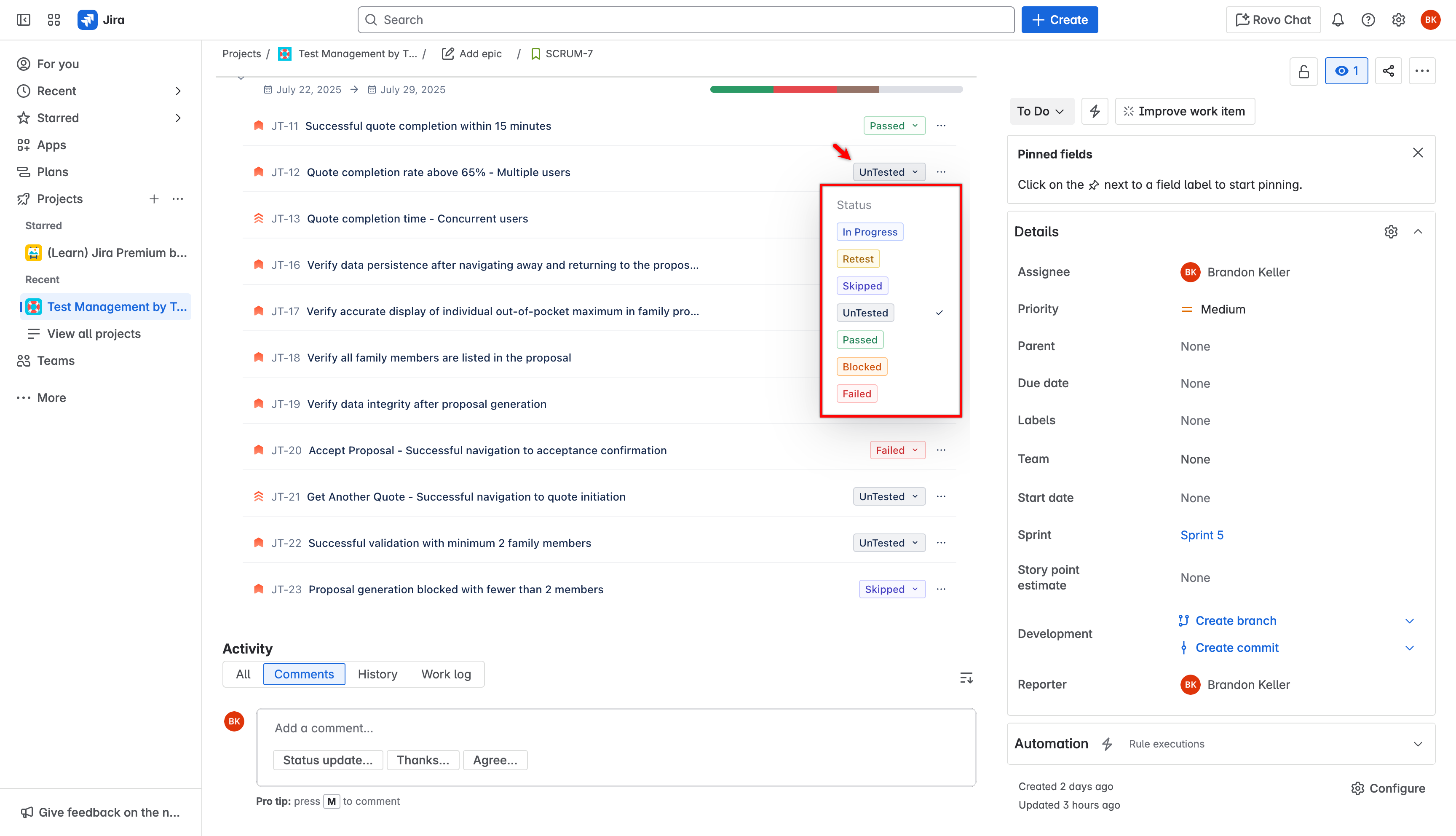
-
Refresh the page to view the updated status in Linked Test Cases.
Add Defects from the Jira App
Section titled “Add Defects from the Jira App”-
In the Jira issue, go to Test Management by Testsigma > Linked Test Runs.
-
Expand the test run.
-
Click the meatballs menu (⋯) next to the test case, and click Add defect.
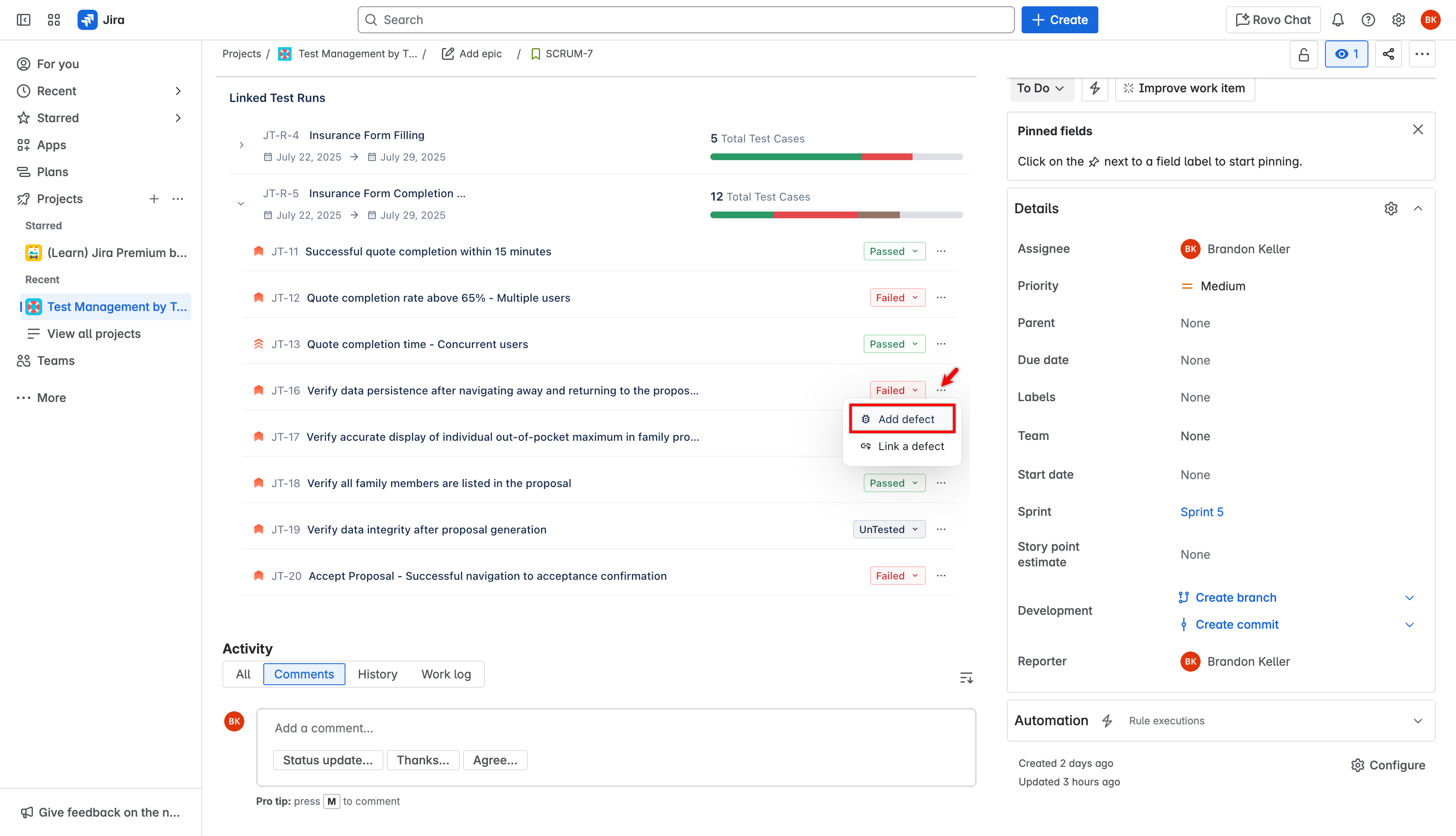
-
In the Add Defect dialog, the Issue Type, Summary, Description, and Status are automatically filled in by the Atto AI agent. If needed, edit the fields and click Add.
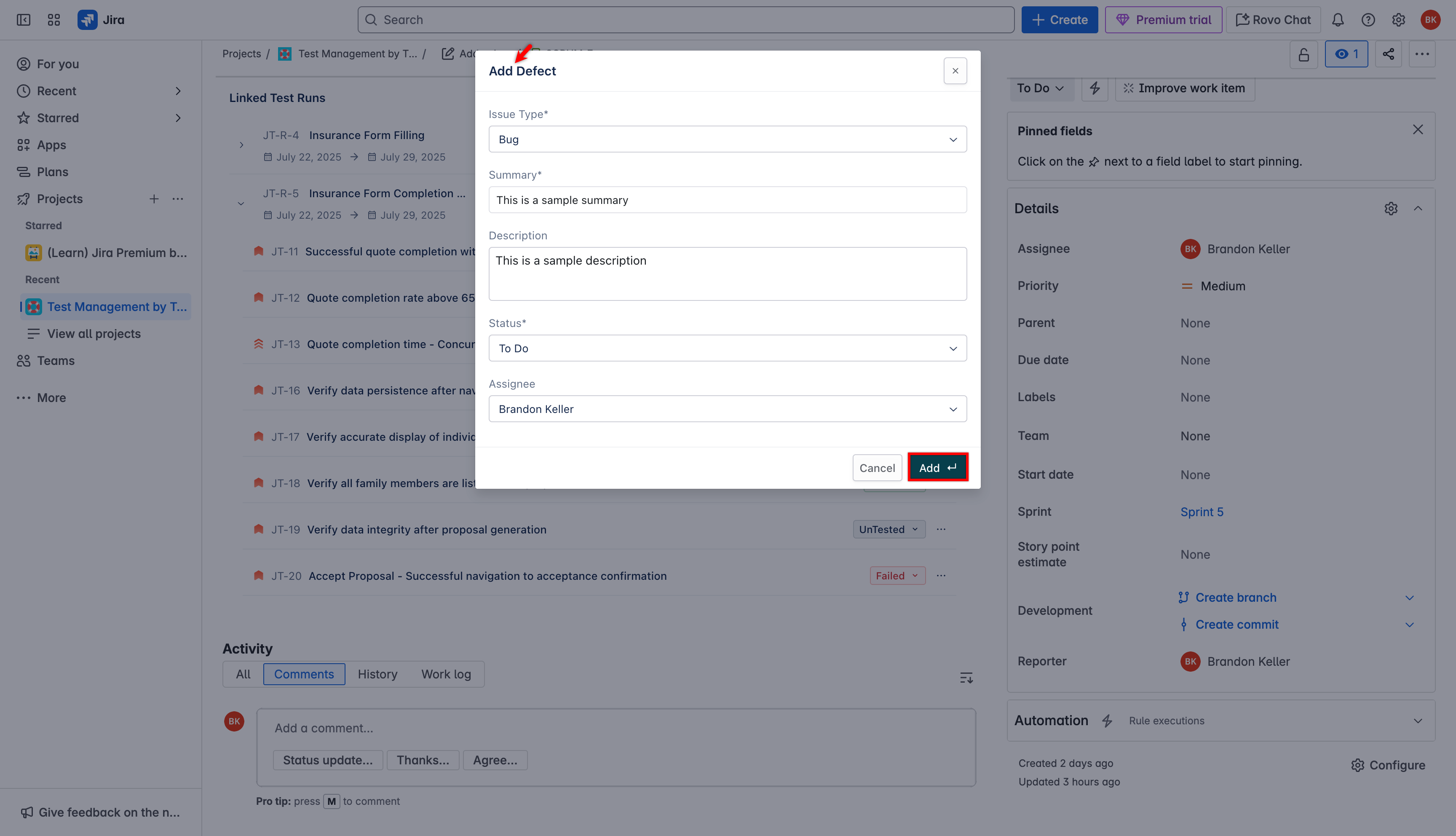
-
The defect is created and added to Jira.
Link Defects to Existing Issues
Section titled “Link Defects to Existing Issues”-
In the Jira issue, go to Test Management by Testsigma > Linked Test Runs.
-
Expand the test run.
-
Select the meatballs menu (⋯) next to the test case, and click Link a defect.
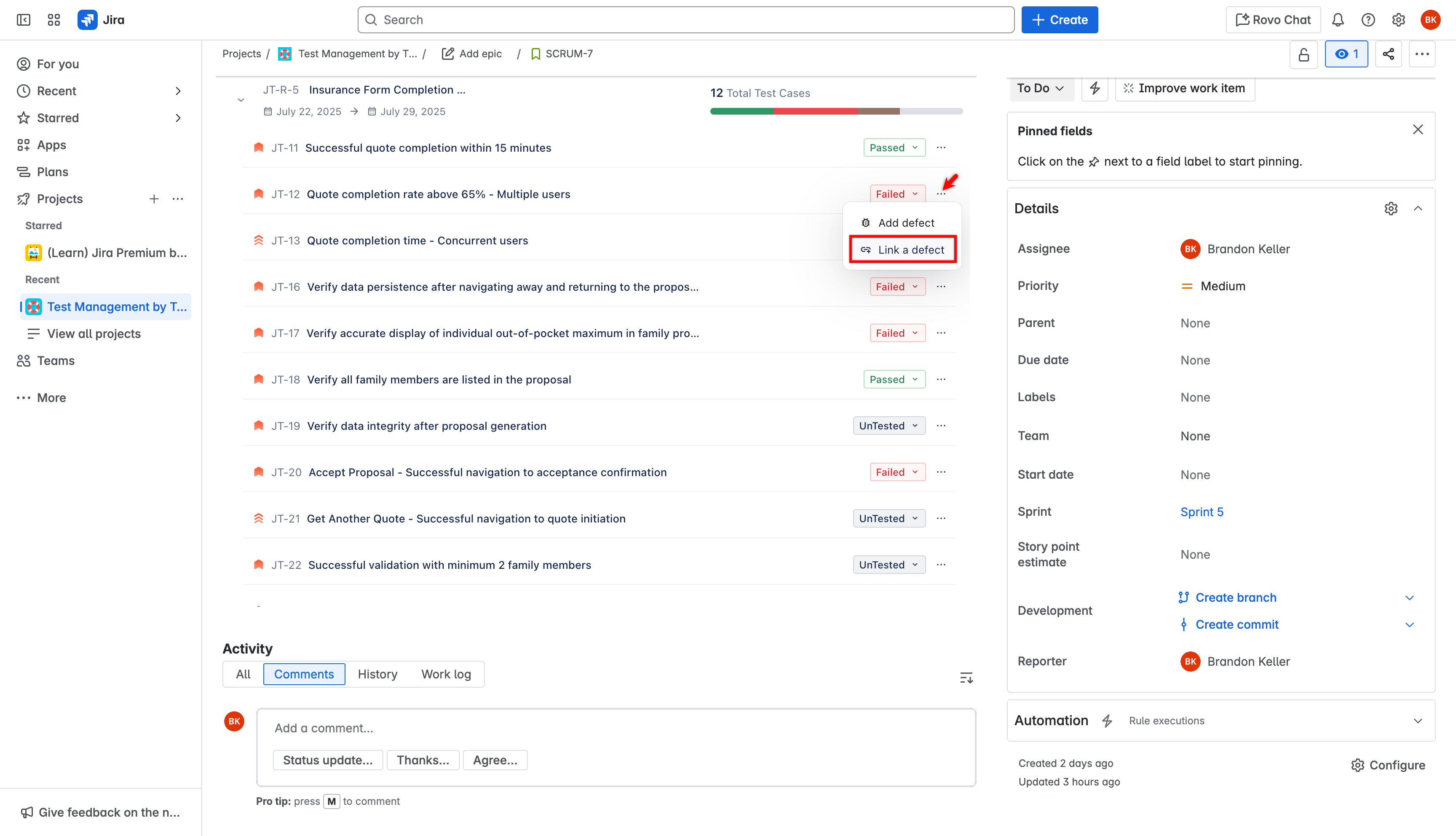
-
In the Link a Defect dialog, select the existing issue to link from the Bug/Defect dropdown.
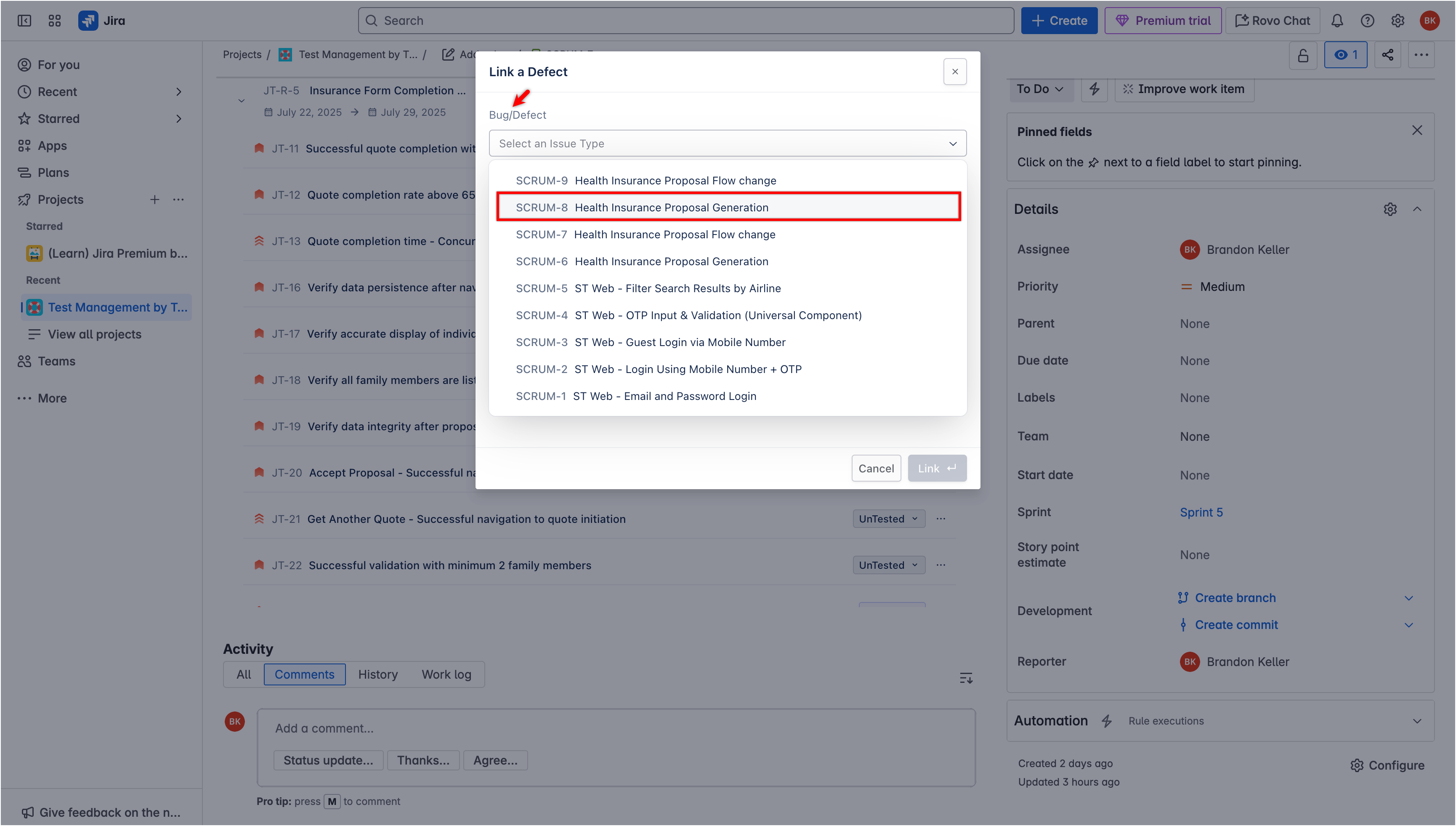
-
Click Link.
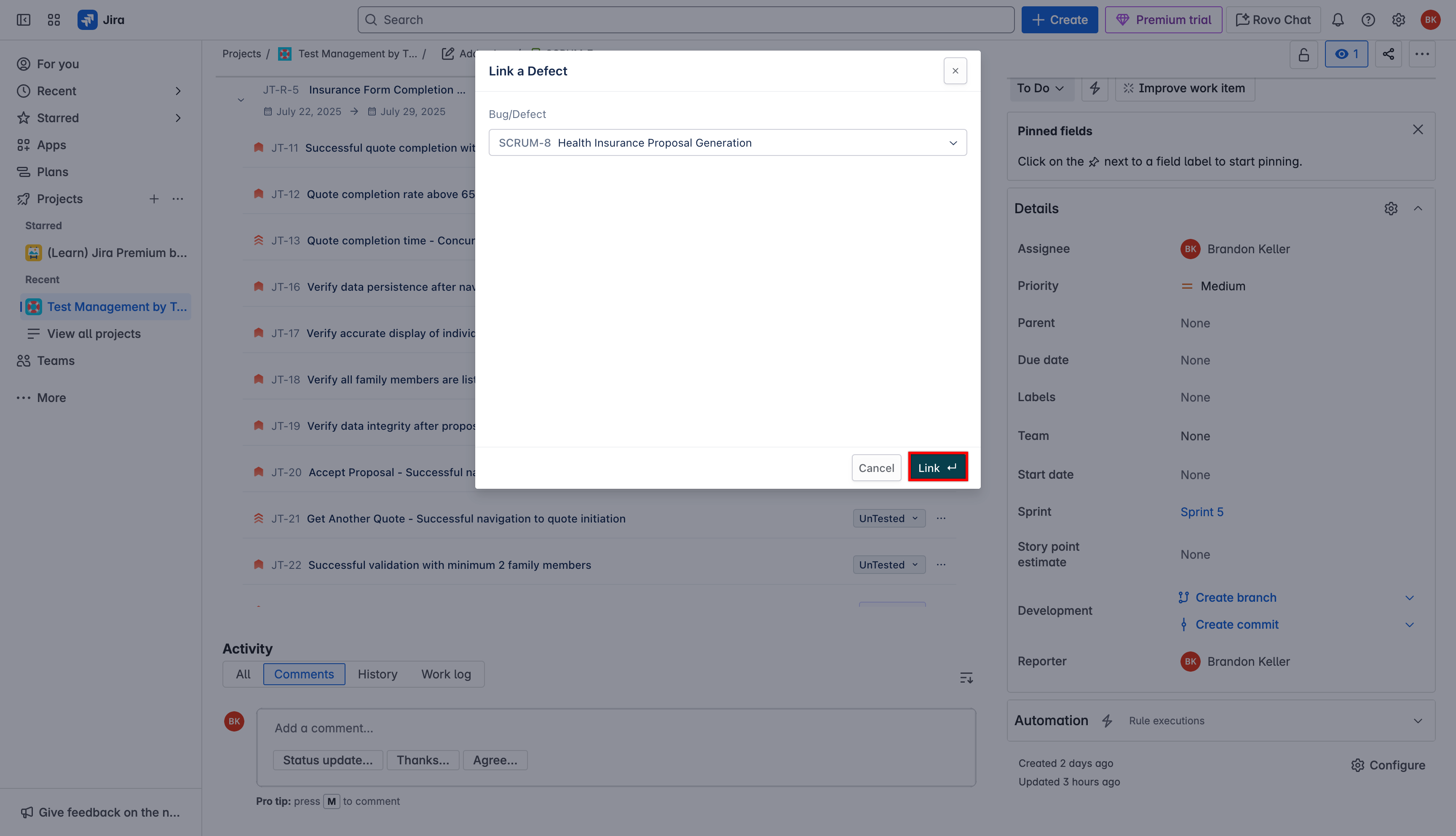
-
The defect is linked to the selected issue.